Compliance
All modules
Responding to a request: identity, data found, erasure, and reply letter
Compliance · 10 of 14 · 5 min read
Each data subject request is managed from its own page. Here you verify who is submitting it, search their data across modules, export or erase it, and close the request with a reply letter.
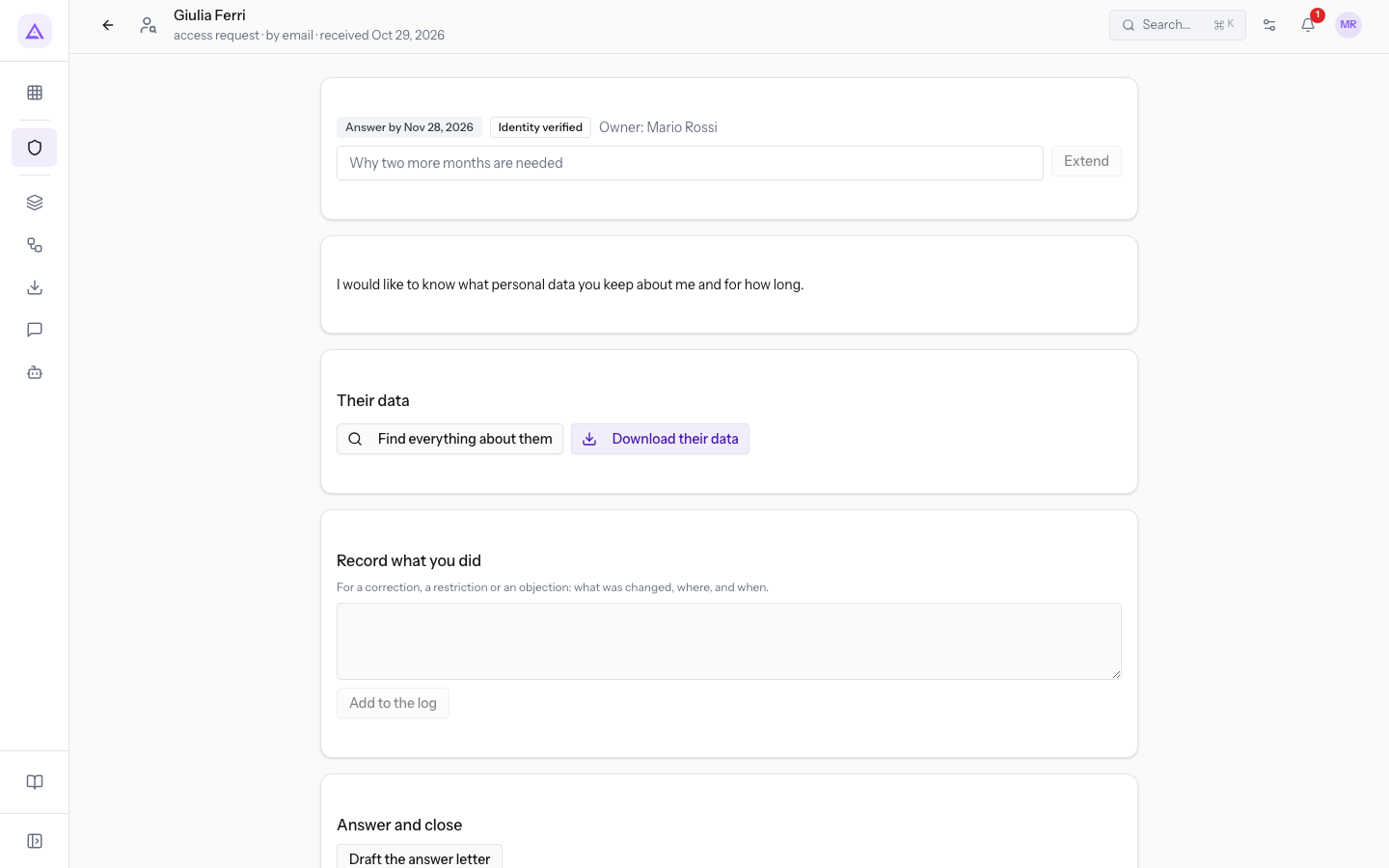
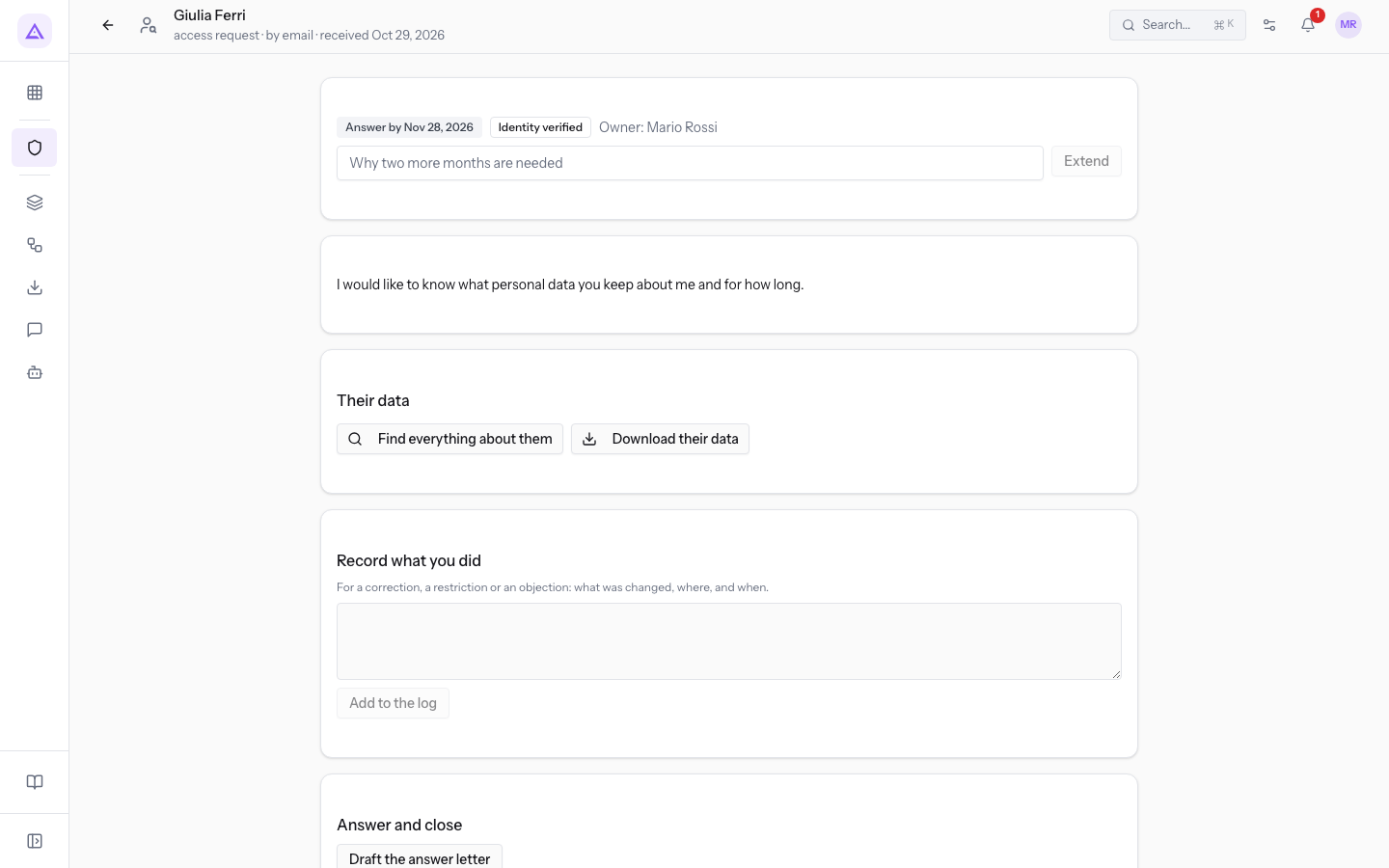
To open the page, go to Data requests and click the person's name in the list. The title shows their name. Below the title you find the request type, the channel, and the arrival date, for example «Richiesta di accesso · canale: e-mail · ricevuta il 29 ott 2026» for Giulia Ferri.
The page sections follow the order of the work: first identity verification, then searching for data, acting on it, and finally the letter. The section with the text written by the person appears just below the deadline.
Check the deadline and extend it
The first section shows when you need to respond by and who is following the request.
- Deadline: «Rispondere entro il …» for an open request within the time limit, «Scaduta dal …» if the deadline has passed (in red), «Chiusa il …» for a closed request. For Giulia Ferri it is «Rispondere entro il 28 nov 2026». For Marco Neri it is «Scaduta dal 25 ott 2026».
- Identity: the verification status, for example «Identità: verificata» or «Identità: da verificare».
- Responsible: who is following the request, for example Mario Rossi.
You have one month to respond. If you need more time, you can extend the deadline by two months by providing a reason. The extension can only be requested once and only while the request is still open. After the extension the section shows the reason and the field no longer appears.
- Enter the reason in Why two more months are needed.
- Click Extend. The button remains disabled as long as the reason is empty.
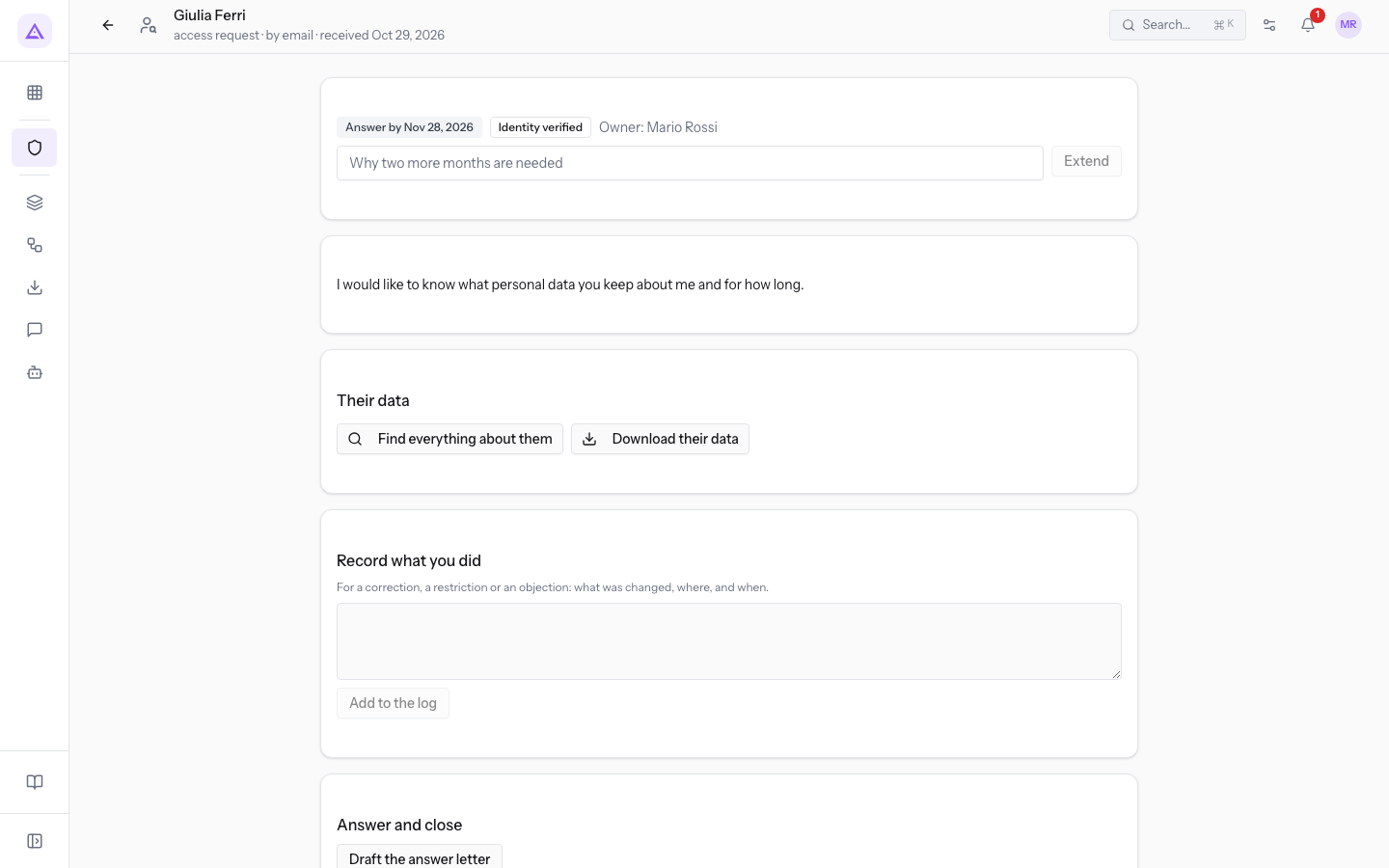
- Why two more months are needed: the reason for the extension. It must be filled in to extend.
Verify identity
The First: is this really them? section appears on open requests with identity to be verified. Until you record how you verified the identity, you cannot search, export, or erase anything about the person. Verification prevents delivering or erasing a person's data at someone else's request.
Choose the outcome based on what you were able to check:
- If the person confirmed from a contact address you already have on file, choose Verified. The section with their data opens.
- If you were unable to confirm who they are, choose Could not verify. Search, export, and erasure remain unavailable.
- Open a request with identity to be verified, for example Elena Bianchi's.
- Enter in How you checked (e.g. replied from the address on file) how you verified the identity.
- Click Verified or Could not verify.
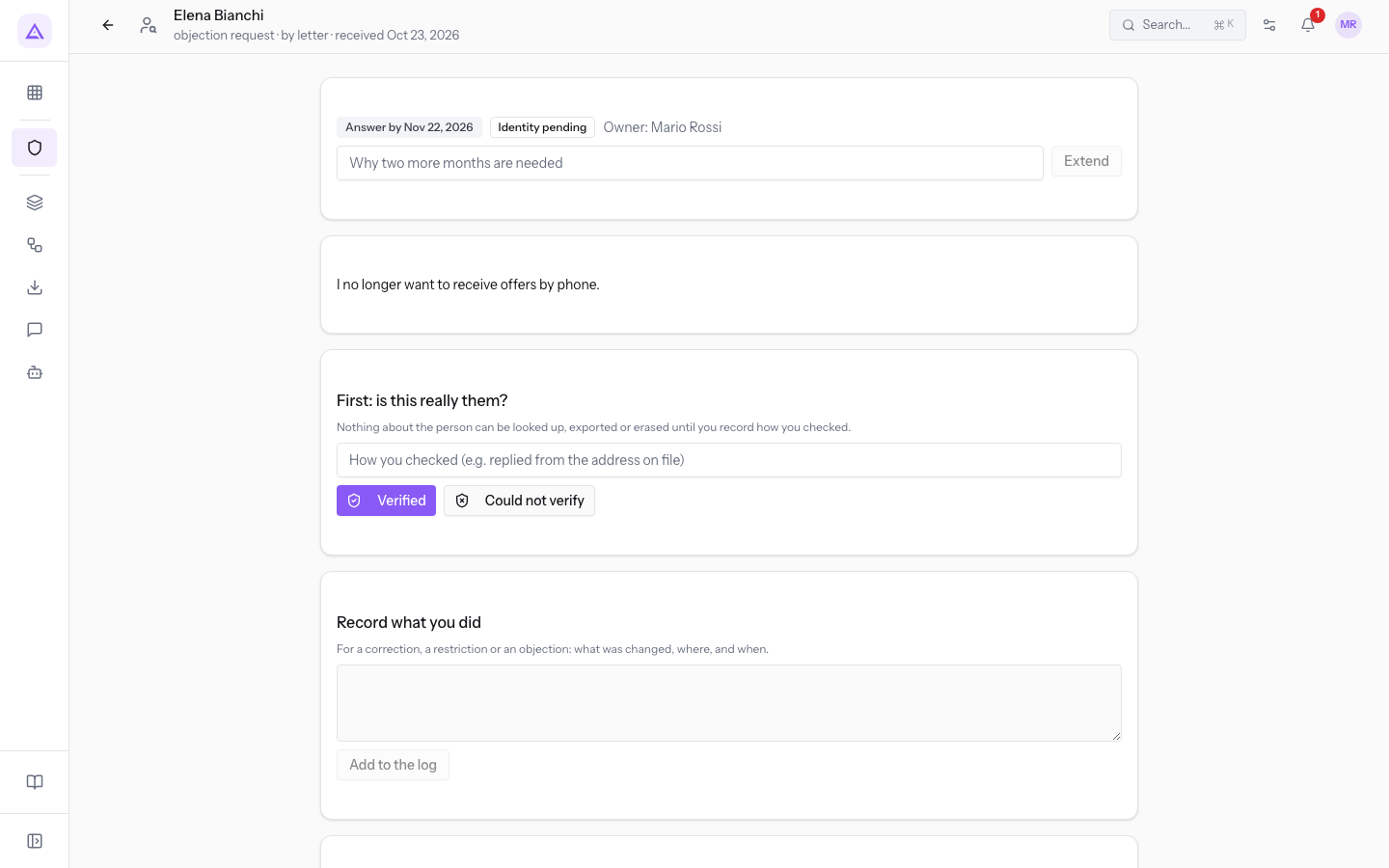
- How you checked (e.g. replied from the address on file): the way you verified the identity. The text stays with the request.
Search for the person's data
When the identity is verified, the page shows the section with the person's data. The search looks across all active modules.
- Click Find everything about them.
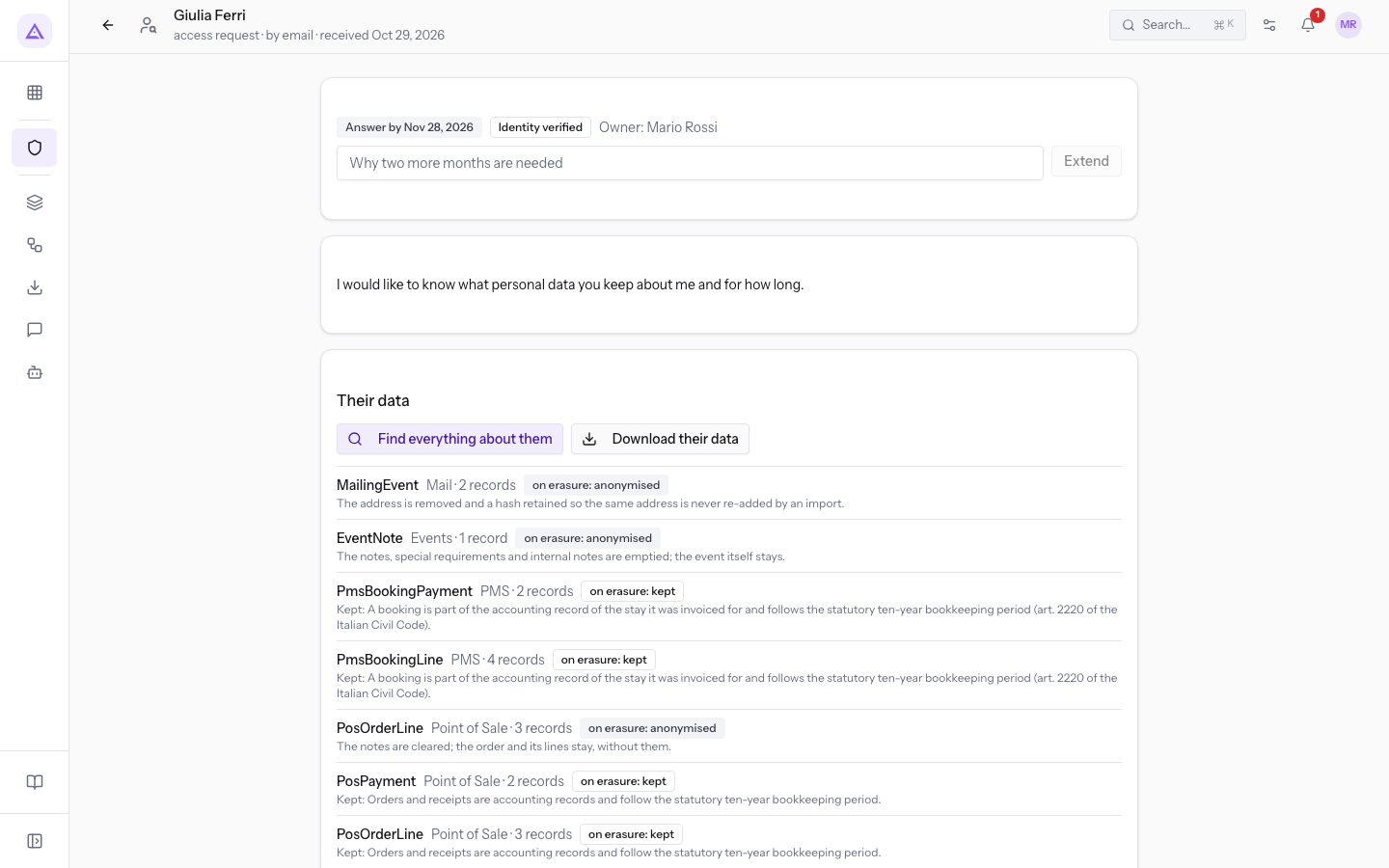
For each type of data found, the result shows:
- the name of the data and the module that contains it;
- the number of records found;
- what would happen with an erasure, in the «alla cancellazione: …» badge. Data can be erased, anonymised, or retained.
- the reason, below the row. For retained data it is the obligation that keeps it.
If the person does not appear in any module, the result says that nothing was found.
Export the data
In access and portability requests, the person asks to receive their own data. To export it, click Download their data in the data section. The button appears only when the identity is verified.
Erase the data
The Erase button appears only on open erasure requests with verified identity.
Erasure is permanent. Before confirming, search for the data with Find everything about them and check what will be erased, what anonymised, and what retained.
- Click Erase. The confirmation Erase this person's data? opens.
- Read the confirmation text and click Erase to proceed.
Important: data is permanently erased or anonymised and the operation cannot be undone. Data that the law requires you to retain, such as issued invoices, remains unchanged and the log records the reason.
Record what you did
The Record what you did section appears on all open requests. The page has its own actions only for searching, exporting, and erasing. For rectification, restriction, and objection, the action is taken in the modules: here you write what you did, so it stays in the request history.
- Write in the text field what you did, for example which data you corrected and in which module.
- Click Add to the log. The button remains disabled as long as the text is empty. After adding, the field clears.
Answer and close the request
The Answer and close section prepares the reply letter and closes the request.
- Click Draft the answer letter. The page suggests a letter in a text field that you can edit.
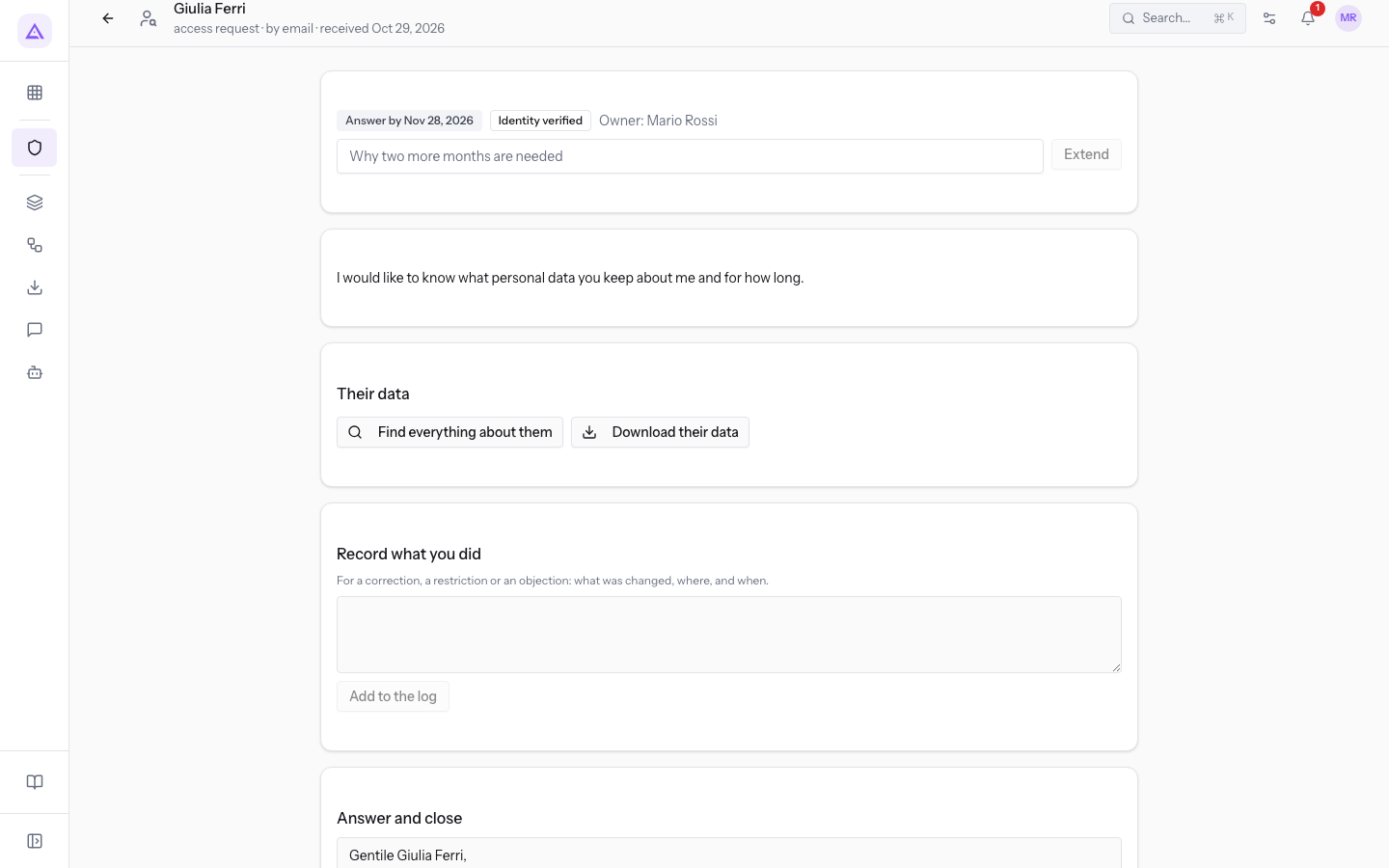
- Correct or complete the letter text.
- Click Send answer and close.
The request closes. The deadline becomes «Chiusa il …» and the extension can no longer be requested. The verification, data, and log sections disappear. In their place The answer sent appears, with the letter text.
Important: after closing you can no longer search, export, erase, or add notes to the request. Complete these steps before sending the reply.
Request history
At the bottom of the page there is the request history. Each recorded step appears with the date and time, the name of who performed it (or the system, for automatic steps) and a summary. The history remains visible even after closing.
See it on your company, not on a slide deck.
In 30 minutes we map the software you use today.We show you how much work and how much margin Archimedes gives back.
Show me on my business →What industry are you in?
One tap — it lets us prepare the demo around your world.
What tools do you use today?
Pick the ones you recognise — or just type them. It helps us show you how they migrate.
Last step: your details.
We reply within one working day — and right after, if you like, you pick the demo slot yourself.
We couldn't send your request. Try again, or write to us at [email protected].
By sending, you agree to your data being processed so we can get back to you about the demo. Privacy notice.
Preview form — nothing is sent from this page.
Want to schedule the demo now?
Your call: book the slot you prefer yourself, or we'll call you to arrange it.
Live availability, 30 minutes, instant confirmation. The calendar opens in a new tab.
Lock in your slot ↗We'll get back to you within one working day — and we'll join the call already knowing your world.
The calendar is open in another tab: pick a slot and the demo is booked. Can't see it? Reopen it ↗
Preview page: nothing was sent.
Our calendar is live: take the slot that suits you and the demo is booked. 30 minutes, instant confirmation, no waiting.
Lock in your slot ↗