Compliance
All modules
Filling in the compliance profile: ATECO codes and yearly figures
Compliance · 3 of 14 · 4 min read
The compliance profile stores the company's ATECO activity codes, its yearly figures, and the EU size class derived from them. From this data, the applicability engine determines which regulations in the catalogue apply to the company.
The Compliance Profile page
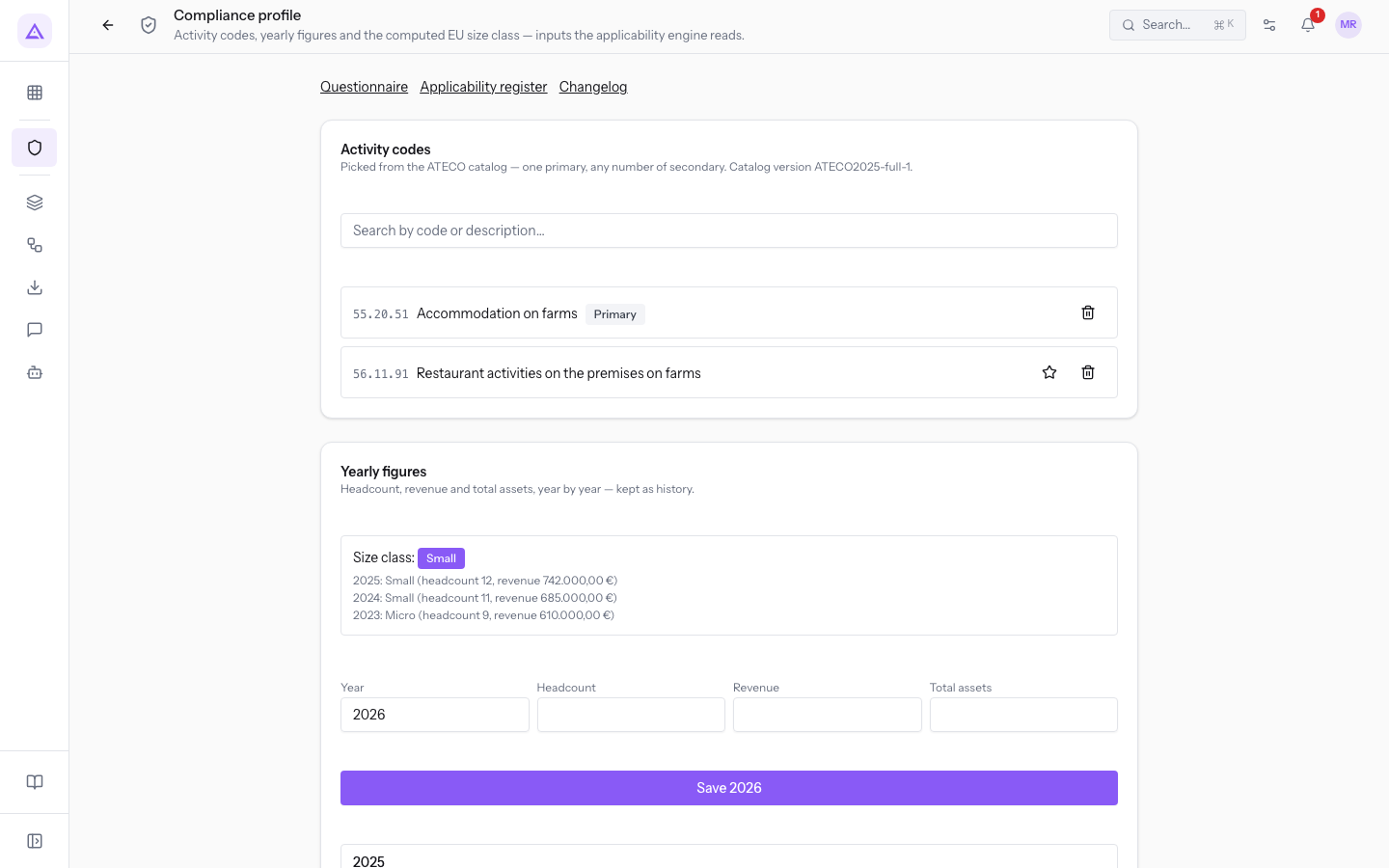
The Compliance profile page shows the data that the applicability engine reads for the company. It opens from the Compliance module overview. It has two panels: Activity codes and Yearly figures.
At the top there are links to the pages that use this data:
- Questionnaire: the questions about what the company does, which complete the profile.
- Applicability register: the regulations that apply to the company, calculated from the profile and the questionnaire answers.
- Changelog: the changes to the regulations catalogue that affect the company.
Why codes and data change the register
The compliance register is not filled in manually. It is calculated from the profile, the questionnaire answers, and the latest release of the catalogue. If you change the primary ATECO code, the register is recalculated immediately and the regulations that apply may change. Without a primary code and without a questionnaire the register remains empty.
- If the company starts a new activity, add its ATECO code.
- If the main activity changes, set the new activity's code as primary.
- When you close a financial year, save that year's data: the size class depends on the years saved.
Setting activity codes
In the Activity codes panel, choose codes from the ATECO catalogue: one primary code and as many secondary codes as you like.
- In the Search by code or description… field, type the beginning of the code or a word from the description. With
56.11the catering codes appear, down to the most detailed levels.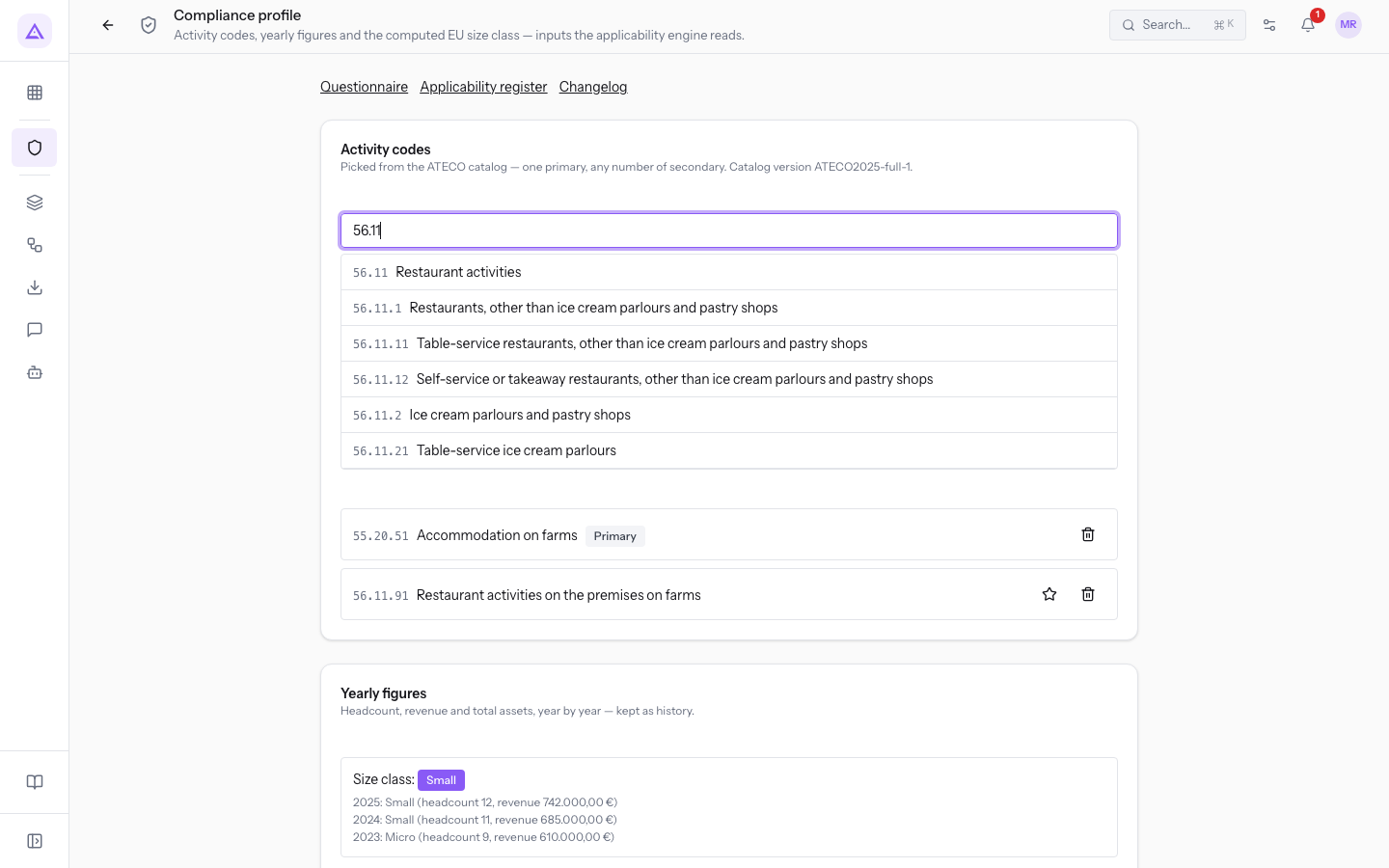
- Choose the code from the results list. The code is added to the company's list of codes.
- To make a code primary, press Set as primary next to the code. The Primary badge moves to that code.
The panel shows:
- Primary: the badge of the primary activity's code. There is only one. In the demo the primary code is 55.20.51.
- Secondary codes: the company's other codes, each with the Set as primary button. In the demo the secondary code is 56.11.91.
Important: the primary code counts for the register calculation. If you change it, the compliance register is recalculated immediately.
Recording yearly figures
In the Yearly figures panel, you record employees, revenue, and assets year by year. Each year saved remains in the history.
- Fill in the panel's fields.
- Press the Save button followed by the year, for example Save 2026.
The fields are:
- Year: the year the data refers to. The save button shows the year.
- Headcount: the number of employees for the year. In the demo the last three years have 9, 11, and 12 employees.
- Revenue: the year's revenue.
- Total assets: the year's total assets.
Note: to calculate the size class you need employees and revenue or total assets. A year without this data is not enough to determine the class.
Size class
The Yearly figures panel shows the Size class: calculated from the years saved, according to the EU definition. You do not choose it.
- Micro, Small, Medium, Large: the confirmed class. In the demo the class is Small.
- Undetermined: the data is not enough to confirm a class. With only one complete year the class is not determined. In this case the page asks you to add a second complete year.
The EU definition confirms a class only when two consecutive years agree. If a year falls into a different class, the change remains pending and the page signals it with the message «Cambio in sospeso verso … da … — si conferma dopo un altro anno.». The change is confirmed when the following year arrives.
Using the value detected by another module
The module compares the declared value for a year with the value detected by another module, for example the employees detected by HR. If the two values do not match, the warning «diverso da quanto indica …» appears next to the value, followed by the source name.
- If the detected value is the correct one, replace the declared value.
- If the declared value is the correct one, leave it as it is. The declared value remains the one used for the year.
- Press Use this value next to the value to replace. A confirmation window opens, for example Replace the declared employees for 2025?, with the value detected by HR (11).
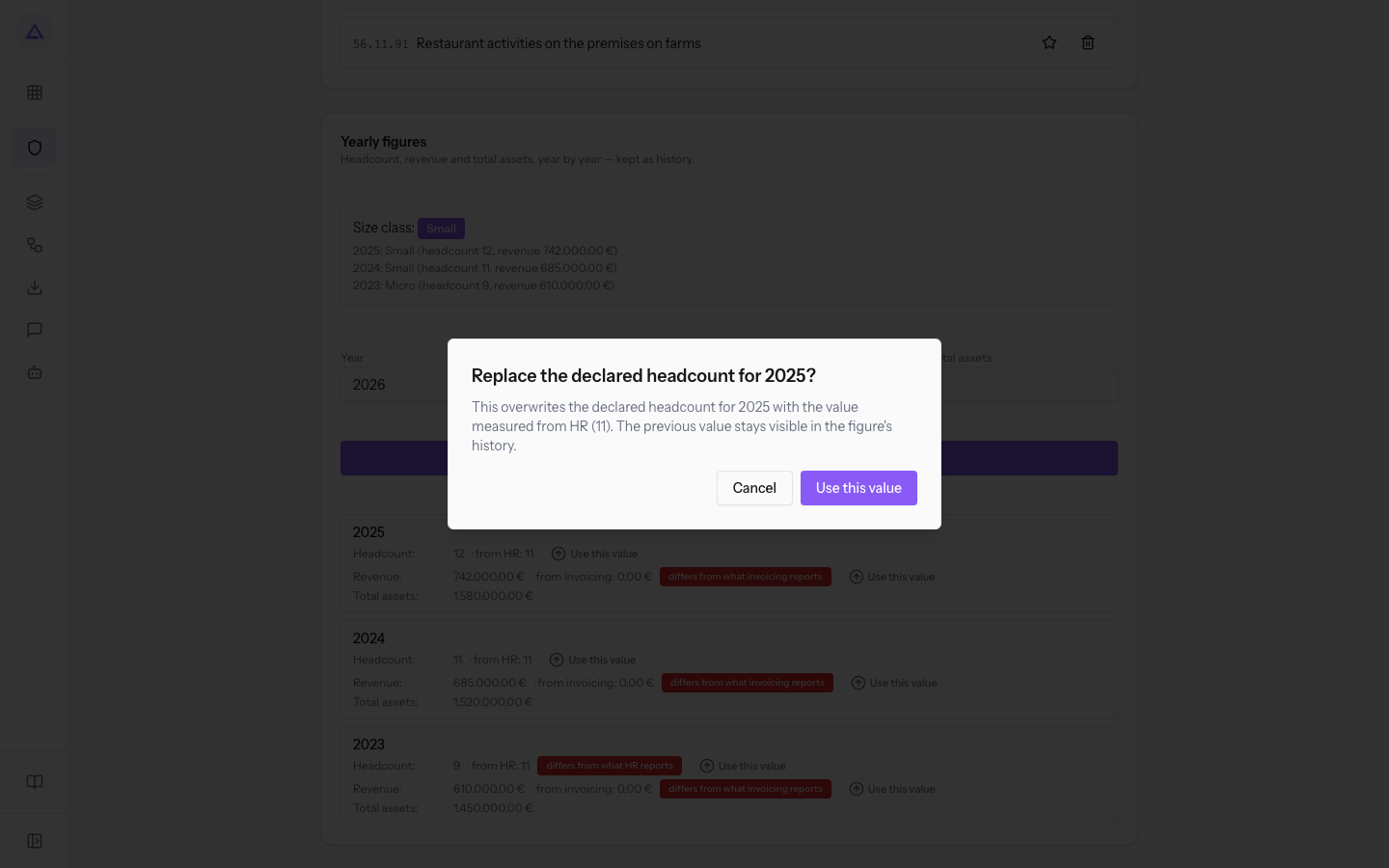
- Press Use this value in the window to confirm, or Cancel to keep the declared value.
Note: the declared value is overwritten by the detected value. The previous value remains visible in the history.
See it on your company, not on a slide deck.
In 30 minutes we map the software you use today.We show you how much work and how much margin Archimedes gives back.
Show me on my business →What industry are you in?
One tap — it lets us prepare the demo around your world.
What tools do you use today?
Pick the ones you recognise — or just type them. It helps us show you how they migrate.
Last step: your details.
We reply within one working day — and right after, if you like, you pick the demo slot yourself.
We couldn't send your request. Try again, or write to us at [email protected].
By sending, you agree to your data being processed so we can get back to you about the demo. Privacy notice.
Preview form — nothing is sent from this page.
Want to schedule the demo now?
Your call: book the slot you prefer yourself, or we'll call you to arrange it.
Live availability, 30 minutes, instant confirmation. The calendar opens in a new tab.
Lock in your slot ↗We'll get back to you within one working day — and we'll join the call already knowing your world.
The calendar is open in another tab: pick a slot and the demo is booked. Can't see it? Reopen it ↗
Preview page: nothing was sent.
Our calendar is live: take the slot that suits you and the demo is booked. 30 minutes, instant confirmation, no waiting.
Lock in your slot ↗