Compliance
All modules
Recording certifications and managing their renewals
Compliance · 7 of 14 · 7 min read
The Certifications & renewals page collects all the company's certifications, with their expiry date and when to renew them. Here you record certifications, attestations, and periodic checks, renew them when they expire, and link them to compliance register obligations as evidence.
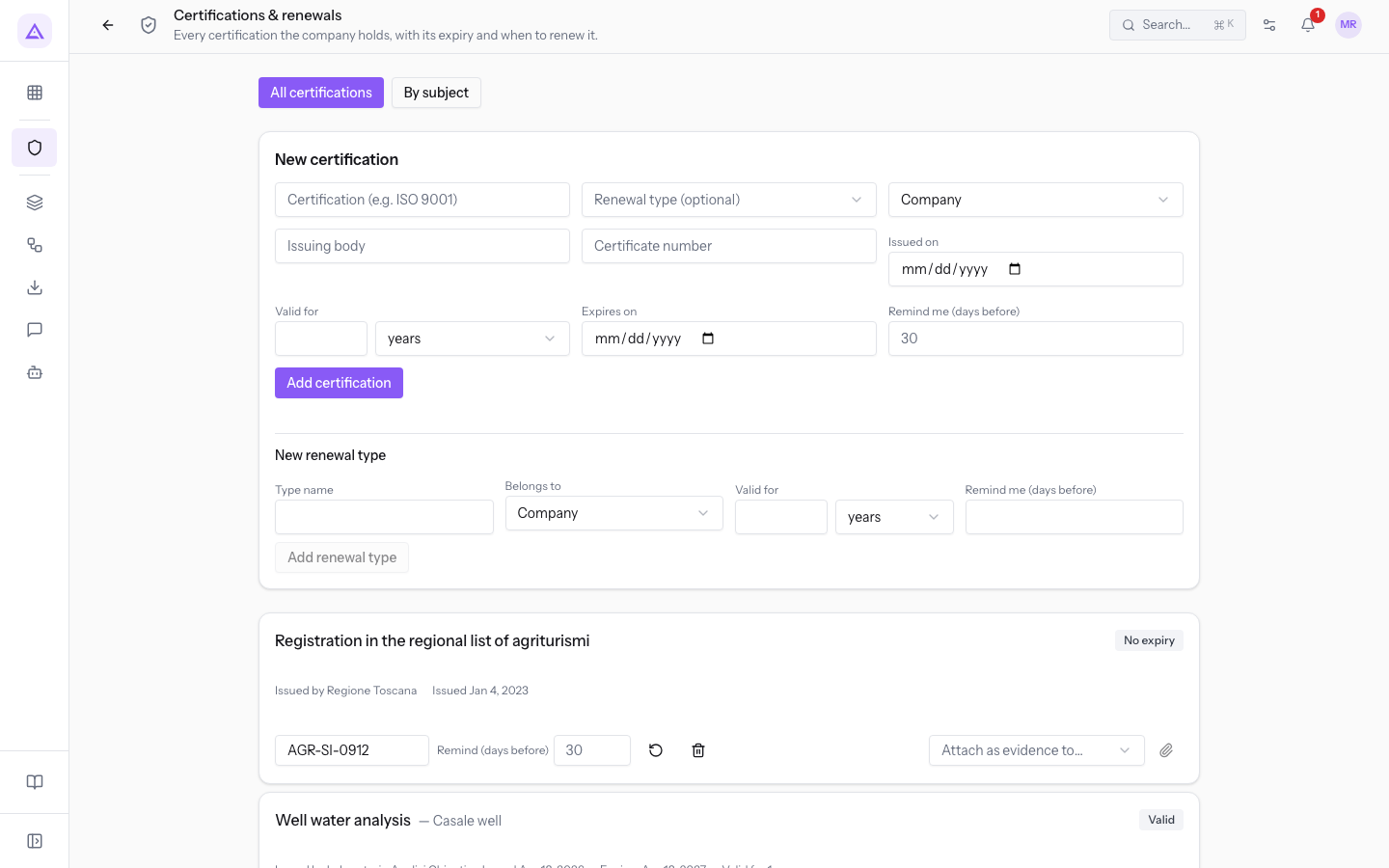
The Certifications and renewals page
The page has two views, which you select with the buttons at the top.
- All certifications: the complete list. Above the list is the New certification panel, along with the New renewal type panel.
- By subject: certifications grouped by the person or asset they belong to.
Certification statuses
Each certification shows a status, calculated from its expiry date.
- Expired: the expiry date has passed. In the demo, this is the inspection of the Trattore Landini Rex 4-080.
- Expiring soon: the expiry date is approaching and it is time to renew it. In the demo, this is Paolo Marchetti's HACCP certificate.
- Valid: the expiry date is not yet approaching. In the demo, this is the ICEA Organic certification, already renewed once.
- No expiry: the certification has no expiry date. In the demo, this is the Registration in the regional list of agriturismi.
Adding a certification
Record here every certification, attestation, or periodic check whose expiry date you want to track.
Before filling in the panel, decide whether to use a renewal type:
- If the certification is of a type the list knows, choose the type: validity, notice, and subject are filled in automatically.
- If the list does not have the type you need and the certification recurs over time, first create a new renewal type, as explained in Adding a renewal type.
- If the certification has no expiry, leave the type empty and do not enter validity or expiry.
- In the New certification panel, enter the name in Certification (e.g. ISO 9001).
- If you want, choose a Renewal type (optional). With Formazione alimentaristi (HACCP) the panel sets Valid for to 2 years, Remind me (days before) to 60, and Belongs to to Person.
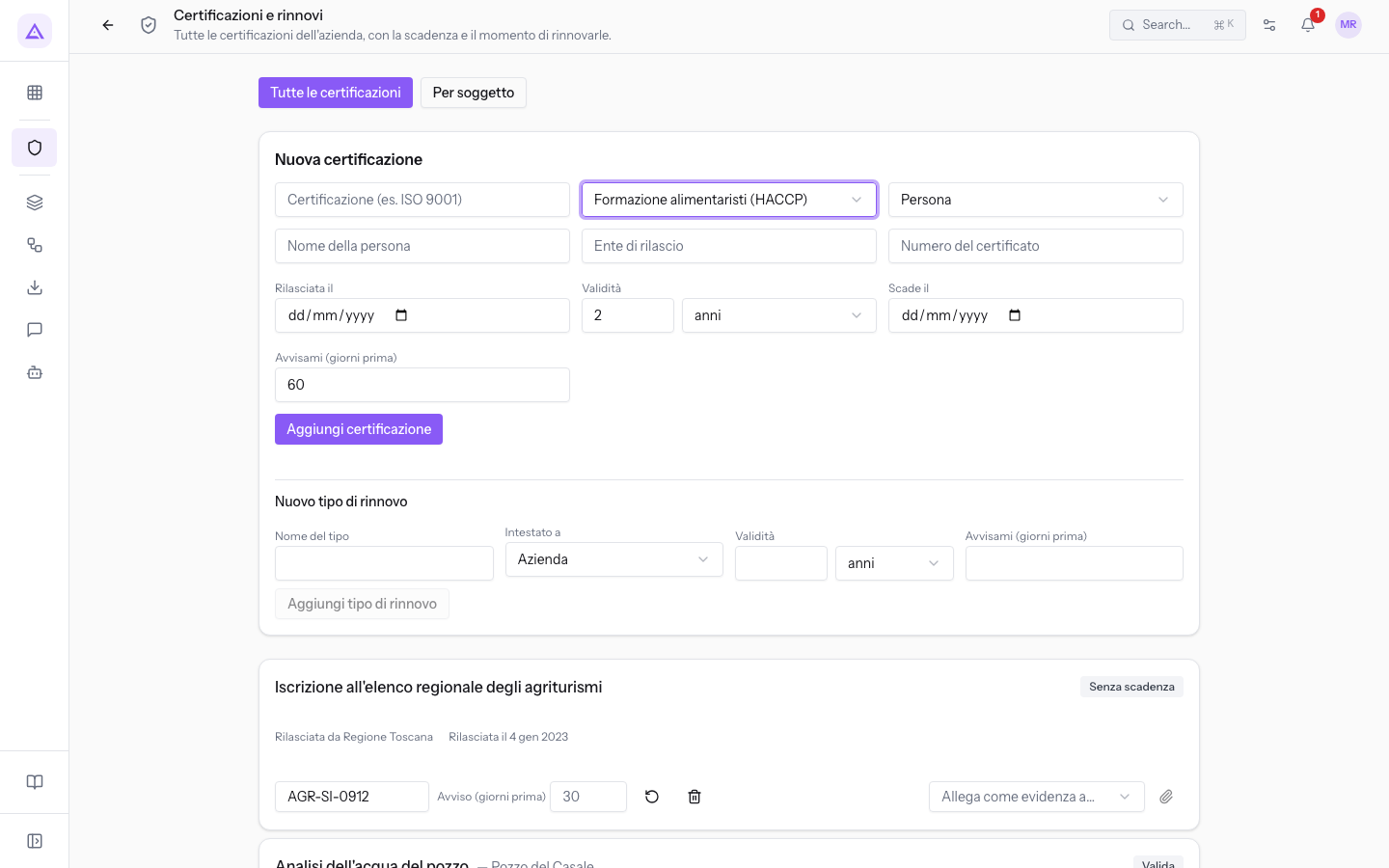
- In Belongs to, choose who the certification belongs to. With Person or Asset, the name field appears.
- Fill in the dates, validity, and notice, then press Add certification.
The New certification panel fields:
- Certification (e.g. ISO 9001): the name of the certification, as it appears in the list.
- Renewal type (optional): the type from which to take validity, notice, and subject. It contains the types provided with the module and those created by the company, marked with (custom).
- Assicurazione veicolo, Certificato di prevenzione incendi (CPI), Certificazione biologica, Certificazione ISO 9001, Certificazione ISO 14001, Certificazione ISO 45001, Controllo estintori, Formazione alimentaristi (HACCP), Patentino muletto, Revision veicolo, Visita di sorveglianza sanitaria: the types provided with the module.
- Analisi dell'acqua del pozzo (custom): the type added by the company in the demo.
- Belongs to: the subject of the certification. The default value is Company.
- Company: the certification concerns the entire company, such as the Organic certification. No name is needed.
- Person: the certification concerns a person. The Person name field appears.
- Asset: the certification concerns an asset, such as a vehicle or plant. The Asset name field appears.
- Person name: who the certification belongs to, such as
Paolo Marchetti. The field appears only with Person. - Asset name: the asset the certification refers to, such as
Trattore Landini Rex 4-080. The field appears only with Asset. - Issuing body: the body that issued the certification.
- Certificate number: the number shown on the document. In the list it appears as Certificate #.
- Issued on: the issue date.
- Valid for: the duration of a cycle, with the unit years or months alongside. When you choose a renewal type, it is filled in automatically. This is the stored validity that the renewal uses to calculate the new expiry date.
- Expires on: the expiry date of the current cycle. Leave it empty for a certification with no expiry.
- Remind me (days before): how many days before the expiry date you want to be notified. When you choose a renewal type, it is filled in automatically.
Adding a renewal type
Create a renewal type when you repeat over time a check the list does not have, such as the well water analysis. The type stores validity and notice, which new certifications of that type pick up automatically.
- In the New renewal type panel, enter the Type name.
- Enter Belongs to, Valid for, and Remind me (days before), then press Add renewal type. The message Renewal type created. confirms the operation.
The New renewal type panel fields:
- Type name: the name that appears in the Renewal type (optional) field, followed by (custom). In the demo it is
Well water analysis. - Belongs to: the default subject for certifications of this type: Company, Person, or Asset.
- Valid for: the duration of a cycle, in years or months.
- Remind me (days before): the default notice, in days.
Renewing a certification
When a certification is renewed, record the renewal on the same certification instead of creating a new one. The completed cycle remains in the history.
- In the certification row, press Renew.
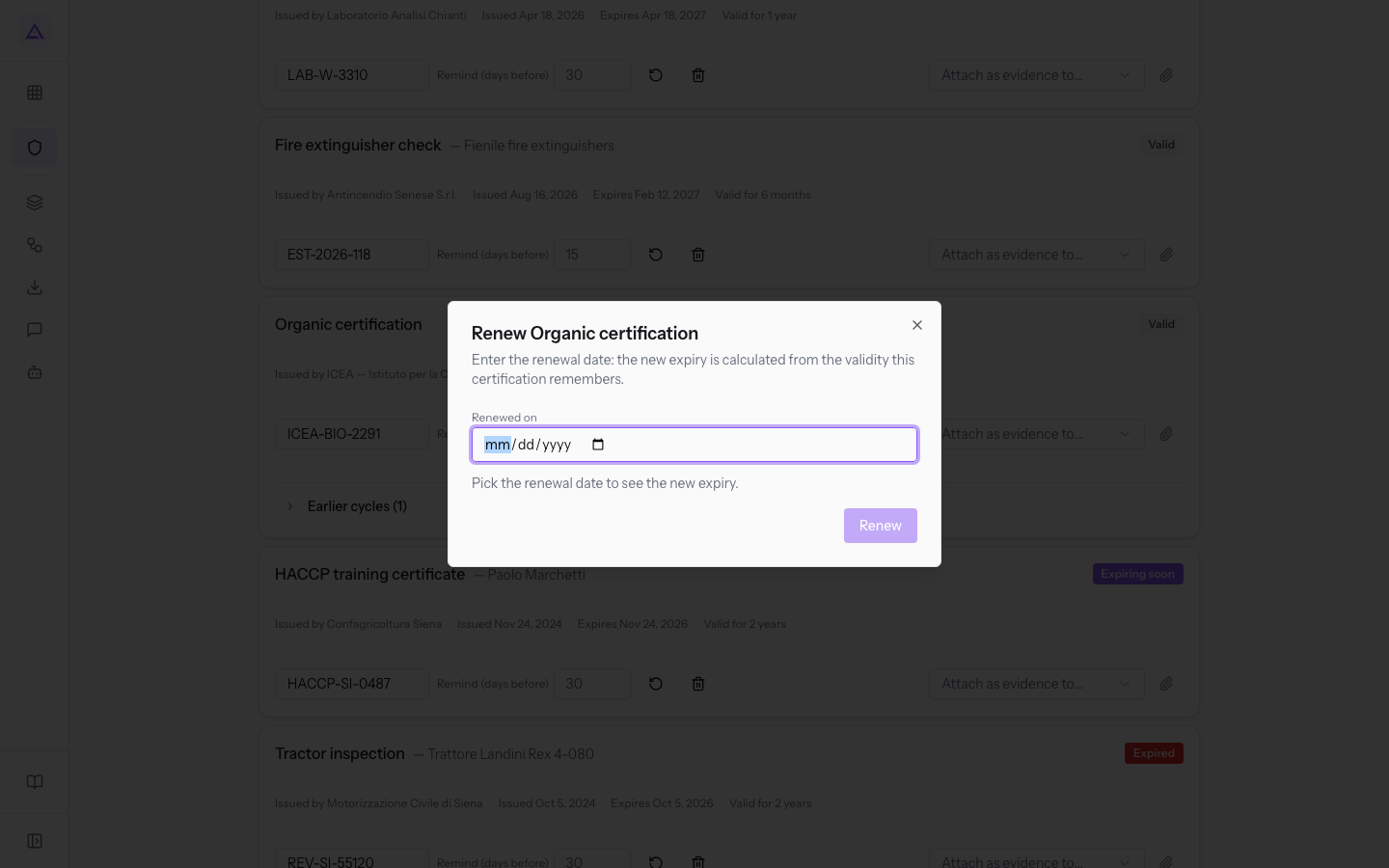
- In the window, enter the date in Renewed on.
- If the certification has no validity, also fill in New expiry date, then press Renew.
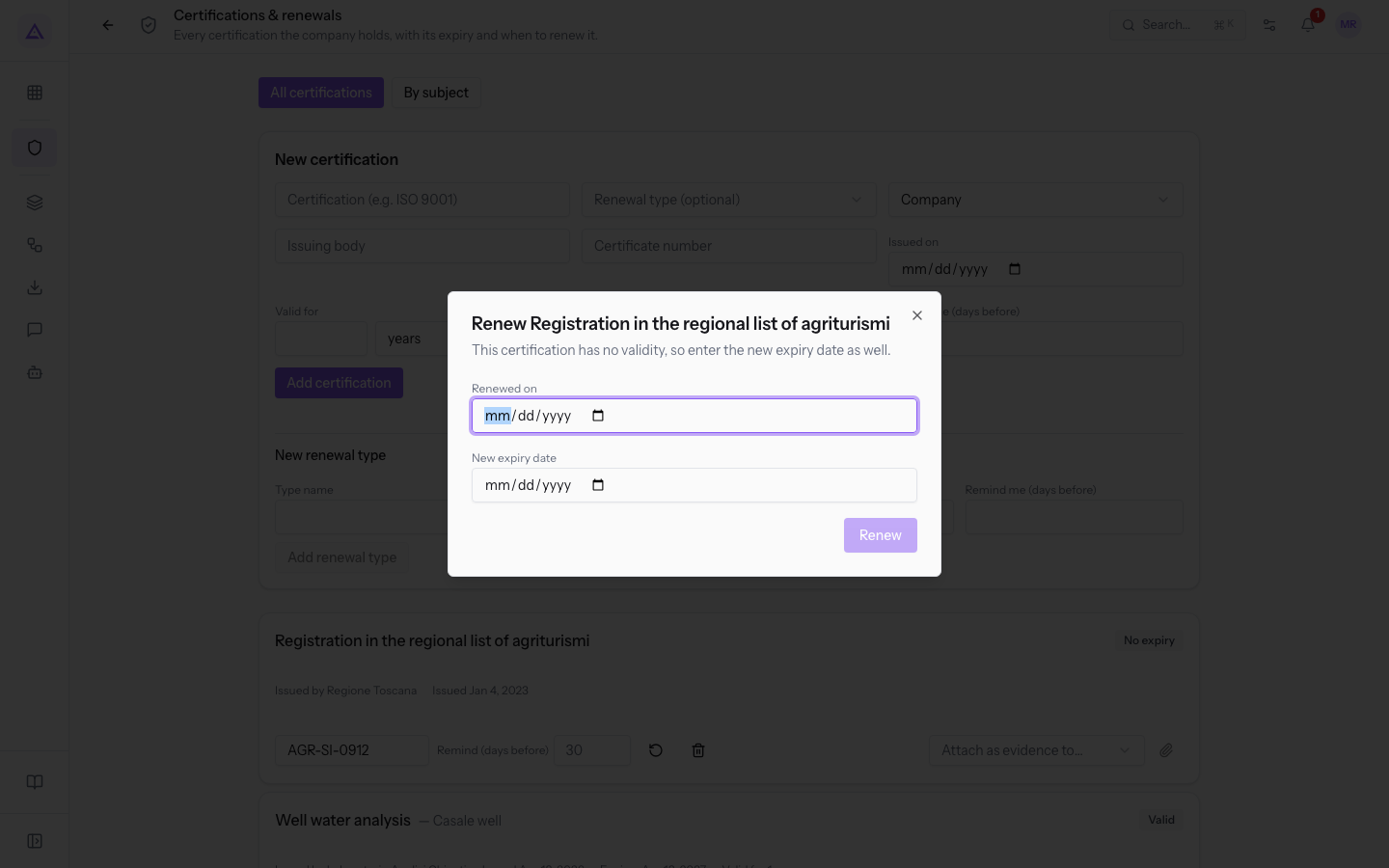
The window changes depending on the certification:
- Certification with validity, such as the Organic certification: only the renewal date is needed. The window shows Enter the renewal date: the new expiry is calculated from the validity this certification remembers. and, once the date is chosen, the calculated new expiry date.
- Certification without validity, such as the Registration in the regional list of agriturismi: the window shows This certification has no validity, so enter the new expiry date as well. and adds the New expiry date field.
After the first renewal, the row shows the Earlier cycles (1) button, which opens the completed cycles. The number increases with each renewal.
Managing a certification in the list
Each row in the list shows the certification with its status, issuing body, and dates, plus some fields to edit and some commands.
- Certificate #: the certificate number, such as
ICEA-BIO-2291for the Organic certification. - Remind (days before): the notice for the individual certification, which can be edited here.
- Renew: opens the renewal window.
- Previous cycles: the button showing the number of completed cycles, such as Earlier cycles (1). It appears after a renewal.
- Attach as evidence to…: links the certification to a compliance register obligation.
- Delete: deletes the certification.
Important: Delete deletes the certification without asking for confirmation. To replace an expired certification, use Renew, so the previous cycle remains in the history.
Attaching a certification as evidence
A certification can serve to demonstrate that the company complies with a compliance register obligation. Paolo Marchetti's HACCP certificate is evidence of food handler training.
- In the certification row, open Attach as evidence to… and choose the obligation. The menu lists the register obligations with regulation and obligation, such as
Igiene degli alimenti — Reg. (CE) 852/2004 (HACCP) — Formare gli addetti agli alimenti e conservarne gli attestati. - Press Attach as evidence.
For the status of obligations and the evidence already attached, see the article on the compliance register.
The By subject view
The By subject view groups certifications registered to a person or an asset, with one group for each subject and its type in parentheses. It is used to see what each person and each asset needs to renew.
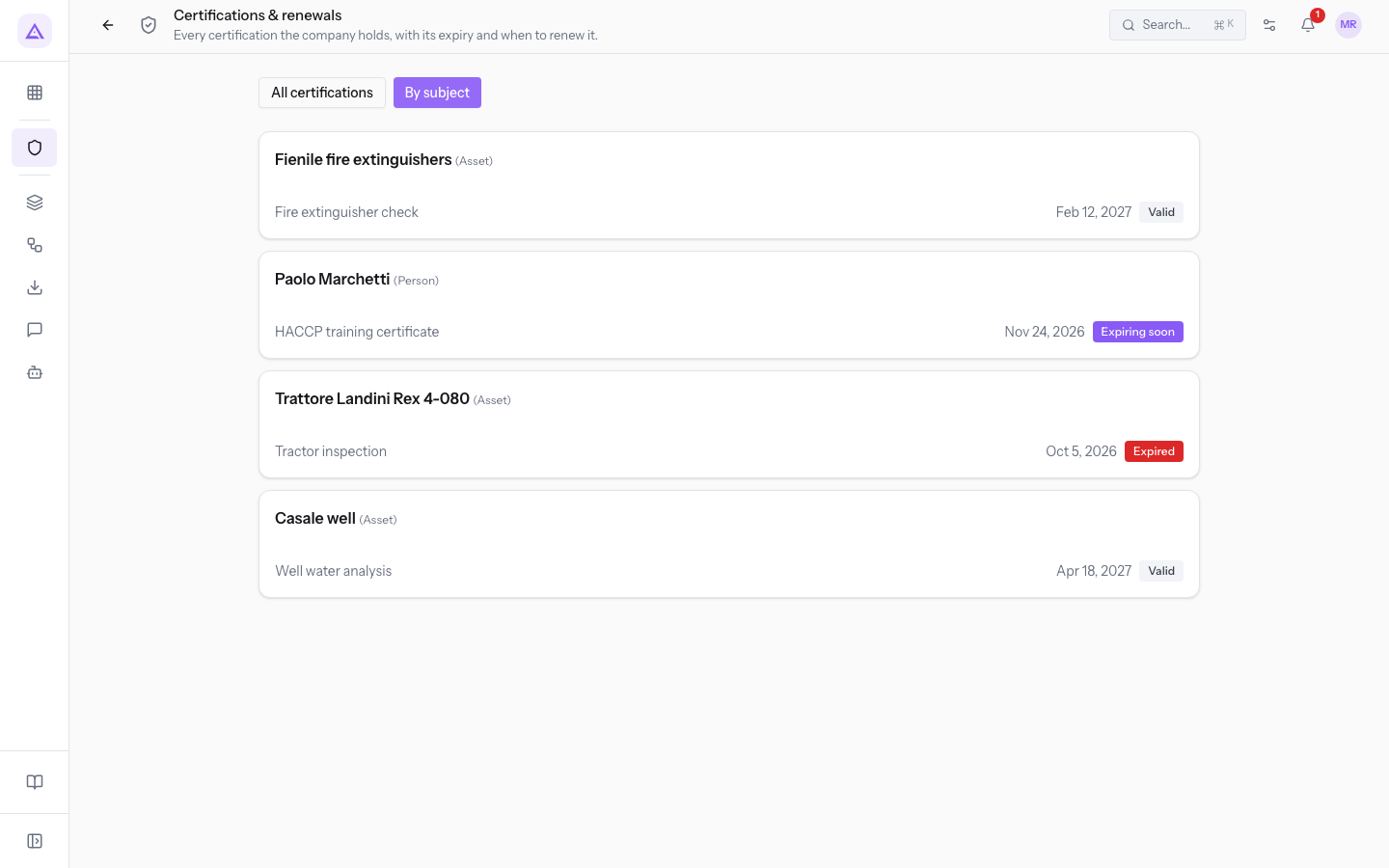
In the demo the groups are Fienile fire extinguishers (Asset), Trattore Landini Rex 4-080 (Asset), Casale well (Asset), and Paolo Marchetti (Person).
See it on your company, not on a slide deck.
In 30 minutes we map the software you use today.We show you how much work and how much margin Archimedes gives back.
Show me on my business →What industry are you in?
One tap — it lets us prepare the demo around your world.
What tools do you use today?
Pick the ones you recognise — or just type them. It helps us show you how they migrate.
Last step: your details.
We reply within one working day — and right after, if you like, you pick the demo slot yourself.
We couldn't send your request. Try again, or write to us at [email protected].
By sending, you agree to your data being processed so we can get back to you about the demo. Privacy notice.
Preview form — nothing is sent from this page.
Want to schedule the demo now?
Your call: book the slot you prefer yourself, or we'll call you to arrange it.
Live availability, 30 minutes, instant confirmation. The calendar opens in a new tab.
Lock in your slot ↗We'll get back to you within one working day — and we'll join the call already knowing your world.
The calendar is open in another tab: pick a slot and the demo is booked. Can't see it? Reopen it ↗
Preview page: nothing was sent.
Our calendar is live: take the slot that suits you and the demo is booked. 30 minutes, instant confirmation, no waiting.
Lock in your slot ↗