Compliance
All modules
Reading the compliance register and updating obligation status
Compliance · 5 of 14 · 4 min read
The compliance register shows which regulations in the catalog apply to the company and why. For each obligation that applies, it lets you indicate how far along the work is to comply with it.
The Compliance Register page
The page opens with the Register button in the Compliance overview. The subtitle is Which regulations apply to this company, and why.
The register is not filled in manually. The product calculates it from three sources: the compliance profile (ATECO codes and annual data), the questionnaire answers, and the latest release of the regulation catalog. When you change the main ATECO code or a questionnaire answer, the register is recalculated immediately. Each new catalog release arrives in the register automatically. If the main code and questionnaire answers are missing, the register remains empty.
Below the title, a row shows the catalog version on which the calculation was based, and the date and time of the last calculation.
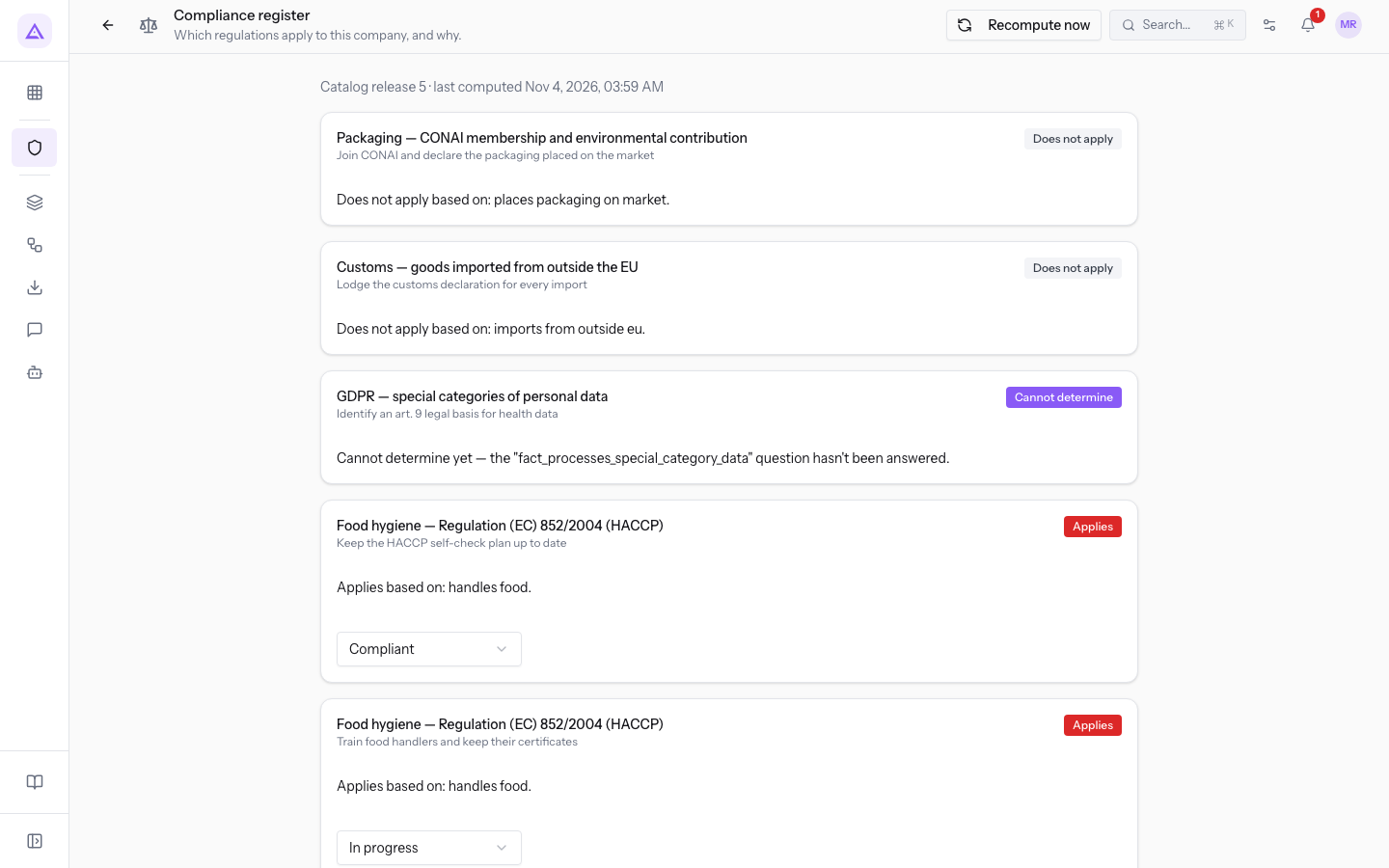
Note: the register shows what has been evaluated by the platform rules based on the profile and answers you provided. If an outcome doesn't seem correct, check the profile and questionnaire first.
Recomputing the register
As a rule, recalculation is automatic: simply modify the profile or questionnaire. The Recompute now button starts a new calculation even when nothing has changed.
- Press Recompute now in the top right. While the calculation is in progress, the button does not respond to clicks. When done, the outcomes and the row with the last calculation are updated.
If the calculation fails, the message Failed to recompute the register appears.
Reading a register row
Each row in the register corresponds to an obligation from a regulation in the catalog.
- Regulation: the title of the regulation, for example Igiene degli alimenti — HACCP or Dogane — merci importate da fuori UE.
- Obligation: below the title, the description of the obligation the regulation imposes, for example the updated plan or staff training for HACCP.
- Outcome: the badge on the right says whether the obligation concerns the company.
- Applies: the obligation concerns the company. Below the row the status selector appears. This is the case for D.Lgs. 81/2008 or Vendita a distanza in the demo organization.
- Does not apply: based on the profile and answers, the obligation does not concern the company. Imballaggi CONAI does not apply because the company answered that it does not place packaging on the market.
- Cannot determine: the product does not have enough information to decide. This happens when a questionnaire question has the answer Not sure: this is the case for GDPR categorie particolari. To resolve this, answer Yes or No to the question in the questionnaire.
- Reason: the row below the obligation explains which rule the outcome depends on.
Note: the status selector only appears for obligations with an Applies outcome. Obligations that do not apply or cannot be determined do not have a status.
Updating an obligation's status
For each obligation that applies, keep the work status up to date. The choice of a status is based on what you have done so far:
- If you have not yet started working on the obligation, leave it as Not started. This is the status of health surveillance under D.Lgs. 81/2008 in the demo.
- If the work is underway but not finished, choose In progress. This is the status of staff training for HACCP.
- If the obligation is met, choose Compliant. This is the status of the updated HACCP plan.
- If you have verified that the obligation is not met, choose Non-compliant. This is the status of Vendita a distanza.
- In the obligation row, open the status selector.
- Choose the status. It is recorded as soon as you choose it, without a confirmation button.
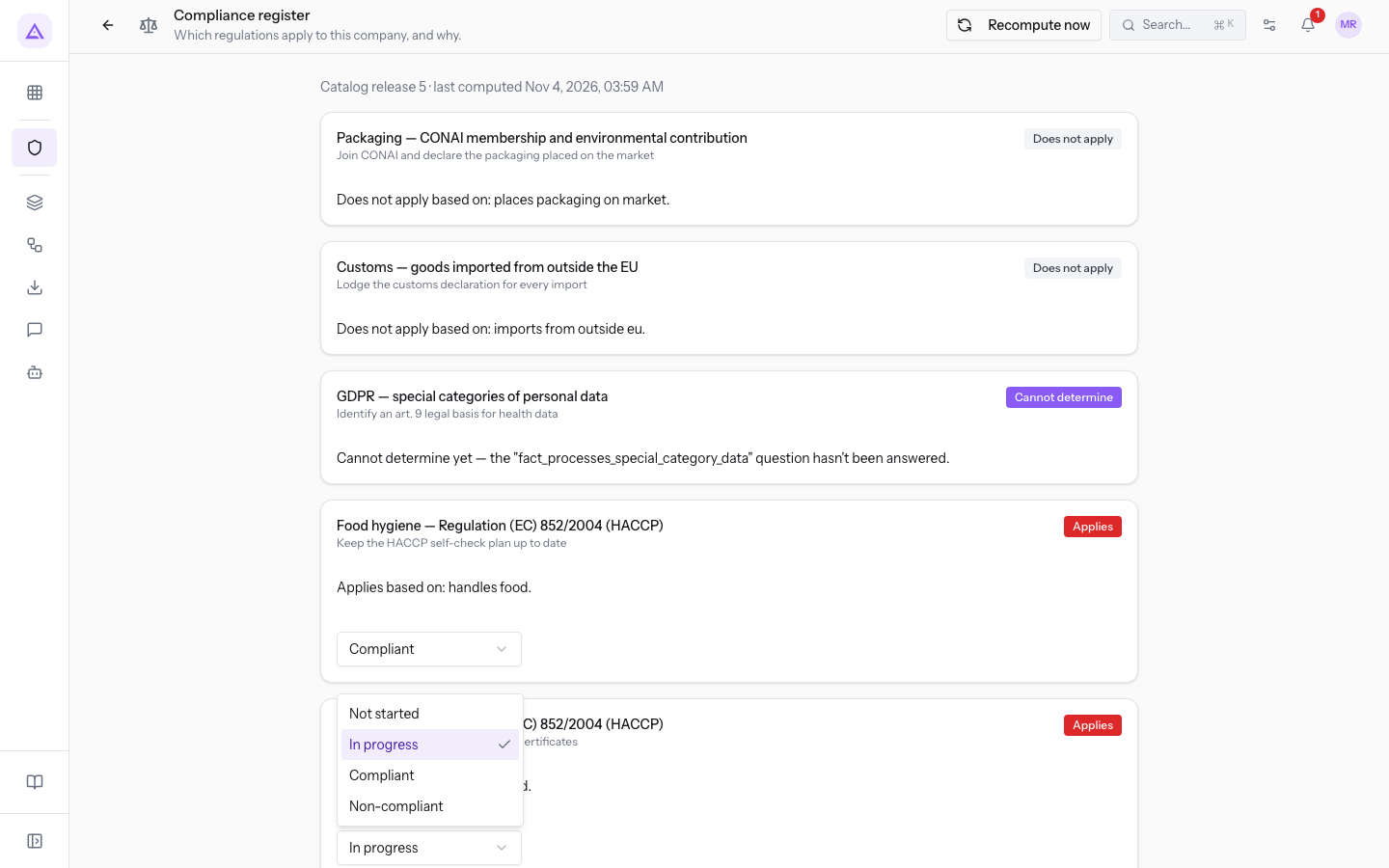
The selector offers these statuses:
- Not started: work on the obligation has not yet begun.
- In progress: work is underway.
- Compliant: the obligation is met.
- Non-compliant: the obligation is not met.
Tip: to document the status of an obligation, attach a certification with Attach as evidence, from the certifications page.
Obligation deadlines
When an obligation that applies has a fixed date or an annual deadline, the deadline automatically appears in the deadlines calendar, with the obligation description as the title. If the obligation stops applying, the deadline is cancelled.
See it on your company, not on a slide deck.
In 30 minutes we map the software you use today.We show you how much work and how much margin Archimedes gives back.
Show me on my business →What industry are you in?
One tap — it lets us prepare the demo around your world.
What tools do you use today?
Pick the ones you recognise — or just type them. It helps us show you how they migrate.
Last step: your details.
We reply within one working day — and right after, if you like, you pick the demo slot yourself.
We couldn't send your request. Try again, or write to us at [email protected].
By sending, you agree to your data being processed so we can get back to you about the demo. Privacy notice.
Preview form — nothing is sent from this page.
Want to schedule the demo now?
Your call: book the slot you prefer yourself, or we'll call you to arrange it.
Live availability, 30 minutes, instant confirmation. The calendar opens in a new tab.
Lock in your slot ↗We'll get back to you within one working day — and we'll join the call already knowing your world.
The calendar is open in another tab: pick a slot and the demo is booked. Can't see it? Reopen it ↗
Preview page: nothing was sent.
Our calendar is live: take the slot that suits you and the demo is booked. 30 minutes, instant confirmation, no waiting.
Lock in your slot ↗