Compliance
All modules
Set up data retention and approve deletions
Compliance · 12 of 14 · 6 min read
The Data retention page applies the retention periods promised in the privacy policy. Here you choose, rule by rule, whether to review every deletion before it is carried out or leave it to the system. You approve or discard batches of expired records.
The Data retention page
Open the page with the Data retention button in the Understanding where the company stands with the Compliance overview overview. The subtitle is «I tempi di conservazione promessi nell'informativa privacy, applicati: li rivedi tu, salvo che tu scelga l'automatico.»
The page shows, from top to bottom:
- a card for each retention rule, with any pending batch;
- the Applied by the module itself box;
- the execution log.
Each rule corresponds to a retention period declared by an active module. If you activate or deactivate a module, the rules change too. If none of the modules you use declares a period, the page shows «Nessuno dei moduli che usi dichiara un periodo di conservazione per i dati personali.»
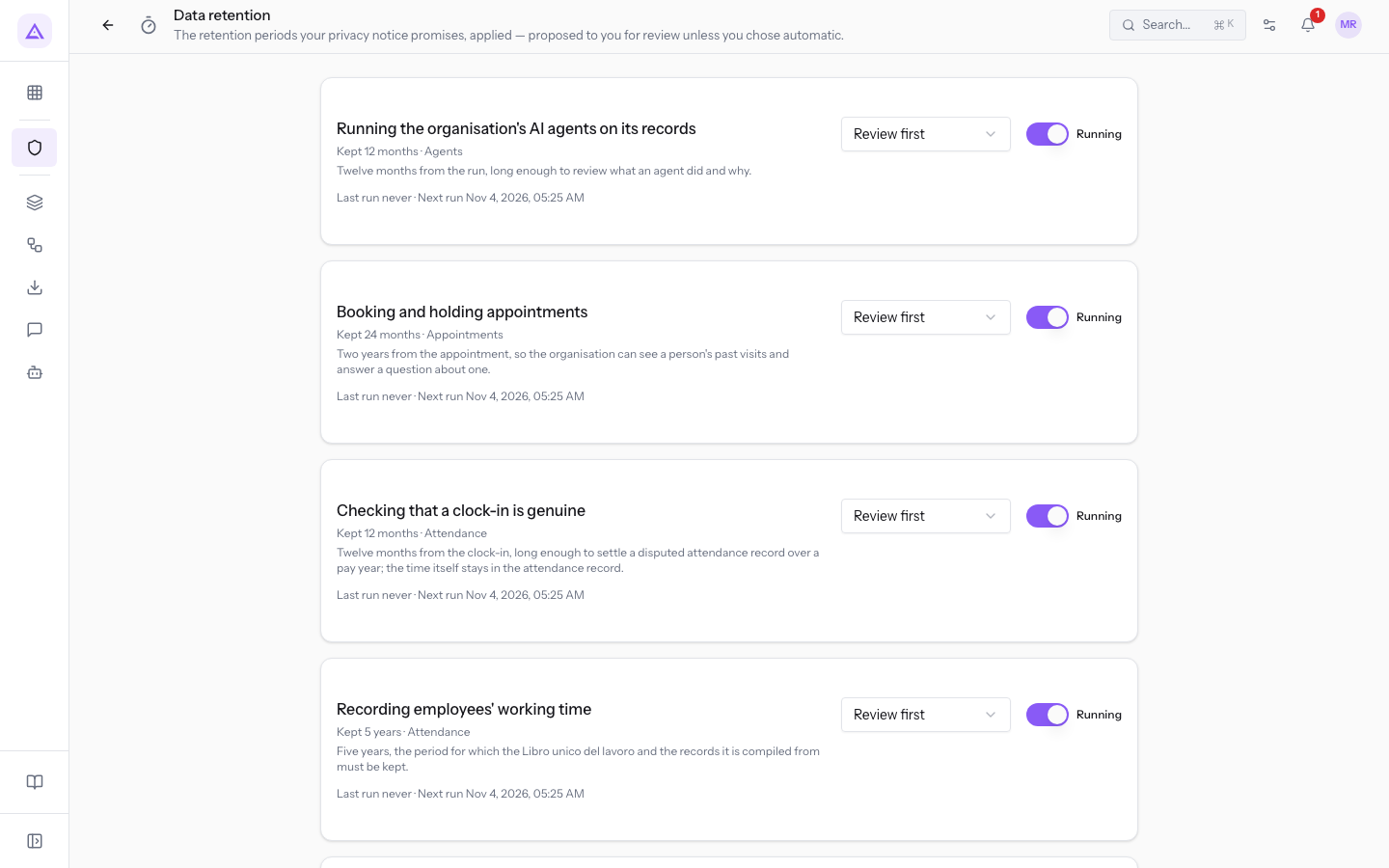
What a rule shows
Each card describes what is retained, for how long, and why. It also shows when the rule runs.
- Purpose: the name of the rule, i.e. which data it concerns.
- «Conservato … · …»: the retention period and the module that retains the data.
- Reason: the line below the period explains why the data is retained for that length of time.
- Mode selector: Review first or Automatic. It is described in the next section.
- Running / Paused toggle: indicates whether the rule runs.
- «Ultima esecuzione»: the date and time of the last run, or «mai» if the rule has not yet been run.
- «Prossima esecuzione»: the date and time of the next run.
A yellow warning may appear on a paused rule. The warning explains what keeping it paused entails.
Choosing between review and automatic
The mode decides what happens when the rule finds records older than the retention period. In the demo, almost all rules are set to Review first and only one is set to Automatic.
- Review first: the rule proposes a batch of records to delete. Nothing is removed until someone presses Apply.
- Automatic: the rule applies the batch on its own, without waiting for confirmation. In the execution log the row appears with the mode «automatico».
Choose the mode based on the type of data:
- If the data is routine and does not need to be checked one by one, choose Automatic.
- If you want to see how many records will be deleted or anonymised before proceeding, choose Review first.
To change the mode:
- In the rule card, open the selector showing the current mode.
- Choose Review first or Automatic. The change takes effect immediately and does not need to be saved.
Pausing a rule
A paused rule does not run and does not propose new batches. Use the pause when you need to retain data longer for a temporary reason. Reactivate the rule when the reason no longer applies. In the demo one rule is Paused.
- In the rule card, move the toggle. The label changes from Running to Paused.
- To reactivate it, move the toggle back to Running.
Important: while the rule is paused, data is retained beyond the period promised in the privacy policy. Read the warning that appears on the card.
Reviewing a batch to delete
A rule set to Review first that finds expired data shows a pending batch in its card. In the demo one batch is to be reviewed.
The batch opens with a sentence in the form «N registrazioni create prima del … sono da eliminare», with the cut-off date. The cut-off date is the creation date: records created before that date have exceeded the retention period.
Below, one row for each type of data involved. Each row indicates how many records are «da cancellare» or «da anonimizzare».
- Delete: the record is removed. The row has the bin icon.
- Anonymise: the record remains, but without the data that identifies the person. The row has the crossed-out eye icon.
If part of the batch cannot be processed, the row shows the error in red next to the number.
Applying the batch
Apply the batch when the numbers match what you expect.
- In the batch, press Apply. The Apply this batch? window opens with the text «Le registrazioni elencate vengono cancellate o anonimizzate in via definitiva. L'operazione non si può annullare.»
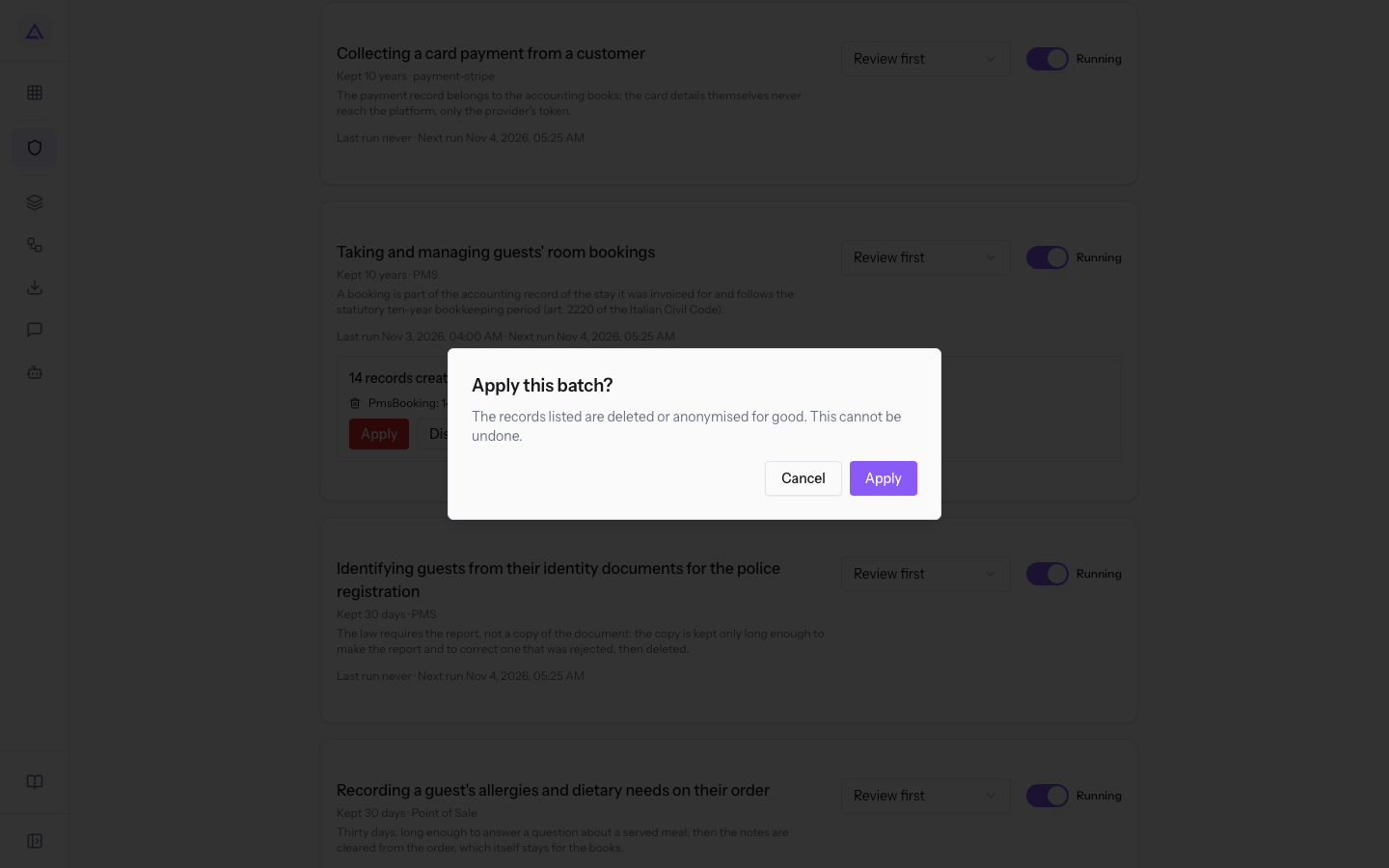
- Press Apply in the window to confirm, or Cancel to return to the page without deleting anything. After confirming, the message «Lotto applicato.» appears.
Important: the deletion is permanent and cannot be undone. Data that the law requires you to retain, such as issued invoices, remains unchanged and the log indicates the reason.
Discarding the batch
Discard the batch when you do not want to delete those records now. No data is touched.
- In the batch, press Discard. The button does not ask for confirmation. The message «Lotto scartato.» appears and the batch moves to the execution log as «scartato».
Periods applied by the module itself
The Applied by the module itself box lists the periods that another module applies on its own to its own data. The page lists them to show you all the retention periods for the organisation.
The text in the box explains: «Questi periodi sono applicati dal modulo che conserva i dati, come impostati in Organizzazione → Legale e privacy. Qui non c'è nulla da confermare.»
Each entry shows the name of the data and the period. Some entries also have categories, each with its own period. The your own choice badge indicates a period set by the organisation instead of the default one.
Note: these periods cannot be changed from this page. To modify them, use the organisation settings indicated in the box.
The execution log
At the bottom of the page, the log lists the rule executions, one per row. In the demo it contains one applied batch, one proposed batch, and one discarded batch.
Each row shows:
- Status:
- «applicato»: the batch has been executed and the records have been deleted or anonymised;
- «proposto»: the batch is waiting for your decision in the rule card;
- «scartato»: the batch was discarded and the data remained.
- The module that retains the data.
- The number of records and the mode, «revisione» or «automatico».
- The date and time of the proposal or decision. For an applied or discarded batch, it also shows who made the decision.
Deletions requested by a person are managed separately, from the Responding to a request: identity, data found, erasure, and reply letter.
See it on your company, not on a slide deck.
In 30 minutes we map the software you use today.We show you how much work and how much margin Archimedes gives back.
Show me on my business →What industry are you in?
One tap — it lets us prepare the demo around your world.
What tools do you use today?
Pick the ones you recognise — or just type them. It helps us show you how they migrate.
Last step: your details.
We reply within one working day — and right after, if you like, you pick the demo slot yourself.
We couldn't send your request. Try again, or write to us at [email protected].
By sending, you agree to your data being processed so we can get back to you about the demo. Privacy notice.
Preview form — nothing is sent from this page.
Want to schedule the demo now?
Your call: book the slot you prefer yourself, or we'll call you to arrange it.
Live availability, 30 minutes, instant confirmation. The calendar opens in a new tab.
Lock in your slot ↗We'll get back to you within one working day — and we'll join the call already knowing your world.
The calendar is open in another tab: pick a slot and the demo is booked. Can't see it? Reopen it ↗
Preview page: nothing was sent.
Our calendar is live: take the slot that suits you and the demo is booked. 30 minutes, instant confirmation, no waiting.
Lock in your slot ↗