Compliance
All modules
Log a data subject request and monitor its deadlines
Compliance · 9 of 14 · 4 min read
The Data requests page is where you log requests from people who want to see, correct, delete or export their data. The page shows how much time is left to respond to each request.
The Data Requests page
The page collects all requests received by the company. The subtitle is a reminder of the main rule: «Un mese per rispondere».
To open it, press Data requests in the Compliance module overview.
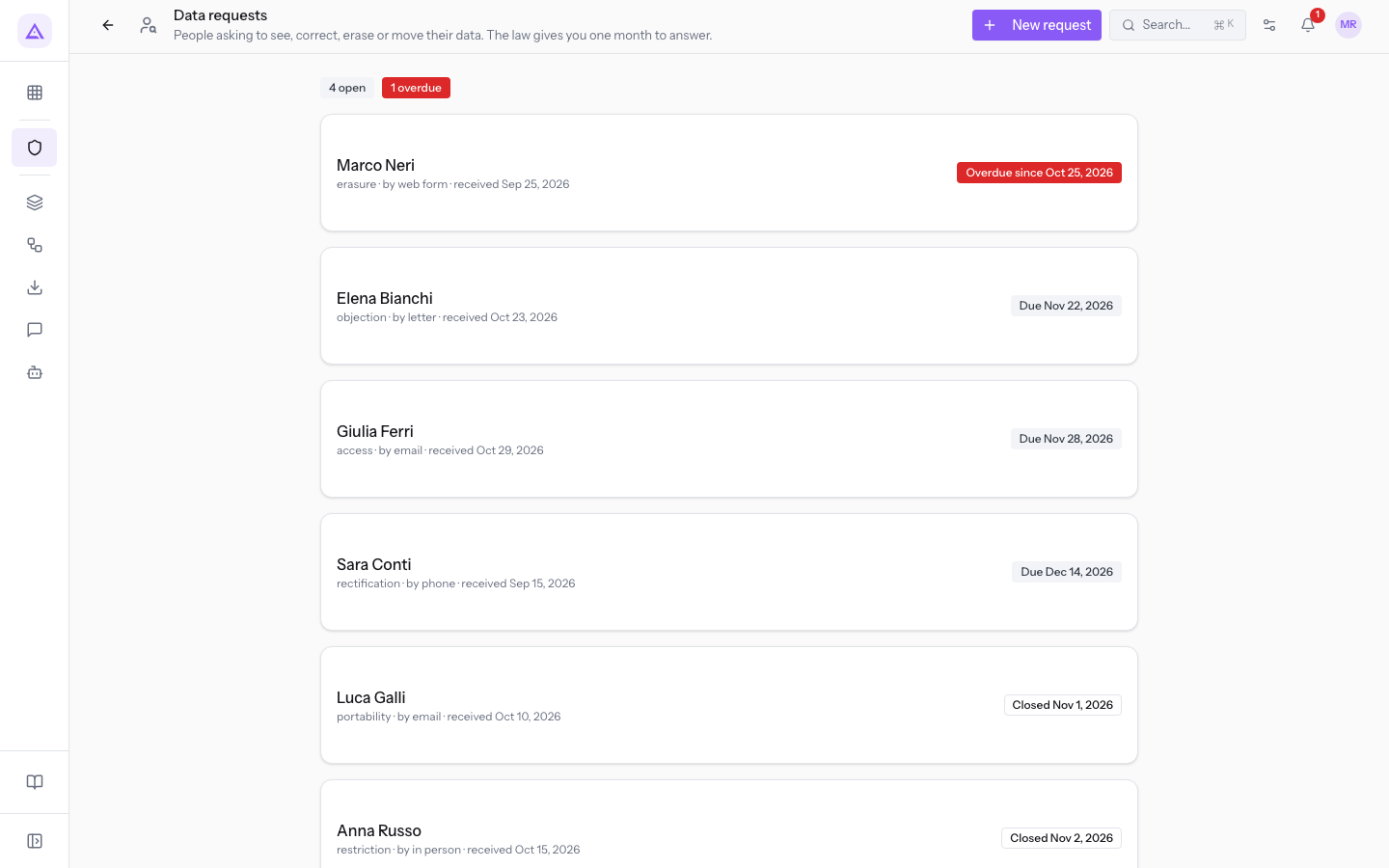
At the top, two counters summarise the situation:
- Open requests: how many requests are not yet closed. In the demo there are «4 aperte».
- Overdue requests: how many open requests have passed their deadline. The counter appears in red and only if there is at least one overdue request.
Below the counters is the list of requests. The most urgent ones are at the top. Each row shows:
- the person's name;
- the request type, the channel it came through, and the date it arrived;
- a status label, which can be one of these:
- «Scade il …»: the request is open. The date indicates the deadline for responding.
- «Scaduta dal …»: the request is open and the deadline has passed. The label is red. In the demo this is the case for Marco Neri's erasure request.
- «Chiusa il …»: the request is closed. The date indicates when it was closed. In the demo this is the case for Luca Galli's portability request.
Click a row to open the request. There you verify the person's identity, search for their data, respond and close the request. These steps are described in the article «Rispondere a una richiesta: identità, dati trovati, cancellazione e lettera».
Request types
The type indicates what the person is asking for. It is chosen in the What they ask field and appears in the list row.
- access: the person asks to see their data.
- rectification: the person asks to correct their data.
- erasure: the person asks to delete their data. Deletion is permanent. Data that the law requires to be retained, such as issued invoices, remain unchanged.
- portability: the person asks to export their data elsewhere.
- restriction: in the request page you record what was changed, where and when.
- objection: here too you record what was changed, where and when.
Arrival channels
The channel indicates how the request arrived. It is chosen in the How it arrived field and appears in the list row.
- email: the request arrived by email.
- phone: the request arrived by phone call.
- letter: the request arrived by post.
- in person: the request was made in person.
- web form: the request arrived from a website form.
- portal: the request arrived from the portal.
Log a new request
Log every request as soon as it arrives, regardless of the channel. The window does not have a field for the arrival date.
- On the Data requests page, press New request. The Log a data request window opens.
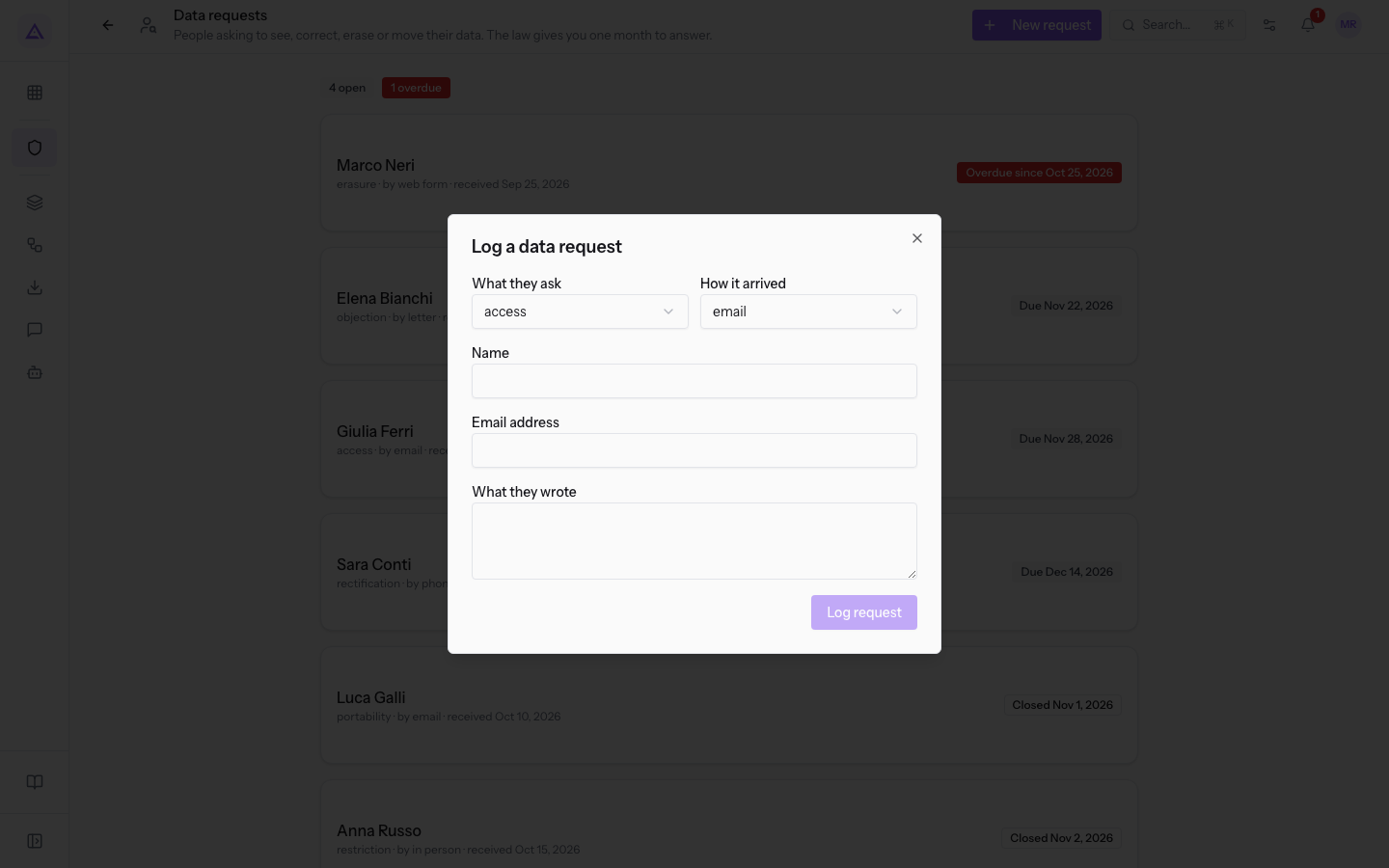
- Fill in the fields in the window.
- Press Log request. The window closes and the request appears in the list.
The fields in the window are:
- What they ask: the request type. The default value is access. The options are described in Request types.
- How it arrived: the arrival channel. The default value is email.
- Name: the name of the person making the request, such as
Marco Neri. The field is required: until it is filled in, you cannot press Log request. - Email address: the person's email address. The field is optional.
- What they wrote: the text of the request, exactly as it arrived. The field is optional.
Monitor deadlines
You have one month to respond to each request. The deadline can be extended by stating the reason.
- Check the overdue requests counter: it only appears if at least one request has passed its deadline.
- Work through requests starting from the top of the list, where the most urgent ones are.
- If you need more time, open the request and extend the deadline before it expires.
Note: a request remains open until you close it from its page with Send answer and close.
See it on your company, not on a slide deck.
In 30 minutes we map the software you use today.We show you how much work and how much margin Archimedes gives back.
Show me on my business →What industry are you in?
One tap — it lets us prepare the demo around your world.
What tools do you use today?
Pick the ones you recognise — or just type them. It helps us show you how they migrate.
Last step: your details.
We reply within one working day — and right after, if you like, you pick the demo slot yourself.
We couldn't send your request. Try again, or write to us at [email protected].
By sending, you agree to your data being processed so we can get back to you about the demo. Privacy notice.
Preview form — nothing is sent from this page.
Want to schedule the demo now?
Your call: book the slot you prefer yourself, or we'll call you to arrange it.
Live availability, 30 minutes, instant confirmation. The calendar opens in a new tab.
Lock in your slot ↗We'll get back to you within one working day — and we'll join the call already knowing your world.
The calendar is open in another tab: pick a slot and the demo is booked. Can't see it? Reopen it ↗
Preview page: nothing was sent.
Our calendar is live: take the slot that suits you and the demo is booked. 30 minutes, instant confirmation, no waiting.
Lock in your slot ↗