Contacts
All modules
Adding Addresses and Bank Accounts to a Contact
Contacts · 6 of 13 · 3 min read
A contact's record collects the counterparty's addresses and bank accounts, alongside its identity and contact details: for example the billing address of Rossi Arredamenti S.r.l., the delivery address of a warehouse, or the IBAN a supplier should be paid on.
A contact can have multiple addresses and multiple bank accounts. Each address has a type, which says what it is for: use the billing type for the address that goes on invoices, the delivery type for the place where goods arrive. Billing and shipping addresses are saved as separate child contacts.
Note: for invoicing purposes, the contact's country applies, not the billing address's country; when the two don't match, the interface flags it. The contact's country is set as explained in Creating and editing a contact.
Adding an address
Addresses live in the contact's Addresses tab, which shows their count in parentheses.
- Open the contact from the Contacts list, for example
Anna Russo. - Select the Addresses tab.
- Start adding an address with the button at the top right of the section.
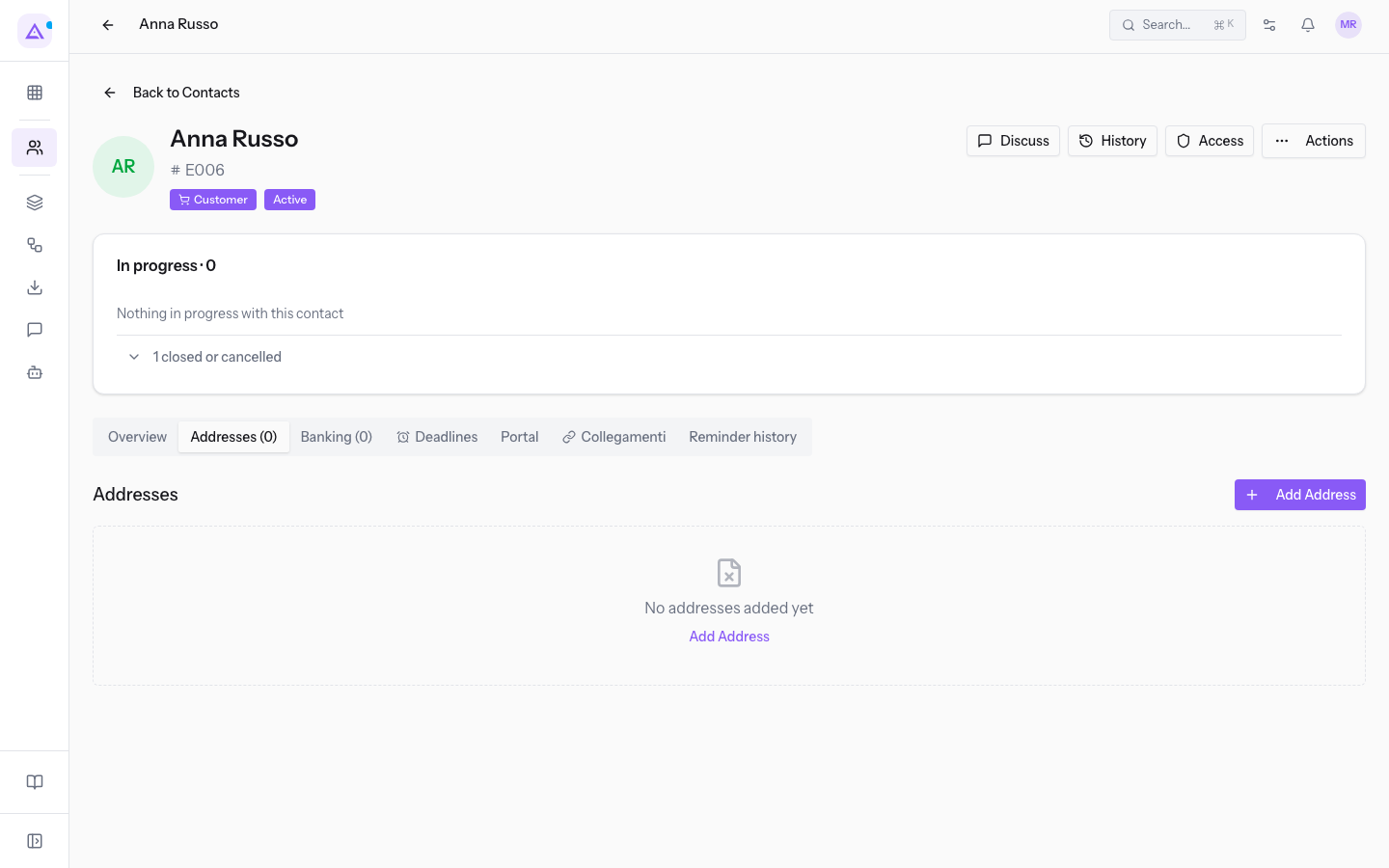
- Fill in the fields in the dialog and confirm with Save; Cancel closes the dialog without saving.
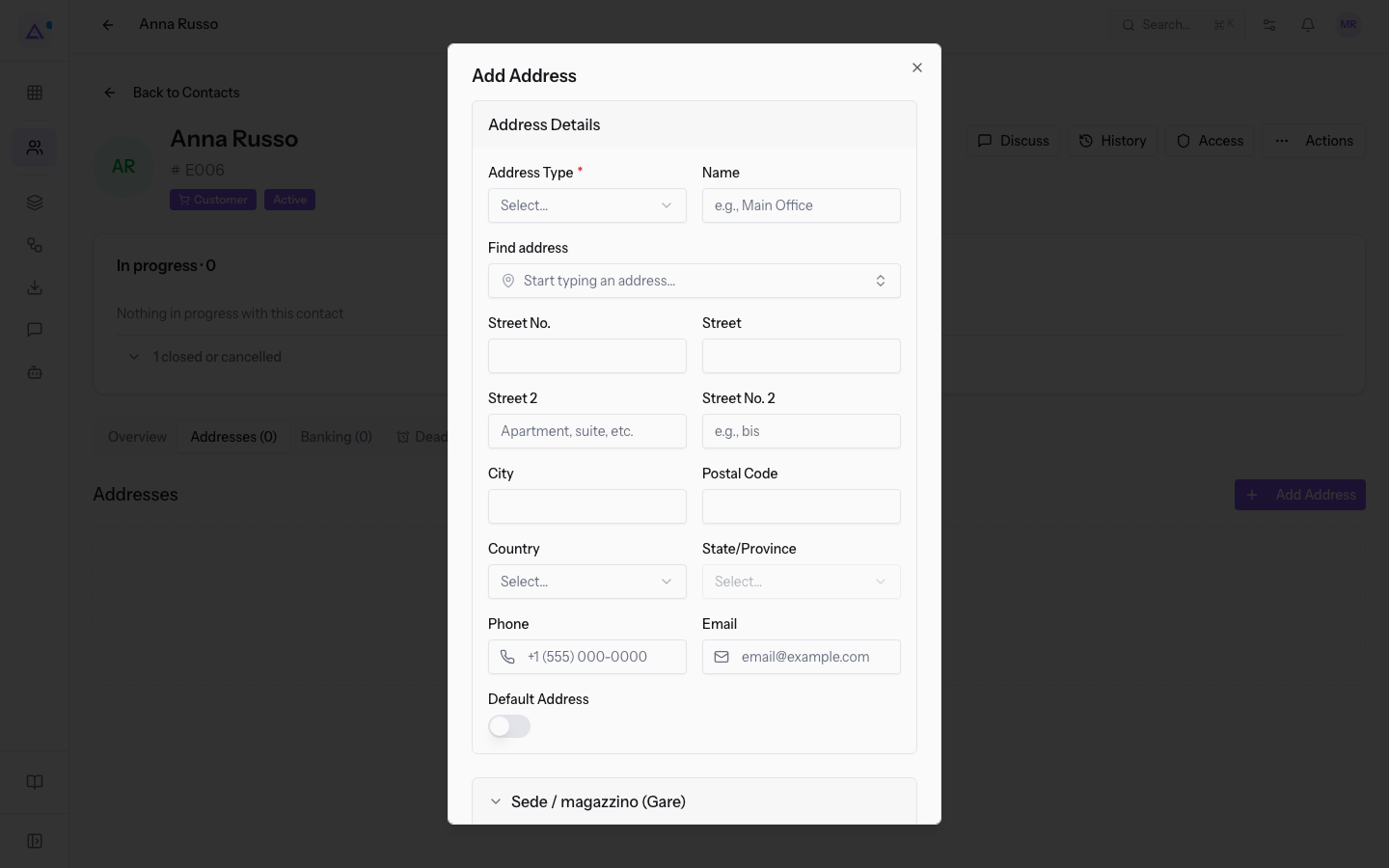
The dialog's fields, in the Address Details group:
- Address Type: what the address is for. The field is required and offers four values.
- Name: the label the address is recognized by.
- Street: the street name.
- Street No.: the street number.
- Street 2 and Street No. 2: the second line of the address, with its own numbering.
- City: the city or town.
- Postal Code: the postal code.
- Country: the country, chosen from the list.
- State/Province: the province or administrative subdivision.
- Default Address: a switch marking the address to use when no other is specified.
Note: when exporting contacts, the address columns use the contact's billing address, or its default address if it has no billing address.
Tip: enter the street, city, and country; for Italian addresses the postal code is also required.
Deleting an address
An address that is no longer needed is removed from the Addresses tab.
- Select the contact's Addresses tab.
- On the address to remove, use Delete Address.
Adding a bank account
Bank accounts live in the contact's Banking tab, which shows their count in parentheses. Record here the IBAN the contact receives payments on, or the one their invoices should be paid to.
- Open the contact and select the Banking tab.
- Start adding an account with the button at the top right of the Bank Accounts section.
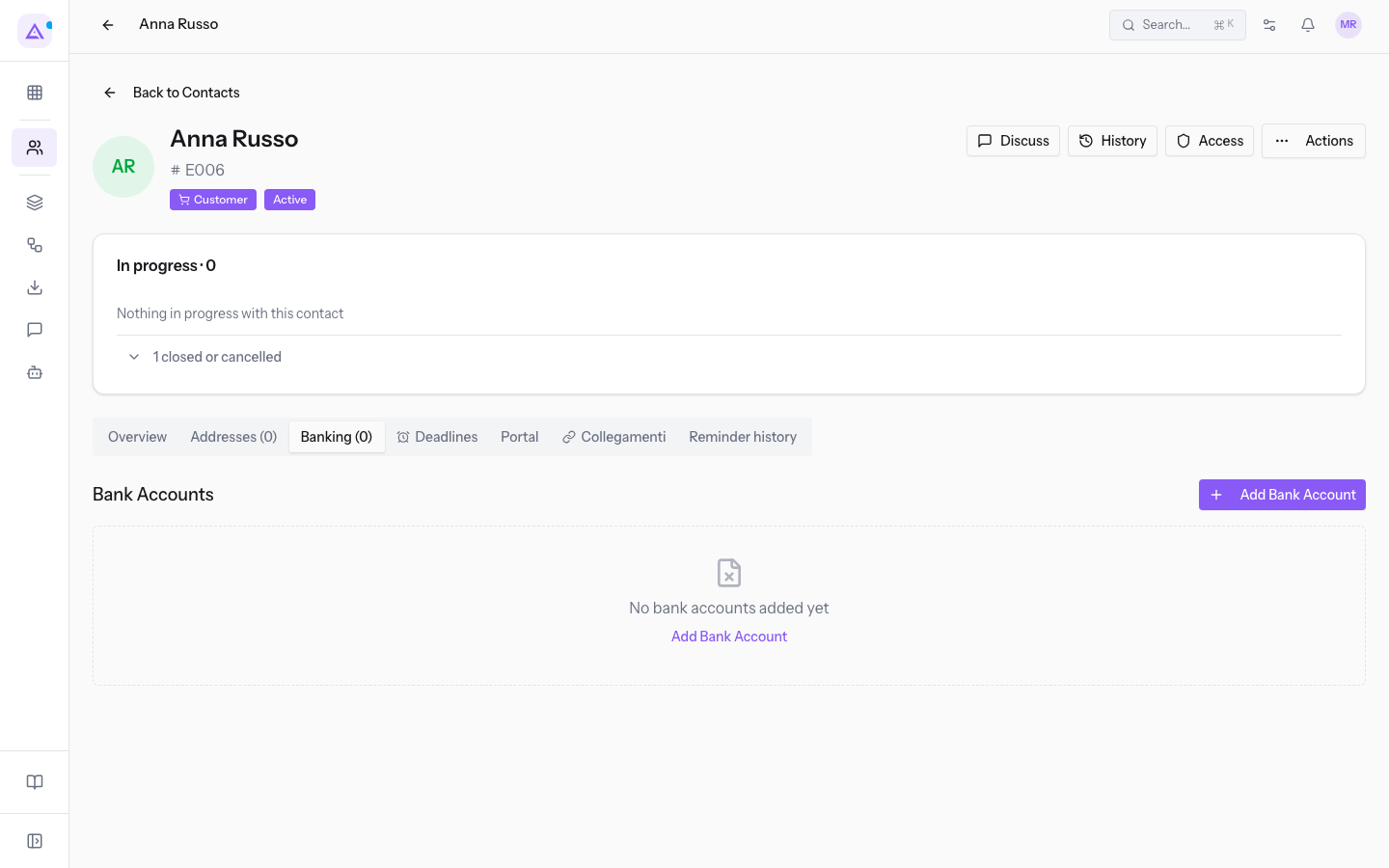
- Fill in the fields in the dialog and confirm with Save; Cancel closes the dialog without saving.
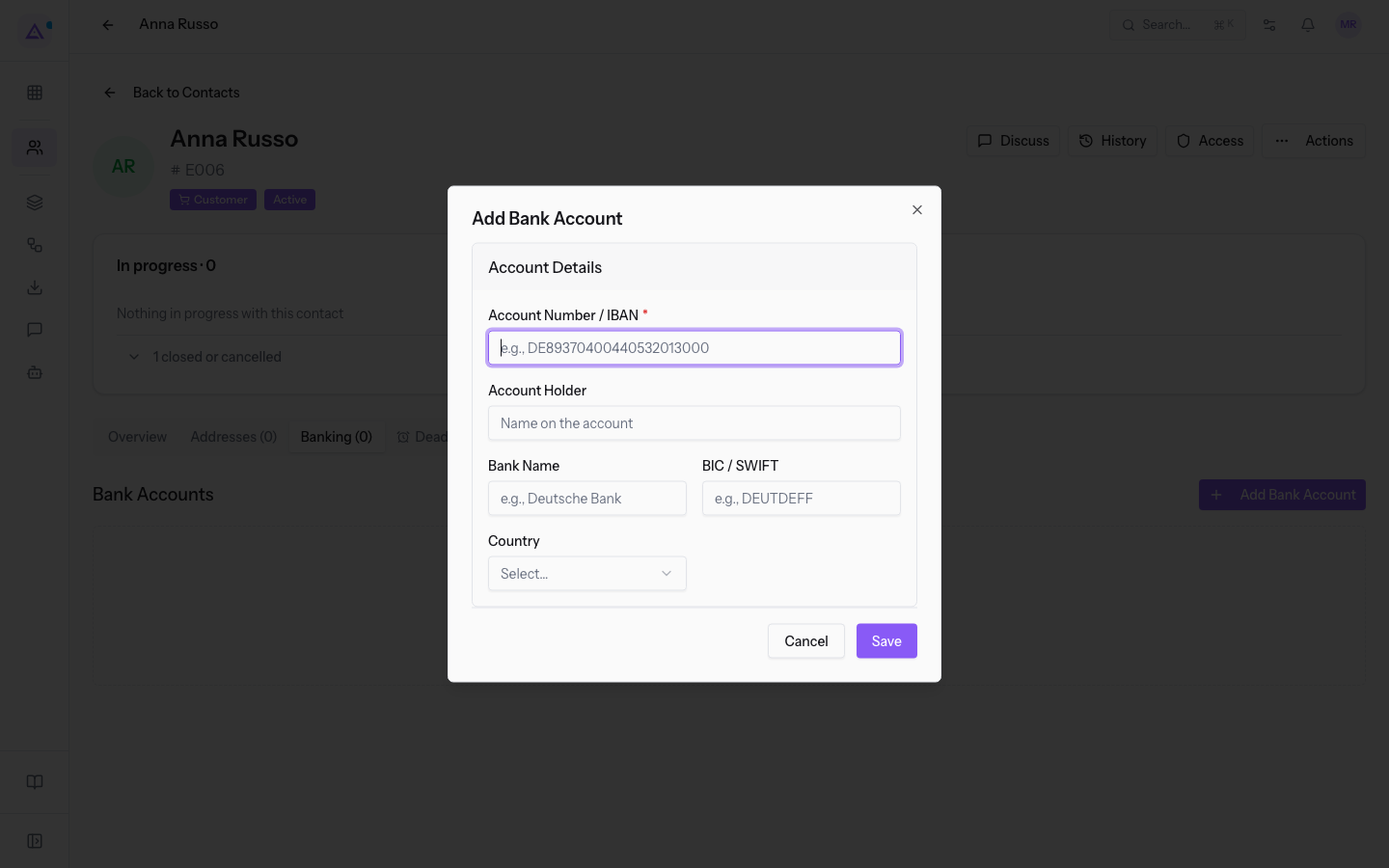
The dialog's fields, in the Account Details group:
- Account Number / IBAN: the account number or IBAN. The field is required.
- Account Holder: the name the account is held under.
- Bank Name: the institution holding the account.
- BIC / SWIFT: the bank's identification code.
- Country: the bank's country, chosen from the list.
Important: banking data is processed for the payment-data purpose declared by the module.
Deleting a bank account
An account that is no longer valid is removed from the Banking tab.
- Select the contact's Banking tab.
- On the account to remove, use Delete Bank Account.
Note: addresses and bank accounts can also be read from the contact's record as described in Reading a contact's record.
See it on your company, not on a slide deck.
In 30 minutes we map the software you use today.We show you how much work and how much margin Archimedes gives back.
Show me on my business →What industry are you in?
One tap — it lets us prepare the demo around your world.
What tools do you use today?
Pick the ones you recognise — or just type them. It helps us show you how they migrate.
Last step: your details.
We reply within one working day — and right after, if you like, you pick the demo slot yourself.
We couldn't send your request. Try again, or write to us at [email protected].
By sending, you agree to your data being processed so we can get back to you about the demo. Privacy notice.
Preview form — nothing is sent from this page.
Want to schedule the demo now?
Your call: book the slot you prefer yourself, or we'll call you to arrange it.
Live availability, 30 minutes, instant confirmation. The calendar opens in a new tab.
Lock in your slot ↗We'll get back to you within one working day — and we'll join the call already knowing your world.
The calendar is open in another tab: pick a slot and the demo is booked. Can't see it? Reopen it ↗
Preview page: nothing was sent.
Our calendar is live: take the slot that suits you and the demo is booked. 30 minutes, instant confirmation, no waiting.
Lock in your slot ↗