Contacts
All modules
Reading a contact's page
Contacts · 4 of 13 · 5 min read
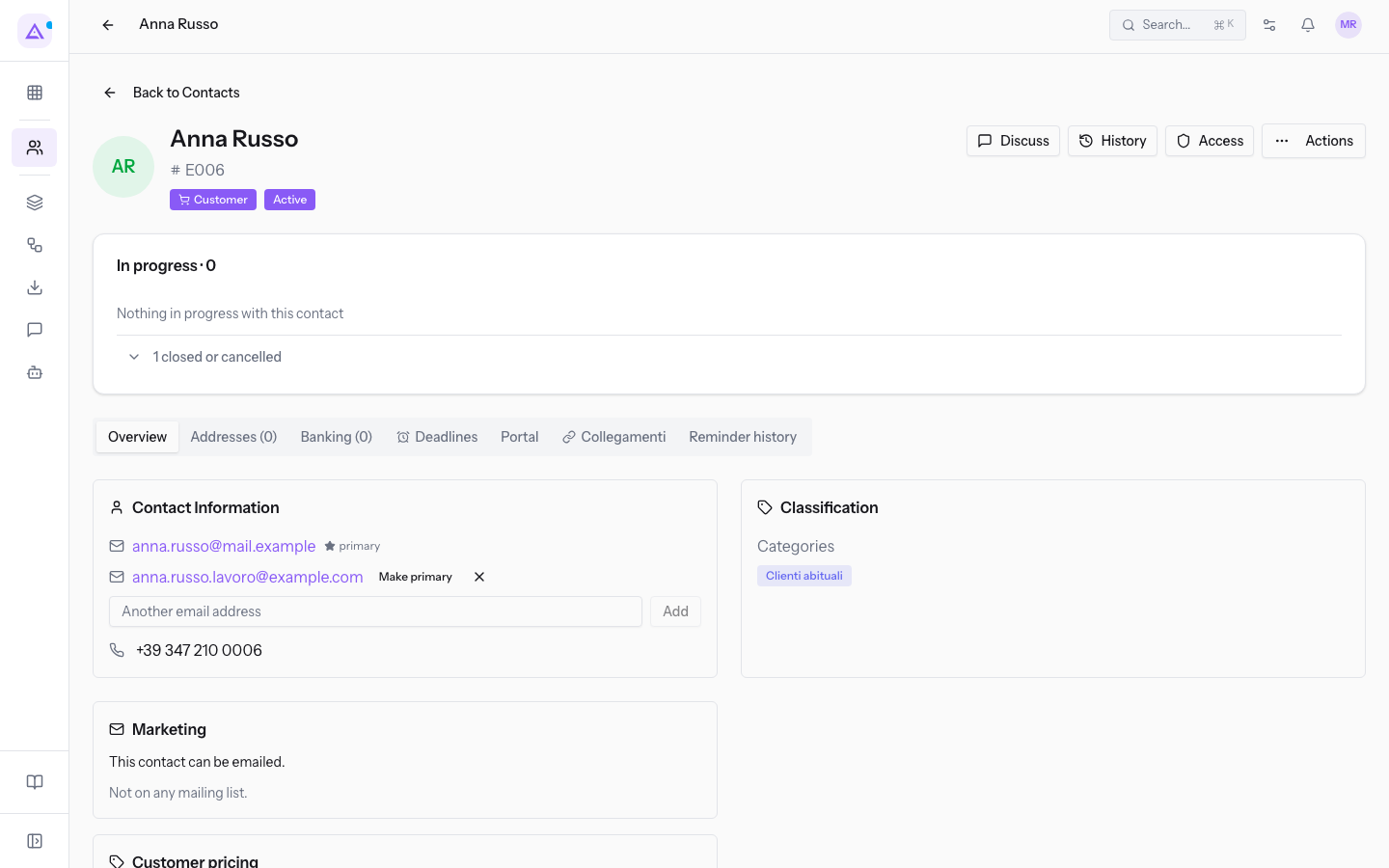
A contact's page gathers on a single screen who the contact is, their contact details and everything the organization has ongoing with them: for example the events of Rossi Arredamenti S.r.l. or the invoice FV/2026/0002 to be collected. You open it from Contacts by clicking the contact's name.
Use this page to consult: the Running panel tells you where the open documents stand, the Overview tab gathers the personal data, the other tabs lead to the addresses, the members and the linked entities. To edit the personal data go through the Actions menu, described in Creating and editing a contact.
The page header
The header stays visible on every tab and identifies the contact.
- Open a contact's page, for example
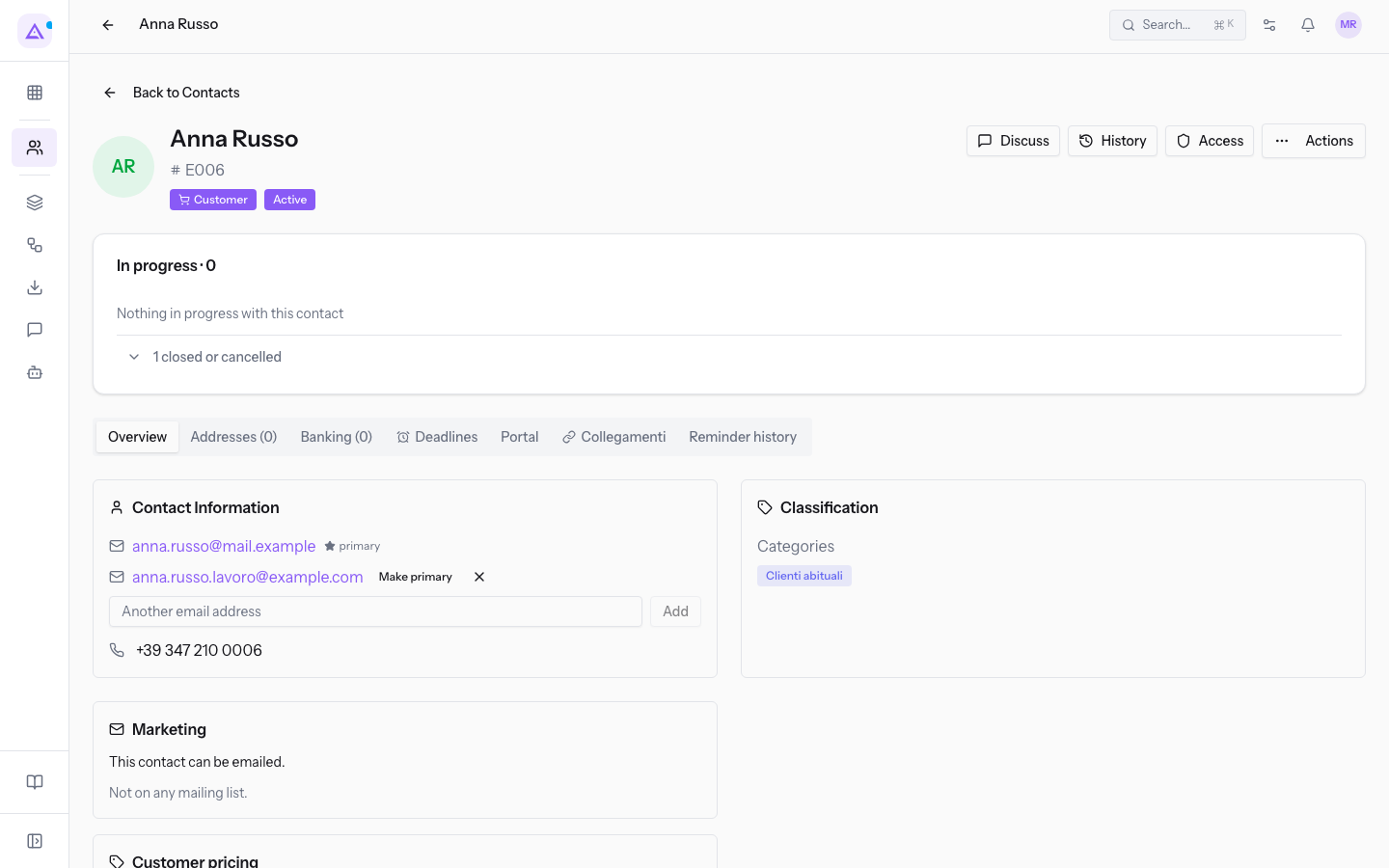
Anna Russo. - Read the header: the avatar with the initials, the name, the contact code (for example
E006forAnna RussoandC001forRossi Arredamenti S.r.l.) and the classification badges, for example Customer and Active. - Use the header buttons for actions on the contact: Discussion, History, Sign-in and Actions.
- Click Back to Contacts to return to the list.
The Actions menu
The Actions menu gathers the operations that change the record.
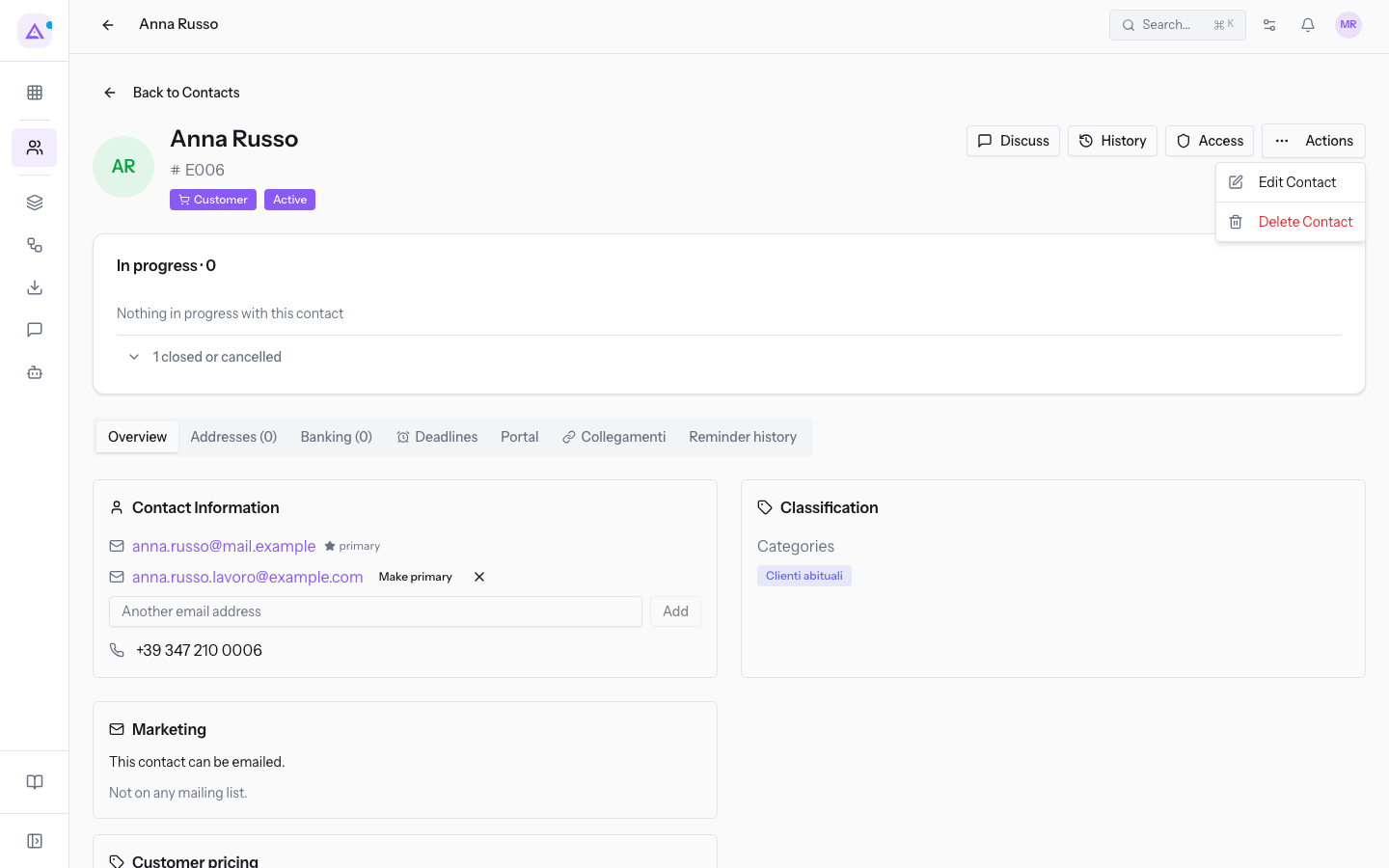
- Click Actions in the header.
- Choose the entry you need.
- Edit Contact: opens the contact for editing. The procedure is described in Creating and editing a contact.
- Delete Contact: deletes the contact.
Note: deleting a contact is a soft deletion: the record is not removed from the database, so the documents that reference it stay consistent.
Important: deleting a contact is reserved to the manager of the Contacts module; whoever holds the module's user permission can create and edit contacts but not delete them.
The Running panel
The Running panel lists the contact's open documents in the other modules, with the count in the title.
- Read the panel title: it shows the number of open items, for example In corso · 3 on
Rossi Arredamenti S.r.l.. - Read each row: the document type, its name, its status and the reference date. On
Rossi Arredamenti S.r.l.you seeEvento Pranzo di lavoro Rossi Arredamenti Confermato · evento il 20 ott 2026,Evento Festa della vendemmia Confermato · evento il 31 ott 2026andFattura FV/2026/0002 Da incassare · scade il 19 nov 2026. - Click a row to open the document.
- Click 1 chiuso o annullato to also show the items that are no longer open, for example
Evento Matrimonio Anna e Paolo Annullato · evento il 22 nov 2026onAnna Russo.
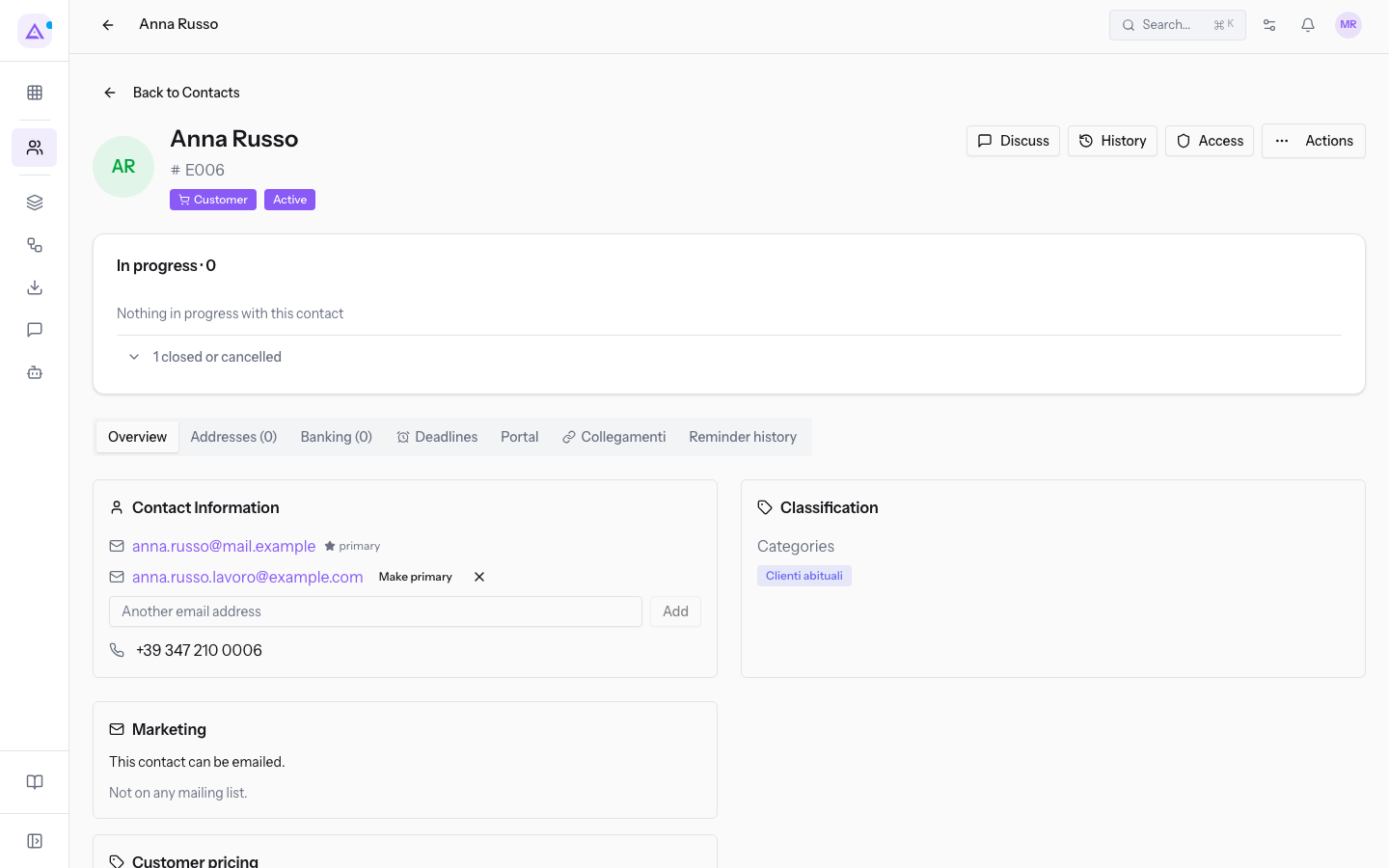
When the contact has no open documents the panel shows In corso · 0 and the message Nothing in progress with this contact; on Giulia Ferri the panel shows In corso · 1 with Evento Matrimonio Giulia e Marco Proposta · data da definire.
The Overview tab
The Overview tab is the one open when you arrive and gathers the contact's data in panels.
The panels are Contact Information, Classification, Marketing, Customer pricing and Record Information.
In the Customer pricing panel you set the price list applied to the contact.
- Pricelist: the price list to apply. The initial value is Select a pricelist. Confirm with Save.
Additional email addresses
A contact can have several email addresses besides the primary one: for example a personal address and a work one. You manage them in the Contact Information panel of the Overview.
- In the Overview, fill in Another email address with the new address, for example
[email protected]. - Click Add. The address appears in the list next to the primary one, for example
[email protected]. - To promote an additional address to primary address, click Make primary next to the address.
- To remove an additional address, click Remove next to the address.
The other tabs of the contact page
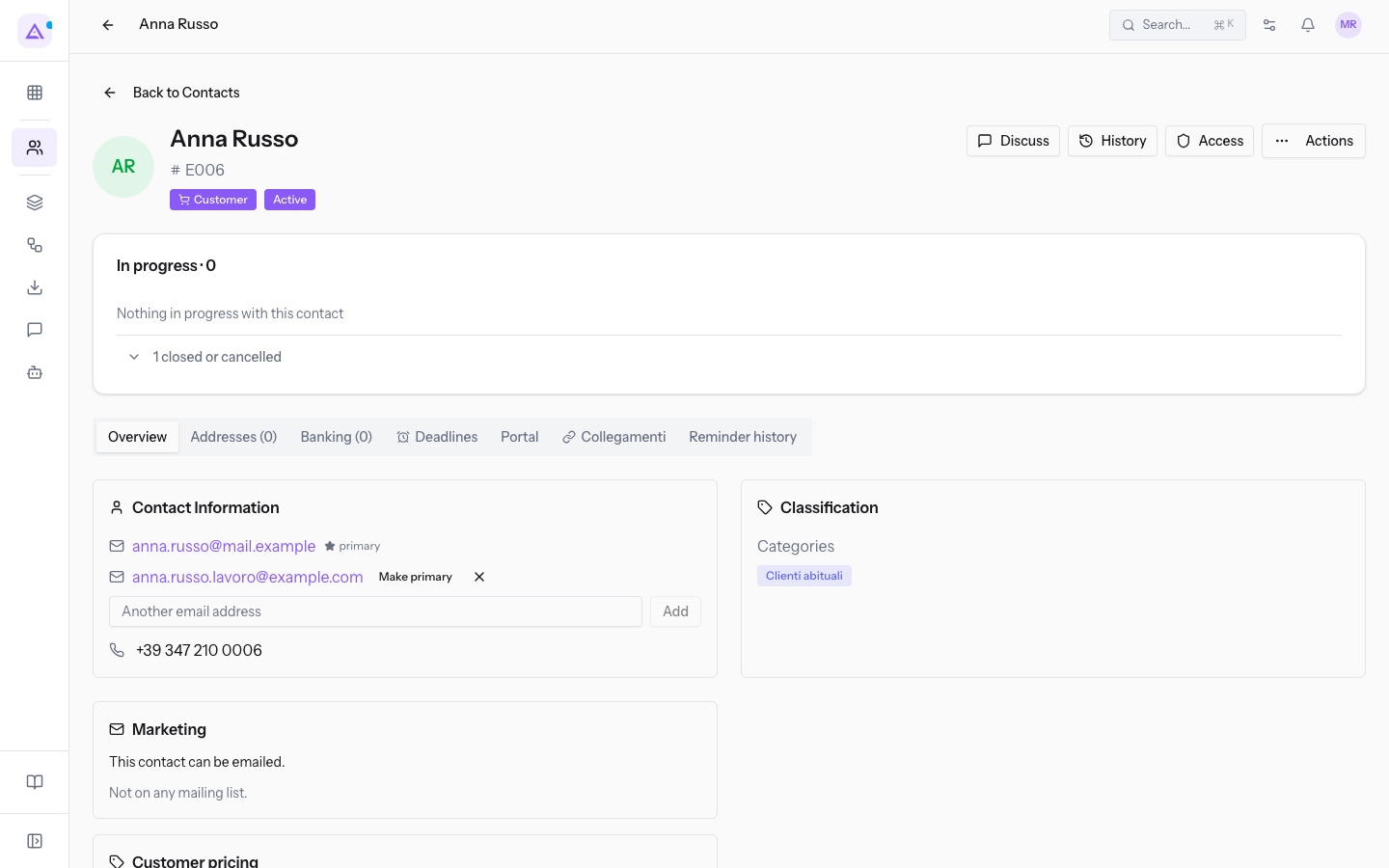
The tabs at the top group the rest of the contact's data; the number in parentheses indicates how many items the tab contains.
- Overview: the personal and contact data.
- Membri (1): the people linked to the entity. It appears on entities, for example on
Rossi Arredamenti S.r.l., and not on people such asAnna Russo. Its management is described in Managing an entity's Members and Locations. - Indirizzi (1): the contact's addresses, described in Adding Addresses and Bank Accounts to a contact.
- Bancario (0): the contact's bank accounts, described in Adding Addresses and Bank Accounts to a contact.
- Deadlines: the deadlines recorded on the contact.
- Links: the counters of the entities linked to the contact in the other modules, for example the events.
- Reminder history: the history of the contact's reminders.
The contact's history
The history gathers the contact's messages and changes. Changes to name, email, phone, entity type, customer or supplier status, industry and country are recorded there automatically.
- Click Discussion in the header. The Discussions window opens, with the Discussion, History, Tasks and Followers tabs.
- In the Discussion tab, write the text in Message and click Submit.
- To write a text visible only internally, use Internal note before sending.
- Open History to read the events recorded on the record. When there are none, the tab says so in place of the list.
- Click Close to return to the page.
Tip: you can open the same window directly on the changes with the History button in the header.
Note: the record's followers and anyone you mention are notified.
See it on your company, not on a slide deck.
In 30 minutes we map the software you use today.We show you how much work and how much margin Archimedes gives back.
Show me on my business →What industry are you in?
One tap — it lets us prepare the demo around your world.
What tools do you use today?
Pick the ones you recognise — or just type them. It helps us show you how they migrate.
Last step: your details.
We reply within one working day — and right after, if you like, you pick the demo slot yourself.
We couldn't send your request. Try again, or write to us at [email protected].
By sending, you agree to your data being processed so we can get back to you about the demo. Privacy notice.
Preview form — nothing is sent from this page.
Want to schedule the demo now?
Your call: book the slot you prefer yourself, or we'll call you to arrange it.
Live availability, 30 minutes, instant confirmation. The calendar opens in a new tab.
Lock in your slot ↗We'll get back to you within one working day — and we'll join the call already knowing your world.
The calendar is open in another tab: pick a slot and the demo is booked. Can't see it? Reopen it ↗
Preview page: nothing was sent.
Our calendar is live: take the slot that suits you and the demo is booked. 30 minutes, instant confirmation, no waiting.
Lock in your slot ↗