Contacts
All modules
Classifying Contacts to Review
Contacts · 11 of 13 · 3 min read
The Contacts to Review page collects contacts imported without a defined type and lets you assign them the correct classification, for example a company imported without a VAT number or an individual imported with a VAT number. The page's message states it: "Imported contacts without a defined type — set the correct classification".
Use this page after importing your contact records. If the contact represents an organization, classify it as an entity; if it represents a person, classify it as an individual. If you need to classify many contacts the same way, select them and use Set type...; if each contact requires a different choice, work row by row and confirm with Save Changes.
Note: the Customer or Vendor classification is the same one you find on the contact's record, described in Creating and editing a contact.
Opening Contacts to Review
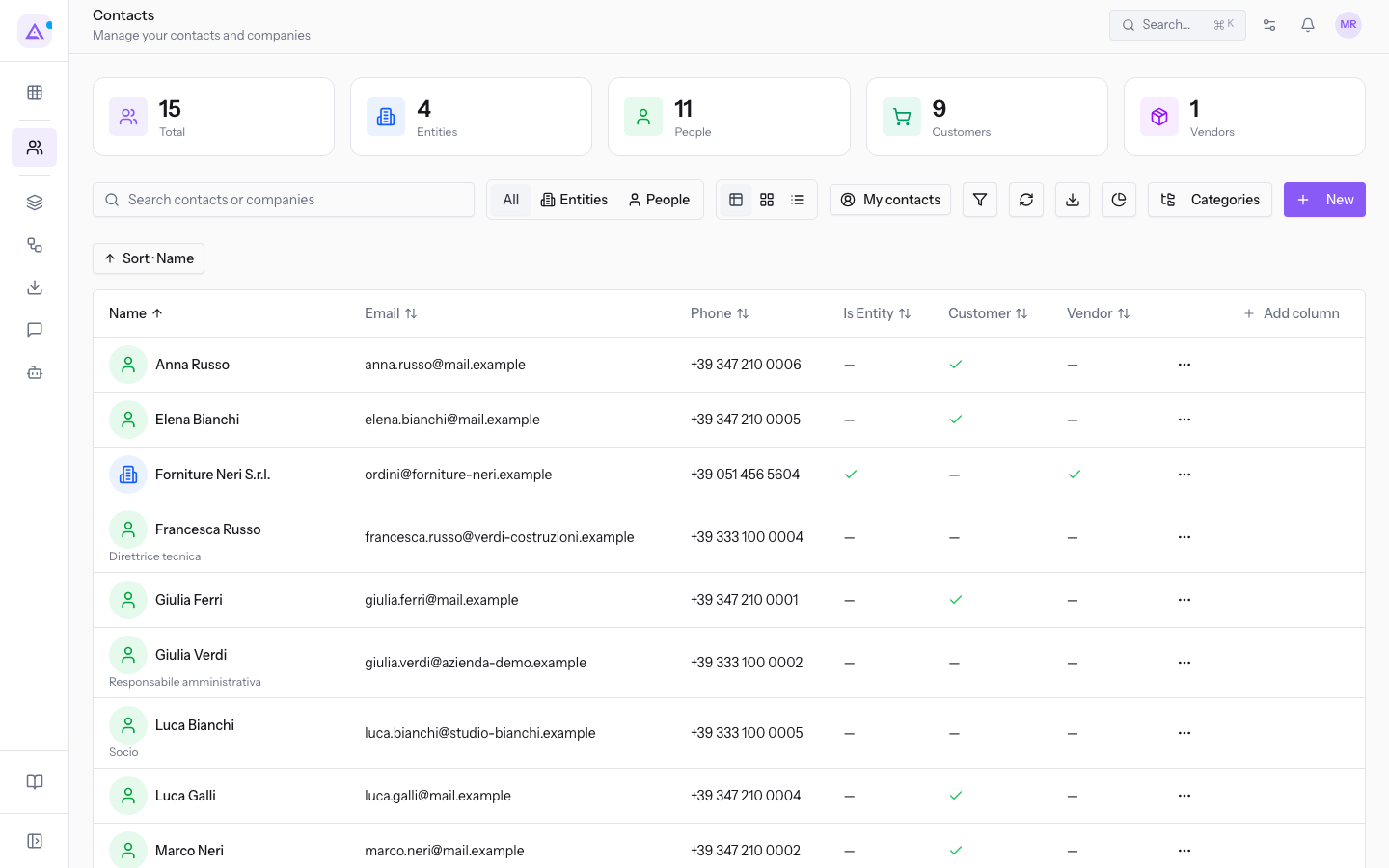
The page is reached from the contact list.
- Open Contacts.
- Click Review Classification. The button shows the number of contacts still to be classified.
- The Contacts to Review page opens.
- To return to the full contact list, click Back to Contacts.
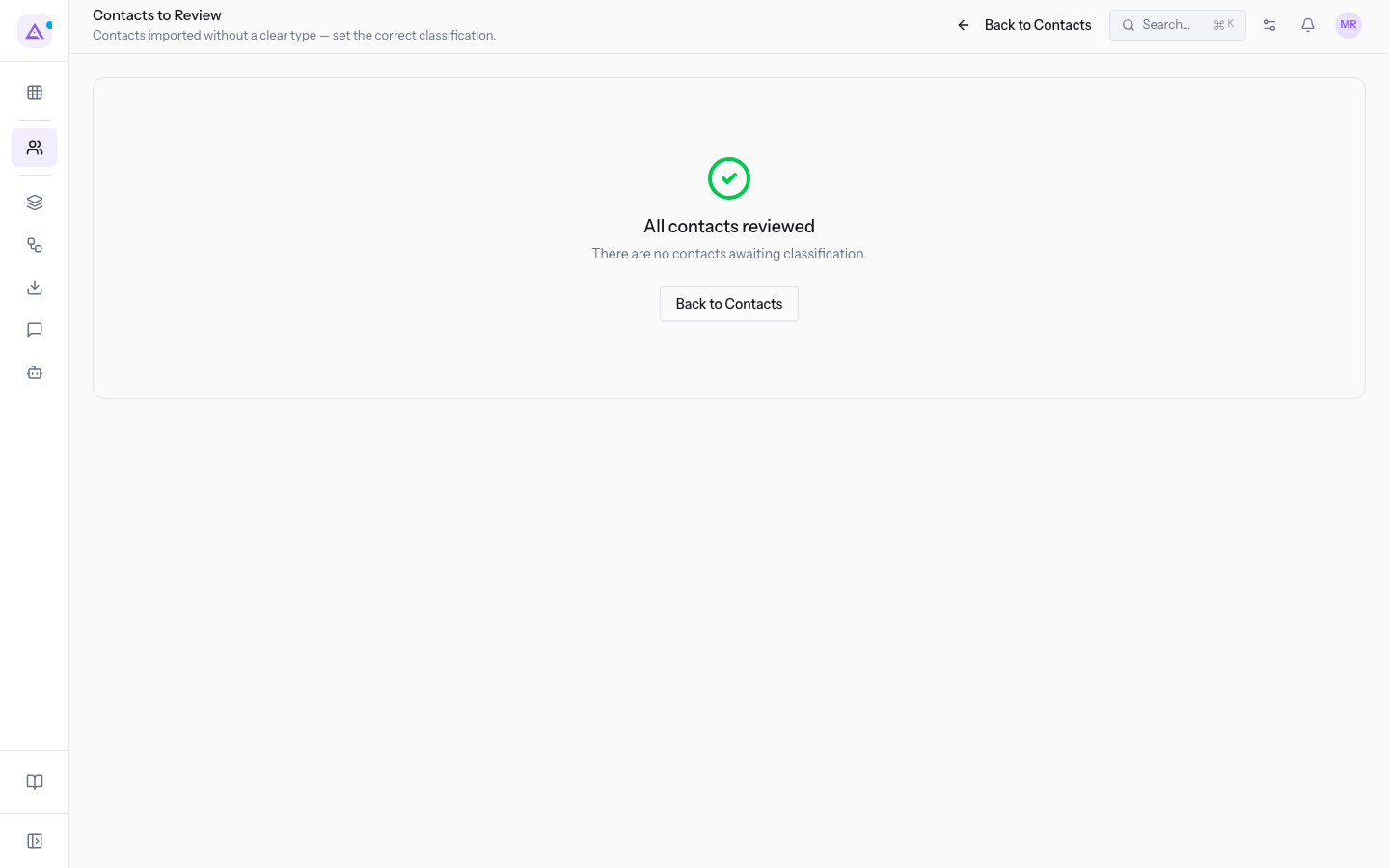
When no contacts are left to classify, the page shows All contacts reviewed with the text "There are no contacts awaiting classification". This is the state of the demo organization.
Filtering contacts by reason
Each contact in the list shows the reason it was flagged. The reason filter narrows the list to a single reason at a time, so you can handle together the cases that are resolved the same way.
- All reasons: shows all contacts awaiting classification. This is the filter's initial value.
- Inferred: the type was inferred from the imported data and not declared in the source.
- No type on import: the source did not indicate any type for the contact.
- Company, no VAT: the contact was imported as a company but has no VAT number.
- Individual, has VAT: the contact was imported as an individual but has a VAT number.
- Country could not be resolved: the country indicated in the source does not match any country.
Tip: the Company, no VAT and Individual, has VAT reasons signal an inconsistency between the type and the tax data: verify the VAT number before confirming the type.
Classifying multiple contacts at once
Multiple selection applies the same type to all the chosen contacts in a single operation.
- Filter the list by the reason you are interested in, for example No type on import.
- Select the contacts to classify. With Select all you select the contacts shown; with Clear selection you cancel the selection.
- Open Set type... and choose the type to assign to the selected contacts.
- Click Apply.
- When finished, the interface indicates how many contacts were classified.
Important: if the classification fails, the interface shows Failed to classify contacts and the contacts remain in the list.
Classifying a contact row by row
When contacts require different choices, set the classification directly on the row.
- Locate the contact in the list.
- On its row, set Customer, Vendor, or both, according to your relationship with the contact.
- Repeat for the other contacts on the page.
- Click Save Changes.
Note: a contact can be both Customer and Vendor; the two designations are independent.
Classified contacts leave the list and remain available in the contact records, where you can filter them with Customers only and Vendors only as described in Filtering contacts with Advanced Filters and Provenance.
See it on your company, not on a slide deck.
In 30 minutes we map the software you use today.We show you how much work and how much margin Archimedes gives back.
Show me on my business →What industry are you in?
One tap — it lets us prepare the demo around your world.
What tools do you use today?
Pick the ones you recognise — or just type them. It helps us show you how they migrate.
Last step: your details.
We reply within one working day — and right after, if you like, you pick the demo slot yourself.
We couldn't send your request. Try again, or write to us at [email protected].
By sending, you agree to your data being processed so we can get back to you about the demo. Privacy notice.
Preview form — nothing is sent from this page.
Want to schedule the demo now?
Your call: book the slot you prefer yourself, or we'll call you to arrange it.
Live availability, 30 minutes, instant confirmation. The calendar opens in a new tab.
Lock in your slot ↗We'll get back to you within one working day — and we'll join the call already knowing your world.
The calendar is open in another tab: pick a slot and the demo is booked. Can't see it? Reopen it ↗
Preview page: nothing was sent.
Our calendar is live: take the slot that suits you and the demo is booked. 30 minutes, instant confirmation, no waiting.
Lock in your slot ↗