Contacts
All modules
Filtering contacts with Advanced Filters and Source
Contacts · 8 of 13 · 4 min read
The Advanced Filters narrow the contact list down to a precise subset of the address book, for example only the customers from one country, the contacts in a category, or those that arrived through a certain acquisition channel. The Contacts by source window instead shows how many contacts come from each channel.
Filters combine with one another and with the search typed in Search contacts or companies: a contact appears in the list only if it meets every condition you set.
Choose the filter based on the question you are asking. If you are looking for sales counterparties, turn on Customers only; if you are looking for suppliers, turn on Vendors only. If you want a group of contacts you classified yourself, use Any category or Any tag. If you want to know which channel a contact came in through, use Source.
Note: the result of the filters is also what gets exported, as explained in Exporting contacts.
Opening the Advanced Filters
The panel opens above the contact list and stays open while you work.
- Open Contacts.
- Click Filters. The Advanced Filters panel opens.
- Set the fields you need. The list updates with every choice.
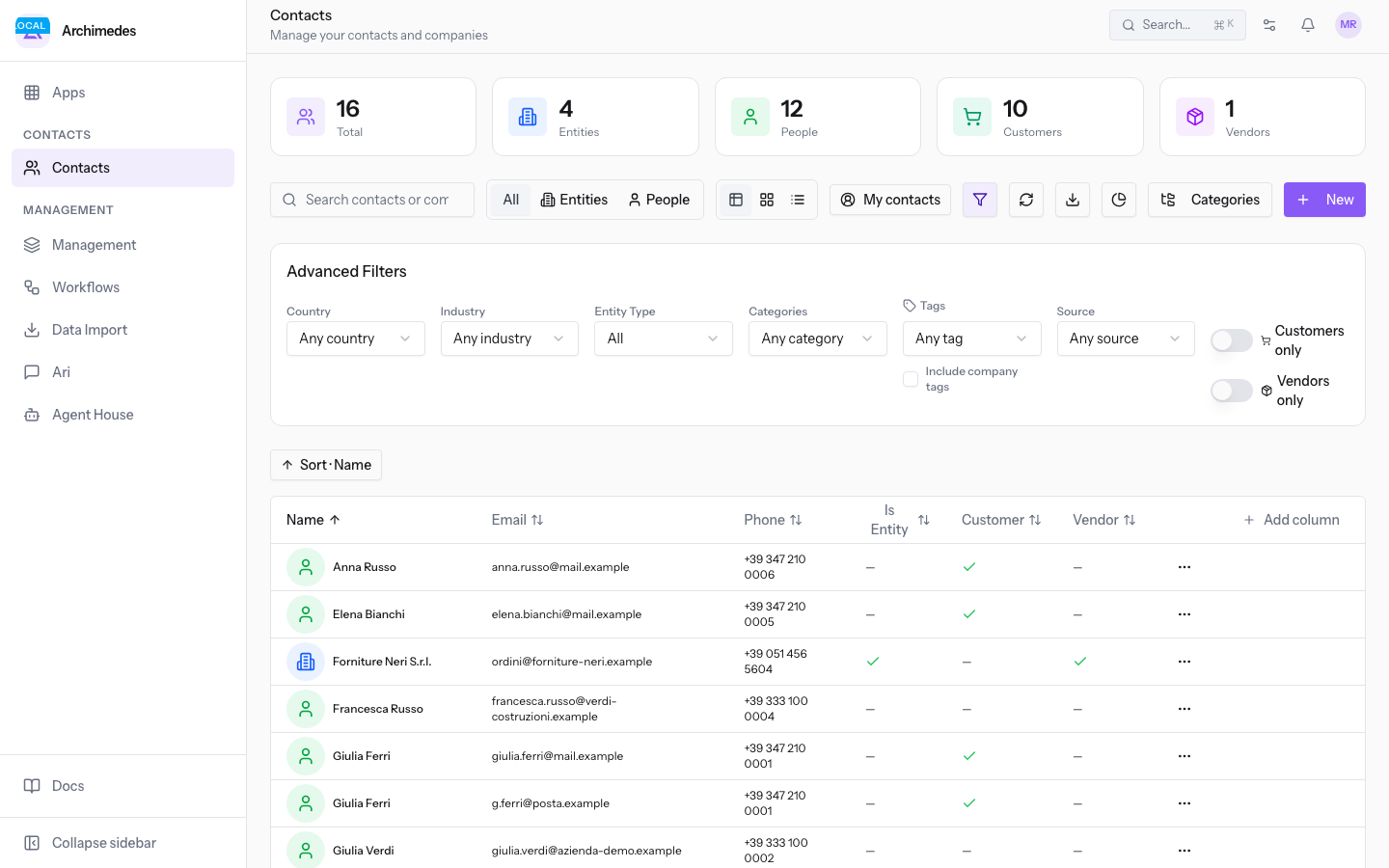
When at least one filter is set, the button shows the number of active filters, for example Filtri (1), and Clear all appears in the panel.
The fields in the Advanced Filters panel
The panel contains one field per criterion. The drop-down menus start from the value that filters nothing.
- Any country: filters contacts by the country set on the contact's record. The initial value applies no filter.
- Any industry: filters contacts by industry. The initial value applies no filter.
- Any category: filters contacts by contact category, among those managed as described in Managing categories and assigning them to contacts.
- Any tag: filters contacts by tag.
- Include company tags: a checkbox, initially off.
- Source: filters contacts by acquisition channel. The initial value is Any source.
- Customers only: a toggle, initially off. Turn it on to see only the contacts classified as customers, for example
Rossi Arredamenti S.r.l.andGiulia Ferri. - Vendors only: a toggle, initially off. Turn it on to see only the contacts classified as suppliers.
The classification the two toggles act on is the one set on the contact's record, described in Creating and editing a contact.
Filtering by Source
The source is the channel through which the contact was created. It is set at creation time and does not change afterwards, so it is a stable value to filter on.
- In the Advanced Filters panel, open Source.
- Choose the channel you are interested in. The list is limited to contacts with that source.
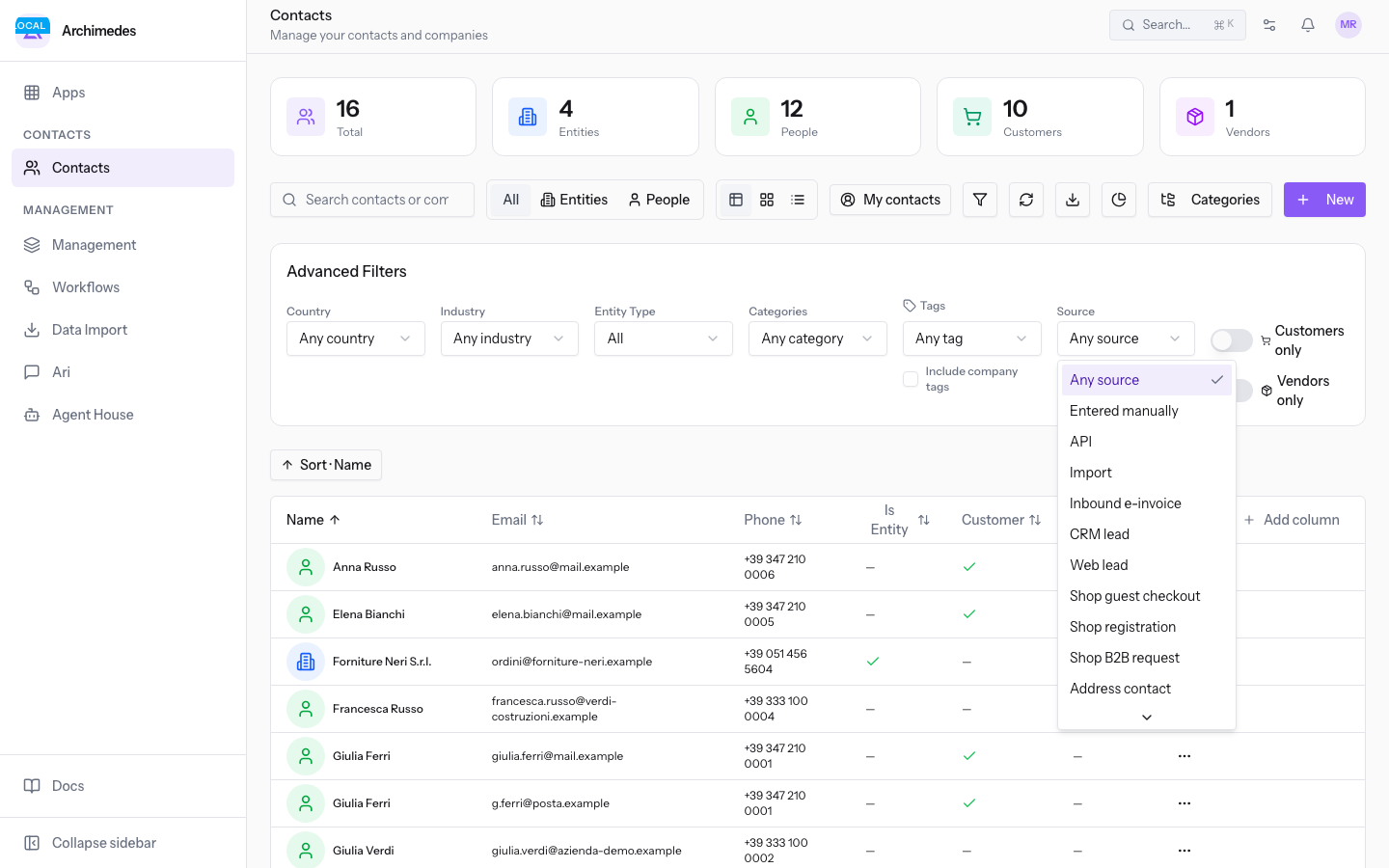
The available options are:
- Any source: no filter on the source.
- Entered manually: contacts created by hand from the contact list.
- API.
- Import: contacts created by a data import.
- Inbound e-invoice.
- CRM lead: contacts born from converting an opportunity.
- Web lead.
- Shop guest checkout.
- Shop registration.
- Shop B2B request.
- Address contact: child contacts created as another contact's billing or shipping address, described in Adding Addresses and Bank Accounts to a contact.
- Portal member.
- Public campaign.
- Channel manager.
- Online booking.
- Farm owner.
- System.
- Unknown.
Note: the source cannot be changed from the contact's record. If a contact appears under the wrong channel, the value remains the one recorded at creation.
Clearing the filters
When the list is reduced to a few contacts and you do not remember which criteria are active, bring the panel back to its initial state.
- Click Filters to open the panel. The number in parentheses shows how many filters are active.
- Click Clear all. Every field in the panel returns to the value that filters nothing, and the list shows all contacts again.
Tip: Clear all appears only when at least one filter is active.
The quick filters All, Entities, People and My contacts above the list are independent of the panel and are described in Browsing the Contacts list.
Counting contacts by source
The Contacts by source window summarizes how many contacts come from each acquisition channel. Use it to measure the weight of each channel, for example how many contacts come from an import and how many from a request on the website.
- Prepare the list with the search and filters you are interested in.
- Click Contacts by source.
- Read the count next to each channel. The window states: "Number of contacts per acquisition channel, based on the list's current search and filters."
- Click Close to return to the list.
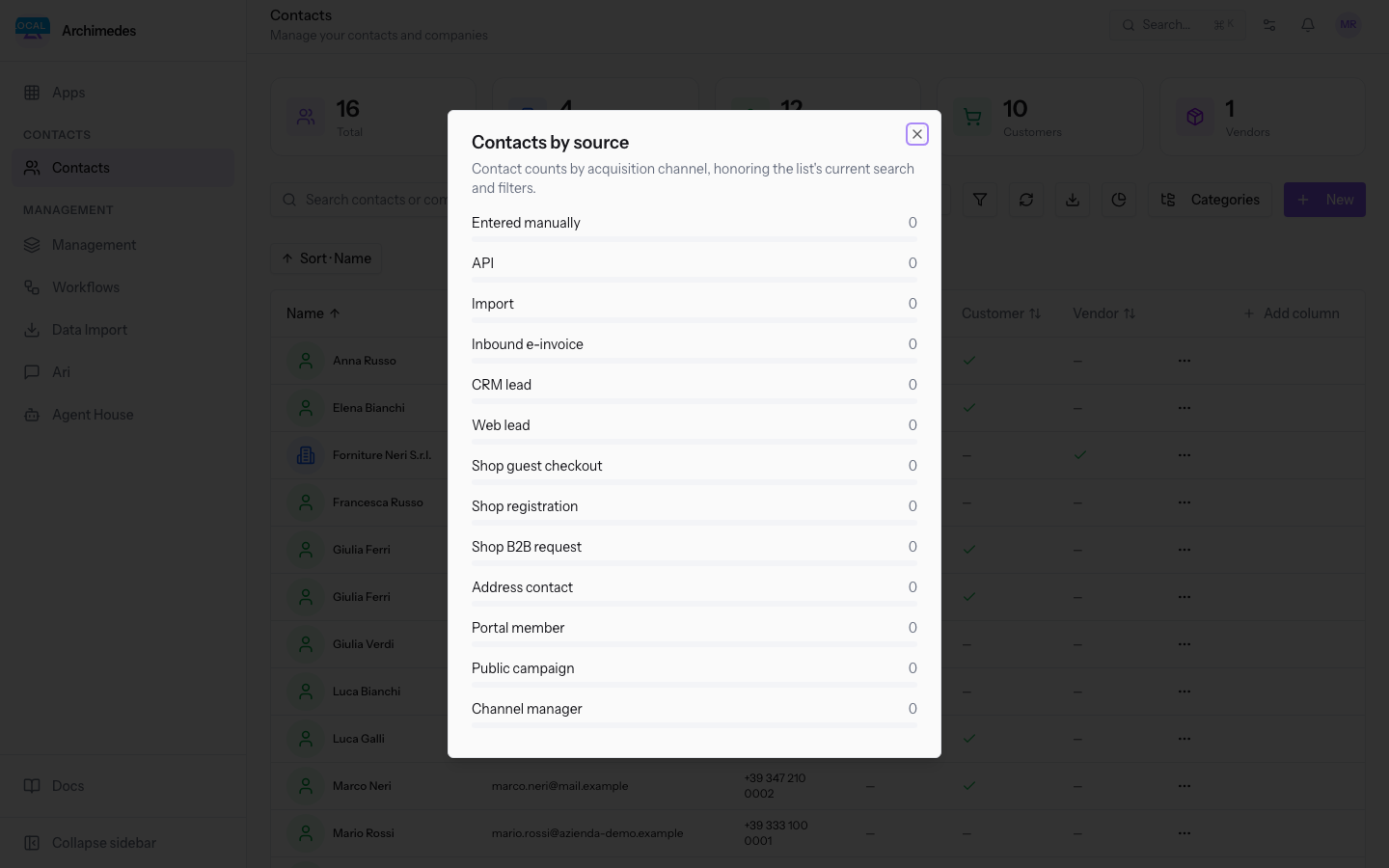
Important: the numbers in the window follow the active search and filters, not the whole address book. To get the count across all contacts, use Clear all first.
See it on your company, not on a slide deck.
In 30 minutes we map the software you use today.We show you how much work and how much margin Archimedes gives back.
Show me on my business →What industry are you in?
One tap — it lets us prepare the demo around your world.
What tools do you use today?
Pick the ones you recognise — or just type them. It helps us show you how they migrate.
Last step: your details.
We reply within one working day — and right after, if you like, you pick the demo slot yourself.
We couldn't send your request. Try again, or write to us at [email protected].
By sending, you agree to your data being processed so we can get back to you about the demo. Privacy notice.
Preview form — nothing is sent from this page.
Want to schedule the demo now?
Your call: book the slot you prefer yourself, or we'll call you to arrange it.
Live availability, 30 minutes, instant confirmation. The calendar opens in a new tab.
Lock in your slot ↗We'll get back to you within one working day — and we'll join the call already knowing your world.
The calendar is open in another tab: pick a slot and the demo is booked. Can't see it? Reopen it ↗
Preview page: nothing was sent.
Our calendar is live: take the slot that suits you and the demo is booked. 30 minutes, instant confirmation, no waiting.
Lock in your slot ↗