Contacts
All modules
Exporting contacts
Contacts · 9 of 13 · 4 min read
The export produces a CSV file of the contacts in the address book, for example the list of only company customers such as Rossi Arredamenti S.r.l. or only private customers such as Giulia Ferri. Choose the columns to include and download the file of the contacts shown by the list.
The export always follows the search and the filters active on the list: the file contains the contacts shown by that list, not the whole address book. So prepare the result before exporting, using the search box and the Advanced Filters.
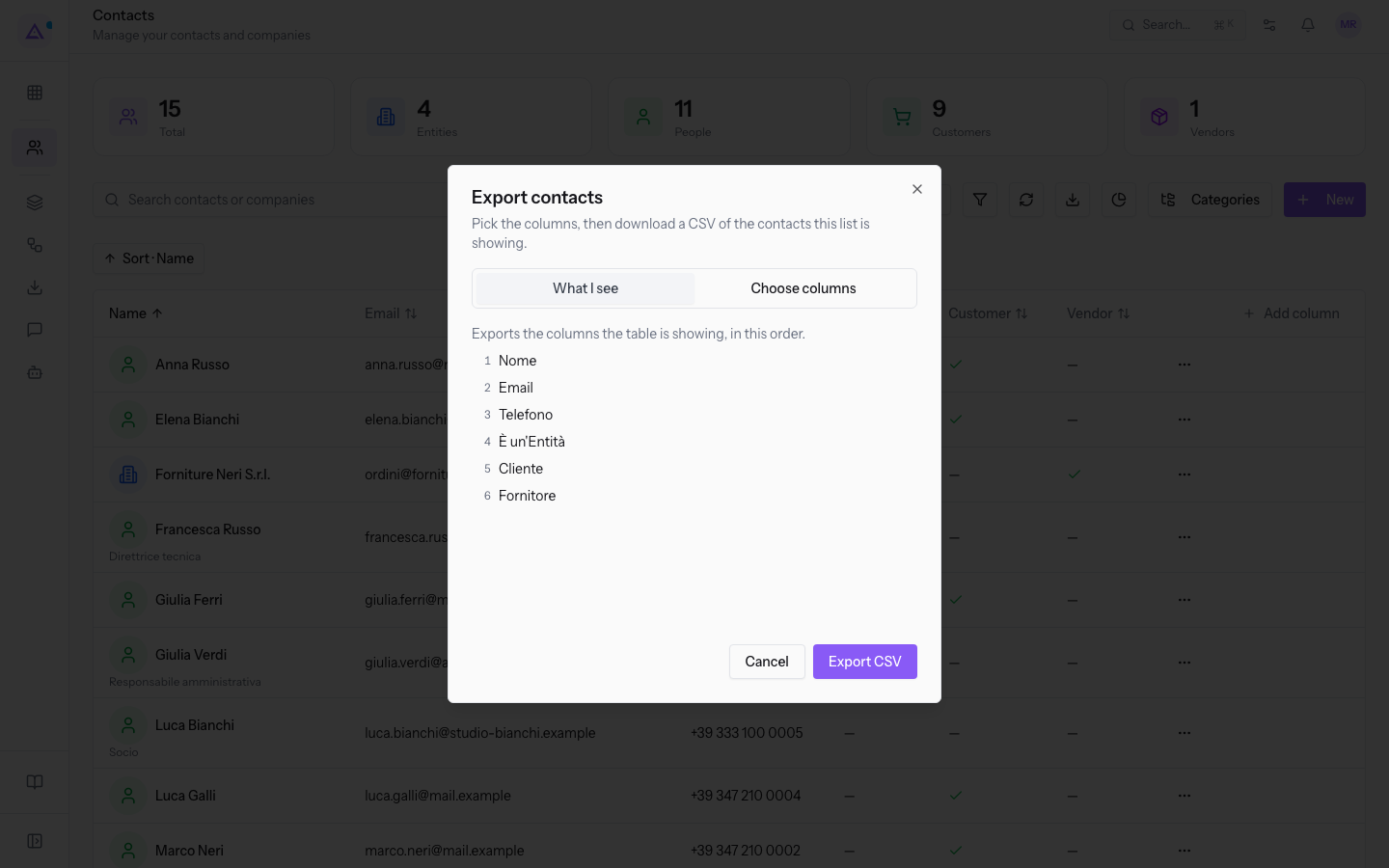
The two modes of the dialog answer two different needs. If you need the file as you see it on screen, choose What I see: the columns shown by the table are exported, in their order. If you need data the table does not show, for example IBAN or Consent History, choose Choose columns and select them one by one.
Note: exports of more than 1,000 contacts run in the background and appear in Contact exports.
Exporting contacts from the list
The export starts from the contact list.
- Open Contacts and set the search and filters to the contacts you want to export.
- Click Export. The Export contacts window opens.
- Choose the mode: What I see or Choose columns.
- Click Export CSV. With Cancel or Close you leave without exporting.
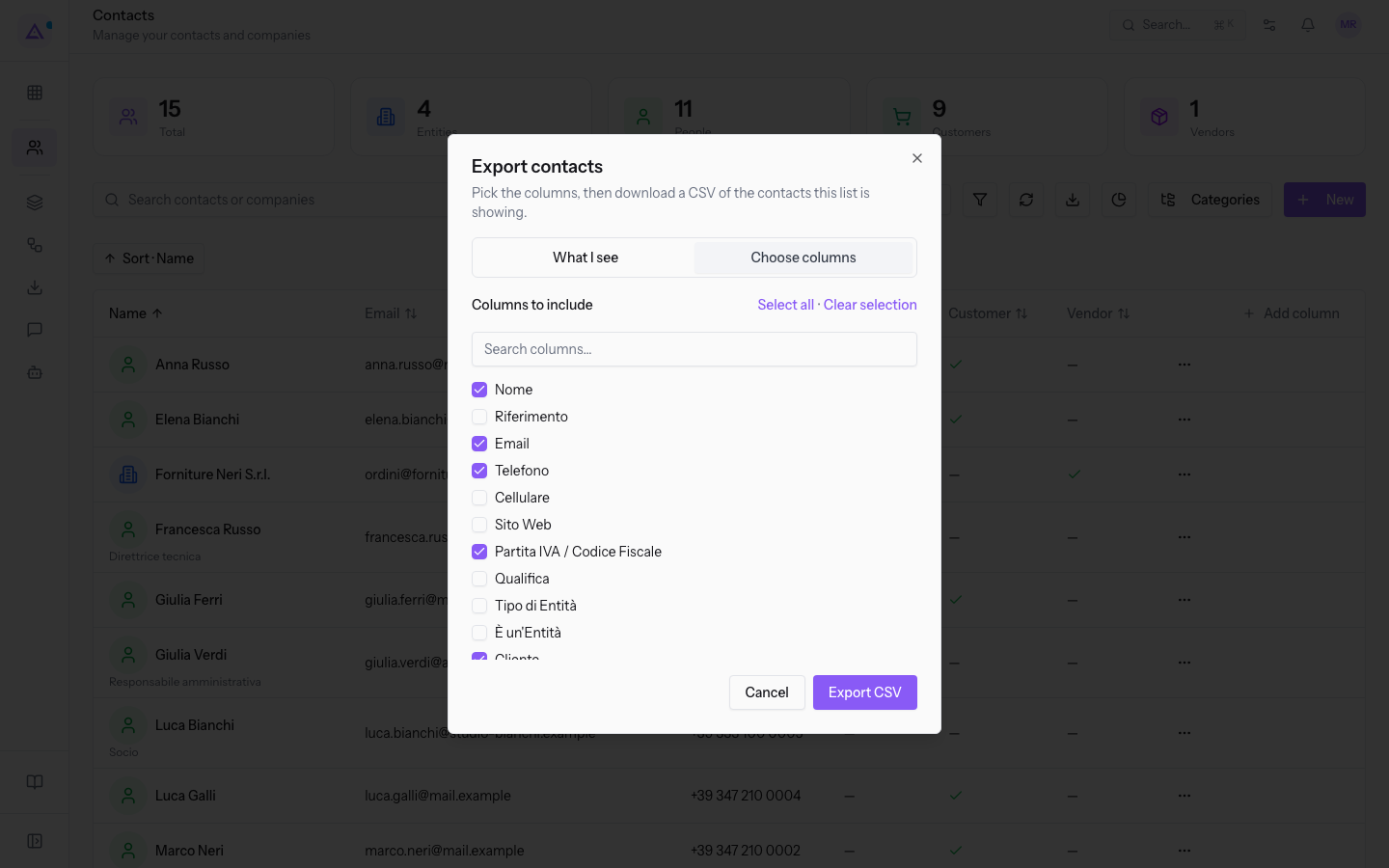
The window's controls:
- What I see: exports the columns shown by the table, in that order. The window lists their numbered sequence.
- Choose columns: shows the Columns to include list, with a checkbox for each available column.
- Search columns…: filters the column list by text.
- Select all: selects every column in the list.
- Clear selection: deselects every column in the list.
- Export CSV: starts the export.
Important: the address columns use the contact's billing address, or its default address if it has no billing address. Addresses are managed as described in Adding Addresses and Bank Accounts to a contact.
Choosing the columns to include
In Choose columns mode you start from a preset selection and adjust it. Name, Email, Phone, VAT/Tax ID, Customer and Vendor come selected.
The available columns, to select or deselect individually:
- Identity and references: Name, Reference, Title, Job Title, Referent, Reference Contact, Preferred Language, Notes.
- Contact details: Email, Phone, Mobile, Website, PEC.
- Nature and classification: Entity Type, Is Entity, Is Parent Company, Entities, Role, Role Title, Customer, Vendor, Active, Industry, Country, Assigned Salesperson, Tags, Categories.
- Address: Address Contact, Street, Address Street 2, City, Postal Code, Address Province, Address Country.
- Bank details: IBAN, BIC, Bank Name.
- Tax and company data: Tax code (Codice Fiscale), Legal form, REA, Codice ATECO, Constitution date, Capitale sociale (€), Dimensione impresa, Registro imprese — provincia di iscrizione, Numero iscrizione Registro Imprese, Rating di legalità, Iscrizione white list prefettizia, CCNL applicato, Codice Cassa Edile, Gestisci come operatore economico.
- Personal data: Date of birth, Comune di nascita, CAP di nascita, Country of birth.
- Operations and logistics: È un contoterzista, Titolare patentino (contoterzista), Attivo fino al, Preferred Carrier.
- Origin and review: Source, Import Source Reference, Originating Form, Originating Submission, Origin Source, Origin Campaign, Needs Classification Review, Classification Review Reasons.
- Dates and consents: Created At, Last Modified, Consent History.
Tip: select Source when you need each contact's acquisition channel, the same data the filters described in Filtering contacts with Advanced Filters and Source work on.
Downloading large exports
Exports that do not download right away are retrieved on the Contact exports page, which collects the large exports requested and their download links.
- Open the Contact exports page.
- Find the row of your request and check its status.
- When the status is Ready, click Download.
- With Back to Contacts you return to the contact list.
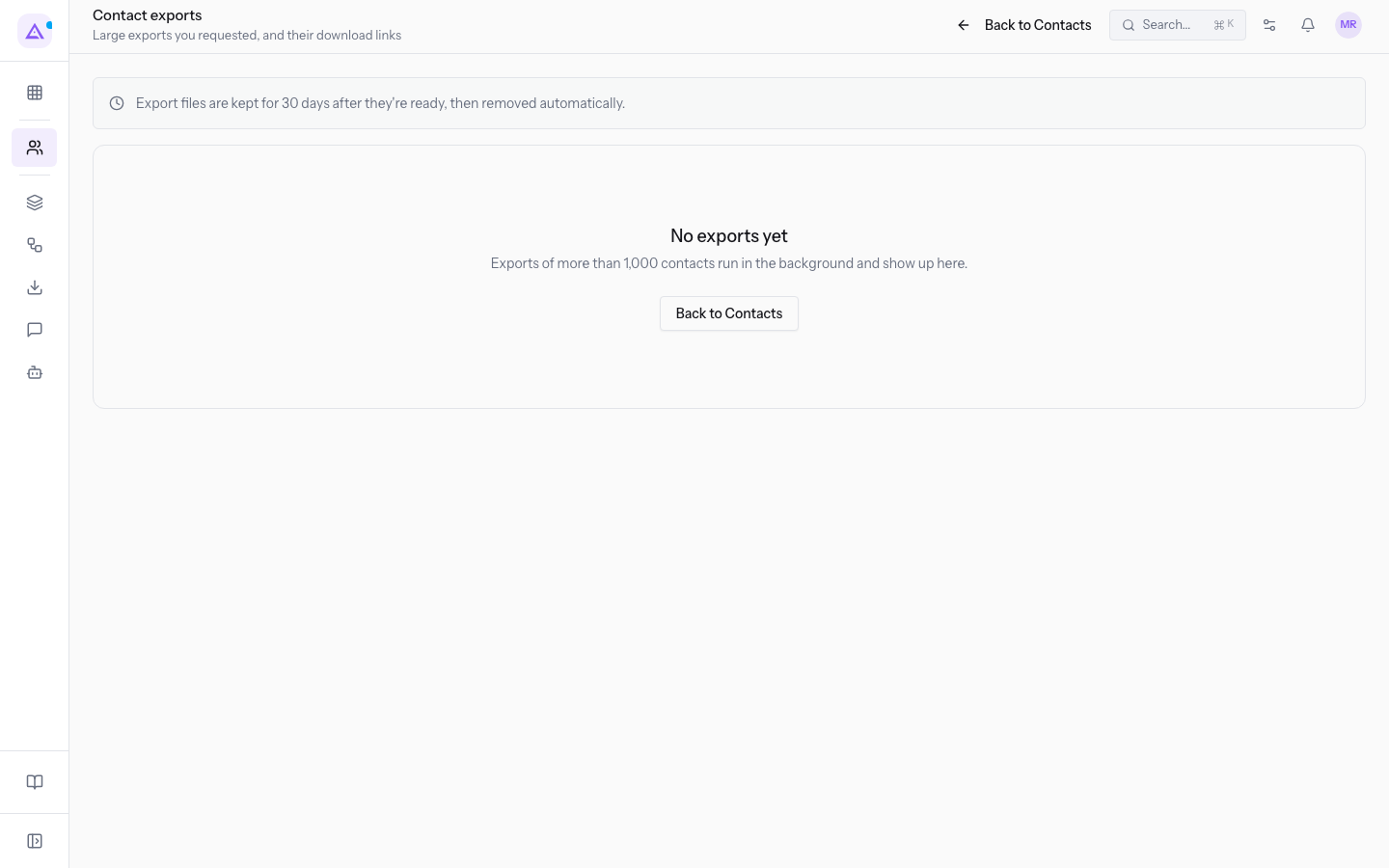
The data in each row:
- Requested: when the export was requested.
- Status: the export's progress.
- Running: the export is in progress.
- Ready: the file is available and downloads with Download.
- Failed: the export did not complete.
- Expired: the file is no longer available.
- Rows: the number of rows in the file.
- Expires: the date until which the file remains available.
- Download: the link to the file.
When no export has been requested yet, the page shows No exports yet.
Important: export files are kept for a configured number of days after they are ready, then removed automatically; the number of days in force is shown on the page. Download the file before the date in Expires, or request the export again.
See it on your company, not on a slide deck.
In 30 minutes we map the software you use today.We show you how much work and how much margin Archimedes gives back.
Show me on my business →What industry are you in?
One tap — it lets us prepare the demo around your world.
What tools do you use today?
Pick the ones you recognise — or just type them. It helps us show you how they migrate.
Last step: your details.
We reply within one working day — and right after, if you like, you pick the demo slot yourself.
We couldn't send your request. Try again, or write to us at [email protected].
By sending, you agree to your data being processed so we can get back to you about the demo. Privacy notice.
Preview form — nothing is sent from this page.
Want to schedule the demo now?
Your call: book the slot you prefer yourself, or we'll call you to arrange it.
Live availability, 30 minutes, instant confirmation. The calendar opens in a new tab.
Lock in your slot ↗We'll get back to you within one working day — and we'll join the call already knowing your world.
The calendar is open in another tab: pick a slot and the demo is booked. Can't see it? Reopen it ↗
Preview page: nothing was sent.
Our calendar is live: take the slot that suits you and the demo is booked. 30 minutes, instant confirmation, no waiting.
Lock in your slot ↗