Contacts
All modules
Browsing the Contacts list
Contacts · 2 of 13 · 5 min read
The Contacts list shows all the people and entities in the organization's address book, for example a company customer such as Rossi Arredamenti S.r.l., a firm such as Studio Bianchi & Associati or a private customer such as Giulia Ferri. From here you count contacts by type, search them, filter them, switch display modes and open each one's record.
The page opens from the Contacts menu item. The list is the same in every display mode: only how the contacts are presented changes. If you need to read a few data points across many contacts, use the Table view; if you need to recognize contacts at a glance with their contact details, use the Grid view.
The list statistics
At the top of the page, five numbers summarize the address book and update with the contacts present.
- Total: the number of contacts in the address book; in the demo organization it is
16. - Entities: the number of contacts that are entities; in the demo organization it is
4. - People: the number of contacts that are people; in the demo organization it is
12. - Customers: the number of contacts classified as customers; in the demo organization it is
10. - Suppliers: the number of contacts classified as suppliers; in the demo organization it is
1.
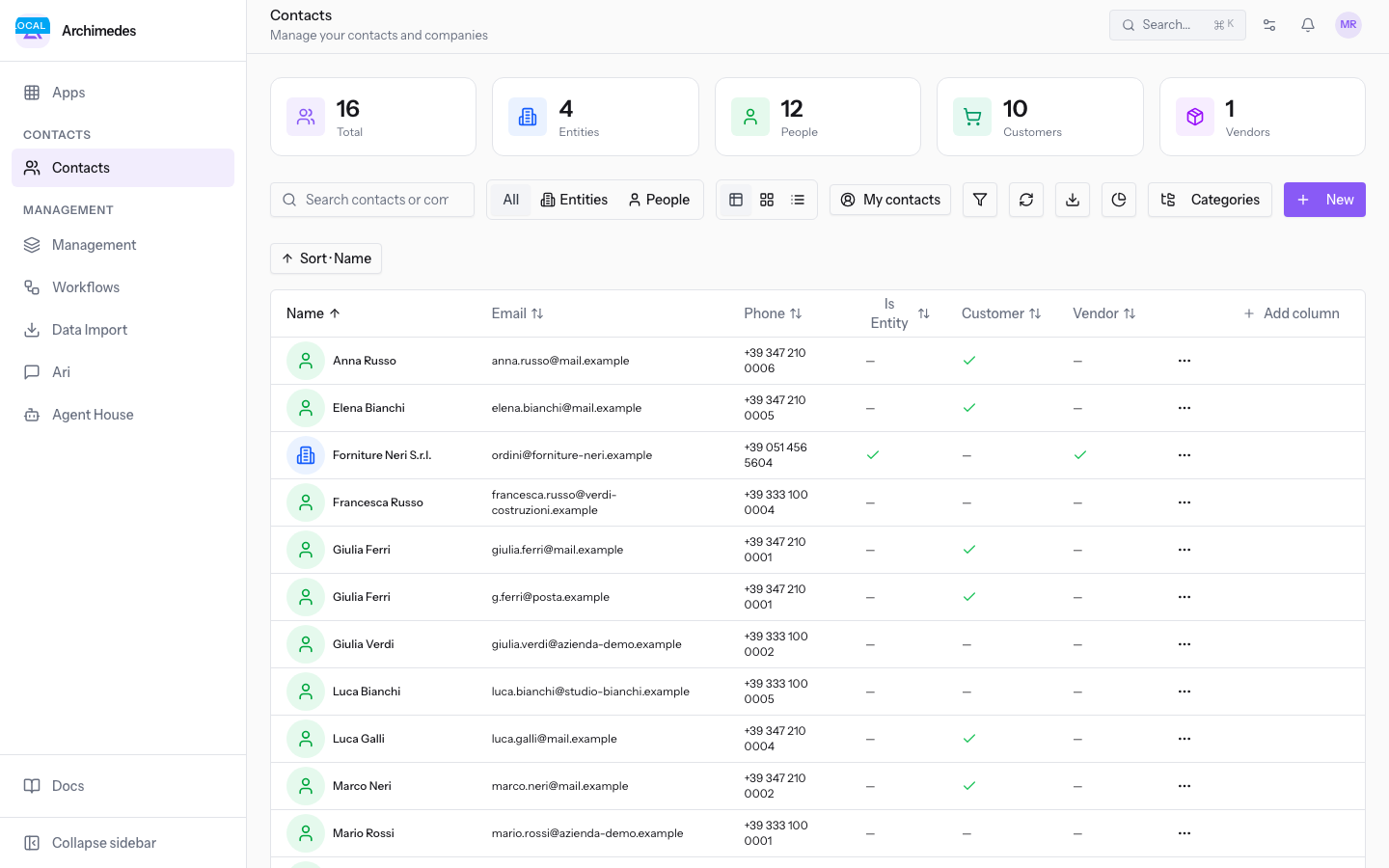
Note: the numbers count the contacts of the user's organization. Each user only sees the contacts of their own organization.
Filtering by type with the quick filters
The three quick filters above the list narrow the contacts down by type. One is active at a time.
- Open Contacts.
- Click All to see people and entities together. This is the list's initial state.
- Click Entities to see only entities, for example
Verdi Costruzioni S.p.A.andForniture Neri S.r.l.. - Click People to see only people: in the demo organization the list shows
Anna Russo,Giulia Ferri,Marco Neriand the other person contacts, without the entities.
Next to the three type filters is My contacts, which narrows the list down to the contacts linked to your user. When no contact matches the filter, the list shows No results and the Clear filters button appears, which brings back the full list.
Tip: to filter by country, industry, category, tag or source, use the Filters button, described in Filtering contacts with Advanced Filters and Source.
Searching for a contact
The search box stays above the list in every display mode and acts on the contacts shown.
- Open Contacts.
- Type the text to search for in the Search contacts or companies field, for example
Rossi Arredamenti S.r.l.. - Click Refresh to reload the list.
Note: the search and the active filters also apply to the export: Export produces the file of the contacts shown by the list, as explained in Exporting contacts.
Choosing the display mode
Three buttons change how the list is presented. The choice does not change which contacts are shown.
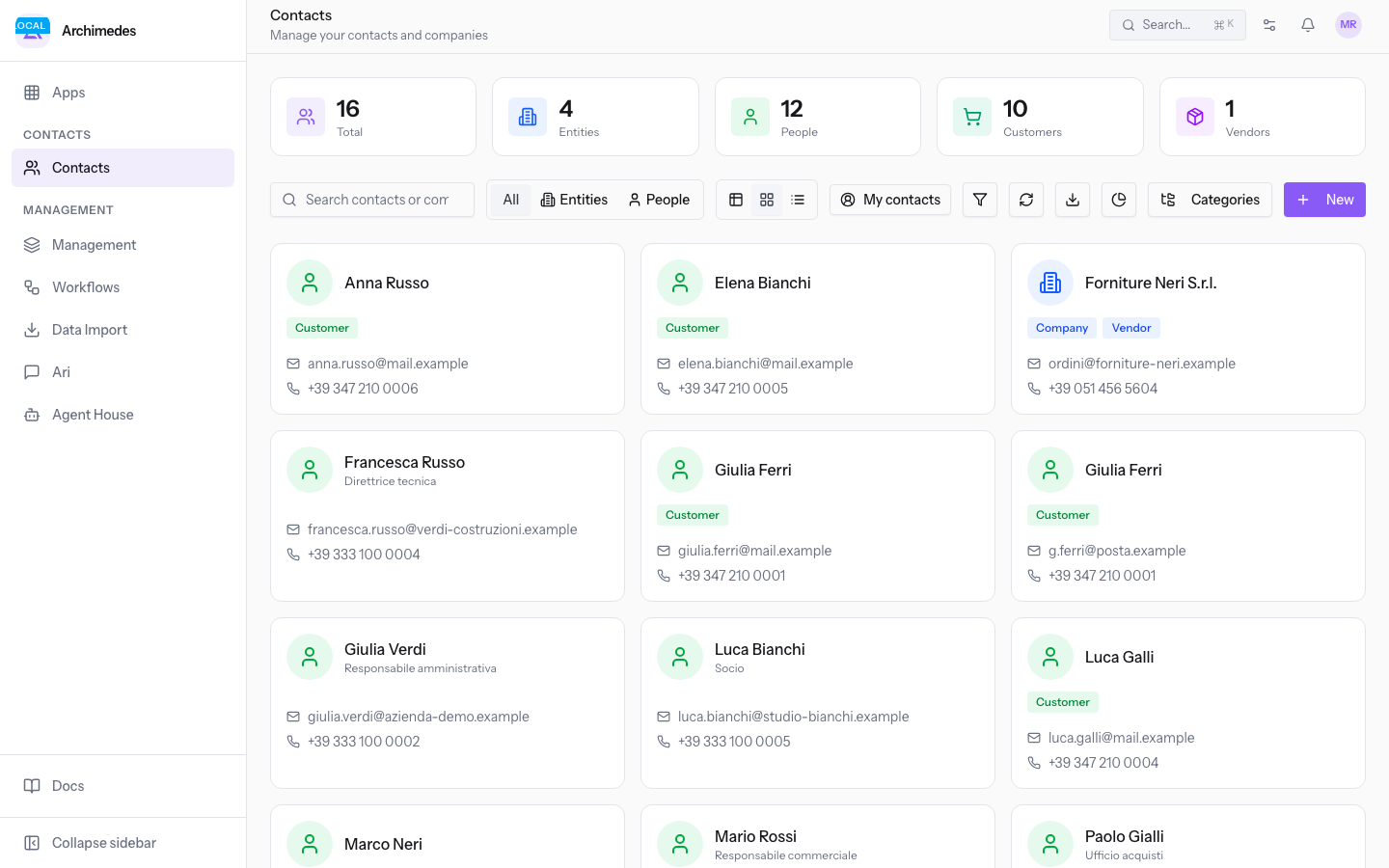
- Grid view: shows one card per contact, with the name, the classification and the contact details, for example
[email protected]and+39 347 210 0006. On each card you find the contact's View, Edit Contact and Delete Contact commands.
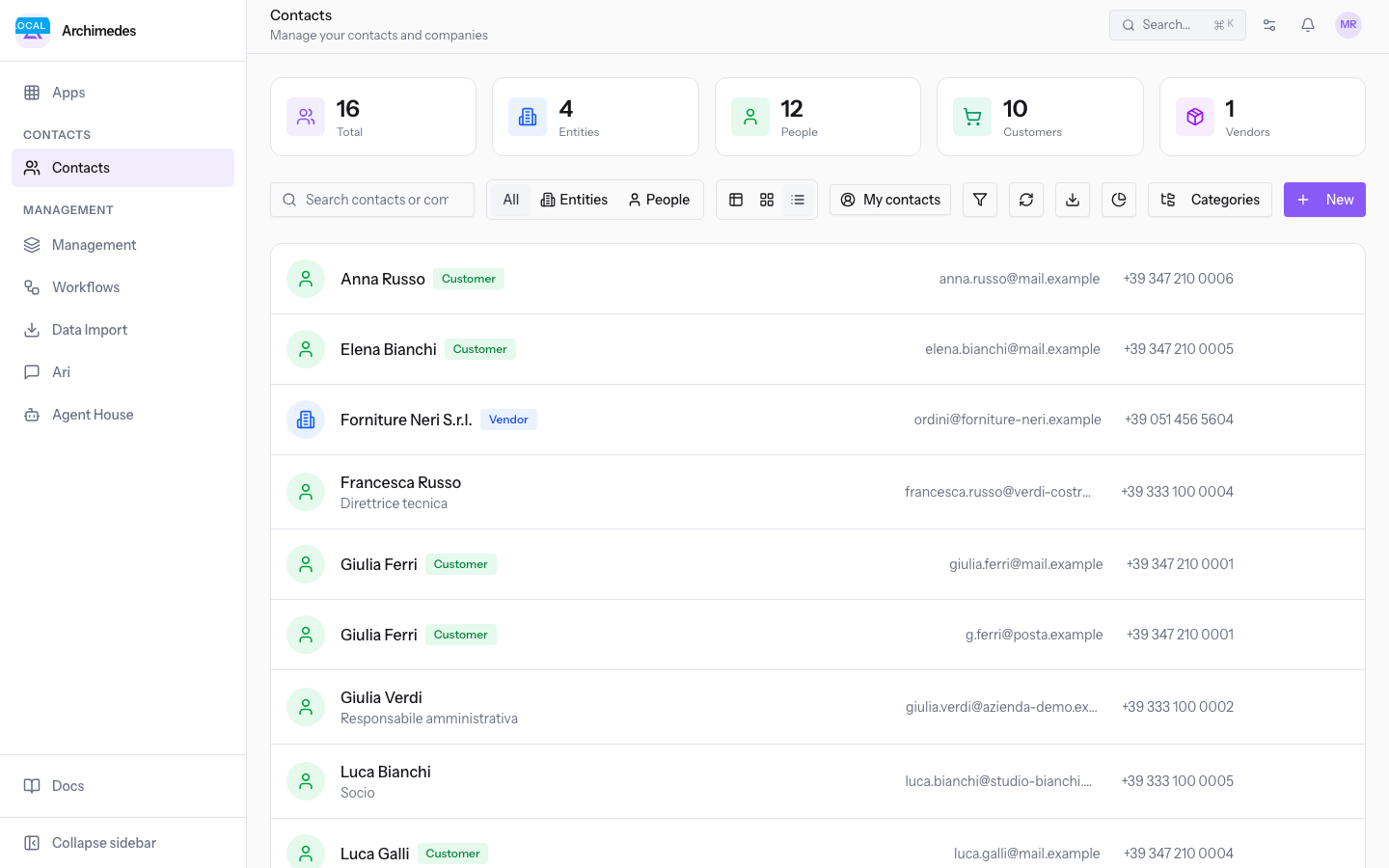
- List view: shows one row per contact with the same View, Edit Contact and Delete Contact commands.
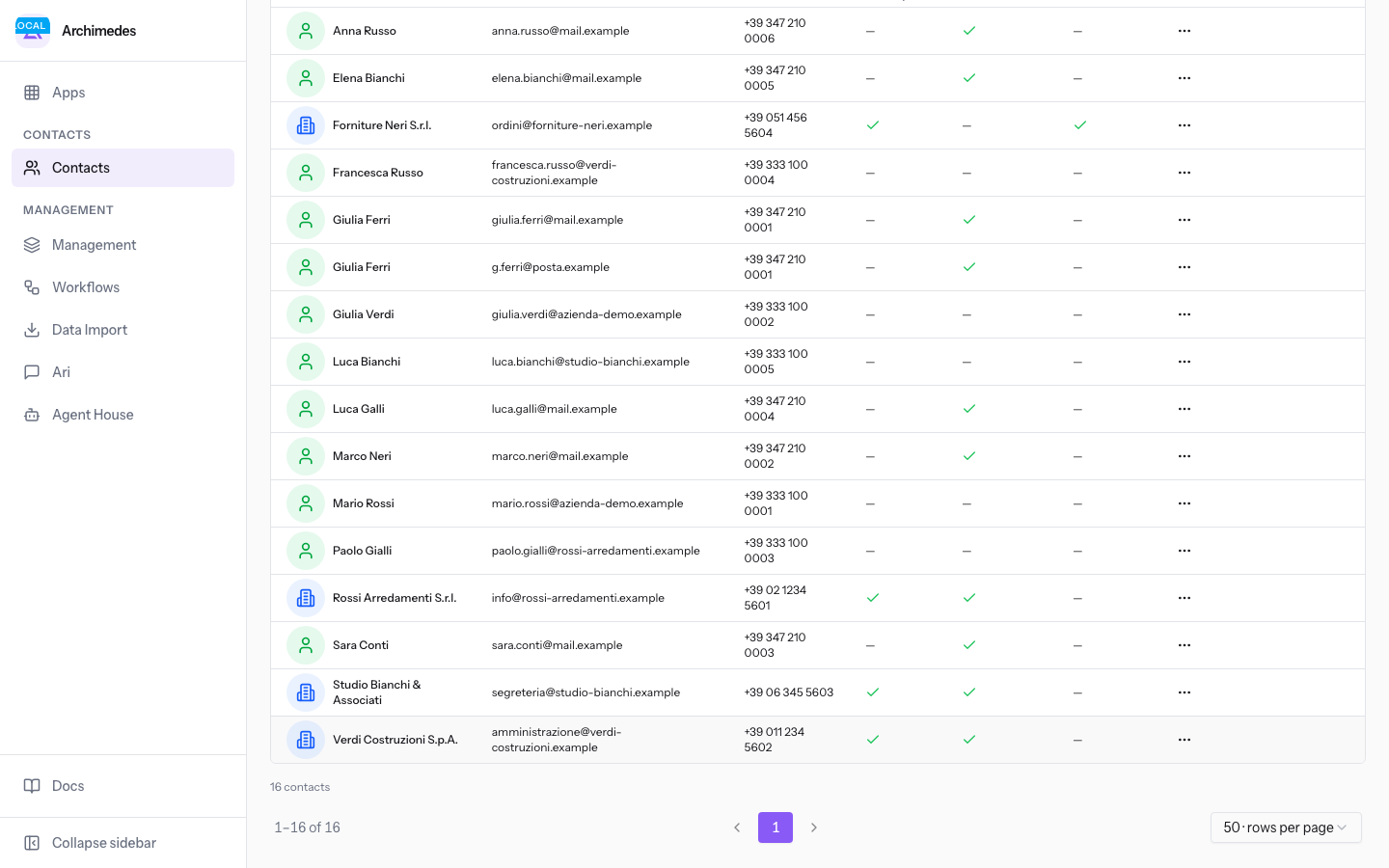
- Table view: shows the contacts in columns, with sorting, column selection, the Actions menu on each row and pagination.
Tip: to open a contact's full record, click its name; the data the record collects is described in Reading a contact's record.
Sorting and choosing columns in the Table view
In the Table view you decide which data to read and in what order. Add a column when you need a piece of data the table does not show; remove the columns you do not use to read more contacts on screen.
- Open Contacts and click Table view.
- Click the header of the column to sort by. The active sort is shown above the table.
- Click Add column to open the columns panel.
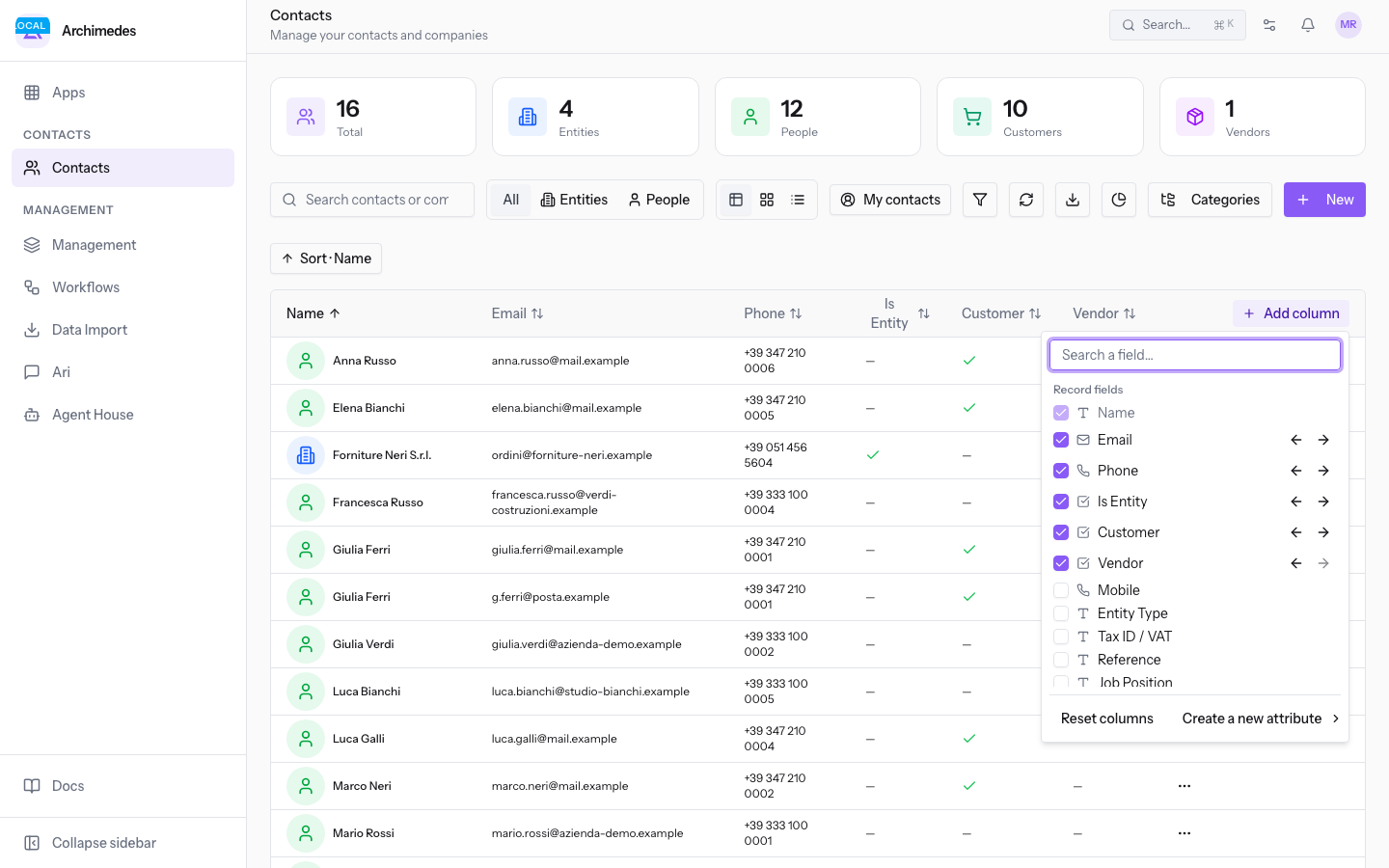
In the panel you find these commands.
- Search a field…: filters the record's fields by text, when the list of fields is long.
- Each field's checkbox: when checked, the field becomes a column of the table; when unchecked, the column is removed. Beyond the fields listed, the panel indicates how many other fields are available.
- Move column left and Move column right: change the column's position in the table.
- Reset columns: brings the table back to its initial columns.
- Create a new attribute: adds a new field to the record.
Moving through the pages
The Table view shows contacts in pages. The pagination controls sit below the table.
- Choose how many contacts to show in the Rows per page field: the initial value is
25 · rows per page, and you can raise it, for example, to50 · rows per page. - Use Next page and Previous page to move between pages. The current page number is shown between the two controls.
Note: from the same list bar you reach New Contact, described in Creating and editing a contact, Categories, described in Managing categories and assigning them to contacts, and Contacts by source.
See it on your company, not on a slide deck.
In 30 minutes we map the software you use today.We show you how much work and how much margin Archimedes gives back.
Show me on my business →What industry are you in?
One tap — it lets us prepare the demo around your world.
What tools do you use today?
Pick the ones you recognise — or just type them. It helps us show you how they migrate.
Last step: your details.
We reply within one working day — and right after, if you like, you pick the demo slot yourself.
We couldn't send your request. Try again, or write to us at [email protected].
By sending, you agree to your data being processed so we can get back to you about the demo. Privacy notice.
Preview form — nothing is sent from this page.
Want to schedule the demo now?
Your call: book the slot you prefer yourself, or we'll call you to arrange it.
Live availability, 30 minutes, instant confirmation. The calendar opens in a new tab.
Lock in your slot ↗We'll get back to you within one working day — and we'll join the call already knowing your world.
The calendar is open in another tab: pick a slot and the demo is booked. Can't see it? Reopen it ↗
Preview page: nothing was sent.
Our calendar is live: take the slot that suits you and the demo is booked. 30 minutes, instant confirmation, no waiting.
Lock in your slot ↗