Contracts
All modules
Finding a contract in the list
Contracts · 2 of 15 · 5 min read
The contracts list brings together the organization's contracts in all statuses. From here you search, filter and sort contracts, and open the one you need.
What the list shows
Each row in the list is one contract. The list opens from Contracts › All contracts.
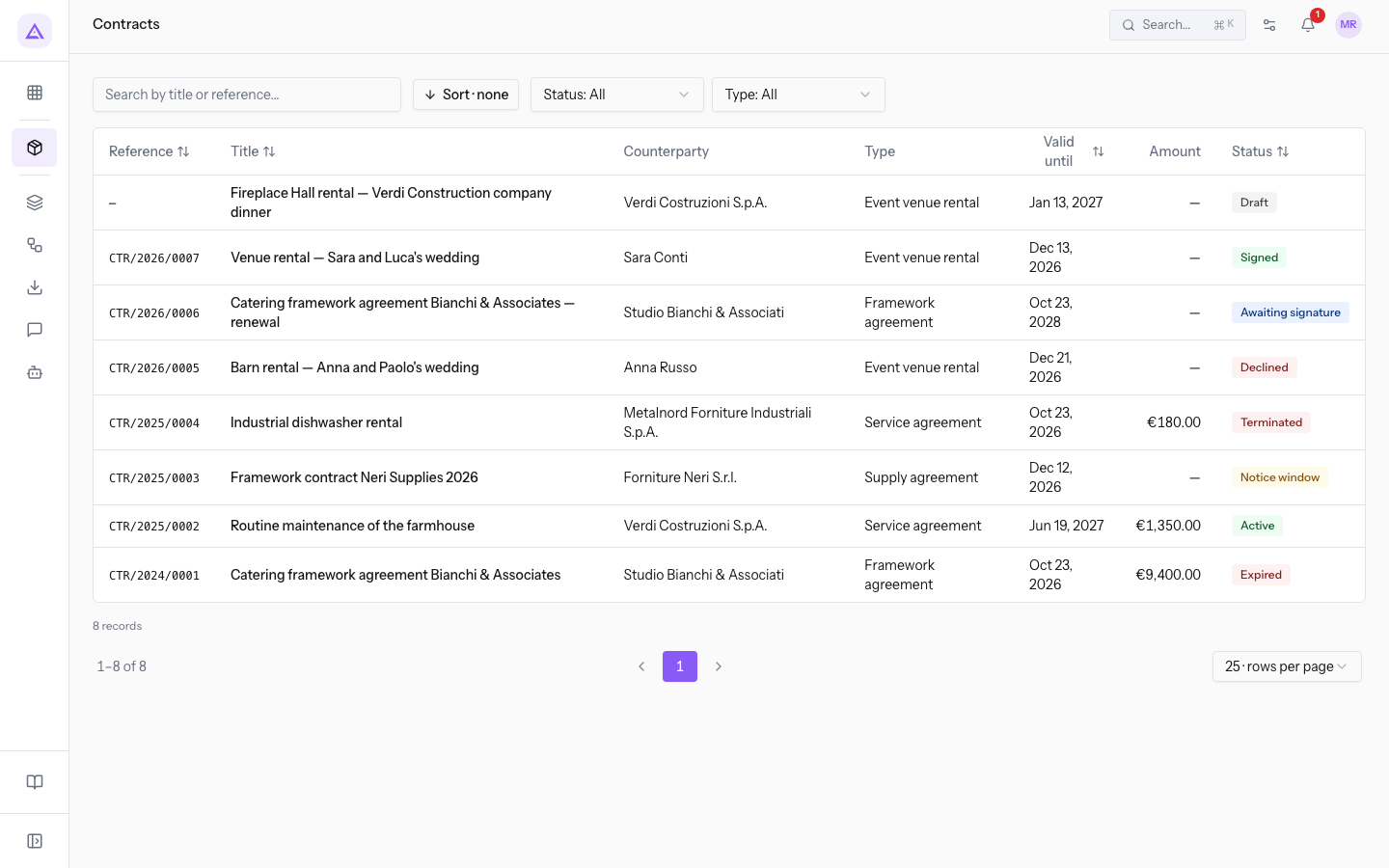
- Reference: the contract number in the format CTR/year/number, for example
CTR/2026/0007. It is assigned when the contract is sent for signature. A draft does not have a reference yet and shows —. - Title: the title of the contract.
- Counterparty: the contact the contract is made with.
- Type: the type of contract.
- Valid until: the end date of the contract.
- Amount: the single amount of the contract. Contracts with cost items instead of a single amount show —.
- Status: the status of the contract, with its color.
Choosing how to search
The list offers several ways to reach a contract. The right one depends on what you know about the contract.
- If you know the reference or part of the title, use the search.
- If you are looking for a draft, search by title: a draft does not have a reference.
- If you want to see the contracts in a single status, use the Status filter.
- If you want to see the contracts of a single type, use the Type filter.
- If you want to see the contracts of a counterparty, use the button to its contracts on the contact's page: the list search does not look at the counterparty.
- If you want the contracts that end soonest first, sort by Valid until. For only the contracts that expire within 120 days, open Contracts › Expiring.
Searching by title or reference
The Search by title or reference… field finds the contracts whose title or reference contains the text you type. Upper and lower case do not matter, and the list updates as you type. With catering the list shows CTR/2026/0006 and CTR/2024/0001.
The search adds to the active filters.
Filtering by status or type
The filters narrow the list to the contracts with a certain status or a certain type. If you use them together, the list shows only the contracts that match both.
With Draft in the Status filter the list shows only the draft, and next to the filters the active filter appears, Status: Draft.
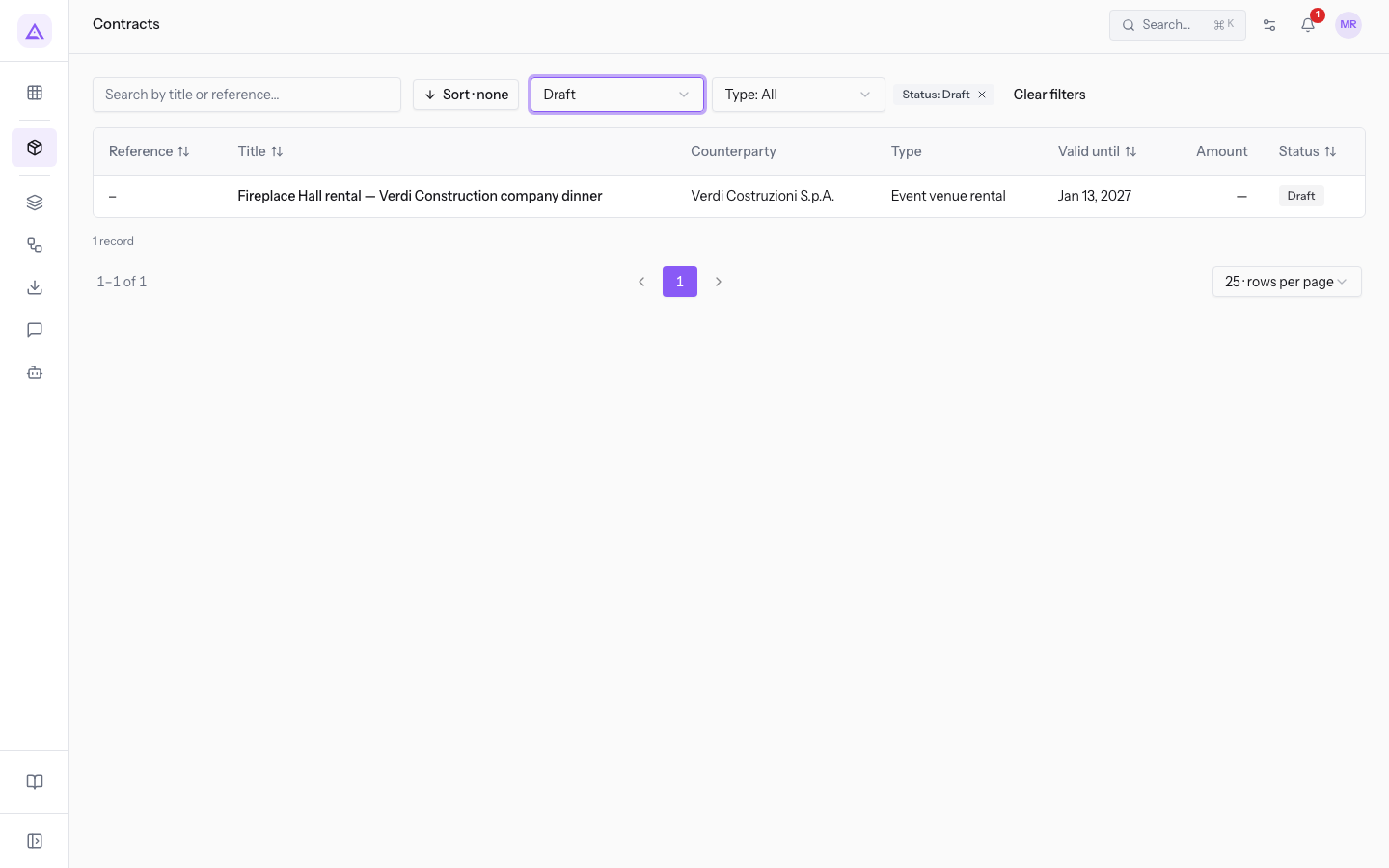
To remove a single filter, press the × on the active filter. To remove the search and the filters together, press Clear filters.
The filters have these options:
- Status: Draft, Awaiting signature, Signed, Active, Notice window, Expired, Terminated, Declined. With no filter it shows Status: All.
- Type: the contract types of the organization, including the deactivated ones such as Lease. With no filter it shows Type: All.
Recognizing the statuses
The Status column shows one of these eight labels. The colors are those of the default theme. In the demo every status has a contract.
| Status | Color | What it means | Demo contract |
|---|---|---|---|
| Draft | Grey | The contract is being prepared and can be changed freely. | Fireplace Hall rental — Verdi Construction company dinner |
| Awaiting signature | Blue | The contract has been sent and the text is frozen. | Catering framework agreement Bianchi & Associates — renewal |
| Signed | Green | The contract is signed and becomes Active on its start date. | Venue rental — Sara and Luca's wedding |
| Active | Green | The contract is in force. | Routine maintenance of the farmhouse |
| Notice window | Yellow | The deadline for giving notice falls within 30 days. | Framework contract Neri Supplies 2026 |
| Expired | Red | The contract has reached its end date without being renewed. | Catering framework agreement Bianchi & Associates |
| Terminated | Red | The contract has ended after notice was given. | Industrial dishwasher rental |
| Declined | Red | The counterparty declined the contract, or it was marked as declined. | Barn rental — Anna and Paolo's wedding |
Sorting the list
Without a chosen sort, the list shows the most recently created contracts first. You can sort by Reference, Title, Valid until and Status. The Counterparty, Type and Amount columns cannot be sorted.
Press the column header: the first time it sorts ascending, the second time descending.
As an alternative, open Sort · none and choose the column. The button then shows the chosen column, for example Sort · Title.
Note: with Reference ascending the draft appears at the bottom. Descending, it appears at the top.
Moving through pages
Below the table the list shows the total number of contracts found and the page controls.
- rows per page: how many contracts to show on each page: 25, 50 or 100. The starting value is 25.
- The arrows and the numbers: move the list from one page to another.
When no contract matches
If the search or the filters find nothing, No results appears in place of the table, along with the text Nothing matches the search or the active filters. The demo's Lease type, which has no contracts, shows this screen.
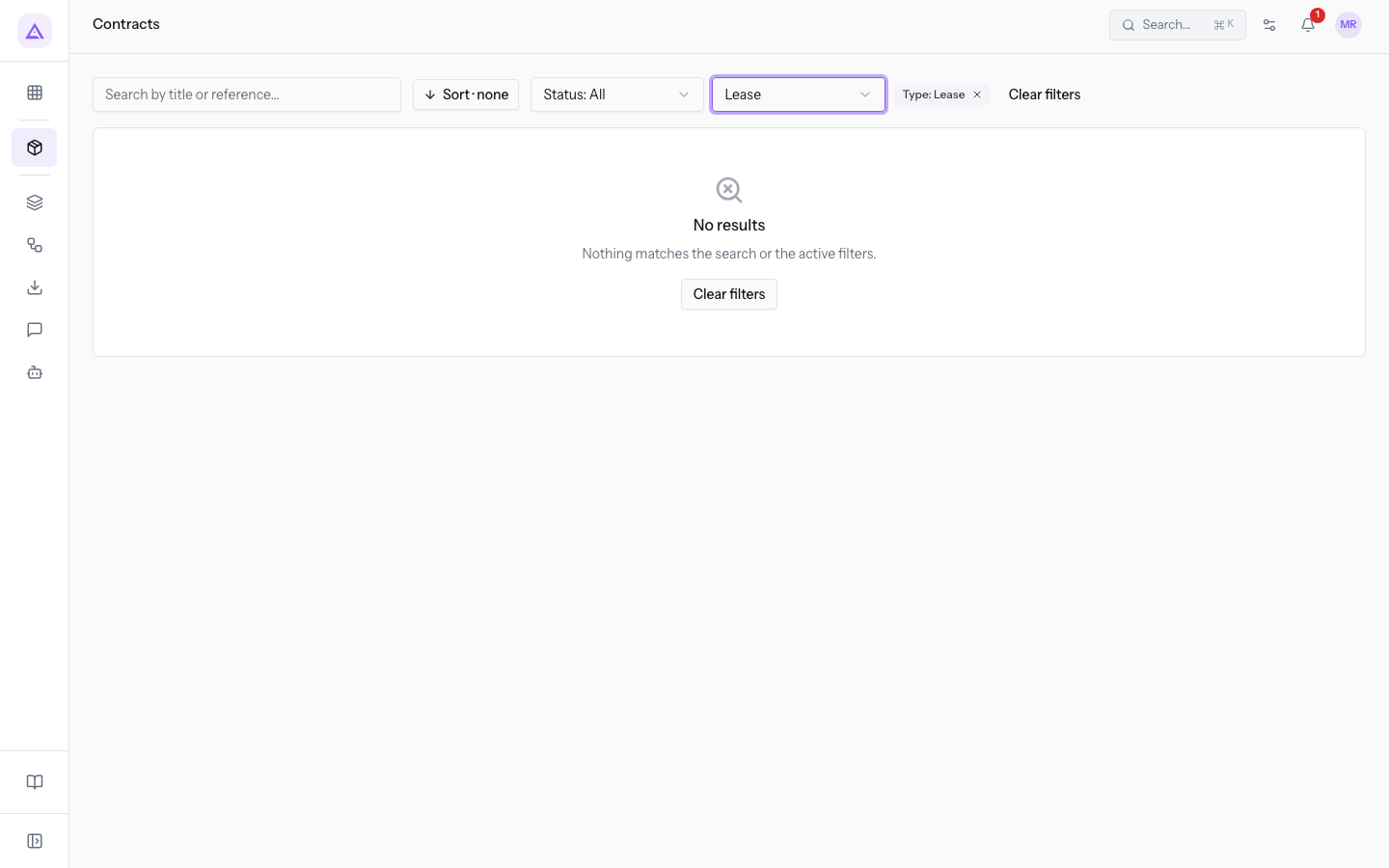
Press Clear filters to return to the full list. If the organization has no contracts yet, No contracts yet. appears instead.
Opening a contract
Press the contract row to open its page, which brings together the terms, text, cost items, clauses, obligations, amendments and signatures. See Reading a contract's page.
See it on your company, not on a slide deck.
In 30 minutes we map the software you use today.We show you how much work and how much margin Archimedes gives back.
Show me on my business →What industry are you in?
One tap — it lets us prepare the demo around your world.
What tools do you use today?
Pick the ones you recognise — or just type them. It helps us show you how they migrate.
Last step: your details.
We reply within one working day — and right after, if you like, you pick the demo slot yourself.
We couldn't send your request. Try again, or write to us at [email protected].
By sending, you agree to your data being processed so we can get back to you about the demo. Privacy notice.
Preview form — nothing is sent from this page.
Want to schedule the demo now?
Your call: book the slot you prefer yourself, or we'll call you to arrange it.
Live availability, 30 minutes, instant confirmation. The calendar opens in a new tab.
Lock in your slot ↗We'll get back to you within one working day — and we'll join the call already knowing your world.
The calendar is open in another tab: pick a slot and the demo is booked. Can't see it? Reopen it ↗
Preview page: nothing was sent.
Our calendar is live: take the slot that suits you and the demo is booked. 30 minutes, instant confirmation, no waiting.
Lock in your slot ↗