Contracts
All modules
Send a contract for signature with the link by email
Contracts · 7 of 15 · 5 min read
Sending for signature hands the draft contract to the counterparty: the signer signs from a personal link received by email, without needing an account. From the contract page you then follow the links sent, send new ones and revoke them.
Before sending: what changes
Sending closes the draft phase. Before pressing the button, check terms, cost items and clauses.
- The text is frozen and its fingerprint is recorded. The signature applies to that exact text.
- The contract receives the reference in the format CTR/year/number, in order of sending.
- The status changes from Draft to Awaiting signature.
- The signer receives a personal link by email. They sign with a code sent to the same mailbox.
If you still need to change the text or the terms, stay in draft. After sending, the contract can no longer be changed, and after signature the terms are changed with an amendment.
Before you start: to send a contract you need the access of whoever prepares and sends contracts, or that of whoever is responsible for contracts.
Sending a draft for signature
The Send for signature button appears on the page of a contract in Draft status.
- In Contracts › All contracts press the row of the draft.
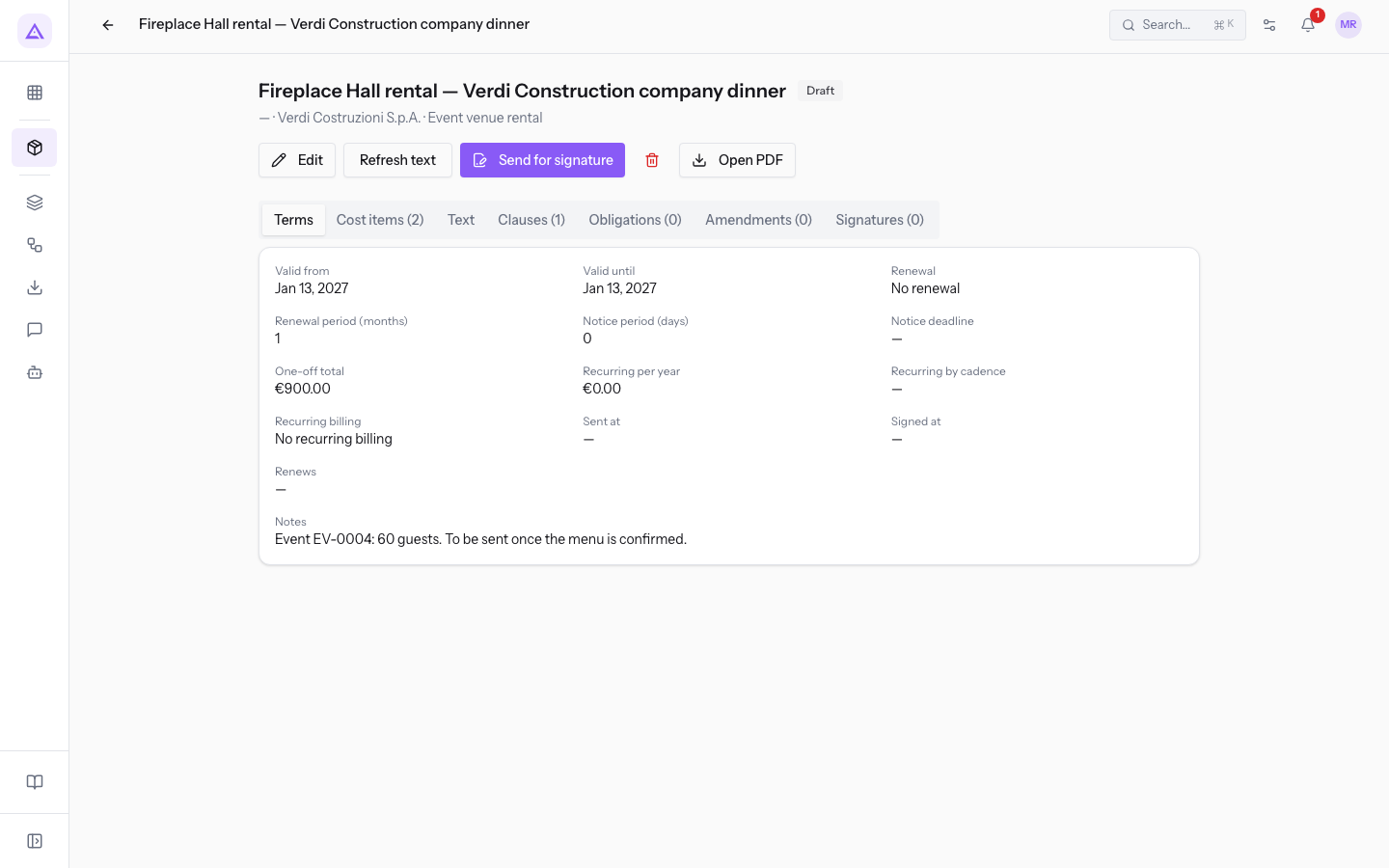
- Press Send for signature.
Important: the button does not ask for confirmation and sends a real email to the signer. Use it only when the contract is ready.
The message Contract sent for signature appears. The page shows the status Awaiting signature and the line reference · counterparty · type, for example CTR/2026/0006 · Bianchi & Associates · Framework agreement. To prepare the text before sending, see Prepare a draft: terms, cost items, clauses and text.
The Signing link ready window
The Signing link ready window opens after Send signing link, the button of the Send the contract for signature window described further on. It does not open after Send for signature: in that case the link arrives only by email. It is the only moment when the link is shown in full.
- Signing link: the personal address of the signing page.
- Copy: copies the link, to send it by hand too.
- Done: closes the window.
The window also says whether the email went out:
- Email sent: "The email is on its way. The link is shown only now: copy it if it must also travel by hand."
- Email not sent (Link created, but the email did not go out): "The email did not go out: check the verified sender in Email › Templates. Meanwhile copy the link and send it yourself; it is shown only now."
Important: after Done the link is no longer visible. If the email did not go out and you did not copy the link, send a new link with Resend signing link.
Following the links in the Signatures tab
The Signatures tab of a sent contract lists the signing links, one per row. If none has been sent, it shows No signing link sent.
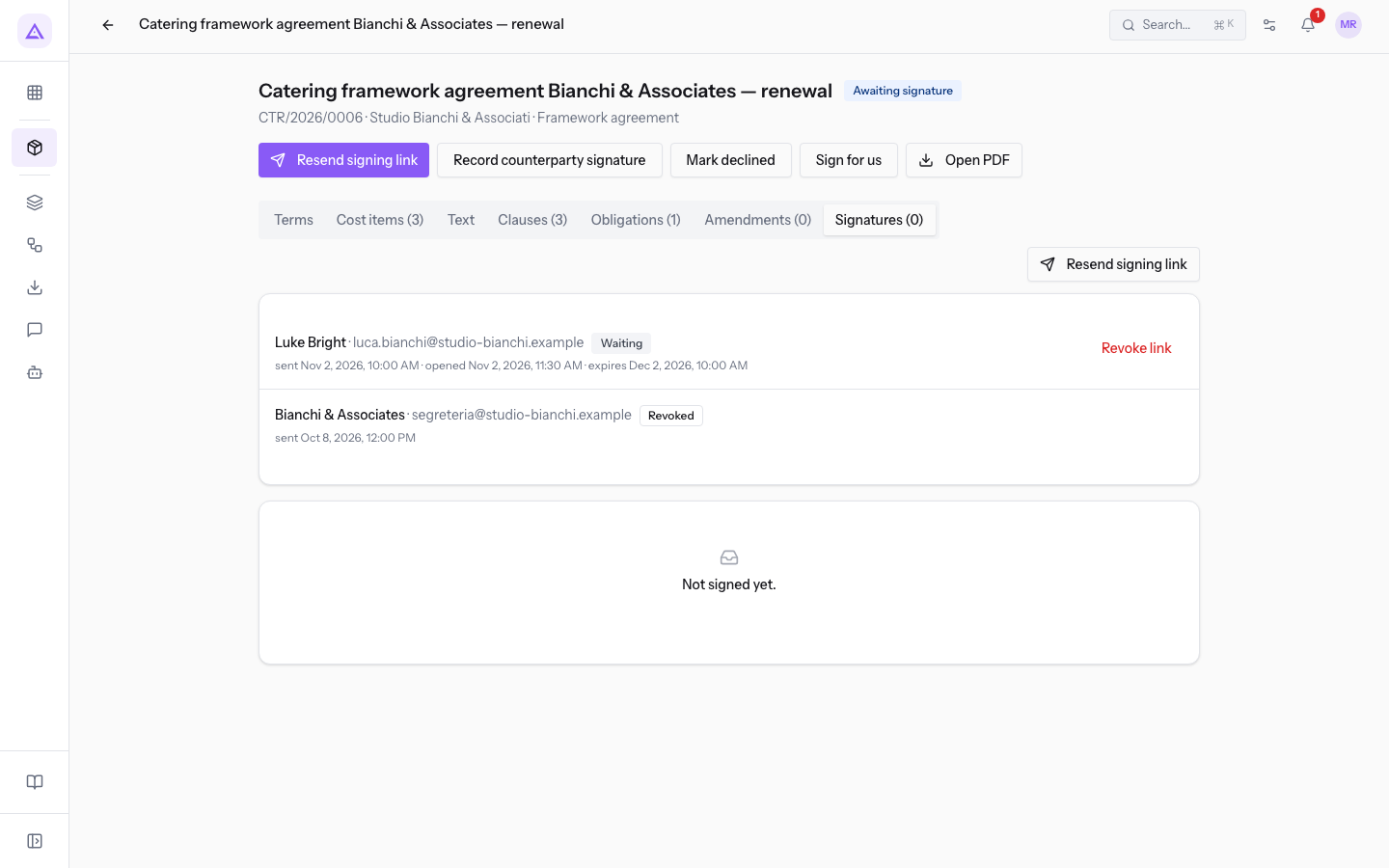
Each row shows:
- signer name · email;
- the status of the link:
- Waiting: the link is valid and the signature has not yet arrived.
- Signed: the signer signed from this link.
- Declined: the signer declined the contract from this link. The row also shows Reason for declining, if one was given.
- Revoked: the link was revoked or replaced.
- Expired: 30 days have passed since sending.
- the dates: sent, opened, code verified, signed, expires.
- Revoke link on the links still active.
If the email did not go out, in place of the send date the row shows email not sent: copy the link and send it yourself. The link of that row can no longer be read: press Resend signing link to get a new one to copy.
In the demo, on the renewal of the framework agreement with Bianchi & Associates, the first link to the studio's secretariat is Revoked. The one to Luke Bright is Waiting and has already been opened.
Note: opening the link marks the opening date in the row. The page the signer sees is described in What the signer sees from the link received by email.
Resending the signing link
On a contract Awaiting signature the Resend signing link button sends a new link, even to another person or another address. If the contract has no link yet, the button is called Send signing link.
- Press Resend signing link. The Send the contract for signature window opens.
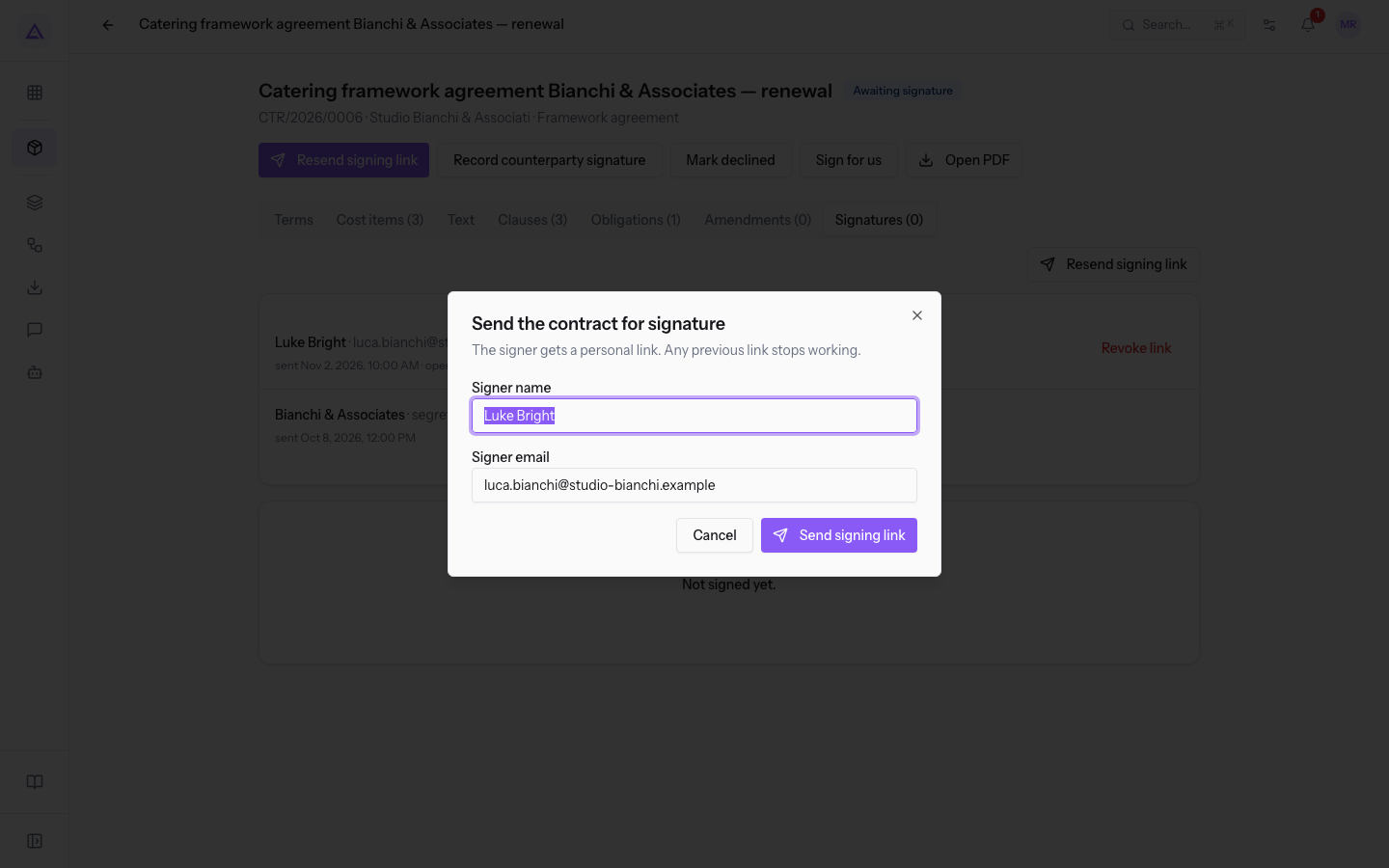
- Check or change the fields and press Send signing link.
- Signer name: the name of the signer for the counterparty. The field is required and prefilled.
- Signer email: the address the link is sent to. The field is required and prefilled.
The window warns: "The signer gets a personal link. Any previous link stops working." After sending, the Signing link ready window opens.
Revoking a link
Use Revoke link when a link must no longer work, for example because it was sent to the wrong address. The button is on the link's row, in the Signatures tab.
The message Link revoked appears and the row changes to Revoked. Anyone who opens a revoked link sees Link no longer active.
Note: when the counterparty signs or declines, the other links still open on the same contract also become unusable.
Limits of the signing link
- The link is valid for 30 days from sending.
- The verification code is valid for 10 minutes, with 5 attempts per code. A new code can be requested at most once a minute.
- The signature is a simple electronic signature. The name, date and time, IP address, device, verified code and text fingerprint are recorded.
If the contract was signed on paper, record the signature with Record counterparty signature: see Record the signatures: the counterparty's on paper, ours, the refusal.
See it on your company, not on a slide deck.
In 30 minutes we map the software you use today.We show you how much work and how much margin Archimedes gives back.
Show me on my business →What industry are you in?
One tap — it lets us prepare the demo around your world.
What tools do you use today?
Pick the ones you recognise — or just type them. It helps us show you how they migrate.
Last step: your details.
We reply within one working day — and right after, if you like, you pick the demo slot yourself.
We couldn't send your request. Try again, or write to us at [email protected].
By sending, you agree to your data being processed so we can get back to you about the demo. Privacy notice.
Preview form — nothing is sent from this page.
Want to schedule the demo now?
Your call: book the slot you prefer yourself, or we'll call you to arrange it.
Live availability, 30 minutes, instant confirmation. The calendar opens in a new tab.
Lock in your slot ↗We'll get back to you within one working day — and we'll join the call already knowing your world.
The calendar is open in another tab: pick a slot and the demo is booked. Can't see it? Reopen it ↗
Preview page: nothing was sent.
Our calendar is live: take the slot that suits you and the demo is booked. 30 minutes, instant confirmation, no waiting.
Lock in your slot ↗