Contracts
All modules
Tracking the parties' obligations
Contracts · 10 of 15 · 3 min read
The Obligations tab lists what one of the parties must do for the contract by a given date. Each obligation shows who owes it, when it is due, and how often it repeats. When it is done, mark it as done.
How obligations work
An obligation has a due date and is owed by one of the two contract parties. Open obligations on Signed, Active and Notice window contracts appear in the deadlines calendar. An obligation stops being open when you mark it as done.
Before adding an obligation, choose who owes it and how often it recurs:
- If the obligation falls to the organization, choose Us.
- If it falls to the counterparty, for example paying the deposit, choose Counterparty.
- If it happens only once, choose Once.
- If it repeats at fixed intervals, choose Monthly, Quarterly or Yearly.
Obligations can be added, marked as done and removed while the contract is in force or being prepared. On Expired, Terminated and Declined contracts, obligations stay visible but can no longer be changed: the tab does not show New obligation, Mark done or Remove.
Note: an obligation that is already recorded cannot be edited. To change its title, due date or recurrence, remove it and add it again.
Reading the Obligations tab
The Obligations tab lists the contract's obligations. The number in brackets next to the tab name shows how many there are.
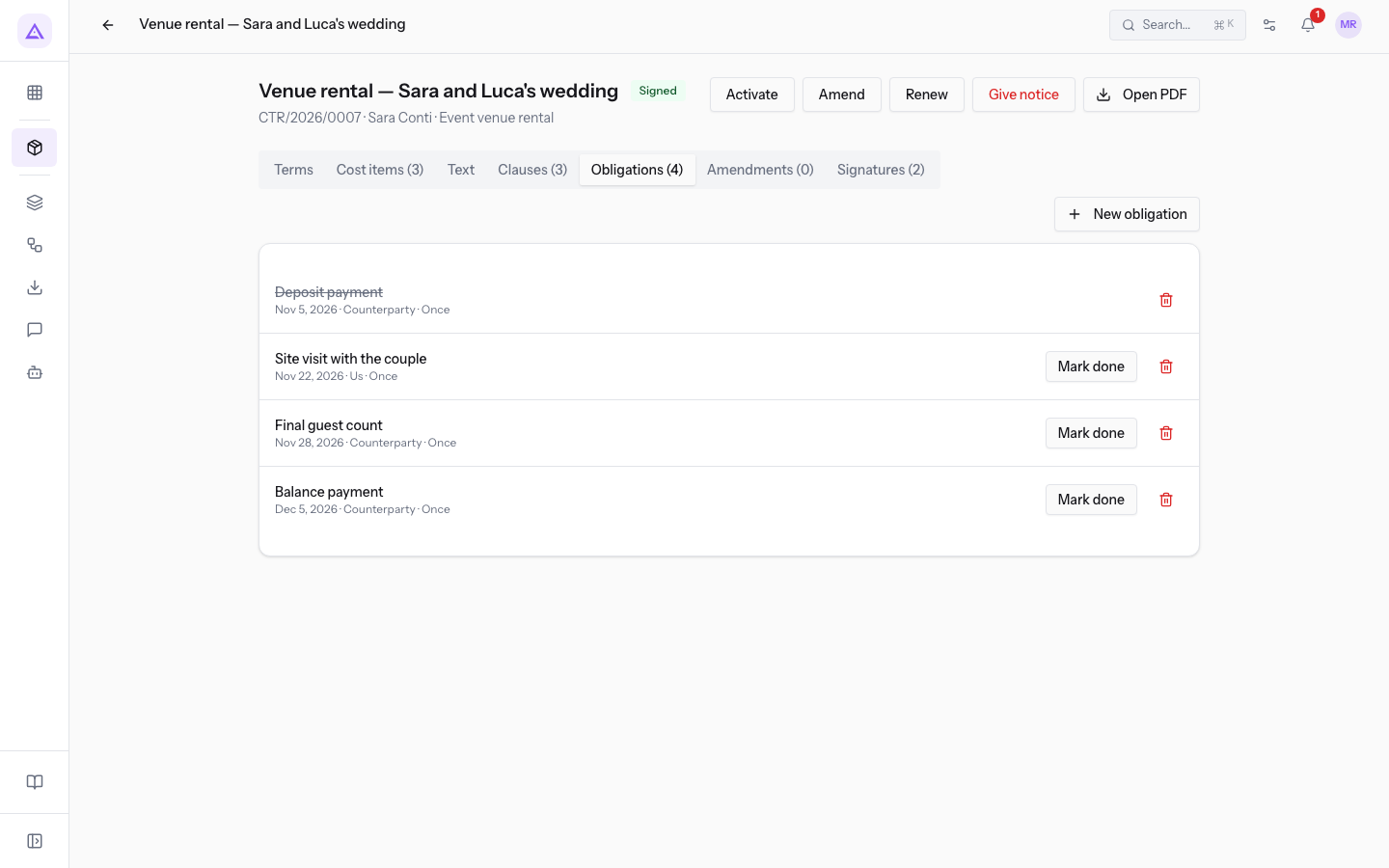
Each row shows:
- the obligation title; the title of a done obligation appears struck through;
- below the title, the due date, the party it belongs to (Us or Counterparty) and the recurrence (Once, Monthly, Quarterly or Yearly), separated by a dot;
- the Mark done button, only on obligations still open;
- the Remove icon, shaped like a trash can.
Routine maintenance of the farmhouse has Obligations (3), including one Quarterly obligation.
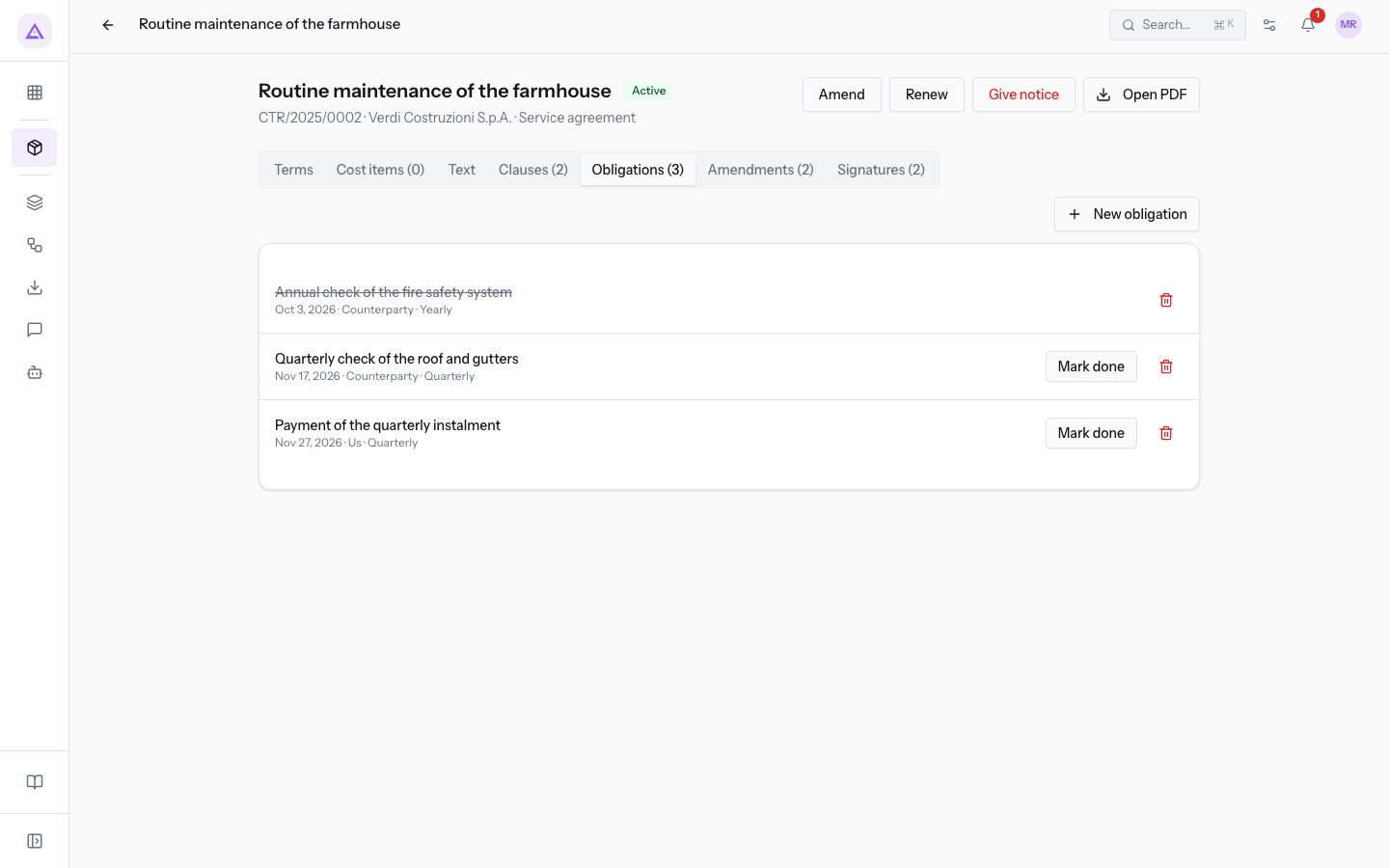
If the contract has no obligations, the tab shows No obligations. and, if the contract can still be edited, the New obligation button.
Adding an obligation
Add an obligation for each contract deadline you want to track.
Before you start: the contract must not be Expired, Terminated or Declined.
- On the Obligations tab, press New obligation. The New obligation window opens, with the text A dated duty of either party; open ones show in the deadlines calendar.
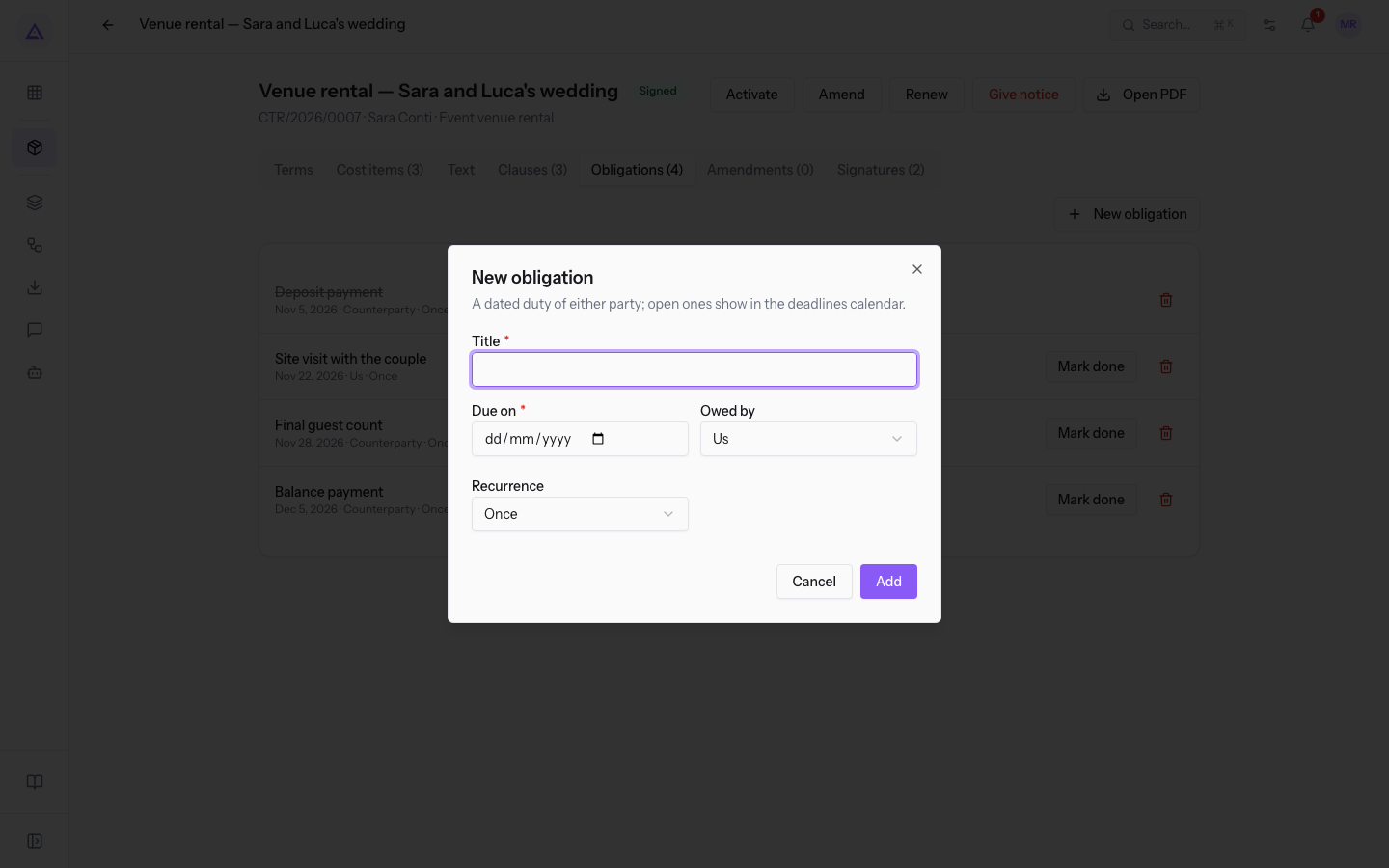
- Fill in the fields and press Add.
The window fields:
- Title: the name of the obligation, for example the final guest count to send. The field is required.
- Due on: the date by which the obligation must be done. The field is required.
- Owed by: the party that must carry out the obligation. The default is Us.
- Us: the obligation falls to the organization.
- Counterparty: the obligation falls to the other contract party.
- Recurrence: how often the obligation repeats. The default is Once.
- Once
- Monthly
- Quarterly
- Yearly
Marking an obligation as done
When an obligation has been carried out, press Mark done on its row in the Obligations tab: it is no longer open.
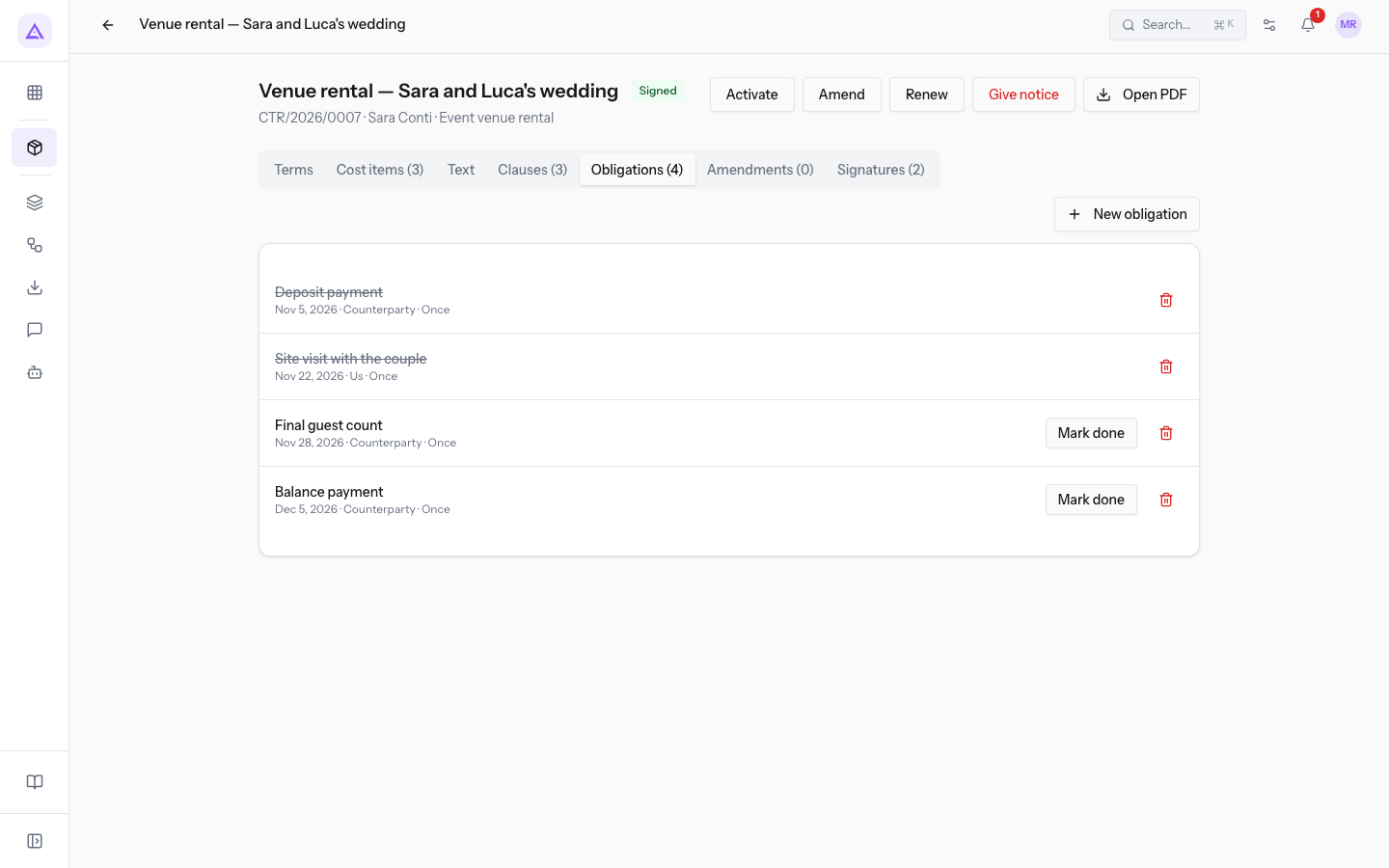
The obligation title appears struck through and the Mark done button disappears from the row. A recurring obligation closes the same way: the tab does not add the next due date.
Important: the tab has no button to reopen an obligation marked as done.
Removing an obligation
Remove an obligation recorded by mistake or that no longer belongs to the contract: on the Obligations tab, press the Remove icon, shaped like a trash can, on its row. The obligation disappears from the list.
Note: on Expired, Terminated and Declined contracts the Remove icon does not appear. For example, on
Industrial dishwasher rental, Terminated, the obligations stay read-only.
See it on your company, not on a slide deck.
In 30 minutes we map the software you use today.We show you how much work and how much margin Archimedes gives back.
Show me on my business →What industry are you in?
One tap — it lets us prepare the demo around your world.
What tools do you use today?
Pick the ones you recognise — or just type them. It helps us show you how they migrate.
Last step: your details.
We reply within one working day — and right after, if you like, you pick the demo slot yourself.
We couldn't send your request. Try again, or write to us at [email protected].
By sending, you agree to your data being processed so we can get back to you about the demo. Privacy notice.
Preview form — nothing is sent from this page.
Want to schedule the demo now?
Your call: book the slot you prefer yourself, or we'll call you to arrange it.
Live availability, 30 minutes, instant confirmation. The calendar opens in a new tab.
Lock in your slot ↗We'll get back to you within one working day — and we'll join the call already knowing your world.
The calendar is open in another tab: pick a slot and the demo is booked. Can't see it? Reopen it ↗
Preview page: nothing was sent.
Our calendar is live: take the slot that suits you and the demo is booked. 30 minutes, instant confirmation, no waiting.
Lock in your slot ↗