Contracts
All modules
Reading a contract's page
Contracts · 5 of 15 · 4 min read
The contract page brings together its status, terms, text, and everything linked to it: cost items, clauses, obligations, amendments, and signatures.
Opening the page
In Contracts › All contracts, press the contract row.
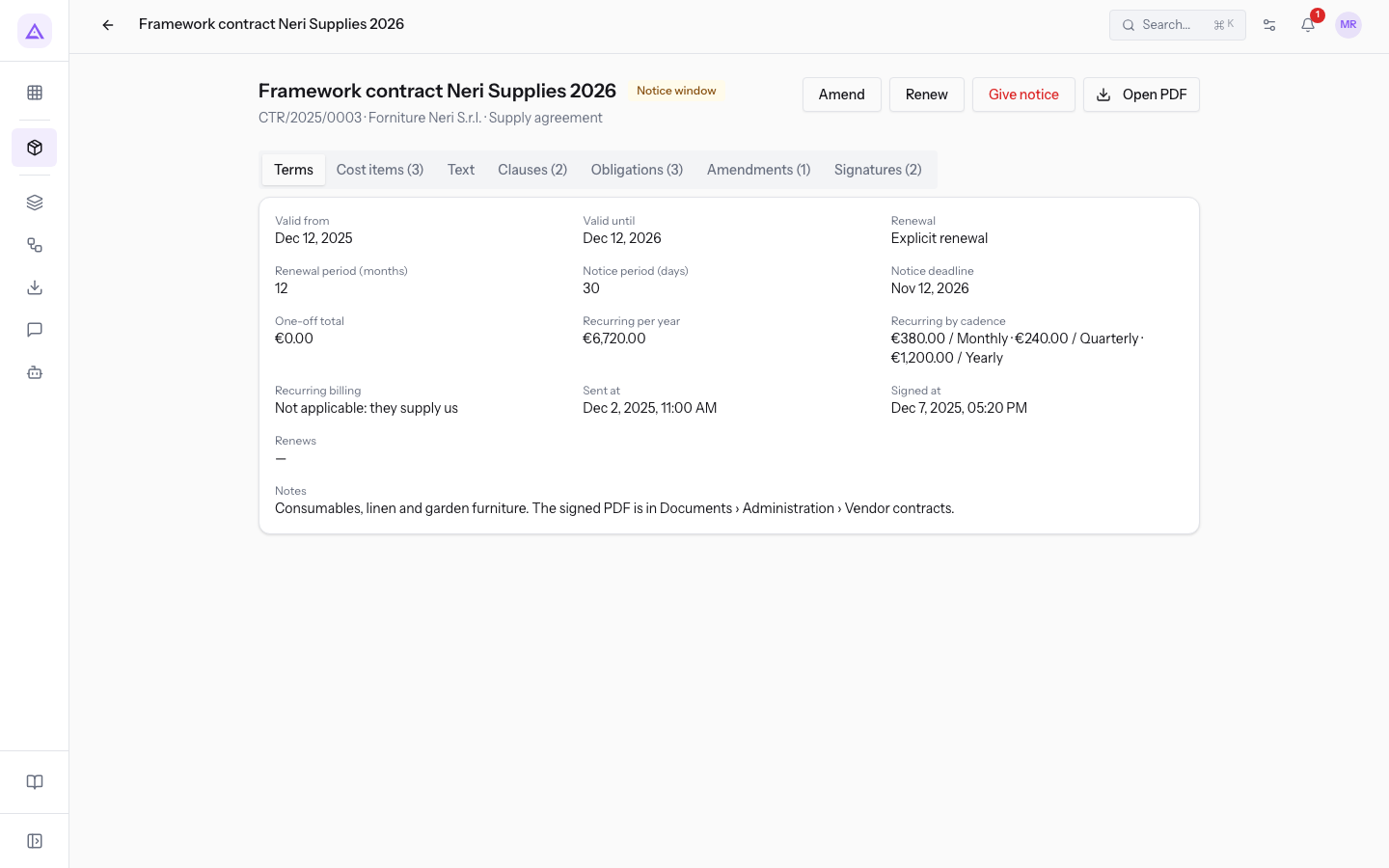
The header
At the top, the page shows which contract it is and what status it has.
- Title: the contract's title. Next to it is the status badge, in this case Notice window.
- Line under the title: reference · counterparty · type, for example
CTR/2025/0003 · Neri Supplies S.r.l. · Supply agreement. A draft does not have a reference yet: it receives one when sent.
The possible statuses are Draft, Awaiting signature, Signed, Active, Notice window, Expired, Terminated, and Declined.
The action buttons
The buttons at the top change with the contract's status. Open PDF, which opens the contract document, is always there.
- Draft: Edit, Refresh text, Send for signature, and Delete.
- Awaiting signature: Resend signing link, Record counterparty signature, Mark declined, and Sign for us.
- Signed: Activate, Amend, Renew, and Give notice.
- Active and Notice window: Amend, Renew, and Give notice.
- Expired and Terminated: Renew.
- Declined: no other buttons.
On Signed, Active, and Notice window, Sign for us also appears, until your organization's signature is recorded.
The Terms tab
The Terms tab opens first. It shows the dates, the renewal, the amounts, and the sent and signed dates.
Fields on the tab:
- Valid from: the date the contract takes effect. A signed contract becomes Active on this date.
- Valid until: the end date of the current period. It is calculated from the start date and the duration when the contract is created.
- Renewal: the renewal rule.
- Tacit renewal: without notice, the contract renews by itself at expiry for the renewal period.
- Explicit renewal: at expiry, the contract becomes Expired. To continue, use Renew. This is the case for
Framework contract Neri Supplies 2026. - No renewal: at expiry, the contract becomes Expired.
- Renewal period (months): how many months the contract extends at each renewal.
- Notice period (days): how many days before expiry notice must be given.
- Notice deadline: the expiry date minus the notice days. It is calculated automatically. Without renewal there is no deadline.
- One-off total: the sum of the one-off cost items.
- Recurring per year: the recurring cost items converted to a yearly amount.
- Recurring by cadence: the recurring cost items grouped by cadence.
- Amount and Billing cadence: these appear in place of the three totals when the contract has no cost items. This is the case for
Routine maintenance of the farmhouse, which shows Cost items (0). - Recurring billing: the billing linked to the contract. It starts at activation and closes at expiry or termination.
- Not applicable: they supply us: appears on contracts where the counterparty supplies us.
- No recurring billing: appears on contracts with a customer for whom no billing has been created.
- Sent at: the date it was sent for signature.
- Signed at: the date it was signed.
- Renews: the reference of the contract this one renews. Pressing it opens that contract.
- Notes: the contract's internal notes.
If the contract has been renewed with a new contract, the Renewals panel appears below the fields.
Important: in Notice window, you must decide whether to let the contract renew, renew it manually, or give notice. A contract with explicit renewal becomes Expired at expiry if you do not renew it.
The Text tab
The Text tab shows the contract text and, below it, its SHA-256 fingerprint.
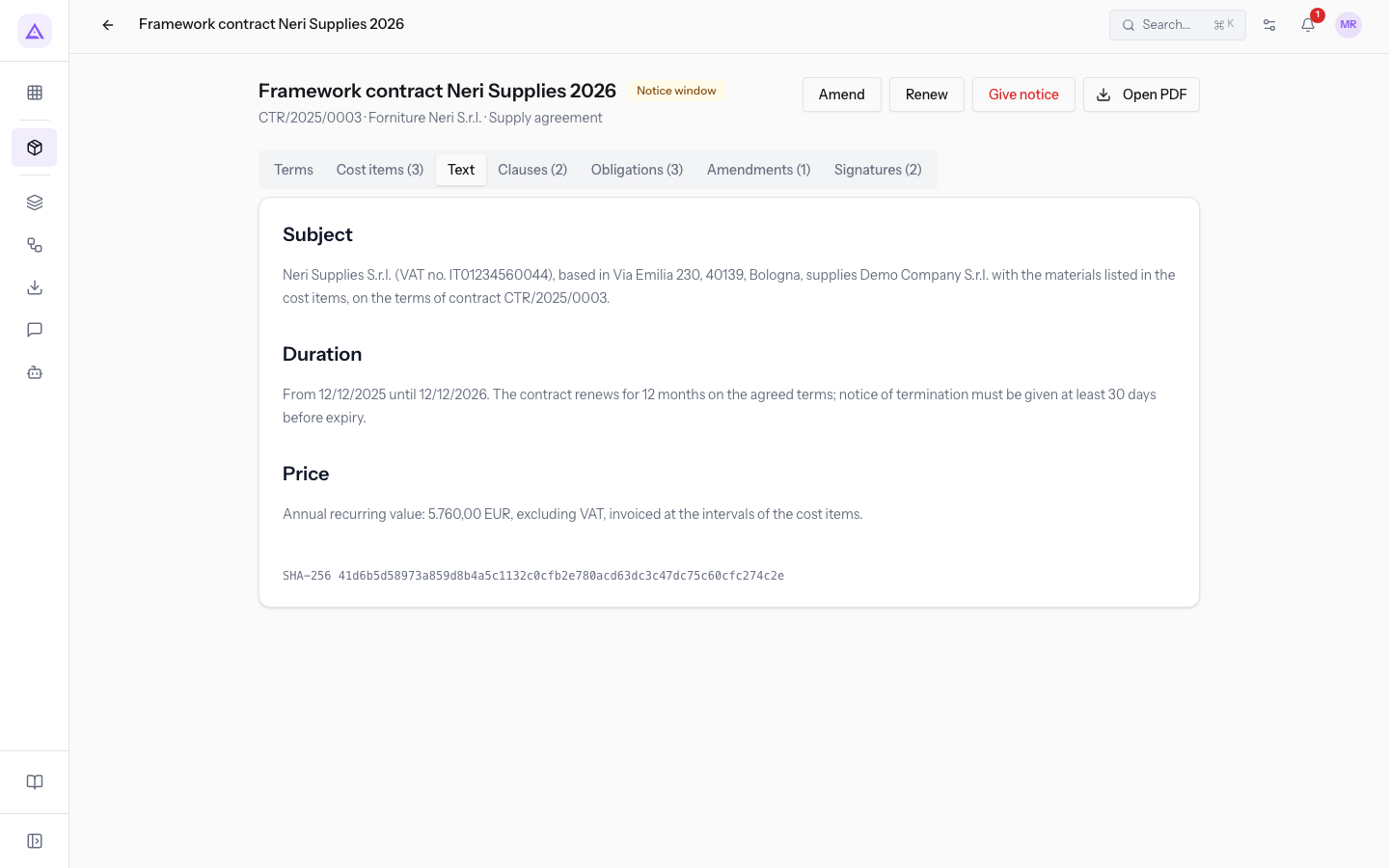
When sent, the text is frozen together with its fingerprint. The signature applies to that exact text. After sending, the text no longer changes: an amendment records the new terms but does not rewrite the text. In draft, by contrast, the text and fingerprint are regenerated on every edit.
If the text no longer matches the fingerprint, the red badge Text no longer matches its hash appears under the contract title, and the contract cannot be signed.
The other tabs
The other tabs show in brackets how many items they contain, for example Signatures (2). Text is the only one without a number.
- Cost items: the lines with quantity, unit price, and recurrence. Without items, the header amount applies.
- Clauses: the parts of the contract to follow on their own, including those the signer must approve separately.
- Obligations: dated obligations of one of the parties. Open ones are closed with Mark done.
- Amendments: changes recorded after signing, including tacit renewal and notice.
- Signatures: signing links, the counterparty's signature, and Our signature.
Each tab is described in a separate article in this section.
See it on your company, not on a slide deck.
In 30 minutes we map the software you use today.We show you how much work and how much margin Archimedes gives back.
Show me on my business →What industry are you in?
One tap — it lets us prepare the demo around your world.
What tools do you use today?
Pick the ones you recognise — or just type them. It helps us show you how they migrate.
Last step: your details.
We reply within one working day — and right after, if you like, you pick the demo slot yourself.
We couldn't send your request. Try again, or write to us at [email protected].
By sending, you agree to your data being processed so we can get back to you about the demo. Privacy notice.
Preview form — nothing is sent from this page.
Want to schedule the demo now?
Your call: book the slot you prefer yourself, or we'll call you to arrange it.
Live availability, 30 minutes, instant confirmation. The calendar opens in a new tab.
Lock in your slot ↗We'll get back to you within one working day — and we'll join the call already knowing your world.
The calendar is open in another tab: pick a slot and the demo is booked. Can't see it? Reopen it ↗
Preview page: nothing was sent.
Our calendar is live: take the slot that suits you and the demo is booked. 30 minutes, instant confirmation, no waiting.
Lock in your slot ↗