Contracts
All modules
What the signer sees from the link received by email
Contracts · 8 of 15 · 5 min read
The signing link opens a page that shows the contract to sign and lets the signer sign it or decline it. The signer does not need an account and confirms the signature with a code sent to the same email.
This article describes the page as the signer sees it. You need it to know what the person who receives the link finds and to answer their questions.
Opening the link
The signer receives a personal link by email. The link opens the contract directly, without logging in.
- The link is valid for 30 days.
- If you send a new link, the previous link stops working.
- When the counterparty signs or declines the contract, the other signing links still open stop working too.
What the page shows
The page shows the whole contract, in this order.
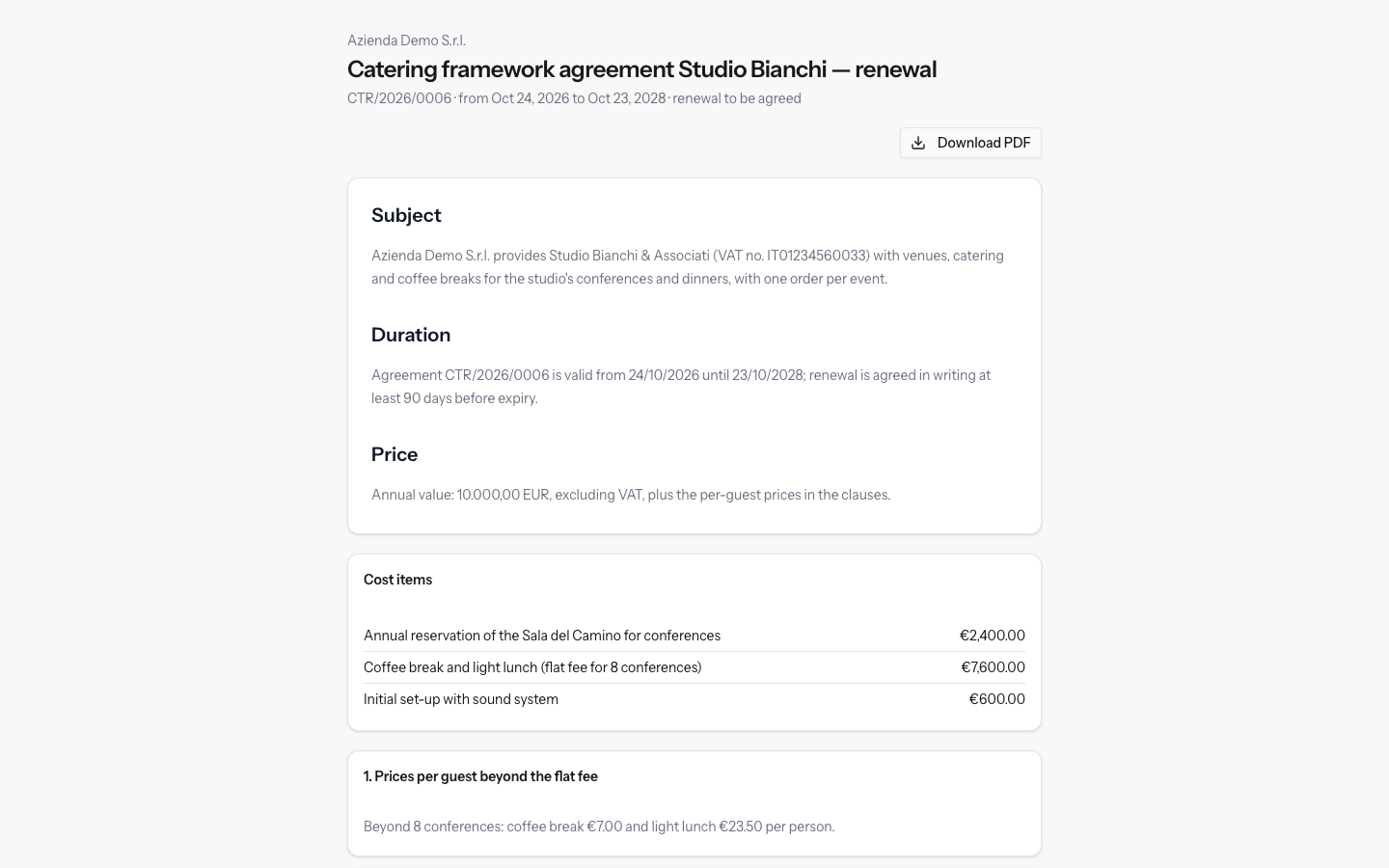
- At the top: the organization's name and the contract title. Below them are the reference, the start date, the expiry and the renewal rule.
- Download PDF: opens the contract PDF in a new browser tab.
- The contract text, as it was frozen when it was sent.
- Cost items: for each item it shows the description and the total. The box appears only if the contract has cost items.
- The clauses: they are numbered, and each one shows its title and text. The clauses to approve separately have their own approval checkbox while the contract is awaiting signature.
- Sign the contract: the box where the contract is signed or declined. It appears only while the contract is awaiting signature.
Note: the clauses that need specific approval are onerous clauses (arts. 1341-1342 of the Italian Civil Code). The signer must approve them one by one with their checkbox.
Signing the contract
Signing takes three things: approving the clauses, accepting the contract and entering the verification code.
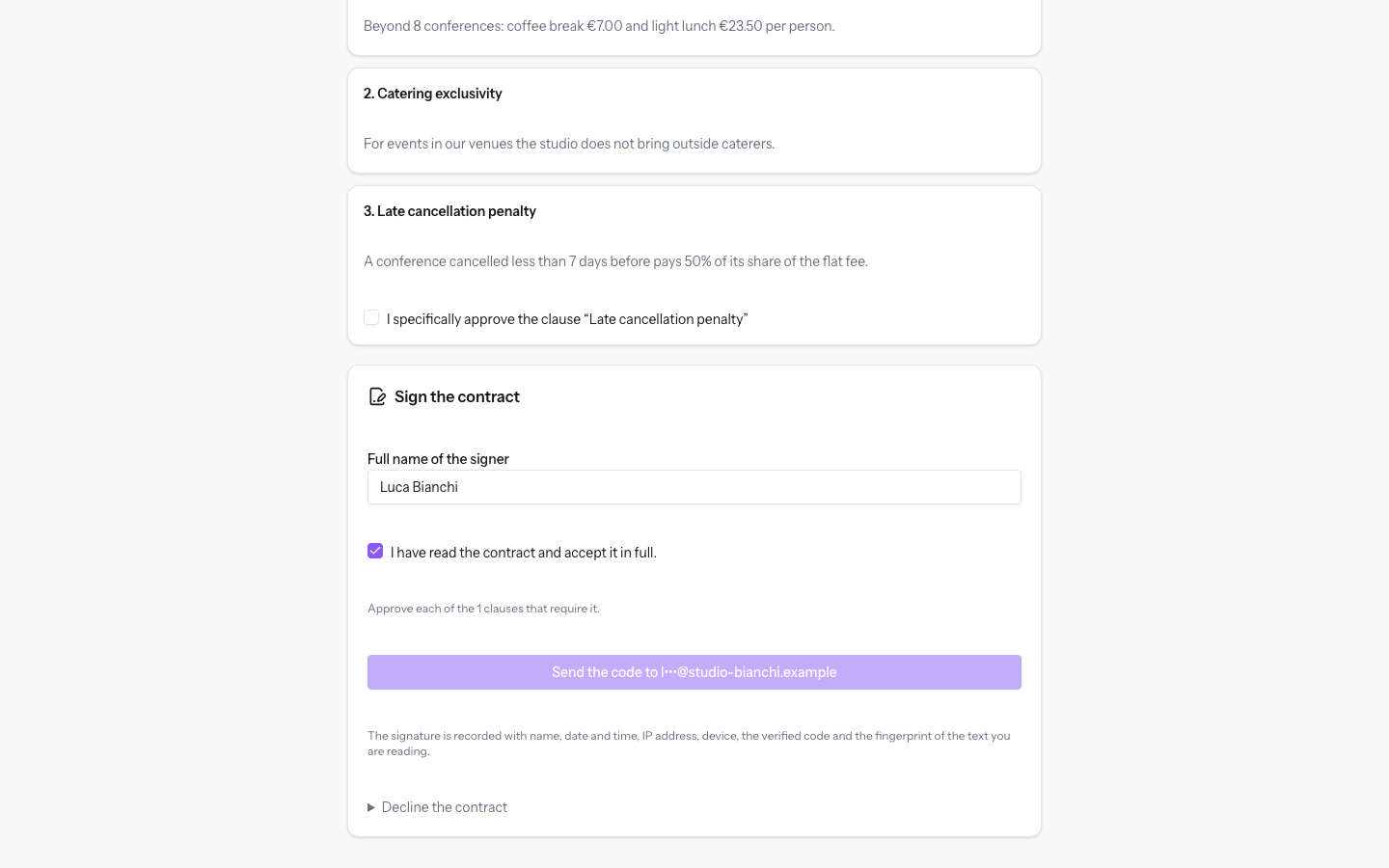
- Tick the approval checkbox of every clause that requires it. While one is missing, the signing box shows a notice asking to approve them all.
- In the Sign the contract box, check Full name of the signer and tick I have read the contract and accept it in full.
- Press Send the code to, followed by the signer's partly hidden email. The button becomes active only when the name is filled in, the contract is accepted and all the clauses are approved.
- In the Verification code field, enter the 6-digit code received by email and press Sign. The button becomes active when the code has 6 digits.
The fields in the box:
- Full name of the signer: filled in automatically with the name the link was sent to, and it can be changed. The field is required.
- I have read the contract and accept it in full.: the checkbox that accepts the contract. Ticking it is required.
- Verification code: appears after the code is sent and accepts digits only, up to 6.
Rules for the verification code:
- The code is valid for 10 minutes.
- Each code allows 5 attempts.
- Next to Sign is the Send a new code command. It can be used at most once a minute: while waiting, it shows the seconds left.
Important: the signature applies to the text shown on the page. If the contract text has changed in the meantime, the page shows an error and reloads with the updated text.
The evidence recorded with the signature
At the bottom of the signing box this note appears: "The signature is recorded with name, date and time, IP address, device, the verified code and the fingerprint of the text you are reading."
This is a simple electronic signature, not an advanced or qualified signature.
Declining the contract
The signer can also decline the contract while it is awaiting signature.
- At the bottom of the Sign the contract box, open Decline the contract.
- If you want, write the reason in the text field. The reason is optional and can have at most 500 characters.
- Press Decline the contract.
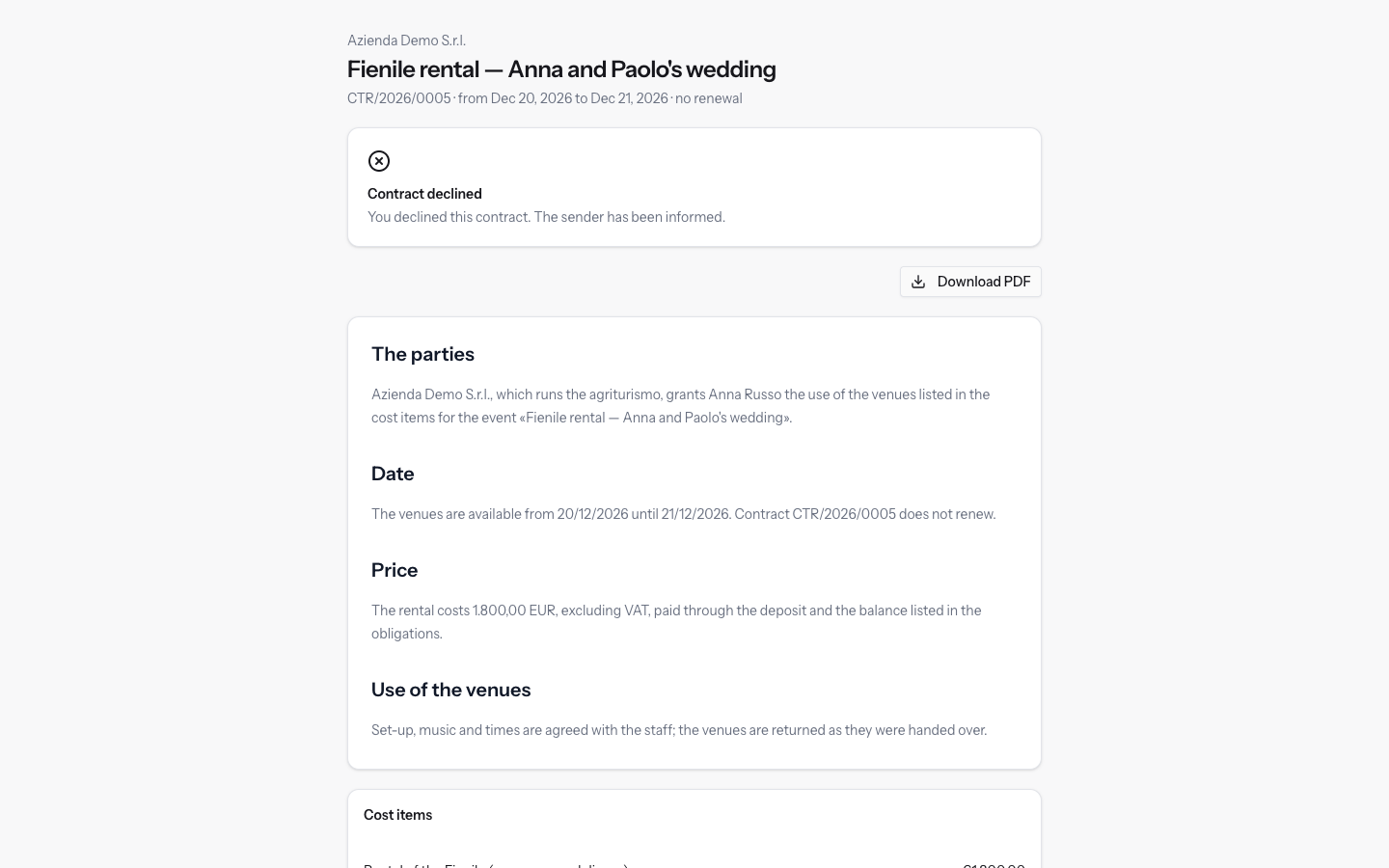
The contract moves to Declined, like Barn rental — Anna and Paolo's wedding.
Other outcomes of the link
When the contract is no longer awaiting signature, the same link shows a notice in place of the signing box.
- Contract signed: the text "Signed by … on …. The signed copy, with its signing certificate, stays available at this link." appears, with the Download the signed copy button. The contract text stays visible.
- Contract declined: appears on the link from which the signer declined, with the text "You declined this contract. The sender has been informed."
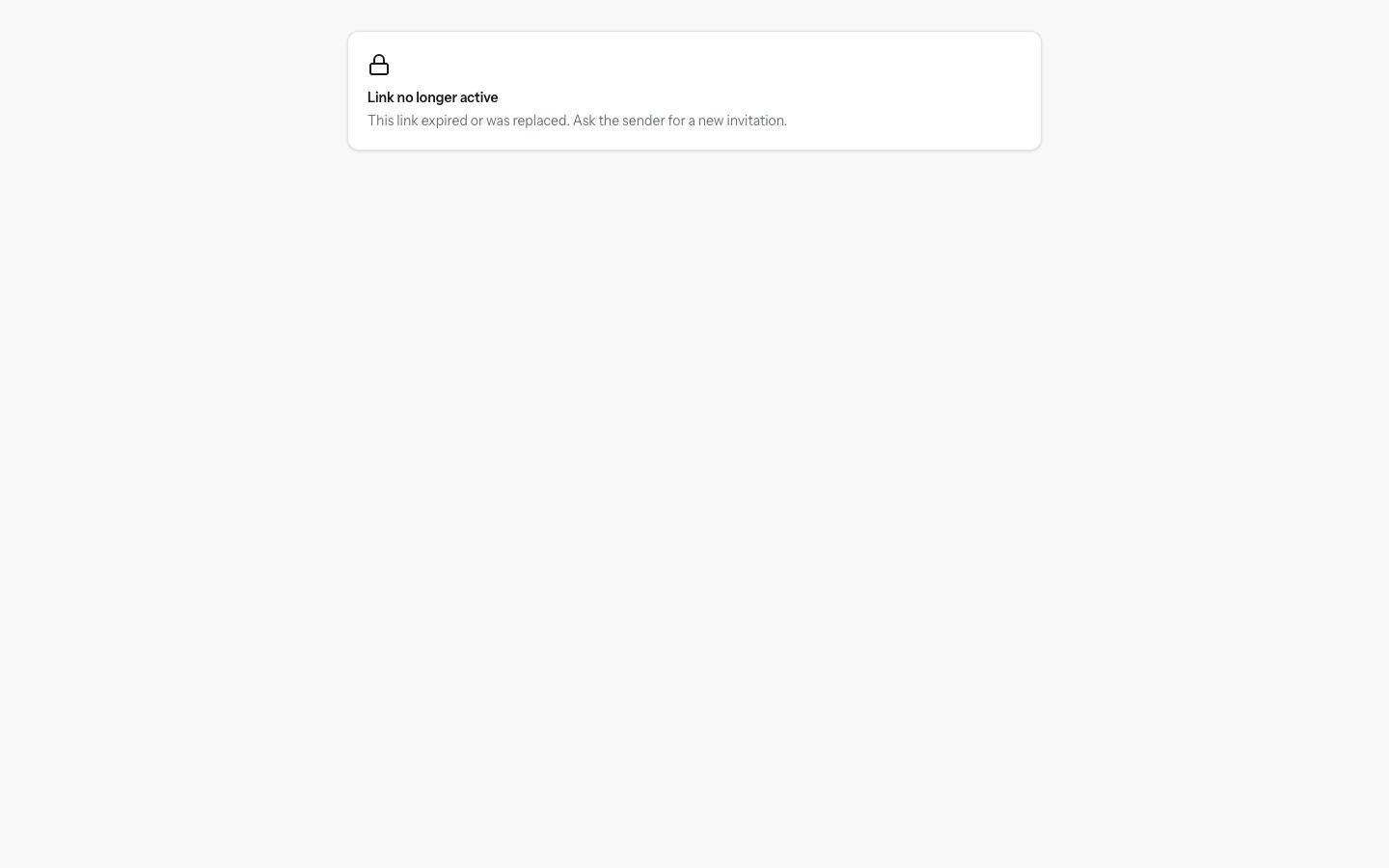
- Link no longer active: appears when the link has expired, been revoked or been replaced, also after Mark declined. In this case the page does not show the contract.
- Invalid link: if the link is incomplete or does not exist, the page shows "This signing link does not exist. Check that you copied it in full."
See it on your company, not on a slide deck.
In 30 minutes we map the software you use today.We show you how much work and how much margin Archimedes gives back.
Show me on my business →What industry are you in?
One tap — it lets us prepare the demo around your world.
What tools do you use today?
Pick the ones you recognise — or just type them. It helps us show you how they migrate.
Last step: your details.
We reply within one working day — and right after, if you like, you pick the demo slot yourself.
We couldn't send your request. Try again, or write to us at [email protected].
By sending, you agree to your data being processed so we can get back to you about the demo. Privacy notice.
Preview form — nothing is sent from this page.
Want to schedule the demo now?
Your call: book the slot you prefer yourself, or we'll call you to arrange it.
Live availability, 30 minutes, instant confirmation. The calendar opens in a new tab.
Lock in your slot ↗We'll get back to you within one working day — and we'll join the call already knowing your world.
The calendar is open in another tab: pick a slot and the demo is booked. Can't see it? Reopen it ↗
Preview page: nothing was sent.
Our calendar is live: take the slot that suits you and the demo is booked. 30 minutes, instant confirmation, no waiting.
Lock in your slot ↗