Contracts
All modules
Record the signatures: the counterparty's on paper, ours, the refusal
Contracts · 9 of 15 · 5 min read
A sent contract stays Awaiting signature until the counterparty signs or declines. From the contract page you record a signature collected outside the portal, sign for your organization, or mark the contract as declined.
When to use each action
A contract Awaiting signature shows the buttons Resend signing link, Record counterparty signature, Mark declined, Sign for us and Open PDF.
- If the signer signs from the link received by email or from the portal, you don't need to record anything: the signature appears on its own in the Signatures tab.
- If the signer signed on paper or sent you the signed document by email, use Record counterparty signature.
- If the contract must also be signed by your organization, use Sign for us.
- If the counterparty will not sign, use Mark declined.
When the counterparty signs or declines, the other open signing links become unusable.
Recording the counterparty's signature
Record the signature when the signer has signed outside the portal, on paper or by email.
- On the Awaiting signature contract page, press Record counterparty signature. The window Record the counterparty's signature opens, with the text "Use this when the contract was signed outside the portal (on paper, by email)."
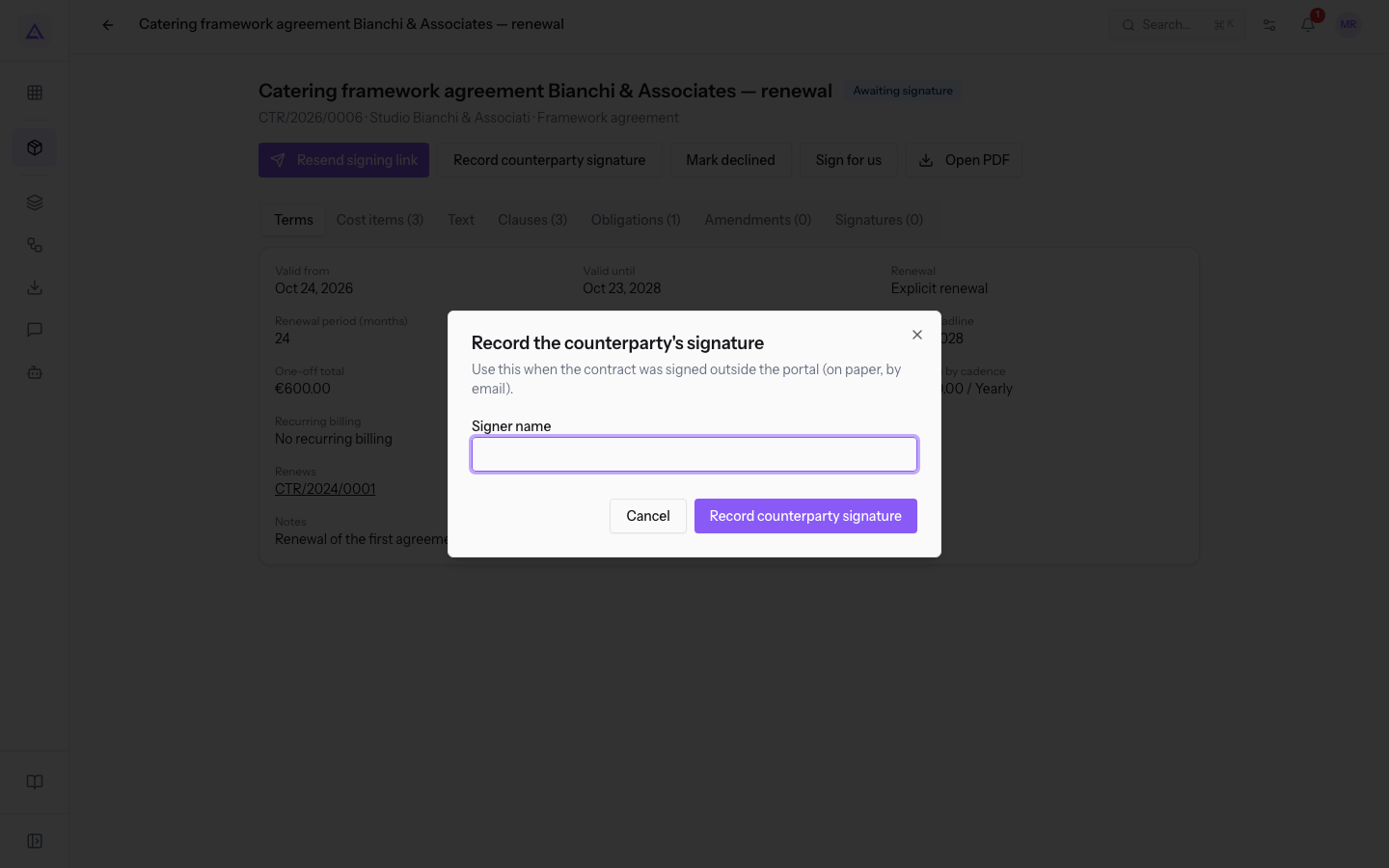
- Fill in Signer name, the name of the person who signed for the counterparty. The field is required.
- Press Record counterparty signature. The message Signature recorded appears.
With the counterparty's signature the contract moves to Signed, or directly to Active if Valid from has already arrived. In the Signatures tab the signature shows the method Signed on paper or digitally.
Note: clauses that require a specific approval are not approved on screen when you record a paper signature. The approval is the one written on the paper document.
Signing for your organization
With Sign for us you record your organization's signature on the contract, under the name of the user who presses the button. The button also appears on a contract that is Signed, Active or in Notice window, as long as this signature is missing.
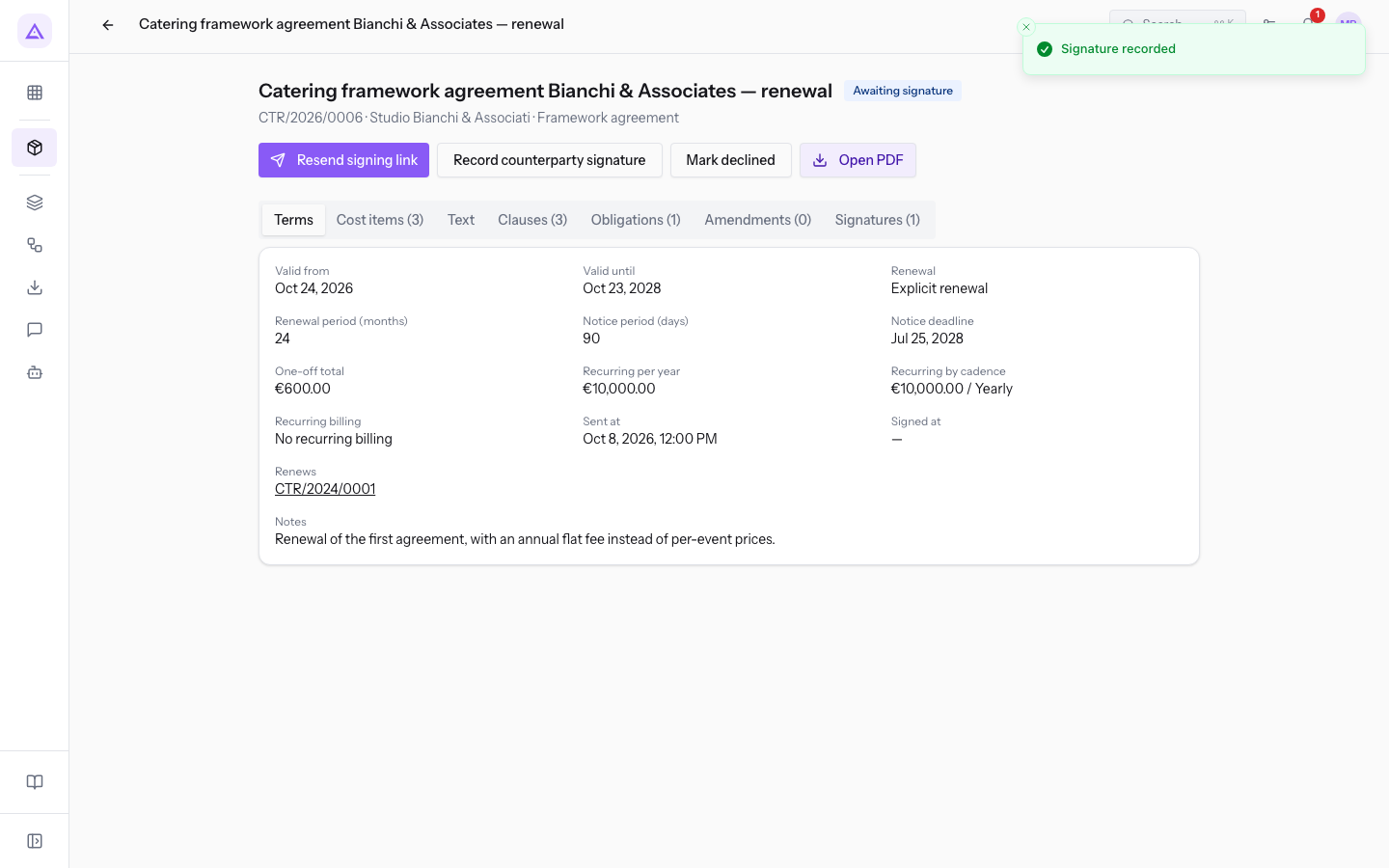
The signature is recorded immediately. The message Signature recorded appears, the count on the Signatures tab goes up by one and the Sign for us button disappears. The contract stays Awaiting signature until the counterparty signs.
Important: Sign for us does not ask for confirmation.
Marking a contract as declined
Mark a contract as declined when the counterparty tells you it will not sign it. The Mark declined button is only present on Awaiting signature contracts.
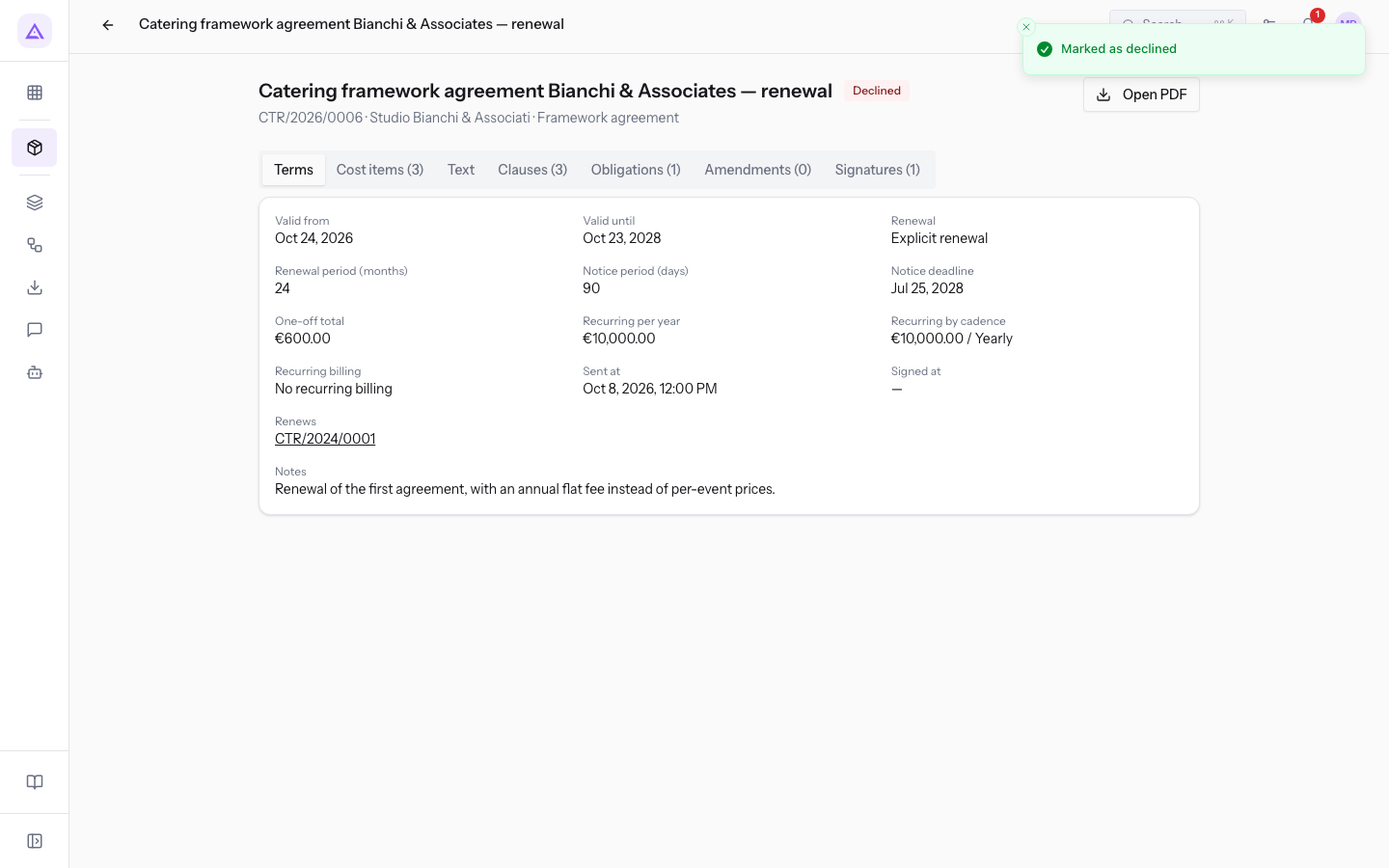
The contract moves immediately to Declined and the message Marked as declined appears. On the contract page of a declined contract only the Open PDF button remains.
The signer can also decline the contract from the signing link page, with an optional reason. In this case the link row in the Signatures tab shows Reason for declining. This is how Barn rental — Anna and Paolo's wedding was declined.
Important: Mark declined does not ask for confirmation and closes the contract. After that there are no more buttons to sign or resend it.
Reading the Signatures tab
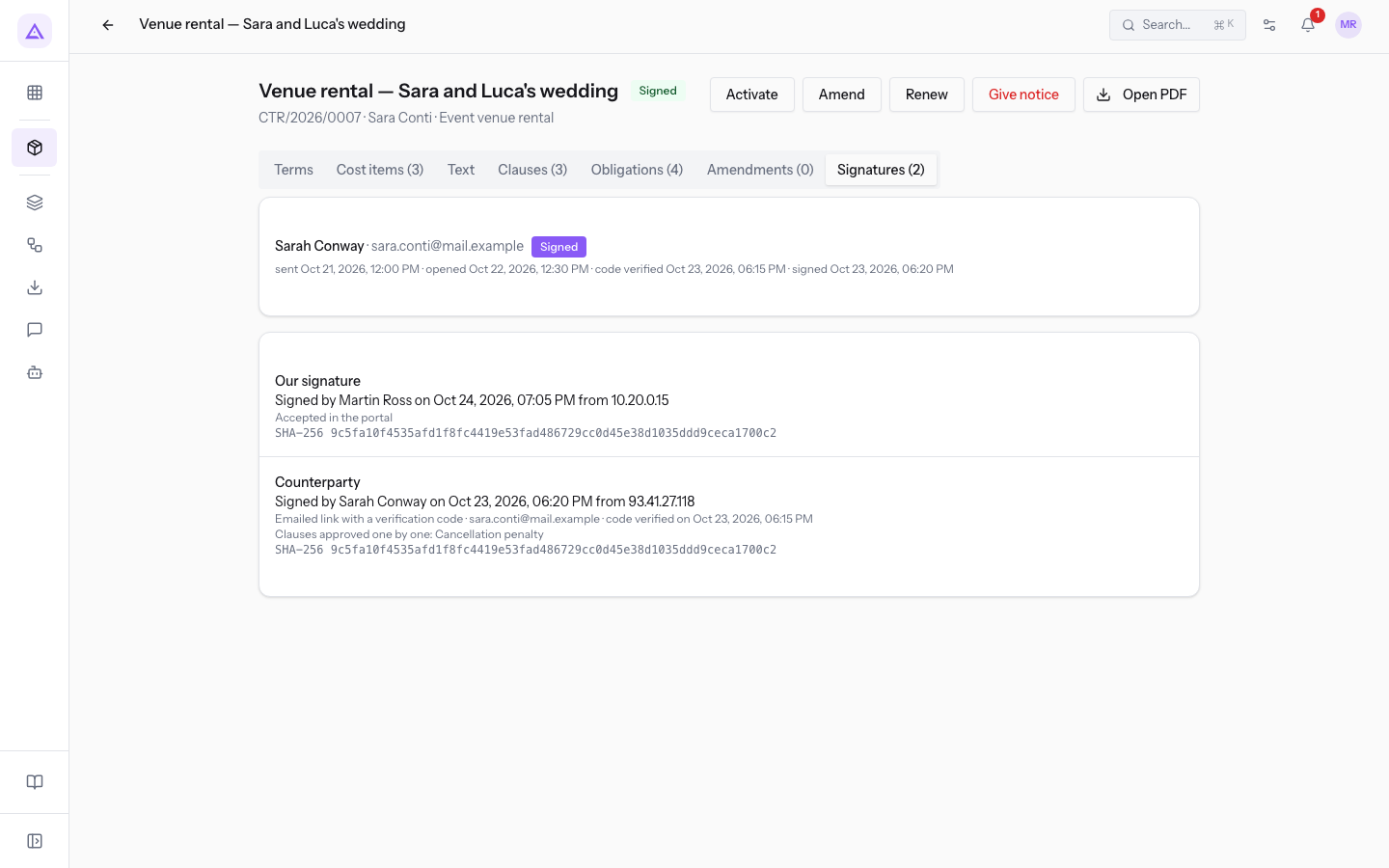
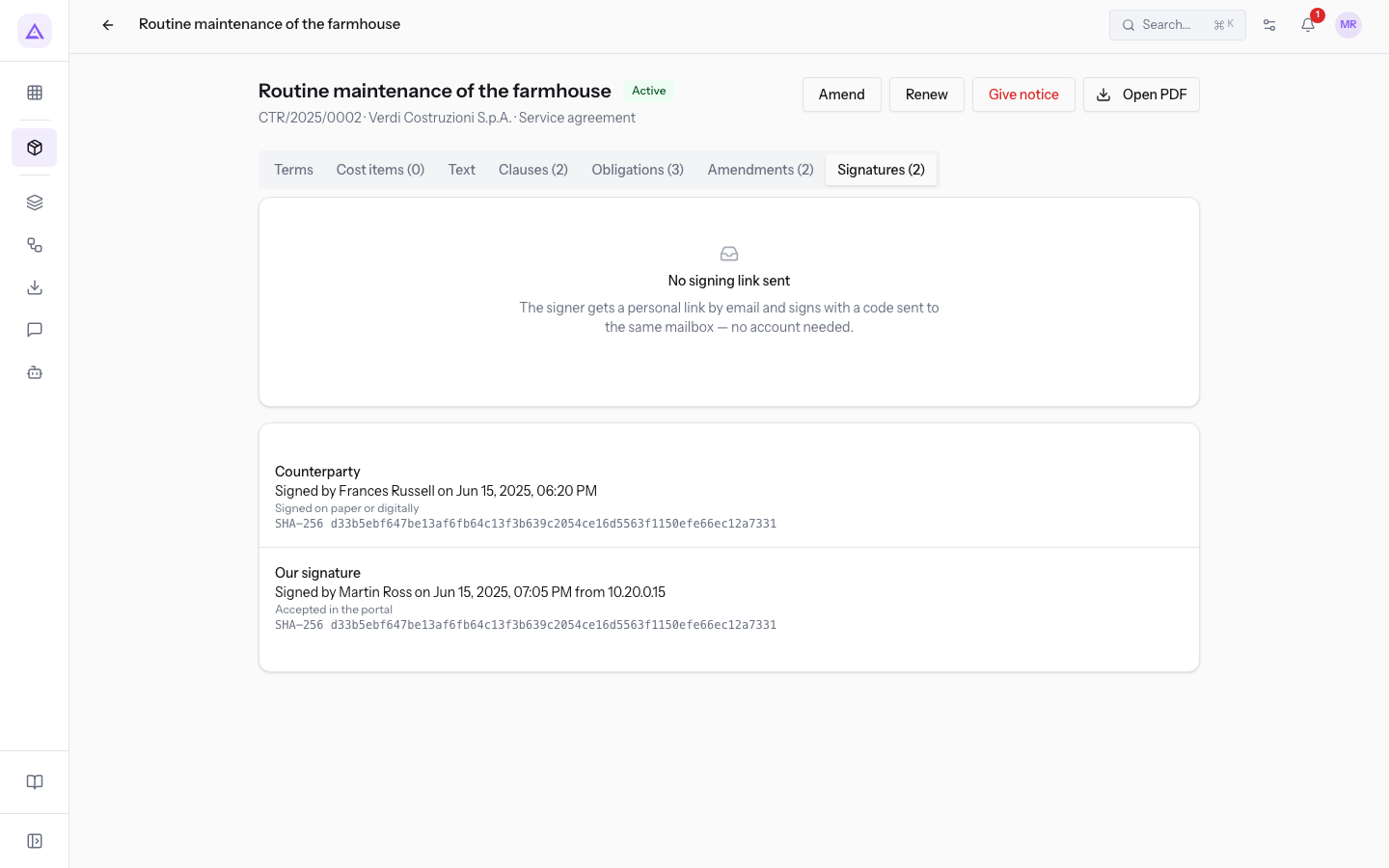
The Signatures tab shows the number of recorded signatures in brackets: Signatures (2) when both parties have signed. If there is no signature yet, Not signed yet. appears.
For each signature, under Counterparty or Our signature, the tab shows:
- The signer's name, the date of the signature and the IP address.
- The signing method: Emailed link with a verification code, Accepted in the portal or Signed on paper or digitally. Our signature shows Accepted in the portal.
- The list of clauses approved one by one by the signer, if they signed on screen.
- The SHA-256 fingerprint of the signed text.
A signature from the link records name, date and time, IP address, device, verified code and text fingerprint. It is a simple electronic signature, not advanced or qualified.
Venue rental — Sara and Luca's wedding (counterparty Sarah Conway) has Signatures (2): the counterparty's signature from the email link, with the clause Cancellation penalty approved separately, and our signature.
In Routine maintenance of the farmhouse (Verdi Construction S.p.A.) the counterparty's signature was recorded with Record counterparty signature, so with the method Signed on paper or digitally.
From Signed to Active
A Signed contract becomes Active on its Valid from date. The nightly check activates it that day. If the start date has already arrived at signing, the contract becomes Active straight away.
On the contract page of a Signed contract the Activate button appears, which only works from the Valid from date onward. Before that date the contract stays Signed, even though the message Contract activated appears.
For example Venue rental — Sara and Luca's wedding stays Signed until the wedding day, then becomes Active.
Note: if the Invoicing module is active, the recurring billing of a contract with an amount and cadence, or with recurring cost items, starts when the contract is activated.
See it on your company, not on a slide deck.
In 30 minutes we map the software you use today.We show you how much work and how much margin Archimedes gives back.
Show me on my business →What industry are you in?
One tap — it lets us prepare the demo around your world.
What tools do you use today?
Pick the ones you recognise — or just type them. It helps us show you how they migrate.
Last step: your details.
We reply within one working day — and right after, if you like, you pick the demo slot yourself.
We couldn't send your request. Try again, or write to us at [email protected].
By sending, you agree to your data being processed so we can get back to you about the demo. Privacy notice.
Preview form — nothing is sent from this page.
Want to schedule the demo now?
Your call: book the slot you prefer yourself, or we'll call you to arrange it.
Live availability, 30 minutes, instant confirmation. The calendar opens in a new tab.
Lock in your slot ↗We'll get back to you within one working day — and we'll join the call already knowing your world.
The calendar is open in another tab: pick a slot and the demo is booked. Can't see it? Reopen it ↗
Preview page: nothing was sent.
Our calendar is live: take the slot that suits you and the demo is booked. 30 minutes, instant confirmation, no waiting.
Lock in your slot ↗