eCommerce
All modules
Issuing and checking gift cards
eCommerce · 9 of 13 · 3 min read
Gift cards are codes with a prepaid amount that customers use as payment in the online shop. From this page you issue new cards and check how much remains on each one, for example for a voucher given to a customer or sold on the occasion of a celebration.
How a gift card works
Each card has a code, an initial amount, and a balance.
- When you issue the card, the code is generated automatically and the balance starts equal to the initial amount.
- When the customer uses the card, the balance decreases by the amount used.
- If the balance exceeds the order total, the card covers the entire order and the remainder stays on the card for future purchases.
- If the balance is less than the total, the card covers the balance and the customer pays the difference with another payment method.
- A card can only be used if it is active, has not expired, and has a balance greater than zero.
Checking gift cards
The Gift Cards entry is visible to users in the eCommerce Manager group.
The list shows all issued cards and the balance of each one.
- Open eCommerce › Gift Cards.
- Read the list of cards.
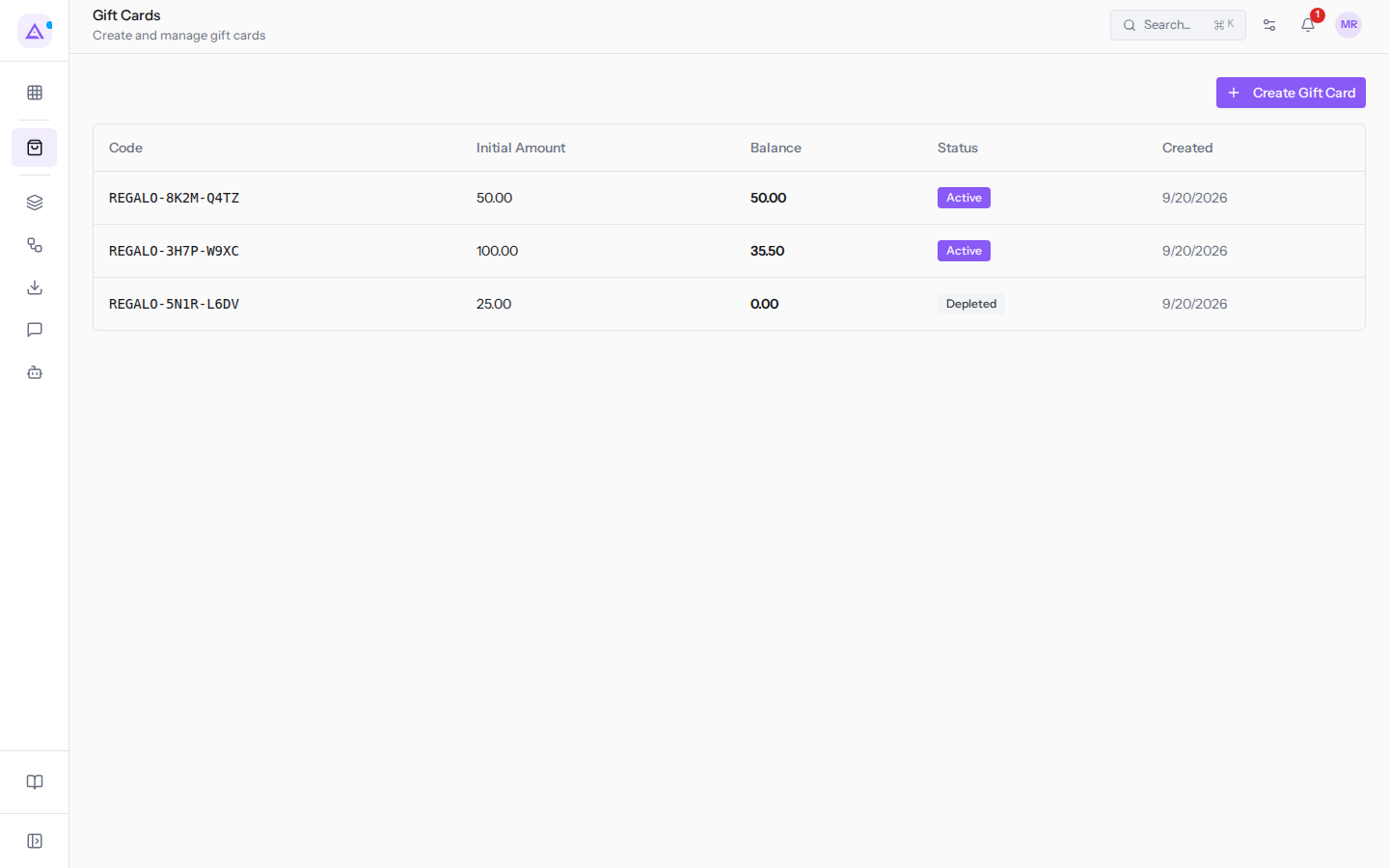
The list has these columns, in order:
- Code: the card code, which the customer enters to use it.
- Initial Amount: the amount with which the card was issued.
- Balance: the amount still available on the card.
- Status: Active if the card still has a balance, Depleted if the balance has reached zero, as for
REGALO-5N1R-L6DV. - Created: the day on which the card was issued.
For example, the card REGALO-8K2M-Q4TZ has an initial amount of 50.00 and a balance of 50.00, so it has not yet been used. The card REGALO-3H7P-W9XC has an initial amount of 100.00 and a balance of 35.50, so it has been partially used.
Issuing a gift card
Issue a card when you need to give a customer an amount to spend in the shop.
- Open eCommerce › Gift Cards.
- Click Create Gift Card.
- In the Create Gift Card dialog, enter the card amount.
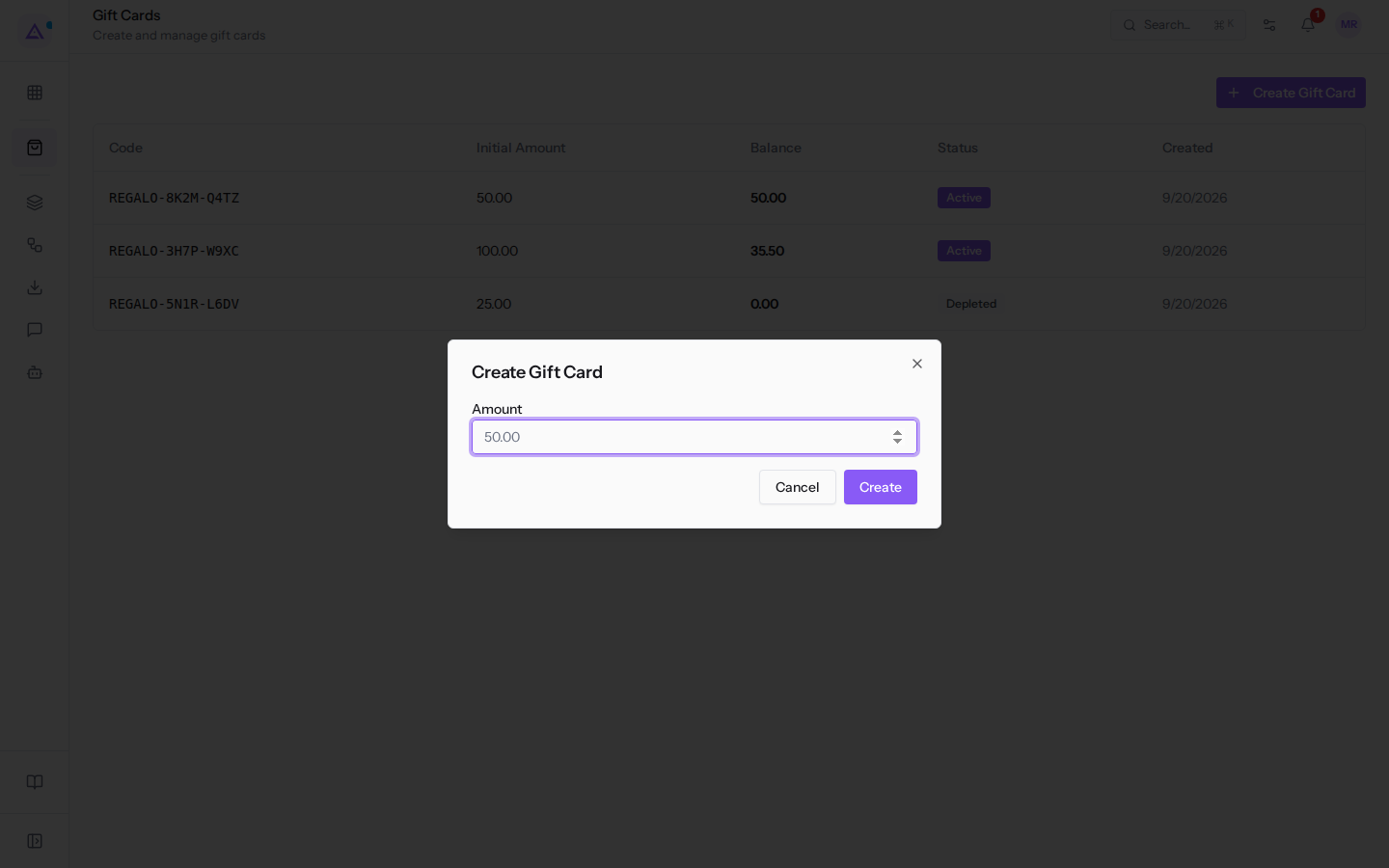
- Click Create to issue the card, or Cancel to close the dialog without issuing it.
The dialog has a single field:
- Amount: the card amount, for example
50.00. The field is required. It becomes the initial amount and the starting balance of the card.
The code is not entered manually: it is generated by the product, in the format GIFT- followed by three groups of four characters. Each code differs from those already issued.
Share the code of the newly issued card with the customer. The customer uses it to spend the balance in the shop.
How the customer uses the card at checkout
The customer enters the card code while completing the purchase.
- The product checks that the card exists, is active, has not expired, and has a balance. If any of these conditions is not met, the card is not accepted.
- The amount used is the lesser of the card balance and the order total.
- The order receives a discount line equal to the amount used and the order total is recalculated.
- The card balance immediately decreases by the amount used and the list of cards shows the new balance.
- If the customer removes the card from the cart, the amount is returned to the card balance and the discount line is removed.
A card with a remaining balance remains usable for other orders until the balance reaches zero.
See it on your company, not on a slide deck.
In 30 minutes we map the software you use today.We show you how much work and how much margin Archimedes gives back.
Show me on my business →What industry are you in?
One tap — it lets us prepare the demo around your world.
What tools do you use today?
Pick the ones you recognise — or just type them. It helps us show you how they migrate.
Last step: your details.
We reply within one working day — and right after, if you like, you pick the demo slot yourself.
We couldn't send your request. Try again, or write to us at [email protected].
By sending, you agree to your data being processed so we can get back to you about the demo. Privacy notice.
Preview form — nothing is sent from this page.
Want to schedule the demo now?
Your call: book the slot you prefer yourself, or we'll call you to arrange it.
Live availability, 30 minutes, instant confirmation. The calendar opens in a new tab.
Lock in your slot ↗We'll get back to you within one working day — and we'll join the call already knowing your world.
The calendar is open in another tab: pick a slot and the demo is booked. Can't see it? Reopen it ↗
Preview page: nothing was sent.
Our calendar is live: take the slot that suits you and the demo is booked. 30 minutes, instant confirmation, no waiting.
Lock in your slot ↗