eCommerce
All modules
Create and manage promotional codes
eCommerce · 7 of 13 · 5 min read
Promotional codes are discount codes that online store customers enter when they make a purchase. From here you create them, choose the discount type, validity period and usage limits, and deactivate or delete them when they are no longer needed. Some examples: a welcome discount, free shipping above a certain amount, a discount linked to a trade fair.
The Promo Codes item is visible to those in the eCommerce Manager group.
The promotional codes list
The page shows all the store's codes, both active and inactive.
- Open eCommerce › Promo Codes.
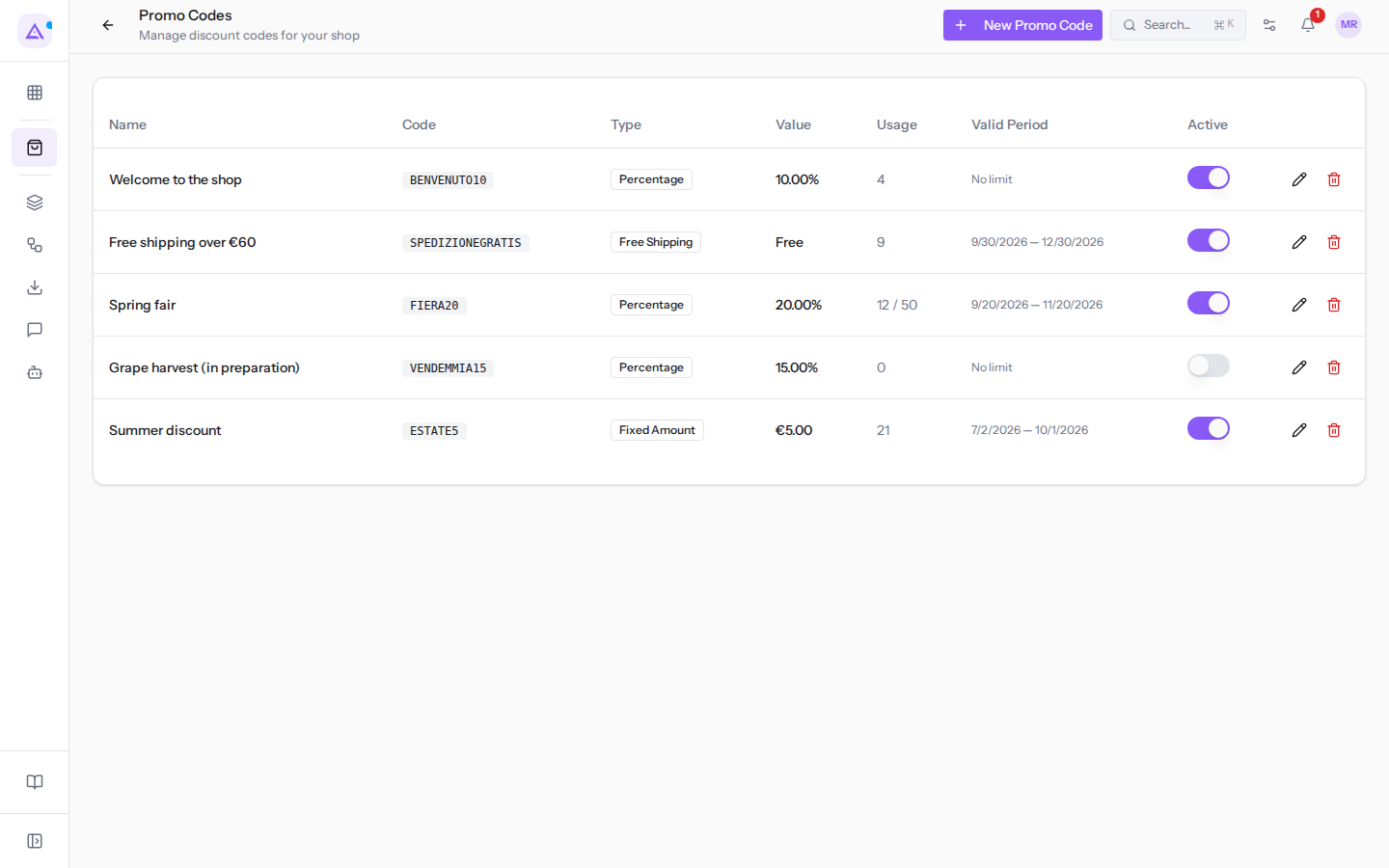
For each code the list shows these columns:
- Name: the internal name of the code, for example
Welcome to the shop. - Code: the text the customer enters, for example
BENVENUTO10. - Type: Percentage, Fixed amount or Free Shipping.
- Value: the percentage or discount amount. For free shipping the column shows Free.
- Usage: how many times the code has been used. If you have set a limit, the column also shows the limit: for example FIERA20 shows 12 uses out of 50.
- Valid Period: the start and end dates. If you have not specified any dates, the column shows No cap.
- Active: the toggle that activates or deactivates the code.
For example SPEDIZIONEGRATIS gives free shipping above €60, ESTATE5 (fixed amount of €5.00) has already expired and VENDEMMIA15 (15%) is deactivated.
Next to each row you'll find two icons: the pencil opens the code for editing, the bin deletes it.
Choosing the discount type
The discount type determines what the customer receives and what value you need to enter.
- If you want a discount that grows with the order value, choose Percentage: for example 10 for
BENVENUTO10. - If you want to always subtract the same amount, choose Fixed amount: for example €5.00 for ESTATE5.
- If you want to give free shipping, choose Free Shipping. The value field remains locked, because there is no value to enter.
To limit the discount to orders of a certain amount, use the Minimum Order Amount field. To limit it to a period, use Valid from and Valid until.
Creating a promotional code
A new code is created from the New Promo Code dialog.
- Open eCommerce › Promo Codes.
- Click New Promo Code.
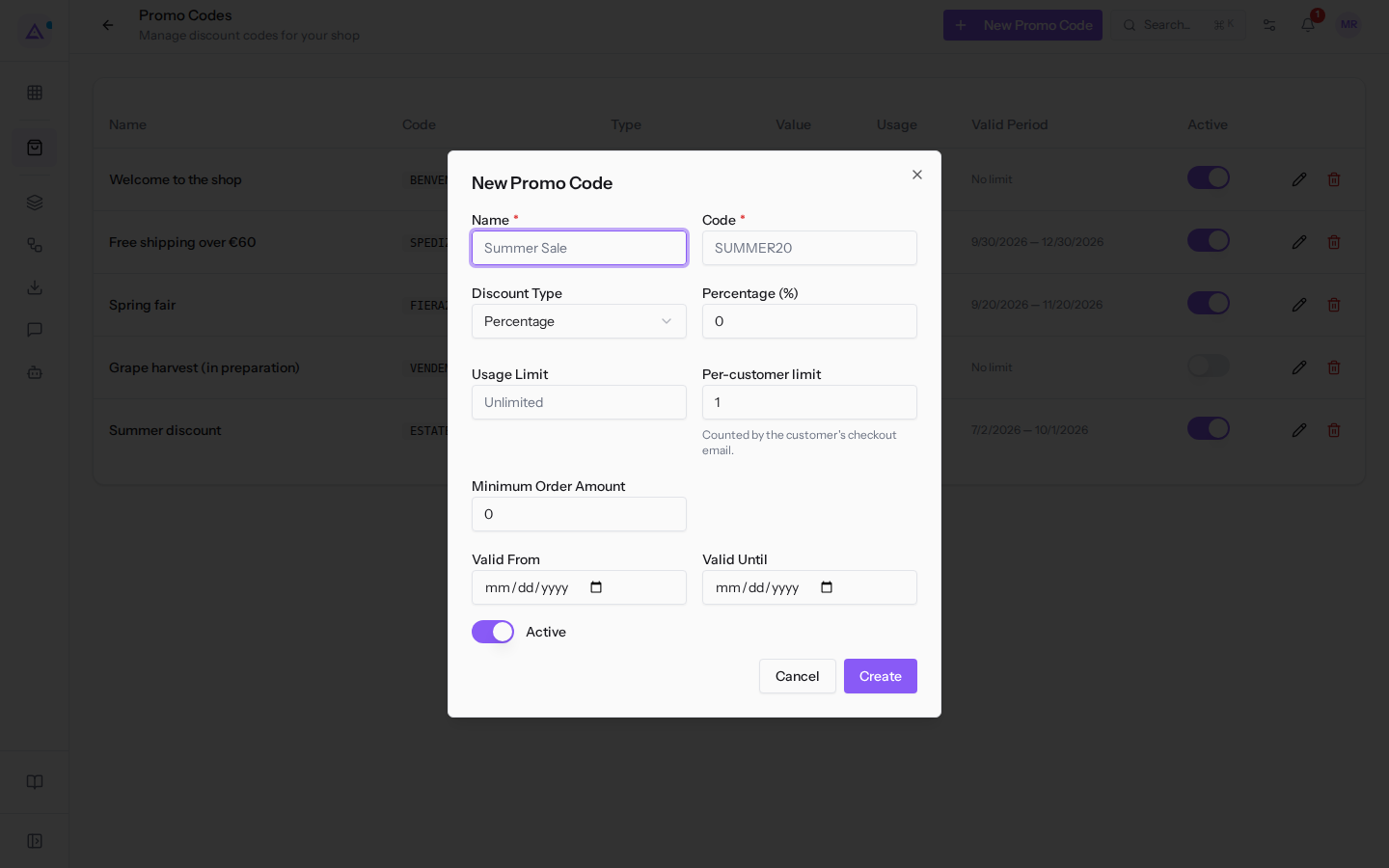
- Fill in Name and Code.
- In Discount Type choose Percentage, Fixed amount or Free Shipping.
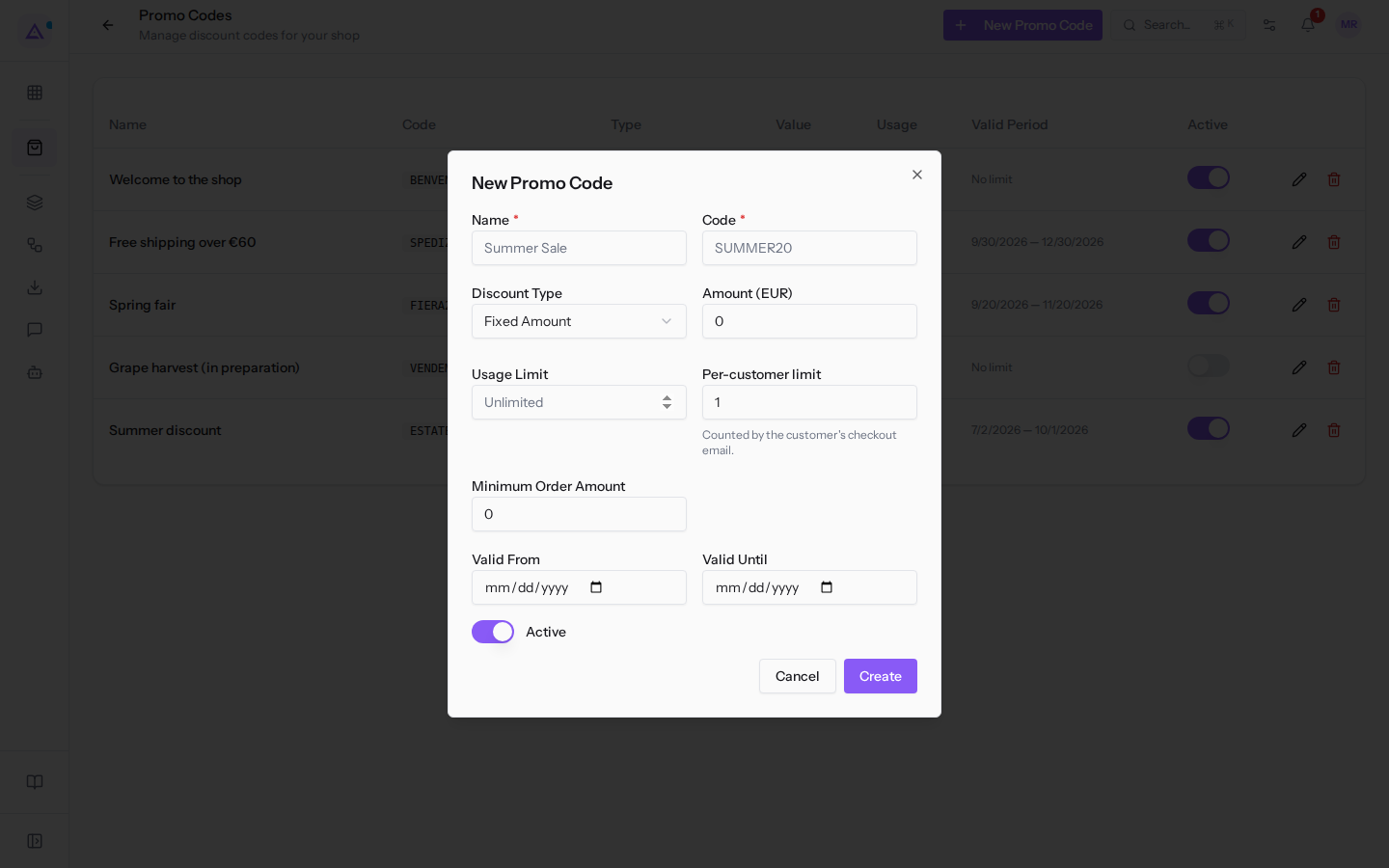
- Enter the discount value and, if needed, the limits and dates.
- Click Create. The Promo code created message confirms the save and the code appears in the list.
To close the dialog without saving, click Cancel.
The dialog fields:
- Name: the name of the code in the list, for example Spring Fair. The field is required.
- Code: the text the customer enters, for example FIERA20. The field is required. Letters are automatically capitalised as you type.
- Discount Type: the type of discount. The default value is Percentage.
- Percentage: percentage discount on the order.
- Fixed amount: a fixed amount discount in the store's currency.
- Free Shipping: the customer does not pay for shipping.
- Percentage (%): the discount percentage. Appears with the Percentage type.
- Amount (EUR): the discount amount. Appears with the Fixed amount and Free Shipping types. With Free Shipping the field cannot be edited.
- Usage Limit: how many times in total the code can be used, for example 50 for FIERA20. Leave the field empty for no limit.
- Per-customer limit: how many times the same customer can use the code. The default value is 1. Leave the field empty for no limit.
- Minimum Order Amount: the minimum order amount to use the code. The default value is 0.
- Valid from: the date from which the code is valid. The field is optional.
- Valid until: the last date on which the code is valid. The field is optional.
- Active: the toggle that makes the code usable. In new codes it is already active.
The Per-customer limit is counted based on the email the customer enters at checkout. The message below the field reminds you of this: Counted by the customer's checkout email.
To prepare a code before making it available, create it with Active off, like VENDEMMIA15, and activate it when needed.
Editing a promotional code
You can change all the fields of an already created code.
- Open eCommerce › Promo Codes.
- In the code's row click the pencil icon. The Edit Promo Code dialog opens with the current data.
- Change the fields you need. They are the same as the creation dialog.
- Click Refresh. The Promo code updated message confirms the save.
Editing does not reset the number in the Usage column: already recorded uses remain.
Deactivating a promotional code
Deactivate a code when you want to suspend it without losing its data, for example the usage count.
- Open eCommerce › Promo Codes.
- In the code's row turn off the toggle in the Active column. The change is saved immediately, without opening the dialog.
To reactivate it, turn the toggle on again. You can also use the Active toggle in the Edit Promo Code dialog.
Deleting a promotional code
Delete a code when you no longer need it and don't want to keep it in the list. If you think you might reuse it, deactivate it instead of deleting it.
- Open eCommerce › Promo Codes.
- In the code's row click the bin icon. The Delete promo code confirmation opens with the text Are you sure you want to delete this promo code?
- Confirm with Delete. The Promo code deleted message confirms the operation.
Deletion removes the code from the list. There is no command to recover it from the page.
To view the store's orders and prepare them for shipping, see Preparing and shipping a store order.
See it on your company, not on a slide deck.
In 30 minutes we map the software you use today.We show you how much work and how much margin Archimedes gives back.
Show me on my business →What industry are you in?
One tap — it lets us prepare the demo around your world.
What tools do you use today?
Pick the ones you recognise — or just type them. It helps us show you how they migrate.
Last step: your details.
We reply within one working day — and right after, if you like, you pick the demo slot yourself.
We couldn't send your request. Try again, or write to us at [email protected].
By sending, you agree to your data being processed so we can get back to you about the demo. Privacy notice.
Preview form — nothing is sent from this page.
Want to schedule the demo now?
Your call: book the slot you prefer yourself, or we'll call you to arrange it.
Live availability, 30 minutes, instant confirmation. The calendar opens in a new tab.
Lock in your slot ↗We'll get back to you within one working day — and we'll join the call already knowing your world.
The calendar is open in another tab: pick a slot and the demo is booked. Can't see it? Reopen it ↗
Preview page: nothing was sent.
Our calendar is live: take the slot that suits you and the demo is booked. 30 minutes, instant confirmation, no waiting.
Lock in your slot ↗