eCommerce
All modules
Deciding what happens when a product runs out
eCommerce · 4 of 13 · 3 min read
The out-of-stock policy sets what the online store does when a product's stock reaches zero. You can block purchases or accept back-orders. You can also show customers the available quantity and an out-of-stock notice, for example for a wine that comes back with the new vintage.
When the store blocks a product
Stock control only applies to goods with Track Quantities enabled. Services and untracked goods are never blocked, regardless of their policy.
- If the product is a tracked good and you want to sell only what you have in stock, leave Allow orders when out of stock disabled: at zero stock the product cannot be added to the cart.
- If the product is a tracked good and you want to keep collecting orders, enable Allow orders when out of stock: the customer can still order and the store ships the goods when they arrive.
- If the product is a service or an untracked good, for example
Furniture assembly (hour), the store never blocks it. The settings only change what the storefront displays.
If the Inventory module is not active for the organisation, no product is blocked by stock levels and available quantities cannot be checked.
Viewing each product's policy
The Out-of-stock policy column in the product list shows the current setting for each product. It is not shown among the default columns: it must be added.
- Open eCommerce › Products. The Publish Products page opens.
- Click Add column and enable Out-of-stock policy.
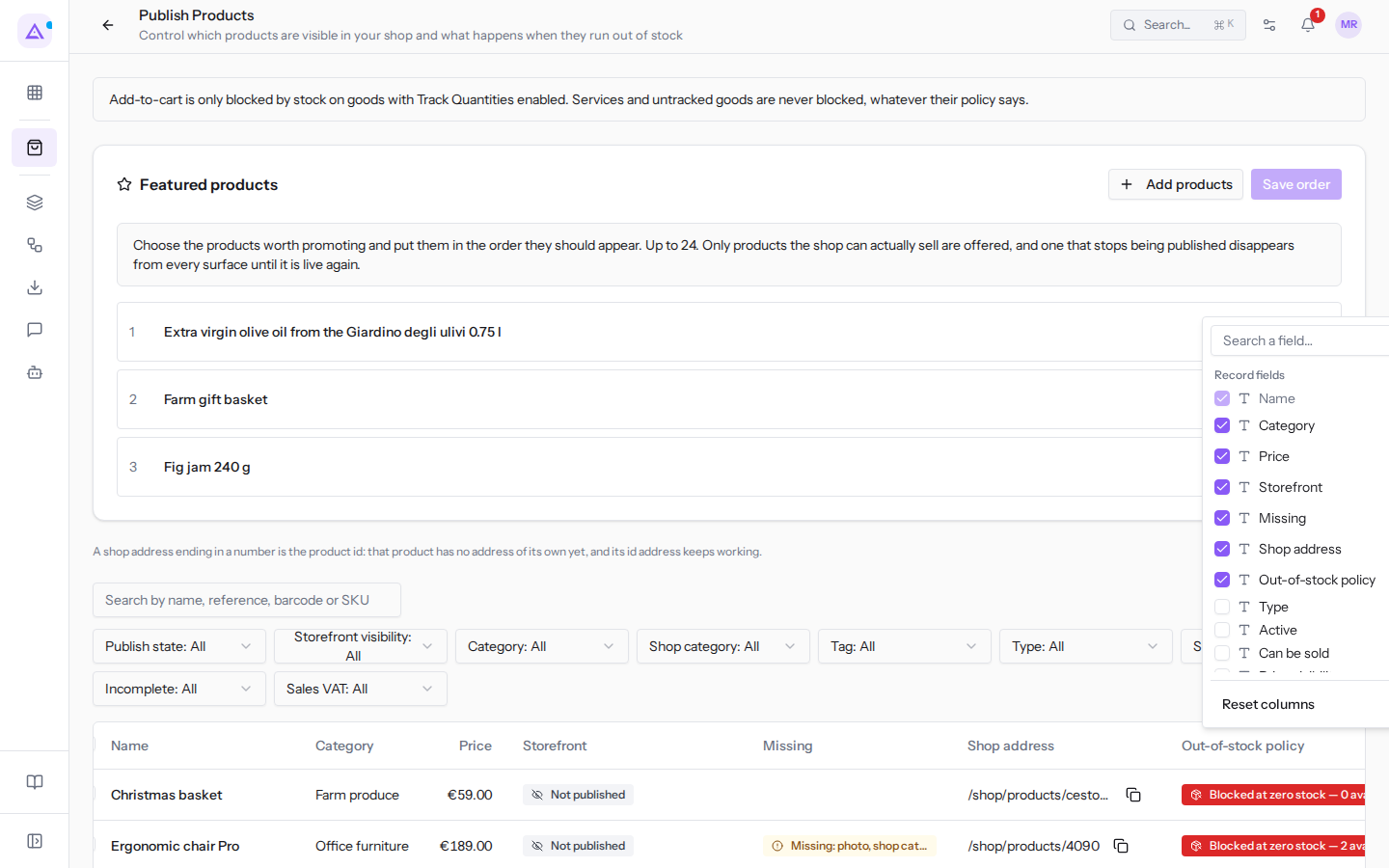
The column shows one of these values:
- Never blocked: the store never blocks the product.
- Back-orders allowed: customers can order beyond zero stock.
- Blocked at zero stock: the cart is blocked when stock reaches zero. Next to it the number of available units is shown, for example Blocked at zero stock — 30 available.
To find a product use the Search by name, reference, barcode or SKU search, or the Stock filter.
Changing a product's out-of-stock policy
The policy is set product by product, from a dialog opened from the list row.
- Open eCommerce › Products.
- Search for the product in the Search by name, reference, barcode or SKU field, for example
Hill white wine. - In the product row click Actions and choose Out-of-stock policy.
- The Out-of-stock policy — Hill white wine 0.75 l dialog opens, with the product name in the title.
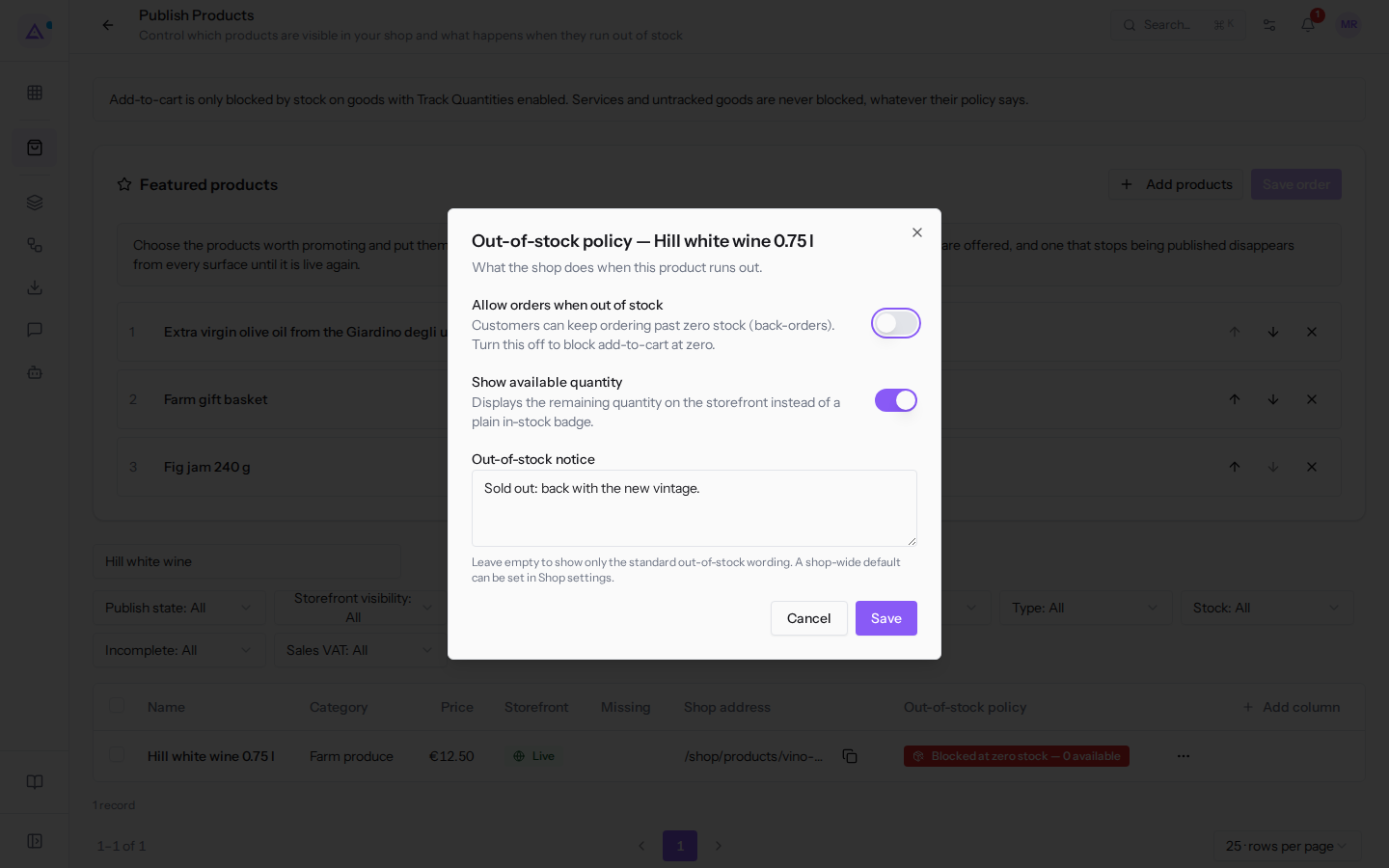
- Edit the fields and click Save. To close without making any changes click Cancel.
The dialog contains these fields:
- Allow orders when out of stock: when enabled, customers can order beyond zero stock (back-orders). When disabled, the cart is blocked at zero. In the
Hill white wine 0.75 lexample it is disabled. - Show available quantity: when enabled, the storefront shows the available quantity of the product. In the example it is enabled.
- Out-of-stock notice: the text shown when the product is out of stock. The field is optional. In the example it contains
Sold out: back with the new vintage.
For a product not tracked in stock, the dialog warns that the product is never blocked by stock control and that the settings only change what the storefront displays.
The default out-of-stock text
If you leave Out-of-stock notice empty, the store uses the Default out-of-stock notice from the General tab of eCommerce › Settings, in the Storefront and catalogue section. See Configuring the store: general settings.
See it on your company, not on a slide deck.
In 30 minutes we map the software you use today.We show you how much work and how much margin Archimedes gives back.
Show me on my business →What industry are you in?
One tap — it lets us prepare the demo around your world.
What tools do you use today?
Pick the ones you recognise — or just type them. It helps us show you how they migrate.
Last step: your details.
We reply within one working day — and right after, if you like, you pick the demo slot yourself.
We couldn't send your request. Try again, or write to us at [email protected].
By sending, you agree to your data being processed so we can get back to you about the demo. Privacy notice.
Preview form — nothing is sent from this page.
Want to schedule the demo now?
Your call: book the slot you prefer yourself, or we'll call you to arrange it.
Live availability, 30 minutes, instant confirmation. The calendar opens in a new tab.
Lock in your slot ↗We'll get back to you within one working day — and we'll join the call already knowing your world.
The calendar is open in another tab: pick a slot and the demo is booked. Can't see it? Reopen it ↗
Preview page: nothing was sent.
Our calendar is live: take the slot that suits you and the demo is booked. 30 minutes, instant confirmation, no waiting.
Lock in your slot ↗