eCommerce
All modules
Publishing products to the shop
eCommerce · 3 of 13 · 6 min read
The Publish Products page lets you choose which products are visible in the online shop and what happens when they run out of stock. Here you publish or withdraw products, assign them to shop categories, make them sellable, and check which ones are incomplete. For example, you can publish Wildflower honey 500 g or assign Fig jam 240 g to a shop category.
Products are created in the Products module. This page shows products that already exist and only determines what goes on the shop.
Published and visible in the shop
A product appears in the shop only if it is published. Publication alone is not enough, however: even a published product remains hidden if the shop cannot sell it.
- If you want a product to appear in the shop, publish it and check that it is sellable.
- If you want to remove a product from the shop without deleting it, use Unpublish.
- If a product is published but customers cannot find it, filter by Storefront visibility › Hidden from the shop and check the Can be sold column.
For example, New season olive oil 2026 is published but appears among the products hidden in the shop: it is not sellable, and it has no sales VAT. Until it has a sales VAT, Make sellable cannot make it sellable.
A combo product cannot be sold in the shop, even if it is published.
Adding to the cart is blocked by stock levels only for goods with Track quantity enabled. Services and untracked goods are never blocked. What the shop does when a product runs out is explained in Deciding what happens when a product runs out.
The product list
The list shows all of the organisation's products, published and not.
- Open eCommerce › Products.
- The Publish Products page opens.
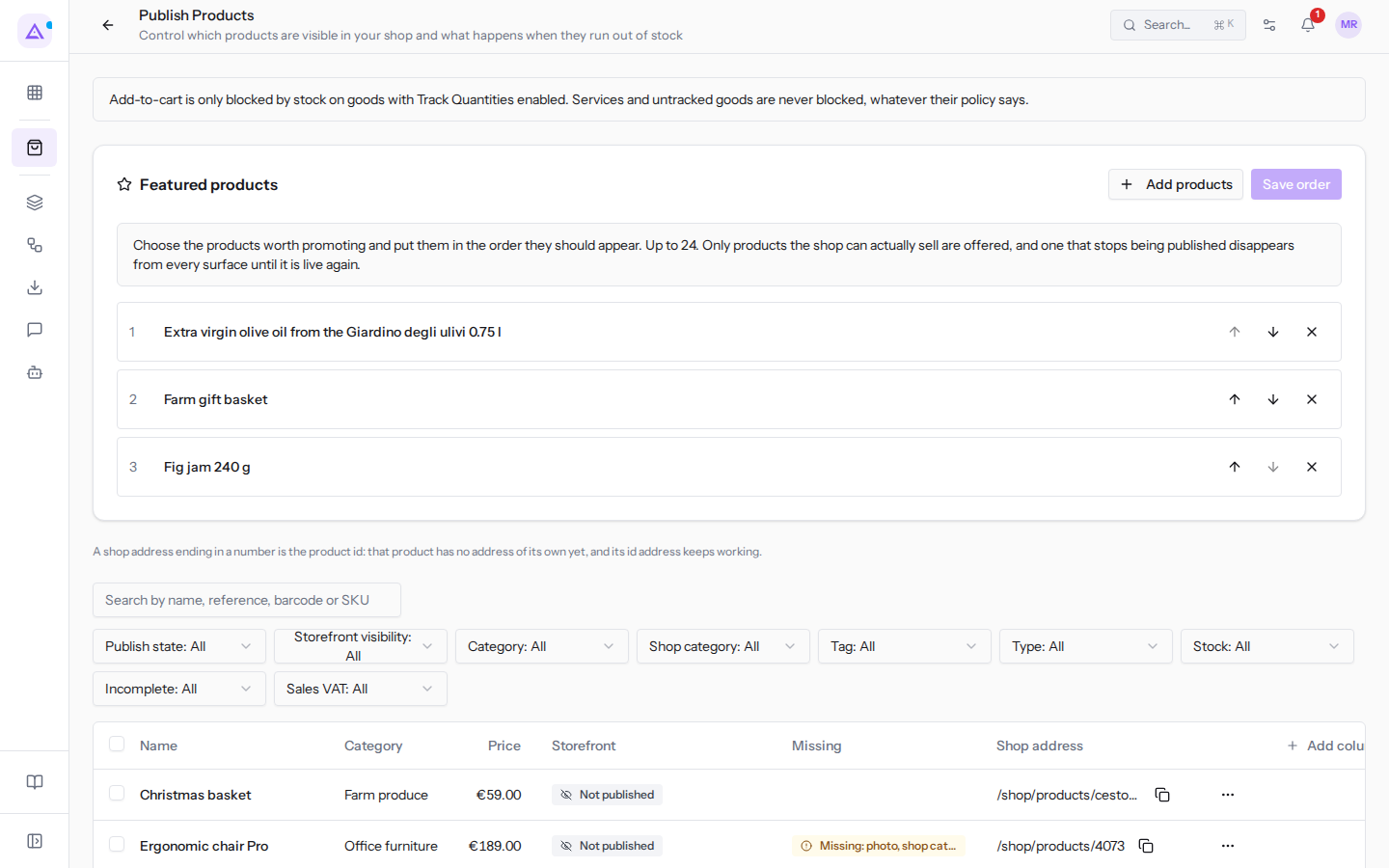
The columns shown on first opening are:
- Name: the product name. Below the name its shop address appears, for example
/shop/products/olio-novello-2026, along with the Copy shop address button. - Category: the product's internal category.
- Price: the product price.
- Storefront: the product's visibility in the shop.
- Missing: what the product is missing.
- Shop address: the product's address in the shop.
At the bottom of the list, choose how many rows to show in Rows per page.
Adding or removing columns
- Click Add column.
- Toggle the columns you want on or off. To find one, type in Search a field….
- Use Move column left and Move column right to change the order.
- Click Reset columns to return to the default columns.
The columns you can add are Type, Out-of-stock policy, Active, Can be sold, Price visibility override and Sale mode override.
Searching and filtering products
Search and filters narrow the list, for example to products that need completing before publication.
- Type in the Search by name, reference, barcode or SKU field and press Enter. For example, type
New season olive oil.
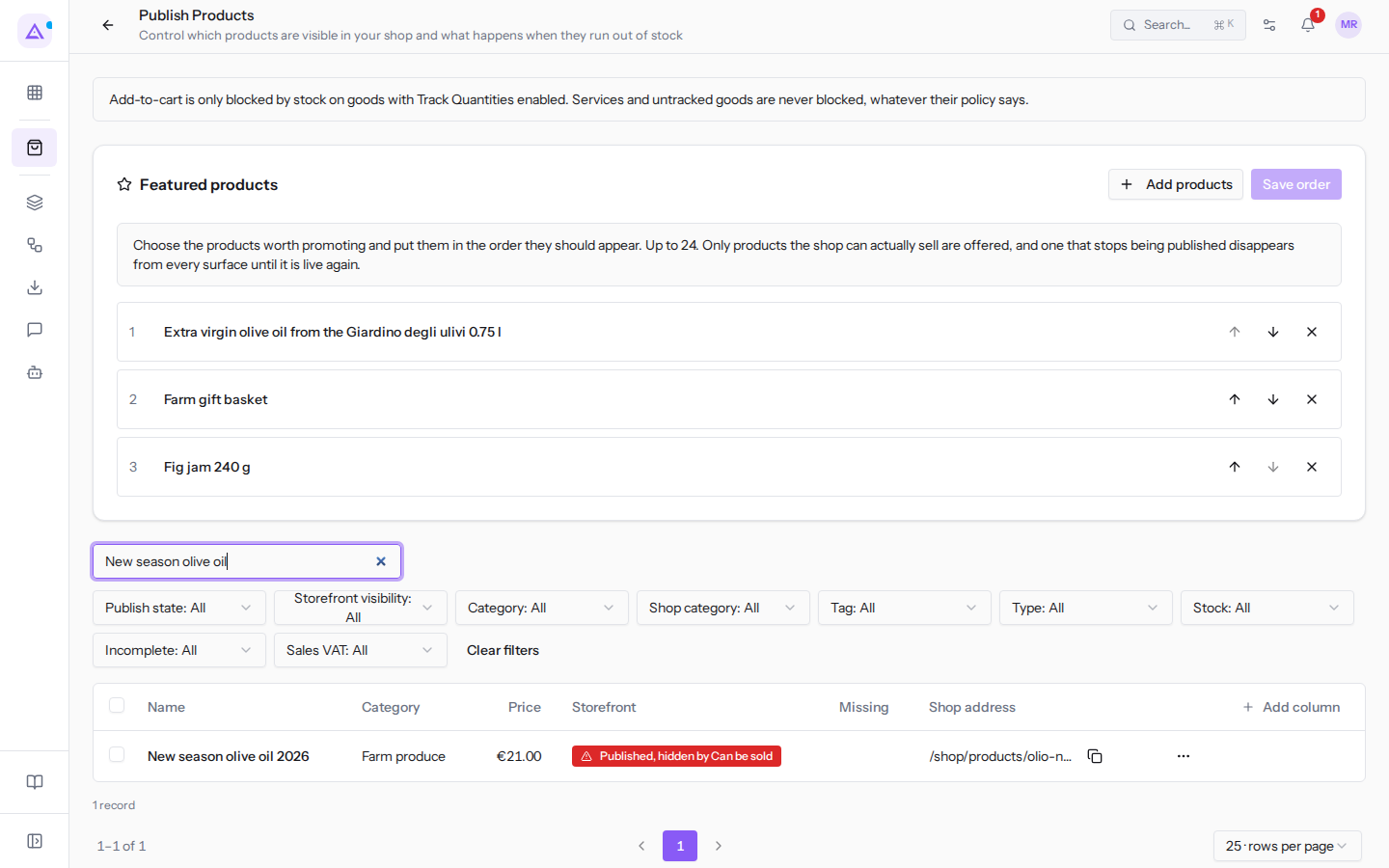
- Choose a value in one or more filters.
- To remove them all, click Clear filters.
The available filters are:
- Publish state:
- Published
- Not published
- Storefront visibility:
- Live on the shop: the products that customers see.
- Hidden from the shop: the products that customers cannot see, published or not, such as
New season olive oil 2026.
- Category: the product's internal category.
- Shop category: a shop category, for example Pantry, Extra virgin olive oil, Jams and honey, Wine cellar, Gifts and boxes, or In no shop category.
- Tag: a product tag, for example Office furniture.
- Type: Goods, Service or Combo.
- Stock: On-Hand or Out of stock.
- Incomplete: products that are missing something to be sold properly.
- Missing anything: all incomplete products.
- No photo: for example
Wildflower honey 500 g. - Zero price, bought directly: for example
Wine cellar tasting. - No shop category: for example
Ergonomic chair Pro.
- Sales VAT: None — cannot be made sellable shows products with no sales VAT.
Publishing or withdrawing a product
The Actions menu in each row publishes or withdraws a single product. The menu entries change according to the product's status.
- In the product row, click Actions.
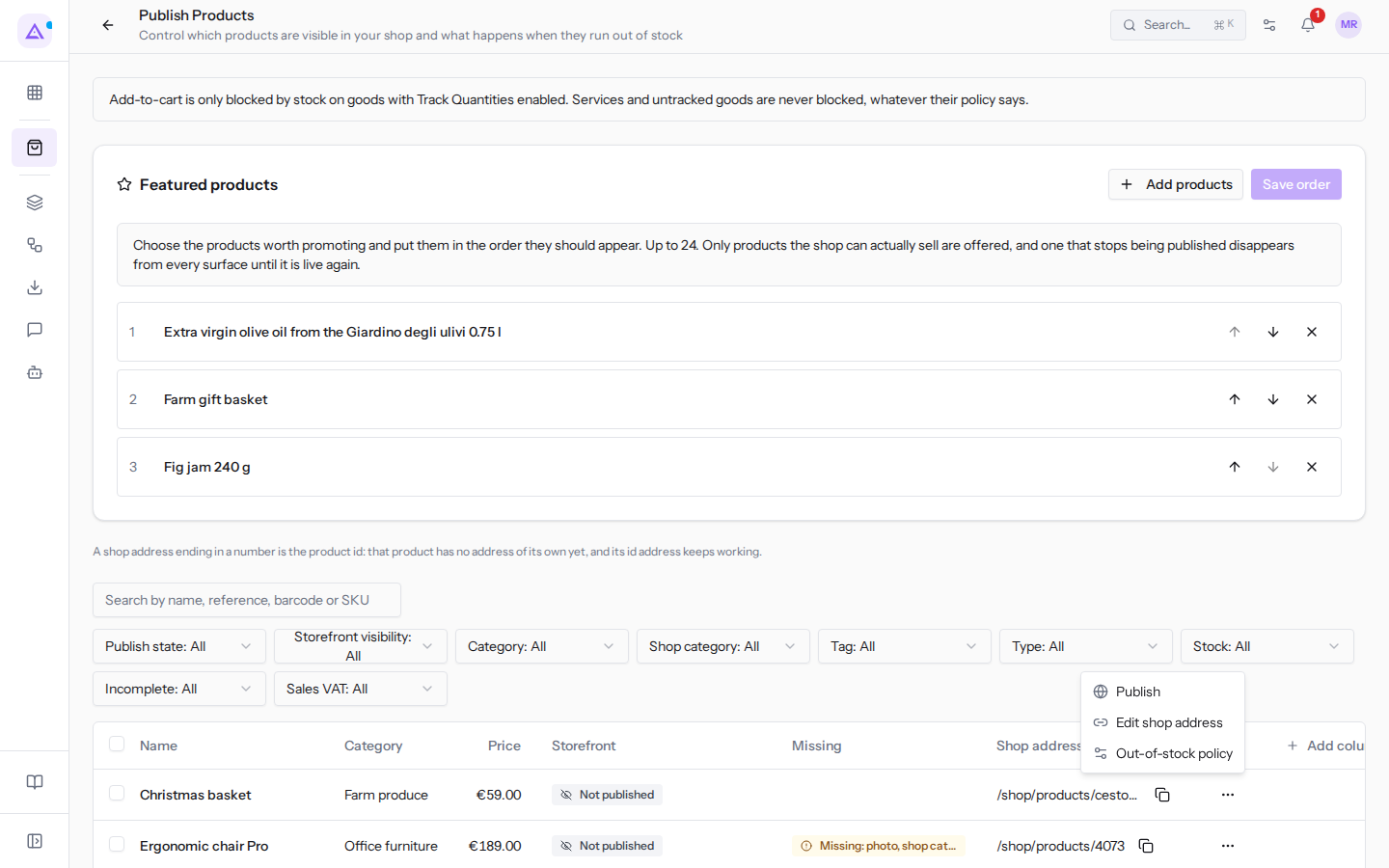
- Choose the entry you need:
- Publish: appears for an unpublished product, for example
Metal cabinet, 2 doors. - Unpublish: appears for a published product and removes it from the shop.
- Edit shop address: appears for a published product.
- Out-of-stock policy: opens the choices for when the product runs out, described in Deciding what happens when a product runs out.
- Publish: appears for an unpublished product, for example
After publishing, check that the product does not appear among the Hidden from the shop. A published but non-sellable product is not visible in the shop.
Editing the product's shop address
The address is the final part of the link by which the product is reached in the shop, for example olio-novello-2026.
- In the row of a published product, click Actions.
- Choose Edit shop address. The Shop address — New season olive oil 2026 window opens.
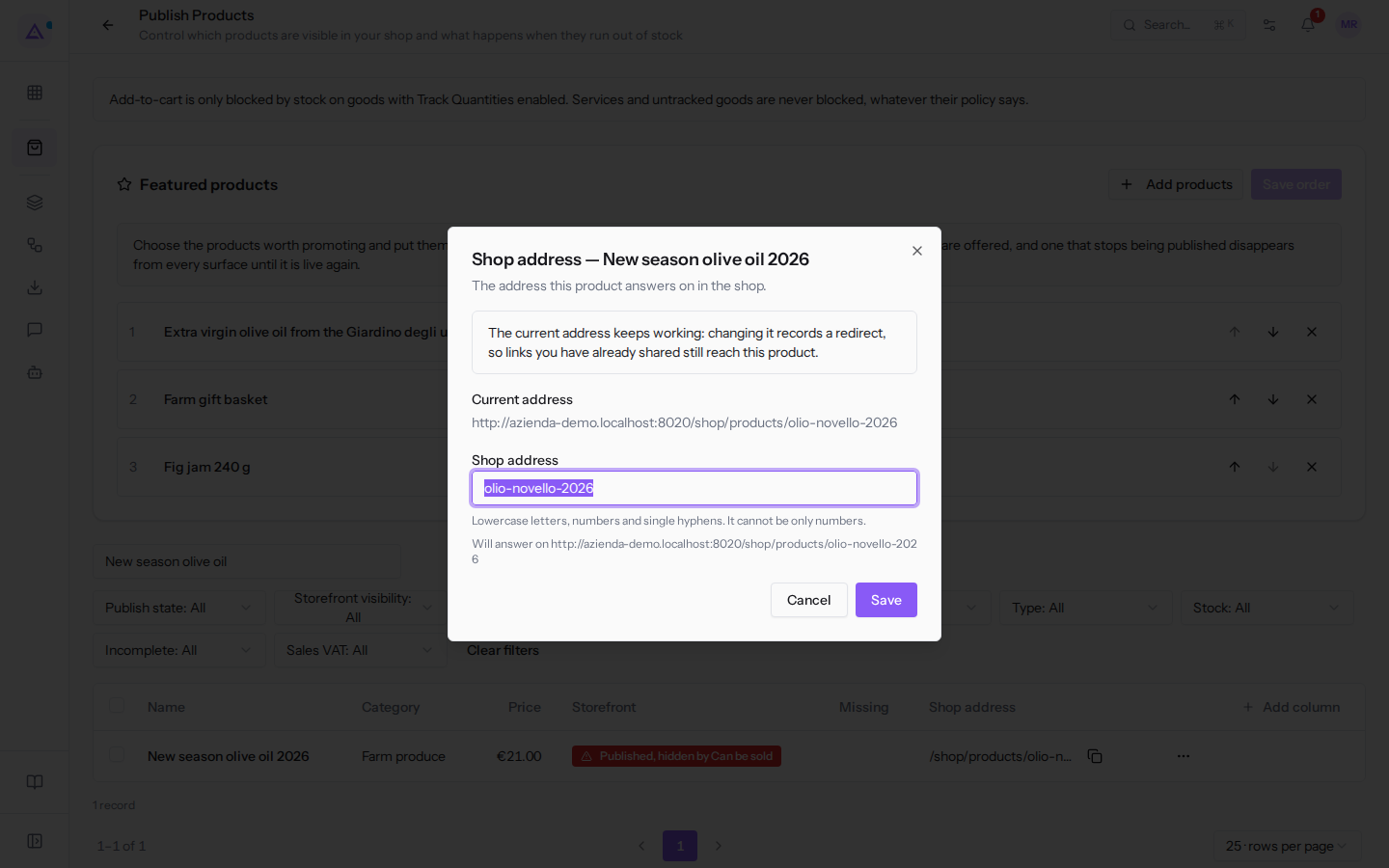
- Change the Shop address field.
- Click Save, or Cancel to close without changes.
The previous address continues to work. The change registers a redirect, so links that have already been shared still reach the product.
Acting on multiple products at once
By selecting multiple rows, you publish, withdraw, or assign to categories many products at once.
- Tick Select this row on the products you want, or Select this page for all those on the page.
- To extend the selection to all filtered products, click Select all 17 matching this filter (the number changes according to the filter).
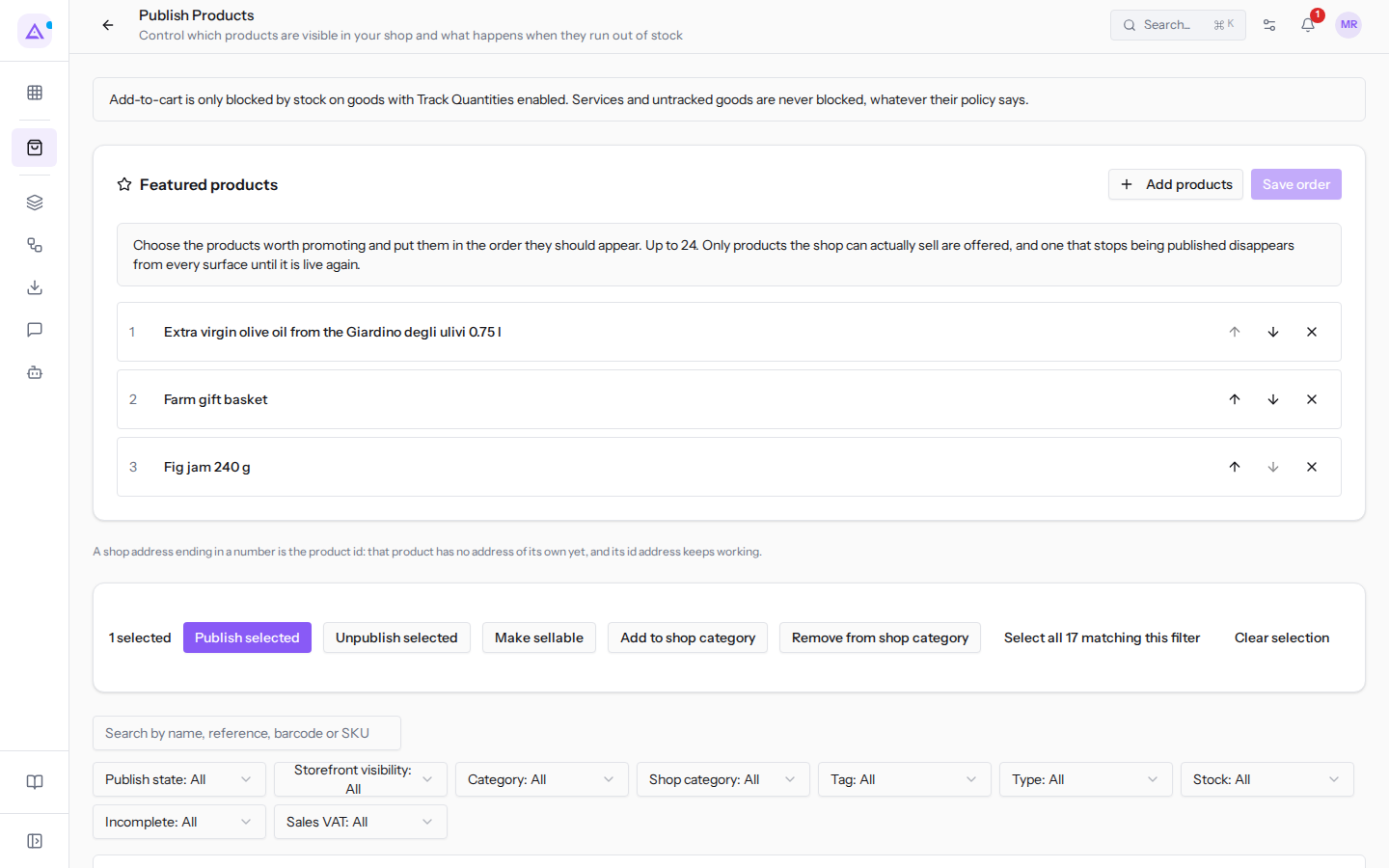
- Choose the action:
- Publish selected: publishes the selected products.
- Unpublish selected: removes them from the shop.
- Make sellable: makes the selected products sellable.
- Add to shop category: adds them to one or more shop categories.
- Remove from shop category: removes them from a shop category.
- To clear the selection, click Clear selection.
Making products sellable
- Select the products and click Make sellable.
- The Make sellable window shows how many products you have selected and how many can become sellable. If they are all already sellable, it shows Every selected product is already sellable.
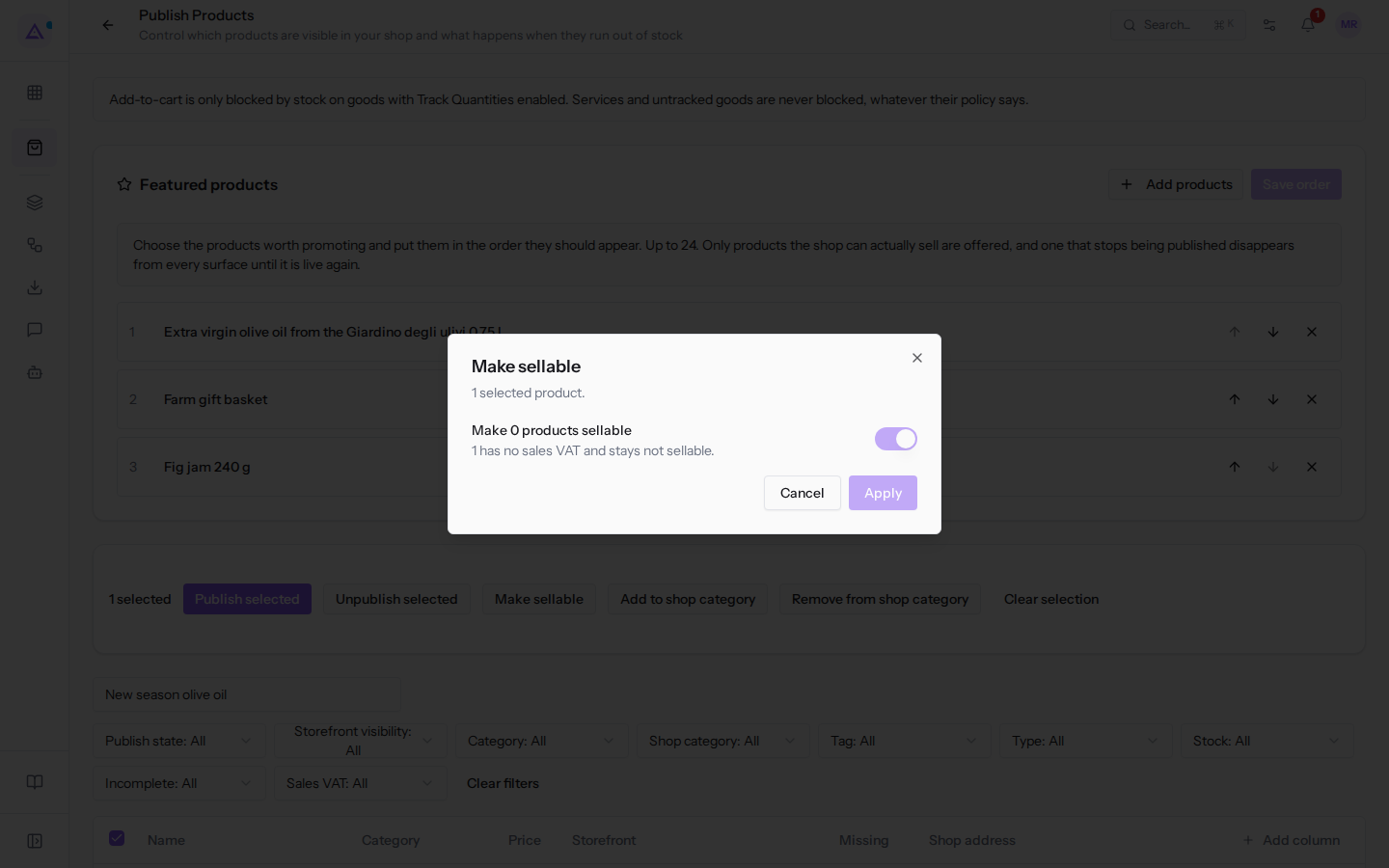
- Leave Make 0 products sellable active (the number changes according to the selection) and click Apply.
A product without a sales VAT remains non-sellable. For New season olive oil 2026, the window shows that the product has no sales VAT and remains non-sellable. To find these products, use the Sales VAT filter.
Adding products to a shop category
- Select the products and click Add to shop category.
- In the Shop category field, choose one or more categories, for example Jams and honey.
- Click Add 1 product (the number changes according to the selection), or Cancel.
To find products that still have no shop category, use Incomplete › No shop category.
See it on your company, not on a slide deck.
In 30 minutes we map the software you use today.We show you how much work and how much margin Archimedes gives back.
Show me on my business →What industry are you in?
One tap — it lets us prepare the demo around your world.
What tools do you use today?
Pick the ones you recognise — or just type them. It helps us show you how they migrate.
Last step: your details.
We reply within one working day — and right after, if you like, you pick the demo slot yourself.
We couldn't send your request. Try again, or write to us at [email protected].
By sending, you agree to your data being processed so we can get back to you about the demo. Privacy notice.
Preview form — nothing is sent from this page.
Want to schedule the demo now?
Your call: book the slot you prefer yourself, or we'll call you to arrange it.
Live availability, 30 minutes, instant confirmation. The calendar opens in a new tab.
Lock in your slot ↗We'll get back to you within one working day — and we'll join the call already knowing your world.
The calendar is open in another tab: pick a slot and the demo is booked. Can't see it? Reopen it ↗
Preview page: nothing was sent.
Our calendar is live: take the slot that suits you and the demo is booked. 30 minutes, instant confirmation, no waiting.
Lock in your slot ↗