eCommerce
All modules
Keeping an eye on the online shop
eCommerce · 2 of 13 · 3 min read
The Shop administration dashboard summarizes the sales performance of the last 30 days and shows how many products are actually visible in the shop. From here you can also open the pages you use most often, for example to publish products, manage categories, or check orders.
To open it, choose eCommerce › Dashboard. The page also opens when you choose the eCommerce item in the app menu.
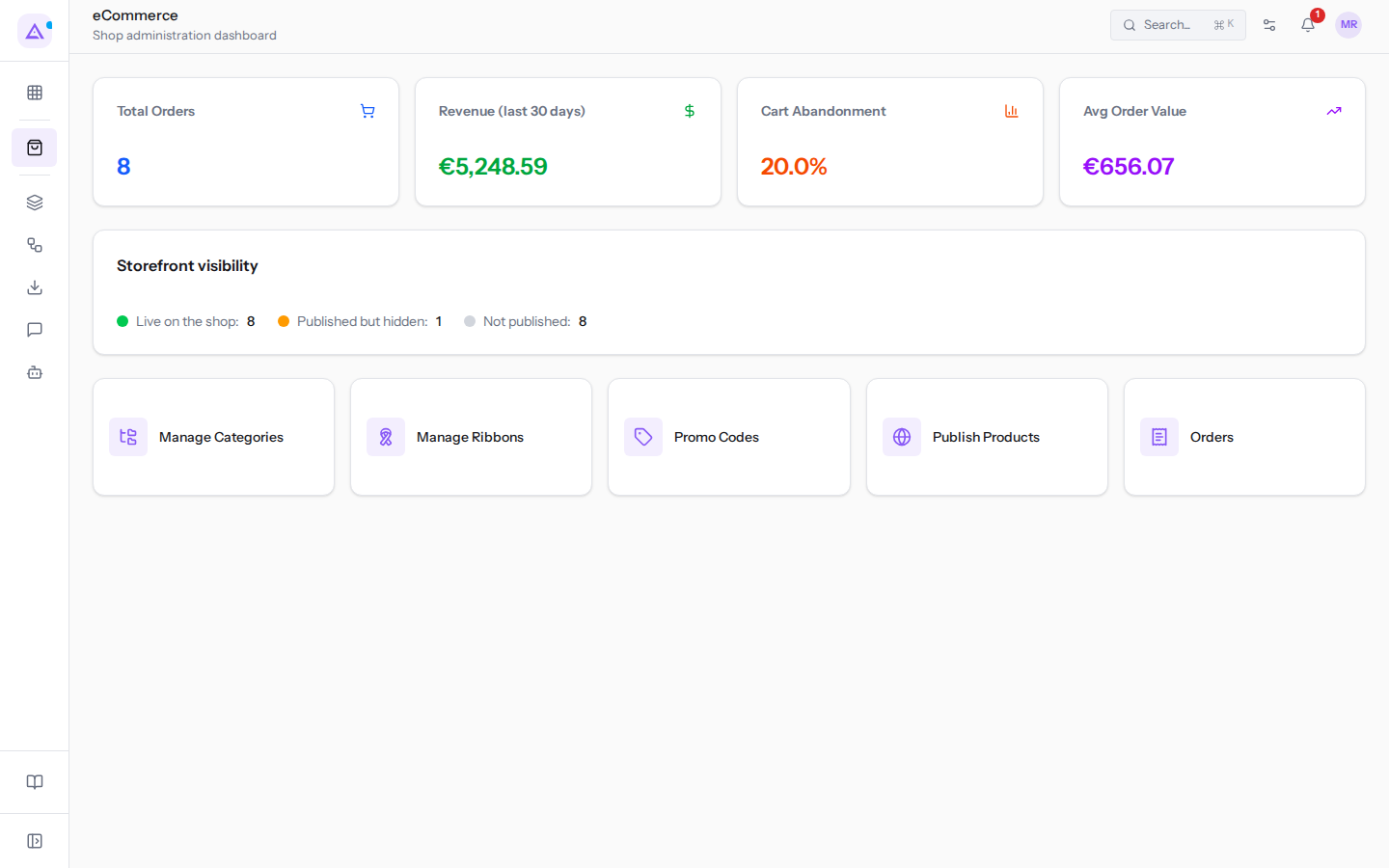
Sales indicators
At the top, the panel shows four tiles. All are based on confirmed sales orders from the last 30 days, including today.
- Total Orders: the number of confirmed or completed sales orders with an order date in the last 30 days.
- Revenue (last 30 days): the sum of the total amounts of those orders.
- Cart Abandonment: the percentage of carts that did not become a confirmed order. It is calculated on all carts and confirmed orders created in the last 30 days.
- Avg Order Value: the average total amount of the orders counted in Total Orders.
The indicators count all confirmed sales orders for the organization, including those created in the Sales module and not in the shop. Quotes, cancelled and deleted orders are not counted. An open cart is not an order: it only affects Cart Abandonment.
To see the orders counted, use the Orders link described later.
The Storefront visibility tile
The Storefront visibility tile divides products into three groups and shows how many each contains. The shop uses the same rules to decide which products to show visitors.
- Live on the shop: the products that visitors see in the shop.
- Published but hidden: the published products that the shop does not show, for example because they are not yet saleable. These are the cases to check first: you have published them, but customers cannot see them.
- Not published: the products you have not published in the shop.
An unpublished product is your choice. A published but hidden product, on the other hand, has a missing requirement that needs to be corrected.
To fix the counts:
- Click the Storefront visibility tile. The Publish Products page opens.
- To see only one group, use the Storefront visibility filter.
- For each product, publish, remove, or complete what is missing, as explained in Publishing products in the shop.
Quick links
Below the tiles are links to the shop's working pages.
- Manage Categories: opens Product Categories, where you organize the categories that visitors browse in the shop. This page does not have its own menu item.
- Promo Codes: opens the Promo Codes page, with the list of discount codes and the New Promo Code button.
- Publish Products: opens the Publish Products page, where you choose which products to show in the shop and what happens when they run out. For this last choice, see Deciding what happens when a product runs out.
- Orders: opens the Sales Orders list in the Sales module. It contains all orders, including those not made through the shop.
The eCommerce menu items
The eCommerce menu contains the following items.
- Dashboard: the panel described on this page.
- Shop: opens the public shop as visitors see it. See Seeing the shop as a customer sees it.
- Products: opens the Publish Products page.
- Promo Codes: the shop's discount codes.
- Returns: customers' return requests.
- Fulfillment: the preparation and shipping of the shop's orders, with tracking data.
- Gift Cards: issued gift cards and their balance.
- Access requests: shop access or business account applications, to be approved or rejected.
- Subscriptions: customers' subscriptions.
- Settings: the shop configuration.
Users in the eCommerce User group see only Shop, Dashboard, Products, Fulfillment and Subscriptions; the other items require the eCommerce Manager group.
See it on your company, not on a slide deck.
In 30 minutes we map the software you use today.We show you how much work and how much margin Archimedes gives back.
Show me on my business →What industry are you in?
One tap — it lets us prepare the demo around your world.
What tools do you use today?
Pick the ones you recognise — or just type them. It helps us show you how they migrate.
Last step: your details.
We reply within one working day — and right after, if you like, you pick the demo slot yourself.
We couldn't send your request. Try again, or write to us at [email protected].
By sending, you agree to your data being processed so we can get back to you about the demo. Privacy notice.
Preview form — nothing is sent from this page.
Want to schedule the demo now?
Your call: book the slot you prefer yourself, or we'll call you to arrange it.
Live availability, 30 minutes, instant confirmation. The calendar opens in a new tab.
Lock in your slot ↗We'll get back to you within one working day — and we'll join the call already knowing your world.
The calendar is open in another tab: pick a slot and the demo is booked. Can't see it? Reopen it ↗
Preview page: nothing was sent.
Our calendar is live: take the slot that suits you and the demo is booked. 30 minutes, instant confirmation, no waiting.
Lock in your slot ↗