eCommerce
All modules
Viewing the shop as a customer sees it
eCommerce · 13 of 13 · 5 min read
The public shop is the page customers open to browse the catalogue, search for products and buy. Open it after a catalogue change to check what customers see, for example after publishing a product, changing a category or modifying the catalogue settings.
What a visitor sees depends on the shop's access mode. With Open to everyone anyone can browse and buy, even as a guest. In the other modes the catalogue and cart only respond to customers who have signed in.
- If you want to check the public catalogue, open the shop without signing in with a customer account.
- If you want to check products reserved for a customer with access tags, use the View the shop as a customer preview: nothing you do in the preview is saved.
A completed purchase in the shop creates a real sales order. The order is prepared and shipped from eCommerce › Fulfillment.
Opening the shop
The shop is opened from the eCommerce module menu.
- Open eCommerce › Shop.
- The Products page opens with the list of published products and the result count, for example
8 products found.
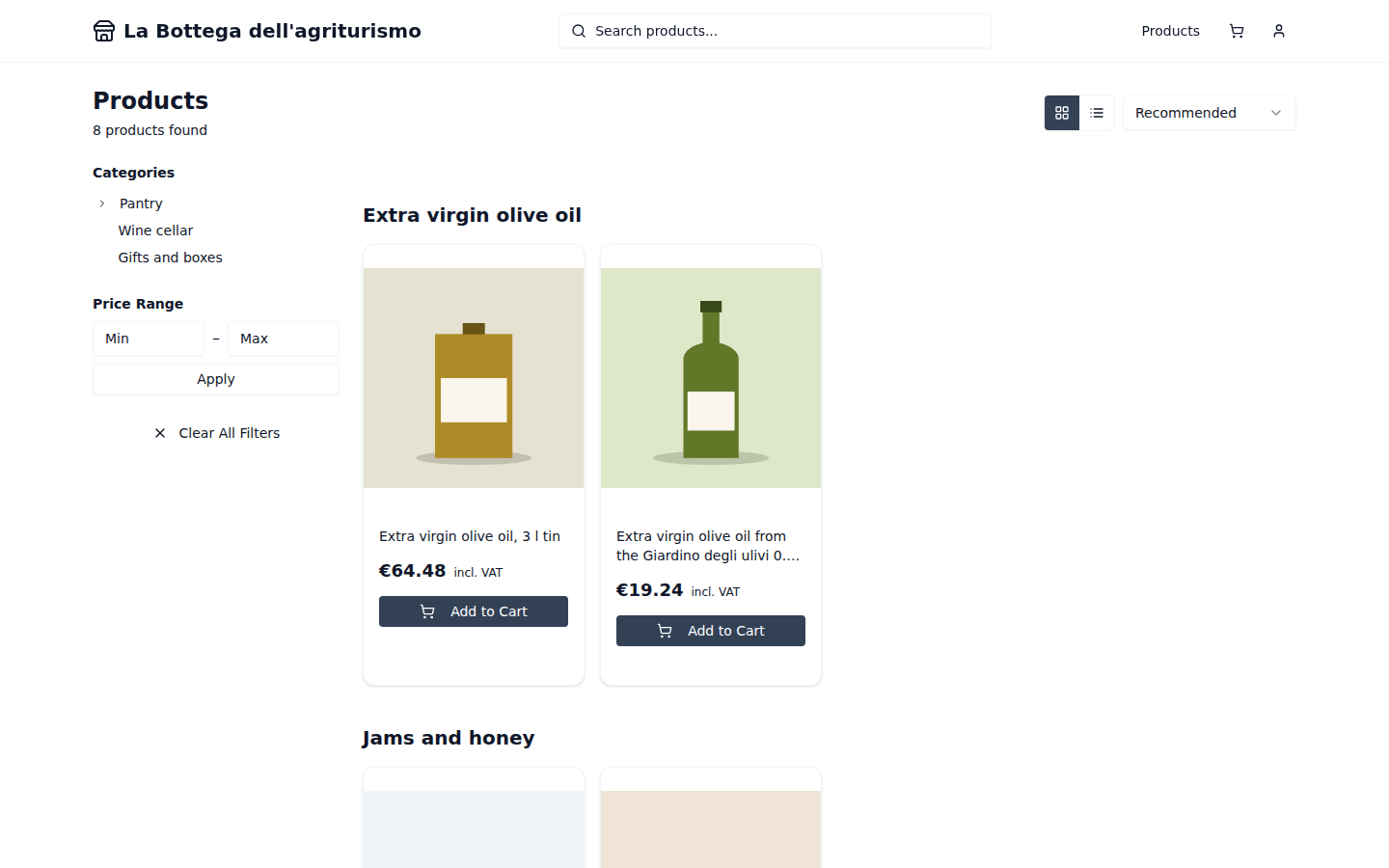
At the top the page shows:
- La Bottega dell'agriturismo: the shop name. It links back to the shop's home page.
- Products: opens the catalogue.
- Search products...: the search field.
- Cart: opens the visitor's cart.
- Account: opens the customer login.
At the bottom of the page there are the All products, Contact Us and FAQ links.
Searching and sorting products
Search and sorting change the list of products shown in the catalogue.
- Type a word in Search products... and press Enter. For example
oilreturns3 products found, includingExtra virgin olive oil from the Giardino degli ulivi 0.75 landExtra virgin olive oil, 3 l tin. - Choose the sort order in the sort menu.
The sort options are:
- Recommended: the default sort order when you browse a category or with Catalogue by category; otherwise the option does not appear and the default is Newest.
- Newer
- Price: Low to High
- Price: High to Low
- Name: A–Z
Each product in the list shows the photo, name, price with incl. VAT and the Add to Cart button. With Catalogue by category products are grouped under their category name, for example Extra virgin olive oil.
Changing the catalogue view
The catalogue can be shown as a grid or a list.
- Click Grid view to see products as side-by-side cards.
- Click List view to see products one below the other.
The view in which the catalogue opens for a new visitor is chosen in the shop settings. Anyone who changes the view keeps their choice. See Set up the catalogue and product page.
Filtering by category and price
The filter column narrows the products shown.
- Under Categories click a shop category: Pantry, Wine cellar or Gifts and boxes. The catalogue shows the products of that category and its name as the title, for example Wine cellar.
- Under Price Range enter values in Min and Max, then click Apply. For example with
5and20the catalogue shows5 products found. - To return to all products click Clear All Filters.
The filter fields:
- Categories: the shop's category tree. Categories are managed from the Product Categories page.
- Price Range: the minimum and maximum price fields. It remains hidden when prices are not public.
The filters shown are chosen in Catalog browsing controls, with the Show the category filter and Show the price range filter options. See Set up the catalogue and product page.
Checking availability
When a product runs out, the shop shows its status or the out-of-stock notice. The customer can request Notify me when available. What happens to an out-of-stock product is decided in Deciding what happens when a product runs out.
The cart
The cart collects the products the visitor wants to buy.
- Click Cart.
- If there are no products, the cart shows Your cart is empty.
From the cart the customer goes to checkout, enters the addresses, chooses the Delivery Method and the payment method and confirms the order.
The customer account
From Account the customer signs in to the shop or creates an account.
- Click Account. The Sign in page opens, with the text Sign in without leaving the shop.
- Enter the details and click Sign in.
The Sign in page fields:
- Email: the account email address. The field is required.
- Password: the account password. The field is required.
- Create account: opens registration.
- Track a guest order: allows anyone who purchased without an account to find an order using the email and reference.
The Create account page shows the text Create an account to manage your shop purchases. and these fields:
- Name: the customer's name. The field is required.
- Country code
- Apply for a business account: the checkbox to request business prices and payment terms, valid after the shop approves the business.
- Legal Name
- VAT Number: with the Check VAT with VIES button.
- Email: the field is required.
- Password: the field is required.
- Confirm password: the field is required.
The Create account button registers the customer.
With the Invitation only mode nobody can register from the shop: only sign-in and invitation acceptance remain open.
See it on your company, not on a slide deck.
In 30 minutes we map the software you use today.We show you how much work and how much margin Archimedes gives back.
Show me on my business →What industry are you in?
One tap — it lets us prepare the demo around your world.
What tools do you use today?
Pick the ones you recognise — or just type them. It helps us show you how they migrate.
Last step: your details.
We reply within one working day — and right after, if you like, you pick the demo slot yourself.
We couldn't send your request. Try again, or write to us at [email protected].
By sending, you agree to your data being processed so we can get back to you about the demo. Privacy notice.
Preview form — nothing is sent from this page.
Want to schedule the demo now?
Your call: book the slot you prefer yourself, or we'll call you to arrange it.
Live availability, 30 minutes, instant confirmation. The calendar opens in a new tab.
Lock in your slot ↗We'll get back to you within one working day — and we'll join the call already knowing your world.
The calendar is open in another tab: pick a slot and the demo is booked. Can't see it? Reopen it ↗
Preview page: nothing was sent.
Our calendar is live: take the slot that suits you and the demo is booked. 30 minutes, instant confirmation, no waiting.
Lock in your slot ↗