eCommerce
All modules
Prepare and ship a shop order
eCommerce · 8 of 13 · 3 min read
The Fulfillment page is used to prepare and ship orders that have arrived from the online shop. An order goes through picking, packing and shipping, and ends up carrying the courier tracking data, for example order S00005 by Luca Bianchi, containing oil and fig jam.
Fulfillment works on warehouse deliveries: each sales order has one or more deliveries, and the page shows the status and tracking reference for each one.
Opening the fulfillment of an order
The search opens one order at a time. You do it using the internal number of the sales order, not its name: it is the number at the end of the order address in Sales, for example 2961 in /sale/orders/2961.
- Open eCommerce › Fulfillment.
- In the Enter order ID... field, type the internal number of the sales order.
- Click Lookup.
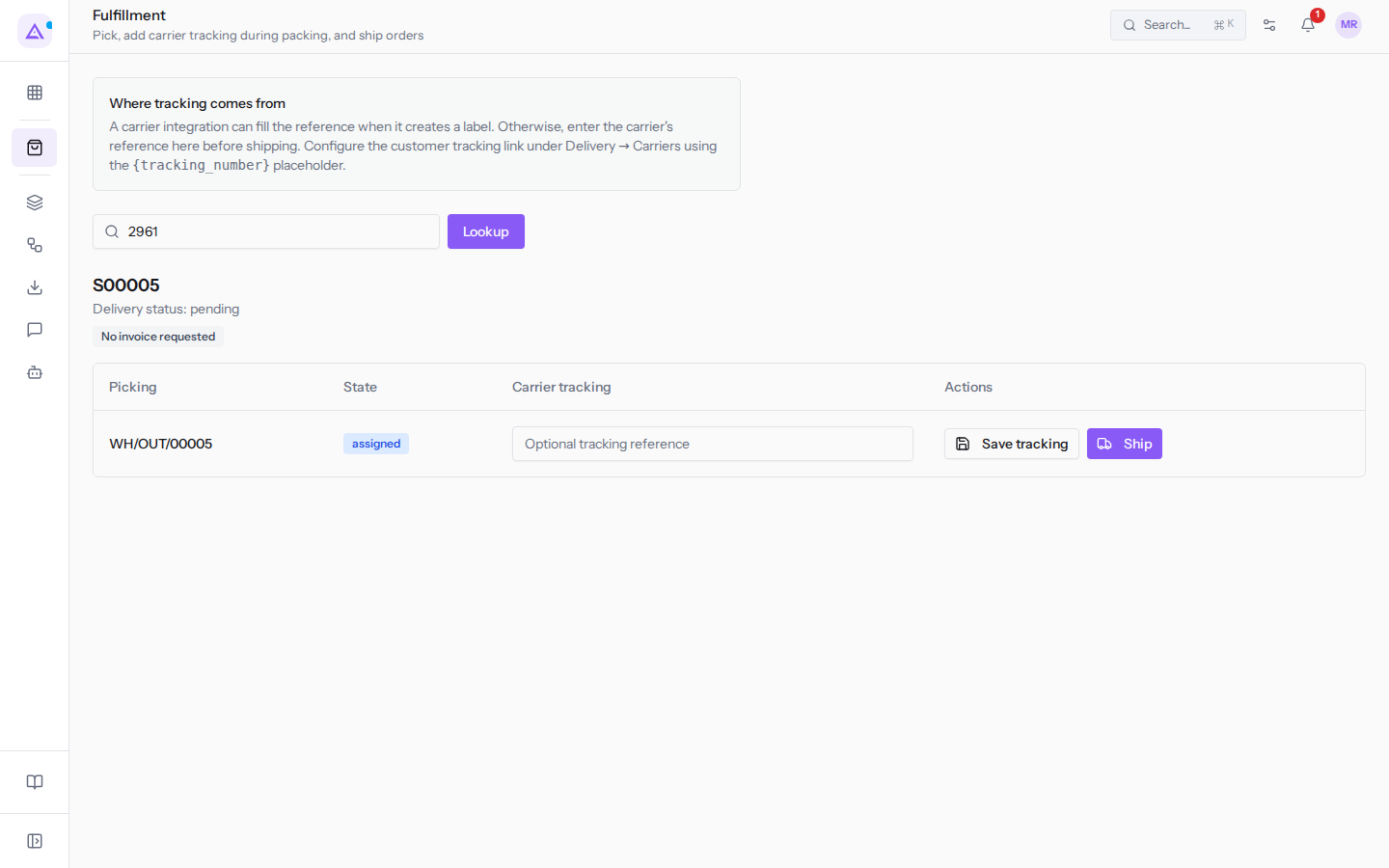
The page shows the order with its deliveries. For each delivery you will find the name (Picking column), the status (State), the tracking reference with the courier (Carrier tracking) and the buttons (Actions).
If the number does not match an order, the message Order not found or no fulfillment data appears; if the order has no deliveries, the table shows No pickings. The order name, such as S00005, does not work in the search: the field accepts only digits.
Picking, packing and shipping
Each delivery (for example WH/OUT/00005) advances in three steps: picking, packing and shipping. The delivery buttons depend on its status.
- If the delivery is to be picked, click Pick once you have collected the goods from the warehouse.
- When the delivery is ready, type the courier reference in the Optional tracking reference field and click Save tracking: this is the packing step. The reference is not mandatory.
- Click Ship when the goods leave. The delivery shows Shipped.
Where the tracking comes from
A box on the page explains the two sources of the tracking reference.
- If you use a courier integration, the integration fills in the reference when it creates the shipping label.
- Without integration, you enter it yourself during packing.
Correcting the tracking
After shipping you can enter or correct the tracking reference with Update tracking. Before shipping the reference is saved with Save tracking.
- Open the order as described above, for example order
S00007, already shipped. - Correct the reference in its field. In this case the reference is mandatory.
- Click Update tracking.
If the customer had already been notified of the shipment, when you correct the reference the shipment notification is sent again to the customer.
Resending the shipment notification
When the customer has not received the shipping email or has lost it, you can send it again. This can happen even if nothing has changed. The email contains the current tracking data.
- On a shipped delivery, click Send again.
- In the Resend the shipment notification? confirmation, click Resend notification, or Cancel.
Resending applies to the entire order, not a single delivery.
Deliveries in Inventory
The deliveries you work on in this page are delivery transfers from the Inventory module. This is why you will also find the same deliveries there.
To view the deliveries of an order, you need read permission on Inventory transfers. To pick, pack, ship, correct the tracking or resend the notification, you need write permission.
See it on your company, not on a slide deck.
In 30 minutes we map the software you use today.We show you how much work and how much margin Archimedes gives back.
Show me on my business →What industry are you in?
One tap — it lets us prepare the demo around your world.
What tools do you use today?
Pick the ones you recognise — or just type them. It helps us show you how they migrate.
Last step: your details.
We reply within one working day — and right after, if you like, you pick the demo slot yourself.
We couldn't send your request. Try again, or write to us at [email protected].
By sending, you agree to your data being processed so we can get back to you about the demo. Privacy notice.
Preview form — nothing is sent from this page.
Want to schedule the demo now?
Your call: book the slot you prefer yourself, or we'll call you to arrange it.
Live availability, 30 minutes, instant confirmation. The calendar opens in a new tab.
Lock in your slot ↗We'll get back to you within one working day — and we'll join the call already knowing your world.
The calendar is open in another tab: pick a slot and the demo is booked. Can't see it? Reopen it ↗
Preview page: nothing was sent.
Our calendar is live: take the slot that suits you and the demo is booked. 30 minutes, instant confirmation, no waiting.
Lock in your slot ↗