eCommerce
All modules
Configure the shop: general settings
eCommerce · 11 of 13 · 7 min read
The General tab of Shop settings collects the choices that apply to the entire online shop: how it looks, how it displays prices, who can enter and buy, and who receives the sales. Use it when you open the shop and every time you change the way you sell, for example when you start selling to businesses as well or want to reserve the shop to registered customers.
Shop settings are reserved for members of the eCommerce Manager group.
Opening the general settings
Shop settings are divided into tabs. This page describes the General tab.
- Open eCommerce › Settings. Shop settings opens on the General tab.
- Edit the fields in the sections described below.
- Click Save settings.
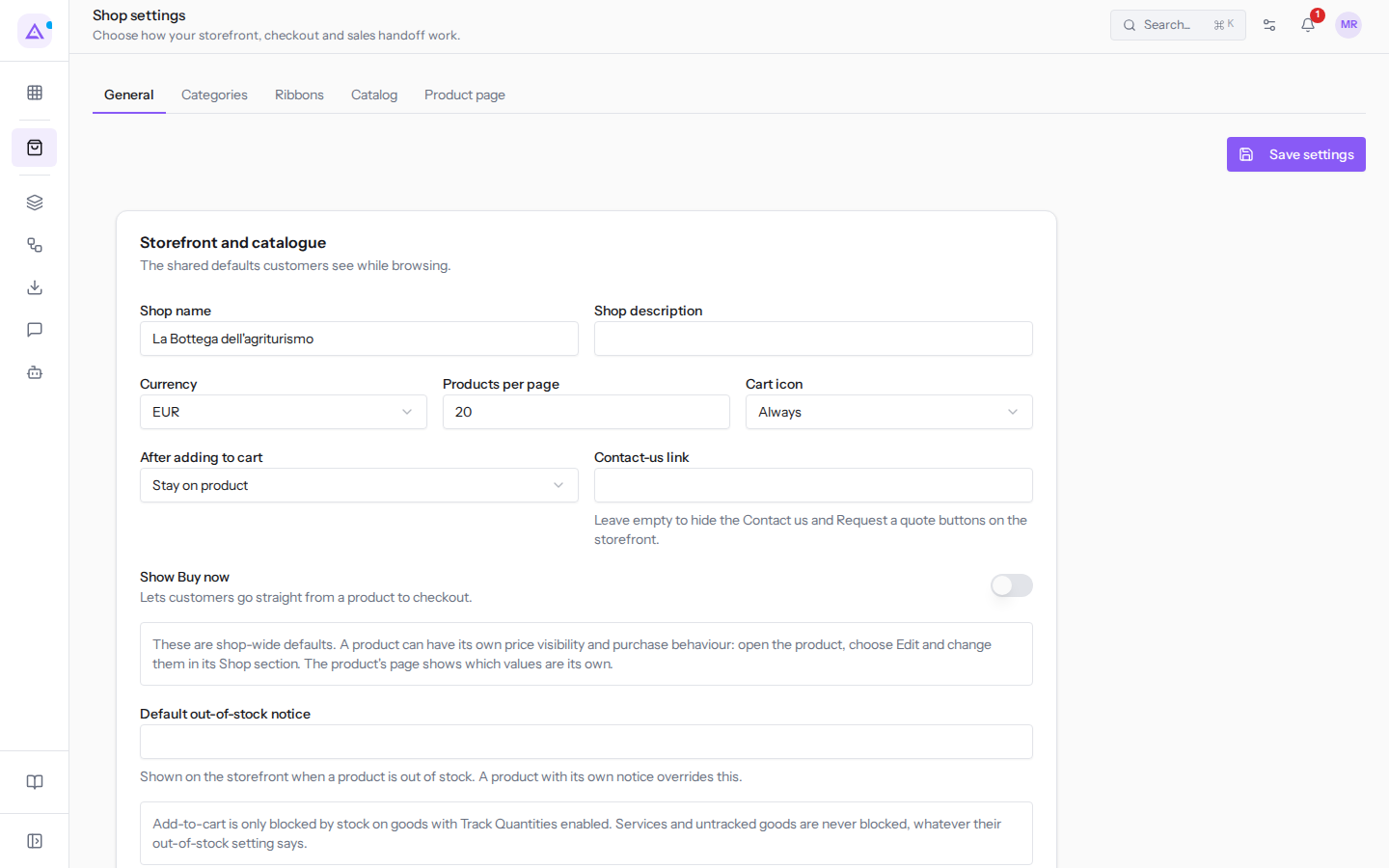
The other tabs are Categories, Ribbons, Catalog, and Product page. The Catalog and Product page tabs are described in Setting up the catalogue and the product page.
Storefront and catalogue
These fields determine the name, currency, and behaviour of the shop while the customer browses and adds products to the cart.
- Shop name: the name of the shop, for example
La Bottega dell'agriturismo. - Shop description: a text that describes the shop. The field is optional.
- Currency: the shop's currency. The default value is
EUR.- EUR, USD, GBP, CHF.
- Products per page: how many products the catalogue shows on each page. The default value is
20. - Cart icon: when the customer sees the cart icon.
- Always: the icon is always visible.
- When not empty: the icon only appears if the cart contains at least one product.
- Never: the icon is not shown.
- After adding to cart: what the customer sees when they add a product to the cart.
- Stay on product: the customer stays on the product page. This is the default value.
- Open cart: the cart opens.
- Show confirmation: a confirmation of the addition is shown.
- Contact-us link: a link to the shop's contact details. If left empty, the shop hides the Contact Us and Request a quote buttons.
- Show Buy now: takes customers directly from the product to the checkout.
- Default out-of-stock notice: the text shown on out-of-stock products that do not have their own notice. For a single product's notice see Deciding what happens when a product runs out.
Prices and taxes
These fields determine who the shop sells to, which price list customers receive, and how taxes are displayed.
First, choose the Store mode:
- If you sell only to private customers, choose B2C.
- If you sell only to businesses, choose B2B.
- If you sell to both private customers and businesses, choose Mixed B2B and B2C.
With B2B or Mixed B2B and B2C, the settings reserved for businesses appear: the B2B price list and invoicing for deferred payments. These modes also display the Access requests entry, described in Approve shop access requests.
- Store mode: who the shop sells to.
- B2C, B2B, Mixed B2B and B2C.
- Tax display: how the customer sees prices.
- Tax included: prices are shown with taxes included. This is the default value.
- Tax excluded: prices are shown without taxes.
- Default price visibility: who the shop shows product prices to.
- Always: all visitors see prices. This is the default value.
- Signed-in customers: only customers who are signed in see prices.
- Approved business customers: only approved business customers see prices.
- Never: prices are not shown.
- B2C pricelist: the price list applied to private customers. With No default pricelist no shop price list is applied.
- B2B pricelist: the price list applied to business customers. The field appears with the B2B and Mixed B2B and B2C modes.
- Fallback sales tax: the tax applied to products that do not have their own sales tax. With None — sell untaxed those products are sold without tax.
- Default sale mode: how the customer purchases products.
- Direct purchase: this is the default value.
- Quote request.
- Purchase and quote.
With Approved business customers, invited customers are not approved, so they do not see any price.
Default price visibility and Default sale mode are the shop's default values. A product can have its own price visibility and purchase behaviour: open the product, choose Edit, and change them in the Shop section.
Visibility and prices are set separately: an access tag does not change prices and a price list does not unlock products.
Access and checkout
These fields determine who can see the shop, who can complete a purchase, and what checks the checkout performs.
Choose Shop access based on who should see the catalogue:
- If the shop is public, choose Open to everyone: anyone can browse and buy, even as a guest.
- If you want registered customers but without any control, choose Account required, admitted automatically.
- If you want to decide who enters yourself, choose Account required, admitted after approval.
- If you sell only to customers you already know, choose Invitation only.
The fields in this section:
- Shop access: who can see the shop.
- Open to everyone: this is the default value.
- Account required, admitted automatically: only customers who are signed in see the shop. Visitors can still create an account.
- Account required, admitted after approval: only customers you approve see the shop. Visitors can request access and wait for approval.
- Invitation only: only invited customers see the shop. No one can create an account from the shop.
- Checkout access: who can complete a purchase.
- Guests allowed: even those who are not signed in can purchase. This is the default value.
- Login required: anyone can browse the shop, but only customers who are signed in can complete a purchase.
- We sell alcohol: to be enabled if the shop sells wine, beer, or spirits. When enabled, it allows marking products and categories as containing alcohol and makes Age check for alcohol appear.
- Age check for alcohol: how the checkout verifies the age of those buying alcohol. Applies only to carts containing a product or a category marked as containing alcohol.
- Declaration: the customer declares they are of legal age. The declaration is recorded on the order with date and time. This is the default value.
- Date of birth.
- Identity document: the document remains private. Only shop staff can view and download it.
- Invoice orders on payment terms: when the invoice is issued for orders paid on deferred terms. The field relates to sales to businesses.
- When the order is confirmed: this is the default value.
- When the order ships.
- Minimum order amount: the minimum amount for an order. The default value is
0. - Extra fields (JSON format): the additional data requested from the customer as a checkout step. The default value is
[], meaning no additional fields.
As long as the shop requires access, guests cannot purchase, regardless of the Checkout access setting.
With Invitation only, invited customers access the shop from the Shop area of the customer portal: check that it is active in the portal settings.
Even when the shop is closed, links already sent to customers remain valid, for example the order confirmation page and the guest order lookup.
Automation and analytics
These fields relate to newsletter subscriptions and abandoned carts.
- Newsletter label: the text of the invitation to subscribe to the newsletter. The field sits in the Access and checkout section and can only be edited with Offer newsletter signup on.
- Abandoned cart timeout (hours): after how many hours an unfinished cart is considered abandoned. The default value is
24.
Sales routing
These fields select the default team and salesperson for the shop's sales.
- Default sales team: the default sales team. With None no team is assigned.
- Default salesperson: the default salesperson, for example Mario Rossi. With None no salesperson is assigned.
After making changes, click Save settings.
See it on your company, not on a slide deck.
In 30 minutes we map the software you use today.We show you how much work and how much margin Archimedes gives back.
Show me on my business →What industry are you in?
One tap — it lets us prepare the demo around your world.
What tools do you use today?
Pick the ones you recognise — or just type them. It helps us show you how they migrate.
Last step: your details.
We reply within one working day — and right after, if you like, you pick the demo slot yourself.
We couldn't send your request. Try again, or write to us at [email protected].
By sending, you agree to your data being processed so we can get back to you about the demo. Privacy notice.
Preview form — nothing is sent from this page.
Want to schedule the demo now?
Your call: book the slot you prefer yourself, or we'll call you to arrange it.
Live availability, 30 minutes, instant confirmation. The calendar opens in a new tab.
Lock in your slot ↗We'll get back to you within one working day — and we'll join the call already knowing your world.
The calendar is open in another tab: pick a slot and the demo is booked. Can't see it? Reopen it ↗
Preview page: nothing was sent.
Our calendar is live: take the slot that suits you and the demo is booked. 30 minutes, instant confirmation, no waiting.
Lock in your slot ↗