eCommerce
All modules
Choosing featured products
eCommerce · 5 of 13 · 4 min read
Featured products are those that the shop promotes, in the order you choose. For example, you can feature a seasonal product, a gift basket, or a new item in the catalogue.
Featured products appear in the «From our shop» section of the customer portal home, when that section has been added to it. If a product stops being published, it disappears from every showcase until it comes back online.
The Featured Products panel
The Featured products panel is found on the Publish Products page. It shows the list of featured products in the order they appear in the shop.
- Open eCommerce › Products.
- On the Publish Products page, look for the Featured products panel.
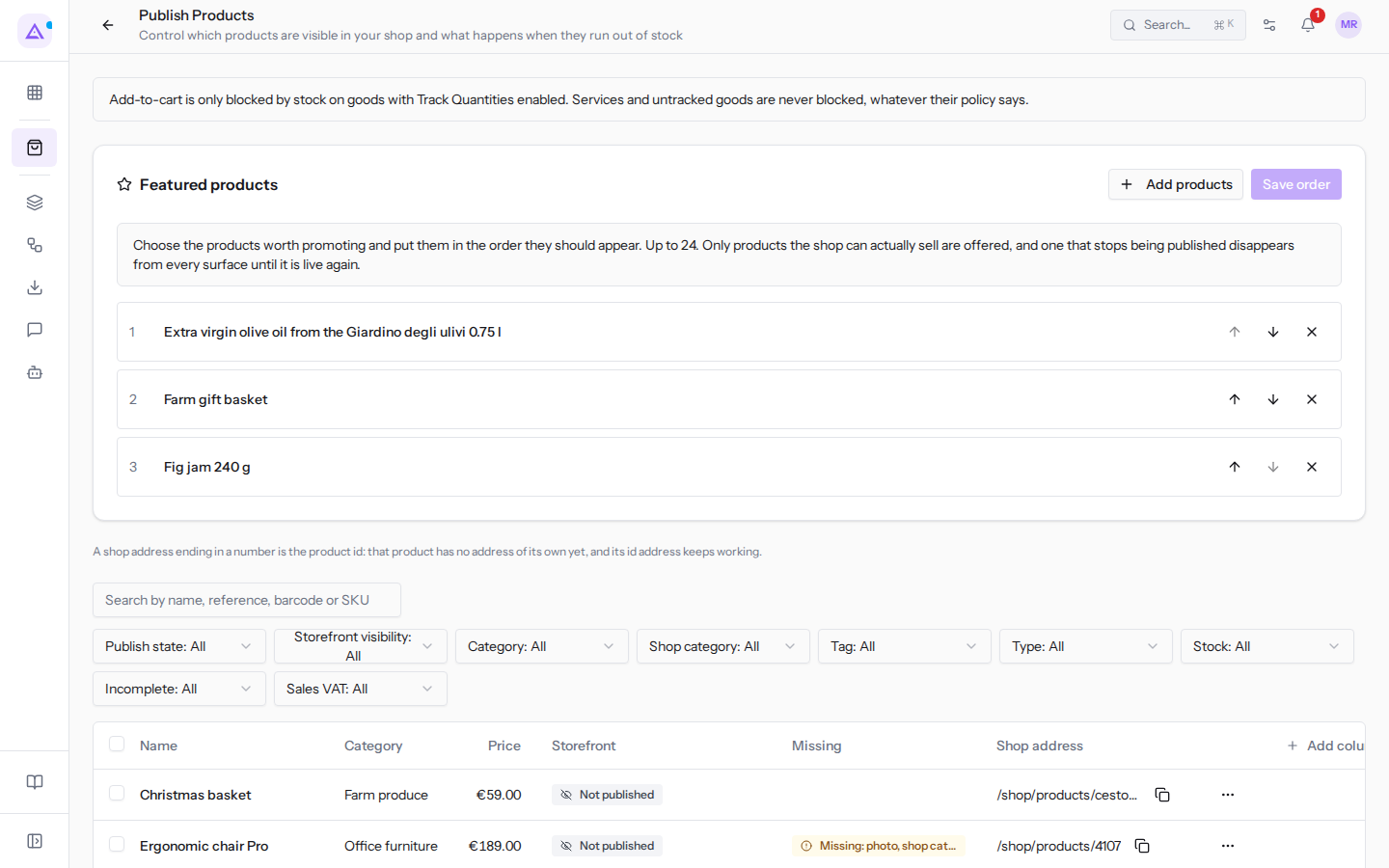
Each row in the list contains:
- the position number, starting from 1;
- the product name, for example
Extra virgin olive oil from the Giardino degli ulivi 0.75 l,Farm gift basketorFig jam 240 g; - the Hidden by warning, only if the shop cannot show the product;
- the Move up, Move down and Remove from featured buttons.
If there are no featured products, the panel shows No featured products yet.
Changes to the list remain on the page until you press Save order. Additions, moves and removals are all saved together.
The maximum product limit
You can feature a limited number of products. The limit is written in the panel text: «Up to 24».
If you try to add a product when the list is already full, the product is not added and the message You can feature at most 24 products appears. To add another one, first remove a product from the list.
Adding featured products
Add a product to the list using the sellable products search. The search shows only products that the shop can actually sell.
- In the Featured products panel, click Add products. The Search sellable products field opens.
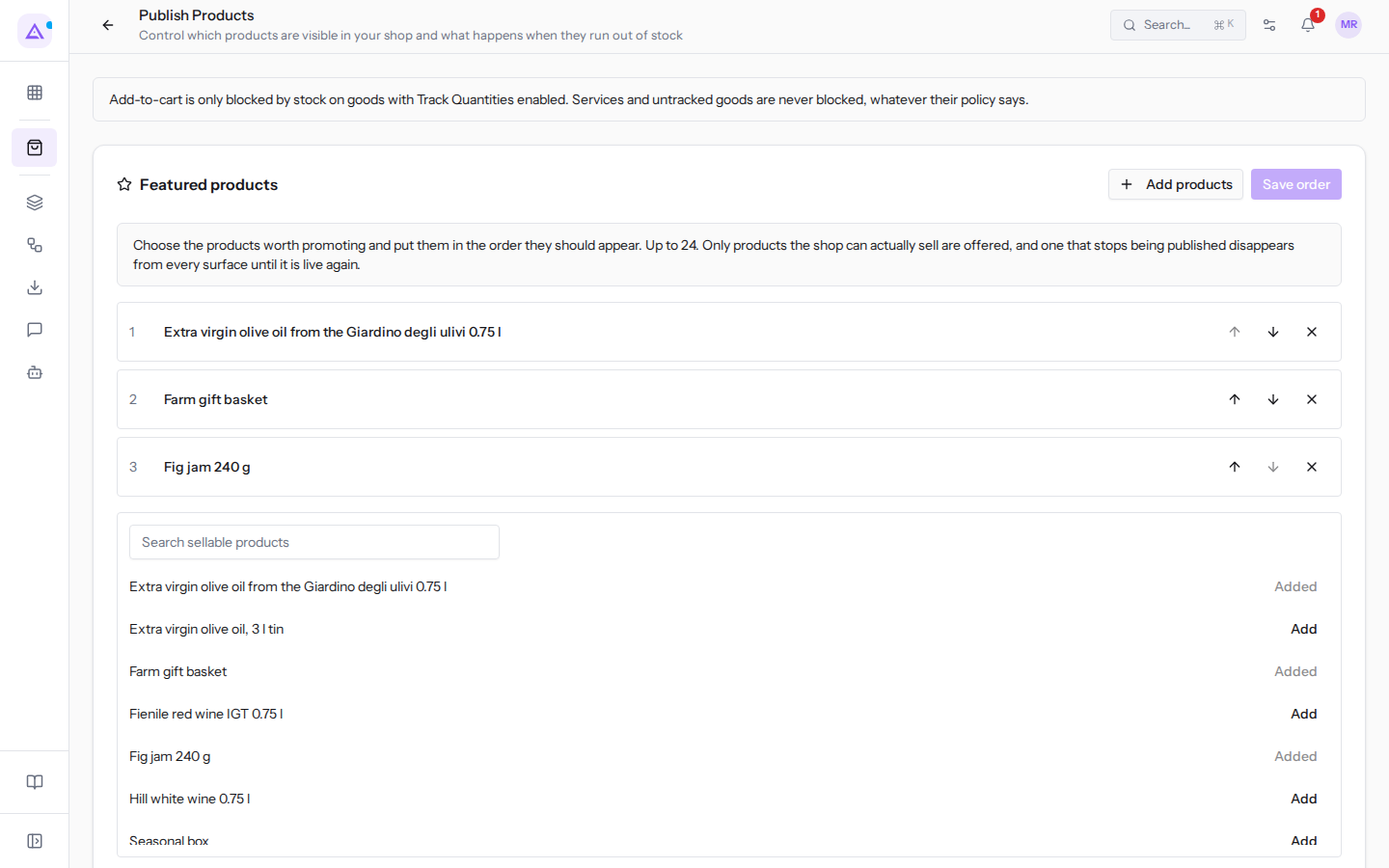
- Type part of the product name in the Search sellable products field, for example
honey.
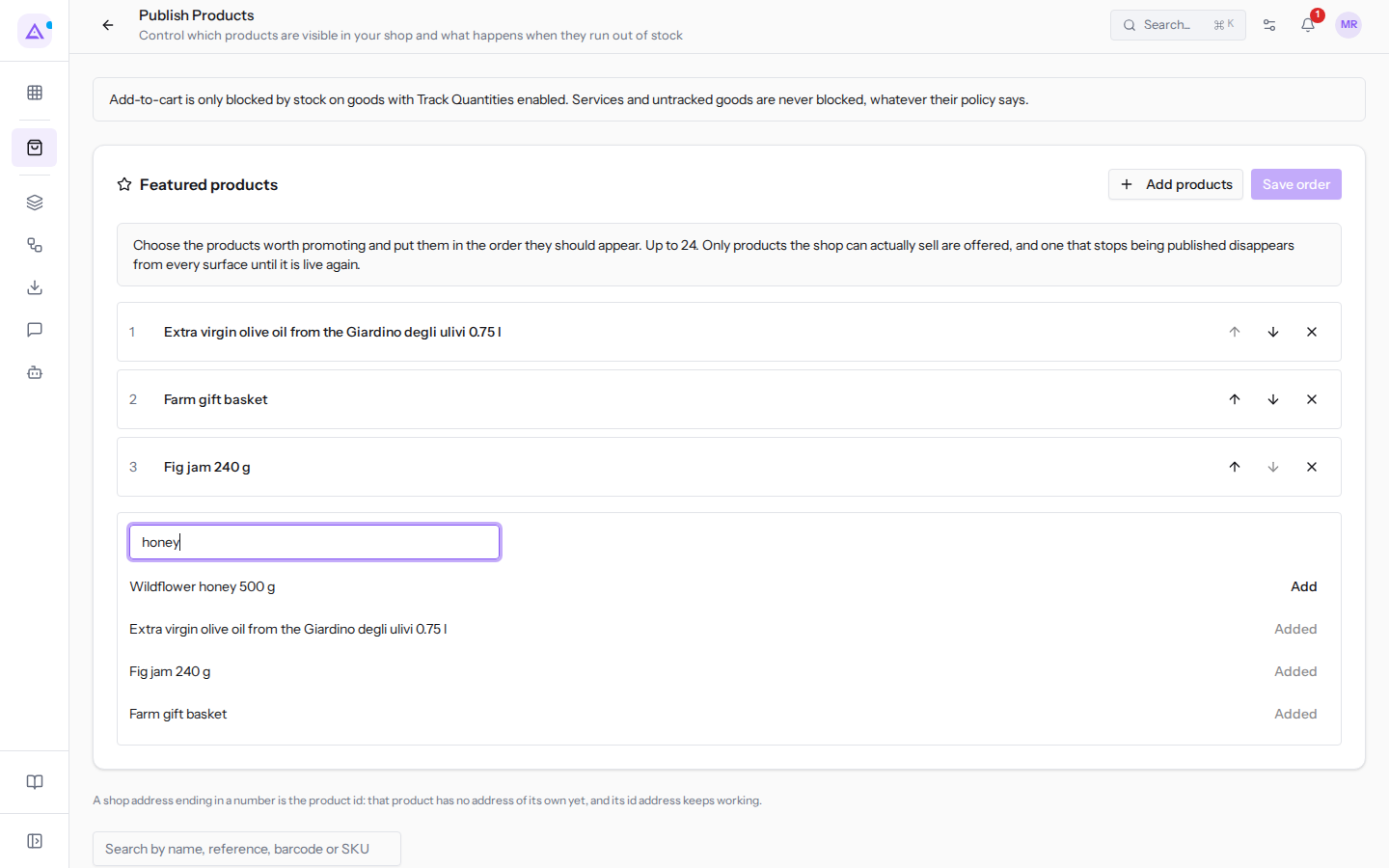
- Next to the product, click Add. The product goes to the bottom of the list.
- Click Save order. The Featured products saved message appears.
In the search results:
- a product that is already in the list shows Added and cannot be added a second time;
- unpublished products or products the shop cannot sell are not shown.
Click Add products again to close the search. When you reopen it, the search field is empty.
Changing the product order
The list order is the order in which products appear in the «From our shop» section of the portal. The first product in the list is the first one shown.
- In the product row, click Move up to move it one position higher, or Move down to move it one position lower.
- Repeat until the list is in the order you want.
- Click Save order. The Featured products saved message appears.
Move up is not available on the first product and Move down is not available on the last. Save order is only available when the list differs from the saved one.
If saving fails, the Could not save the featured products message appears and the changes remain on the page, to be saved again.
Removing a product from featured
Removing a product from featured does not remove it from the shop: the product remains published and simply stops being promoted.
- In the product row, click Remove from featured.
- Click Save order.
Hidden featured products
A featured product that the shop cannot show remains in the list with the Hidden by warning, followed by the missing requirements. This way you can see why the product no longer appears in the shop.
Hovering over the warning shows the text This product is still curated but the shop will not show it until every gate is satisfied.
- If you want the product to become visible again in the same position, fix the missing requirement, for example publish it again. The product reappears in the shop without having to add it again.
- If the product should no longer be promoted, remove it with Remove from featured and Save order.
To decide what the shop shows when a featured product runs out, read Deciding what happens when a product runs out.
See it on your company, not on a slide deck.
In 30 minutes we map the software you use today.We show you how much work and how much margin Archimedes gives back.
Show me on my business →What industry are you in?
One tap — it lets us prepare the demo around your world.
What tools do you use today?
Pick the ones you recognise — or just type them. It helps us show you how they migrate.
Last step: your details.
We reply within one working day — and right after, if you like, you pick the demo slot yourself.
We couldn't send your request. Try again, or write to us at [email protected].
By sending, you agree to your data being processed so we can get back to you about the demo. Privacy notice.
Preview form — nothing is sent from this page.
Want to schedule the demo now?
Your call: book the slot you prefer yourself, or we'll call you to arrange it.
Live availability, 30 minutes, instant confirmation. The calendar opens in a new tab.
Lock in your slot ↗We'll get back to you within one working day — and we'll join the call already knowing your world.
The calendar is open in another tab: pick a slot and the demo is booked. Can't see it? Reopen it ↗
Preview page: nothing was sent.
Our calendar is live: take the slot that suits you and the demo is booked. 30 minutes, instant confirmation, no waiting.
Lock in your slot ↗