Chat
All modules
Archiving, restoring and leaving a channel
Chat · 14 of 16 · 5 min read
When a channel is no longer needed, for example after a concluded event, you can archive it instead of deleting it. You can also leave a channel that no longer concerns you. An organisation administrator can assign a channel that has been left without an owner to a colleague.
Archiving or leaving: which to choose
Archiving a channel applies to all members. Leaving it only applies to you.
- If the channel has served its purpose, like
#harvest-2025after the celebration, archive it: no one can write to it any more, but messages, files and decisions remain readable. This is why you archive instead of delete. - If the channel continues for others but you no longer need it, leave it: you stop receiving messages.
- If the channel is private, before leaving it bear in mind that you can only rejoin if an owner or admin of the channel adds you again.
Archiving a channel
A channel's owners and administrators archive it: the button does not appear for other members.
- Open Chat and choose the channel in the sidebar, for example
#events. - Click on the channel name in the header. Alternatively open the «…» (Conversation options) menu of the channel and choose Channel details.
- Open the Settings tab.
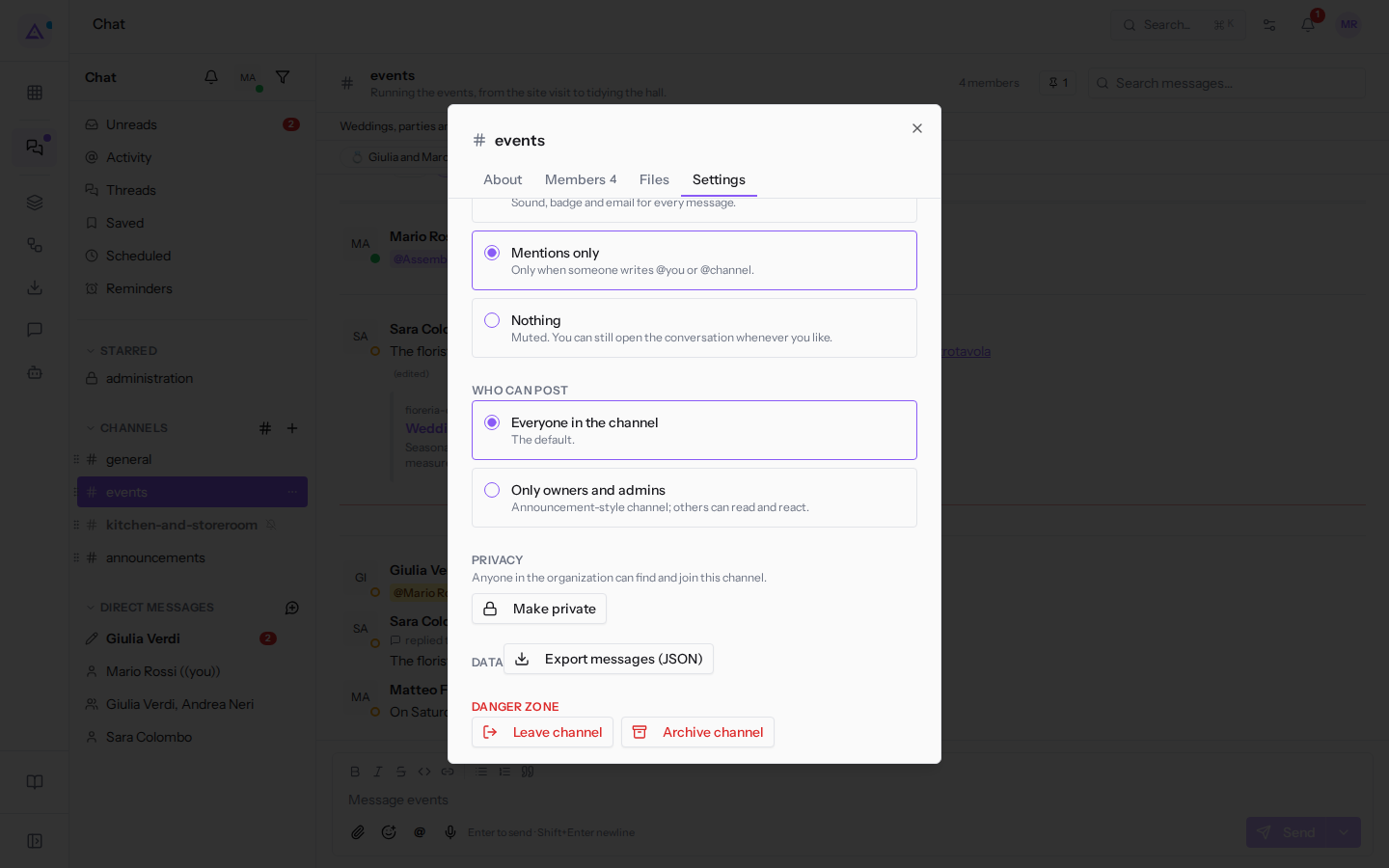
- In the DANGER ZONE section click Archive channel and confirm at the Archive this channel? prompt.
After confirming, the channel disappears from the sidebar of all members and the chat returns to the home page. No one can write to it or join it any more; messages, threads and files remain. The confirmation text says that «an owner can restore it later»: in reality the channel's owners and administrators and anyone who belongs to the «Chat Manager» group can do so.
Reading an archived channel
Archived channels no longer appear in the sidebar. Anyone who belongs to the «Chat Manager» group finds them in the Browse channels window, in the ARCHIVED CHANNELS section: all archived public channels and the private ones they are a member of. The section does not appear for others.
- In the sidebar, next to CHANNELS, click the «#» (Browse channels) icon.
- In the ARCHIVED CHANNELS section the channel carries the label «Archived — open to read, or restore», for example
harvest-2025.
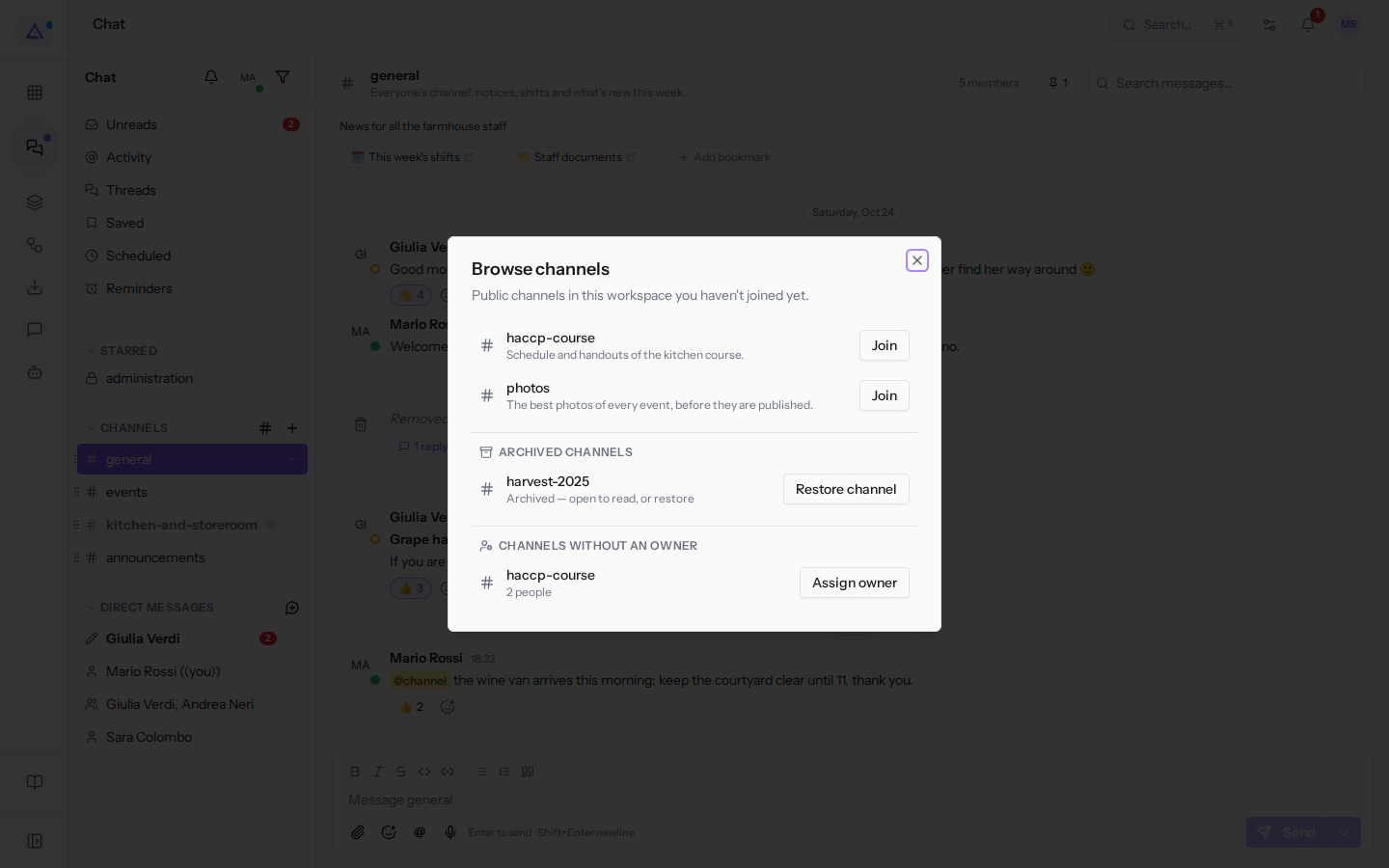
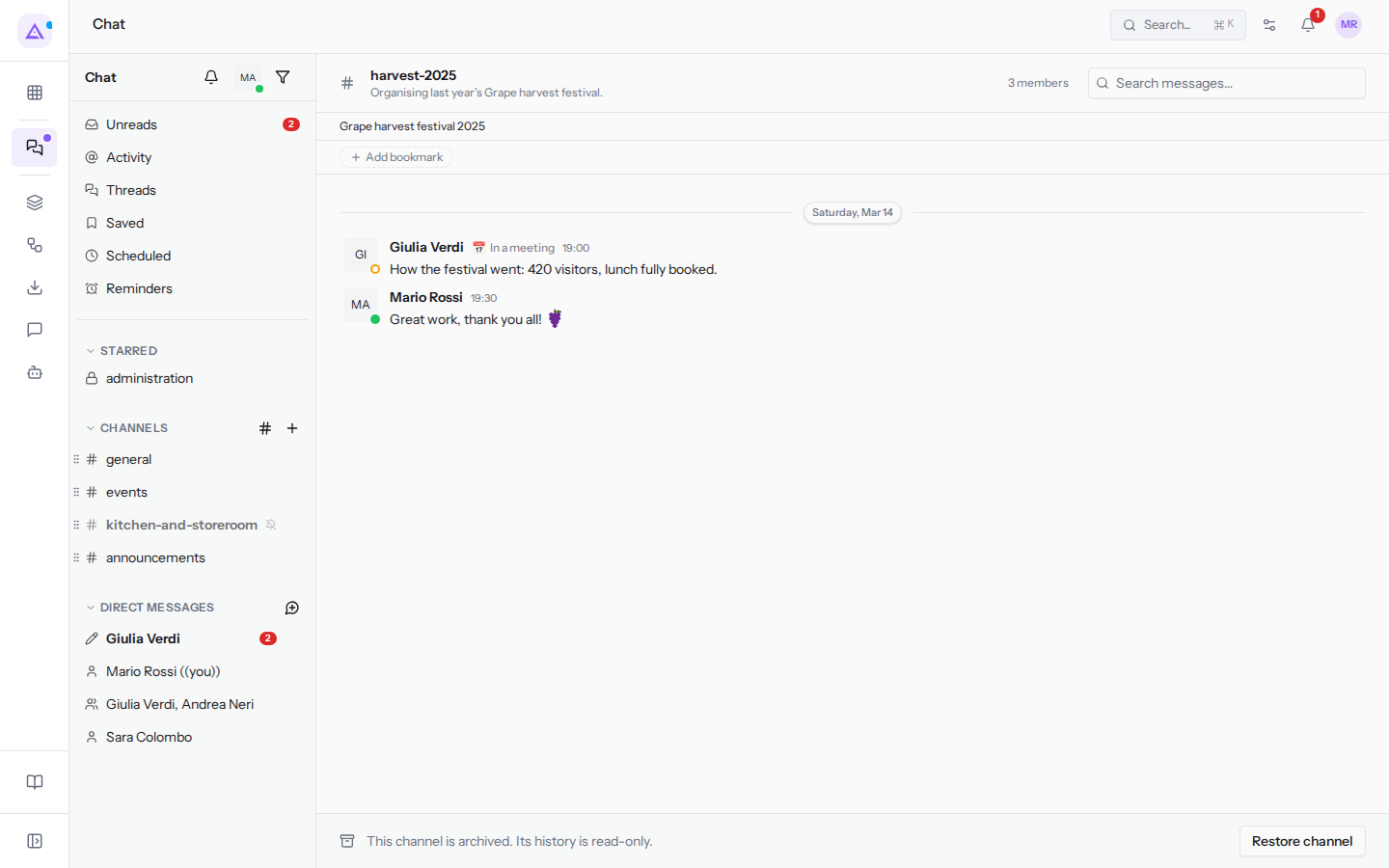
- Click the channel to open it. In place of the message box appears «This channel is archived. Its history is read-only.» and, for those who can restore it, the Restore channel button. You can read messages and threads, but cannot write or react.
Restoring a channel
Restoring a channel makes it active again: it reappears in the sidebar of its members and can be written to again. The channel's owners and administrators and anyone who belongs to the «Chat Manager» group can restore it.
- Click the «#» (Browse channels) icon next to CHANNELS.
- In the row of the archived channel click Restore channel. Alternatively open the channel and click Restore channel at the bottom of the conversation.
A channel owner or administrator who does not belong to the «Chat Manager» group cannot see the archived channels section: they can only restore the channel by opening it from a link, for example one copied before archiving with Copy link.
Leaving a channel
When you leave a channel you stop receiving its messages. For the other members the channel remains as it is.
- In the sidebar open the «…» (Conversation options) menu of the channel, for example
#events. - Choose Leave channel. You can also do this from the Settings tab of Channel details, in the DANGER ZONE section.
- The Leave this channel? confirmation opens with the text
You will stop receiving messages. Public channels can be re-joined from Browse channels.
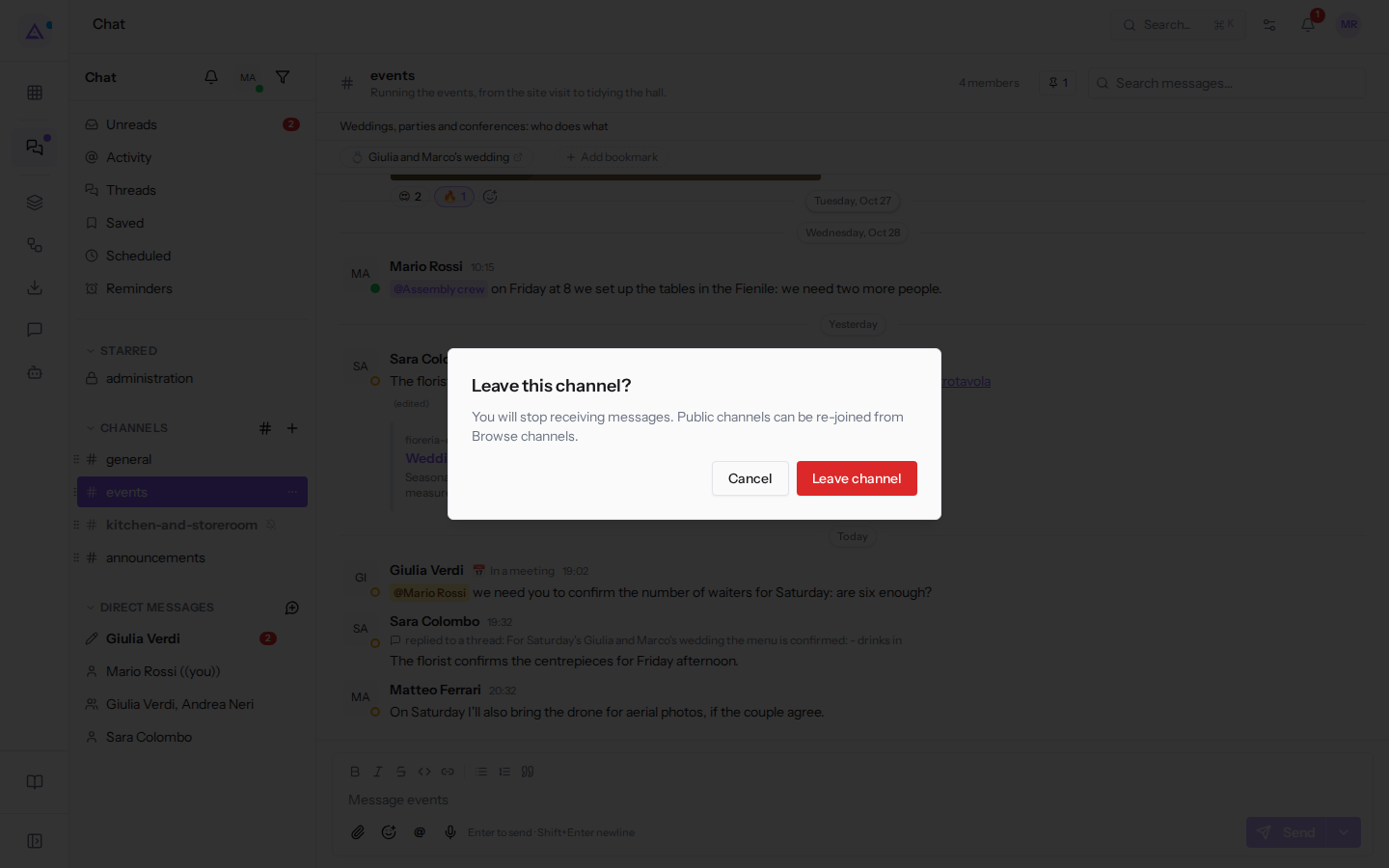
- Click Leave channel to confirm, or Cancel to stay in the channel.
The channel disappears from your sidebar and you stop receiving its messages and notifications. To rejoin a public channel use Browse channels. A private channel does not appear among those you can join: the confirmation reminds you of this, and you can only rejoin if an owner or admin of the channel adds you again.
The sole owner of a channel cannot leave it: they must first make someone else an owner, otherwise the chat responds with «A channel needs an owner. Make someone else owner first.» This is the case for Mario Rossi in #events. If the channel is no longer needed by anyone, the owner can instead archive it.
Assigning an owner to a channel without an owner
A channel is left without an owner when all of its owners have left the organisation or their account has been deactivated, for example when a colleague changes jobs. Without an owner no one can assign roles or hand over the channel any more. This is the case of haccp-course, which still has 2 members.
The organisation's owners and administrators remedy this: only they see the CHANNELS WITHOUT AN OWNER section in Browse channels. They assign the channel to a colleague without entering it and without seeing its messages.
- Click the «#» (Browse channels) icon next to CHANNELS.
- In the CHANNELS WITHOUT AN OWNER section, on the channel's row click Assign owner.
- The Assign an owner to haccp-course window opens, explaining that all of the channel's owners have left or been deactivated.
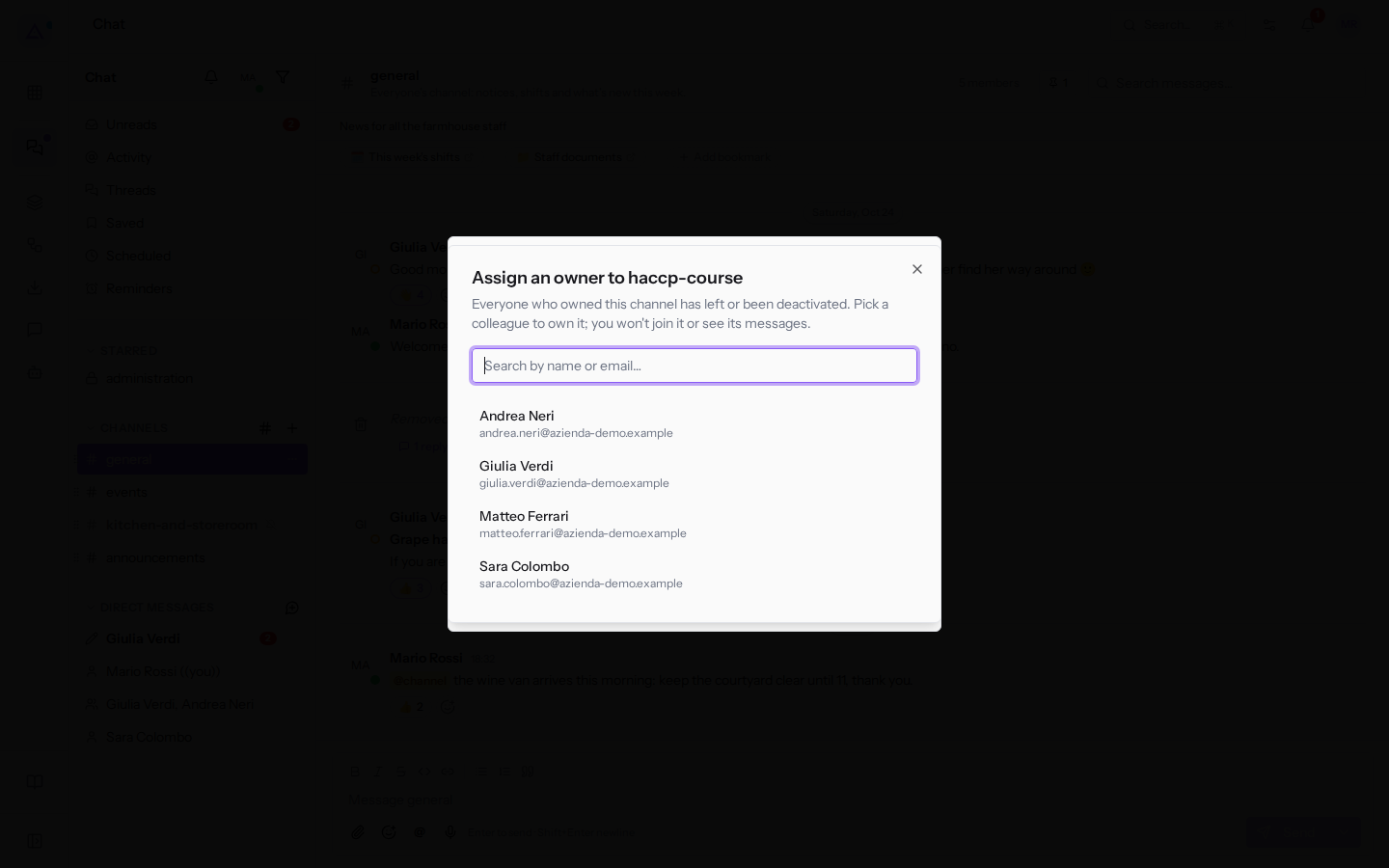
- Choose the colleague from the list, for example Giulia Verdi; to find them faster type in the Search by name or email… field. To exit without assigning anyone close the window.
- Confirm at the «Make Giulia Verdi owner of haccp-course?» prompt. If the colleague is not already in the channel they are added, and from that moment they manage it like any owner.
See it on your company, not on a slide deck.
In 30 minutes we map the software you use today.We show you how much work and how much margin Archimedes gives back.
Show me on my business →What industry are you in?
One tap — it lets us prepare the demo around your world.
What tools do you use today?
Pick the ones you recognise — or just type them. It helps us show you how they migrate.
Last step: your details.
We reply within one working day — and right after, if you like, you pick the demo slot yourself.
We couldn't send your request. Try again, or write to us at [email protected].
By sending, you agree to your data being processed so we can get back to you about the demo. Privacy notice.
Preview form — nothing is sent from this page.
Want to schedule the demo now?
Your call: book the slot you prefer yourself, or we'll call you to arrange it.
Live availability, 30 minutes, instant confirmation. The calendar opens in a new tab.
Lock in your slot ↗We'll get back to you within one working day — and we'll join the call already knowing your world.
The calendar is open in another tab: pick a slot and the demo is booked. Can't see it? Reopen it ↗
Preview page: nothing was sent.
Our calendar is live: take the slot that suits you and the demo is booked. 30 minutes, instant confirmation, no waiting.
Lock in your slot ↗