Chat
All modules
Reacting to, editing, forwarding and deleting a message
Chat · 7 of 16 · 7 min read
On a message you have already sent you can do a lot without writing a new one: react with an emoji to show agreement, correct a mistake, bring the message to another conversation or remove it. Reactions, edits and deletions are immediately visible to all members of the conversation. You can only edit and delete messages you wrote yourself; in a channel, channel owners and administrators can also remove other people's messages.
The message action bar
To avoid cluttering the conversation, message actions stay hidden: they appear in a small bar at the top right of the message only when you hover over it with the mouse.
- Open Chat and choose a conversation, for example
#events. - Hover over the message. The bar shows four icons, each with its own tooltip:
- the smiley face with a plus («Add reaction»): opens the emoji picker;
- the speech bubble («Reply in thread»): opens the message replies in the panel on the right; not available on thread replies;
- the bookmark («Save for later»): adds the message to your saved messages;
- the three dots («More actions»): opens the menu with the other actions.
The three-dots menu contains:
- Mark unread from here: the message and the ones that follow it are marked as unread, so the conversation reminds you to come back to it. This option is only available on other people's messages.
- Pin to conversation (or Unpin from conversation, if the message is already pinned): keeps the message highlighted for all members. Only channel owners and administrators can do this.
- Copy link: copies the address that goes directly to this message, to paste into another message or a document.
- Forward message…: brings the message to another conversation.
- Remind me about this…: sends you a notification about this message at the time you choose.
- Create ticket and Create task: available when the organisation uses Helpdesk and Projects. They create a ticket or a project task from the message text and publish the link in the message thread.
- Edit message: only on your own messages.
- Delete message… on your own messages, Remove message… on other people's messages if you are a channel owner or administrator.
React to a message
A reaction responds to a message without writing: it is a way to say «seen», «agreed» or «thanks» without adding a message that everyone would have to read. A reaction does not count among unread messages.
- Hover over the message and click the smiley face with a plus icon.
- Choose an emoji. The organisation's custom emojis are also available, such as
:vendemmia:.
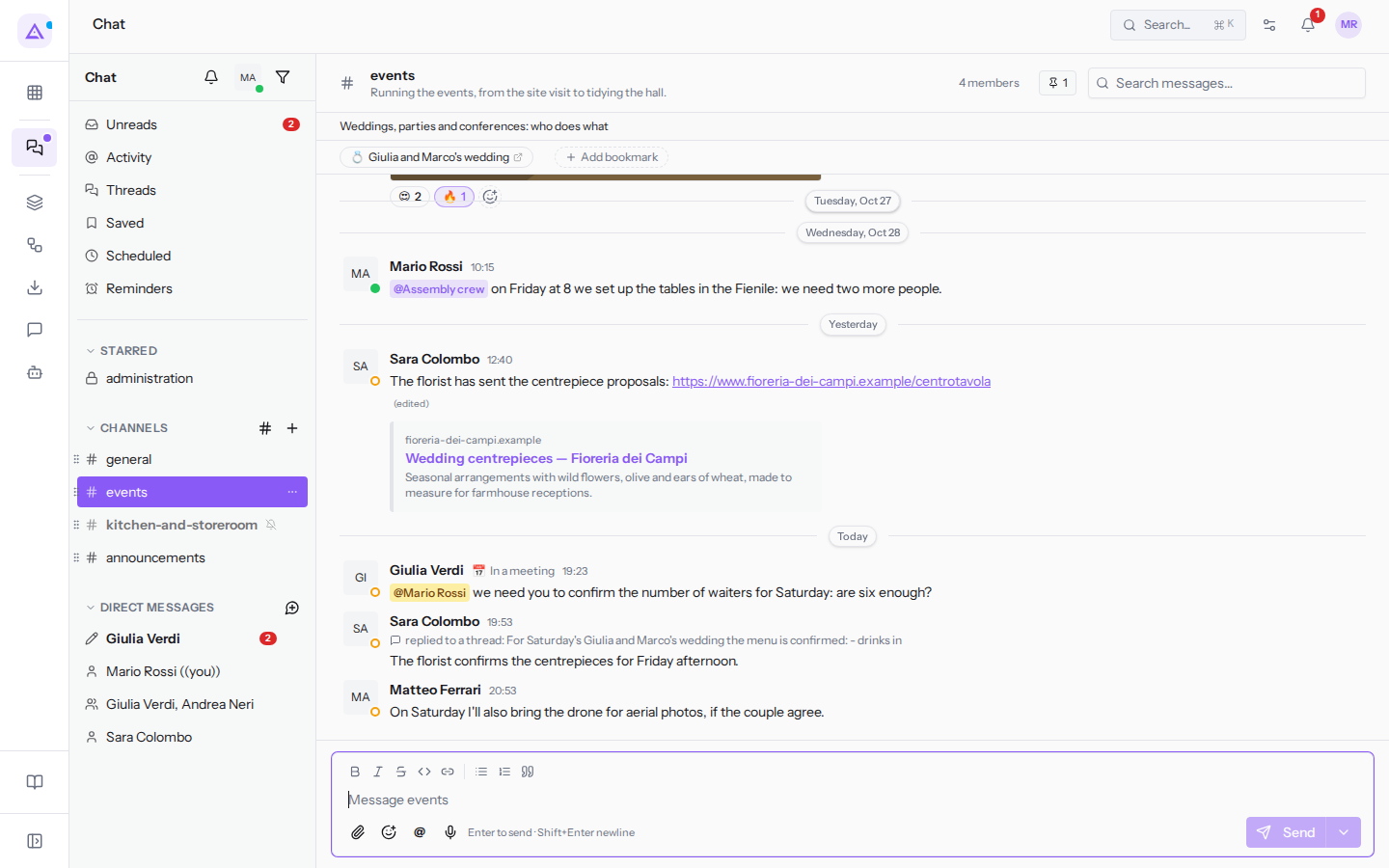
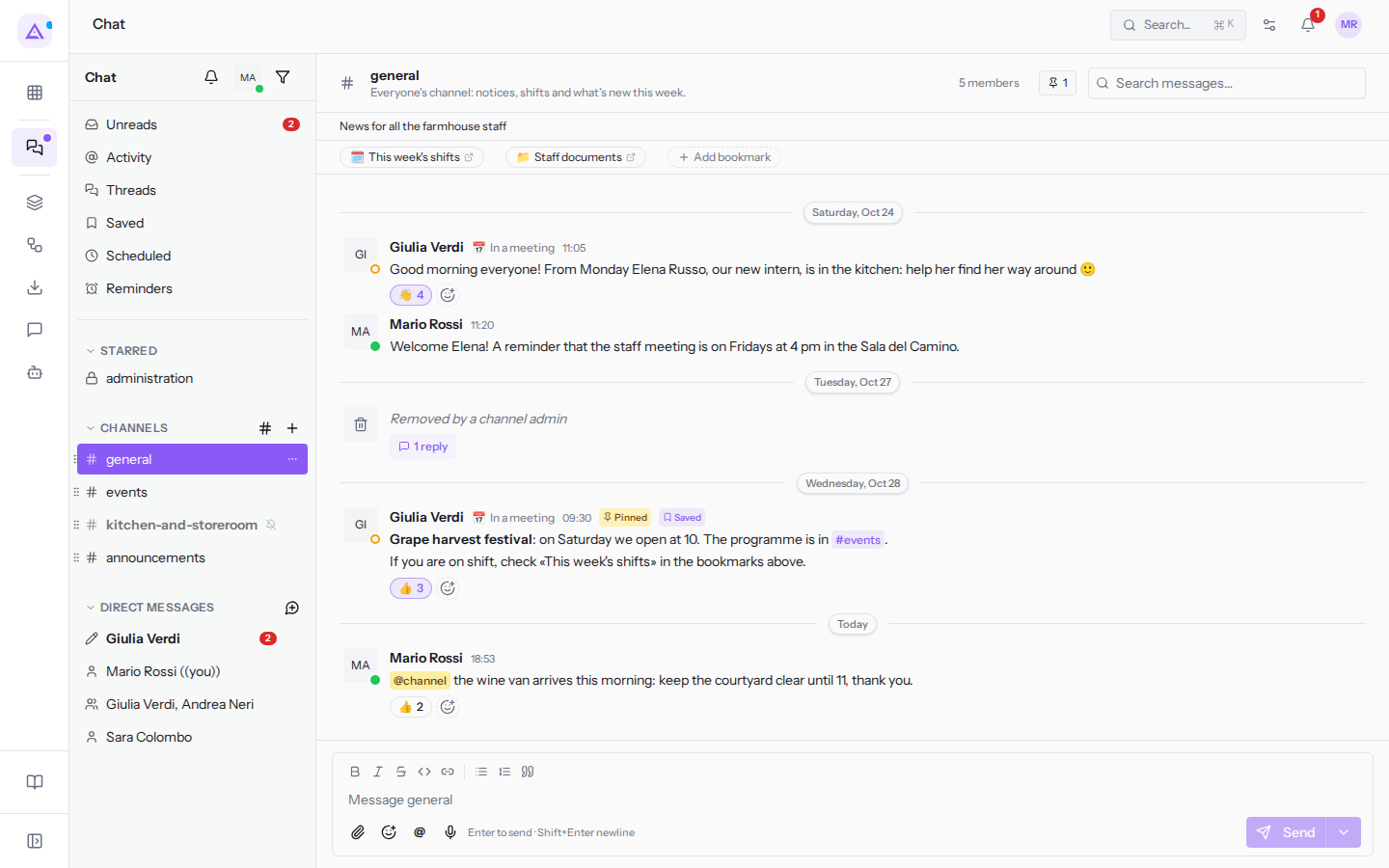
Reactions appear below the message, each with the number of people who chose it. Below Giulia Verdi's welcome message in #general there is 👋 with 4; below the menu of Giulia and Marco's wedding in #events there are ❤️ 2 and 🎉 1. Hovering over a reaction shows you who chose it.
To add the same emoji as a colleague, click their reaction. Your reaction is highlighted: clicking it again removes it. Messages you have reacted to can be found in the Reactions tab of the Activity page.
Edit a message
Edit one of your messages to correct a mistake or update some information without writing another one: the conversation stays clean and readers immediately find the right version. You can only edit messages you wrote yourself.
- Hover over the message and click the three-dots icon.
- Choose Edit message. The text becomes editable in place.
- Correct the text and press Enter to save, or Esc to leave it as it was.
To correct the last message you sent there is a shortcut: with the message box empty, press the up arrow.
After saving, the message shows (edited), so everyone knows the text is no longer what was sent originally. In #events, for example, Sara Colombo's message about the florist's proposals has been edited. The edit does not send new notifications: if you add a mention by editing the message, the person is not notified. If you change the link in the text, the site preview updates.
Forward a message
Forward a message when it is also needed in another conversation: instead of copying it, you bring it along with the name of who wrote it and a link to the original. For example Giulia Verdi forwarded to Mario Rossi, in their direct message, the menu of Giulia and Marco's wedding written in #events, adding the question «shall I print it like this?».
- Hover over the message and click the three-dots icon.
- Choose Forward message…. The Forward message dialog opens, with a preview of the message at the bottom.
- In the Find a channel or person… field, type part of the name and choose the destination conversation. The list only contains conversations you are a part of; the one you are starting from is marked with «here».
- If you wish, add a comment in Add a note (optional).
- Click Forward.
In the destination conversation, one of your messages appears with the note and, below it, a card with the original message: author, text and source. Any files attached to the original also arrive in the new conversation. All members of the destination conversation can read the forwarded text, even if they cannot open the source conversation; for this reason the source changes depending on who is reading:
- from a public channel, or from a private channel the reader is a member of, the card says for example «Forwarded from #events»;
- from a direct message or a group conversation, «Forwarded from a direct message»;
- from a private channel the reader is not a member of, «Forwarded from a private conversation»: the channel name is not revealed.
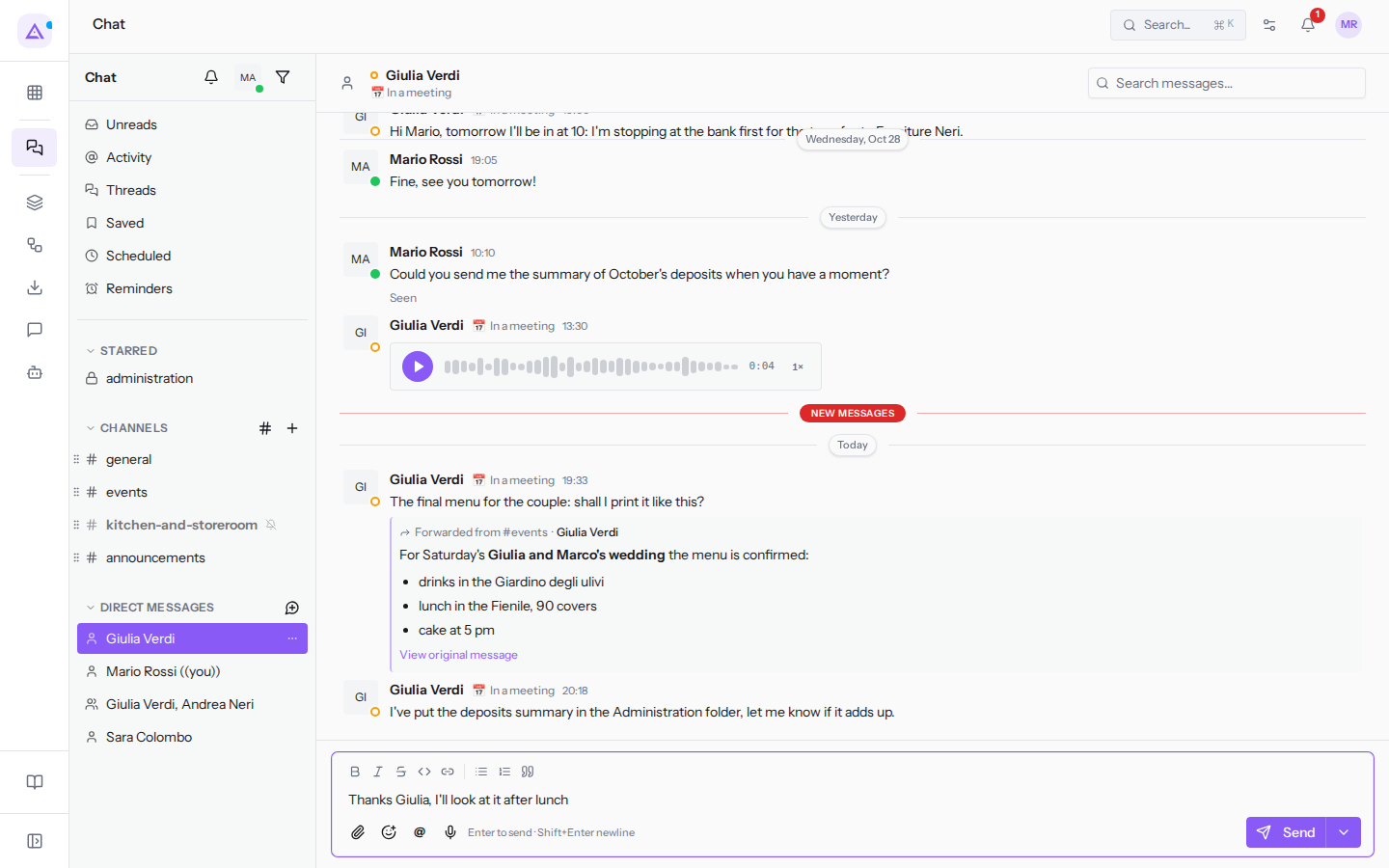
View original message opens the message in the source conversation, if you can read it. Mentions in the original message do not notify anyone again: only those you write in the note send notifications. If the original is deleted, the card shows «Original message deleted». You cannot forward from an archived channel.
Delete one of your own messages
Delete one of your messages when it should no longer remain in the conversation, for example if you sent it to the wrong channel. If you only want to correct the text, use Edit message: deletion cannot be undone.
- Hover over the message and click the three-dots icon.
- Choose Delete message….
- The Delete this message? prompt opens with the warning «This cannot be undone.». Delete confirms; Cancel closes the prompt and the message remains.
The deleted message disappears for all members, along with its reactions, and no longer appears in search or among pinned and saved messages. If it had thread replies, a row reading «This message was deleted» remains in its place with the number of replies: the thread is not lost and can still be opened from there.
Remove another member's message
In a channel, channel owners and administrators can remove other people's messages, for example an off-topic announcement. In direct messages and group conversations, no one can remove other people's messages.
- Hover over the message and click the three-dots icon.
- Choose Remove message….
- The Remove …'s message? prompt opens with the author's name and the warning that the message disappears for everyone. Remove confirms; Cancel closes the prompt.
The removed message disappears for everyone in the channel. If it had replies, «Removed by a channel admin» remains in its place and the thread can still be opened. In #general, for example, the announcement of a bike for sale was removed by Giulia Verdi, the channel administrator: since it had a reply, the row «Removed by a channel admin» with «1 reply» remains.
See it on your company, not on a slide deck.
In 30 minutes we map the software you use today.We show you how much work and how much margin Archimedes gives back.
Show me on my business →What industry are you in?
One tap — it lets us prepare the demo around your world.
What tools do you use today?
Pick the ones you recognise — or just type them. It helps us show you how they migrate.
Last step: your details.
We reply within one working day — and right after, if you like, you pick the demo slot yourself.
We couldn't send your request. Try again, or write to us at [email protected].
By sending, you agree to your data being processed so we can get back to you about the demo. Privacy notice.
Preview form — nothing is sent from this page.
Want to schedule the demo now?
Your call: book the slot you prefer yourself, or we'll call you to arrange it.
Live availability, 30 minutes, instant confirmation. The calendar opens in a new tab.
Lock in your slot ↗We'll get back to you within one working day — and we'll join the call already knowing your world.
The calendar is open in another tab: pick a slot and the demo is booked. Can't see it? Reopen it ↗
Preview page: nothing was sent.
Our calendar is live: take the slot that suits you and the demo is booked. 30 minutes, instant confirmation, no waiting.
Lock in your slot ↗