Chat
All modules
Pinning important messages and channel bookmarks
Chat · 10 of 16 · 5 min read
Pinning a message and adding a bookmark both serve to keep, in a channel, the information that all members need to find: for example a notice for all staff, the confirmed menu for an event, the shifts page, or a document folder.
Pinned messages and bookmarks: which to use
Pinned messages and bookmarks both appear in the channel header, but they contain different things.
- A pinned message is a message already written in the conversation. It stays in the conversation and can be found via the pin button in the header, which shows how many messages are pinned.
- A bookmark is a fixed link, below the channel header, to a page in the application or an external site. It is not linked to a message.
Choose based on what you want to keep visible:
- If the information is text written in the channel, such as the notice about the Grape harvest festival in
#general, pin the message. - If the information is a page that changes over time, such as this week's shifts, add a bookmark that leads to that page.
- If a message links to a page, you can use both: the pinned message in
#generalinvites those on shift to check the «This week's shifts» bookmark.
Pinned messages and bookmarks are visible to everyone who can read the channel. Only channel owners and administrators can add and remove them, so there remain a few selected pieces of information rather than a list that keeps growing.
Pinning a message
Pin a message when it needs to remain visible to all members, including those who join the channel later and would never scroll back that far. To pin, you must be a channel owner or administrator: everyone can see the menu item, but the operation fails for others.
- Open Chat and choose the channel in the sidebar, for example
#general. - Hover over the message and click the three-dot icon.
- Choose Pin to conversation.
The message gets the Pinned label next to the time, and the number on the pin button in the header increases by one. The message stays in its place in the conversation: pinning it does not move it and does not notify anyone.
Viewing pinned messages
The pin button in the channel header shows the number of pinned messages: in #general and in #events it is 1. The button only appears when there is at least one pinned message in the channel.
- Open Chat and choose the channel, here
#general.
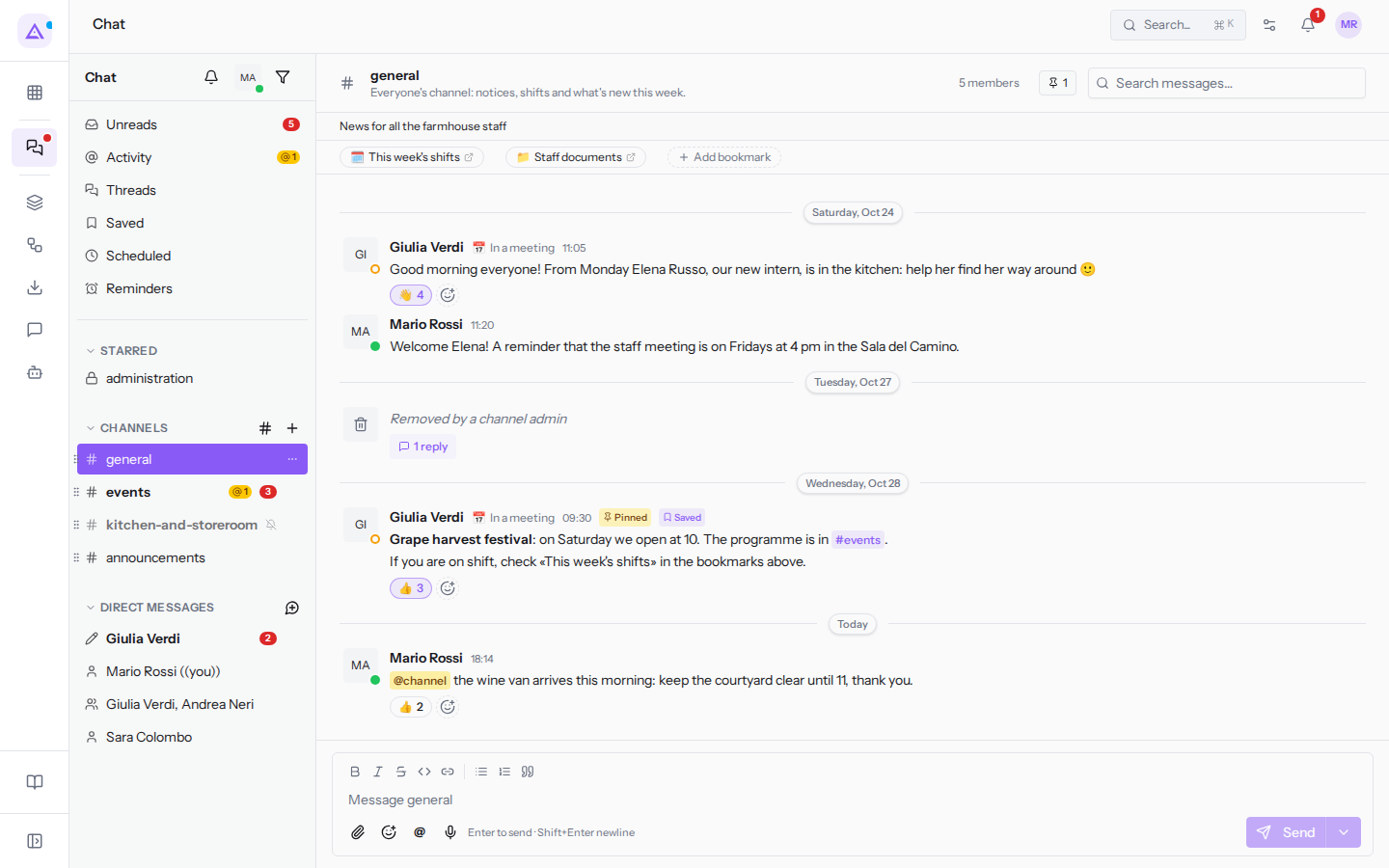
- Click the button with the pin and the number. The Pinned messages dialog opens.
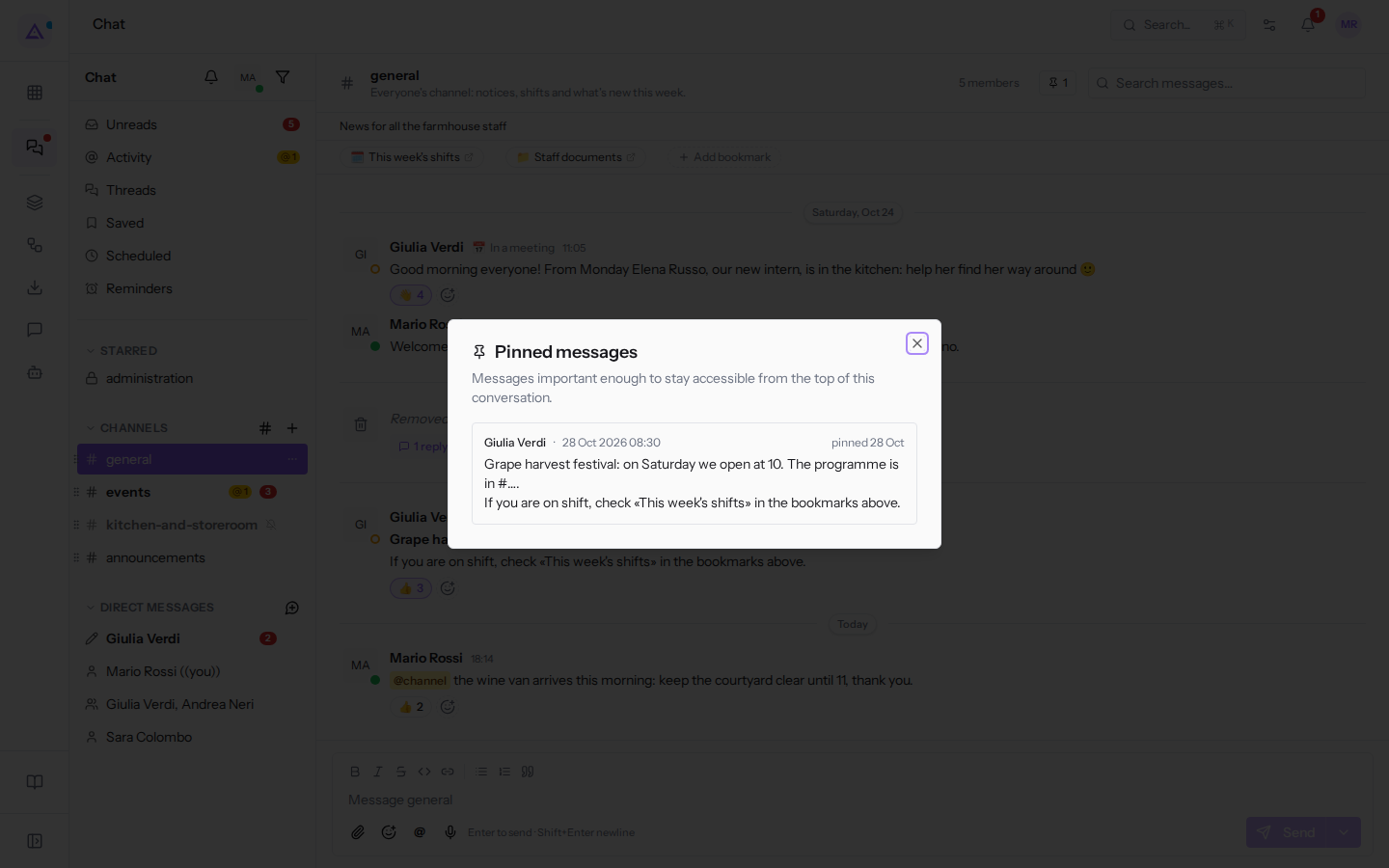
- Click a message to go to its place in the conversation, or close the dialog with the X in the top right.
For each message the dialog shows:
- the author of the message and the date and time it was written;
- when the message was pinned;
- the text of the message.
In #general the notice by Giulia Verdi about the Grape harvest festival is pinned; in #events the message by Giulia Verdi with the confirmed menu for Giulia and Marco's wedding.
The most recently pinned messages are at the top; the dialog shows a maximum of 50. A deleted message no longer appears among the pinned ones.
Unpinning a message
Unpin a message when the information is no longer needed, for example after the event it refers to: a few pinned messages get read, many do not. This also only works for channel owners and administrators.
- Open Chat and choose the channel.
- Hover over the pinned message and click the three-dot icon.
- Choose Unpin from conversation.
The message stays in the conversation. It only loses the Pinned label and no longer appears in the Pinned messages dialog; if it was the only one, the pin button disappears too.
Adding a bookmark
Bookmarks are fixed links below the channel header: one click opens the page in a new browser tab. In #general there are «This week's shifts» and «Staff documents»; in #events there is «Giulia and Marco's wedding». Bookmarks only exist in channels, not in direct messages.
Anyone who can read the channel can see and open bookmarks; only channel owners and administrators can add, edit, and remove them — the only ones who see Add bookmark.
- Open Chat and choose the channel, here
#general. - Click Add bookmark, after the existing bookmarks. The Add a bookmark dialog opens.
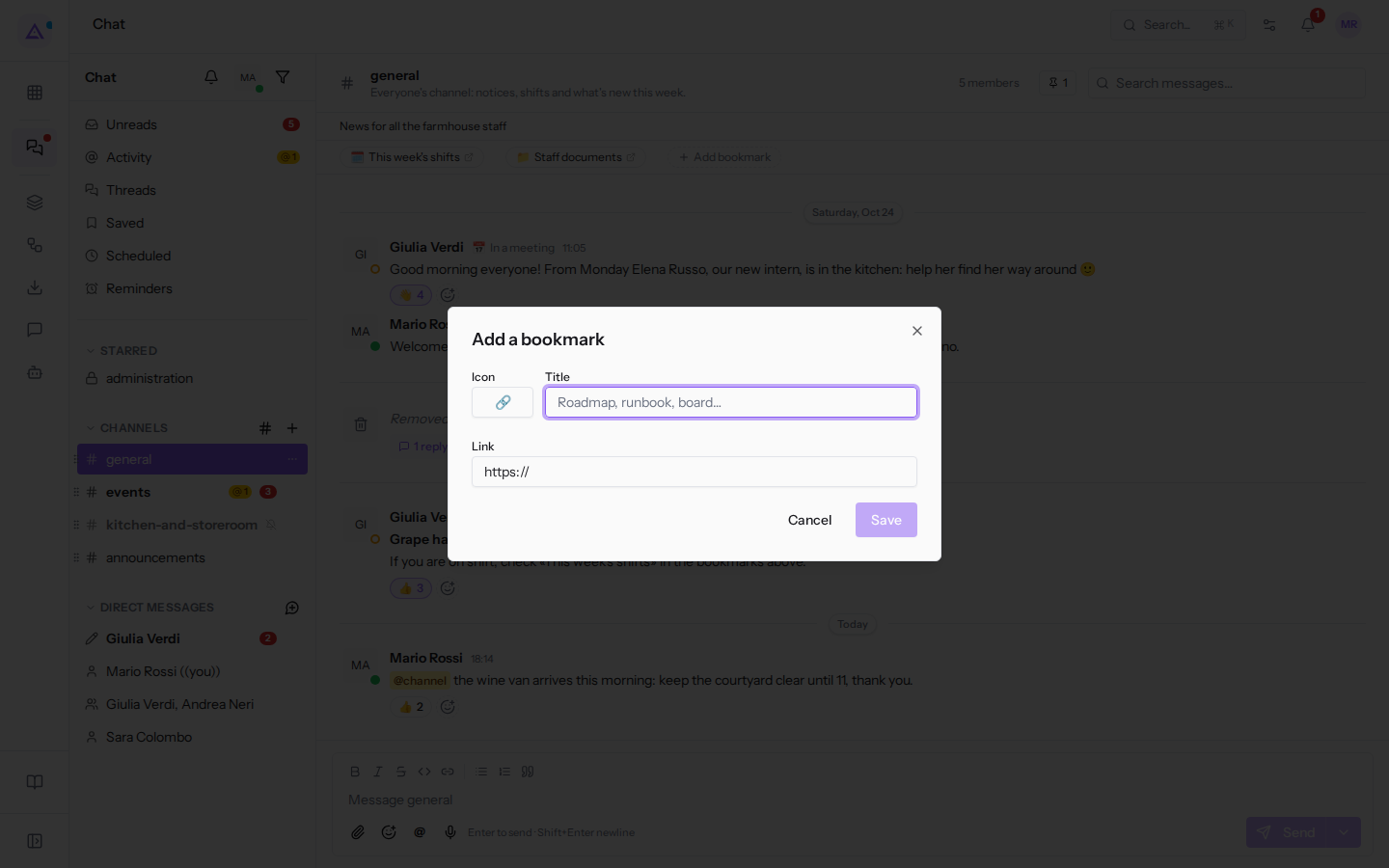
- Fill in the fields and click Save. To close without saving, click Cancel.
The dialog fields:
- Icon: an emoji shown before the title, for example 🗓️ for «This week's shifts». The field is optional; if left empty, a bookmark icon appears.
- Title: the name of the bookmark as it appears below the header, for example
This week's shifts. The field is required and accepts a maximum of 80 characters. - Link: the address of the page to open. The field starts with
https://already entered. It can be a page in the application or an external site and must be a complete address. The field is required.
The new bookmark appears at the bottom of the others. A channel can have a maximum of 20 bookmarks.
Editing or removing a bookmark
Edit a bookmark when the page address or its name changes. Remove it when the page is no longer needed by the channel.
- Open Chat and choose the channel, for example
#general. - Hover over the bookmark: the pencil icon (Bookmark options) appears next to it. Click the icon: the menu shows Edit and Remove.
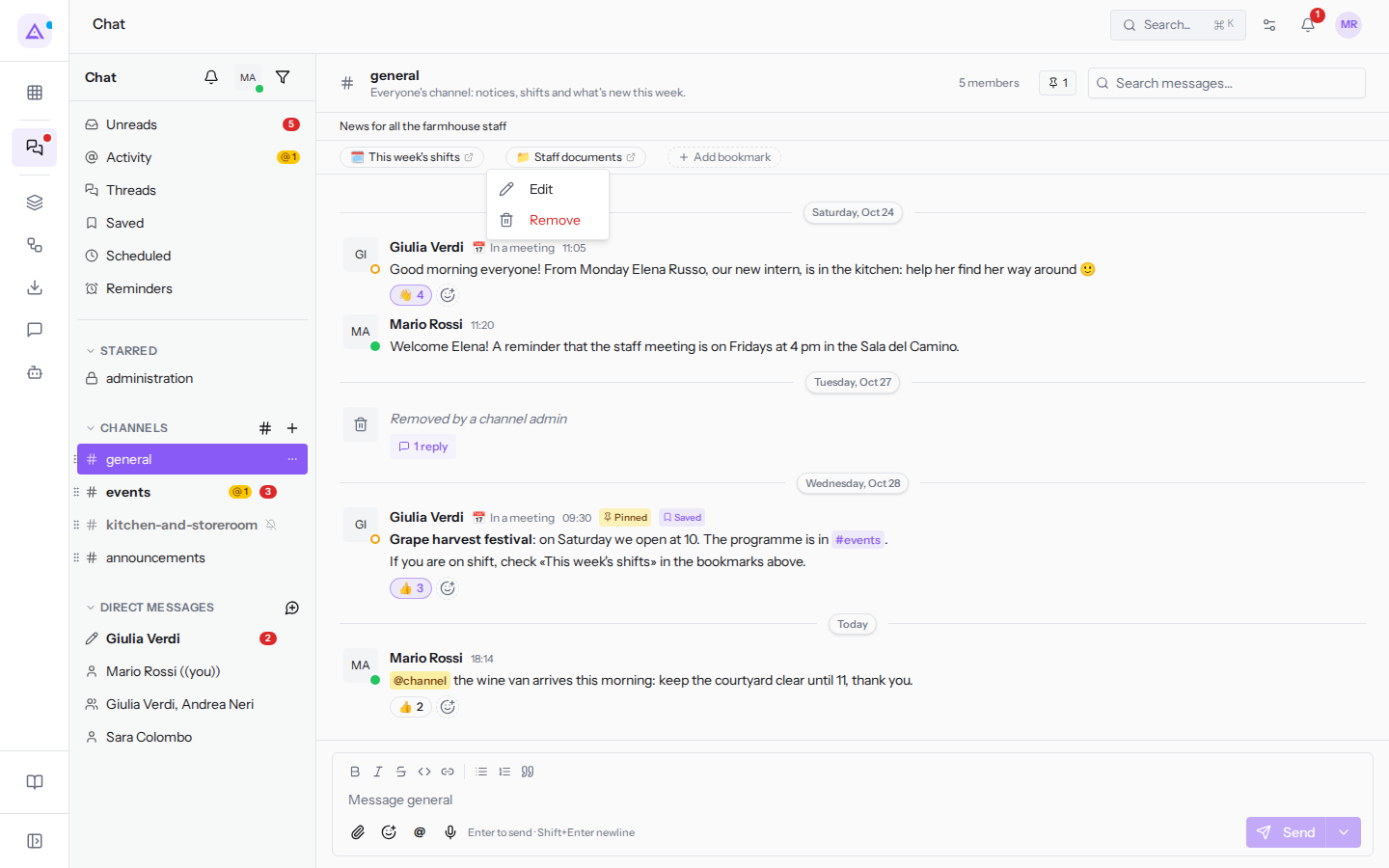
- To edit it, choose Edit. The Edit bookmark dialog opens with the Icon, Title, and Link fields already filled in.
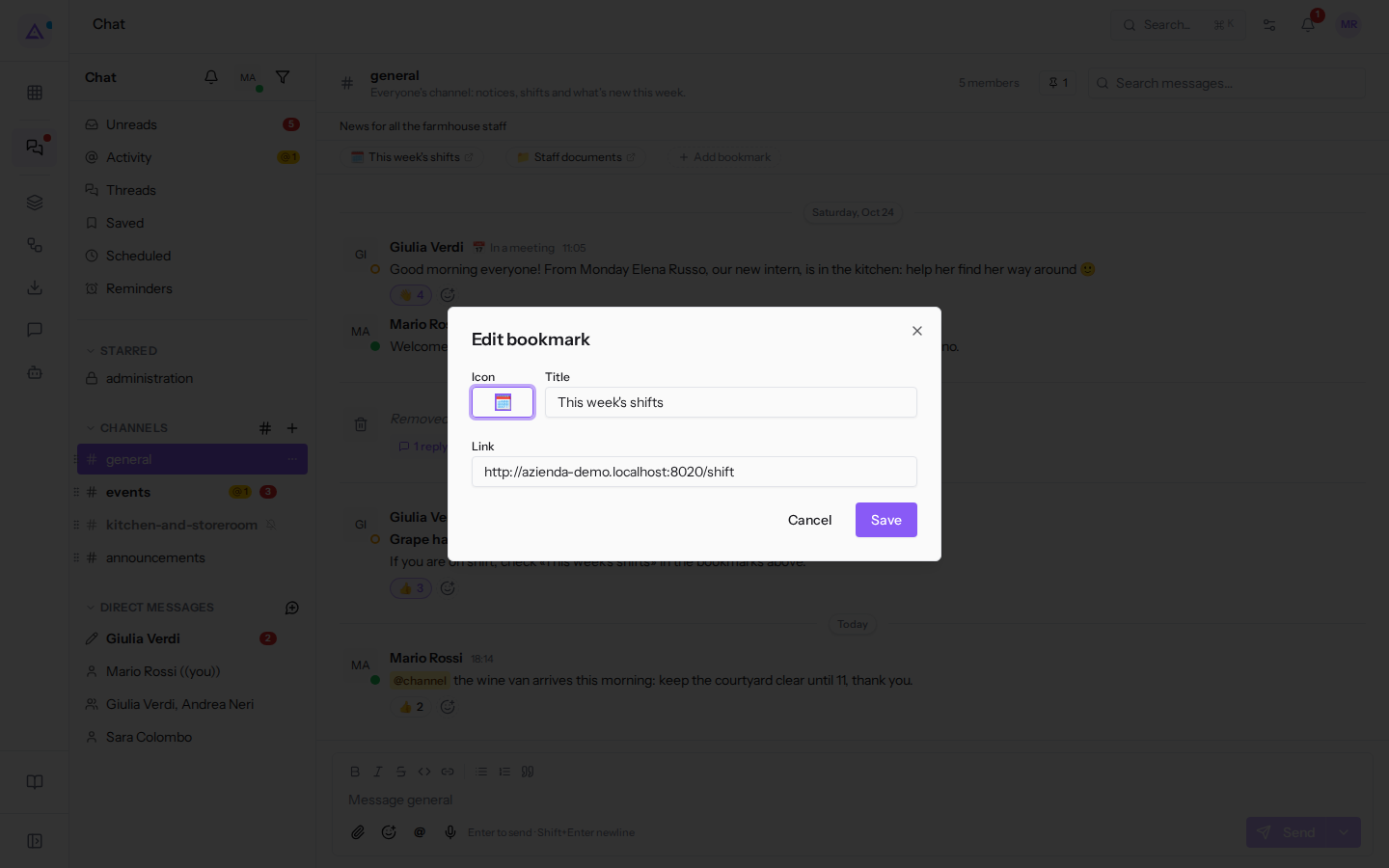
- Change the fields and click Save.
- To remove it from the channel, choose Remove instead. The bookmark disappears immediately for all members, without a confirmation prompt; the page it linked to does not change.
See it on your company, not on a slide deck.
In 30 minutes we map the software you use today.We show you how much work and how much margin Archimedes gives back.
Show me on my business →What industry are you in?
One tap — it lets us prepare the demo around your world.
What tools do you use today?
Pick the ones you recognise — or just type them. It helps us show you how they migrate.
Last step: your details.
We reply within one working day — and right after, if you like, you pick the demo slot yourself.
We couldn't send your request. Try again, or write to us at [email protected].
By sending, you agree to your data being processed so we can get back to you about the demo. Privacy notice.
Preview form — nothing is sent from this page.
Want to schedule the demo now?
Your call: book the slot you prefer yourself, or we'll call you to arrange it.
Live availability, 30 minutes, instant confirmation. The calendar opens in a new tab.
Lock in your slot ↗We'll get back to you within one working day — and we'll join the call already knowing your world.
The calendar is open in another tab: pick a slot and the demo is booked. Can't see it? Reopen it ↗
Preview page: nothing was sent.
Our calendar is live: take the slot that suits you and the demo is booked. 30 minutes, instant confirmation, no waiting.
Lock in your slot ↗