Chat
All modules
Finding your way around the chat
Chat · 2 of 16 · 5 min read
The chat lets you write to colleagues without using internal emails. You can talk by topic in channels, such as #events or #kitchen-and-storeroom, or one-to-one in direct messages. This article explains how the screen is laid out and how to tell at a glance where there is something to read.
Opening the chat
The Chat menu item is only visible to users who have the «Chat User» or «Chat Manager» group. With «Chat User» you can write, start direct messages and create channels, within the limits of the organisation's rules; «Chat Manager» can additionally archive any channel they can see and restore archived channels.
The chat opens from the Chat menu and immediately shows a conversation: at first it is #general, the default channel that every new user in the organisation joins automatically.
- Open the Chat menu.
#generalopens. To switch to another conversation, click its name in the sidebar, for example events.
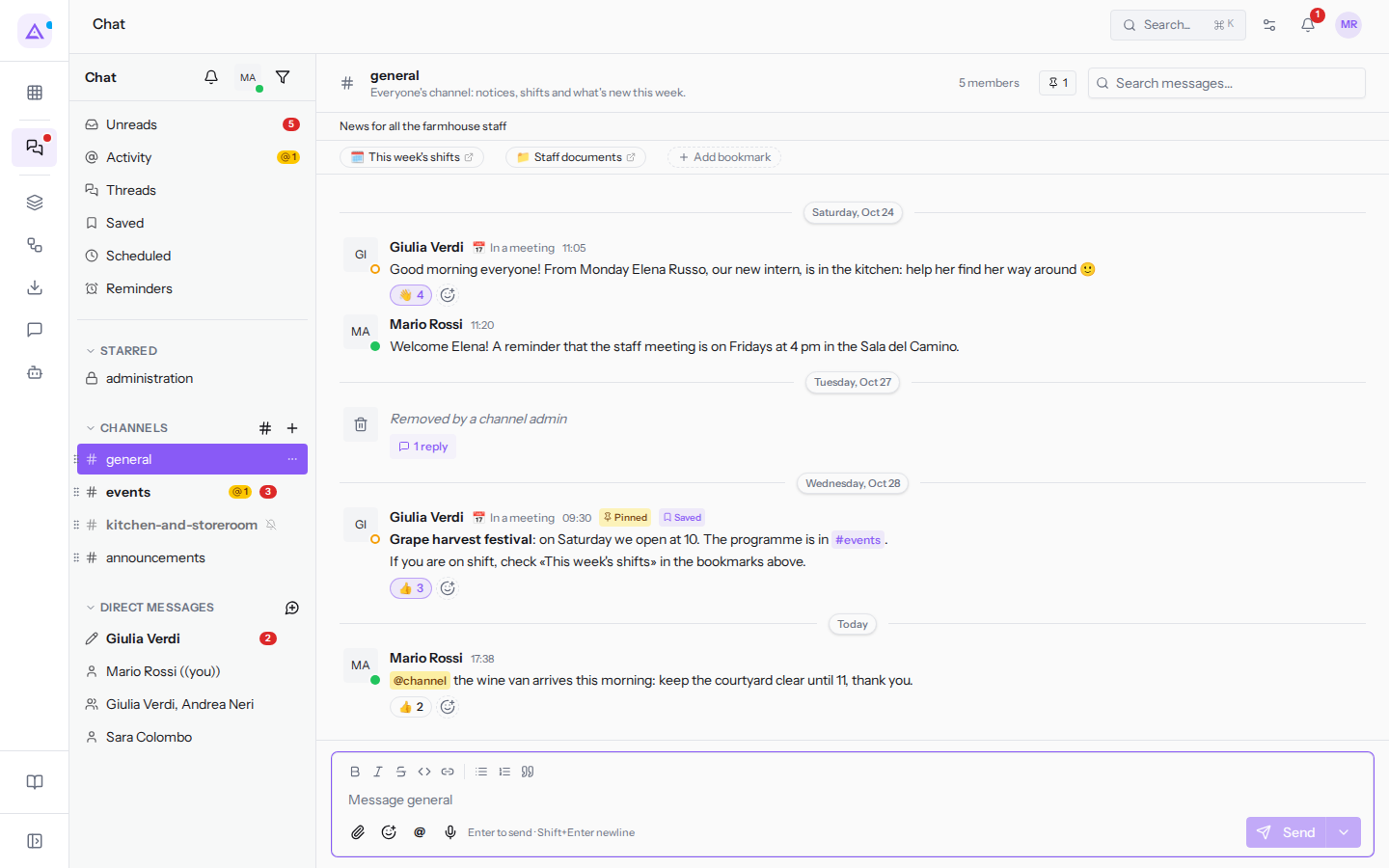
The screen has three columns:
- The sidebar: the conversations and items for finding messages.
- The open conversation: header, messages and the box for writing.
- The right-hand panel: opens when you need it and shows a thread or the members of the conversation.
The sidebar
The sidebar contains all the conversations you are part of and the items for finding messages.
At the top, next to the Chat heading, there are three icons:
- the bell: pauses notifications for a period, while you are in a meeting. Messages still arrive, but without alerts.
- your avatar, with the presence dot: opens the menu for your status and availability, which colleagues see next to your name.
- the funnel: shows only conversations with unread messages. Useful when there are many conversations.
Below are the items for finding messages. Each one has its own article in the guide.
- Unreads: the messages you have not yet read. The number appears next to it, for example Unreads 5.
- Activity: mentions, thread replies and reactions. The number next to it counts unread mentions, for example Activity 1.
- Threads: replies to the threads you are following.
- Saved: messages you have saved for later.
- Scheduled: messages that will be sent later, for example tomorrow's at 8 in
#general. - Reminders: reminders set on messages, for example «Answer Giulia about the waiters».
Further down, the conversations are divided into three sections:
- STARRED: the conversations you have starred, at the top because you open them often: here
#administration, a private channel. Stars are personal: others cannot see them. - CHANNELS: the channels you are subscribed to, for example general, events, kitchen-and-storeroom and announcements. Next to the heading there are two icons: «#» to browse public channels you are not yet subscribed to and «+» to create a new one.
- DIRECT MESSAGES: conversations with a person or a group, such as Giulia Verdi, Sara Colombo and Giulia Verdi, Andrea Neri. This also includes the conversation with yourself, for notes that no one else can see: on screen it appears as «Mario Rossi ((you))». Next to the heading is the icon to start a new direct message.
When you hover over a row, the «…» icon appears with the conversation's options: star it, mute it, mark it as unread to come back to it later, copy its link.
The order of channels is the same for the whole organisation: it is decided by the organisation's owners and administrators by dragging the channels.
Reading a sidebar row
A sidebar row tells you whether there is something to read in the conversation.
- Name in bold with a red number: unread messages. For example
#eventshas 3 and the direct message withGiulia Verdihas 2. - Yellow badge with the at sign, for example «@1»: someone has mentioned you. The same mention increases the number next to Activity. This is the signal to check first, because someone is waiting for a reply from you.
- Crossed-out bell: the conversation is muted. It sends no alerts and its messages do not count in either Unreads or Activity; only the mention badge, if any, remains on the row. For example
#kitchen-and-storeroom. - Padlock instead of «#»: private channel, visible only to members. For example
#administration. - Pencil instead of the icon: there is an unsent draft, for example in the direct message with
Giulia Verdi.
When you open a conversation, its messages become read and the number next to Unreads decreases. For example, opening #events changes the item from 5 to 2: the 2 messages from Giulia Verdi remain.
The conversation header
The header summarises the open conversation. For example in #general:
- Channel name and description: general and «Everyone's channel: notices, shifts and what's new this week.».
- 5 members: opens the Members panel on the right, with each person's role (owner, administrator or channel member) and the Search members… field.
- The pin icon with a number: pinned messages, i.e. those that everyone needs to find easily. Click it to open Pinned messages, showing who pinned the message and when. In
#generalthere is the notice about the Grape harvest festival. - Search messages…: search within the messages of this conversation.
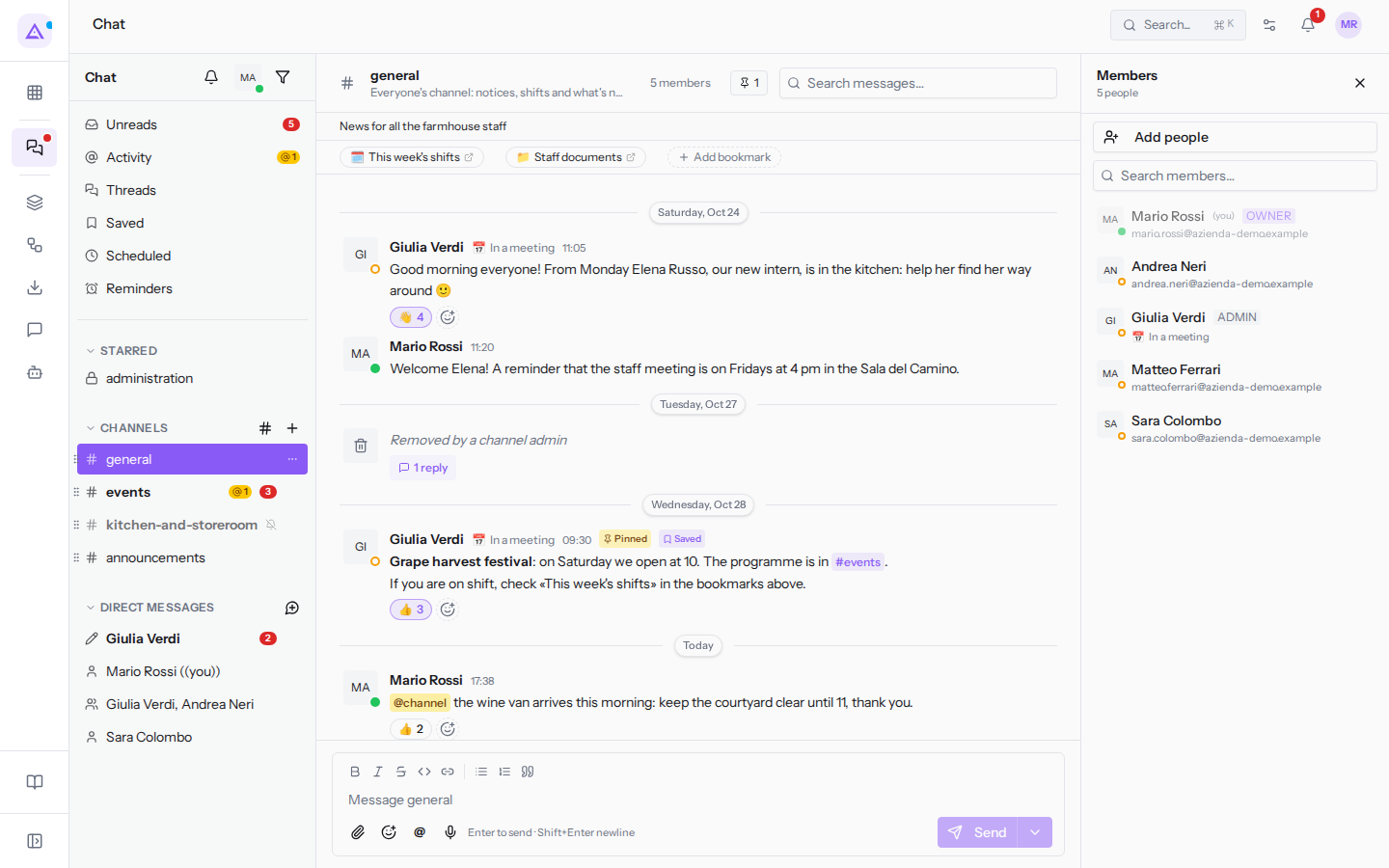
Below the header there are:
- The channel topic, i.e. what is being discussed at the moment. In
#generalit is «News for all the farmhouse staff». - The channel bookmarks: links that all members always have at hand, without having to search for them among the messages. In
#generalthere are This week's shifts and Staff documents. Add bookmark adds one.
Picking up where you left off
When you open a conversation with unread messages, the red NEW MESSAGES line separates what you had already read from what arrived afterwards, so you can pick up from there. For example when opening #events.
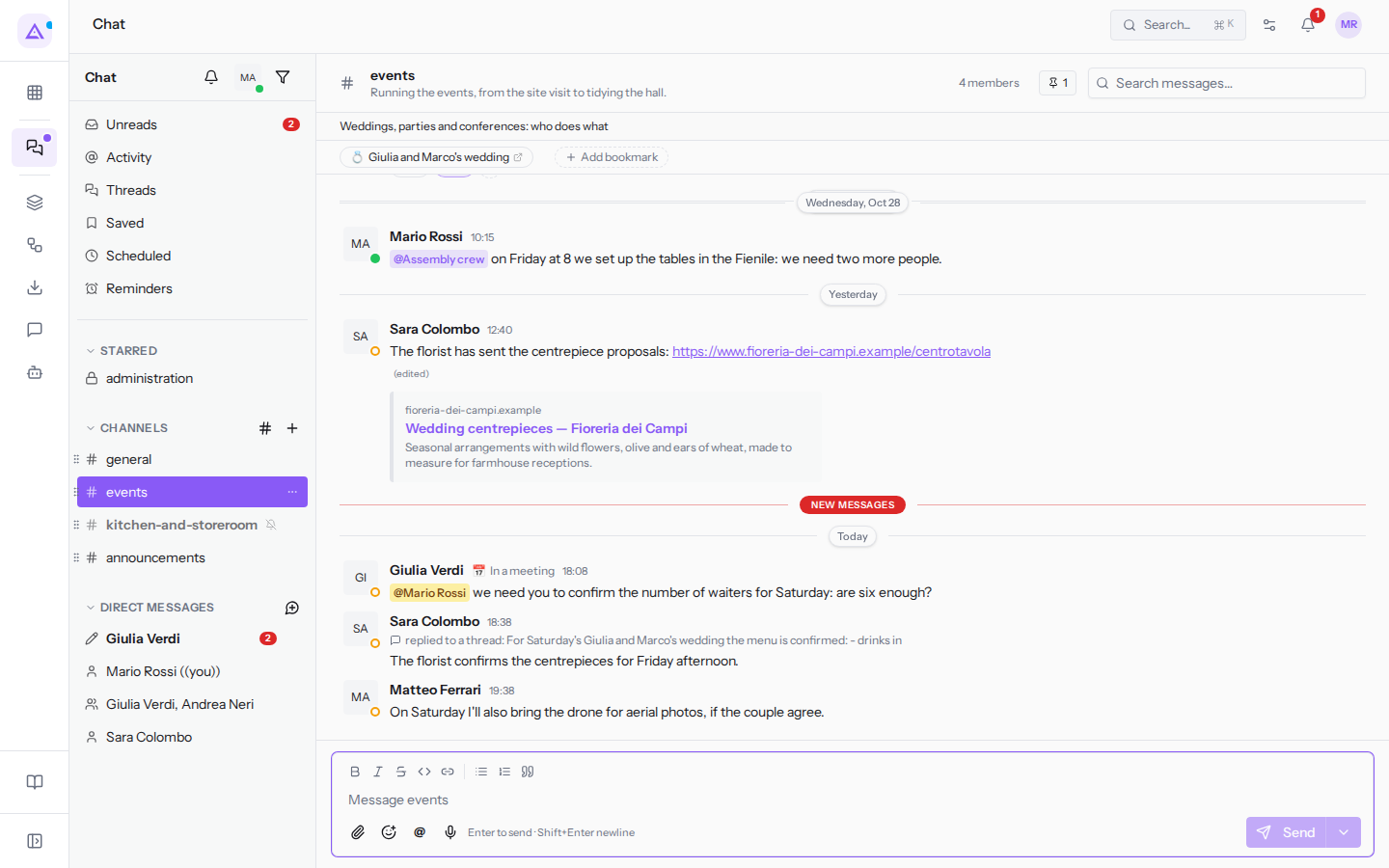
Messages are divided by day, with the Today and Yesterday separators; earlier days appear with the date, for example «Wednesday, Oct 28».
Below a message with replies, the number of replies appears: 5 replies on the menu message in #events. Click to open the thread in the right-hand panel; see Replying in a thread.
See it on your company, not on a slide deck.
In 30 minutes we map the software you use today.We show you how much work and how much margin Archimedes gives back.
Show me on my business →What industry are you in?
One tap — it lets us prepare the demo around your world.
What tools do you use today?
Pick the ones you recognise — or just type them. It helps us show you how they migrate.
Last step: your details.
We reply within one working day — and right after, if you like, you pick the demo slot yourself.
We couldn't send your request. Try again, or write to us at [email protected].
By sending, you agree to your data being processed so we can get back to you about the demo. Privacy notice.
Preview form — nothing is sent from this page.
Want to schedule the demo now?
Your call: book the slot you prefer yourself, or we'll call you to arrange it.
Live availability, 30 minutes, instant confirmation. The calendar opens in a new tab.
Lock in your slot ↗We'll get back to you within one working day — and we'll join the call already knowing your world.
The calendar is open in another tab: pick a slot and the demo is booked. Can't see it? Reopen it ↗
Preview page: nothing was sent.
Our calendar is live: take the slot that suits you and the demo is booked. 30 minutes, instant confirmation, no waiting.
Lock in your slot ↗