Chat
All modules
Choosing between channels, direct messages and groups
Chat · 3 of 16 · 6 min read
In the chat you talk with colleagues in four types of conversation: public channels, private channels, direct messages to one person, and group conversations. There are also notes for yourself. This article explains what each type is for and how to start one, for example a channel for events, a message to a colleague, or a group to organise a party.
Conversation types
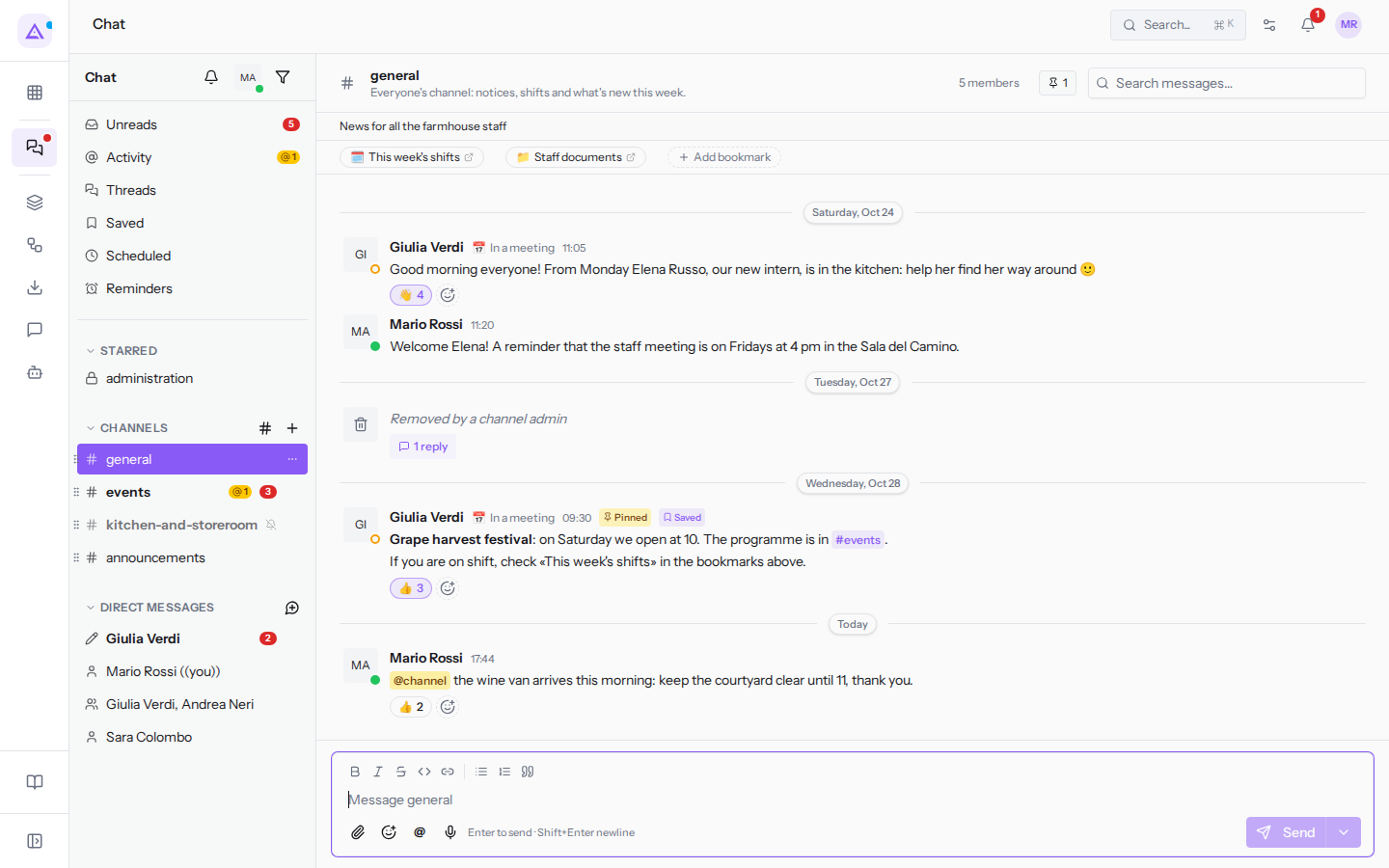
The sidebar shows channels in the CHANNELS section and one-on-one or group conversations in the DIRECT MESSAGES section.
- Public channel: the entire organisation can see it, find it and join it. Example:
#events. - Private channel: only members can see it, with a lock instead of the «#»; non-members cannot even find it. Example:
#administration. - Direct message: a conversation between you and another person. Example:
Giulia Verdi. - Group conversation: a direct message with several colleagues. It has no name and the sidebar shows it with the participants' names. Example:
Giulia Verdi, Andrea Neri. - Notes for yourself: the conversation with yourself,
Mario Rossi (you), with the description «Notes to self: drafts, links, reminders nobody else sees.» In the sidebar it appears as «Mario Rossi ((you))».
#general is the default channel: every new user of the organisation joins it automatically, which is why it is the right place for notices that concern everyone.
When to use a channel and when a direct message
Use a channel for a topic that concerns several people over time, and a direct message for an exchange with one or a few specific people.
- If the topic is of interest to anyone in the organisation and anyone must be able to find it, create a public channel. Example:
#events. - If the topic concerns only some people and others must not see it, use a private channel. Example:
#administration. - If you are writing to a single person, use a direct message. Example:
Giulia Verdi. - If a matter concerns a few colleagues and a named channel is not needed, start a group conversation. Example: the group with Giulia Verdi and Andrea Neri about the chairs for the party.
- If you want to keep drafts, links and reminders that no one else sees, use notes for yourself.
A channel has roles (owner, administrator, member), a topic, bookmarks, and can be archived. Direct messages and group conversations have no roles and cannot be archived. If you open the dialog with the same people again, you find the existing conversation instead of creating a new one.
A public channel can be made private, but the choice cannot be undone: non-members will no longer be able to find it or join. Someone who leaves a private channel can only return if an owner or admin of the channel adds them again. If you are unsure, start with a public channel.
Joining a public channel
Public channels you have not joined do not appear in the sidebar. You can find them in the channel list.
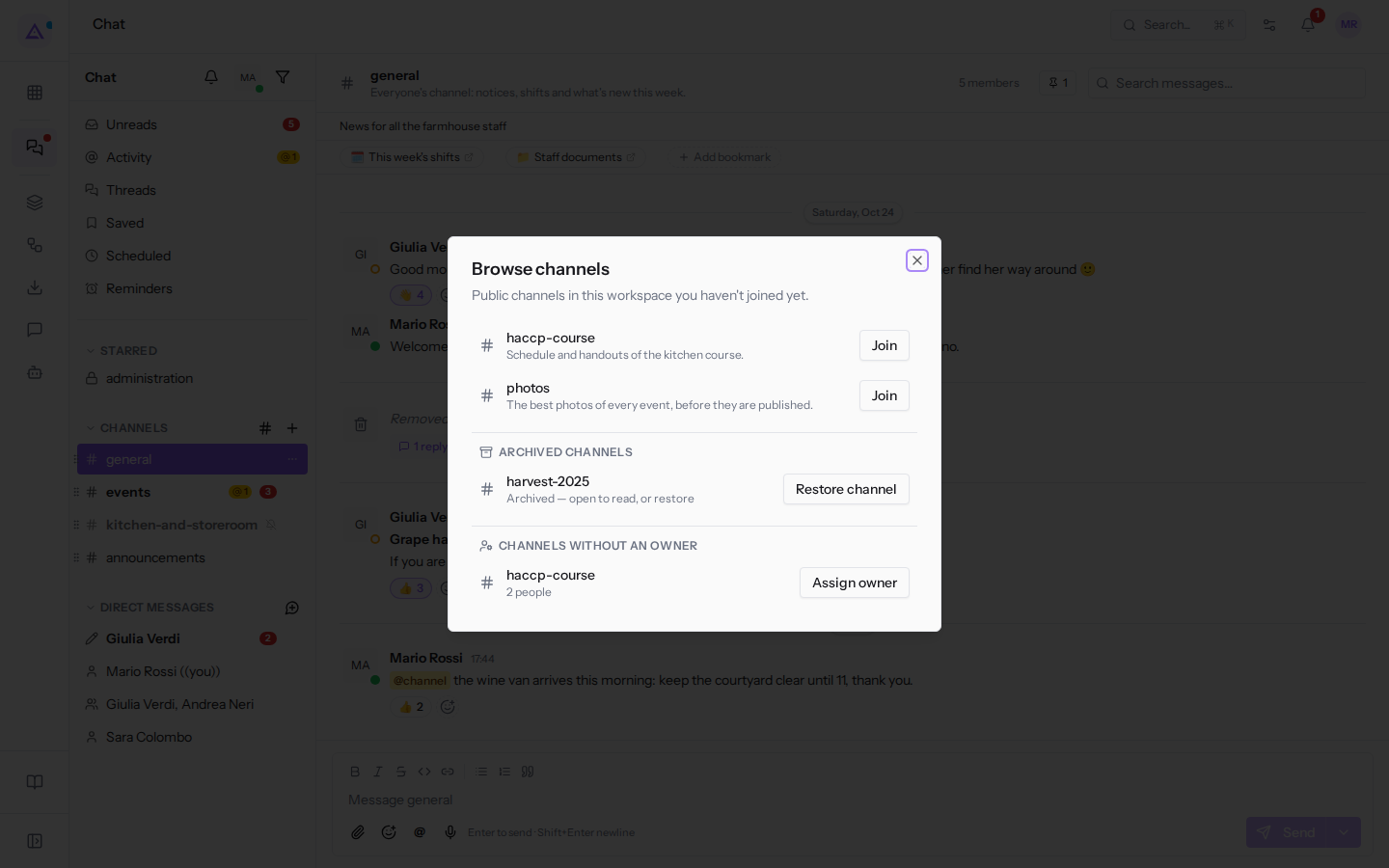
- In the sidebar, next to CHANNELS, click the «#» icon.
- The Browse channels dialog shows «Public channels in this workspace you haven't joined yet.», for example
haccp-courseandphotos, each with its description. - Click Join next to the channel to join immediately.
If you click the channel name without joining, the channel opens in preview. The header shows its name, description, and member count (in photos, 2 members). At the bottom there is the Join channel button.
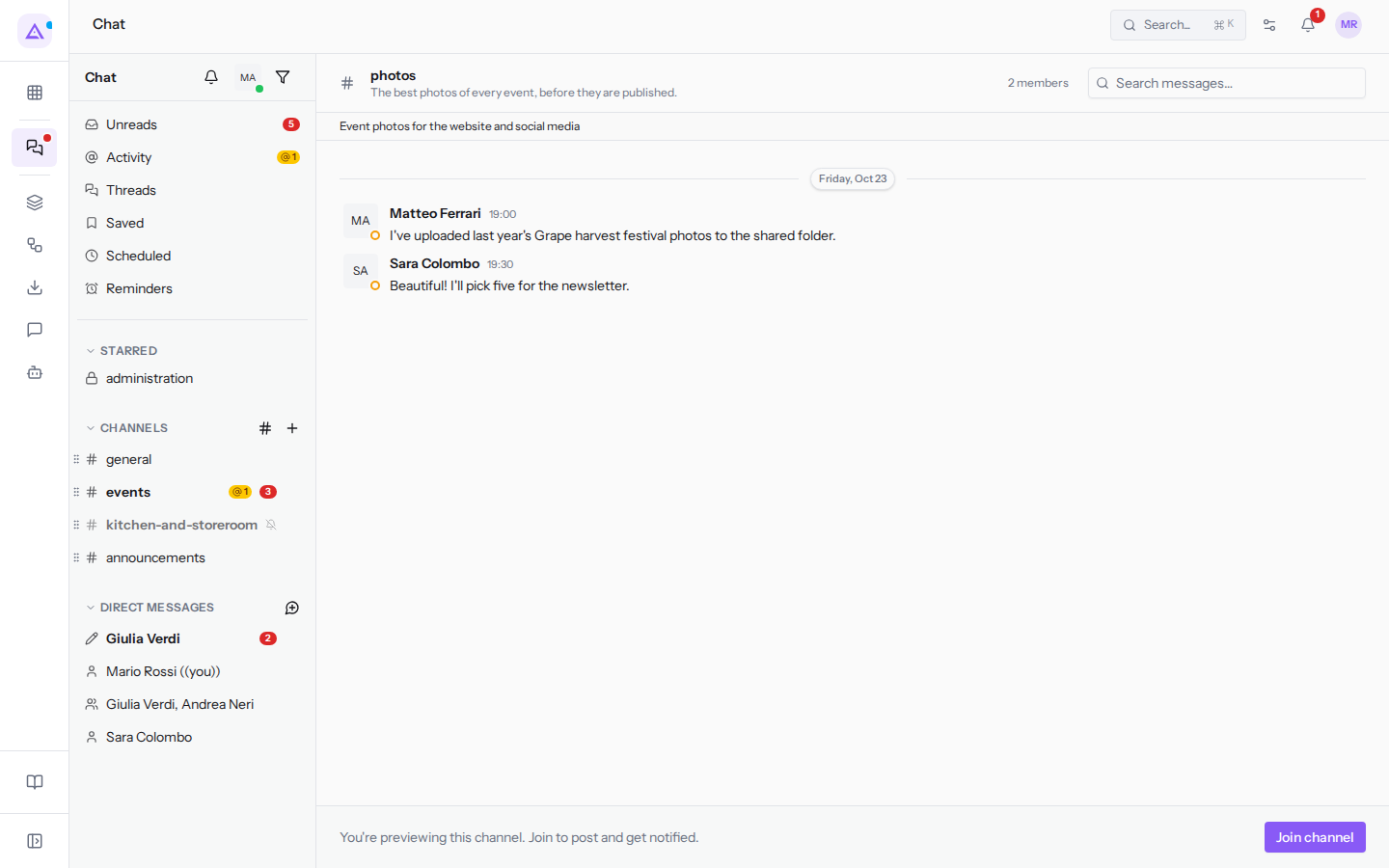
In preview you can read messages, but you cannot write, the channel does not appear in the sidebar, and you receive no notifications. Use the preview to decide whether a channel is right for you before joining.
The Browse channels dialog can have two more sections. ARCHIVED CHANNELS, with Restore channel, is visible only to those with the «Chat Manager» group. CHANNELS WITHOUT AN OWNER, with Assign owner, is visible only to the organisation's owners and administrators.
Creating a channel
Create a channel when a topic needs a permanent place to be discussed.
Who can create public and private channels is determined by the organisation's chat rules. In this organisation only owners and administrators can create private channels: other users do not see the Private channel (members only) checkbox and the dialog states «You can create public channels only.». Whoever creates the channel becomes its owner.
- In the sidebar, next to CHANNELS, click the «+» icon.
- In the New channel dialog fill in the fields.
- Click Create, or Cancel to close without creating.
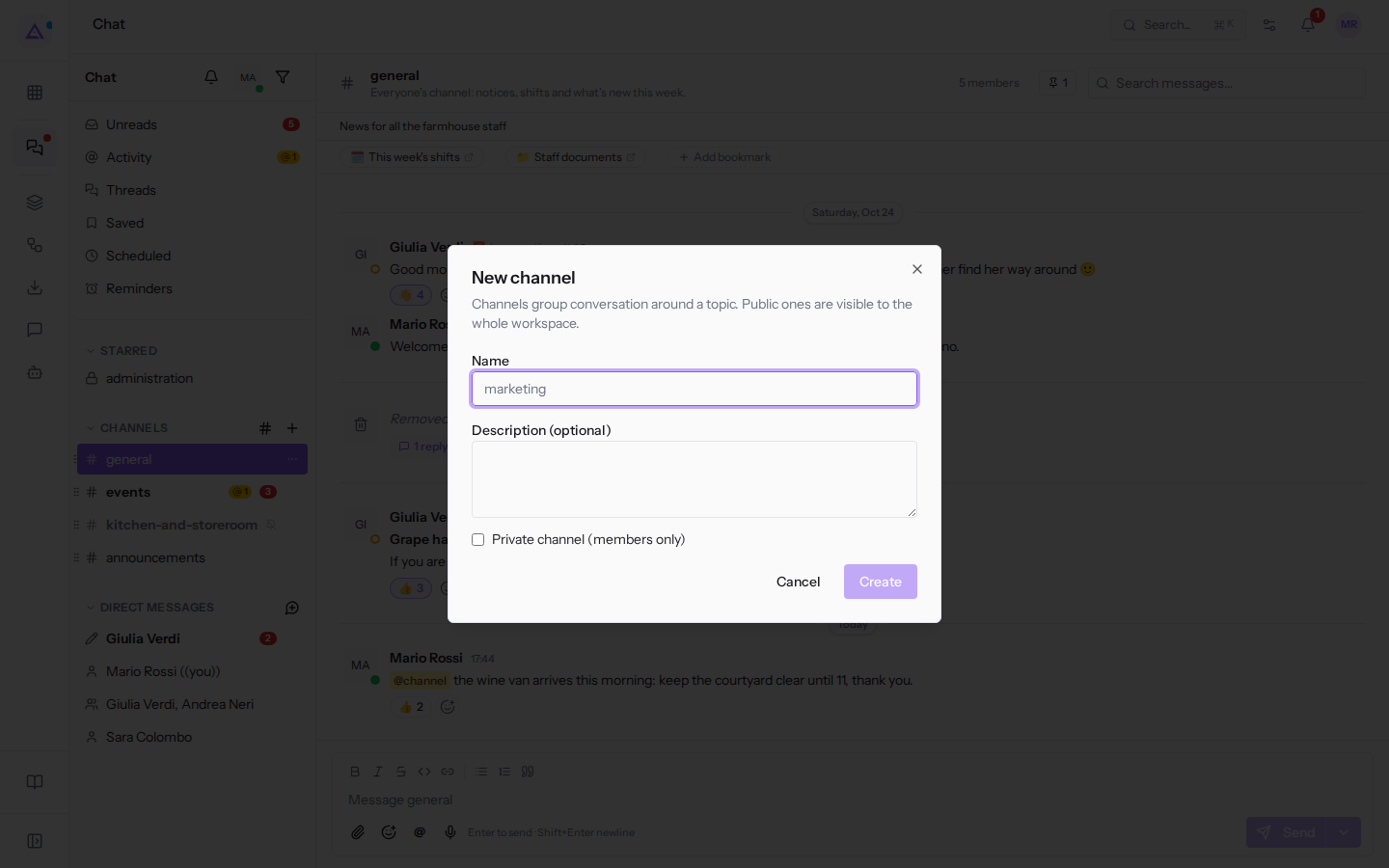
The dialog states «Channels group conversation around a topic. Public ones are visible to the whole workspace.»
- Name: the channel name, for example
events. - Description (optional): a sentence about the channel's topic, for example
The best photos of every event, before they are published. - Private channel (members only): a checkbox, deselected by default. Enable it to create a channel visible only to members. Leave it deselected for a public channel. Remember that a public channel can later be made private, but not the other way around.
Starting a direct message or group
Use the same dialog to write to one person, several colleagues, or yourself.
- In the sidebar, next to DIRECT MESSAGES, click the speech-bubble icon with the «+».
- The Start a direct message dialog opens: «Pick one person for a 1-1 DM, or up to 7 colleagues for a group chat.»
- Search for a person in the Search by name or email… field or choose them from the list. The list shows the name and email of each colleague and, at the top, the entry
Mario Rossi (you)for notes.
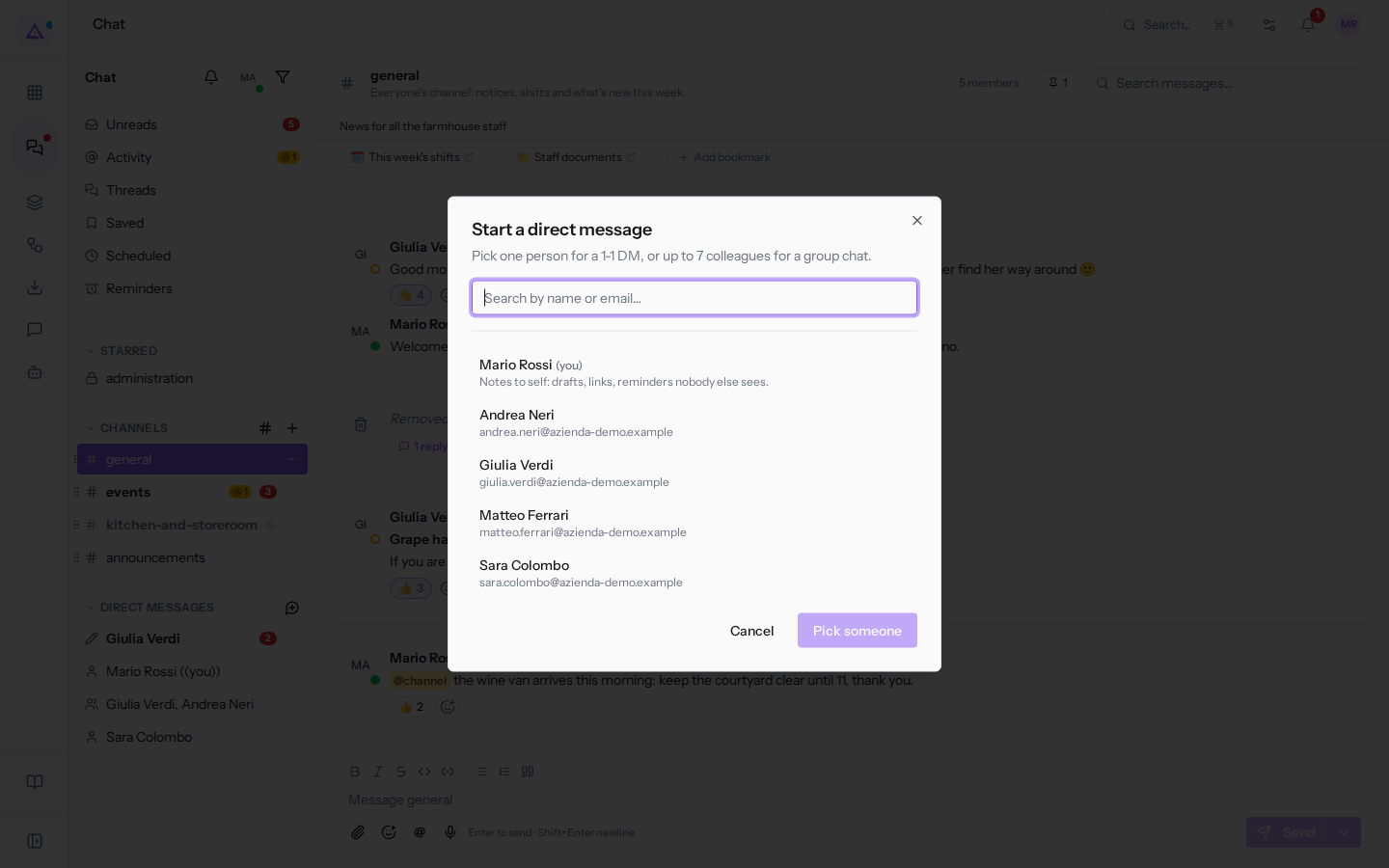
Until you choose someone, the confirm button shows Pick someone.
Message to one person
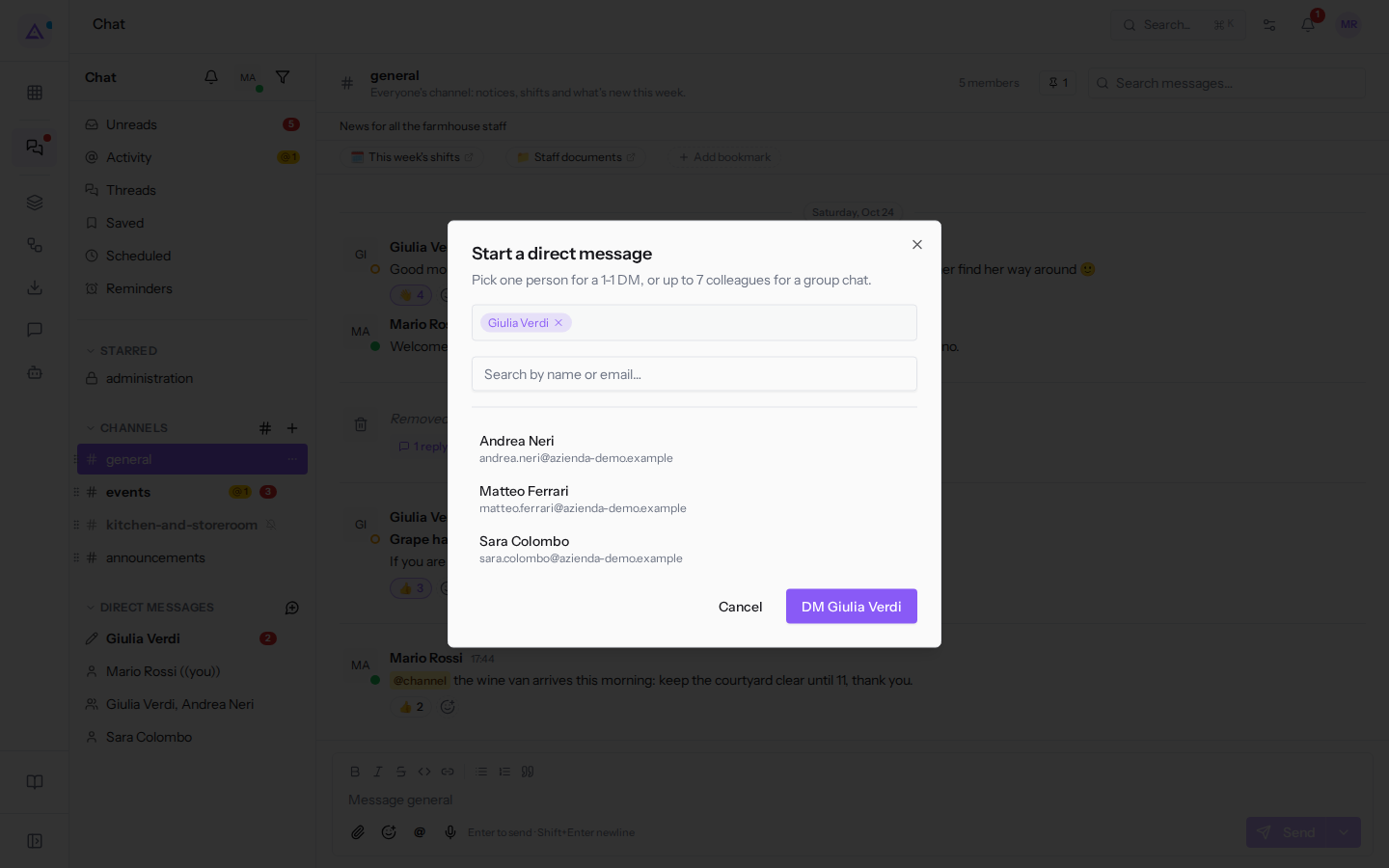
- Choose a colleague, for example
Giulia Verdi. Their name appears at the top with a «×» to remove them. - Click DM Giulia Verdi.
Group conversation
- Choose the first colleague, for example
Giulia Verdi, then the others, for exampleAndrea Neri. - With two or more people the dialog title becomes New group conversation.
- Click Start group with 2 people. The number follows the people chosen, and at the bottom left «Group of 3» also counts you.
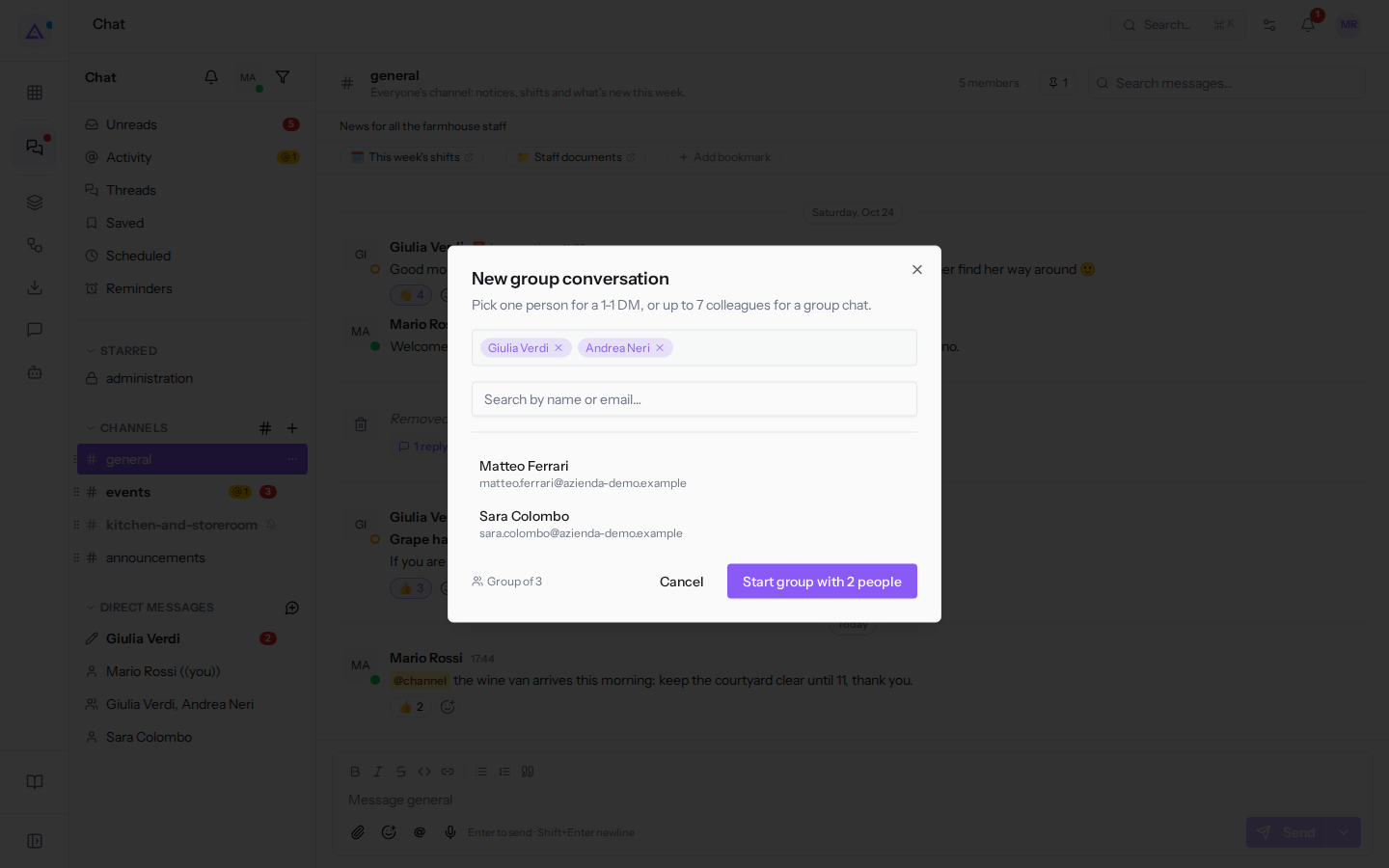
A group has at most 7 colleagues besides yourself and cannot be renamed. If a topic involves more people or needs to last over time, create a channel.
Notes for yourself
- In the dialog choose the entry
Mario Rossi (you). - The conversation appears in DIRECT MESSAGES as «Mario Rossi ((you))». What you write there only you can see: it is handy for jotting down a link or drafting a message before sending it to a channel.
See it on your company, not on a slide deck.
In 30 minutes we map the software you use today.We show you how much work and how much margin Archimedes gives back.
Show me on my business →What industry are you in?
One tap — it lets us prepare the demo around your world.
What tools do you use today?
Pick the ones you recognise — or just type them. It helps us show you how they migrate.
Last step: your details.
We reply within one working day — and right after, if you like, you pick the demo slot yourself.
We couldn't send your request. Try again, or write to us at [email protected].
By sending, you agree to your data being processed so we can get back to you about the demo. Privacy notice.
Preview form — nothing is sent from this page.
Want to schedule the demo now?
Your call: book the slot you prefer yourself, or we'll call you to arrange it.
Live availability, 30 minutes, instant confirmation. The calendar opens in a new tab.
Lock in your slot ↗We'll get back to you within one working day — and we'll join the call already knowing your world.
The calendar is open in another tab: pick a slot and the demo is booked. Can't see it? Reopen it ↗
Preview page: nothing was sent.
Our calendar is live: take the slot that suits you and the demo is booked. 30 minutes, instant confirmation, no waiting.
Lock in your slot ↗