Chat
All modules
Managing a channel: details, members and permissions
Chat · 12 of 16 · 10 min read
Every channel has a details dialog that brings together the name, topic and description, the members with their roles, shared files and settings. Anyone in the channel can open it and consult it; modifying the channel, on the other hand, is the job of its owners and administrators. For them it is the place to add colleagues, decide who manages the channel and who can write, for example to make #announcements a channel where only management can write.
Opening the channel details
The dialog has four tabs: About, Members, Files and Settings. It opens in two ways.
- Open Chat and choose the channel in the sidebar, for example
#events. - Click the channel name in the conversation header. Alternatively, in the sidebar hover over the channel row, click the «…» icon (Conversation options) and choose Channel details.
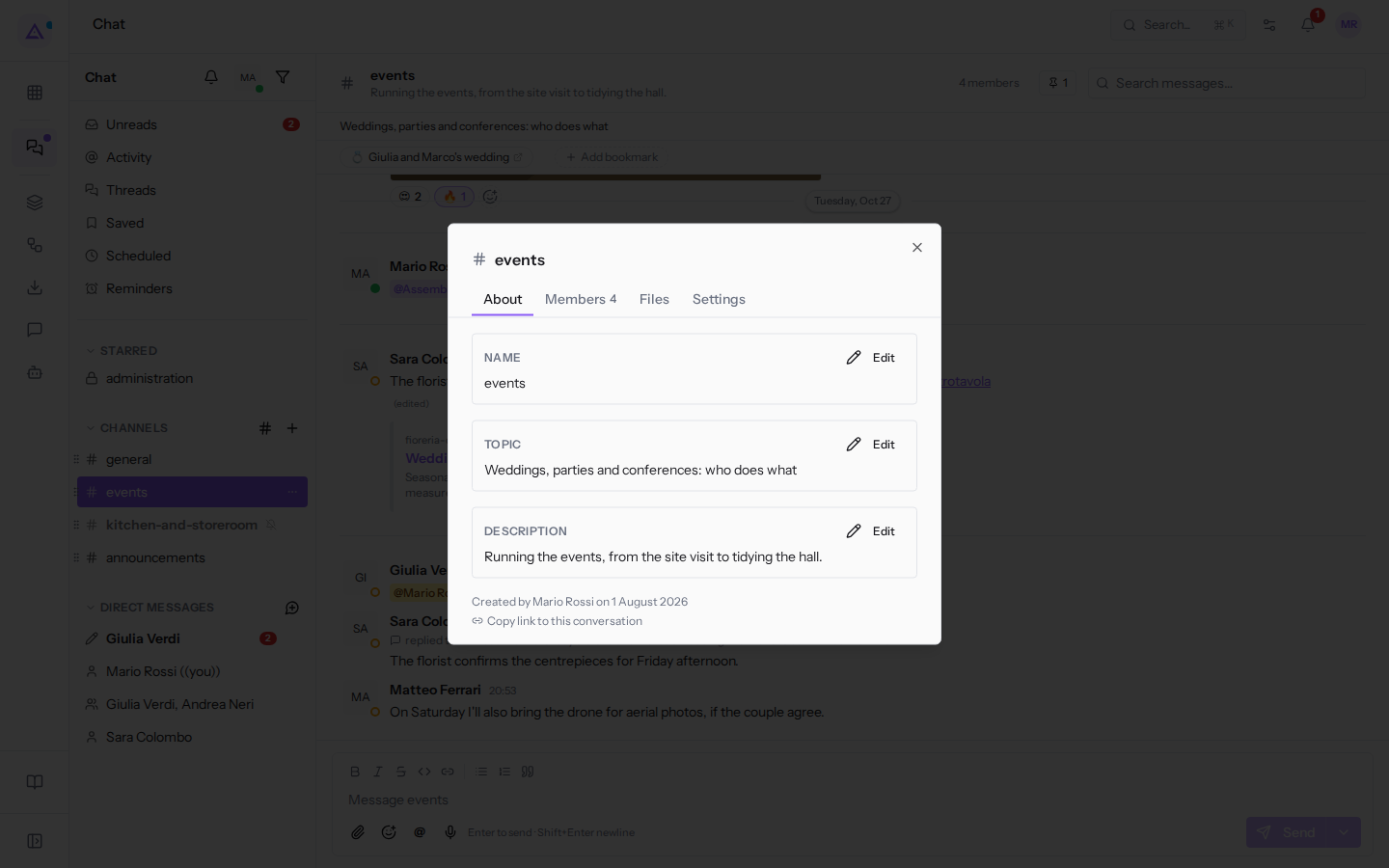
Next to the Members tab name is the member count: 4 for #events.
About tab: name, topic and description
The About tab shows the data that introduce the channel to whoever opens it. Channel owners and administrators see the Edit button next to each item; other members can only read them.
- Name: the name by which the channel appears in the sidebar and in links (
events). Two channels in the organisation cannot have the same name. - Description: what the channel is for, and is meant to stay stable: in
#eventsit readsRunning the events, from the site visit to tidying the hall.It appears in the header, below the name, and in Browse channels it helps colleagues understand whether the channel concerns them. - Topic: what is being discussed right now, and is meant to change frequently, such as
Weddings, parties and conferences: who does what. It appears in the row below the conversation header.
Below the fields the tab shows who created the channel and when, for example «Created by Mario Rossi on 1 August 2026». Copy link to this conversation copies the channel address: pasted into a message or a document, it takes colleagues directly to the channel, if they can see it.
To change the topic:
- Click Edit next to Topic.
- Type the new text in the What is this channel about right now? field.
- Click Save, or Cancel to leave the topic as it was.
The new topic appears immediately to all members. It can also be changed without opening the dialog: owners and administrators click the row below the header and edit it there (Click to edit topic). In a channel that does not yet have a topic, such as #administration, the row invites them to do so with Set a topic for this channel. For other members the row shows the topic but cannot be edited, and if the topic is missing it does not appear.
Members tab: roles and permissions
Each member of a channel has one of three roles. The roles only apply within that channel and do not depend on the role in the organisation. The Members tab lists the members with their email address; OWNER or ADMIN appears next to the name, while plain members have no label. In #events Mario Rossi is the owner, Giulia Verdi is an administrator, Sara Colombo and Matteo Ferrari are members.
- Owner: is responsible for the channel. Does everything an administrator does and in addition can assign any role, including the owner role, and can remove the role from another owner. Whoever creates a channel becomes its owner. A channel can have multiple owners, but must always have at least one.
- Admin: helps manage the channel. Adds and removes members (not owners), edits the name, description and topic, decides who can write, makes the channel private and archives it. On roles, the only thing they can do is make a member an administrator.
- Member: reads, writes (if the channel is not reserved for owners and administrators), reacts and replies in threads, but does not change the channel settings.
If you want to entrust a colleague with the day-to-day management of the channel, make them an administrator. If they also need to be able to decide on roles, or if you are about to leave the channel and someone needs to remain responsible for it, make them an owner.
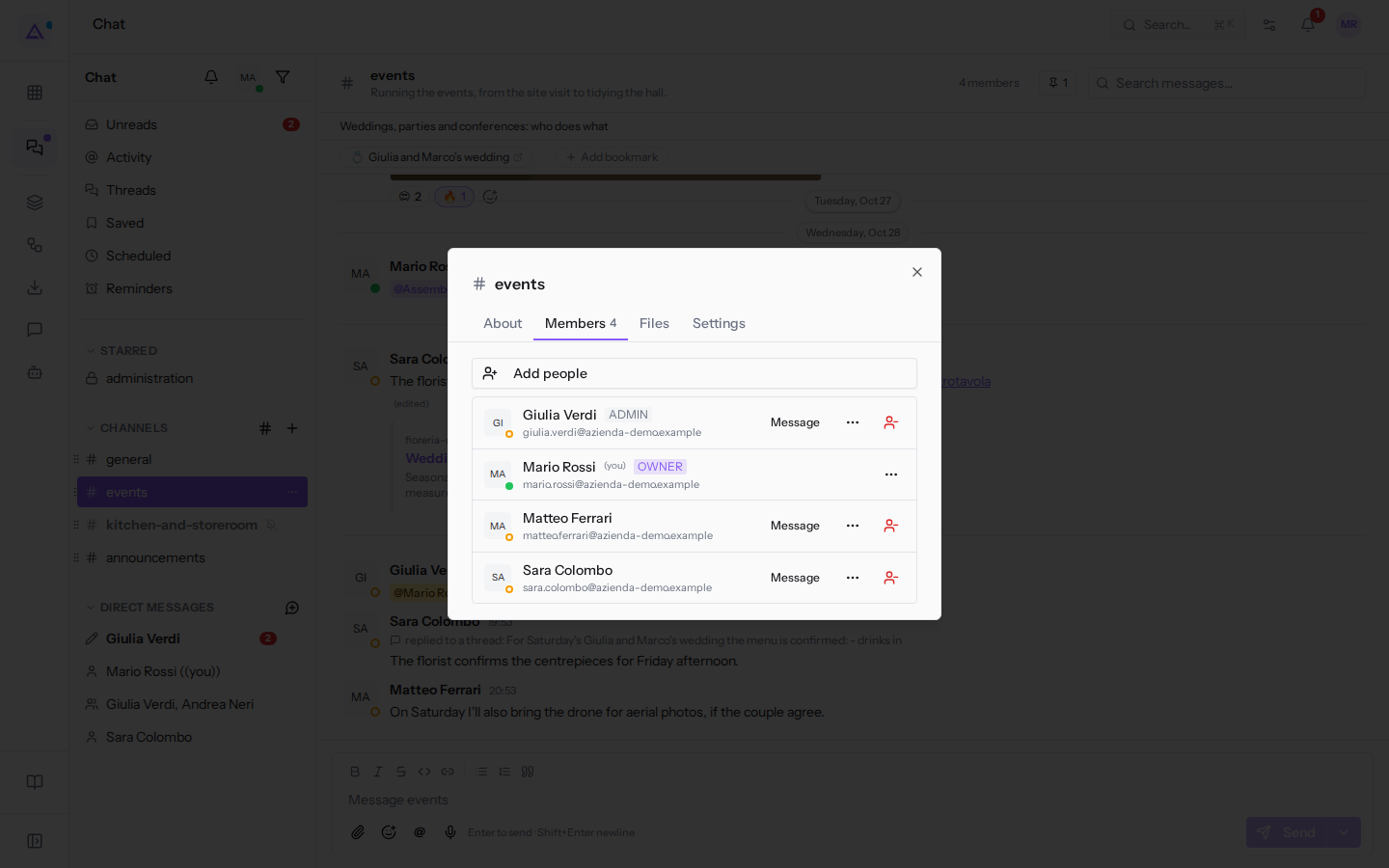
Next to each colleague is the Message button, which opens the direct message with that person. The Add people button, the «…» icon to change role and the red icon to remove appear only to channel owners and administrators.
Adding people
- In the Members tab click Add people. The Add member to channel dialog opens.
- Search for the colleague in the Search by name or email… field. The list shows only those who are not already in the channel: for
#events, Andrea Neri. - Click the colleague's name. They immediately join the channel as a member, find it in their sidebar and from that moment receive notifications according to their notification settings.
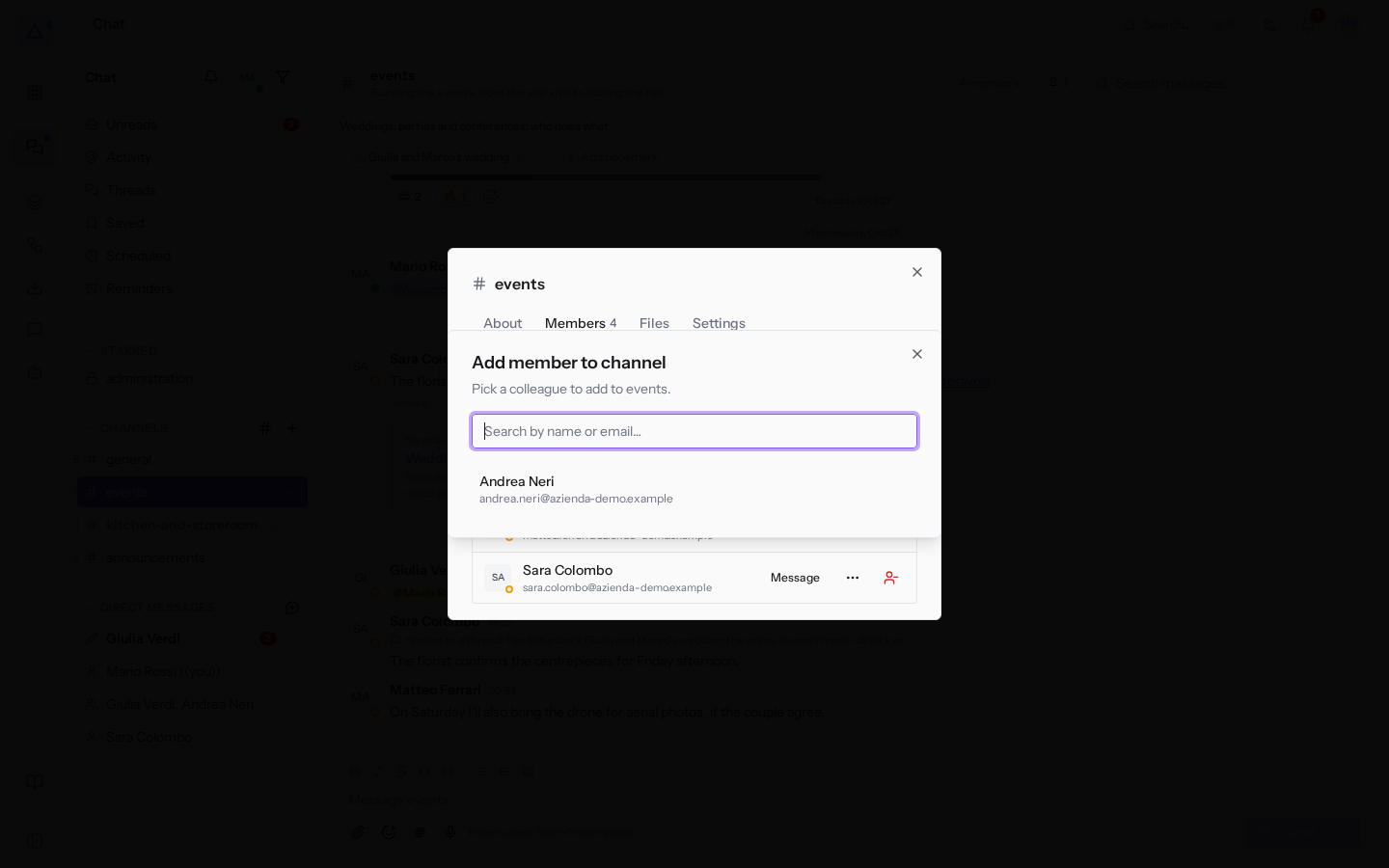
If you search for someone who is already in the channel, the dialog responds «Everyone matching is already in this channel.»
Changing a member's role
- In the Members tab click the «…» icon next to the colleague, for example Matteo Ferrari.
- Choose the new role from Make owner, Make admin and Make member. The menu offers only the changes you can make: an owner sees the roles the colleague does not already have; an administrator sees the icon only next to members and can only make them administrators.
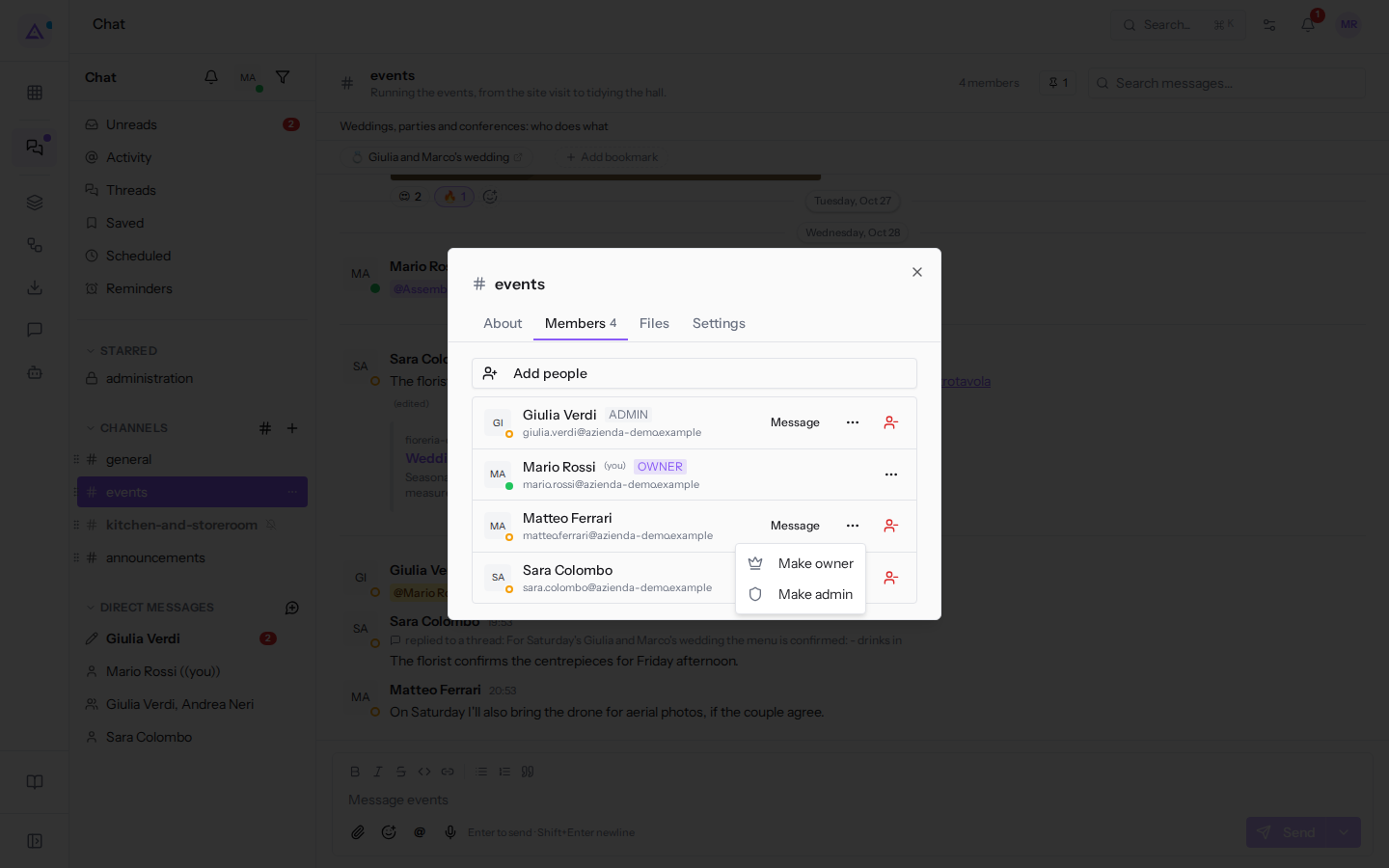
The switch between member and administrator happens immediately. When the change concerns ownership the chat asks for confirmation, because it is the hardest change to undo: making someone an owner opens the question «Make Matteo Ferrari an owner?» and reminds you that owners can change anyone's role, archive the channel and transfer it; removing the role from an owner reminds you that at least one other owner must remain. If you try to remove the role from the only owner, the chat refuses with «A channel needs an owner. Make someone else owner first.»
Removing a member
- In the Members tab click the red icon with the person and the minus sign (Remove from channel) next to the colleague. The icon is not shown next to owners: their role must be removed first.
- Confirm at the question «Remove Matteo Ferrari?». The colleague leaves the channel and no longer sees new messages. You can add them back at any time; from a public channel they can also return on their own via Browse channels, in a private one only if an owner or admin of the channel adds them.
The members panel
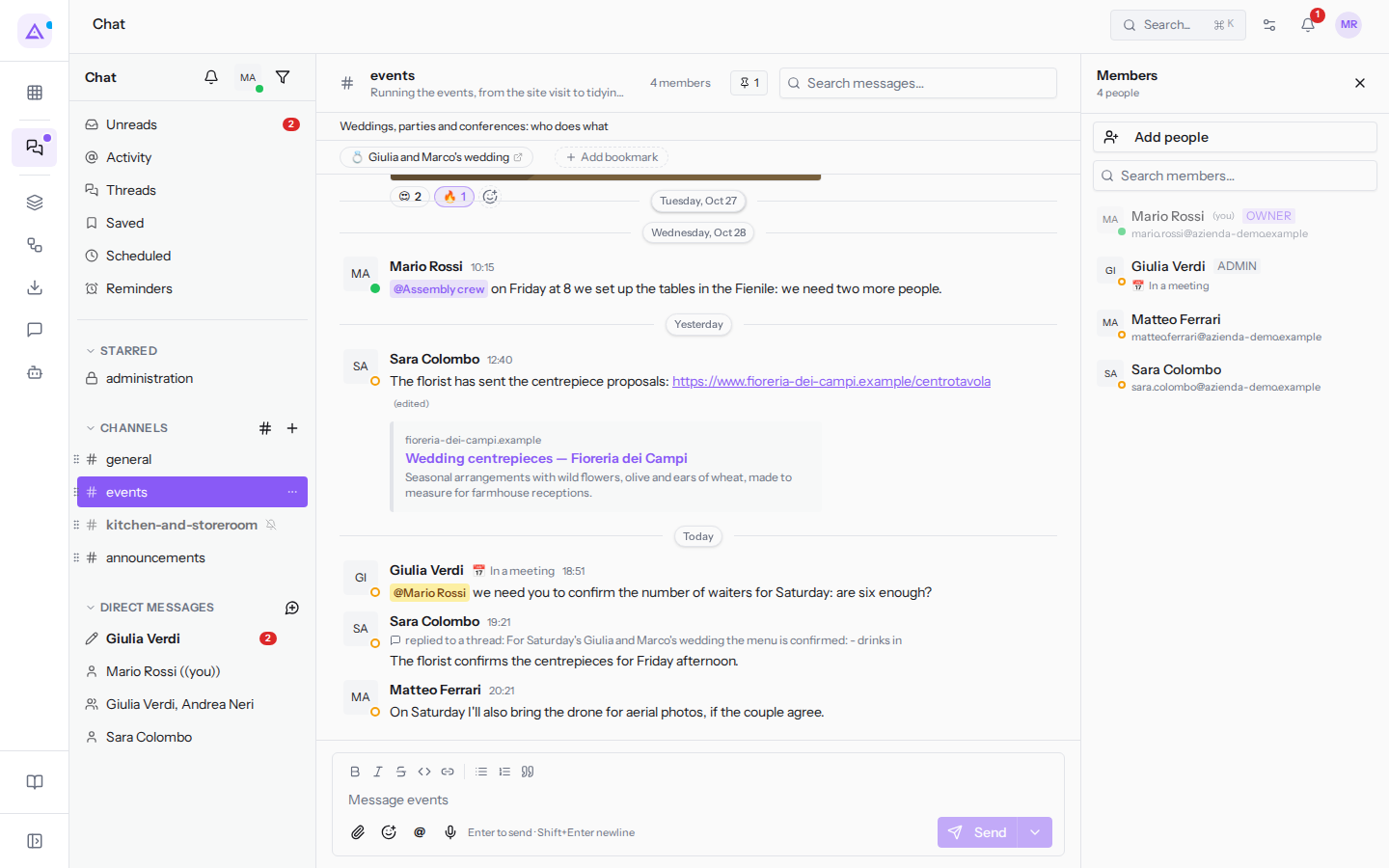
To see who is in the channel without leaving the conversation, use the members panel: it stays open on the right while you read and write.
- Click the member count in the header, for example 4 members in
#events. - The Members panel opens on the right. Search for a person using the Search members… field.
The panel shows the role and status of each person, for example Giulia Verdi «In a meeting». The green dot next to the avatar indicates who is online. For owners and administrators the panel also offers Add people.
Files tab
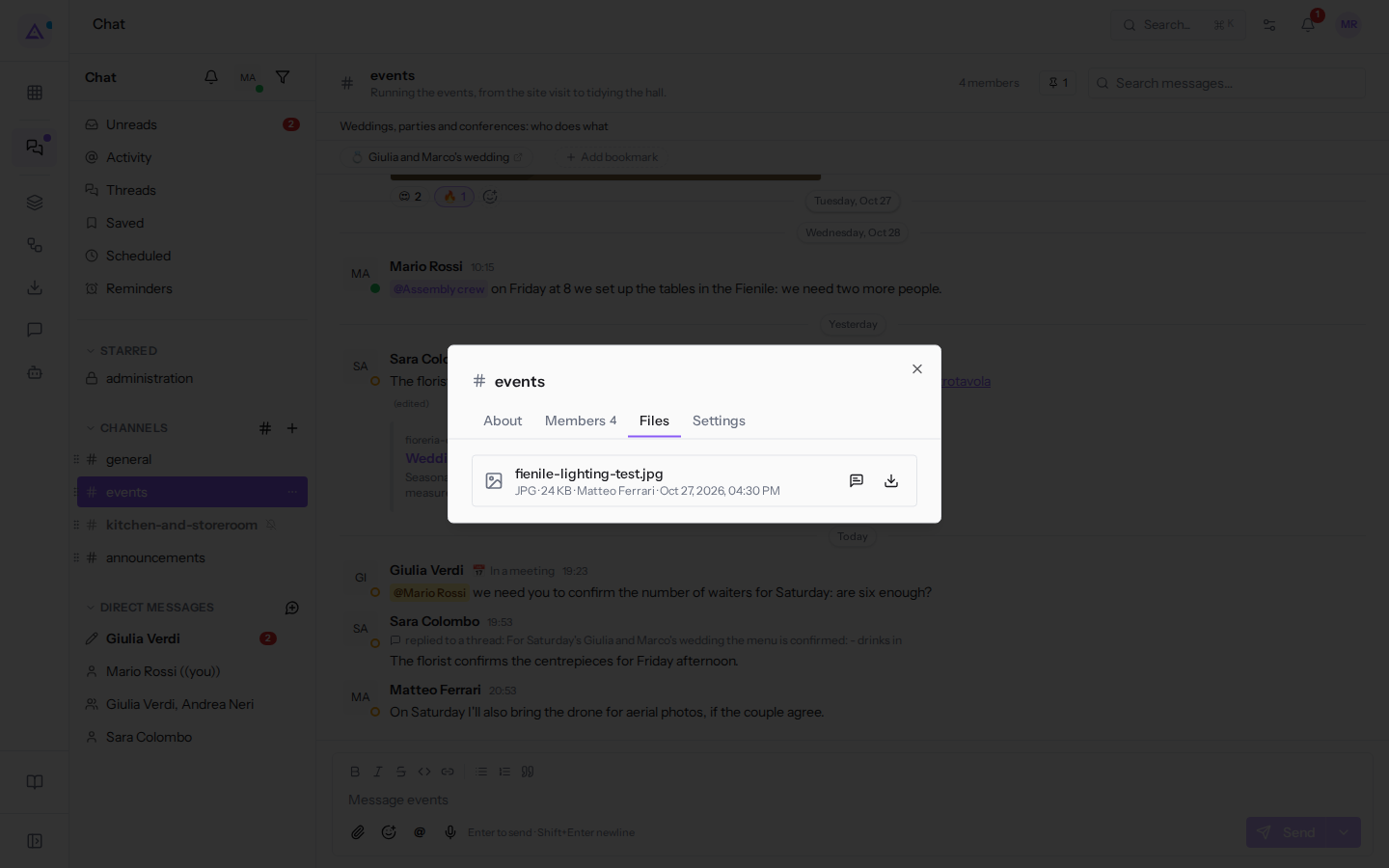
The Files tab lists the files shared in the channel, with name, type, size, author and date, for example fienile-lighting-test.jpg by Matteo Ferrari in #events. It is used to find an attachment without scrolling through the conversation.
The most recent files are at the top. When they do not fit on one page, Newer and Older appear at the bottom to move between pages. Next to each file there are two icons:
- the speech bubble (Show in conversation) takes you to the message where the file was shared, so you can also see what was being said;
- the downward arrow (Download) saves the file to the computer.
If no files have been shared in the channel, the tab shows No files have been shared here yet.
Settings tab
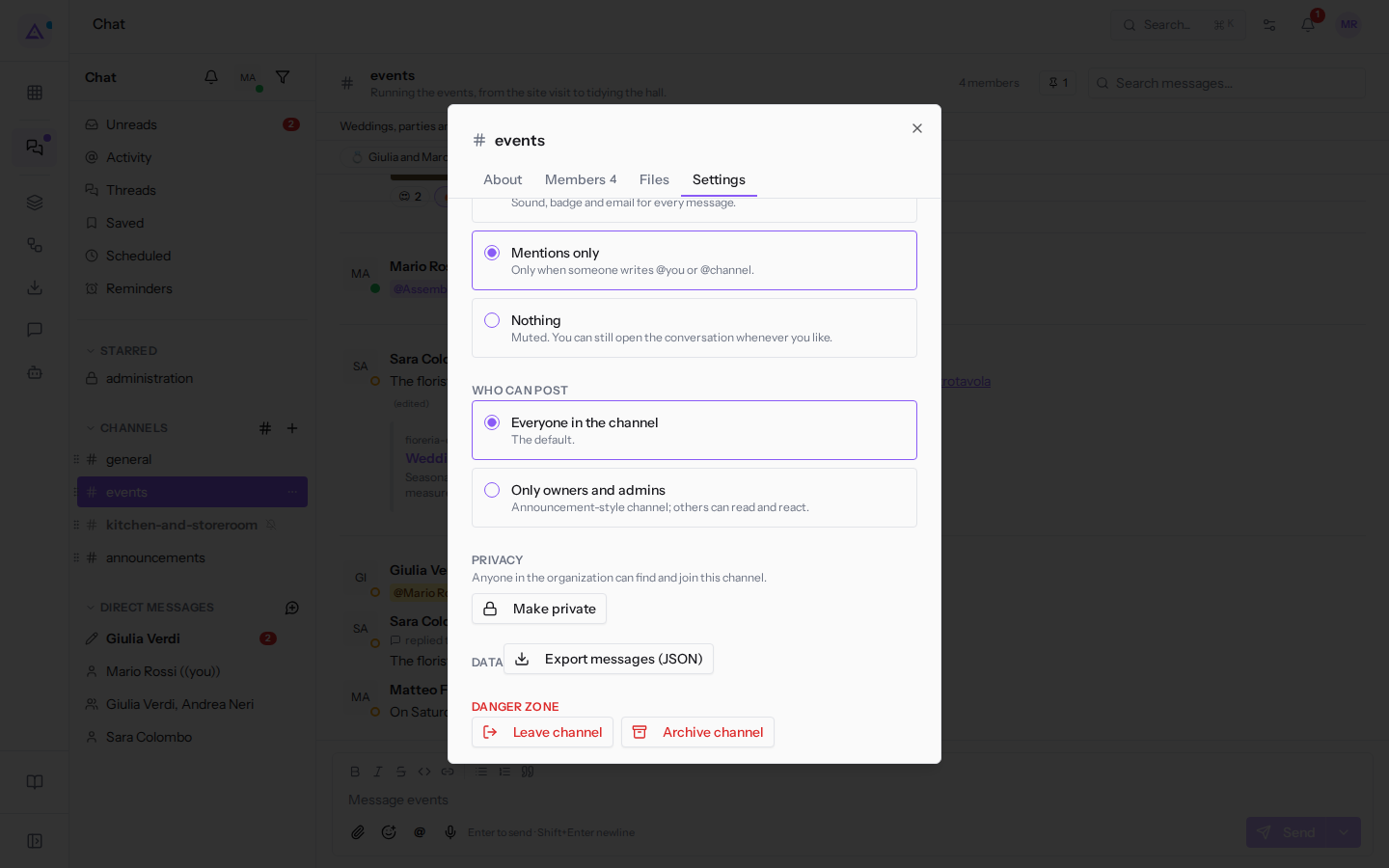
The Settings tab brings together two types of choices. Notifications apply only to you, and each member chooses their own. The rest applies to the whole channel: someone who is not an owner or administrator sees Who can post without being able to change it and does not see either Privacy or Archive channel.
Notifications
They determine when this channel notifies you with sound, a bell notification, a desktop notification or email. Other members cannot see your choice.
- All new messages: notifies you of every message. Suited to a channel you work in every day.
- Mentions only: the default setting for channels. You are only notified by messages that mention you, those with @channel, @here or @all, and replies in threads you participate in.
- Nothing: the channel never notifies you, not even for mentions. New messages are still there to read when you open it.
The difference from muting and from pausing notifications is explained in Choosing notifications, muting conversations and setting your status.
Who can post
This setting determines who can write in the channel for all members.
- Everyone in the channel: the default setting. Every member can write.
- Only owners and admins: announcement-style channel; others read and react.
If the channel is used for official communications, such as #announcements, choose Only owners and admins. If it is used for working together, such as #events, leave Everyone in the channel. Only channel owners and administrators can change this setting.
In #announcements Giulia Verdi, the channel owner, can write; other members, instead of the writing box, see «Only channel admins can post here. You can still react and reply in threads.» The text mentions only admins, but both the channel's owners and its administrators can write.
Making the channel private
A public channel can be found by anyone in the organisation in Browse channels: they can read it and join on their own. A private channel is visible only to its members, and you can only join if an owner or admin of the channel adds you. Make a channel private when what is written there should stay among a small group, for example when a channel created for everyone starts being used to discuss prices or customer data.
The Privacy section only appears in public channels and only to channel owners and administrators.
- Click Make private.
- A confirmation opens, for example Make #events private?. Read the consequences and click Make private to confirm, or Cancel.
After confirmation, anyone who is not a member can no longer find the channel and cannot join, and only the channel's owners and admins can add people. Those already in the channel remain and receive a bell notification.
The action cannot be undone: a private channel cannot become public again.
Exporting messages
Export messages (JSON), in the Data section, downloads all the channel's messages to a JSON file, with author, date and time and any edit date; deleted messages are not included. It is useful for keeping a copy of the conversation or passing it to another programme: it is a format for computer systems, not a document to read. All channel members can export.
Danger zone
The Danger zone section contains two actions, each with a confirmation.
- Leave channel: you leave the channel and stop receiving its messages; for others the channel remains as it is. The confirmation asks Leave this channel?. You can rejoin a public channel from Browse channels; in a private channel you can only rejoin if an owner or admin of the channel adds you again. The sole owner cannot leave: they must first make someone else an owner, otherwise the chat responds with «A channel needs an owner. Make someone else owner first.» This is the case of Mario Rossi in
#events. - Archive channel: appears only to owners and administrators. The confirmation asks Archive this channel?. The channel disappears from everyone's sidebar, no one can write in it any more and the history remains readable until someone restores it. The details are in Archiving, restoring and leaving a channel.
Leave channel can also be found in the «…» menu (Conversation options) of the channel row in the sidebar.
See it on your company, not on a slide deck.
In 30 minutes we map the software you use today.We show you how much work and how much margin Archimedes gives back.
Show me on my business →What industry are you in?
One tap — it lets us prepare the demo around your world.
What tools do you use today?
Pick the ones you recognise — or just type them. It helps us show you how they migrate.
Last step: your details.
We reply within one working day — and right after, if you like, you pick the demo slot yourself.
We couldn't send your request. Try again, or write to us at [email protected].
By sending, you agree to your data being processed so we can get back to you about the demo. Privacy notice.
Preview form — nothing is sent from this page.
Want to schedule the demo now?
Your call: book the slot you prefer yourself, or we'll call you to arrange it.
Live availability, 30 minutes, instant confirmation. The calendar opens in a new tab.
Lock in your slot ↗We'll get back to you within one working day — and we'll join the call already knowing your world.
The calendar is open in another tab: pick a slot and the demo is booked. Can't see it? Reopen it ↗
Preview page: nothing was sent.
Our calendar is live: take the slot that suits you and the demo is booked. 30 minutes, instant confirmation, no waiting.
Lock in your slot ↗