Chat
All modules
Catching up with Unreads and Activity
Chat · 8 of 16 · 6 min read
The Unreads and Activity pages of the chat gather everything you missed in one place, without having to open conversations one by one. They're useful after a meeting, when coming back from holiday, or at the start of a shift.
Choose the page based on what you're looking for:
- If you want to read all new messages in your conversations, open Unreads.
- If you only want to see what concerns you — that is, who mentioned you, replies to threads you follow, and messages you reacted to — open Activity.
- If you want to keep using the sidebar but with fewer rows, enable the unread filter.
How chat counts unread messages
A message becomes read when you open the conversation that contains it: you don't need to scroll to the bottom. When you return to a conversation with new messages, the «New messages» line marks where you left off. Thread replies are read by opening the thread, except for those the author also sent to the channel.
In the sidebar, a conversation with messages to read is in bold with the count in red, such as #events with 3 and Giulia Verdi with 2; the Unreads item shows the total. A mention for you adds the yellow @ badge to the conversation and to the Activity item. Muted conversations, such as #kitchen-and-storeroom, do not count towards totals and do not appear on the Unreads page.
To mark all conversations as read at once, press Shift+Esc.
Reading unread messages
The Unreads page shows all unread messages in a single list, grouped by conversation. A message you mark as read here is also marked as read in the conversation.
- Open Chat.
- In the sidebar, click Unreads.
- Read the messages in each group. To open a conversation, click its name in the group header.
- When you're done with a group, click Mark as read. To close all groups at once, click Mark all as read.
The page contains:
- Header: the Unreads title, the total number of unread messages (for example 5 unread) and the Mark all as read button. The count and button only appear if there are unread messages.
- Conversation group: the icon for the conversation type (channel, private channel with a lock, direct message, or group), the conversation name, the count of its unread messages, and the Mark as read button.
- Messages: the unread messages, one below the other, as they appear in the conversation. From a message with replies you can open its thread.
- Open the conversation for the rest: the page shows at most 25 messages per conversation; if there are more, this link appears and opens the conversation.
When you have no messages to read, the page shows You're all caught up.
Mark as read marks the conversation as read up to its last message, even if you haven't opened it: use it when you've already read here what you needed.
Seeing what concerns you on the Activity page
The Activity page gathers what is addressed to you, divided into three tabs. Clicking a row opens the conversation at the message.
- Open Chat.
- In the sidebar, click Activity. The page opens on the Mentions tab.
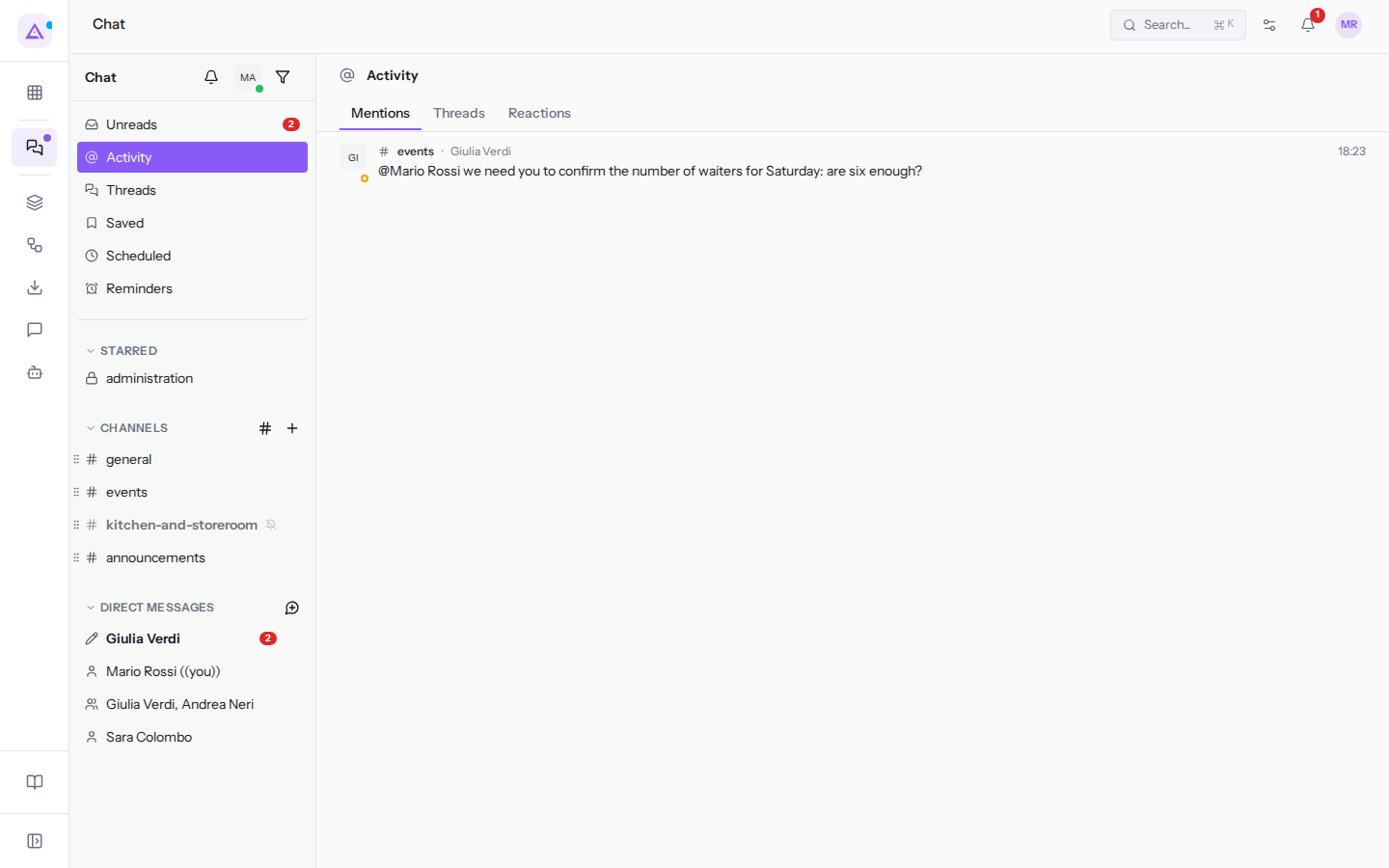
- Choose the Mentions, Threads, or Reactions tab.
- Click a row to go to the message.
Each row shows the conversation, the message author, the time, and the message text.
Mentions tab
The Mentions tab lists the messages in which someone mentioned you — that is, those directly asking something of you. In #events, for example, Giulia Verdi writes to Mario Rossi: «@Mario Rossi we need you to confirm the number of waiters for Saturday: are six enough?».
- Next to the tab name, the number of unread mentions appears, if there are any.
- With no mentions, the tab shows Nobody has mentioned you yet. When someone writes @you, it lands here.
Threads tab
The Threads tab lists the threads you started or replied to — that is, the discussions you follow: you can also get here from the Threads item in the sidebar. For example the thread by Giulia Verdi in #events on the menu for Giulia and Marco's wedding.
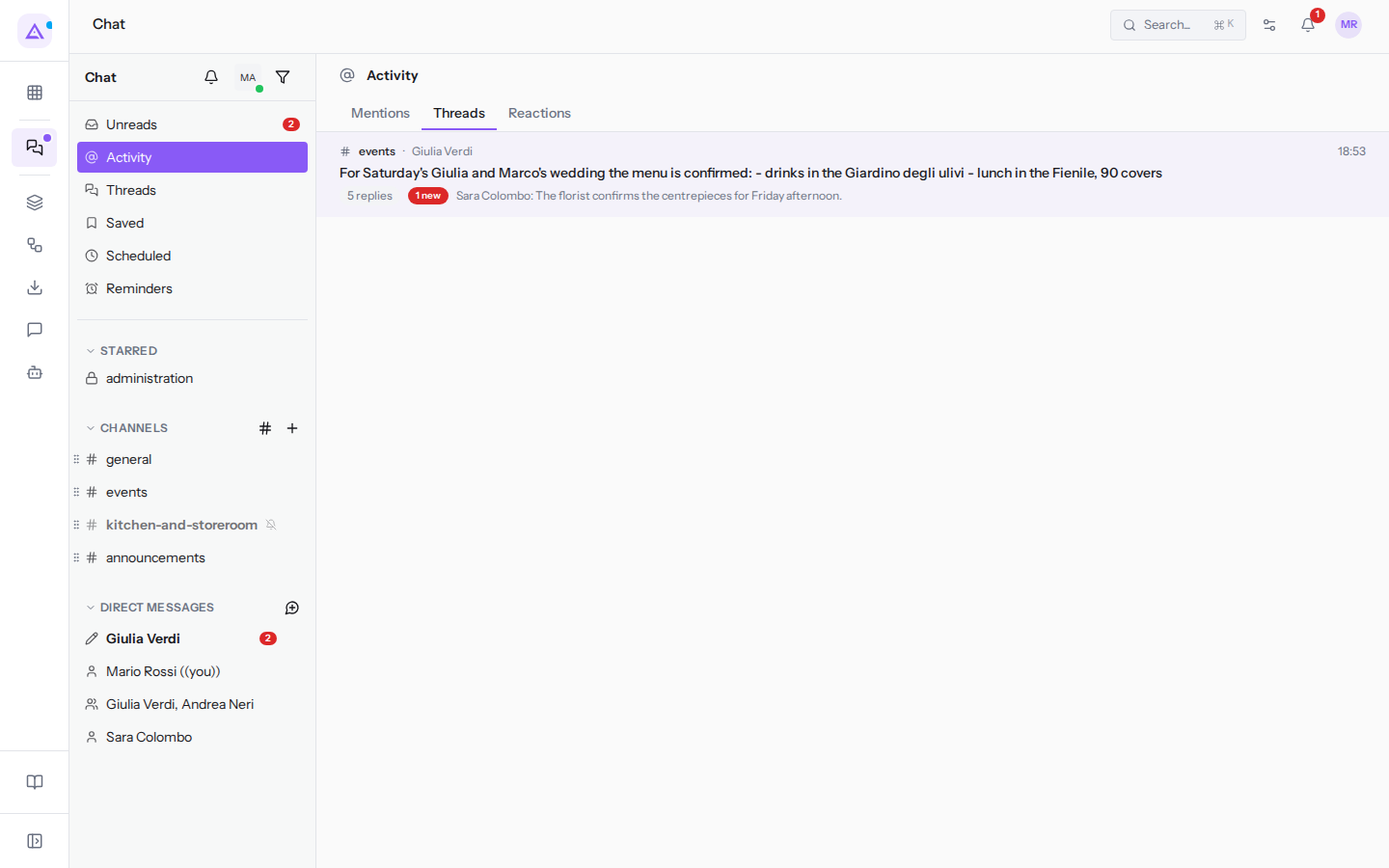
For each thread, the row shows:
- the first message of the thread;
- the number of replies, for example 5 replies;
- the number of replies you haven't read yet, in red, if there are any; the row is highlighted;
- the author and the beginning of the last reply, for example Sara Colombo.
Clicking a thread opens the conversation with the thread panel on the right. With no threads, the tab shows No threads yet. Threads you start or reply to show up here.
Reactions tab
The Reactions tab lists the messages you reacted to, with the emoji of your reaction: it's useful for finding a message you approved without replying. For example the 🔥 to the photo of the Fienile by Matteo Ferrari in #events and the 👋 to the welcome message by Giulia Verdi in #general.
With no reactions, the tab shows Messages you react to are collected here.
Marking a conversation as unread
If you've opened a conversation but still need to deal with it, mark it as unread: it stays bold in the sidebar and appears on the Unreads page until you open it again.
- In the sidebar, hover over the conversation and click the three-dot icon (Conversation options).
- Choose Mark as unread. The last message from your colleagues becomes unread again.
The same menu also contains Star, Mute conversation, Channel details (or Conversation details), Copy link, and, on channels, Leave channel.
To make the conversation unread from a specific message onwards, hover over that message, open the three-dot icon, and choose Mark unread from here; the chat confirms with «Marked unread from here». This option is only available on other people's messages.
Showing only unread conversations
The filter hides conversations with nothing to read from the sidebar: useful when you're in many channels and only want to see where there's something new.
- At the top of the sidebar, click the funnel icon (Show only unread). «Unread only» appears next to the icon.
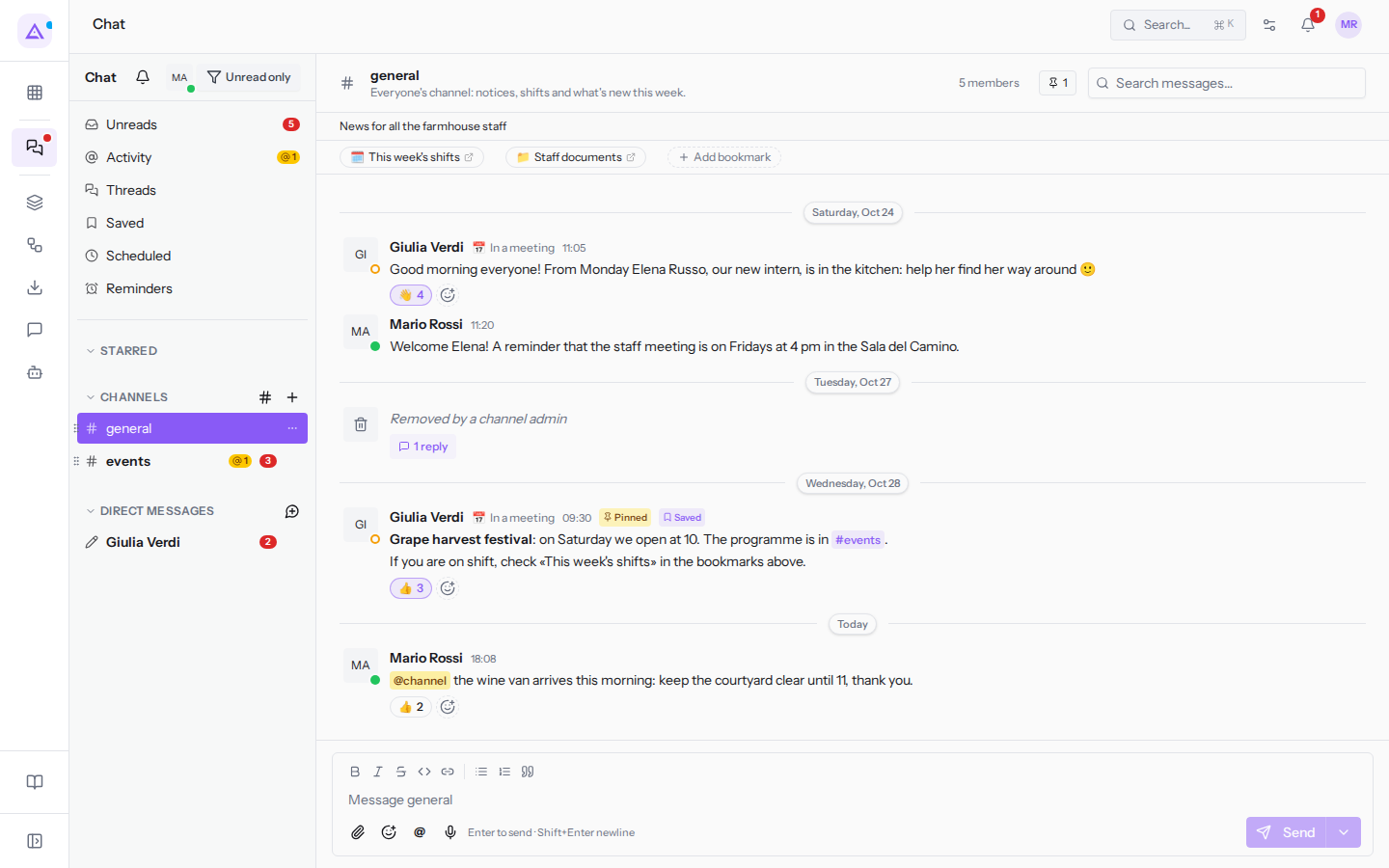
- To see all conversations again, click the icon again.
With the filter active, conversations with messages to read remain visible, along with the one currently open and those with a draft: in the image #general because it's open, #events and the direct message with Giulia Verdi. #kitchen-and-storeroom does not appear even if it has new messages, because it is muted. The filter stays active when you return to the chat from the same browser.
See it on your company, not on a slide deck.
In 30 minutes we map the software you use today.We show you how much work and how much margin Archimedes gives back.
Show me on my business →What industry are you in?
One tap — it lets us prepare the demo around your world.
What tools do you use today?
Pick the ones you recognise — or just type them. It helps us show you how they migrate.
Last step: your details.
We reply within one working day — and right after, if you like, you pick the demo slot yourself.
We couldn't send your request. Try again, or write to us at [email protected].
By sending, you agree to your data being processed so we can get back to you about the demo. Privacy notice.
Preview form — nothing is sent from this page.
Want to schedule the demo now?
Your call: book the slot you prefer yourself, or we'll call you to arrange it.
Live availability, 30 minutes, instant confirmation. The calendar opens in a new tab.
Lock in your slot ↗We'll get back to you within one working day — and we'll join the call already knowing your world.
The calendar is open in another tab: pick a slot and the demo is booked. Can't see it? Reopen it ↗
Preview page: nothing was sent.
Our calendar is live: take the slot that suits you and the demo is booked. 30 minutes, instant confirmation, no waiting.
Lock in your slot ↗