Chat
All modules
Saving, setting reminders, and scheduling a message
Chat · 9 of 16 · 5 min read
The chat offers three ways to revisit a message or delay sending it. You can save a message to find it later, set a reminder that notifies you at a later time, or schedule the sending of your message — for example, a staff notice to go out tomorrow morning.
Which one to use
The three features serve different needs.
- If you want to find a message again without a deadline, save it: it stays in the Saved messages list until you remove it.
- If you need to return to a message at a specific time, set a reminder.
- If you have written a message that needs to go out later, schedule it: it stays in Scheduled messages until it is sent, and you can cancel it before it goes out.
Saved messages and reminders are personal: other members of the conversation cannot see them and do not know you have set them. A scheduled message is visible to others only when it is sent.
Saving a message
Save a message when you want to find it later without searching for it — for example, a price list or a confirmed menu.
- Open the conversation and hover over the message.
- Click the bookmark icon (Save for later). The Saved label appears next to the message timestamp.
To remove the message from saved items, click the bookmark icon again, which now shows the tooltip «Remove from saved».
Finding saved messages
The Saved entry in the sidebar opens the dialogue with all the messages you have saved.
- In the sidebar, click Saved.
- In the Saved messages dialogue, click an item to go to the original message.
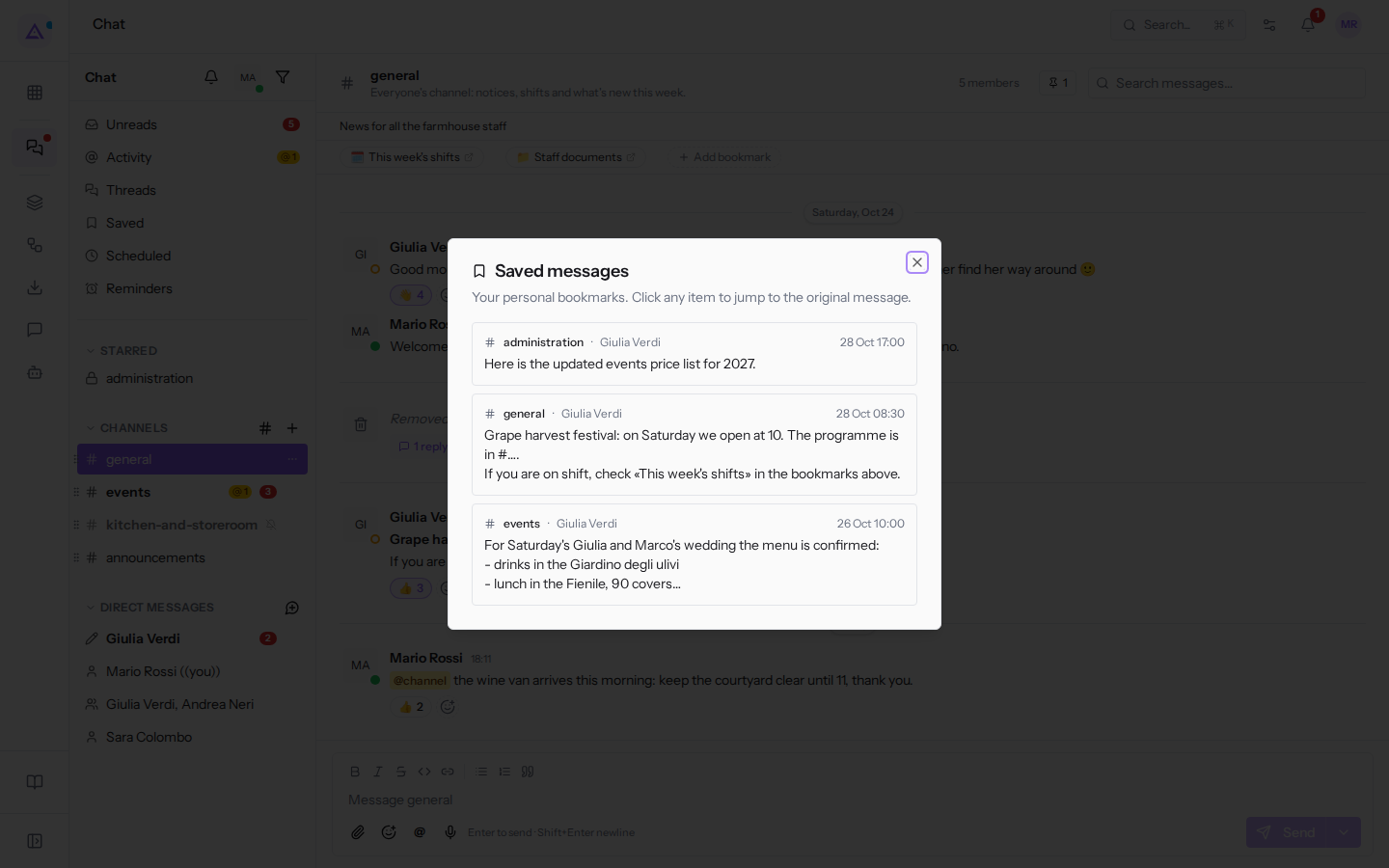
Each item shows the conversation, the author, the date, and the message text; at the top is the last one you saved. Here there are the events price list in #administration, the notice about the Grape harvest festival in #general, and the menu for Giulia and Marco's wedding in #events. A message deleted by its author also disappears from saved items.
If you have not saved anything, the dialogue shows «No saved messages yet. Hover any message and click the bookmark icon to save it for later.». To return to the conversation, close the dialogue with the X at the top right.
Setting a reminder on a message
A reminder brings you back to a message at the time you choose: useful when you cannot reply immediately but do not want to forget it.
- Hover over the message and click the three-dot icon.
- Choose Remind me about this…. The Remind me about this dialogue opens.
- Choose when to receive the reminder: In 20 minutes, In 1 hour, In 3 hours, Tomorrow at 9:00, or a date and time in the Or pick a time field and then Set reminder. You can set it up to 30 days ahead.
At the chosen time you receive a notification in the bell icon at the top, with a link to the message. From the notification you can postpone it with Snooze (20 min, 1 hour or Tomorrow). A reminder that has fired is removed from the Reminders page. You can also create a reminder without a message, using the /remind command in the message input box.
Managing reminders
The Reminders page lists pending reminders, from the soonest, with the date and time they will fire. Use it to reschedule or cancel a reminder when plans change.
- In the sidebar, click Reminders. Next to the title, the number of pending reminders appears, here «2 pending».
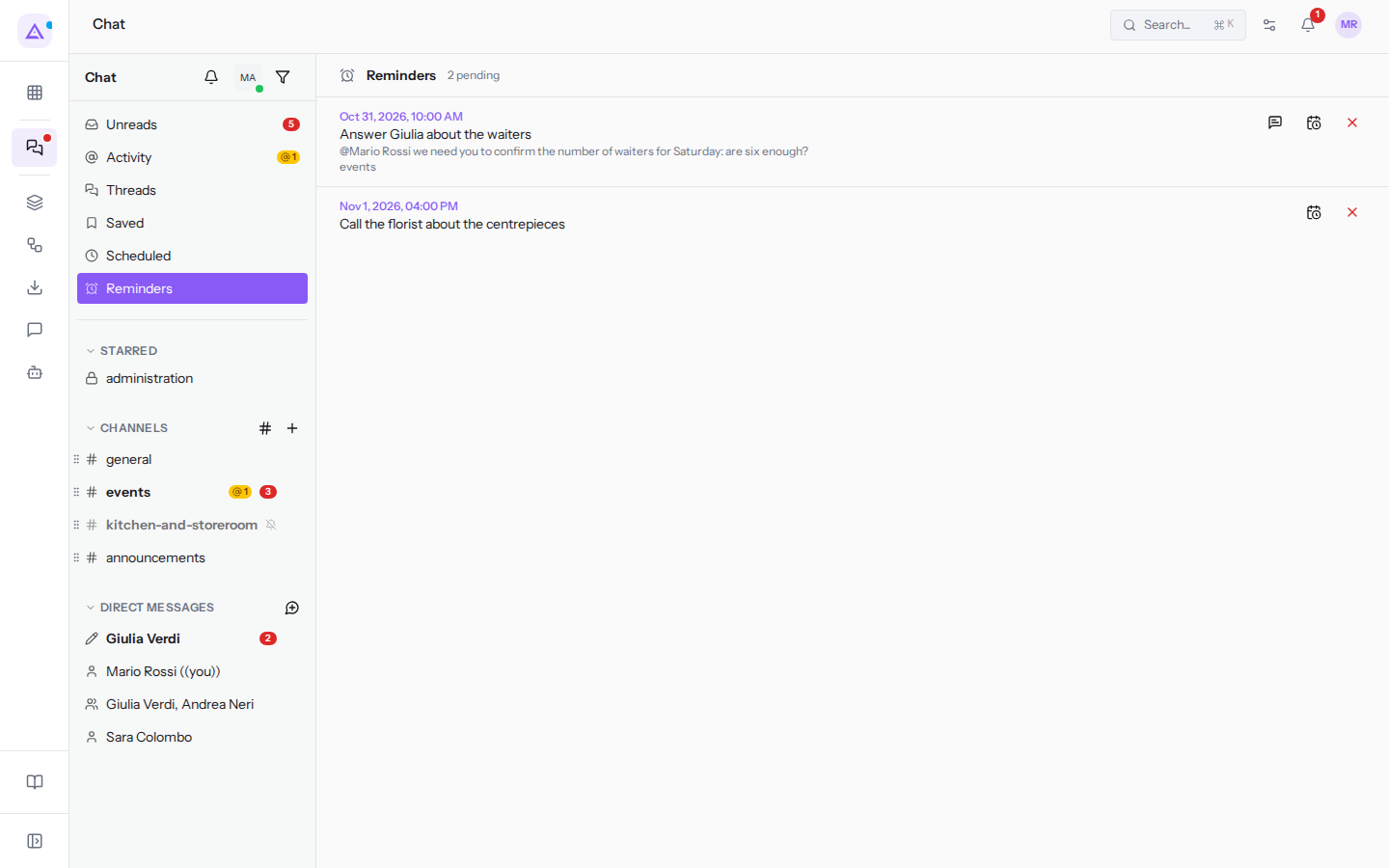
- To the right of each reminder there are three icons:
- the speech bubble («Go to the message»): opens the conversation on the reminder's message. For a reminder created without a message the icon leads to the conversation, if there is one, or does not appear;
- the calendar with the clock («Reschedule»): shows a date and time field; choose the new time and click Save;
- the red X («Cancel reminder»): asks for confirmation with Cancel this reminder? and then deletes it.
Here Answer Giulia about the waiters is pending, linked to the mention of Giulia Verdi in #events, and Call the florist about the centrepieces, without a message. When there are no reminders, the page shows «No pending reminders».
Scheduling a message
A scheduled message goes out on its own at the time you choose, in your name: useful for a notice that needs to arrive when staff start their shift, or to avoid writing to a colleague outside working hours. You can only schedule in conversations you are part of.
- Write the message in the input box at the bottom of the conversation.
- Click the arrow next to Send and choose when to send it:
- In 1 hour;
- Tomorrow morning: tomorrow at 9:00;
- Next Monday: Monday at 9:00;
- Custom date & time…: opens the Schedule message dialogue; choose the time in Send at, up to 30 days ahead, and click Schedule.
The chat confirms the chosen time. Until it is sent, only you can see the message, in the Scheduled entry; at the set time it appears in the conversation as a normal message from you.
Viewing and cancelling scheduled messages
The Scheduled entry in the sidebar collects your messages waiting to be sent. A scheduled message cannot be edited: if the text or the time no longer works, cancel it and schedule it again.
- In the sidebar, click Scheduled. The Scheduled messages dialogue opens.
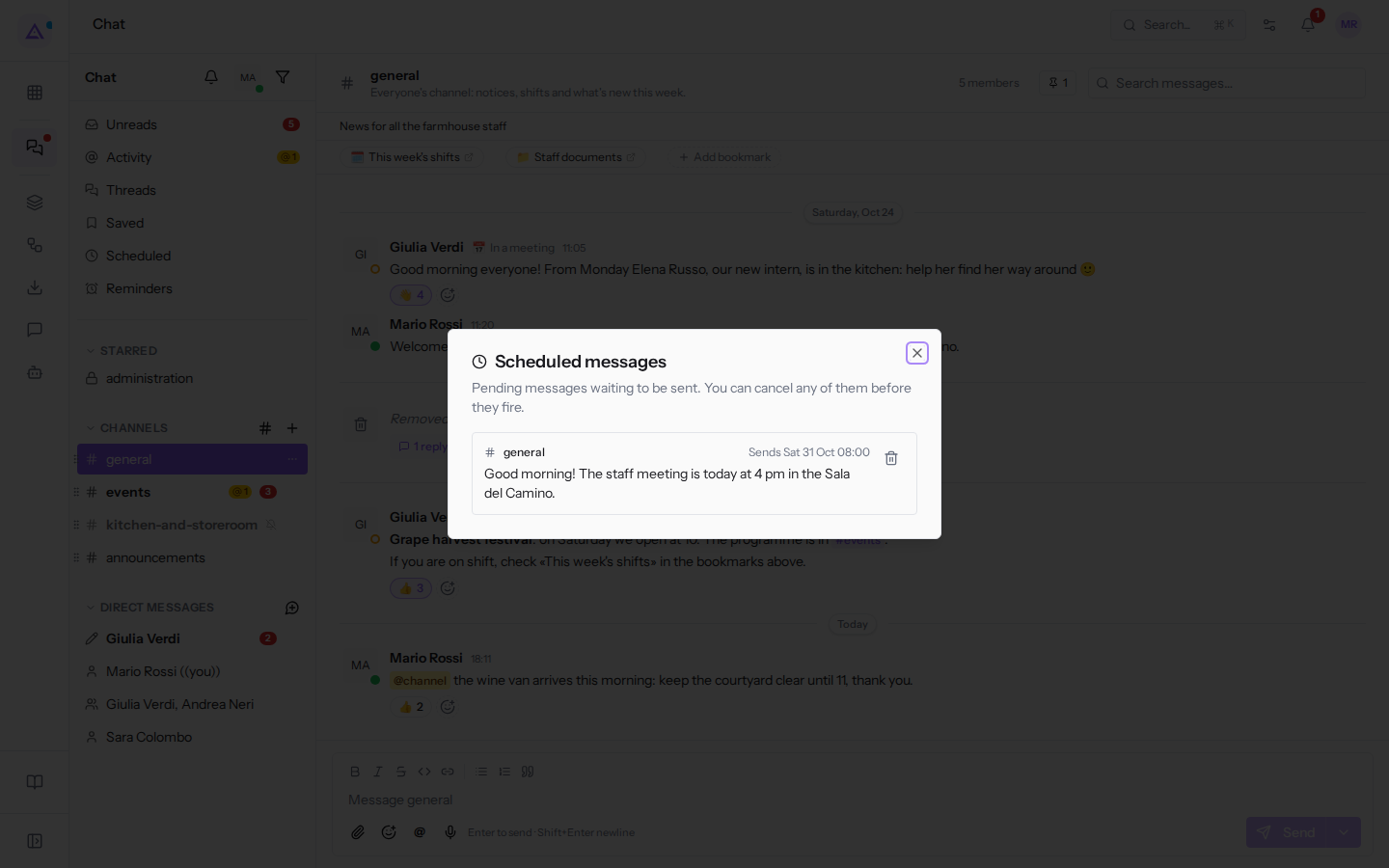
- For each message the dialogue shows the conversation, the sending time, and the text. Here there is the message in
#generalabout the staff meeting in the Sala del Camino. - To cancel sending it, click the bin icon («Cancel scheduled message»). The message is cancelled immediately, without a confirmation prompt, and the text cannot be recovered.
When there is nothing scheduled, the dialogue shows «Nothing scheduled. Use the ▾ next to Send to schedule a message.».
See it on your company, not on a slide deck.
In 30 minutes we map the software you use today.We show you how much work and how much margin Archimedes gives back.
Show me on my business →What industry are you in?
One tap — it lets us prepare the demo around your world.
What tools do you use today?
Pick the ones you recognise — or just type them. It helps us show you how they migrate.
Last step: your details.
We reply within one working day — and right after, if you like, you pick the demo slot yourself.
We couldn't send your request. Try again, or write to us at [email protected].
By sending, you agree to your data being processed so we can get back to you about the demo. Privacy notice.
Preview form — nothing is sent from this page.
Want to schedule the demo now?
Your call: book the slot you prefer yourself, or we'll call you to arrange it.
Live availability, 30 minutes, instant confirmation. The calendar opens in a new tab.
Lock in your slot ↗We'll get back to you within one working day — and we'll join the call already knowing your world.
The calendar is open in another tab: pick a slot and the demo is booked. Can't see it? Reopen it ↗
Preview page: nothing was sent.
Our calendar is live: take the slot that suits you and the demo is booked. 30 minutes, instant confirmation, no waiting.
Lock in your slot ↗