Chat
All modules
Using quick commands and keyboard shortcuts
Chat · 16 of 16 · 7 min read
In Chat, some frequent operations can be done faster from the keyboard. Commands beginning with / are typed in the message box and perform an action instead of sending a normal message. Keyboard shortcuts are used to switch between conversations, format text, and mark messages as read. For example, you can change the topic of #events, set yourself a reminder in 20 minutes, or switch to #administration without searching for it in the sidebar.
Using quick commands
A quick command is typed in the message box, just like a normal message.
- Open a conversation, for example
#events. - In the message box, type /. Above the box, the Slash commands list appears, with a brief description of each command.
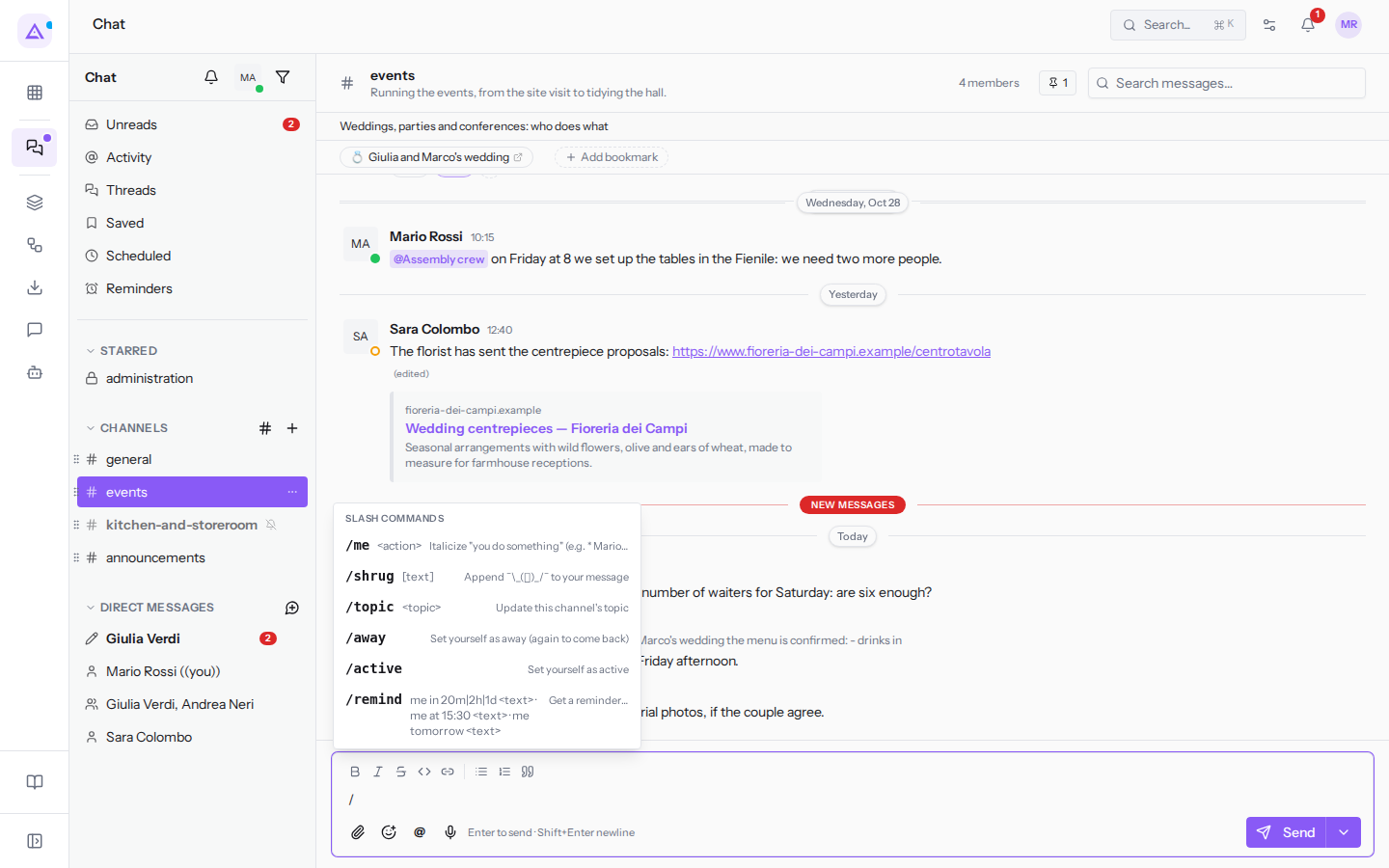
- Choose a command or keep typing it, add the required text, and press Enter.
/me and /shrug publish a transformed message; the other commands perform an action and do not publish anything, and a brief confirmation appears in their place. If the command fails, for example because you do not have permission to change the topic, Command failed appears. A word with / that is not a command is sent as a normal message.
The available commands are:
/me <action>: publishes an action in italics, preceded by your name. /me raises their hand becomes Mario Rossi raises their hand./shrug [text]: publishes the text followed by the shrug emoticon¯\_(ツ)_/¯. The text is optional./topic <topic>: changes the channel topic, the line below the header, like Edit in the channel details. It only works for channel owners and administrators. For example /topic Weddings, parties and conferences: who does what. Without text, it clears the topic./away: marks you as away; if you type it again, you become active./active: brings you back as active./remind me …: creates a reminder for you linked to this conversation. The time can be given in three ways:- after a certain time: in 20m (minutes), in 2h (hours), in 1d (days), for example /remind me in 20m Call the florist about the centrepieces;
- at a specific time: /remind me at 15:30 followed by the text; if that time has already passed today, the reminder is for tomorrow;
- tomorrow: /remind me tomorrow followed by the text, at 9:00, or with a time, such as /remind me tomorrow 15:30 followed by the text.
At the scheduled time, the reminder arrives as a notification in the bell and as a desktop notification. Until then, you will find it on the Reminders page in the sidebar.
The status set with /away and /active is the same as the one you choose from your avatar menu at the top of the sidebar (My status and availability).
Viewing the list of shortcuts
Chat has a reminder of the main shortcuts, which can only be opened from the keyboard.
- Open Chat.
- Click somewhere on the page outside the message box and any text field.
- Press ?. The Keyboard shortcuts dialog opens.
Inside the message box or a text field, the ? key types a question mark and does not open the dialog.
The dialog shows Mac keys (⌘, ⇧). On Windows, Ctrl is used instead of ⌘ and Shift instead of ⇧. Some shortcuts, described later, are not in the dialog.
The dialog divides the shortcuts into four groups:
- Navigation: quick conversation switching, closing the dialog or open picker with Esc, and reopening this list with ?.
- Composer: the keys for the message box.
- Markdown: the symbols that format text as you type.
- Messages: three actions performed with the mouse or the clipboard.
To close the dialog, press Esc.
Switching between conversations
Quick switching opens a conversation or starts a direct message by typing its name.
- Press Ctrl+K (⌘K on Mac). A window opens with the Jump to channel, DM, or person… field.
- Type part of the name, for example events or Giulia. The list shows conversations whose name contains the text and people in the organisation you can start a direct message with.
- Choose an entry using the up and down arrow keys and press Enter, or click on the entry.
If the field is empty, the last six conversations you opened appear at the top, in the Recent group, and others below, in the Conversations group. Next to a conversation with unread messages, their count is shown. If no entry matches the text, the window shows «No matches».
If you choose a person you do not yet have a conversation with, chat starts the direct message and opens it. To close the window without choosing, press Esc or Ctrl+K again.
You can also scroll through the conversations in the sidebar one at a time, without opening the window. These keys are not in the Keyboard shortcuts dialog:
- Alt+↓ and Alt+↑: open the next or previous conversation in the list. After the last one, it goes back to the first.
- Alt+Shift+↓ and Alt+Shift+↑: open the next or previous conversation among those with unread messages, for example from
#eventsto the direct message withGiulia Verdi. It is the quickest way to work through unread messages one by one.
Marking everything as read
When you come back after a few days and the unread messages no longer matter to you, you can clear them all at once: press Shift+Esc on the Chat page.
The shortcut marks as read the messages from all conversations you are part of, for example the 3 unread messages in #events and the 2 in the direct message with Giulia Verdi, and also resets the mention counters. It does not affect public channels you read without having joined. It does not ask for confirmation and cannot be undone: if needed, put conversations back among the unread ones, one at a time, using Mark as unread in the «…» menu of each row.
To mark a single conversation as read, simply open it, or use Mark as read on the Unreads page. The shortcut does not appear in the Keyboard shortcuts dialog.
Shortcuts in the message box
These shortcuts apply while you are typing in the message box. They are in the Composer group of the dialog.
- Enter: sends the message.
- Shift+Enter: adds a new line to the message without sending it.
- @: opens the list of people to mention.
- ↑ (up arrow): with an empty box, opens your last message sent in the conversation for editing. Thread replies do not count.
- ⌘B (Ctrl+B on Windows): bold, like the button in the formatting toolbar.
- ⌘I (Ctrl+I): italic.
- ⌘⇧X (Ctrl+Shift+X): strikethrough.
- ⌘⇧C (Ctrl+Shift+C): code.
If you select text before pressing a formatting key, the formatting is applied to that text.
While editing a message, press Enter to save or Esc to cancel.
Formatting by typing symbols
As well as the buttons, you can format text using Markdown symbols. They are in the Markdown group of the dialog.
- Two asterisks before and after the text: bold, for example
**bold**. - An underscore before and after: italic, for example
_italic_. - Two tildes before and after: strikethrough, for example
~~strikethrough~~. - A backtick before and after: code, for example
`code`. - Three backticks on their own line: code block.
>at the start of the line: quote.-or1.at the start of the line: bulleted or numbered list.
Message actions with the mouse
The Messages group of the dialog reminds you of three actions performed with the mouse or the clipboard:
- hover over a message to show the bar with reaction, thread, save, and other actions;
- drag files into the message box to attach them;
- paste an image copied to the clipboard into the message box: it is attached on its own.
See it on your company, not on a slide deck.
In 30 minutes we map the software you use today.We show you how much work and how much margin Archimedes gives back.
Show me on my business →What industry are you in?
One tap — it lets us prepare the demo around your world.
What tools do you use today?
Pick the ones you recognise — or just type them. It helps us show you how they migrate.
Last step: your details.
We reply within one working day — and right after, if you like, you pick the demo slot yourself.
We couldn't send your request. Try again, or write to us at [email protected].
By sending, you agree to your data being processed so we can get back to you about the demo. Privacy notice.
Preview form — nothing is sent from this page.
Want to schedule the demo now?
Your call: book the slot you prefer yourself, or we'll call you to arrange it.
Live availability, 30 minutes, instant confirmation. The calendar opens in a new tab.
Lock in your slot ↗We'll get back to you within one working day — and we'll join the call already knowing your world.
The calendar is open in another tab: pick a slot and the demo is booked. Can't see it? Reopen it ↗
Preview page: nothing was sent.
Our calendar is live: take the slot that suits you and the demo is booked. 30 minutes, instant confirmation, no waiting.
Lock in your slot ↗