Chat
All modules
Choosing notifications, muting conversations and setting your status
Chat · 13 of 16 · 7 min read
In the chat you decide which conversations notify you and when. You can also let your colleagues know what you are doing. For example you can receive every message from a work channel, mute a channel you only read occasionally, or pause notifications during a meeting.
The tools differ depending on what you want to achieve:
- If you want to decide how much a single conversation notifies you, change its notifications.
- If a conversation should not notify you at all, mute it.
- If you need a conversation often, star it.
- If you don't want any notifications from any conversation for a while, pause notifications.
- If you want to tell your colleagues you are unavailable, set a status or mark yourself as away.
Choosing the notifications for a conversation
Every conversation has its own notification setting and the choice applies only to you. In channels the default is Mentions only, in direct messages All new messages. It is worth raising it in channels your work depends on: in #administration, where invoices and payments come through, Mario Rossi receives all messages.
- Open Chat.
- In the sidebar, hover over the channel row and click the «…» icon (Conversation options).
- Choose Channel details.
- Open the Settings tab.
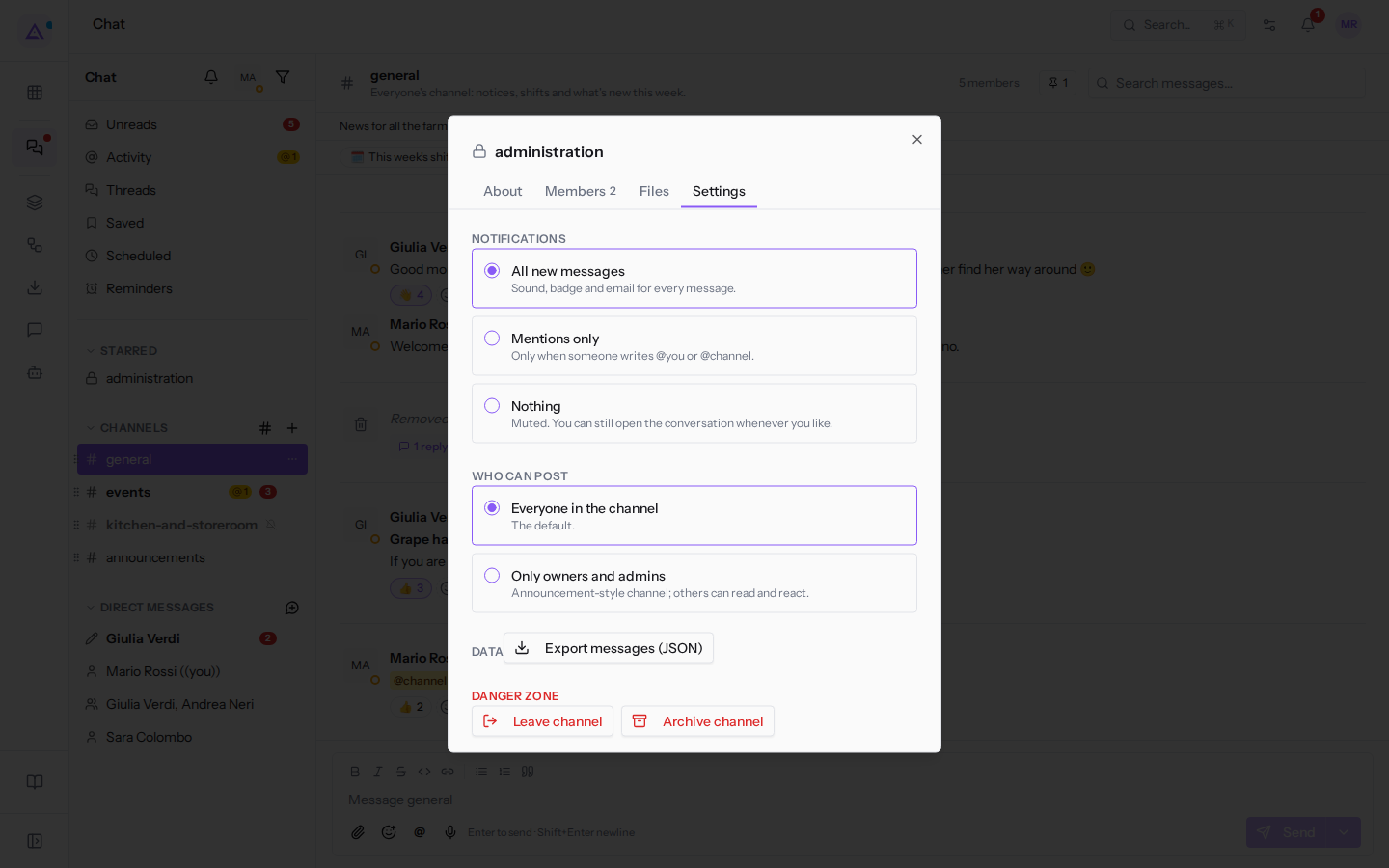
- In the notifications section choose one of the three options.
- All new messages: notifies you of every message.
- Mentions only: only messages that mention you, those with @channel, @here or @all, and replies in threads you participate in notify you.
- Nothing: the conversation never notifies you, not even for mentions. The unread message count still appears next to the name, however.
The same tab also has the channel settings. They are described in Managing a channel: details, members and permissions.
Muting a conversation
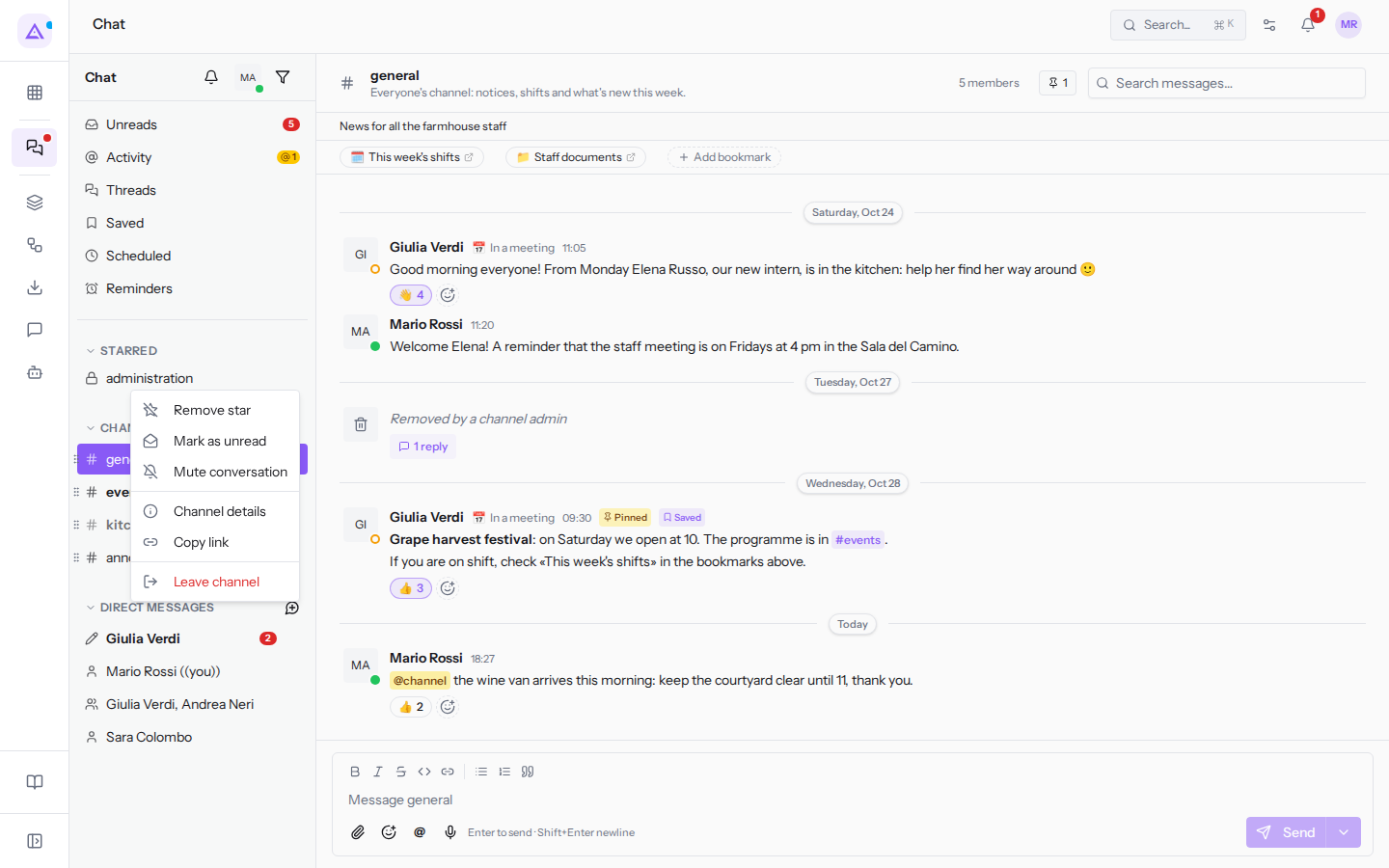
Muting is for conversations you only read occasionally and don't want to see among the unread ones. A muted conversation never notifies you, not even for mentions, and moreover does not count among unread ones: the row becomes lighter, a crossed-out bell appears, the unread message count disappears, and the conversation does not appear in Unreads. Only the mention counter remains on the row, so you can see if someone has looked for you. For example #kitchen-and-storeroom is muted: Mario Rossi reads it when he needs to.
- In the sidebar, hover over the conversation row and click the «…» icon (Conversation options).
- Choose Mute conversation. To reverse it, choose Unmute conversation from the same menu.
If you mute a public channel you were only reading, you join the channel, already muted.
Starring a conversation
It is worth always having the conversations you open most often in view. Starred conversations are collected in the STARRED section, at the top of the sidebar, above CHANNELS and DIRECT MESSAGES; for example Mario Rossi has starred #administration. The choice applies only to you.
- Click the «…» icon (Conversation options) on the conversation row.
- Choose Star. To remove it, choose Remove star from the same menu.
Starring a public channel you were only reading makes you join the channel.
Pausing notifications
The pause is useful when you don't want to be disturbed by any conversation for a while, for example during a meeting. For its entire duration you receive no sounds, alerts, desktop notifications, or chat emails, on any device. Messages still arrive and the unread counters update, so you can catch up on everything afterwards.
- At the top of the sidebar, next to Chat, click the bell icon (Pause notifications).
- Choose the duration.
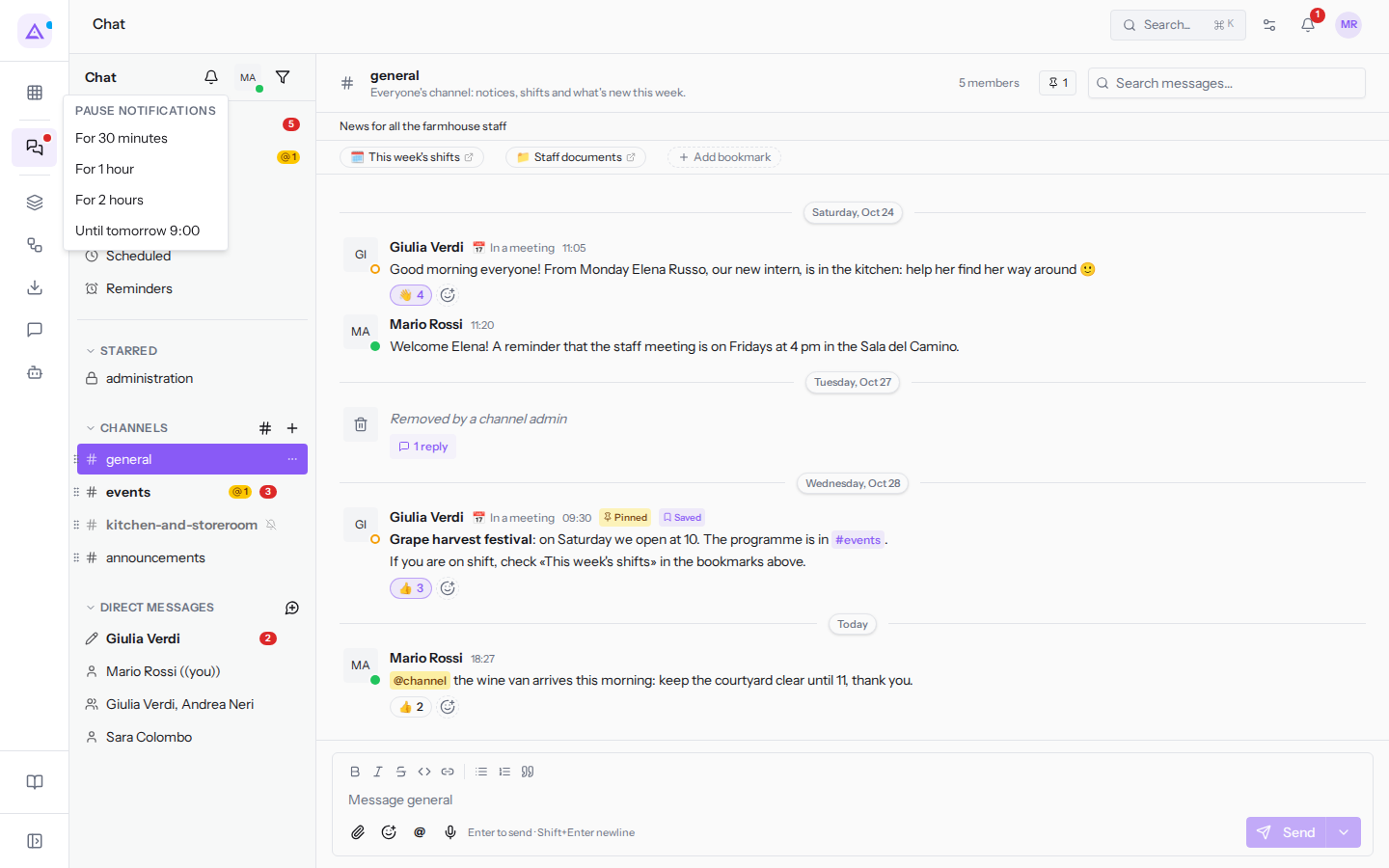
- For 30 minutes
- For 1 hour
- For 2 hours
- Until tomorrow 9:00
While the pause is active the bell is crossed out and shows until when it lasts; colleagues see a moon next to your name (Do not disturb). To end the pause early, click the bell again and choose Resume notifications, the option that appears only during the pause.
The same pause can also be found in your avatar menu, under Pause notifications.
Setting your status
Your status tells colleagues what you are doing, for example that you are in a meeting or travelling, so they know whether to expect a reply straight away. It does not change your notifications.
- At the top of the sidebar click your avatar, your initials (My status and availability).
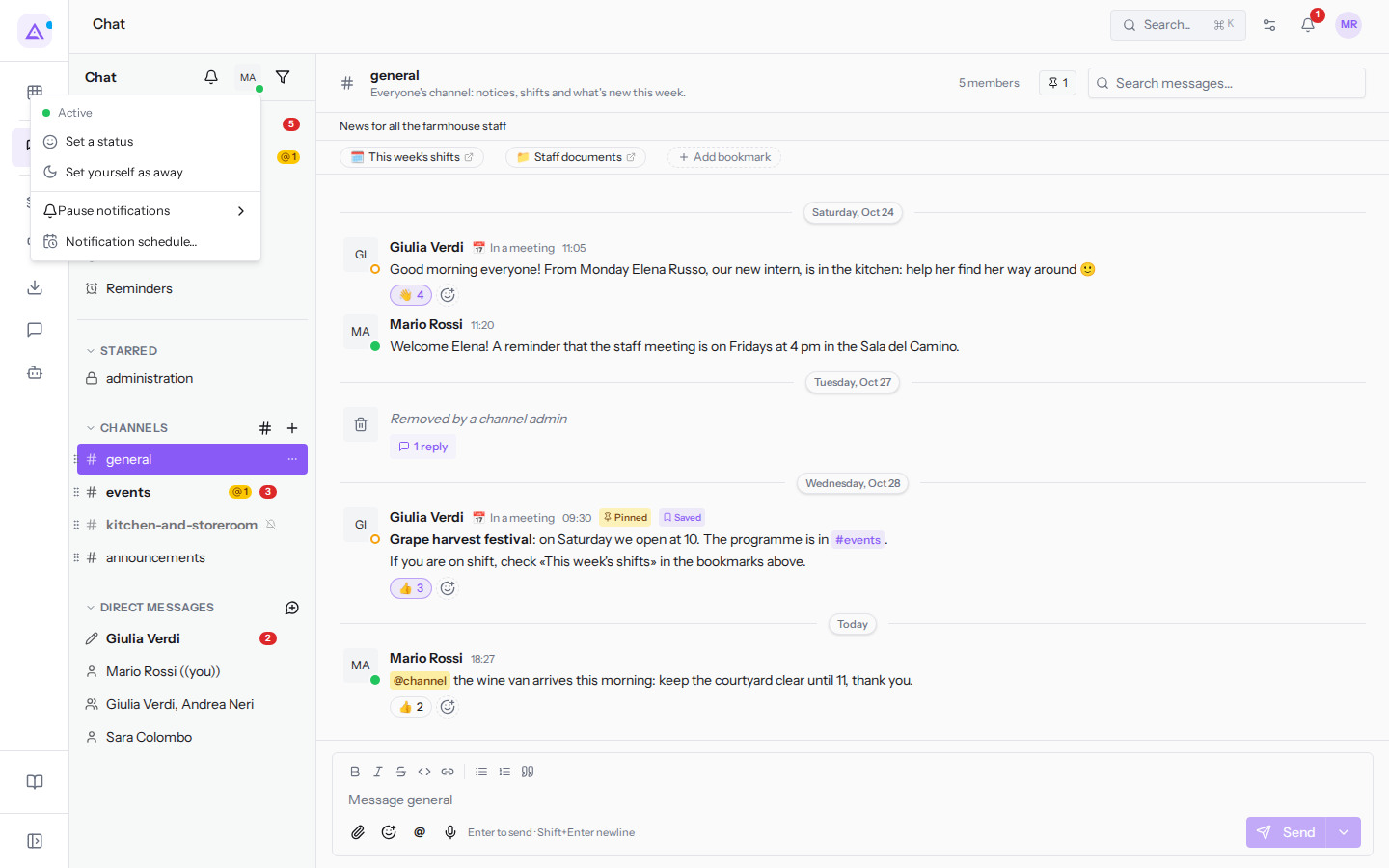
- Choose Set a status.
- Choose one of the ready-made statuses or write your own.
- In CLEAR AFTER choose when the status should be cleared.
- Click Save.
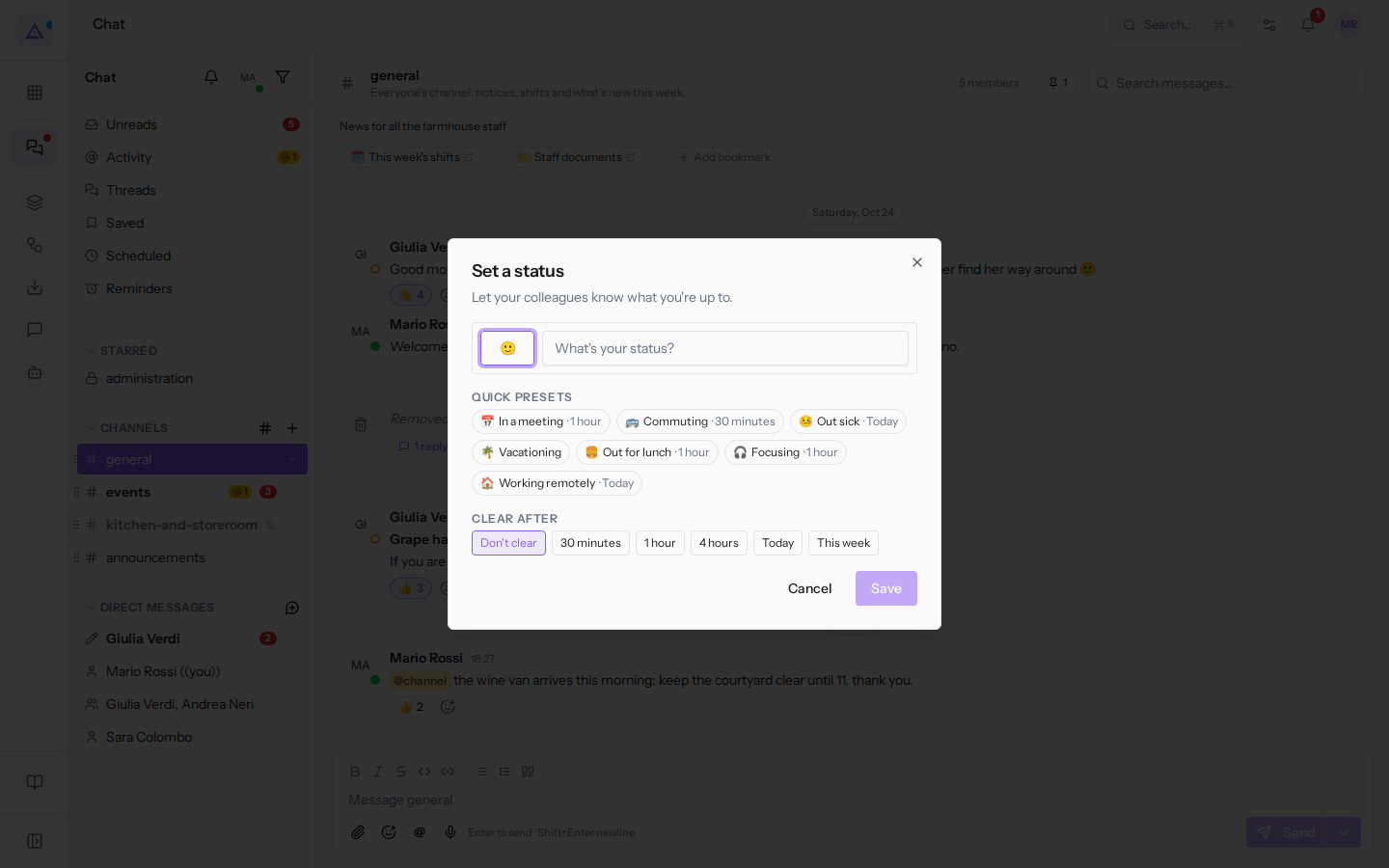
The Set a status dialog has these fields:
- The emoji and the status text (What's your status?), for example 📅
In a meeting. - QUICK PRESETS: the ready-made statuses. A click fills in the emoji and text and suggests a duration: In a meeting · 1 hour, Commuting · 30 minutes, Out sick · Today, Vacationing, Out for lunch · 1 hour, Focusing · 1 hour, Working remotely · Today.
- CLEAR AFTER: when the status clears itself: Don't clear, 30 minutes, 1 hour, 4 hours, Today or This week. Choose a deadline, so you don't stay «In a meeting» all afternoon.
To clear it early, reopen the avatar menu: with an active status you find Update your status and Clear status.
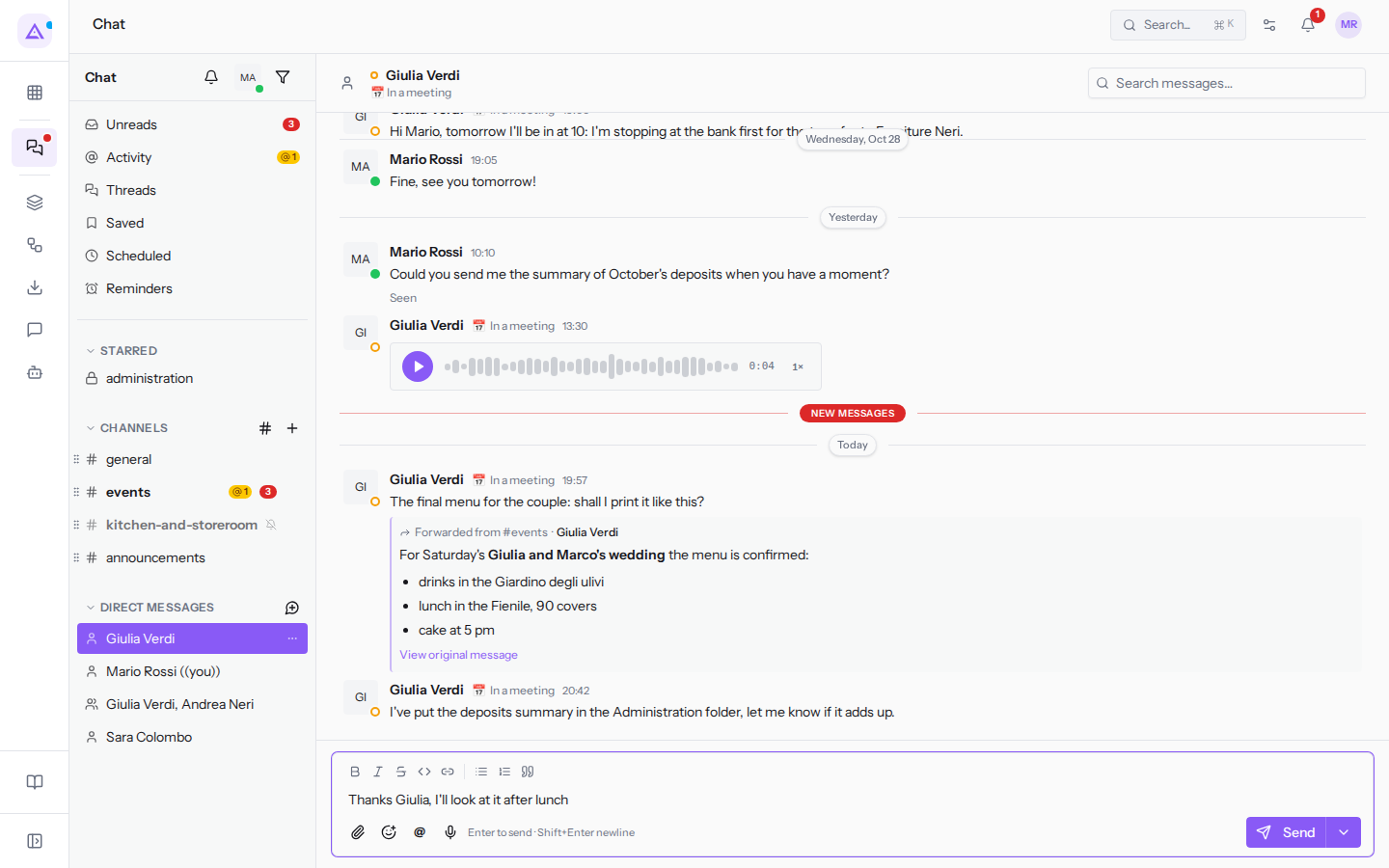
The status appears next to your name in messages, in the members panel, and in the header of direct messages. For example, in the direct message with Giulia Verdi the header shows her status 📅 In a meeting.
Marking yourself as away
«Away» tells colleagues you are not at your computer even if Archimedes is open. It does not turn off notifications: that is what the pause is for.
- Click your avatar at the top of the sidebar.
- Choose Set yourself as away.
You remain away until you choose Set yourself as active from the same menu, or type /active in a message.
Who is online and who has read your messages
The dot next to the avatar shows a colleague's availability: solid green if they are active, an empty orange circle if they are away or not connected. The moon indicates they have paused notifications: you can write to them, but they will not receive alerts until the pause ends.
In direct messages, Seen appears below your most recent message that the other person has read: in the direct message with Giulia Verdi the text appears below «Could you send me the summary of October's deposits when you have a moment?». In group conversations Seen by appears with the number of people, for example «Seen by 1». In channels this indicator is not shown.
Desktop notifications and notification schedules
Besides per-conversation choices, some settings apply to the whole chat. They are found in your account settings and apply on every device.
- Click your avatar at the top of the sidebar.
- Choose Notification schedule…. The Notifications page of the account settings opens.
- In the table, the Chat: new message and Chat: reminder rows have two toggles: the IN-APP column makes the alert appear in the top bell, the EMAIL column also sends it to your address. Turn off email if, for example, you follow the chat only inside Archimedes.
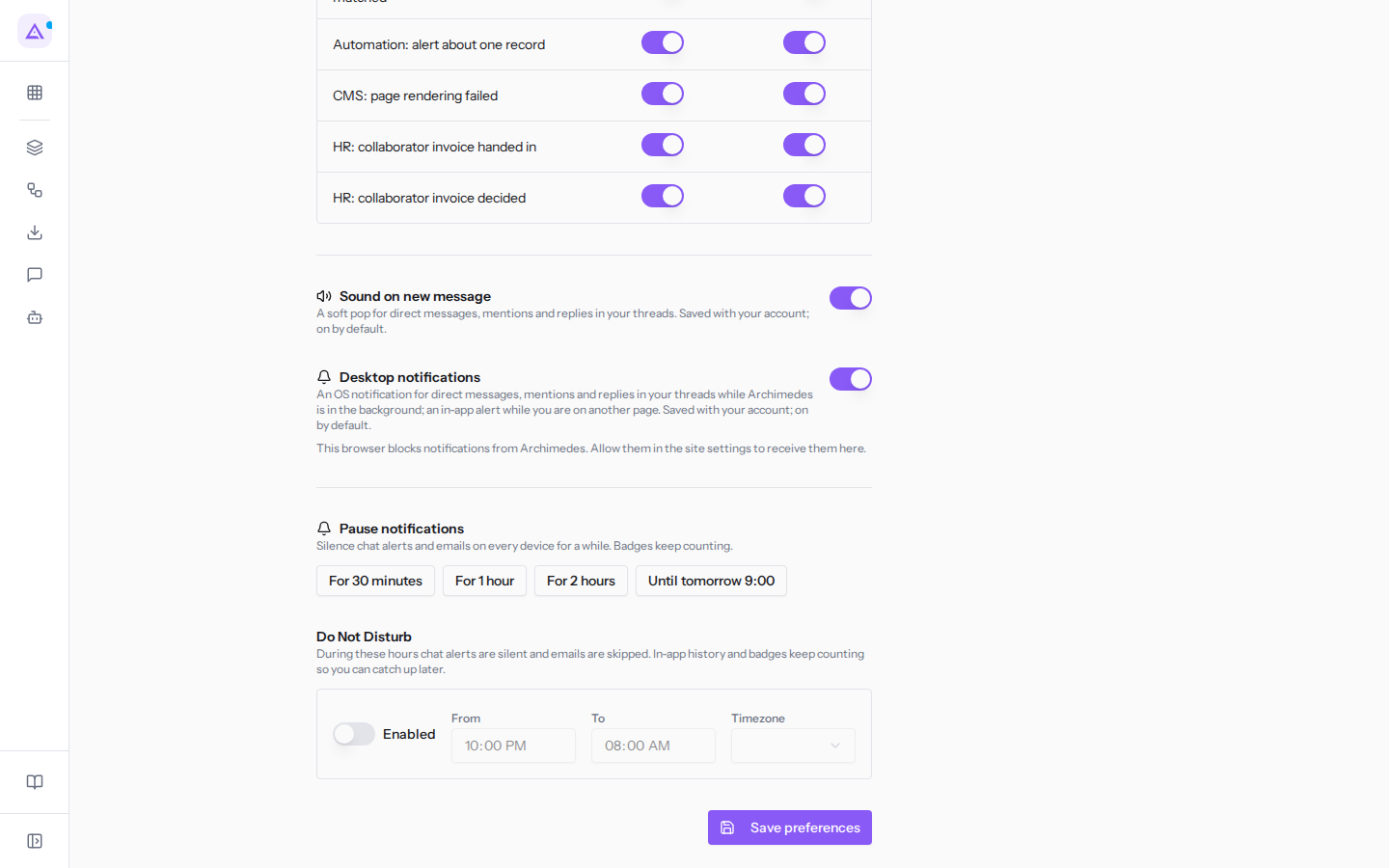
- Sound on new message: a gentle sound for direct messages, mentions and replies in your threads.
- Desktop notifications: a system notification for direct messages, mentions and replies in your threads when Archimedes is in the background. The browser must grant permission: if it has not yet done so, Allow in this browser appears.
- Pause notifications: the same pause as the chat bell.
- The Do Not Disturb section sets a fixed time window, for example from 22:00 to 08:00, during which chat alerts are silenced and emails are not sent. The history and counters continue to update, so the next morning you find everything.
Sound and desktop notifications are on by default. The first time you open the chat in a browser that has not yet granted permission, the Desktop notifications box appears with Enable and Not now: Enable asks the browser for permission, Not now hides the box in that browser for a few weeks.
See it on your company, not on a slide deck.
In 30 minutes we map the software you use today.We show you how much work and how much margin Archimedes gives back.
Show me on my business →What industry are you in?
One tap — it lets us prepare the demo around your world.
What tools do you use today?
Pick the ones you recognise — or just type them. It helps us show you how they migrate.
Last step: your details.
We reply within one working day — and right after, if you like, you pick the demo slot yourself.
We couldn't send your request. Try again, or write to us at [email protected].
By sending, you agree to your data being processed so we can get back to you about the demo. Privacy notice.
Preview form — nothing is sent from this page.
Want to schedule the demo now?
Your call: book the slot you prefer yourself, or we'll call you to arrange it.
Live availability, 30 minutes, instant confirmation. The calendar opens in a new tab.
Lock in your slot ↗We'll get back to you within one working day — and we'll join the call already knowing your world.
The calendar is open in another tab: pick a slot and the demo is booked. Can't see it? Reopen it ↗
Preview page: nothing was sent.
Our calendar is live: take the slot that suits you and the demo is booked. 30 minutes, instant confirmation, no waiting.
Lock in your slot ↗