Chat
All modules
Sharing invoices, tasks and links
Chat · 5 of 16 · 5 min read
In a chat message you can share an application record, an external website or a file. A link to a record becomes a card with the main data, for example an invoice or a project task. A link to an external website shows a preview.
Record cards in messages
When a message contains a link to a record, a card appears below the message with the record type, status or stage, title and some fields. This way the reader understands what it is about without opening the record. Invoices, CRM leads and opportunities, helpdesk tickets and project tasks show a card; other links remain simple links. A message shows at most three cards: if you paste more links, the others remain only in the text.
- Open Chat and click the conversation you want to write in.
- Paste the record link, copied from the browser address bar, into the message box and send the message.
- The record card appears below the message. To see an example, open administration in the STARRED section.
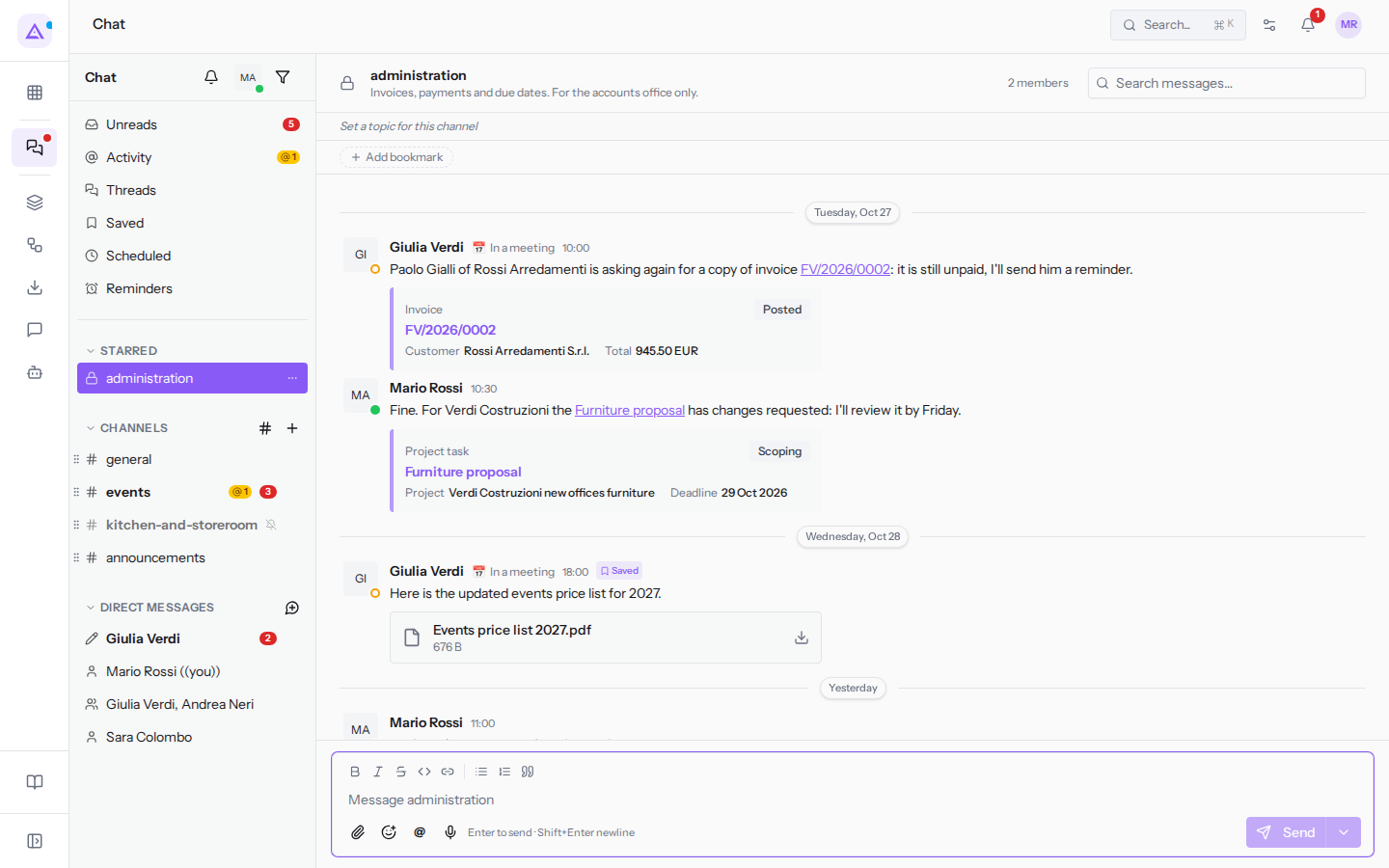
In the #administration channel there are two cards.
- Invoice: at the top the type, Invoice, and the status, Posted. Below are the number
FV/2026/0002and the fields Customer (Rossi Arredamenti S.r.l.) and Total. - Project task: at the top the type, Project task, and the task stage, Scoping. Below are the title
Furniture proposaland the fields Project (Verdi Costruzioni new offices furniture) and Deadline.
Click on the card to open the record.
The card is not saved in the message: it is recalculated every time the message is read, so it always shows the current data of the record. If the invoice is paid, the same card in #administration will show the new status.
Who sees the card
Each person in the conversation sees the card according to their own permissions. People without permissions only see the link in the text.
The card appears only if all these conditions are met:
- The link leads to a page of this application, not to another site.
- The link corresponds to a type of record that has a card.
- The record's module is active in the organisation.
- The reader has permission to see that type of record.
- The reader can open that specific record.
If even one condition is missing, the message shows only the link, with no errors or warnings. A record that does not exist and a record you cannot see appear in the same way.
In a channel with people from different departments, those without access to invoices do not see the invoice data, but they see the link. If the link should not circulate either, share it in a private channel, such as #administration.
Preview of links to external websites
A link to an external website shows a preview below the message. The preview contains the site name, the page title and description. If the page has an image, the preview shows it on the right.
- Open Chat and click on events in the CHANNELS section.
- In
Sara Colombo's message with the linkhttps://www.fioreria-dei-campi.example/centrotavolayou find the preview. It shows the site fioreria-dei-campi.example, the title «Wedding centrepieces — Fioreria dei Campi» and the page description.
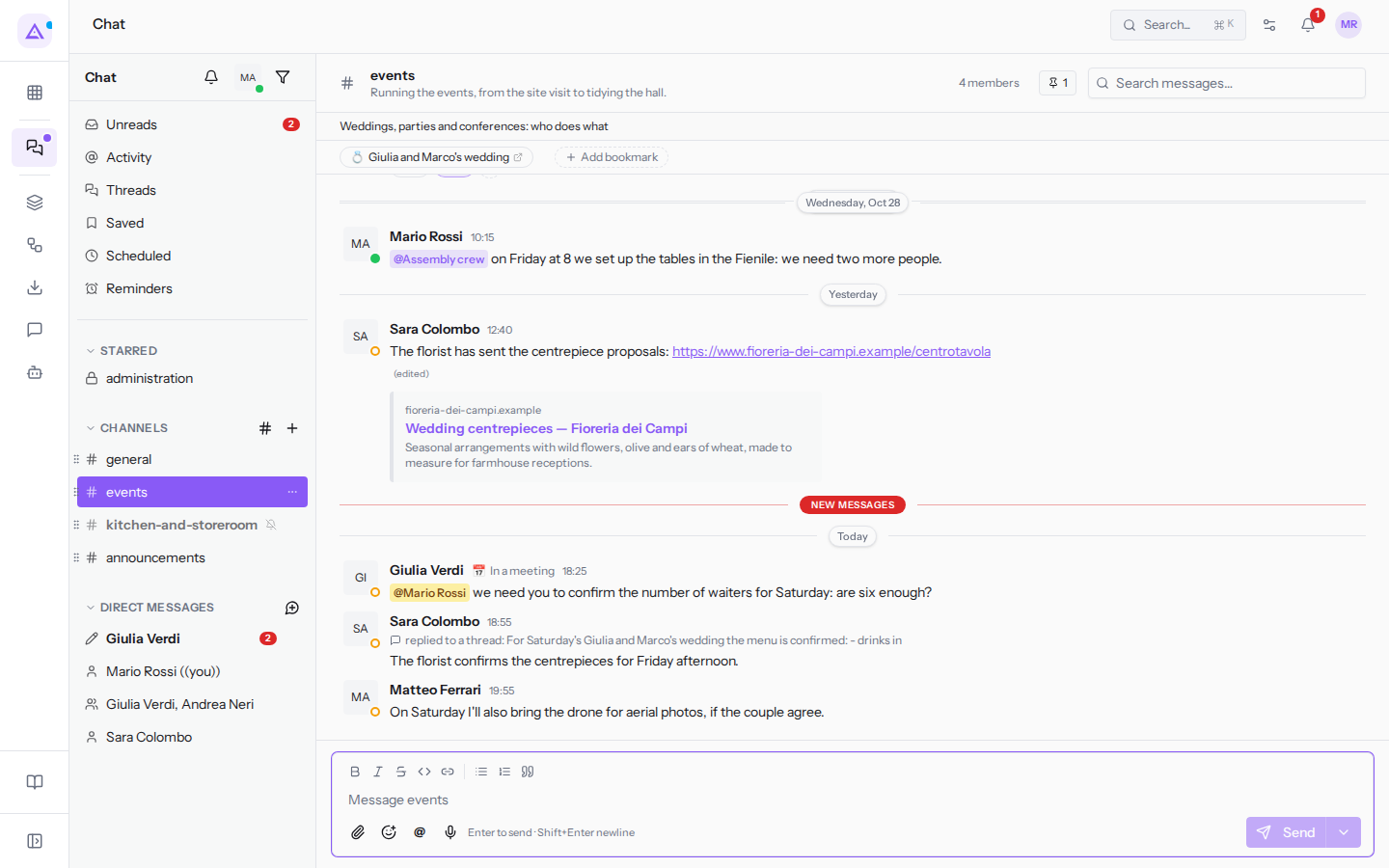
- Click on the preview to open the site in a new browser tab.
If the preview takes up space without adding information, the person who wrote the message can remove it; the link remains in the text and others cannot put it back.
- Hover over the preview of your message.
- Click the «×» that appears in the top right (Remove preview).
Attached files
Attached files appear below the message text, and everyone who can read the conversation sees them.
- Images appear already in preview. Click on an image to see it enlarged above the chat; click outside the image to close it. For example the photo of the Fienile set up for the lighting test, in
Matteo Ferrari's message in#events.
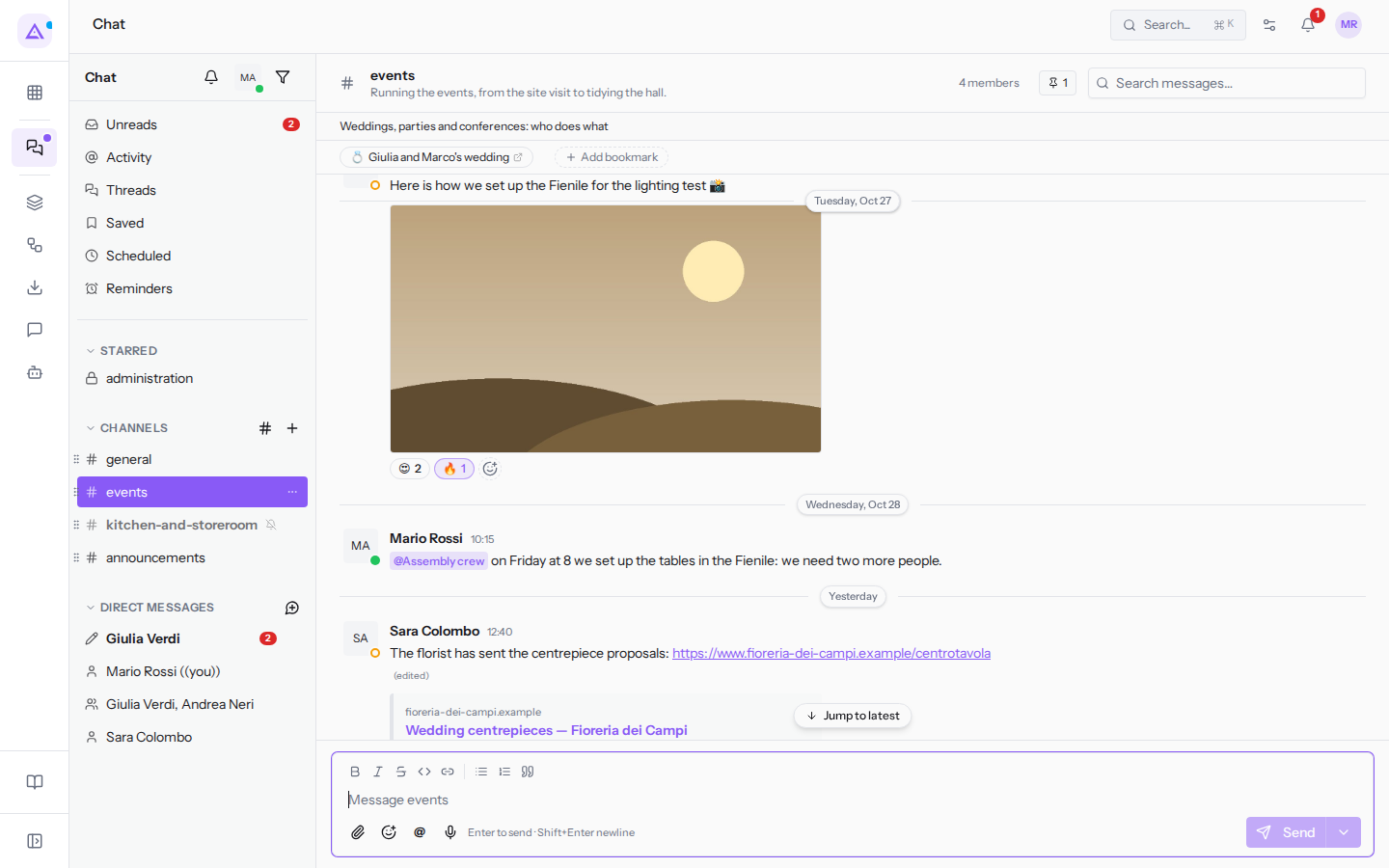
- Other files appear in a box with the name, size and download arrow: clicking on the box downloads the file. For example in
#administrationthe PDFEvents price list 2027.pdf, of 676 B. - Voice messages appear with their player; see Writing and formatting a message.
Sharing the link to a message
To point a colleague to a specific message, instead of copying the text, copy the message link.
- Hover over the message and click the «…» icon (More actions).
- Choose Copy link and paste the link where you need it, in another conversation or in an email.
Whoever opens the link goes straight to the message, in its conversation. If the message has been deleted or whoever opens the link is no longer part of the conversation, the message «This message was deleted or you no longer have access to it.» appears. For the link to an entire conversation, use Copy link from the «…» menu of the row in the sidebar instead.
See it on your company, not on a slide deck.
In 30 minutes we map the software you use today.We show you how much work and how much margin Archimedes gives back.
Show me on my business →What industry are you in?
One tap — it lets us prepare the demo around your world.
What tools do you use today?
Pick the ones you recognise — or just type them. It helps us show you how they migrate.
Last step: your details.
We reply within one working day — and right after, if you like, you pick the demo slot yourself.
We couldn't send your request. Try again, or write to us at [email protected].
By sending, you agree to your data being processed so we can get back to you about the demo. Privacy notice.
Preview form — nothing is sent from this page.
Want to schedule the demo now?
Your call: book the slot you prefer yourself, or we'll call you to arrange it.
Live availability, 30 minutes, instant confirmation. The calendar opens in a new tab.
Lock in your slot ↗We'll get back to you within one working day — and we'll join the call already knowing your world.
The calendar is open in another tab: pick a slot and the demo is booked. Can't see it? Reopen it ↗
Preview page: nothing was sent.
Our calendar is live: take the slot that suits you and the demo is booked. 30 minutes, instant confirmation, no waiting.
Lock in your slot ↗