Helpdesk
All modules
Reply to the customer and read internal notes
Helpdesk · 7 of 15 · 3 min read
The Messages tab of a ticket collects the messages exchanged on the ticket and the internal notes. From here you write a message, read the internal notes left by colleagues, and correct the messages you wrote yourself.
Opening a ticket's messages
The messages are in the ticket's tab, below the description.
- Open Helpdesk › Tickets.
- Press the ticket row, for example
Request for a copy of invoice FV/2026/0002. - Press the Messages tab.
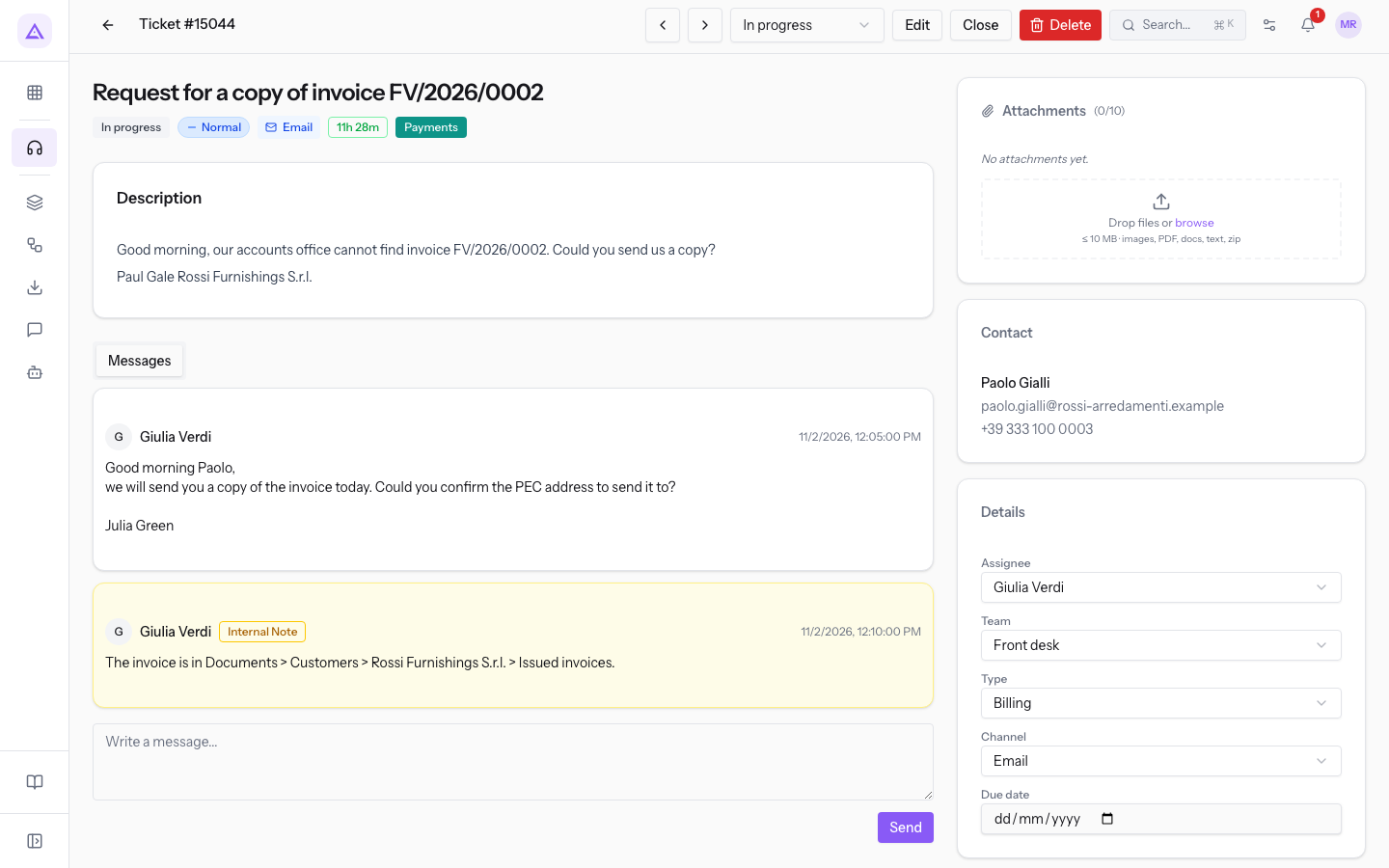
If the ticket has no messages yet, the tab shows No messages yet.
Reading a message
Each message appears in a box with this information:
- Initial and name of the author: the user who wrote the message.
- Date and time: when the message was written.
- Internal Note: the badge appears only on internal notes, which also have a yellow background box.
- Edited: the badge appears when the message was changed after it was sent.
- Pencil icon (Edit message): appears only on messages you wrote yourself.
- Message text, with line breaks as they were written.
What the customer sees
Two types of message coexist in the thread. Tell them apart before you reply.
- Normal message: white box, without the Internal Note badge. It is the message written with the Write a message... box.
- Internal note: yellow background box with the Internal Note badge. Internal notes are not sent to the customer and do not count as a first response for SLA purposes.
An internal note appears, for example, when the ticket comes from a CRM request: the operator's notes on the request become an internal note of the ticket.
Important: the Write a message... box always sends a normal message, never an internal note. Write in the box only text meant for the customer.
Writing a message
The box at the bottom of the Messages tab adds a message to the ticket's thread.
- In the Messages tab, press the Write a message... box and write the text.
- Press Send.
The message appears in the thread with your name and the date. The confirmation Message sent appears at the top and the box empties.
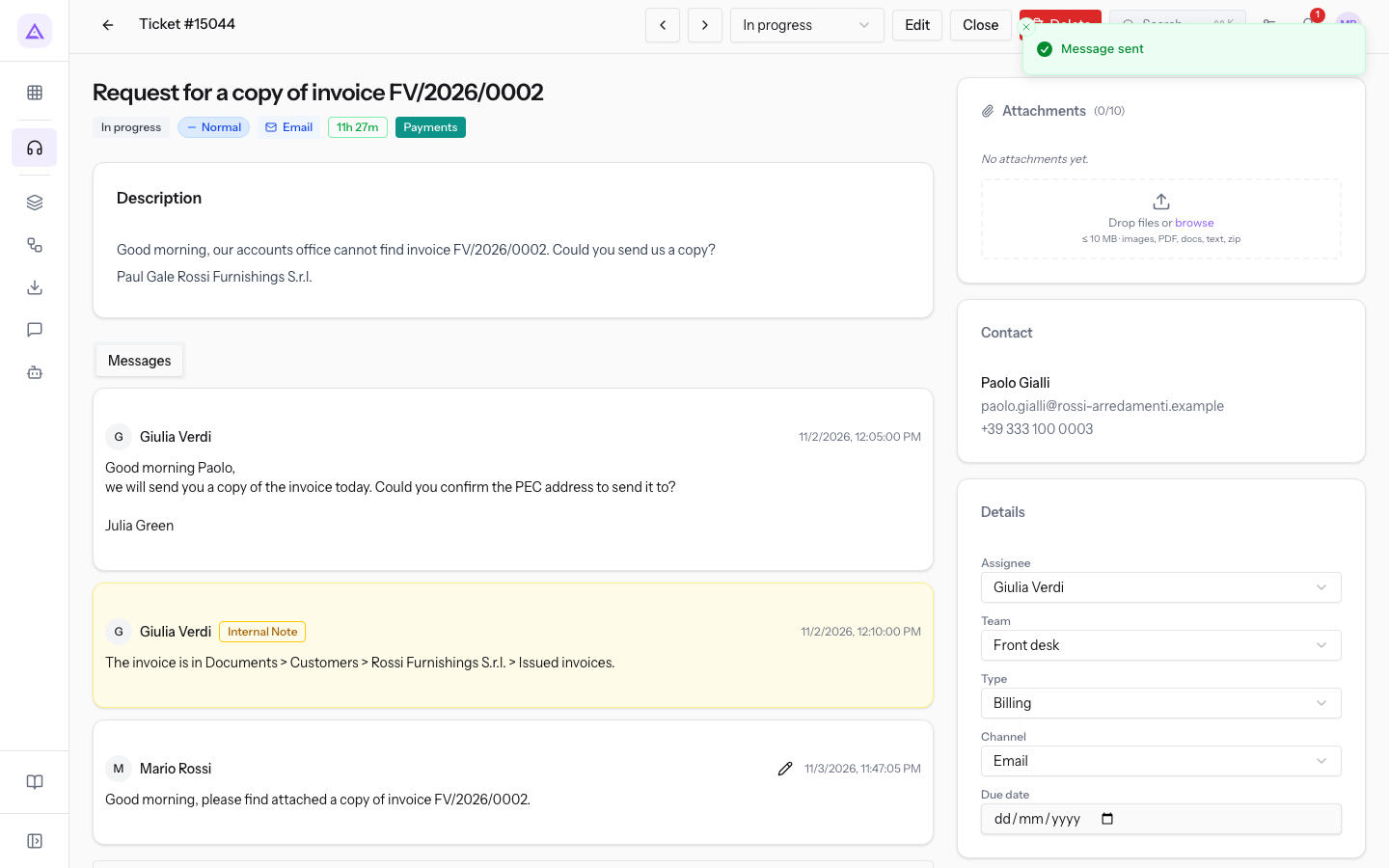
- Write a message...: the message text. An empty message or one made only of spaces is not sent.
Editing your own message
You can correct the text of messages you wrote yourself. On other users' messages the edit icon does not appear.
- In the thread, find your message and press the pencil icon (Edit message).
- The text becomes an editable box. Correct the text.
- Press Save to record the change, or Cancel to leave the message as it was.
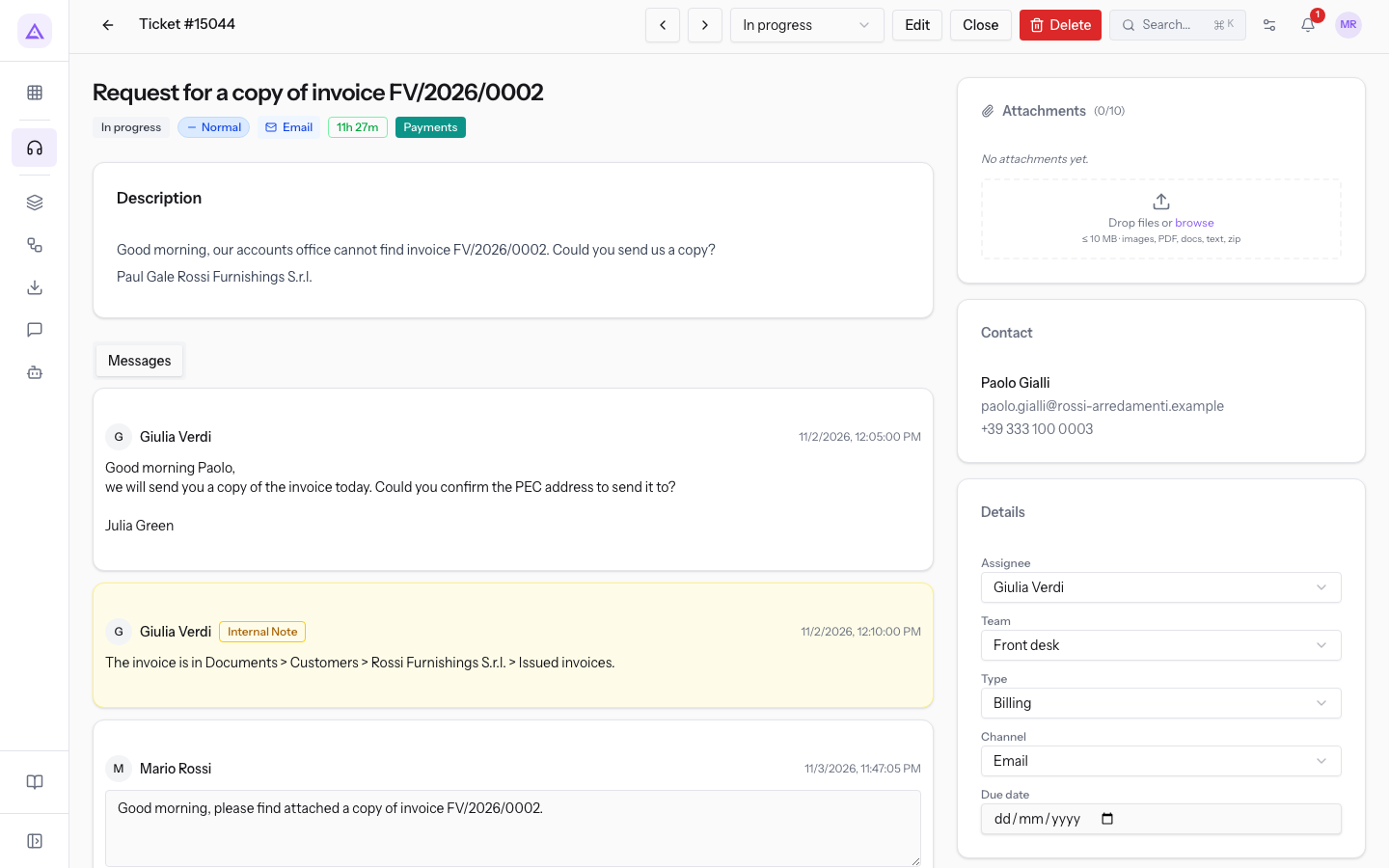
After saving, the confirmation Message updated appears and the message shows the Edited badge. The Save button stays disabled while the box is empty.
Note: the Edited badge stays on the message. Anyone reading the thread sees that the text was changed after it was sent.
See it on your company, not on a slide deck.
In 30 minutes we map the software you use today.We show you how much work and how much margin Archimedes gives back.
Show me on my business →What industry are you in?
One tap — it lets us prepare the demo around your world.
What tools do you use today?
Pick the ones you recognise — or just type them. It helps us show you how they migrate.
Last step: your details.
We reply within one working day — and right after, if you like, you pick the demo slot yourself.
We couldn't send your request. Try again, or write to us at [email protected].
By sending, you agree to your data being processed so we can get back to you about the demo. Privacy notice.
Preview form — nothing is sent from this page.
Want to schedule the demo now?
Your call: book the slot you prefer yourself, or we'll call you to arrange it.
Live availability, 30 minutes, instant confirmation. The calendar opens in a new tab.
Lock in your slot ↗We'll get back to you within one working day — and we'll join the call already knowing your world.
The calendar is open in another tab: pick a slot and the demo is booked. Can't see it? Reopen it ↗
Preview page: nothing was sent.
Our calendar is live: take the slot that suits you and the demo is booked. 30 minutes, instant confirmation, no waiting.
Lock in your slot ↗