Helpdesk
All modules
Advance a ticket, close it, and reopen it
Helpdesk · 9 of 15 · 5 min read
Each ticket sits in a stage of its board, for example Reported, Being repaired or Repaired on the board Room and hall maintenance. From this page you can change a ticket's stage, close it when the request is resolved, and reopen it if the problem comes back.
How stages work
The stages of a board are its columns. Some stages are closing stages: a ticket that enters one is marked as resolved.
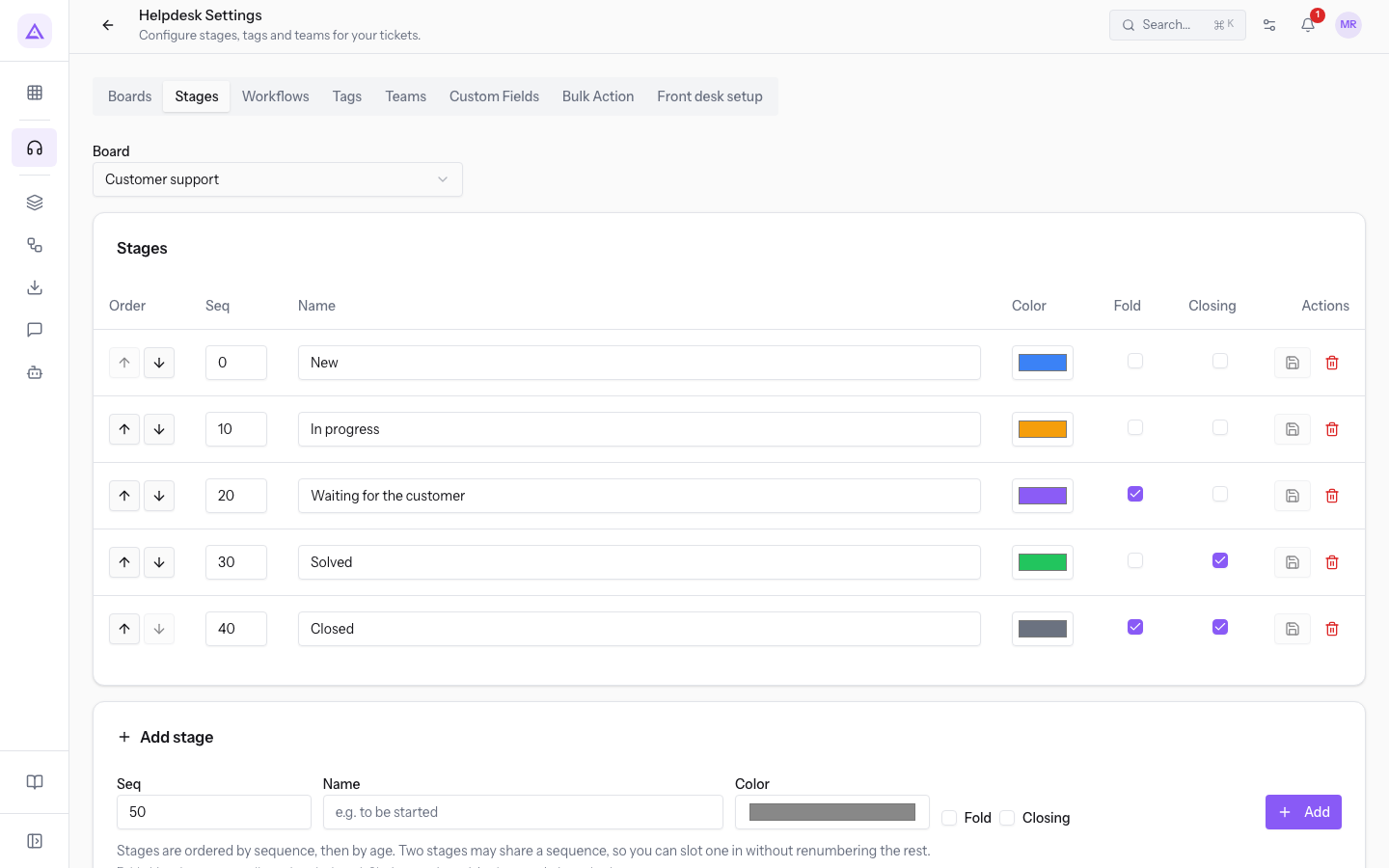
- On the board Customer support the stages are New, In progress, Waiting for the customer, Solved and Closed. The closing stages are Solved and Closed.
- On the board Room and hall maintenance the stages are Reported, Being repaired, Waiting for the supplier and Repaired. A ticket that moves to Repaired is shown as closed.
Choose how to proceed based on what you need to do:
- If the ticket moves to a work stage, for example from Reported to Being repaired, change the stage.
- If the request is resolved, use Close or move the ticket to a closing stage.
- If the problem comes back, use Reopen or move the ticket to a stage that is not a closing stage.
When a ticket returns from a closing stage to an open stage, the resolution and closing dates are cleared.
Note: stages and closing stages are configured in Helpdesk › Settings, on the Stages tab. The tab is visible only to support managers.
Change the stage from the ticket page
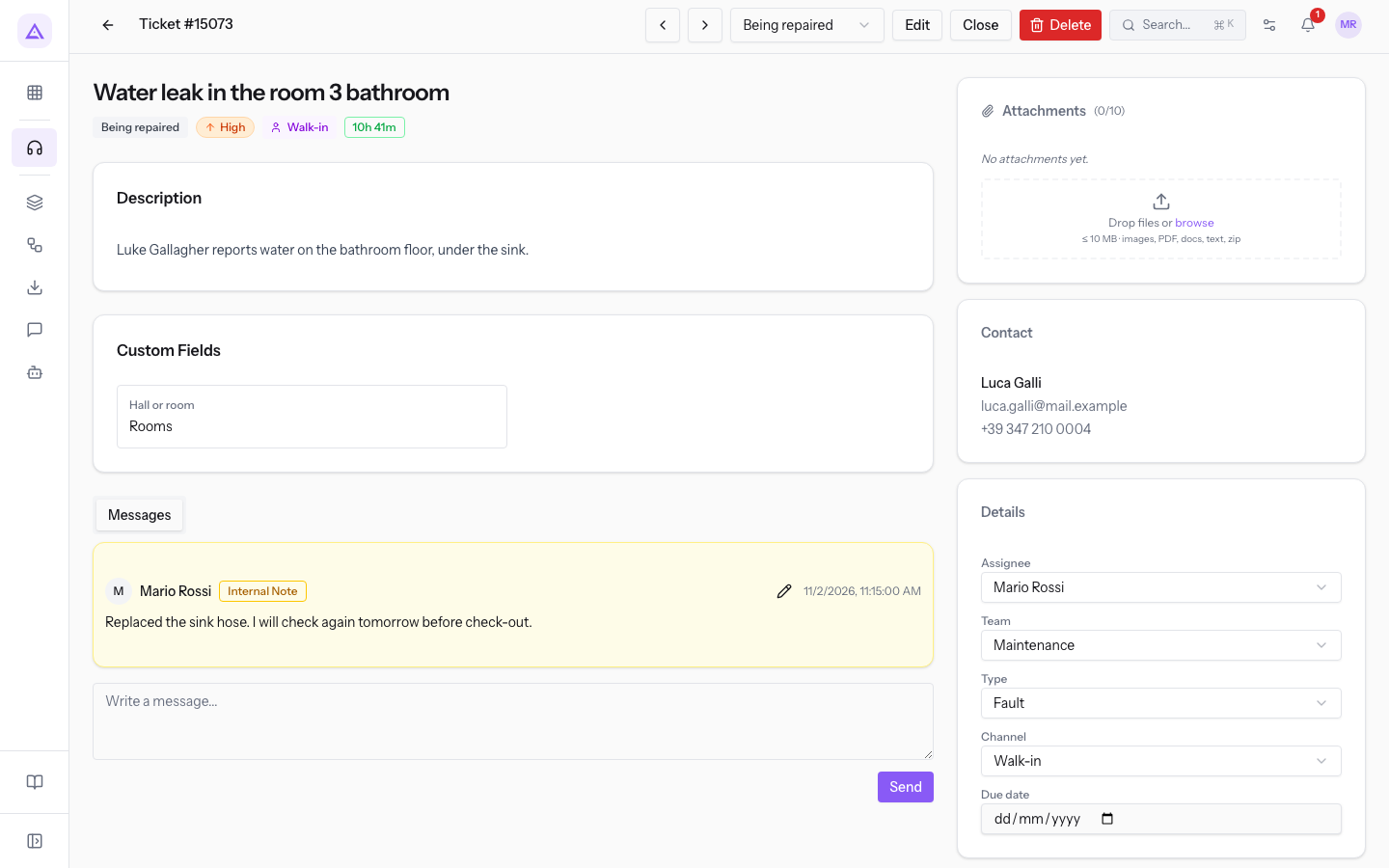
The stage selector is in the header of the page, next to the title with the ticket number. It shows the ticket's current stage.
- Open Helpdesk › Tickets.
- Press the ticket's row, for example
Water leak in the room 3 bathroom. - Press the stage selector in the header. The selector shows the current stage, such as Being repaired.
- Choose the new stage from the list. The stages offered are those of the ticket's board.
The message Stage updated appears and the selector shows the new stage.
Change the stage from the ticket list
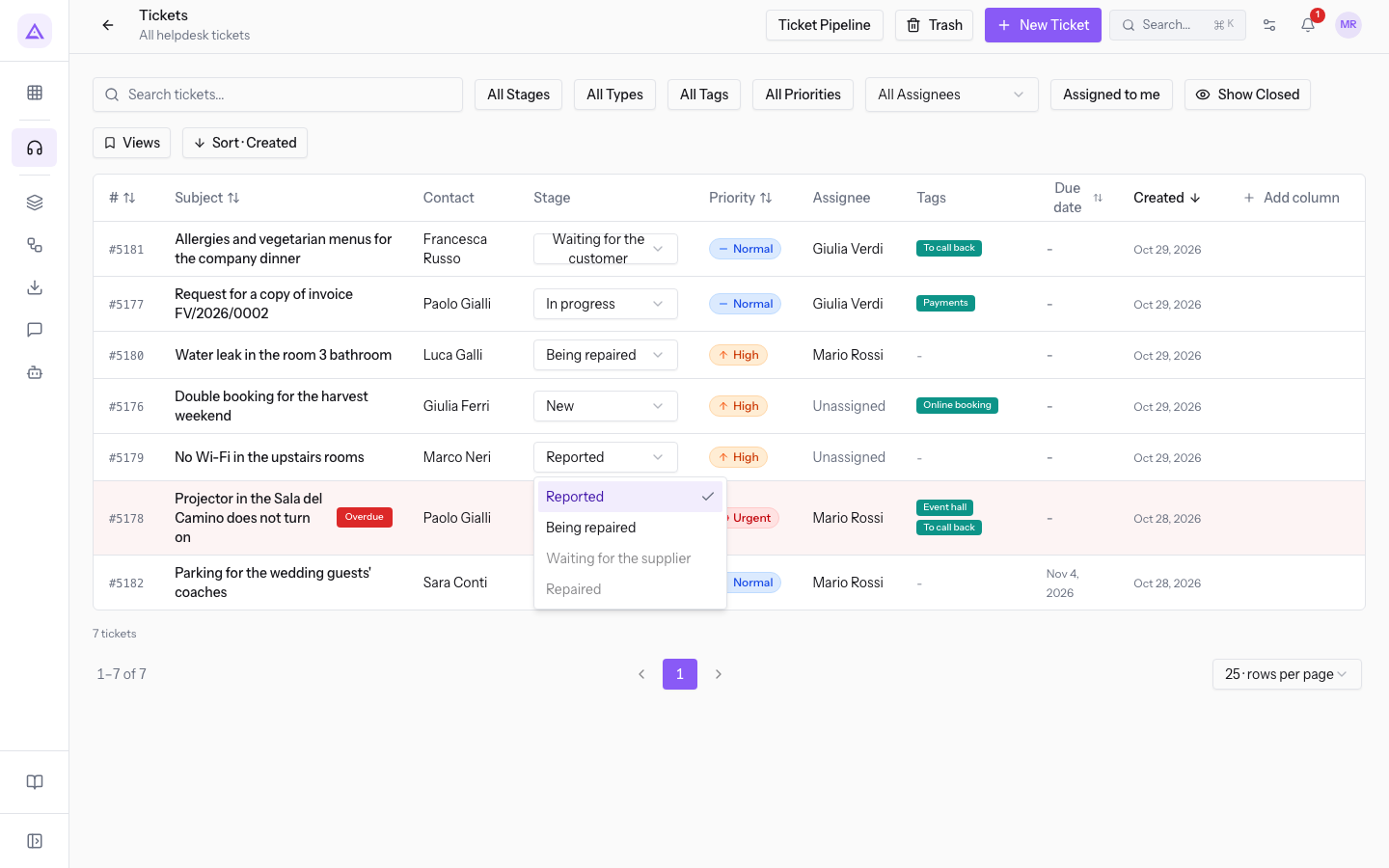
In the ticket list every row has a menu with the ticket's stage. It lets you change the stage without opening the ticket page.
- Open Helpdesk › Tickets.
- In the ticket's row, press the stage menu, for example Reported for ticket
#4633. - Choose the new stage. The menu lists the stages of the ticket's board: for
#4633, on the board Room and hall maintenance, these are Reported, Being repaired, Waiting for the supplier and Repaired. For a ticket on the board Customer support it lists New, In progress, Waiting for the customer, Solved and Closed.
Note: closed tickets do not appear in the list. To see them, press Show Closed.
Move the ticket in the Pipeline
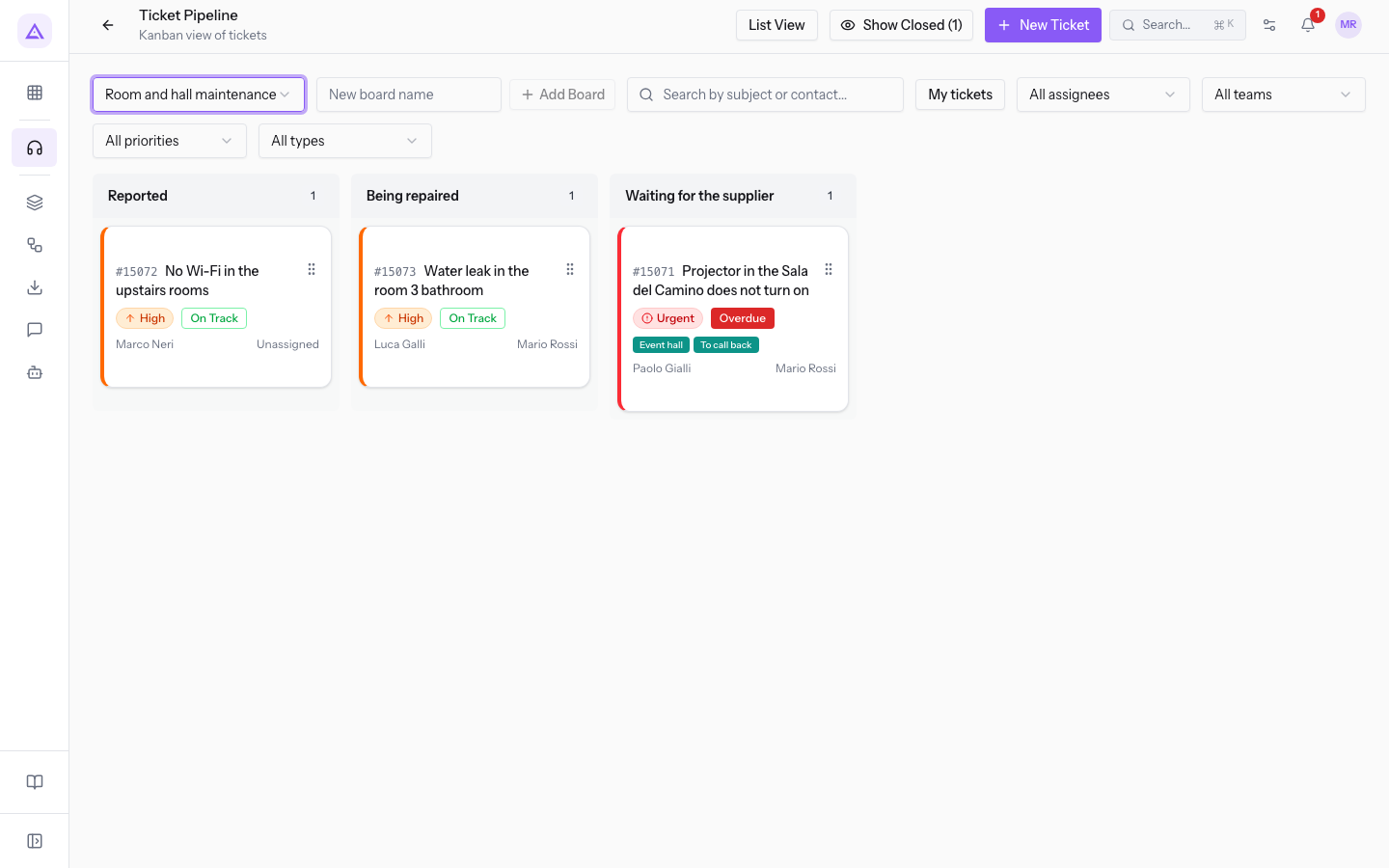
In the Pipeline each stage is a column and each ticket is a card. To change the stage, drag the card into another column.
- Open Helpdesk › Pipeline.
- In the board selector choose the board, for example Room and hall maintenance.
- Drag the ticket's card into the column of the new stage, such as card
#4633from Reported to Being repaired.
Closed tickets do not appear among the columns. To see them, press Show Closed: the number in brackets shows how many there are, such as Show Closed (1).
Stage moves blocked by the workflow
A board can have a workflow that sets which stage can move to which other stage. The workflow applies only to the boards it is assigned to. A move the workflow does not allow is refused with the message The workflow does not allow moving to this stage from the current one.
On the board Room and hall maintenance a ticket in Reported can only move to Being repaired. For example, the ticket No Wi-Fi in the upstairs rooms is in Reported: in the stage selector Waiting for the supplier and Repaired are grayed out and cannot be chosen.
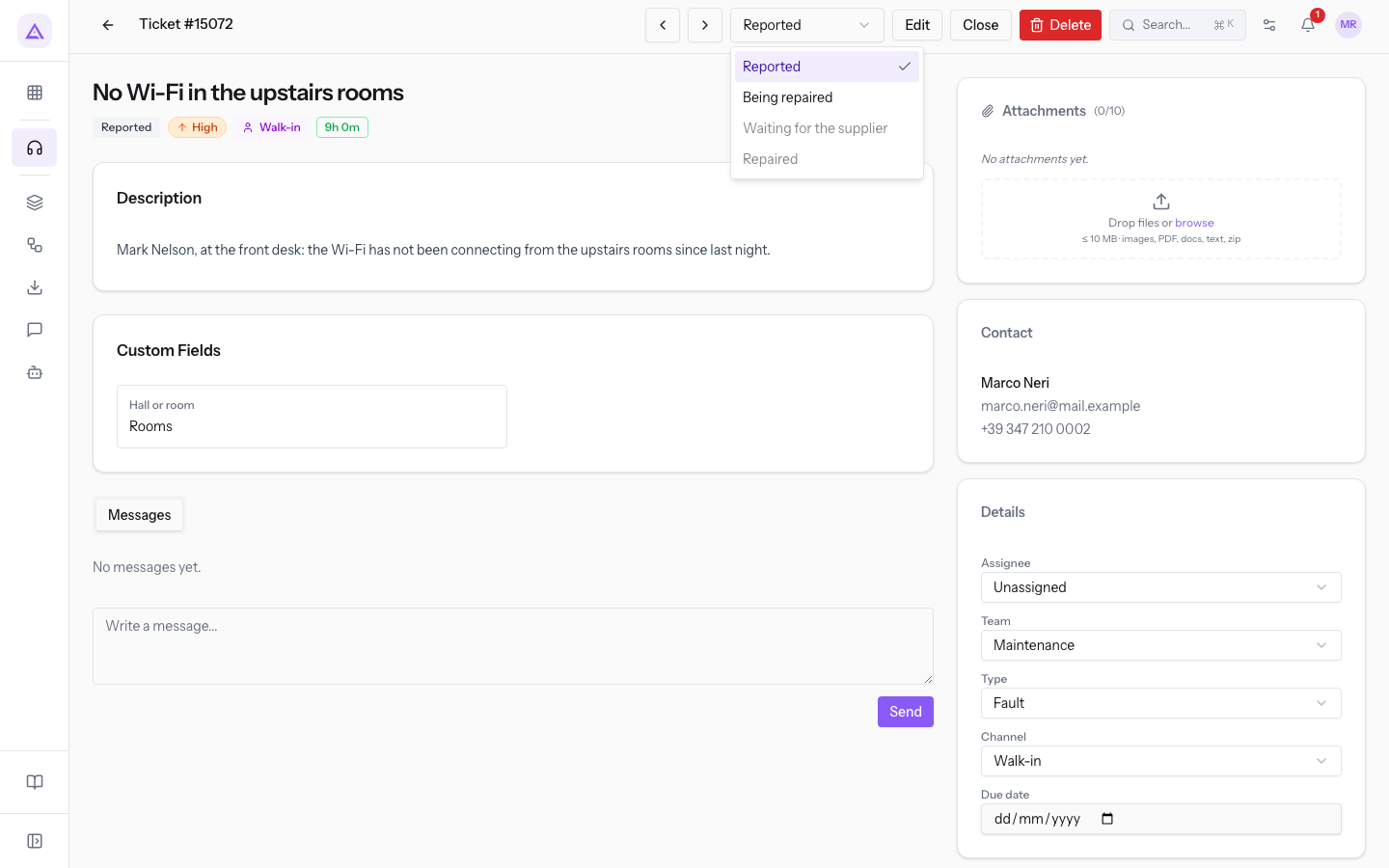
If you need a move the workflow does not allow, go through the intermediate stages first, such as from Reported to Being repaired and then to Repaired.
Close a ticket
The Close button is in the header of an open ticket's page. It moves the ticket to a closing stage.
- Open the ticket's page, for example
Water leak in the room 3 bathroomin Being repaired.
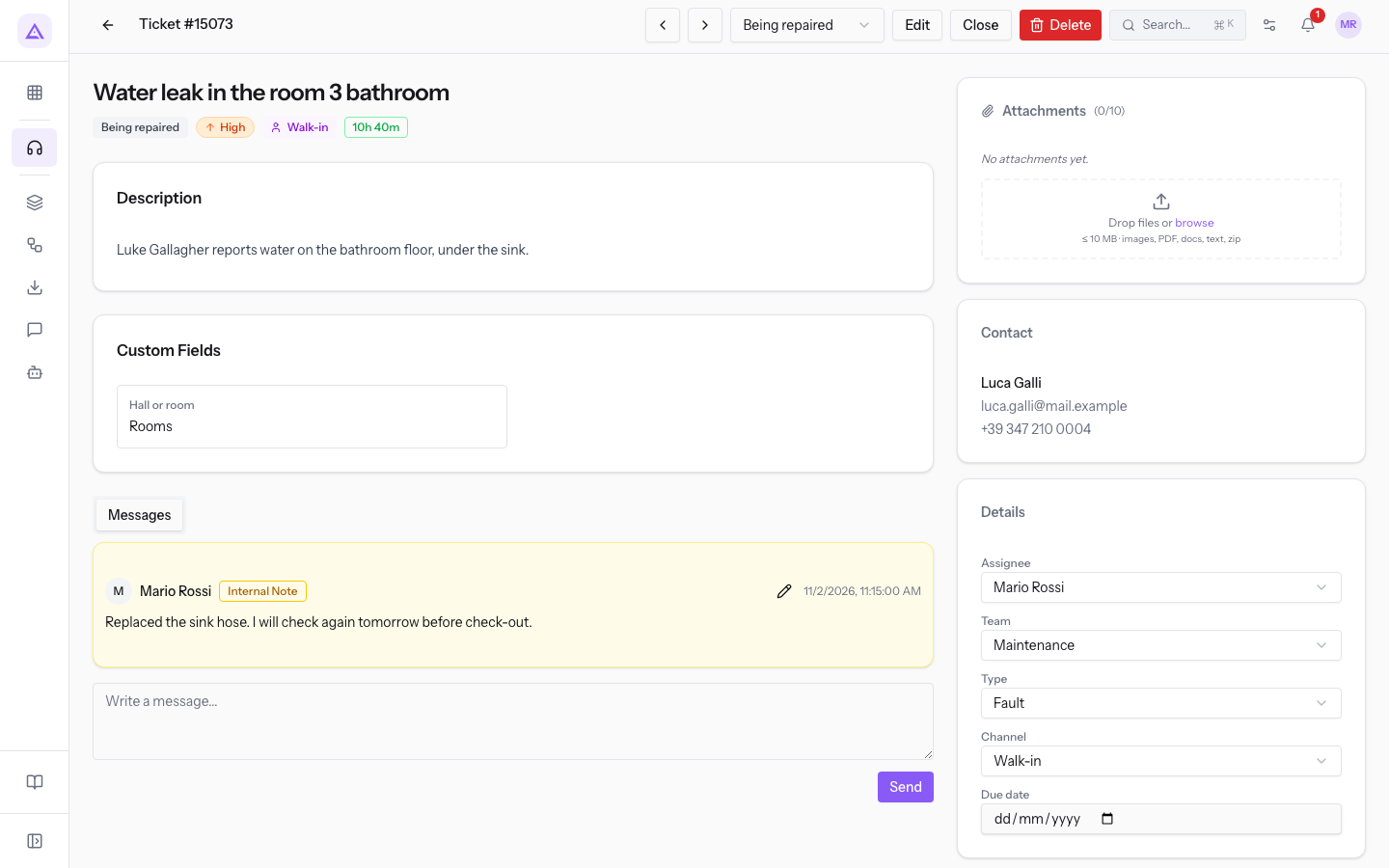
- Press Close.
The message Ticket closed appears. The ticket moves to the Repaired stage and Reopen replaces Close. The ticket no longer appears in the list until you press Show Closed.
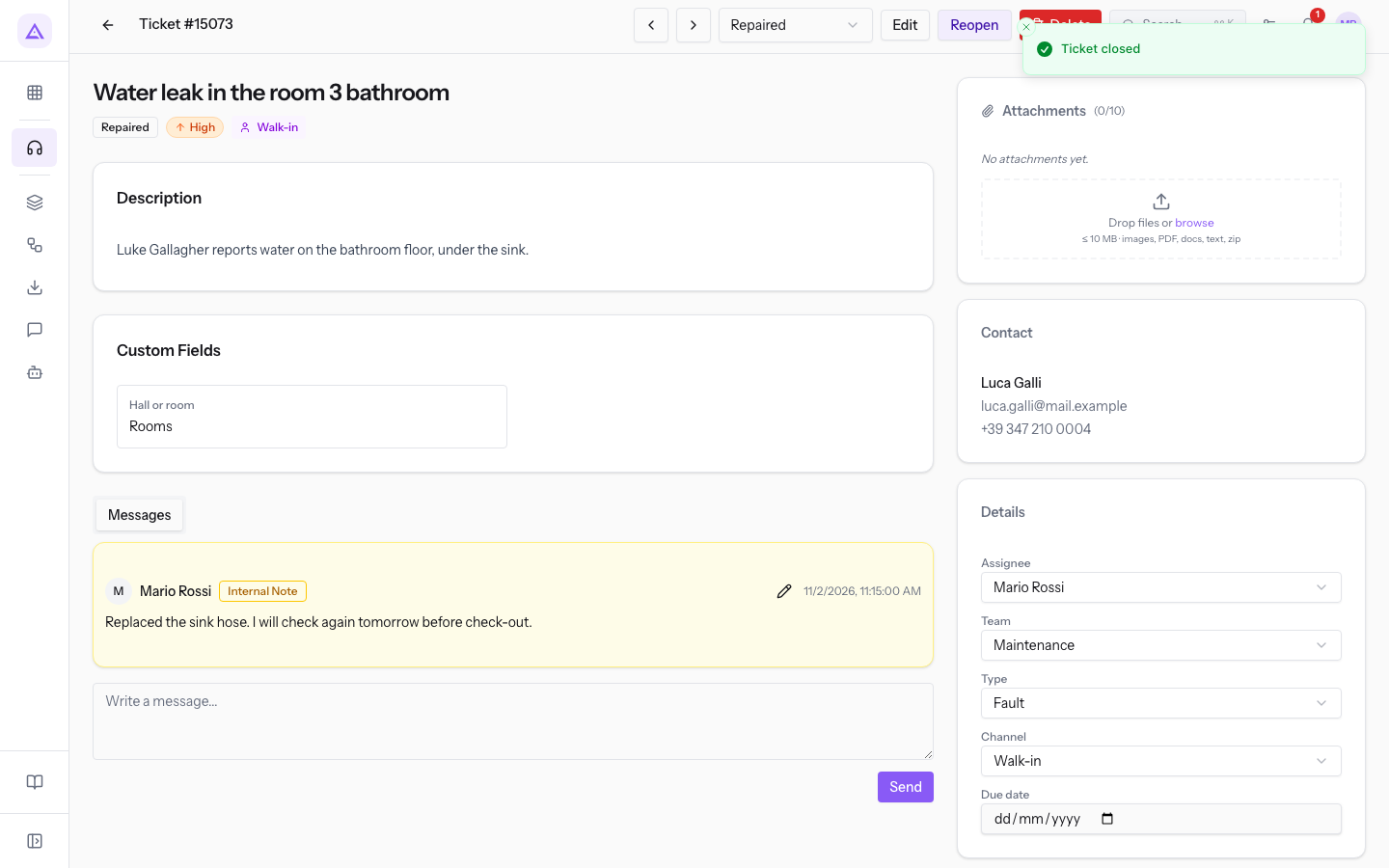
Alternatively, you can close the ticket by choosing a closing stage from the stage selector, from the row menu, or in the Pipeline.
Reopen a ticket
The Reopen button appears in the header of a closed ticket's page. It moves the ticket back to an open stage.
- Open Helpdesk › Tickets and press Show Closed.
- Press the ticket's row, for example
Water leak in the room 3 bathroomin Repaired. - Press Reopen.
The message Ticket reopened appears. In the example ticket the stage returns to Reported and Close appears again in place of Reopen.
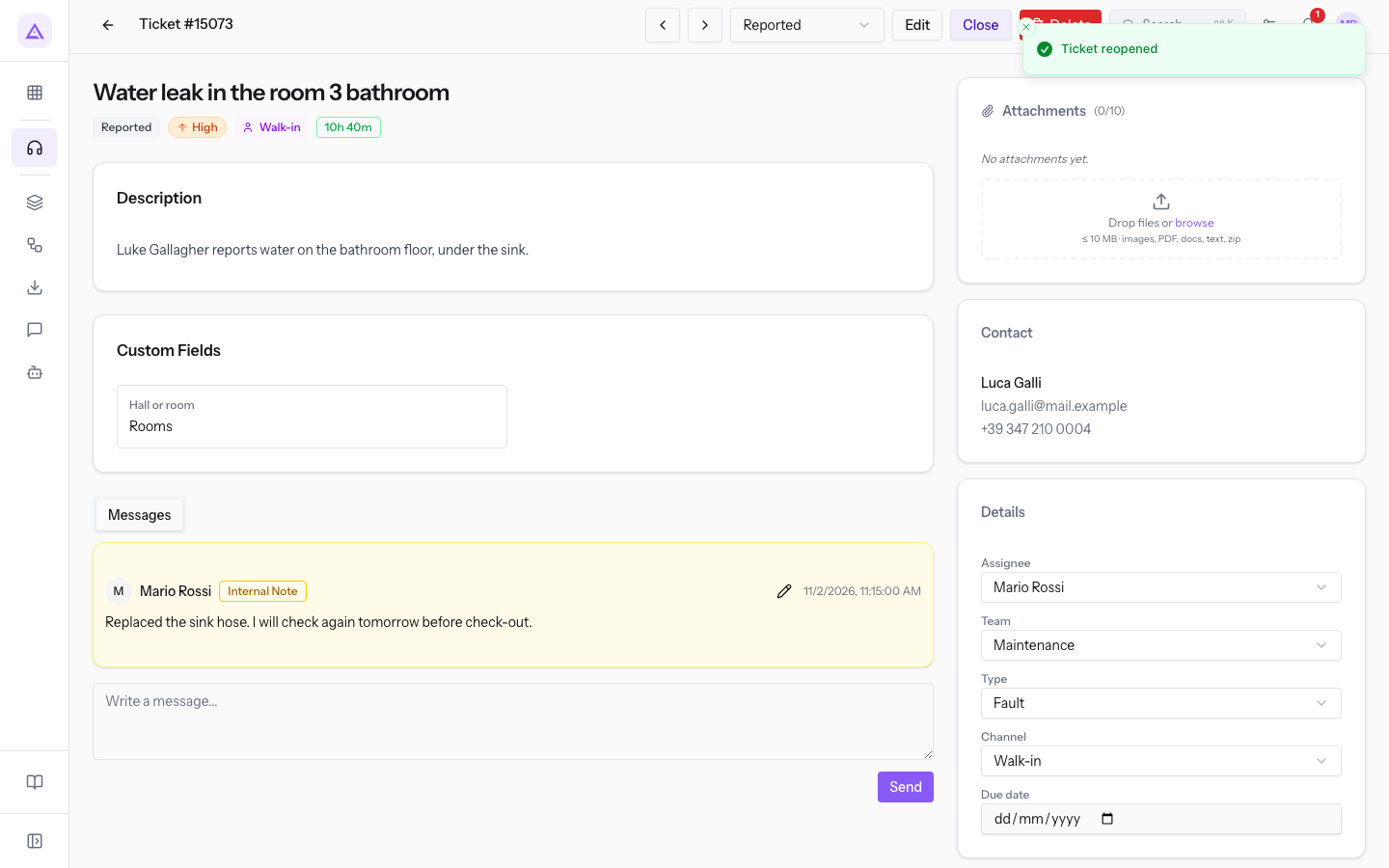
- If the work resumes from a later stage, choose the stage from the selector, such as Being repaired.
Follow the steps in History
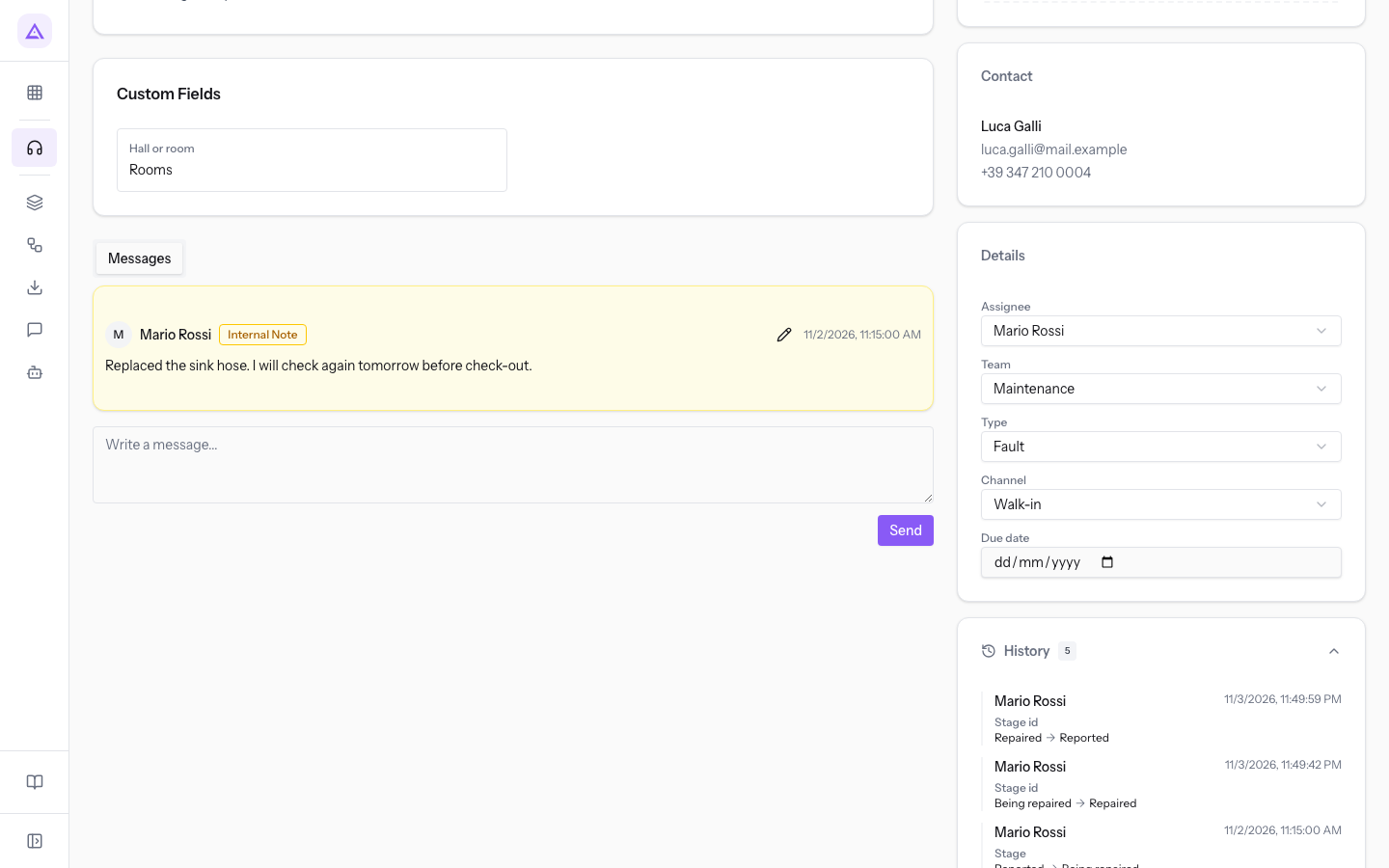
The History in the right column of the ticket page records every change to the ticket, including stage changes, closures and reopenings. The number next to the title shows how many changes there are. For example, on the ticket Water leak in the room 3 bathroom it goes from History 3 to History 4 after Close, to History 5 after Reopen, and to History 6 after the stage change.
- Open the ticket's page.
- Press History to open the list of changes.
See it on your company, not on a slide deck.
In 30 minutes we map the software you use today.We show you how much work and how much margin Archimedes gives back.
Show me on my business →What industry are you in?
One tap — it lets us prepare the demo around your world.
What tools do you use today?
Pick the ones you recognise — or just type them. It helps us show you how they migrate.
Last step: your details.
We reply within one working day — and right after, if you like, you pick the demo slot yourself.
We couldn't send your request. Try again, or write to us at [email protected].
By sending, you agree to your data being processed so we can get back to you about the demo. Privacy notice.
Preview form — nothing is sent from this page.
Want to schedule the demo now?
Your call: book the slot you prefer yourself, or we'll call you to arrange it.
Live availability, 30 minutes, instant confirmation. The calendar opens in a new tab.
Lock in your slot ↗We'll get back to you within one working day — and we'll join the call already knowing your world.
The calendar is open in another tab: pick a slot and the demo is booked. Can't see it? Reopen it ↗
Preview page: nothing was sent.
Our calendar is live: take the slot that suits you and the demo is booked. 30 minutes, instant confirmation, no waiting.
Lock in your slot ↗