Helpdesk
All modules
Writing knowledge base articles
Helpdesk · 12 of 15 · 3 min read
The Knowledge base collects the support answer articles. For example, one article explains how to request a copy of an invoice or how to handle a recurring fault. From here you create articles, edit them, and decide which ones to publish.
Article statuses
Each article has a status. The status decides whether the article is used to answer customers.
- Draft: the article is being prepared. It is not used for answers.
- Published: the article is active. Only published articles are used.
- Archived: the article is no longer valid, for example
Easter lunch 2025: times. It is not used for answers, but it stays in the list.
If the text is not verified yet, save it as Draft. If the text is ready for customers, choose Published. If the information is outdated but you want to keep it, choose Archived.
Viewing the article list
The list shows all articles, in any status.
Before you start: the Knowledge base menu entry is visible only to support managers (Helpdesk Manager group). Operators (Helpdesk User group) edit articles but do not create new ones.
- Go to Helpdesk › Knowledge base.
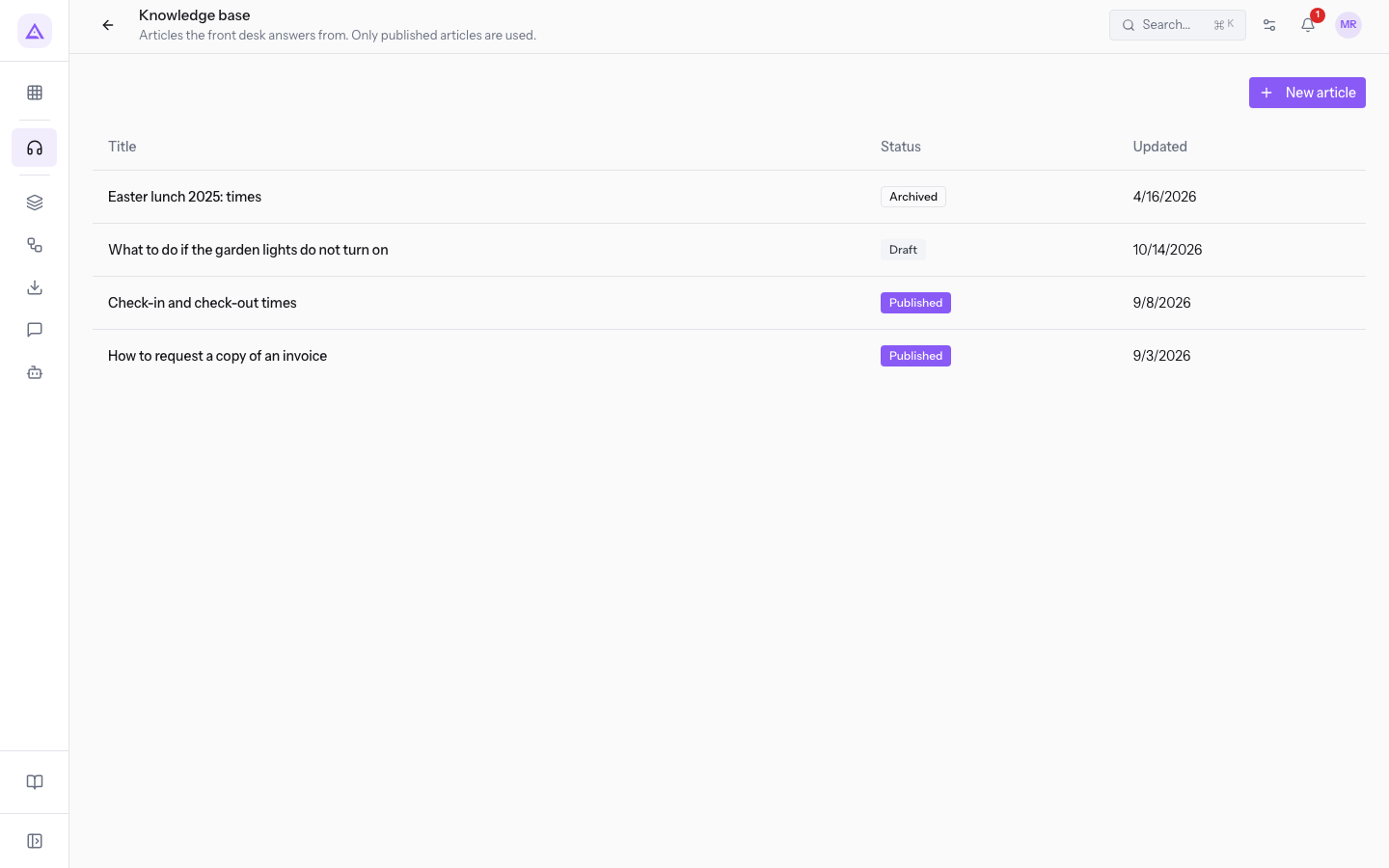
Under the title, the page reminds you that the front desk only answers from published articles. The list has these columns:
- Title: the article title. Press the title to open the article page.
- Status: Draft, Published or Archived.
- Updated: the date of the last change.
Creating an article
Create an article for each question customers ask often.
- In Helpdesk › Knowledge base press New article. The New article window opens.
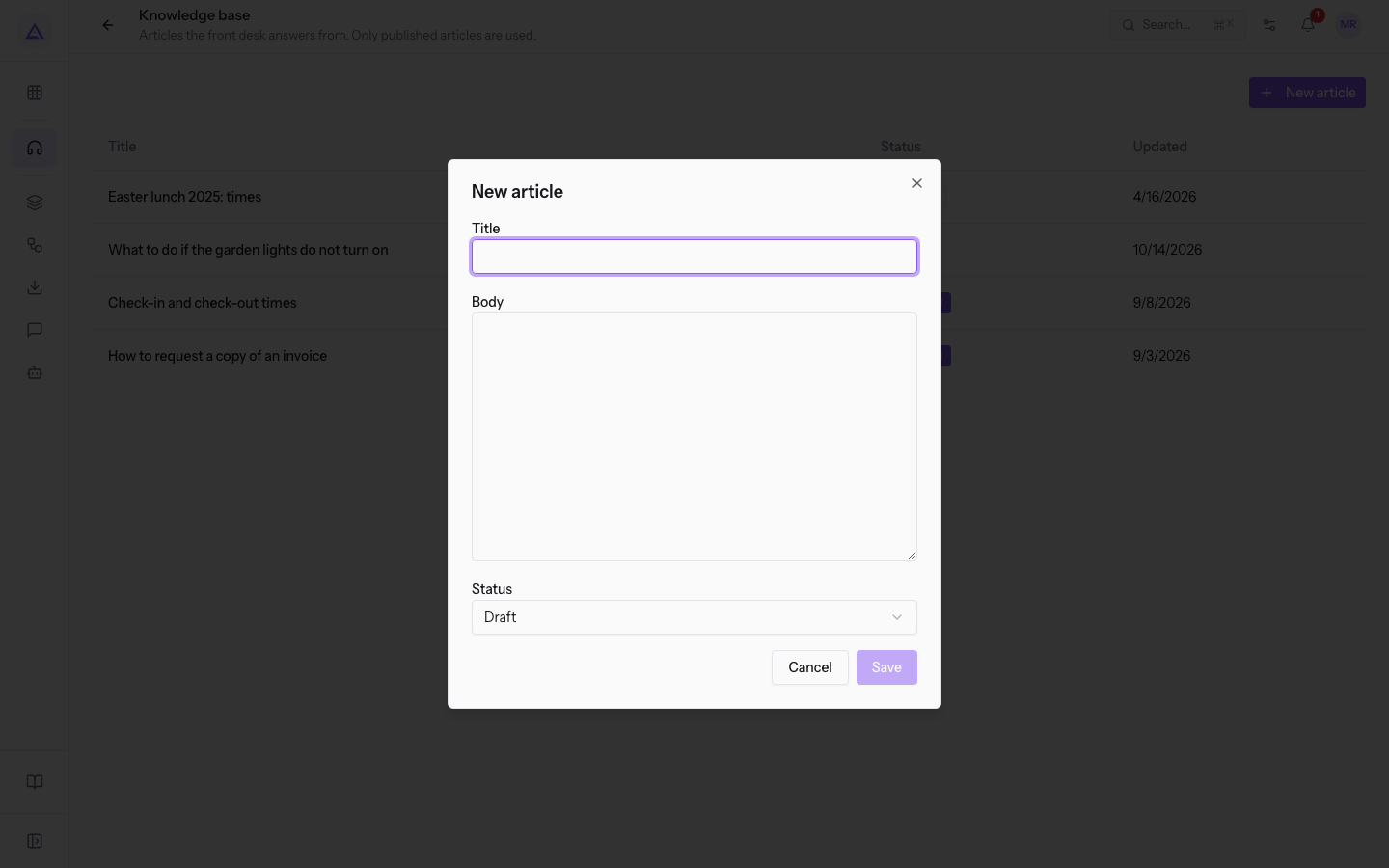
- Fill in Title and Body.
- In Status choose the article status.
- Press Save. The message Article created. appears. To close the window without saving, press Cancel.
The fields of the window:
- Title: the question or topic of the article, for example
How to request a copy of an invoice. - Body: the text of the answer.
- Status: the status the article is saved with. The starting value is Draft.
- Draft
- Published
- Archived
Opening an article
The article page shows the title, the status and the text, with buttons to publish it and edit it.
- In Helpdesk › Knowledge base press the article title, for example
How to request a copy of an invoice.
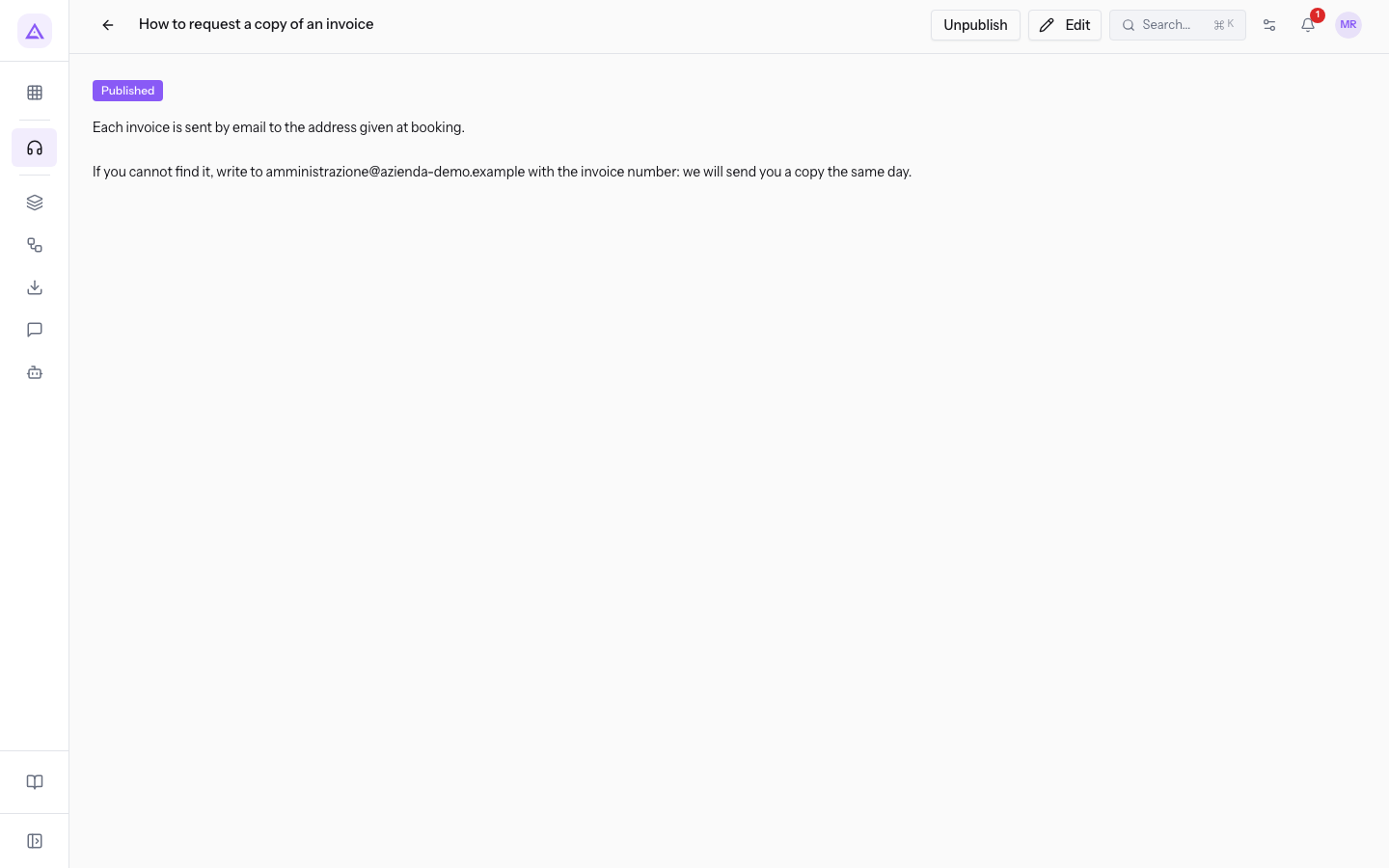
- To go back to the list, press the back arrow (Back to articles).
At the top right the page shows one of these two buttons, depending on the status:
- Unpublish: appears on published articles.
- Publish: appears on unpublished articles, such as on the draft
What to do if the garden lights do not turn on.
Publishing an article or moving it back to draft
Publish a draft when the text is ready. Move a published article back to draft when the text needs correcting and must not be used in the meantime.
- Open the article from the list, for example
What to do if the garden lights do not turn on.
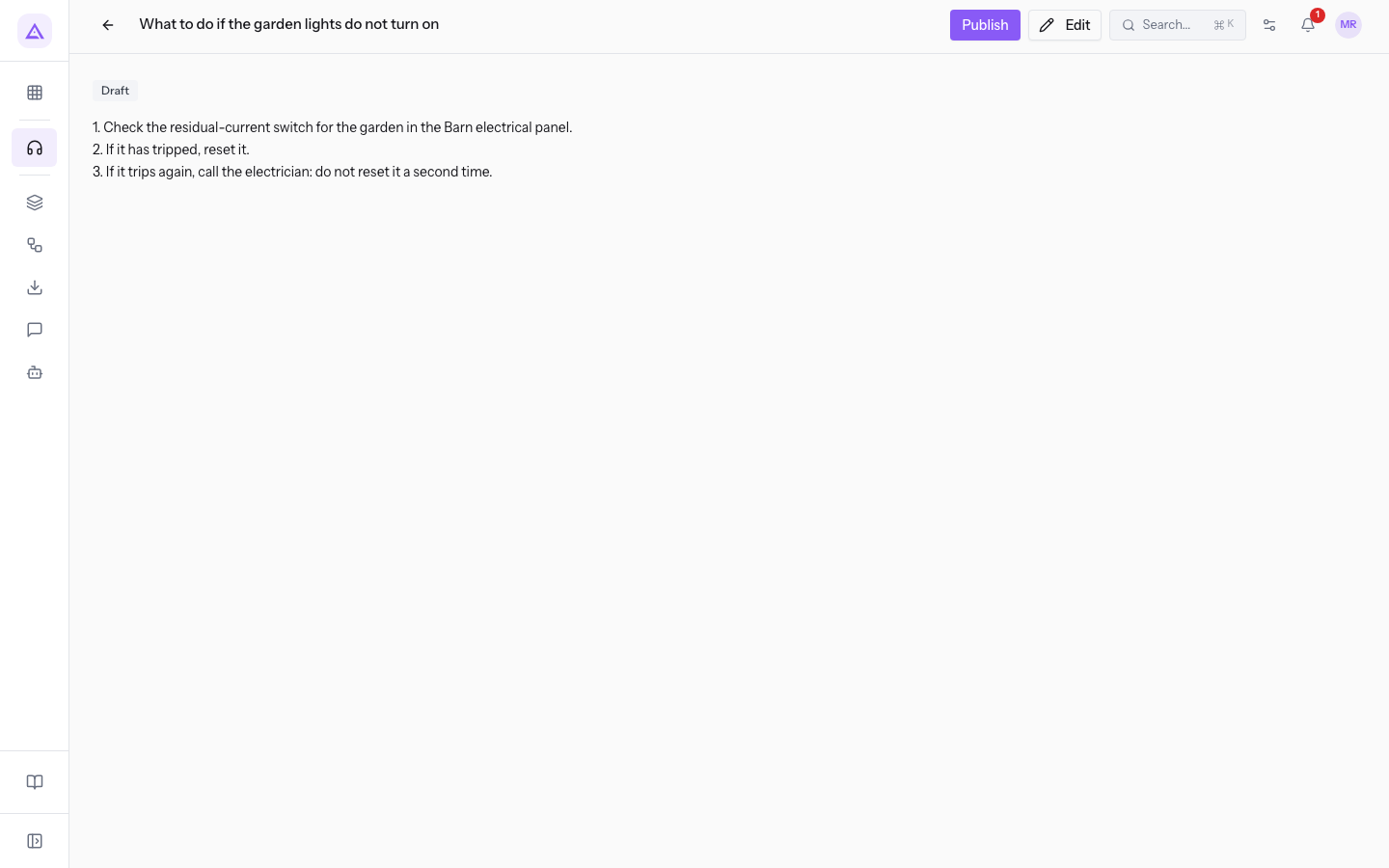
- Press Publish. The message Article published. appears.
- For a published article, press Unpublish. The message Article moved back to draft. appears.
Important: the front desk answers customers only from published articles. Drafts and archived articles are never used.
Editing an article
Edit an article to update its text, title or status.
- Open the article from the list.
- Press Edit. The Edit article window opens, with the article's current values.
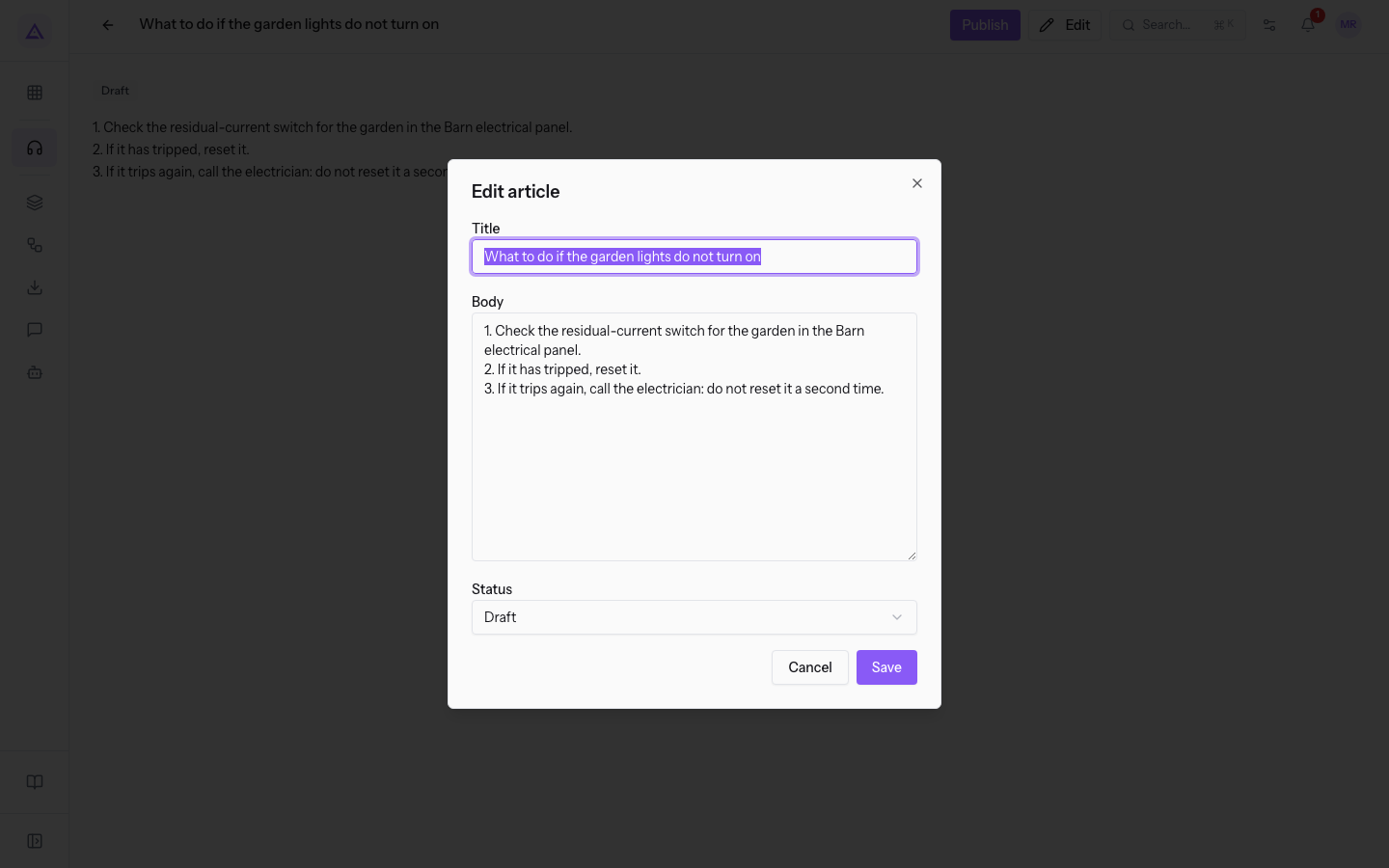
- Change Title, Body or Status. The fields are the same as in the New article window.
- Press Save. The message Article saved. appears. To leave without saving, press Cancel.
Tip: to archive an outdated article, open Edit and choose Archived in Status.
See it on your company, not on a slide deck.
In 30 minutes we map the software you use today.We show you how much work and how much margin Archimedes gives back.
Show me on my business →What industry are you in?
One tap — it lets us prepare the demo around your world.
What tools do you use today?
Pick the ones you recognise — or just type them. It helps us show you how they migrate.
Last step: your details.
We reply within one working day — and right after, if you like, you pick the demo slot yourself.
We couldn't send your request. Try again, or write to us at [email protected].
By sending, you agree to your data being processed so we can get back to you about the demo. Privacy notice.
Preview form — nothing is sent from this page.
Want to schedule the demo now?
Your call: book the slot you prefer yourself, or we'll call you to arrange it.
Live availability, 30 minutes, instant confirmation. The calendar opens in a new tab.
Lock in your slot ↗We'll get back to you within one working day — and we'll join the call already knowing your world.
The calendar is open in another tab: pick a slot and the demo is booked. Can't see it? Reopen it ↗
Preview page: nothing was sent.
Our calendar is live: take the slot that suits you and the demo is booked. 30 minutes, instant confirmation, no waiting.
Lock in your slot ↗