Helpdesk
All modules
Delete a ticket and restore it from the trash
Helpdesk · 11 of 15 · 3 min read
When you delete a ticket, it goes to the trash and is not erased right away. From the trash you can restore it, for example if you deleted an open ticket by mistake or a duplicate that you needed.
Deleted tickets stay in the trash and you can restore them. They are removed permanently after the retention period.
- If a ticket is a duplicate or was opened by mistake, delete it: it goes to the trash.
- If the ticket is resolved, don't delete it: close it with Close. It stays in the list of closed tickets.
- If you deleted a ticket that you still need, restore it from the trash before the retention period expires.
Delete a ticket
Before you start: to delete a ticket you need the Helpdesk Manager group. Members with only the Helpdesk User group cannot delete tickets.
You can delete a ticket from its page.
- Open Helpdesk › Tickets and press the ticket row. The ticket page opens.
- In the header, press Delete.
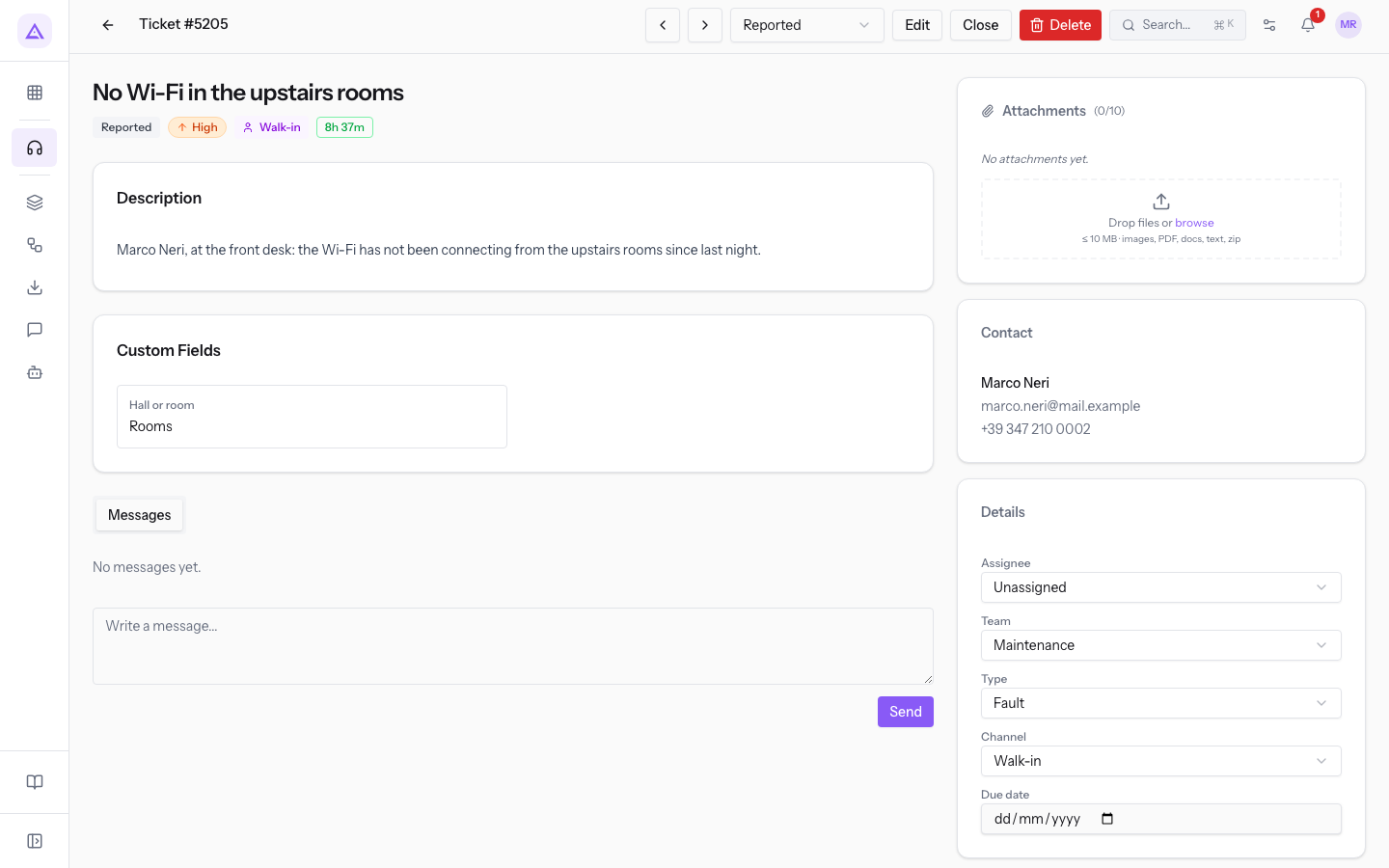
- The Move ticket to trash? dialog opens. It shows the ticket subject and tells you that you can restore it later from the ticket list.
- Select the checkbox I understand this ticket will be moved to the trash.
- Press Delete to confirm, or Cancel to close the dialog without deleting the ticket.
The message Ticket moved to trash appears and the ticket is no longer in the Tickets list.
Open the trash
The trash collects deleted tickets, with the same columns as the ticket list.
- Open Helpdesk › Tickets.
- At the top, press Trash.
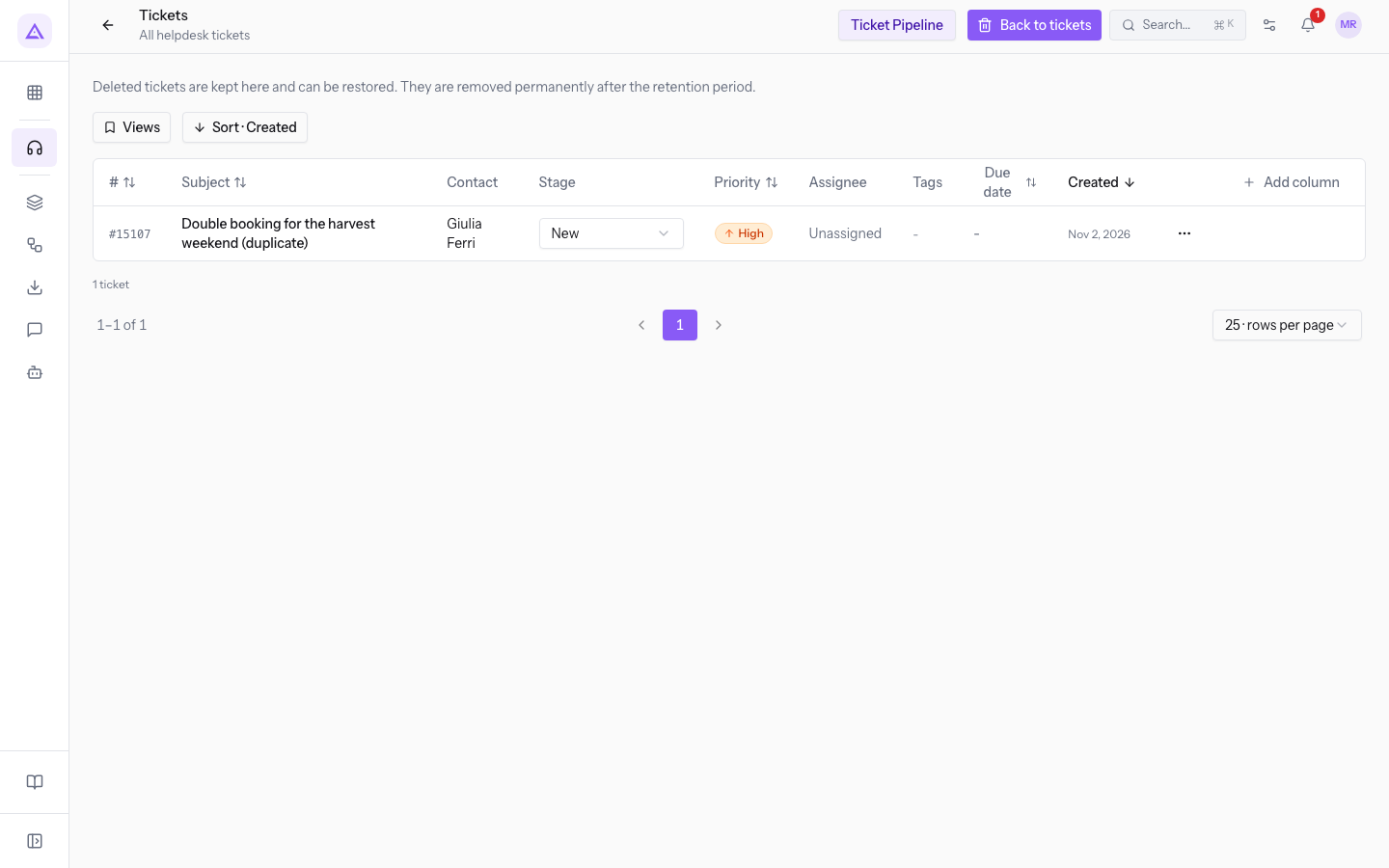
At the top of the list appears the text "Deleted tickets are kept here and can be restored. They are removed permanently after the retention period." Each row has the Actions menu.
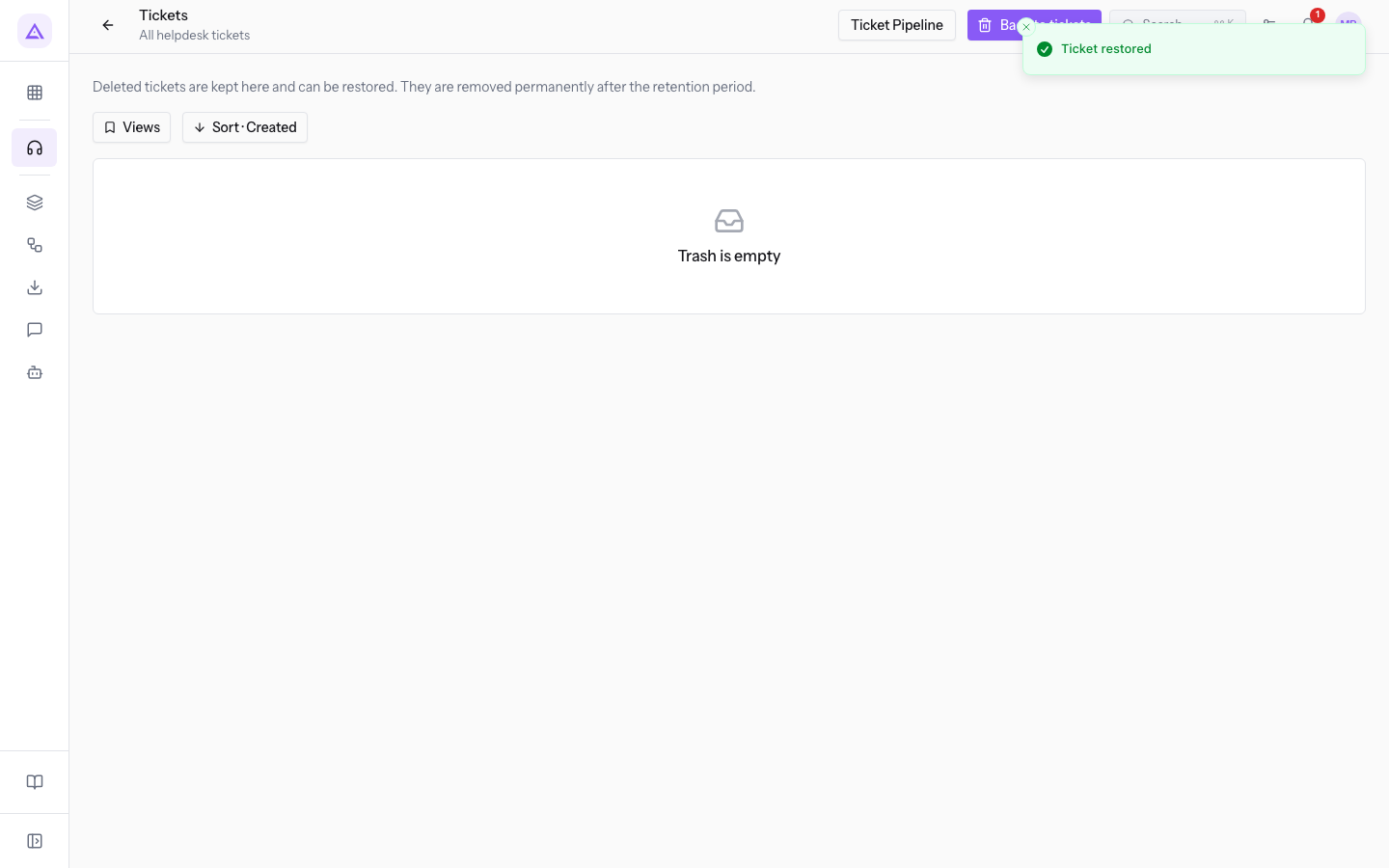
If there are no deleted tickets, the message Trash is empty appears.
To go back to the list of active tickets, press Back to tickets.
Restore a ticket
Restoring moves the ticket back to the list of active tickets.
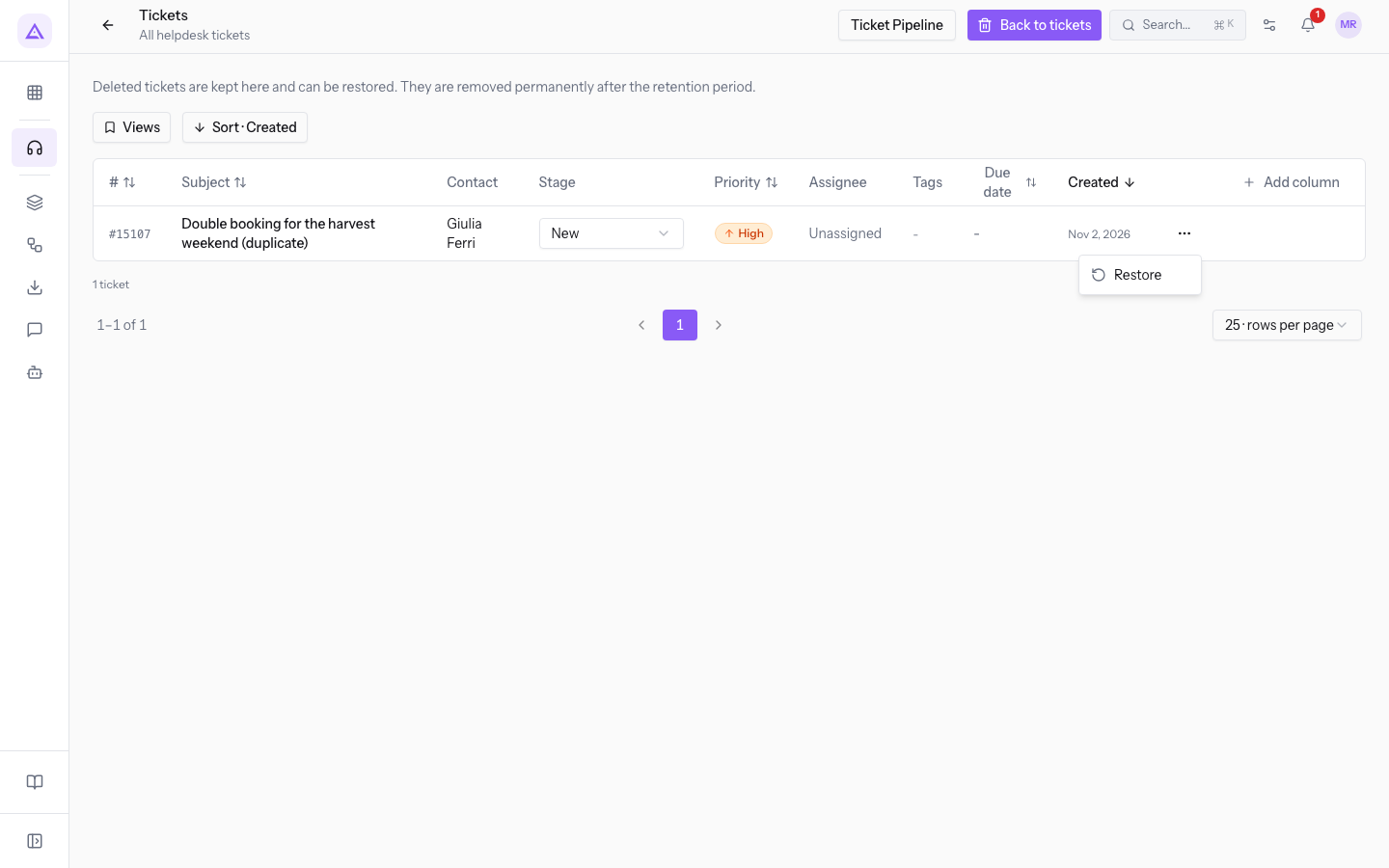
- Open Helpdesk › Tickets and press Trash.
- In the ticket's row, press Actions.
- Choose Restore.
The message Ticket restored appears and the ticket is no longer in the trash. You can find it again in the Tickets list, which you return to with Back to tickets.
Note: a ticket permanently removed after the retention period no longer appears in the trash and cannot be restored.
On this page
See it on your company, not on a slide deck.
In 30 minutes we map the software you use today.We show you how much work and how much margin Archimedes gives back.
Show me on my business →What industry are you in?
One tap — it lets us prepare the demo around your world.
What tools do you use today?
Pick the ones you recognise — or just type them. It helps us show you how they migrate.
Last step: your details.
We reply within one working day — and right after, if you like, you pick the demo slot yourself.
We couldn't send your request. Try again, or write to us at [email protected].
By sending, you agree to your data being processed so we can get back to you about the demo. Privacy notice.
Preview form — nothing is sent from this page.
Want to schedule the demo now?
Your call: book the slot you prefer yourself, or we'll call you to arrange it.
Live availability, 30 minutes, instant confirmation. The calendar opens in a new tab.
Lock in your slot ↗We'll get back to you within one working day — and we'll join the call already knowing your world.
The calendar is open in another tab: pick a slot and the demo is booked. Can't see it? Reopen it ↗
Preview page: nothing was sent.
Our calendar is live: take the slot that suits you and the demo is booked. 30 minutes, instant confirmation, no waiting.
Lock in your slot ↗