Helpdesk
All modules
Finding tickets in the list
Helpdesk · 5 of 15 · 6 min read
The Tickets list shows all support tickets from all boards in a table. Use it to search for a ticket, filter tickets by stage, type, tag, priority or assignee, and choose which columns to see. For example, you can find tickets assigned to Martin Ross or tickets that are overdue.
Opening the ticket list
The list opens from the Helpdesk menu and has the subtitle All helpdesk tickets.
- Open Helpdesk › Tickets.
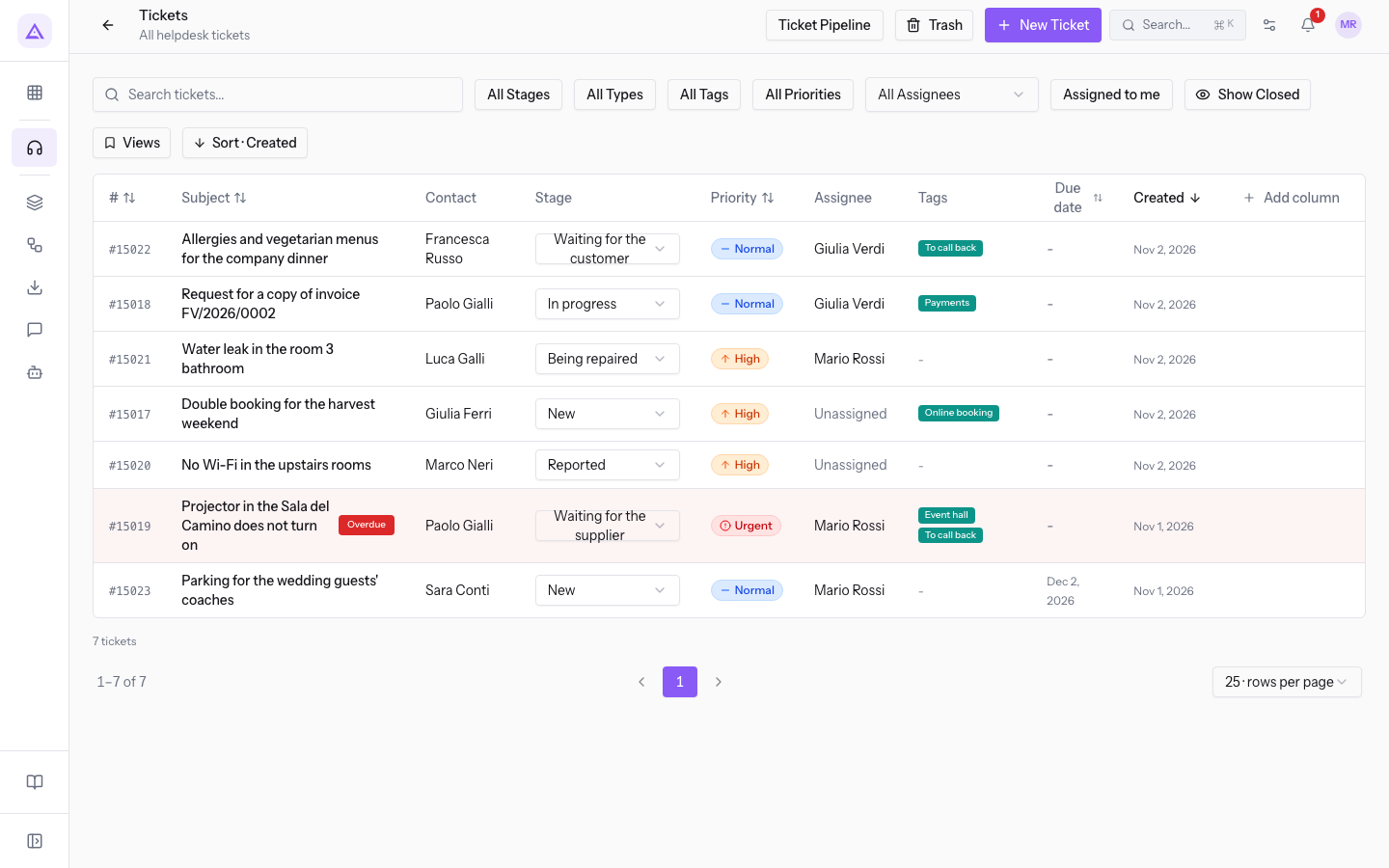
At the top right there are three buttons:
- Ticket Pipeline: opens the Pipeline.
- Trash: shows deleted tickets. The button appears only to the owners and administrators of the organization.
- New Ticket: opens the window to create a ticket.
Without filters, the list shows only open tickets, sorted by creation date, from the most recent.
Searching for a ticket
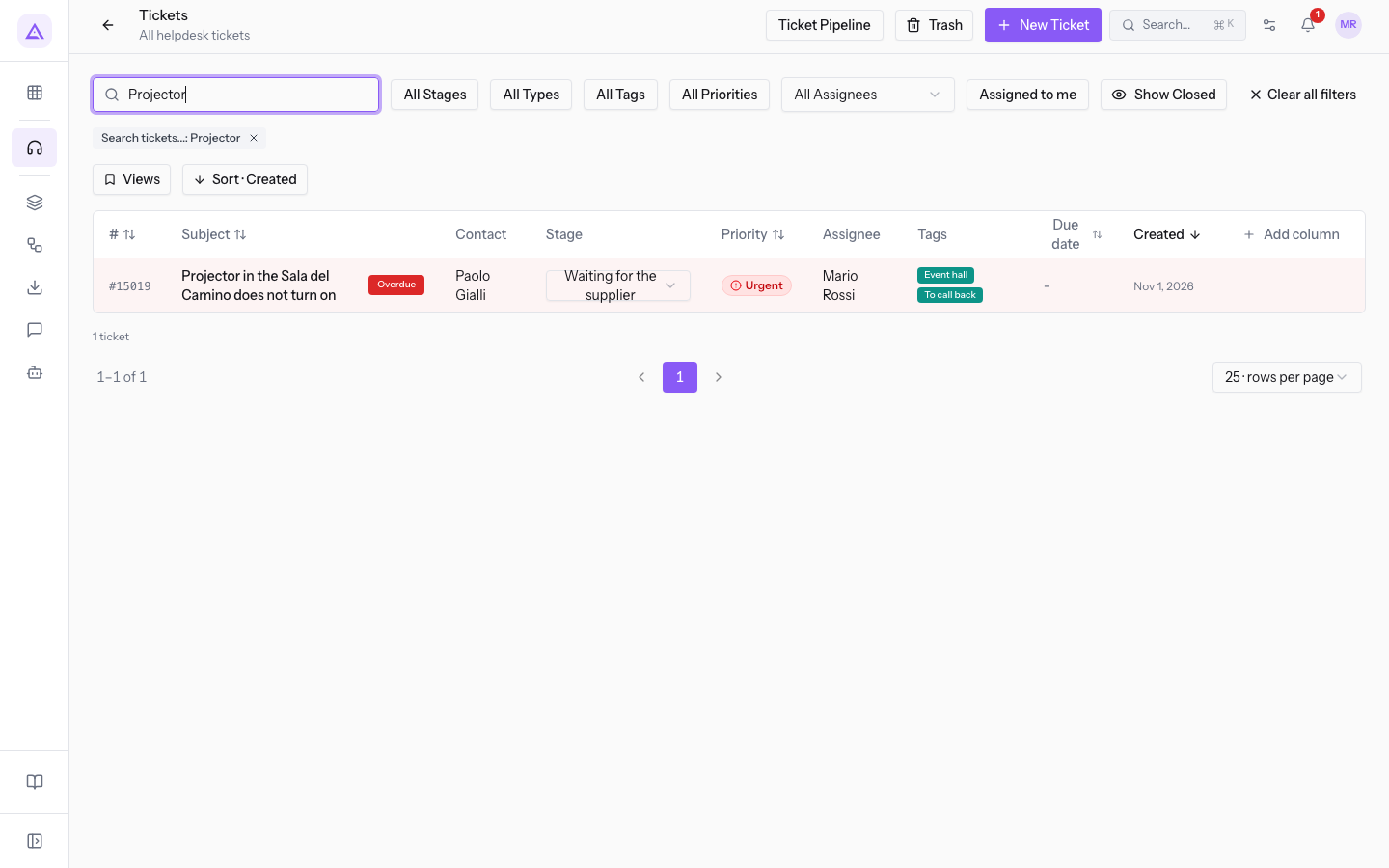
Search finds tickets by text.
- Type the text in the Search tickets... box, for example
Projector. - Wait a moment or press Enter. The list shows only the matching tickets, here ticket #4580 "Projector in the Hall del Camino does not turn on".
Filtering tickets
The filters are next to the search. Use them together to narrow the list: each filter you add reduces the tickets shown.
- All Stages: shows only tickets in the chosen stages. You can tick several stages. If the organization has several boards, each stage is preceded by the name of its board.
- All Types: shows only tickets of the chosen types. You can tick several types.
- All Tags: shows only tickets with the chosen tags, taken from the workspace's shared tag catalog. You can tick several tags.
- All Priorities: shows only tickets with the chosen priorities. You can tick several priorities.
- All Assignees: shows only the tickets of one user, for example Julia Green or Martin Ross. Here you can choose only one user.
- Assigned to me: shows only the tickets assigned to you. The button replaces the assignee filter, and vice versa.
- Show Closed: adds closed tickets to the list, such as those in the stages Solved, Closed and Repaired. The button becomes Hide Closed: press it to return to open tickets only.
When you choose several values in one filter, the button shows the first value followed by +1, +2 and so on.
Note: every time you change a filter, the search or the sorting, the list returns to the first page.
Removing active filters
Each filter in use appears as a label below the filter bar, for example Search tickets...: Projector or Assigned to me.
- To remove a single filter, press the X on its label.
- To remove all filters and the search together, press Clear all filters. The button appears only when at least one filter is active.
Tip: the search, filters and sorting you choose stay in the page address. If you copy the address and send it to a colleague, they see the same list.
Reading the list columns
Each row is a ticket. The columns shown at the start are these:
- #: the ticket number, for example
#4580. - Subject: the ticket subject. If the SLA deadline has passed and the ticket is not in a closing stage, the Overdue badge appears next to it.
- Contact: the ticket's contact. A dash means there is no contact.
- Stage: the current stage, with a menu to change it from the row.
- Priority: the ticket's priority.
- Assignee: the user the ticket is assigned to, or Unassigned.
- Tags: the ticket's tags, each with its own color.
- Due date: the agreed date. The text is red when the date has passed and the ticket is not in a closing stage.
- Created: the ticket's creation date.
Rows of overdue tickets have a red background, so you can spot them while scrolling the list. For how the SLA deadline is calculated, see Meet SLAs and deadlines.
Note: the Due date column and the Overdue badge mean different things. Due date is the date set on the ticket. Overdue depends on the SLA deadline, calculated from the type and the priority.
Changing the stage from the row
The Stage column menu moves the ticket without opening its page.
- In the ticket row, press the Stage column menu. The menu shows the stages of the ticket's board, for example Reported, Being repaired, Waiting for the supplier and Repaired for ticket #4581.
- Choose the new stage. The list updates. If the ticket no longer matches the active filters, the row disappears from the list.
Stages that the board's workflow does not allow from the current stage appear grayed out and cannot be chosen.
Sorting the list
The list can be sorted by the #, Subject, Priority, Due date, Created and Updated columns.
- Press the column header, for example Due date. The list sorts from the lowest to the highest value.
- Press the same header again to reverse the order.
The sort button shows the column in use, such as Sort · Due date.
Choosing the columns
The Add column selector shows or hides columns and changes their order.
- Press Add column.
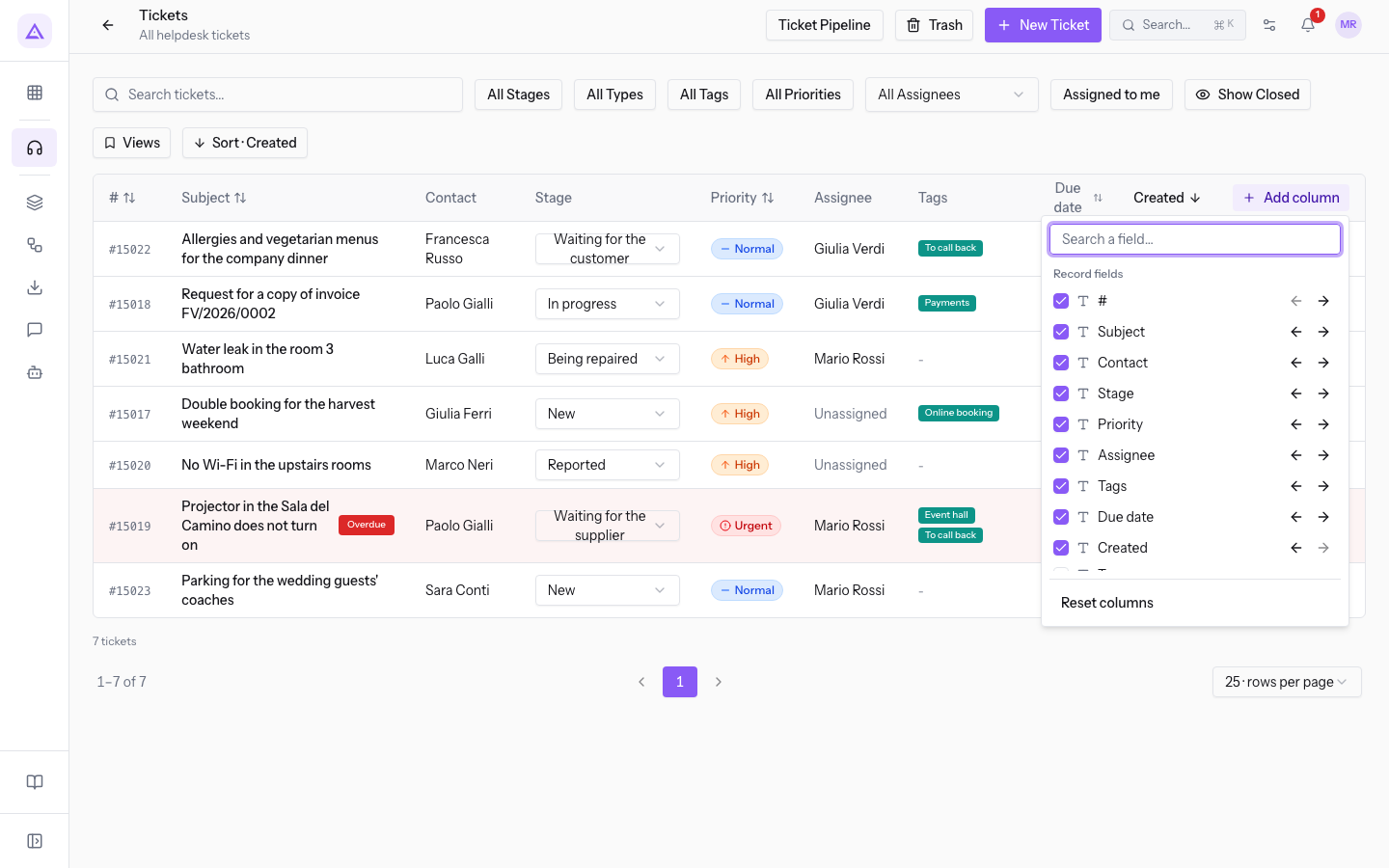
- To find a column, type its name in Search a field….
- Tick the column to show it, or untick it to hide it. To see all the columns in Record fields, press 1 more field.
- To move a column, use Move column left or Move column right.
- To go back to the starting columns, press Reset columns.
The selector splits the columns into two groups:
- Record fields: the starting columns and those you can add.
- Type: the ticket type.
- Team: the ticket's team.
- Board: the ticket's board.
- Updated: the date of the last change.
- Custom attributes: the custom fields of tickets, for example Hall or room, Booking reference and Call the customer back.
Saving a view
A view saves the list the way you set it, so you can find it ready again.
- Set columns, sorting and filters.
- Press Views. The menu shows Default view and the saved views.
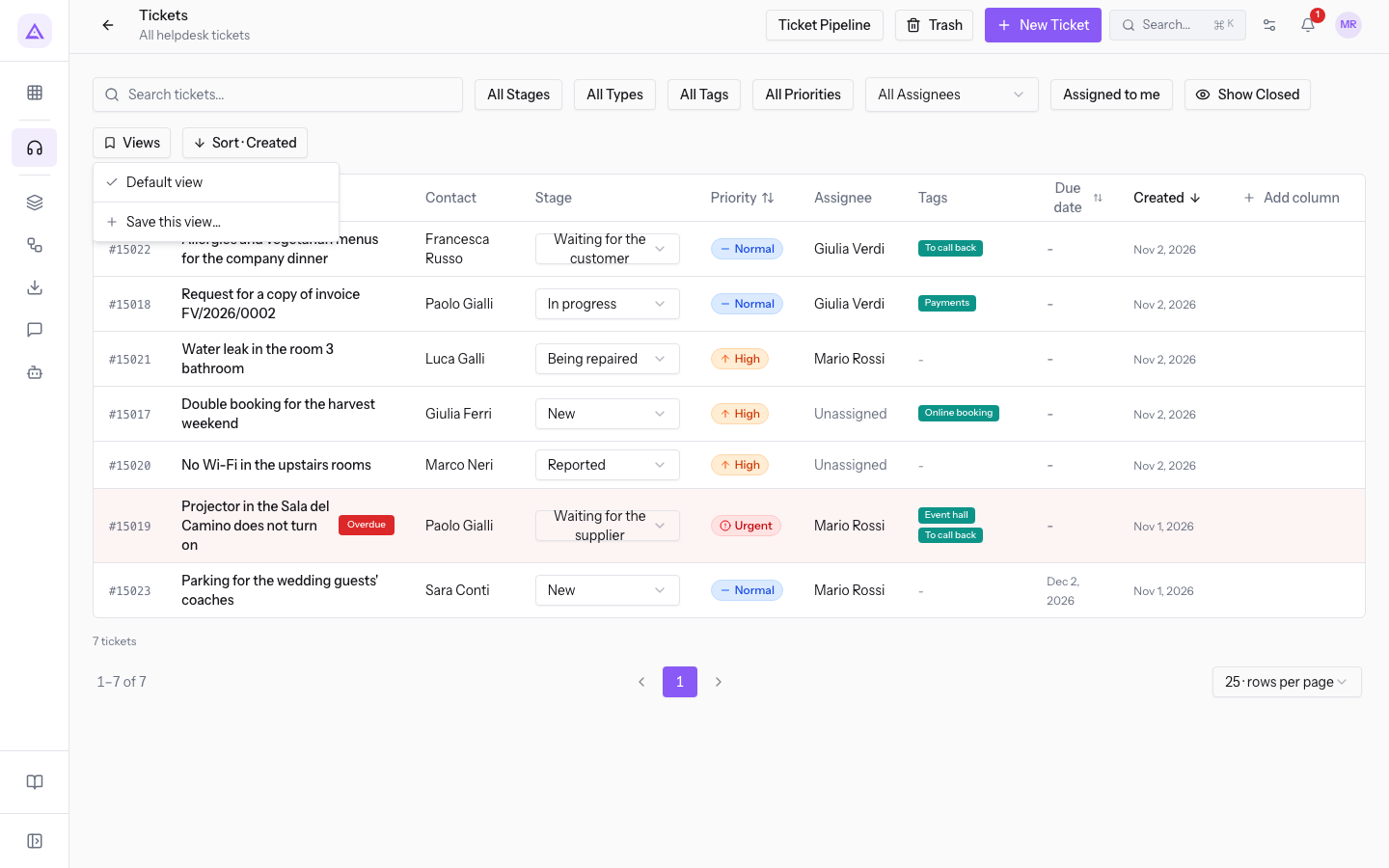
- Press Save this view….
- Fill in the fields and press Save.
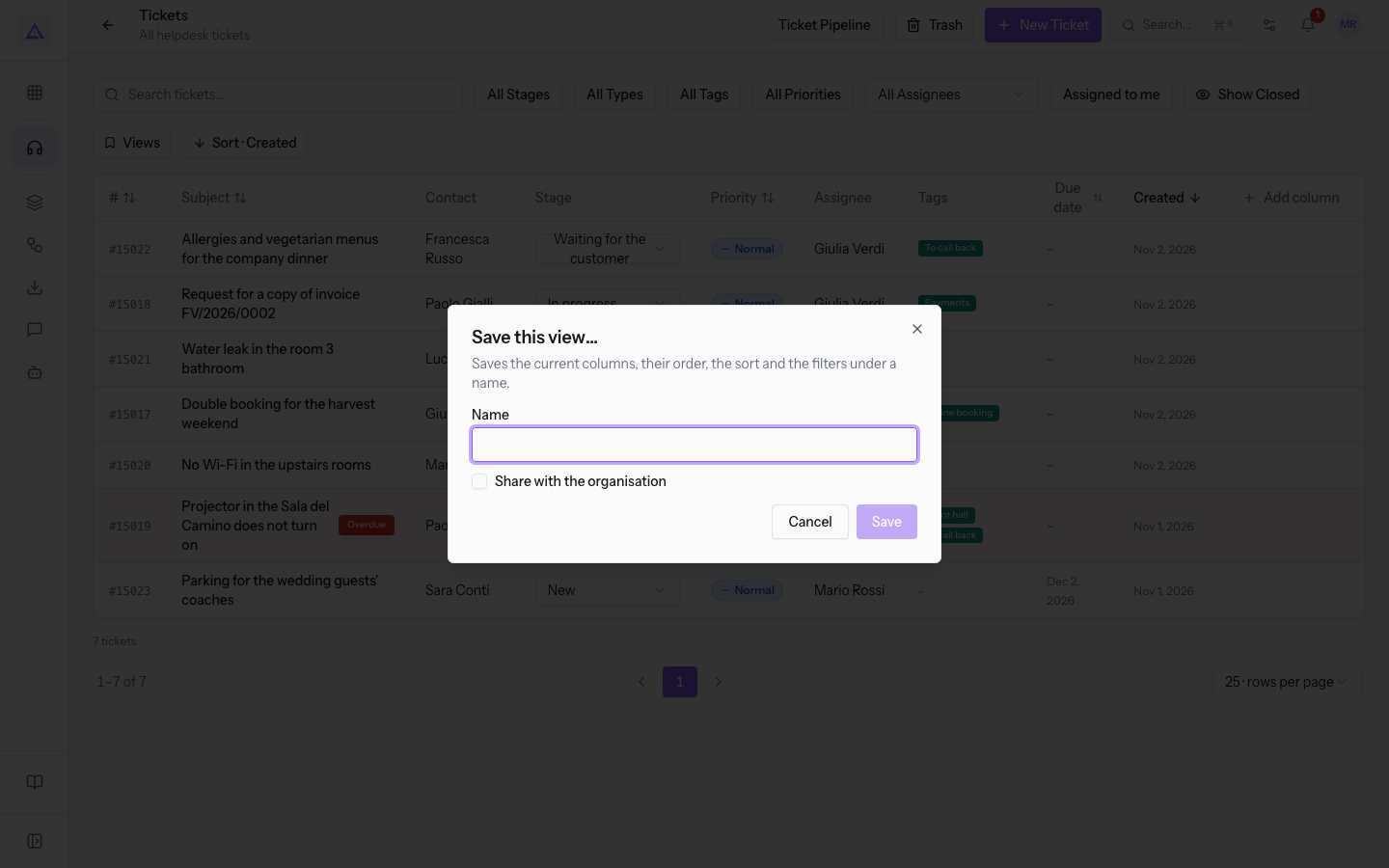
- Name: the view's name.
- Share with the organization: makes the view available to other users of the organization. If you don't tick it, the view stays yours.
The view saves the columns, their order, the sorting and the filters. To return to the starting list, choose Default view.
Paging through the list
At the bottom of the list you find the number of tickets found and the page controls.
- Previous page and Next page: move from one page to another.
- Rows per page: the number of tickets per page, among 25 · rows per page, 50 · rows per page and 100 · rows per page. The starting value is 25.
Opening a ticket from the list
- Press the ticket row, for example
#4580. The Ticket #4580 page opens. - On the page, use Previous ticket and Next ticket to move to the other tickets in the list.
The page remembers the list you opened it from, with its filters and sorting. Pressing the Stage column menu does not open the page.
See it on your company, not on a slide deck.
In 30 minutes we map the software you use today.We show you how much work and how much margin Archimedes gives back.
Show me on my business →What industry are you in?
One tap — it lets us prepare the demo around your world.
What tools do you use today?
Pick the ones you recognise — or just type them. It helps us show you how they migrate.
Last step: your details.
We reply within one working day — and right after, if you like, you pick the demo slot yourself.
We couldn't send your request. Try again, or write to us at [email protected].
By sending, you agree to your data being processed so we can get back to you about the demo. Privacy notice.
Preview form — nothing is sent from this page.
Want to schedule the demo now?
Your call: book the slot you prefer yourself, or we'll call you to arrange it.
Live availability, 30 minutes, instant confirmation. The calendar opens in a new tab.
Lock in your slot ↗We'll get back to you within one working day — and we'll join the call already knowing your world.
The calendar is open in another tab: pick a slot and the demo is booked. Can't see it? Reopen it ↗
Preview page: nothing was sent.
Our calendar is live: take the slot that suits you and the demo is booked. 30 minutes, instant confirmation, no waiting.
Lock in your slot ↗