Helpdesk
All modules
Keep support under control with the dashboard and reports
Helpdesk · 2 of 15 · 5 min read
The Helpdesk dashboard and reports show the status of tickets: how many are open, how many are overdue, how long it takes on average to resolve them, and whether SLA deadlines are being met. Use them, for example, to check overdue tickets every morning, to verify SLA compliance month by month, or to reconstruct who changed the stage or assignee of a ticket.
Before you start: to open Reports you need the Helpdesk User group. To open Dashboard you need access to tickets. Only support managers (Helpdesk Manager group) see the Settings entry in the menu.
Choosing between dashboard and reports
The two screens answer different questions.
- If you want to know right now how many tickets are open or overdue and how they are distributed, open the dashboard.
- If you want to check SLA compliance over time, team performance, or changes made to tickets, open the reports.
- If you need to work on tickets, go from the dashboard to the list with Open tickets or All Tickets.
Viewing the dashboard
The dashboard summarizes support tickets and links to the other screens of the module.
- Open Helpdesk › Dashboard.
- The Helpdesk page opens with the subtitle Dashboard overview.
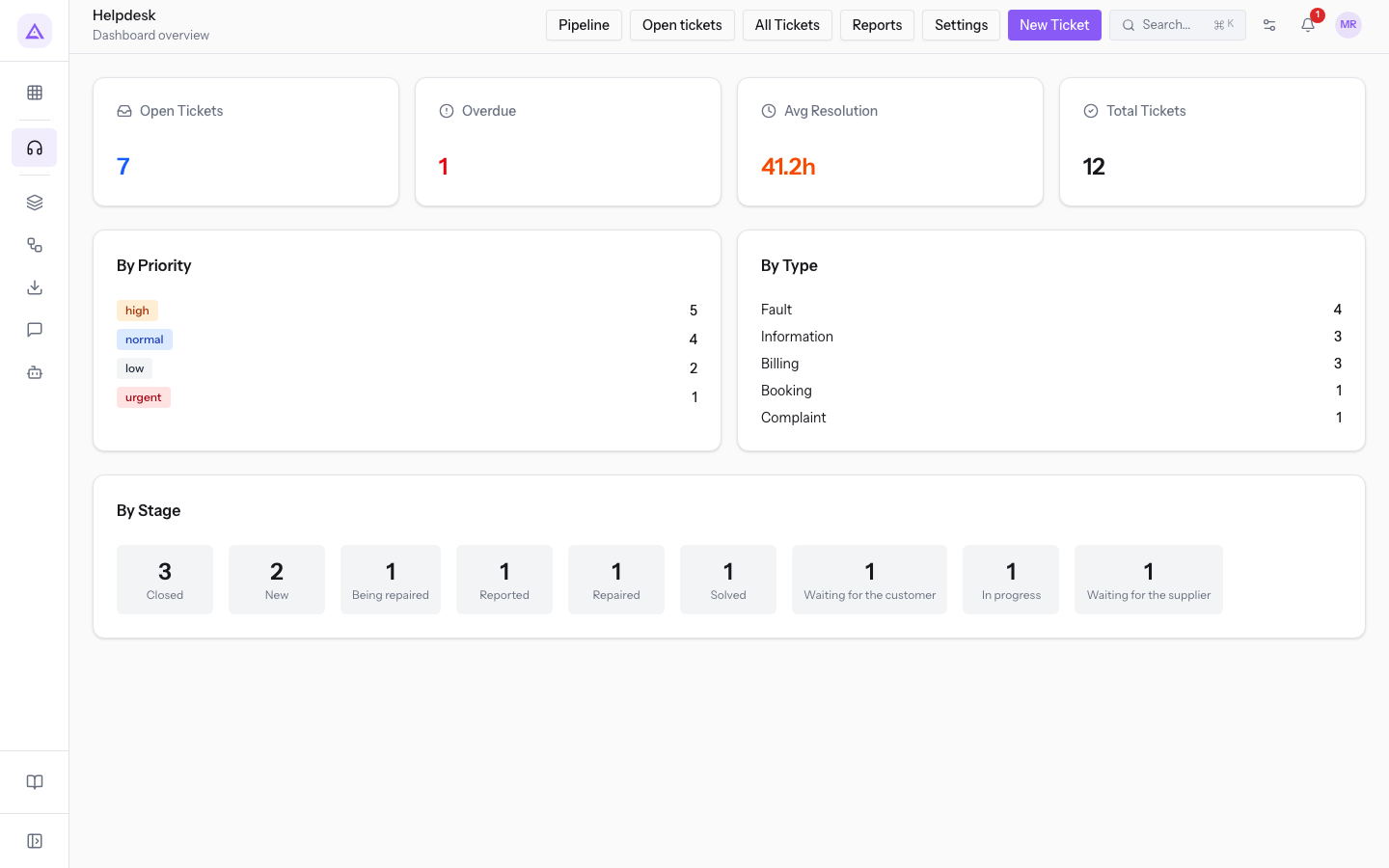
At the top there are four cards with totals. In the demo organization they are 7, 1, 41.2h and 12.
- Open Tickets: the number of tickets not yet closed.
- Overdue: the number of open tickets that have passed their SLA deadline.
- Avg Resolution: the average resolution time, expressed in hours.
- Total Tickets: the number of all tickets, open and closed.
Below the cards, three panels break down the tickets.
- By Priority: tickets grouped by priority. Priorities appear in lowercase, for example
high. - By Type: tickets grouped by ticket type.
- By Stage: tickets grouped by stage.
Note: a ticket without an SLA deadline (No SLA deadline set) never appears in Overdue and does not count toward SLA compliance.
Dashboard buttons
The buttons at the top lead to the other screens of the module.
- Pipeline: opens the ticket pipeline.
- Open tickets: opens the Tickets list without closed tickets.
- All Tickets: opens the Tickets list with the Show Closed filter active, so closed tickets are included too. To remove it, press Hide Closed or Clear all filters.
- Reports: opens the support reports.
- Settings: opens the module configuration.
- New Ticket: opens the page to create a ticket.
Reading the reports
The reports show ticket totals, SLA compliance month by month, changes to tickets, and team performance.
- Open Helpdesk › Reports, or press Reports in the dashboard.
- The Helpdesk Reports page opens. To go back to the dashboard press Dashboard; for the ticket list press All Tickets.
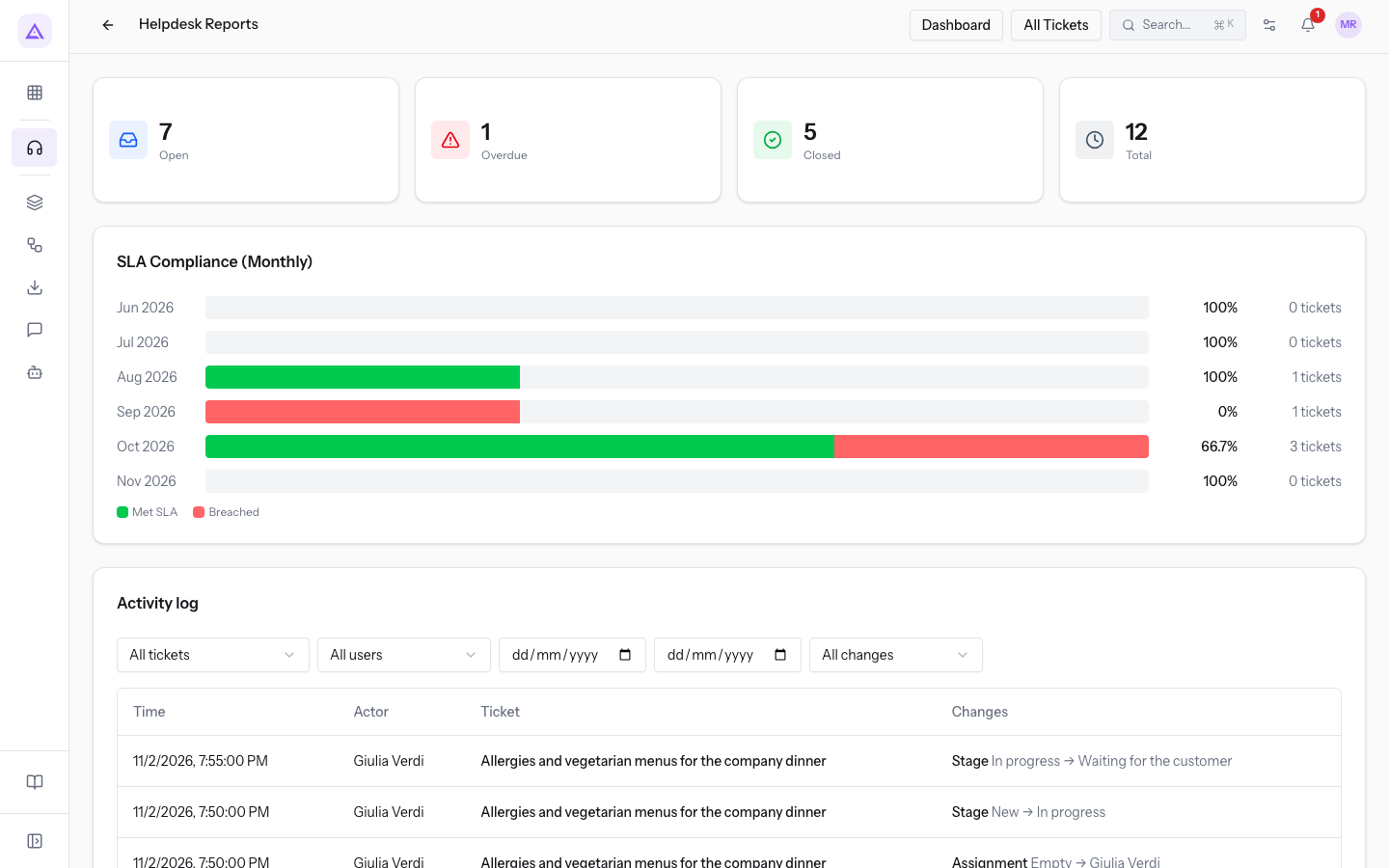
At the top there are four totals. In the demo organization they are 7, 1, 5 and 12.
- Open: tickets not yet closed.
- Overdue: open tickets past their SLA deadline. This matches the Overdue card on the dashboard.
- Closed: closed tickets.
- Total: all tickets.
SLA Compliance (Monthly)
The SLA Compliance (Monthly) chart shows, for each month, the percentage of tickets that met their SLA deadline.
- Each month appears with its name, for example
May 2026, with the percentage and the number of tickets for that month. - Met SLA: the share of tickets resolved within the deadline.
- Breached: the share of tickets that went past the deadline.
A resolved or closed ticket keeps its SLA deadline: for this reason the values for past months do not change. Only tickets with an SLA deadline count.
Reconstructing changes with the Activity log
The Activity log lists changes made to tickets: who made them, when, and on which ticket.
- On the Helpdesk Reports page scroll down to Activity log.
- Set the filters you need. The list is limited to the rows that match them.
- Use Previous and Next to move through the pages of the list.
The log filters:
- All tickets: limits the log to one ticket. The options are the ticket subjects, for example
Projector in the Hall del Camino does not turn onorRequest for a copy of invoice FV/2026/0002. - All users: limits the log to the changes of one user, such as Julia Green or Martin Ross.
- From date and To date: limit the log to a period.
- Change type: limits the log to one type of change. The default value is All changes.
- Stage: stage changes.
- Assignment: assignee changes.
- Priority: priority changes.
- Type: ticket type changes.
- Created: ticket creation.
The log columns:
- Time: when the change was made.
- Actor: the user who made the change.
- Ticket: the changed ticket, shown by its subject.
- Changes: what changed.
Tip: to find out who moved a ticket into a closing stage, choose the ticket in All tickets and Stage in Change type.
Comparing teams with Team Performance
The Team Performance table compares support teams. Each row is one team.
- Team: the team name.
- Tickets Handled: tickets assigned to the team.
- Avg Resolution: the average resolution time of the team's tickets.
- SLA Compliance: the percentage of the team's tickets that met their SLA deadline.
- Open: the team's tickets not yet closed.
Note: tickets without a team do not appear in any team row. A ticket can be assigned to a team, to a user, to both, or to neither.
See it on your company, not on a slide deck.
In 30 minutes we map the software you use today.We show you how much work and how much margin Archimedes gives back.
Show me on my business →What industry are you in?
One tap — it lets us prepare the demo around your world.
What tools do you use today?
Pick the ones you recognise — or just type them. It helps us show you how they migrate.
Last step: your details.
We reply within one working day — and right after, if you like, you pick the demo slot yourself.
We couldn't send your request. Try again, or write to us at [email protected].
By sending, you agree to your data being processed so we can get back to you about the demo. Privacy notice.
Preview form — nothing is sent from this page.
Want to schedule the demo now?
Your call: book the slot you prefer yourself, or we'll call you to arrange it.
Live availability, 30 minutes, instant confirmation. The calendar opens in a new tab.
Lock in your slot ↗We'll get back to you within one working day — and we'll join the call already knowing your world.
The calendar is open in another tab: pick a slot and the demo is booked. Can't see it? Reopen it ↗
Preview page: nothing was sent.
Our calendar is live: take the slot that suits you and the demo is booked. 30 minutes, instant confirmation, no waiting.
Lock in your slot ↗