Helpdesk
All modules
Meet SLAs and deadlines
Helpdesk · 10 of 15 · 4 min read
Each support ticket can have an SLA deadline, meaning the point by which it must be resolved according to the organization's time targets. The deadline depends on the ticket's type and priority. This article explains how it is calculated and where you can follow it: on the ticket page, in the Tickets list, and on the dashboard.
How the SLA deadline is calculated
The SLA deadline is calculated automatically: you don't enter it by hand. It is the ticket's creation date plus the resolution hours of the applicable SLA policy.
The policy is chosen in this order:
- the policy for the ticket's exact type and priority;
- otherwise the default SLA of the ticket type;
- otherwise the general policy, with no type or priority.
What happens automatically:
- If you change a ticket's Type or Priority, the deadline is recalculated. A higher priority can therefore bring the deadline forward.
- If the policy changes, the deadline of open tickets is recalculated.
- A ticket created when no policy applies receives the deadline as soon as a suitable one exists.
- A resolved or closed ticket keeps its SLA deadline. In this way, the SLA compliance of past months does not change.
- If no policy applies, the ticket has no SLA deadline and does not count toward SLA compliance.
Note: SLA policies and ticket types have no configuration screen in Settings. To change a ticket's deadline, change its Type or its Priority.
Check the deadline on the ticket page
The ticket page shows the SLA deadline status in two places: in the header and in the SLA panel.
- Open Helpdesk › Tickets.
- Press the ticket's row, for example
Projector in the Hall del Camino does not turn on.
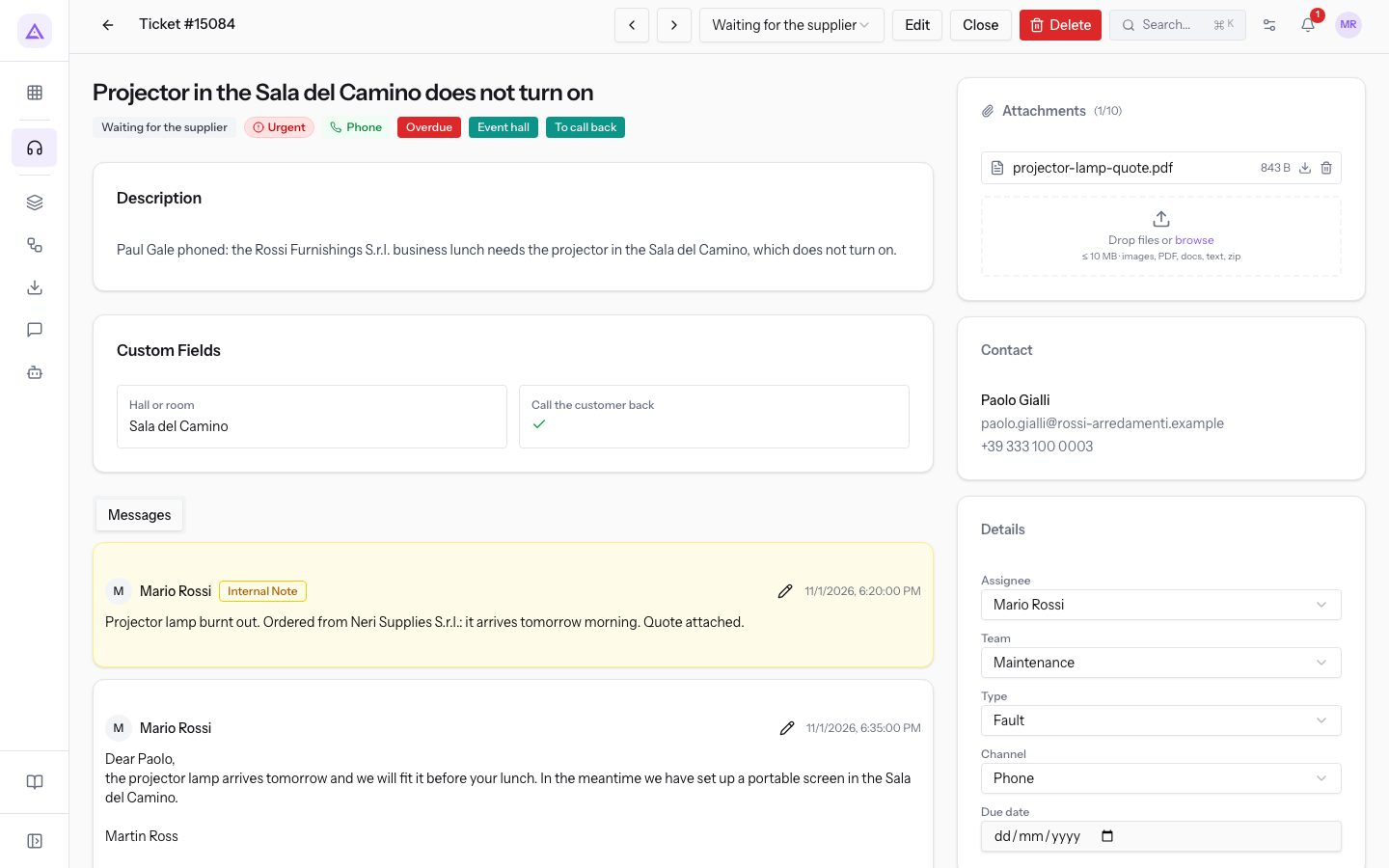
In the header, next to the subject, the stage, priority, and channel badges appear. After these is the deadline badge:
- Overdue: the SLA deadline has passed. The ticket
Projector in the Hall del Camino does not turn on, stage Waiting for the supplier, priority Urgent, type Fault, shows it. - Time remaining: the time left until the deadline, such as
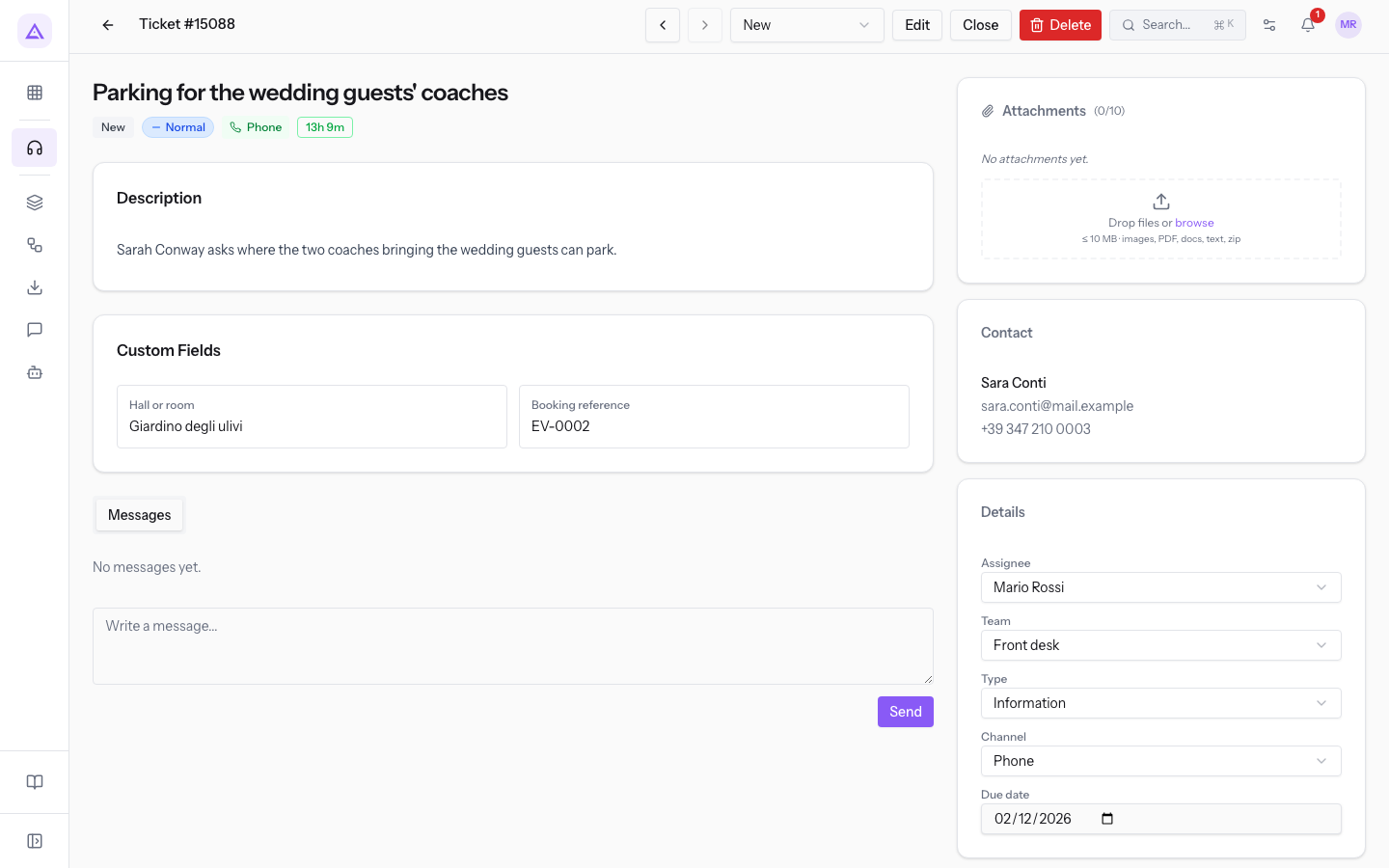
13h 18mon the ticketParking for the wedding guests' coaches.
In the right-hand column, the SLA panel shows:
- ⚠ Overdue: the deadline has passed.
- The deadline date, in the form
Deadline:followed by the date. - No SLA deadline set: no SLA policy applies to the ticket.
The SLA deadline and the Due date field
The ticket also has a Due date field, separate from the SLA deadline. You find it in the Details panel of the page and in the Edit window.
- SLA deadline: calculated from the type and priority. You don't change it directly.
- Due date: a date you enter yourself, for example the date agreed with the customer. The field is optional.
If the customer asks for an answer by a specific day, use the Due date field. If you want to change the SLA deadline, change the Type or the Priority.
The ticket Parking for the wedding guests' coaches (type Information, team Front desk) has the Due date 04/11/2026 and also shows the time remaining of its SLA deadline. The ticket Projector in the Hall del Camino does not turn on has the Due date field empty, but its SLA deadline has passed.
Find overdue tickets in the list
In the ticket list, find the tickets whose SLA deadline has passed.
- Open Helpdesk › Tickets.
- To sort the tickets by due date, press the Due date column header.
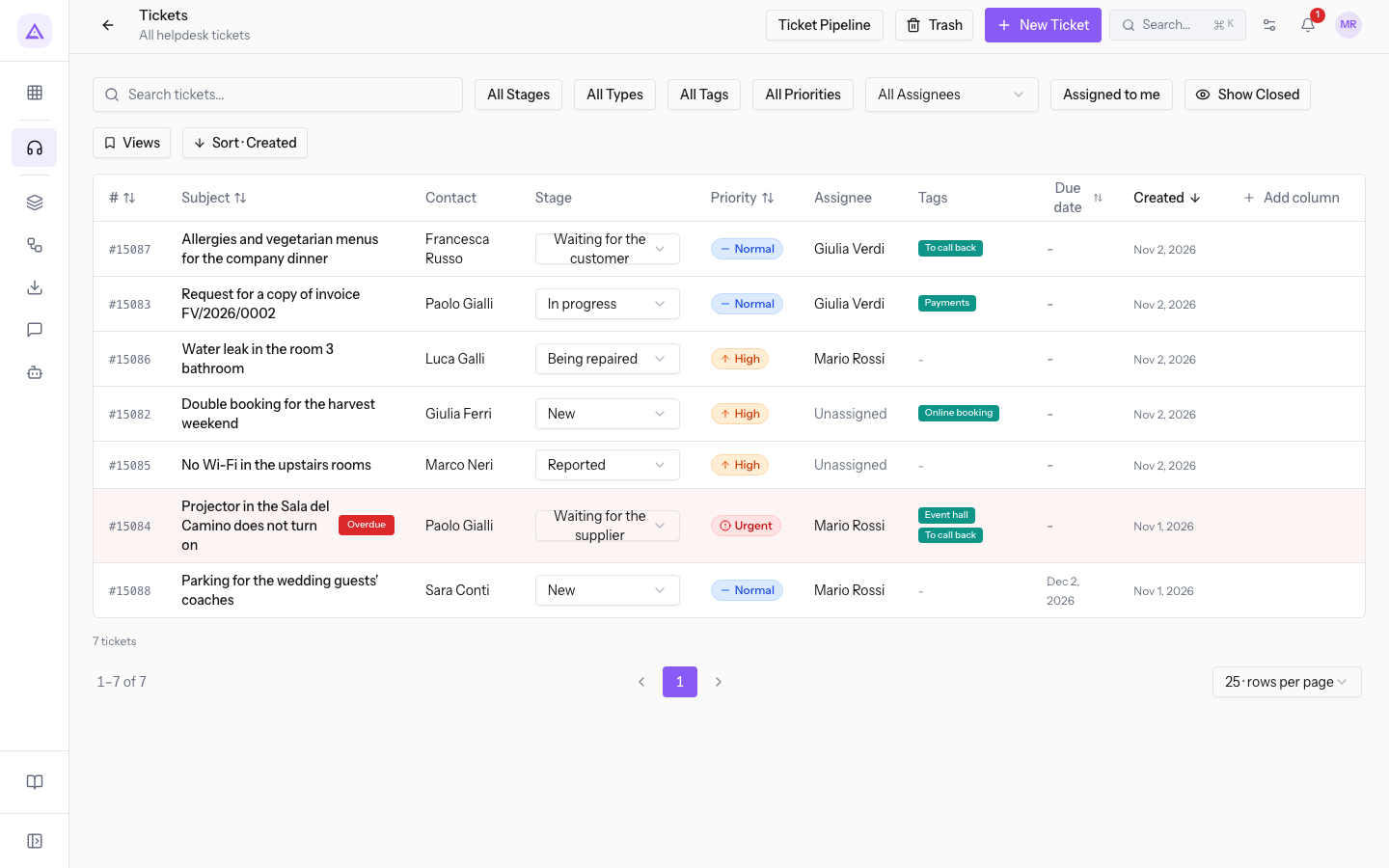
In the list, an overdue ticket has:
- the Overdue badge next to the subject;
- the row highlighted in red.
Closed tickets are hidden by default. To see them, press Show Closed.
Count overdue tickets on the dashboard
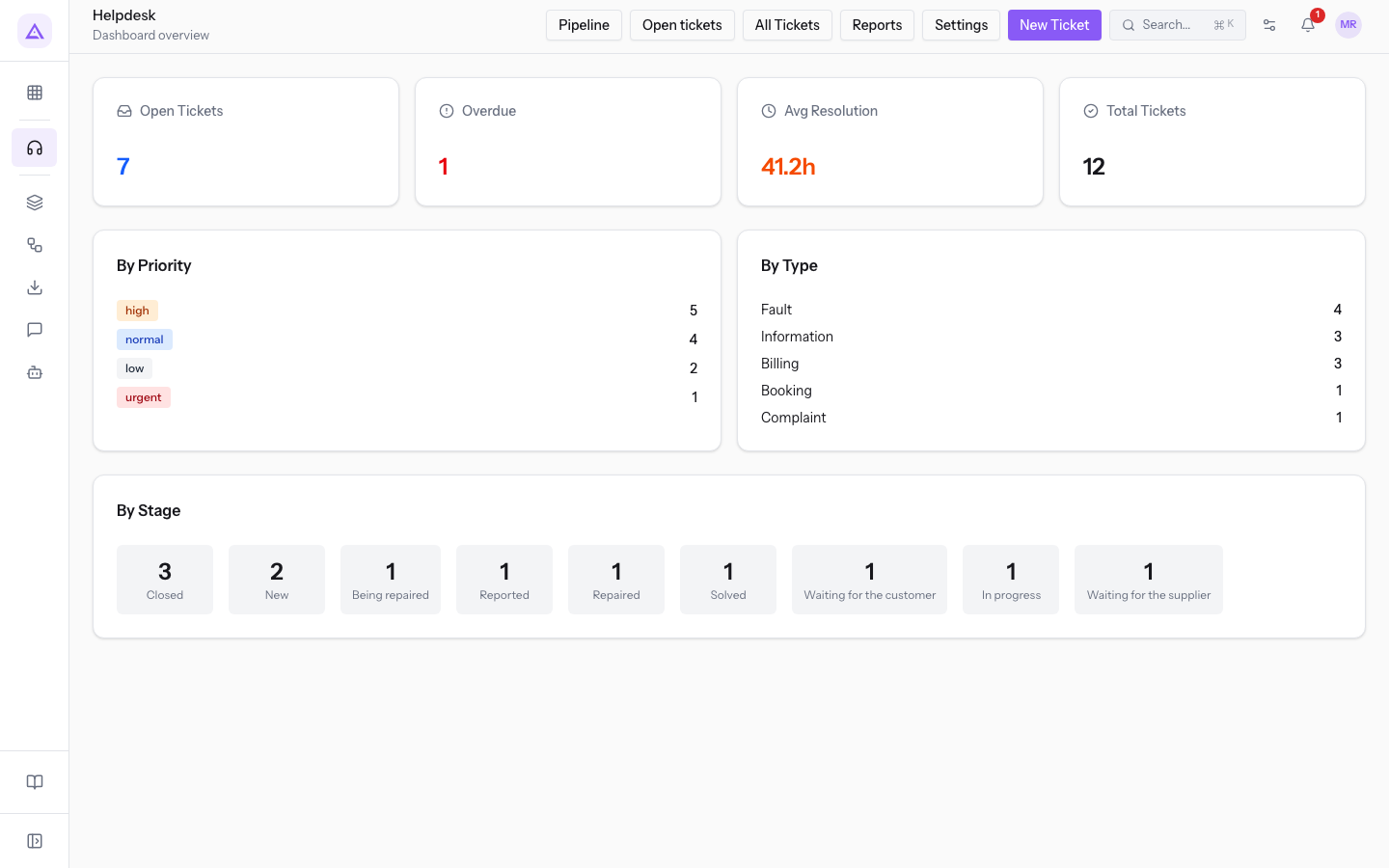
The dashboard shows how many tickets have passed their SLA deadline.
- Open Helpdesk › Dashboard.
- Read the Overdue card, next to Open Tickets. In the demo it shows 1 overdue ticket out of 7 open.
Tip: to see over time the share of tickets resolved within the deadline, use the SLA Compliance (Monthly) chart in Helpdesk › Reports.
See it on your company, not on a slide deck.
In 30 minutes we map the software you use today.We show you how much work and how much margin Archimedes gives back.
Show me on my business →What industry are you in?
One tap — it lets us prepare the demo around your world.
What tools do you use today?
Pick the ones you recognise — or just type them. It helps us show you how they migrate.
Last step: your details.
We reply within one working day — and right after, if you like, you pick the demo slot yourself.
We couldn't send your request. Try again, or write to us at [email protected].
By sending, you agree to your data being processed so we can get back to you about the demo. Privacy notice.
Preview form — nothing is sent from this page.
Want to schedule the demo now?
Your call: book the slot you prefer yourself, or we'll call you to arrange it.
Live availability, 30 minutes, instant confirmation. The calendar opens in a new tab.
Lock in your slot ↗We'll get back to you within one working day — and we'll join the call already knowing your world.
The calendar is open in another tab: pick a slot and the demo is booked. Can't see it? Reopen it ↗
Preview page: nothing was sent.
Our calendar is live: take the slot that suits you and the demo is booked. 30 minutes, instant confirmation, no waiting.
Lock in your slot ↗