Helpdesk
All modules
Working tickets on the board (Pipeline)
Helpdesk · 4 of 15 · 4 min read
The Pipeline shows a board's tickets as cards arranged in columns, one per stage. From here you see the state of support work, move a ticket from one stage to another, and filter tickets, for example those assigned to you or those with High priority.
Opening the Pipeline and choosing the board
Each board has its own stages, workflow, and tickets. The Pipeline shows one board at a time.
- Open Helpdesk › Pipeline. The page is titled Ticket Pipeline.
- In the board selector, choose the board to display.
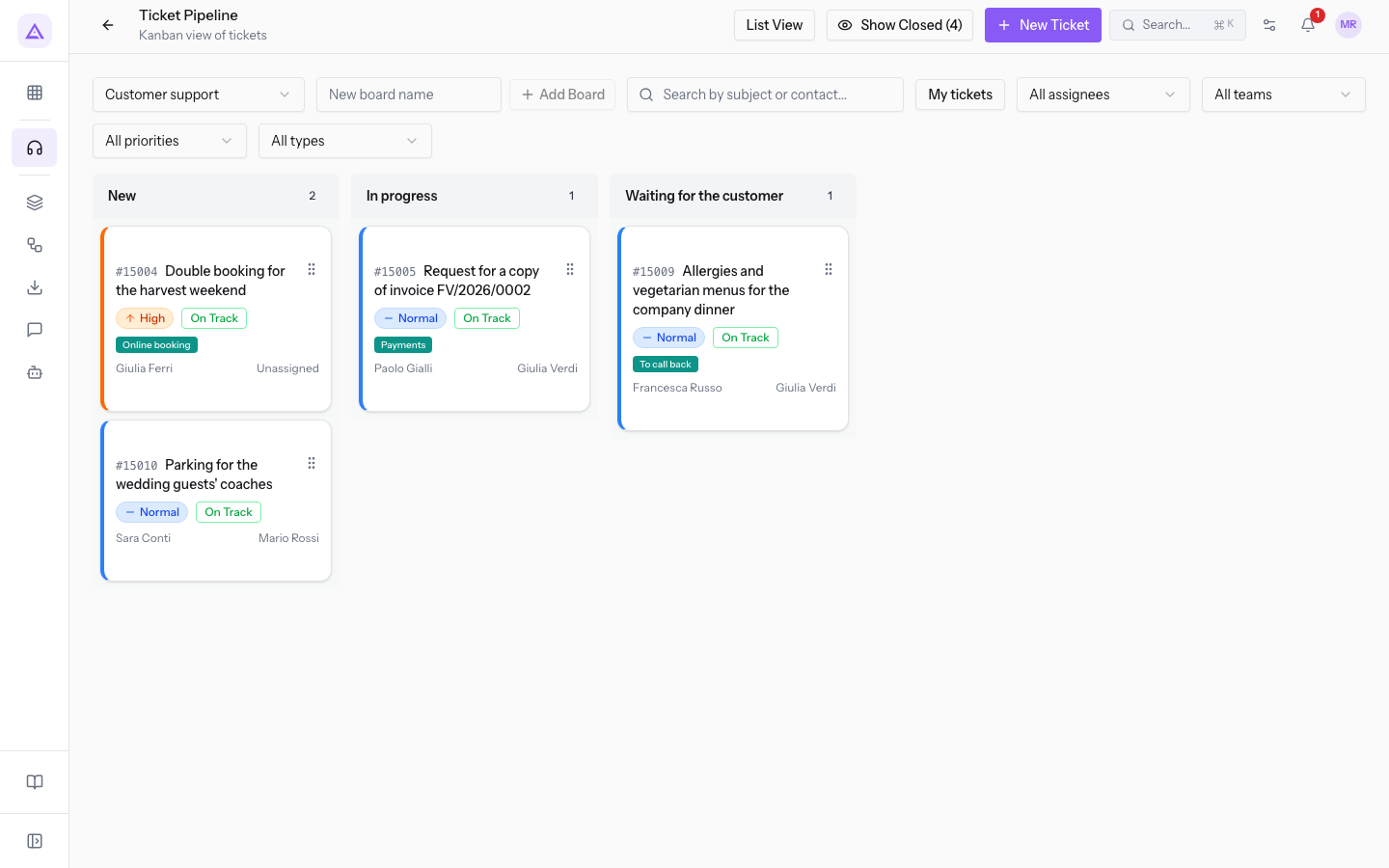
The selector lists the organization's boards:
- Customer support: the board that opens first. Its open columns are New, In progress, and Waiting for the customer.
- Room and hall maintenance: its open columns are Reported, Being repaired, and Waiting for the supplier.
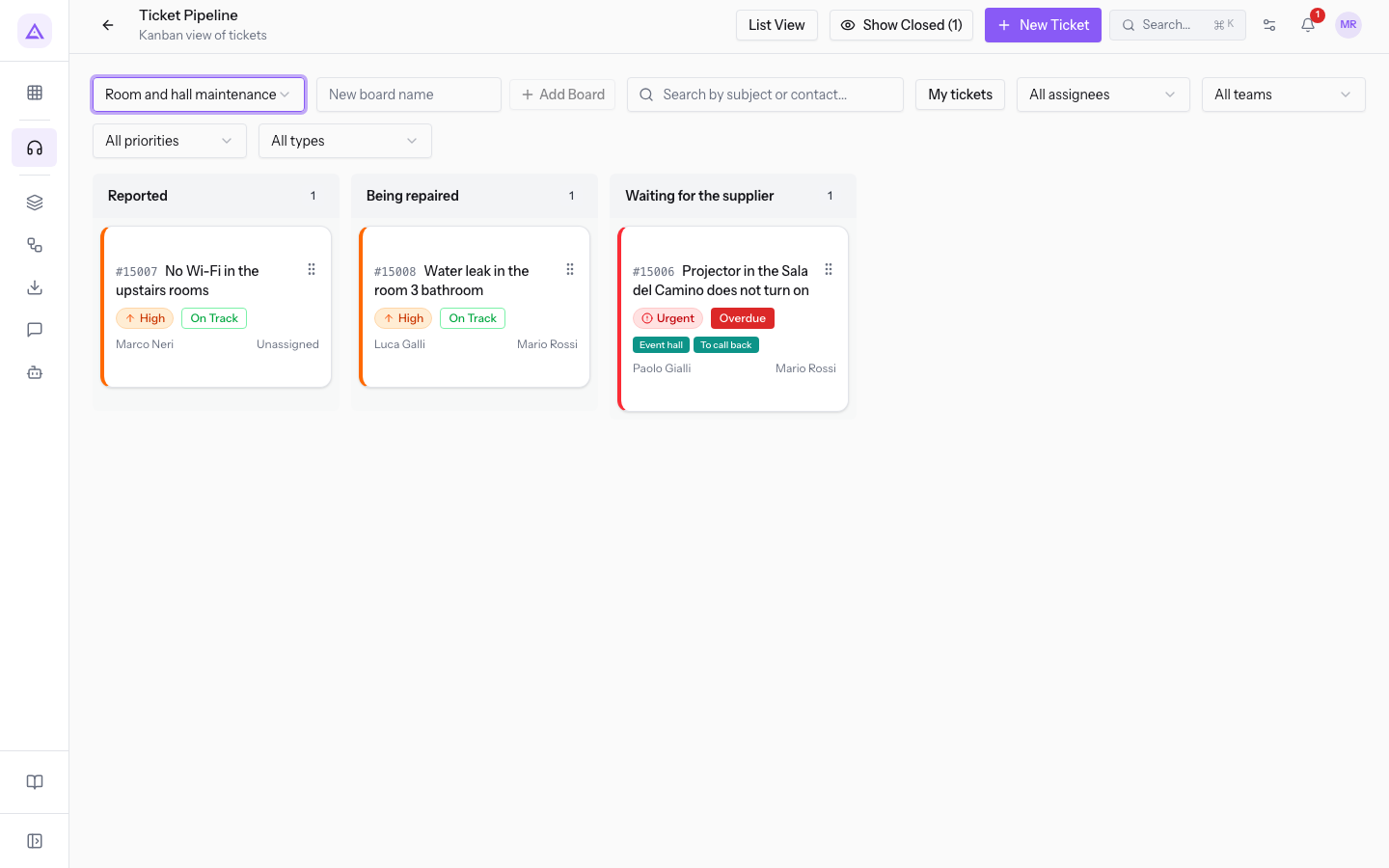
In the page header you also find List View and New Ticket. List View opens the Tickets list at Helpdesk › Tickets.
Reading a card
Each card summarizes one ticket. It shows, in this order:
- Number: the ticket number prefixed with #, for example
#4567. - Subject: "Projector in the Hall del Camino does not turn on".
- Priority: one of Urgent, High, Normal, and Low.
- Deadline status: the badge
On Trackfor a ticket within its deadline,Overduefor a ticket past its deadline. - Tags:
Event hallandTo call back. - Contact: the ticket's customer, such as
Paul Gale. - Assignee: the user working the ticket, such as
Martin Ross. A ticket without an assignee showsUnassigned.
On the Room and hall maintenance board, ticket #4567 "Projector in the Hall del Camino does not turn on" has Urgent priority and the Overdue badge: its deadline has passed.
Moving a ticket to another stage
Dragging a card into another column changes the ticket's stage.
- Drag the card onto the column of the target stage.
- Release the card: the ticket moves to the new stage.
If the board has an assigned workflow, you can move a ticket only into the stages that the workflow allows from its current stage. While dragging, the disallowed columns are dimmed and show The workflow does not allow moving this ticket into this column.
Note: the workflow applies only to the boards it is assigned to. On a board without restrictions, you can move a ticket into any column.
Important: moving a ticket into a closing stage marks it as resolved. Moving it back into an open stage reopens it and clears the resolution and closing dates.
Showing closed tickets
The Pipeline hides closed tickets. The Show Closed button shows their count in parentheses, for example Show Closed (4) on the Customer support board and Show Closed (1) on the Room and hall maintenance board.
- Press Show Closed (4). After the open columns, the Done section appears with the closed tickets.
- To hide them again, press Hide Closed (4).
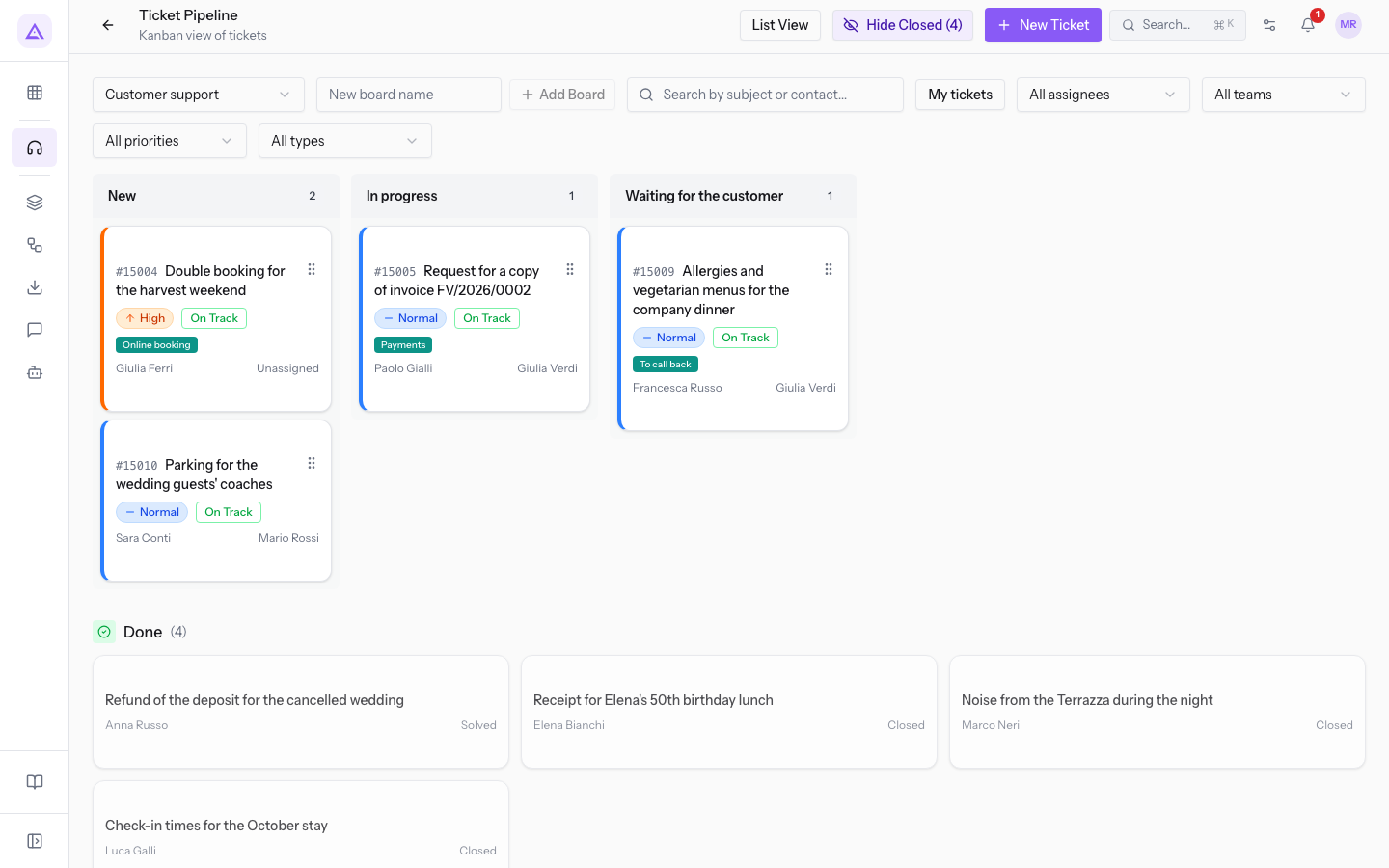
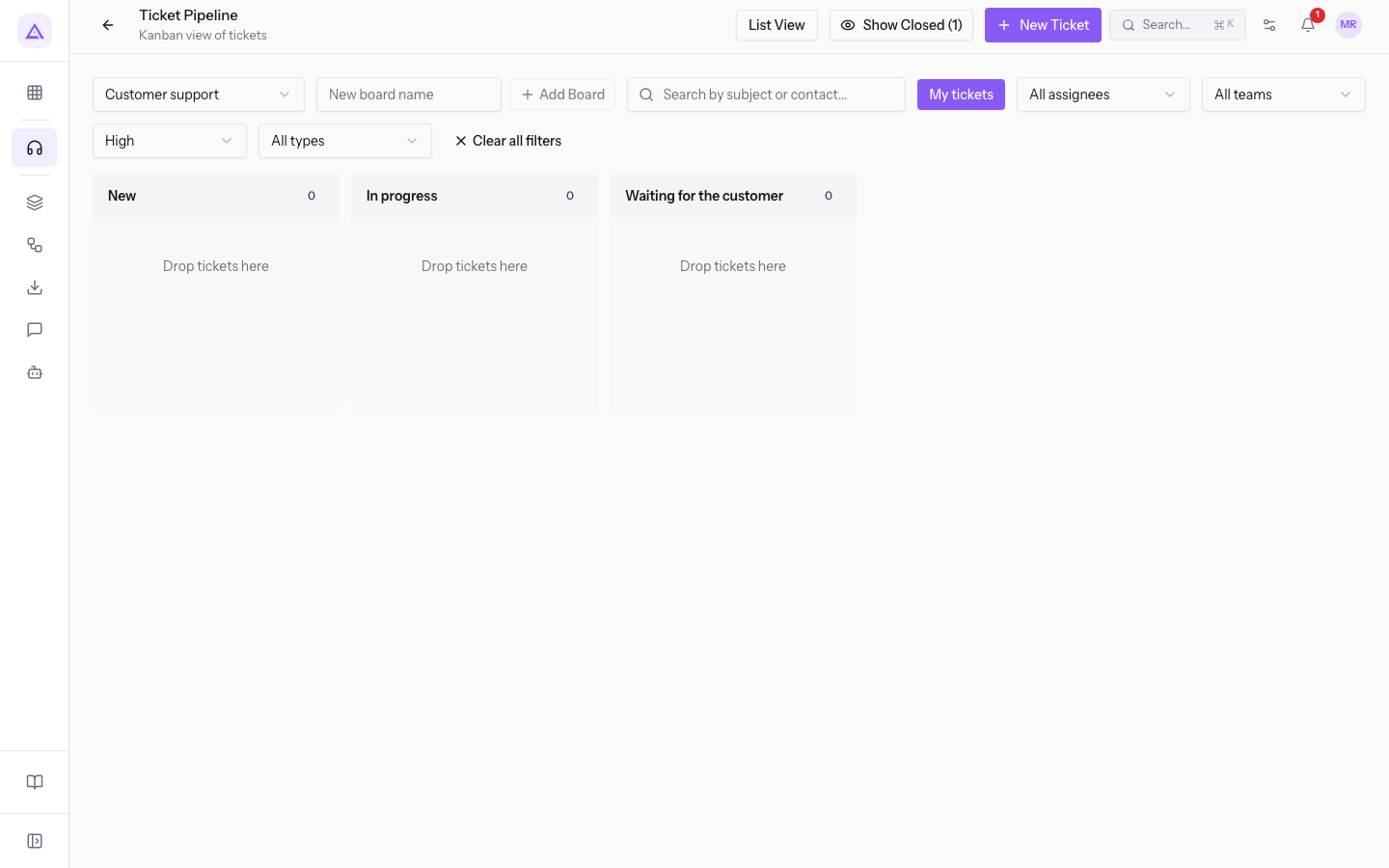
Note: the number in parentheses accounts for the active search and filters. With the My tickets filter and High priority, the button becomes Show Closed (1).
Searching and filtering tickets
Search and filters narrow the cards shown on the chosen board. You can combine them.
- Search by subject or contact... search box: finds tickets by subject or contact name. For example, searching
Sarah Conwayleaves only card#4571"Parking for the wedding guests' coaches". - My tickets: shows only tickets assigned to you.
- Assignee: shows a user's tickets. Options: All assignees, Julia Green, Martin Ross.
- Team: shows a team's tickets. Options: All teams, Front desk, Maintenance.
- Priority: shows tickets of one priority. Options: All priorities, Urgent, High, Normal, Low.
- Type: shows tickets of one type. Options: All types, Billing, Booking, Complaint, Fault, Information.
- Type in the search box, or press My tickets or choose a value in one of the filters.
- To return to all cards, press Clear all filters. The button appears when at least one filter or search is active.
Adding a board
Next to the board selector you find the New board name field and the Add Board button.
- Type the name in the New board name field.
- Press Add Board.
A board is a kanban of its own, with its own stages, workflow, and tickets. The default board is where a ticket ends up when it is created without specifying one.
Note: stages, workflow, and other board features are configured in Helpdesk › Settings, an entry visible only to support managers.
See it on your company, not on a slide deck.
In 30 minutes we map the software you use today.We show you how much work and how much margin Archimedes gives back.
Show me on my business →What industry are you in?
One tap — it lets us prepare the demo around your world.
What tools do you use today?
Pick the ones you recognise — or just type them. It helps us show you how they migrate.
Last step: your details.
We reply within one working day — and right after, if you like, you pick the demo slot yourself.
We couldn't send your request. Try again, or write to us at [email protected].
By sending, you agree to your data being processed so we can get back to you about the demo. Privacy notice.
Preview form — nothing is sent from this page.
Want to schedule the demo now?
Your call: book the slot you prefer yourself, or we'll call you to arrange it.
Live availability, 30 minutes, instant confirmation. The calendar opens in a new tab.
Lock in your slot ↗We'll get back to you within one working day — and we'll join the call already knowing your world.
The calendar is open in another tab: pick a slot and the demo is booked. Can't see it? Reopen it ↗
Preview page: nothing was sent.
Our calendar is live: take the slot that suits you and the demo is booked. 30 minutes, instant confirmation, no waiting.
Lock in your slot ↗