Helpdesk
All modules
Decide which stages a ticket can move between (workflows)
Helpdesk · 14 of 15 · 4 min read
A workflow sets which stages a ticket can move to from the stage it is in now. For example, on the board Room and hall maintenance, a ticket in Reported can only move to Being repaired.
You set up workflows in the Workflows tab of Helpdesk › Settings.
Before you start: Settings is visible only to support managers (Helpdesk Manager group). Operators can only read the workflows.
How a workflow works
A workflow is a set of allowed transitions between stages. It only applies to the boards it is assigned to. Each board is governed by one workflow only.
- If you want tickets on a board to move from any stage to any other stage, assign it a workflow with all rows left unchecked. On the board Customer support, the assigned workflow is
Default Workflow, with no boxes checked. - If you want to force a path, for example that a fault always goes through repair before it is closed, check only the allowed target stages for each stage.
When a board has a workflow assigned, a move that is not allowed is refused. On the ticket page the stage cannot be selected, and The workflow does not allow moving to this stage from the current one. appears. In the Pipeline the column does not accept the card, and The workflow does not allow moving this ticket into this column. appears.
Assign a workflow to a board
The assignment decides which workflow governs a board. A workflow's transitions do not apply to a board until it is assigned.
- Go to Helpdesk › Settings and open the Workflows tab.
- In the Workflow assignment panel, choose the board, for example
Room and hall maintenance. - Choose the workflow, such as
Maintenance workflow. - Press Assign. Workflow assigned to the board appears.
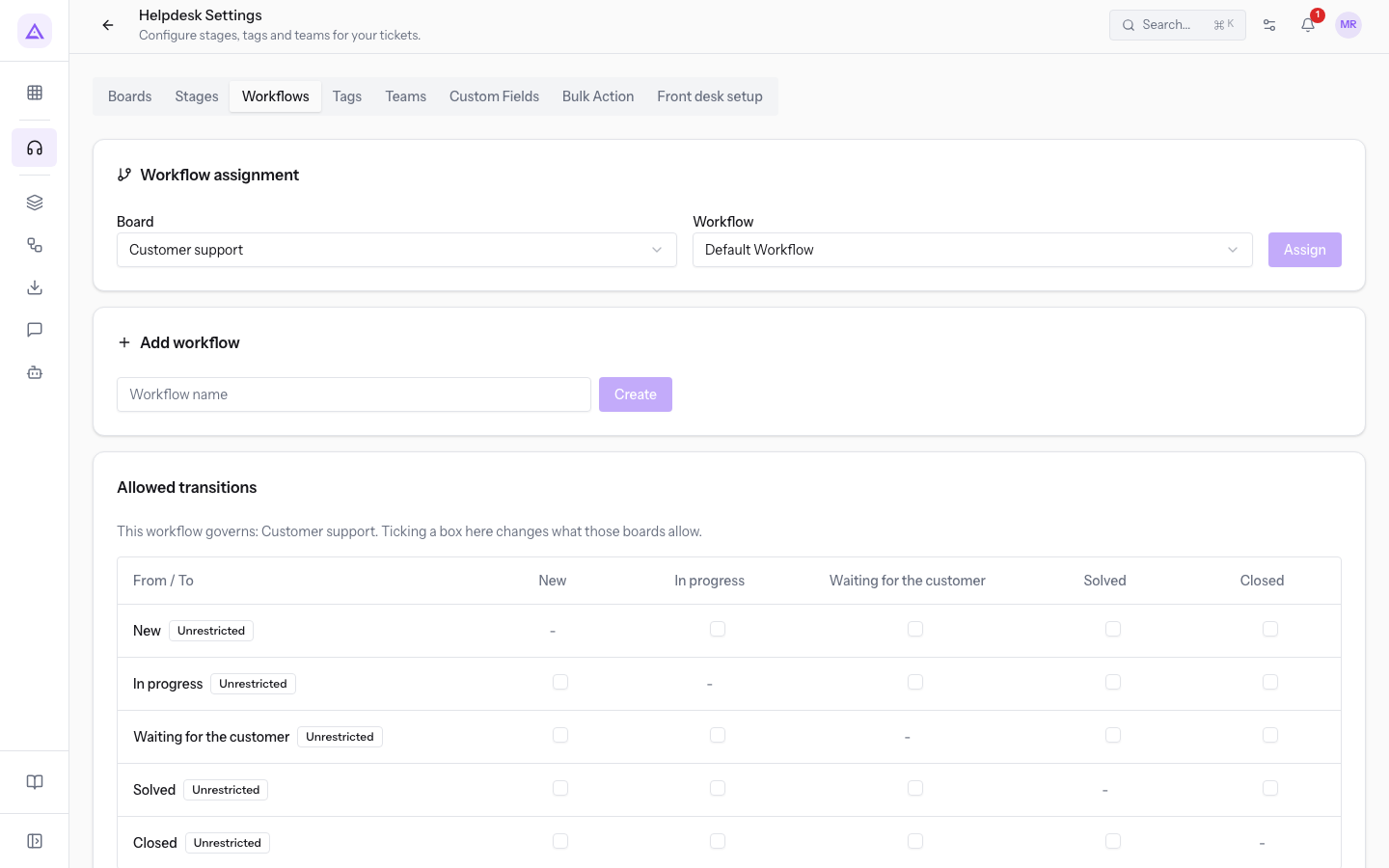
Panel fields:
- Board: the board to assign the workflow to. The demo boards are
Customer supportandRoom and hall maintenance. The choice also decides the stages shown in the Allowed transitions grid. - Workflow: the workflow to assign. Until you choose one, the field shows Select workflow....
Note: if you press Assign without choosing a board and a workflow, Select a board and a workflow first. appears.
Create a workflow
Create a new workflow when a board needs rules different from the existing workflows.
- In the Workflows tab, go to the Add workflow panel.
- Fill in Workflow name, for example
Maintenance workflow. - Press Create. Workflow created appears.
The new workflow does not govern any board yet: assign it as described in the section Assign a workflow to a board.
Define the allowed transitions
The Allowed transitions grid lists the stages of the chosen board: each row is the starting stage (From), each column an arrival stage (To). Each box has a name like "Reported to Being repaired".
- In the Workflow assignment panel, choose the board and the workflow that governs it, for example
Room and hall maintenanceandMaintenance workflow. - In each row, check the stages a ticket can move to from that stage.
- Press Save transitions. Transitions saved for this board appears.
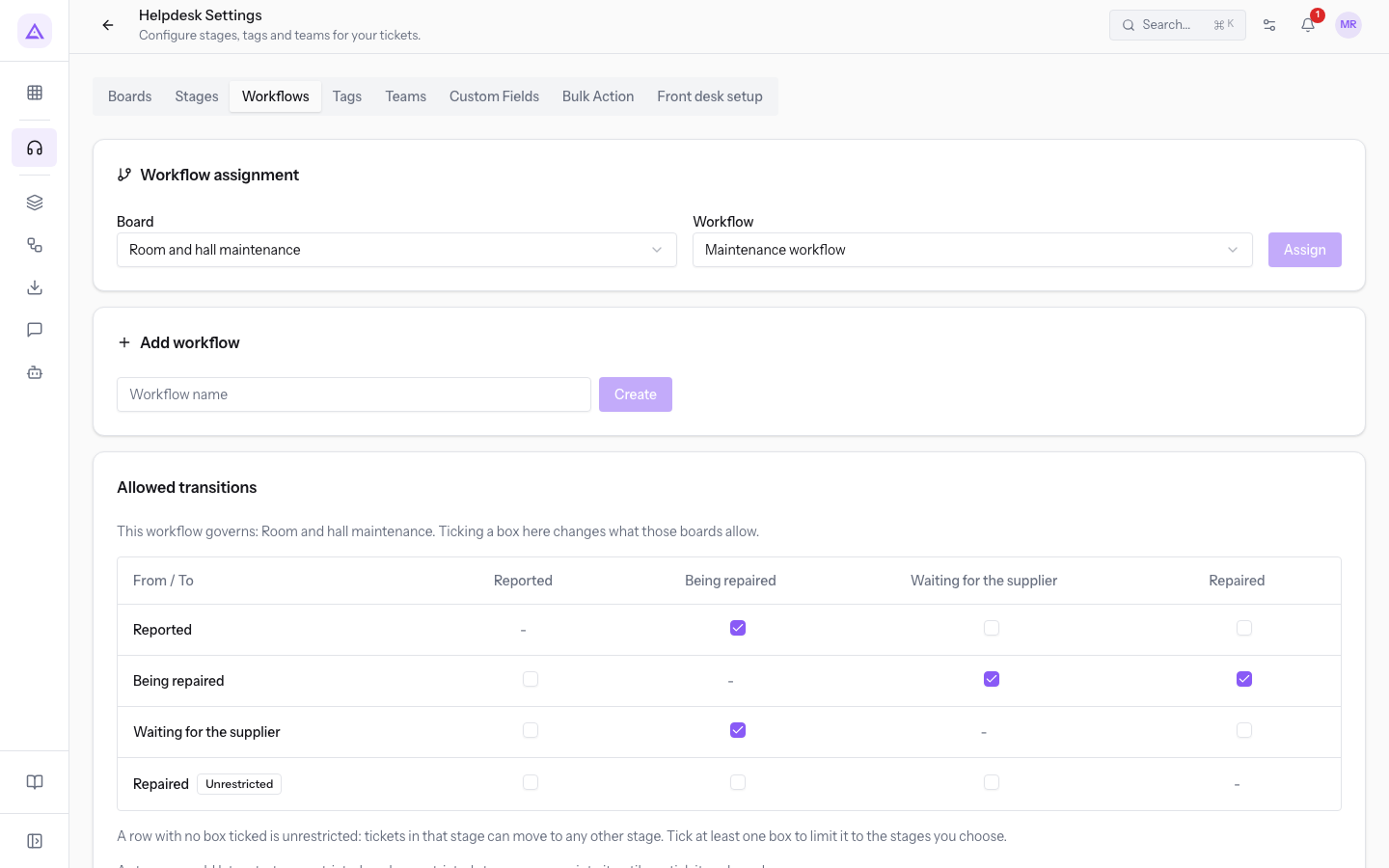
In the demo Maintenance workflow, these boxes are checked:
| From | To |
|---|---|
| Reported | Being repaired |
| Being repaired | Waiting for the supplier, Repaired |
| Waiting for the supplier | Being repaired |
The Repaired row has no boxes checked.
Grid rules:
- A row with no boxes checked is Unrestricted: tickets in that stage can move to any other stage. To restrict it, check at least one box.
- A stage added to the board later starts unrestricted. No restricted stage can move into it until you check its column in the grid.
Important: in the demo
Maintenance workflow, the Repaired row is unrestricted, so a repaired ticket can go back to any stage. If you add a stage to the board, check its column in the rows that must be able to reach it.
Messages above the grid
Above the grid, the tab shows which boards the changes apply to.
- "This workflow governs: …", followed by the list of boards and "Ticking a box here changes what those boards allow.": the workflow is assigned to the listed boards, and the boxes you check change what those boards allow.
- No board uses this workflow yet, so nothing it says is enforced. Assign it to a board above first.: the workflow is not assigned to any board.
- The message saying the chosen board "is governed by a different workflow, so these rules would not apply to it. Assign this workflow to the board first.": you chose a workflow different from the one governing the board. For example, the board
Customer supportwith the workflowMaintenance workflow.
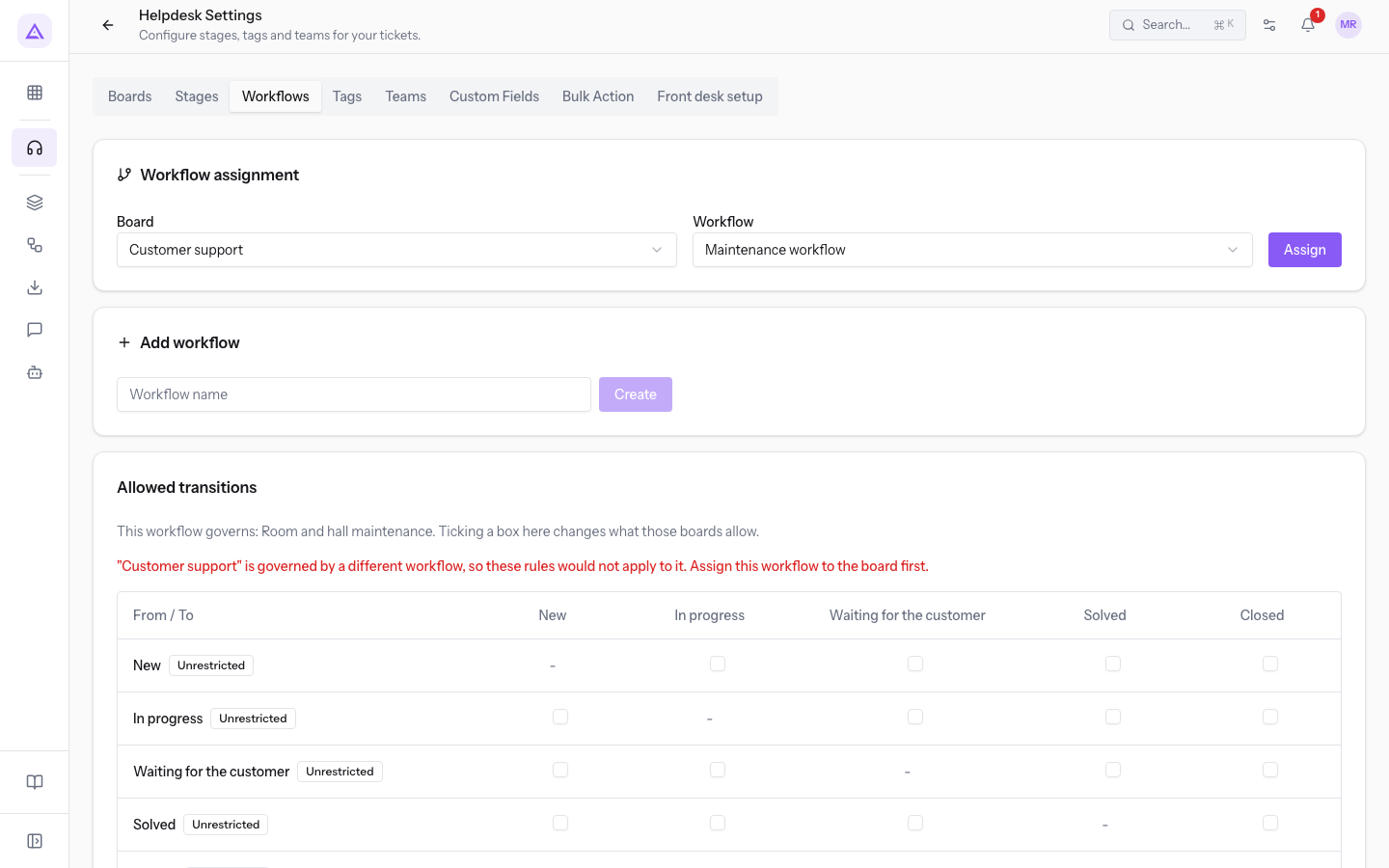
Tip: before checking boxes, make sure the Workflow assignment panel shows the board and the workflow that governs it.
See it on your company, not on a slide deck.
In 30 minutes we map the software you use today.We show you how much work and how much margin Archimedes gives back.
Show me on my business →What industry are you in?
One tap — it lets us prepare the demo around your world.
What tools do you use today?
Pick the ones you recognise — or just type them. It helps us show you how they migrate.
Last step: your details.
We reply within one working day — and right after, if you like, you pick the demo slot yourself.
We couldn't send your request. Try again, or write to us at [email protected].
By sending, you agree to your data being processed so we can get back to you about the demo. Privacy notice.
Preview form — nothing is sent from this page.
Want to schedule the demo now?
Your call: book the slot you prefer yourself, or we'll call you to arrange it.
Live availability, 30 minutes, instant confirmation. The calendar opens in a new tab.
Lock in your slot ↗We'll get back to you within one working day — and we'll join the call already knowing your world.
The calendar is open in another tab: pick a slot and the demo is booked. Can't see it? Reopen it ↗
Preview page: nothing was sent.
Our calendar is live: take the slot that suits you and the demo is booked. 30 minutes, instant confirmation, no waiting.
Lock in your slot ↗