Inventory
All modules
View on-hand inventory and adjust a quantity
Inventory · 5 of 14 · 5 min read
The On-Hand Inventory list shows how much stock is in each location, by product and lot, and how much of it is already reserved. From here you can correct a quantity that does not match the goods on-site, for example after a shortage or a find, and release stock held aside for a transfer.
How to read on-hand, reserved, and available quantities
For each product in a location the list shows three quantities.
- The On Hand quantity is the stock present in the location.
- The Reserved quantity is the portion held aside for an open transfer. For example, of the 8 Office desk 160x80 on Shelf A, 2 are reserved for delivery WH/OUT/00002.
- The Available quantity is the portion still free.
Choose the tool based on what is wrong:
- If the goods counted on a shelf differ from the list, use Adjust on the row.
- If stock is blocked by a transfer that will not be fulfilled, release the reservation with Unreserve.
- If you want to recount an entire location, do an inventory count: the counted differences become adjustments.
View on-hand inventory
The list shows one row per product, location, and lot.
- Open Inventory › On-Hand.
- To search for a product, type in the Search name, code or barcode... field.
- To see only part of the inventory, open the Stock filter and choose an option.
- To group rows, choose an option next to Group by.
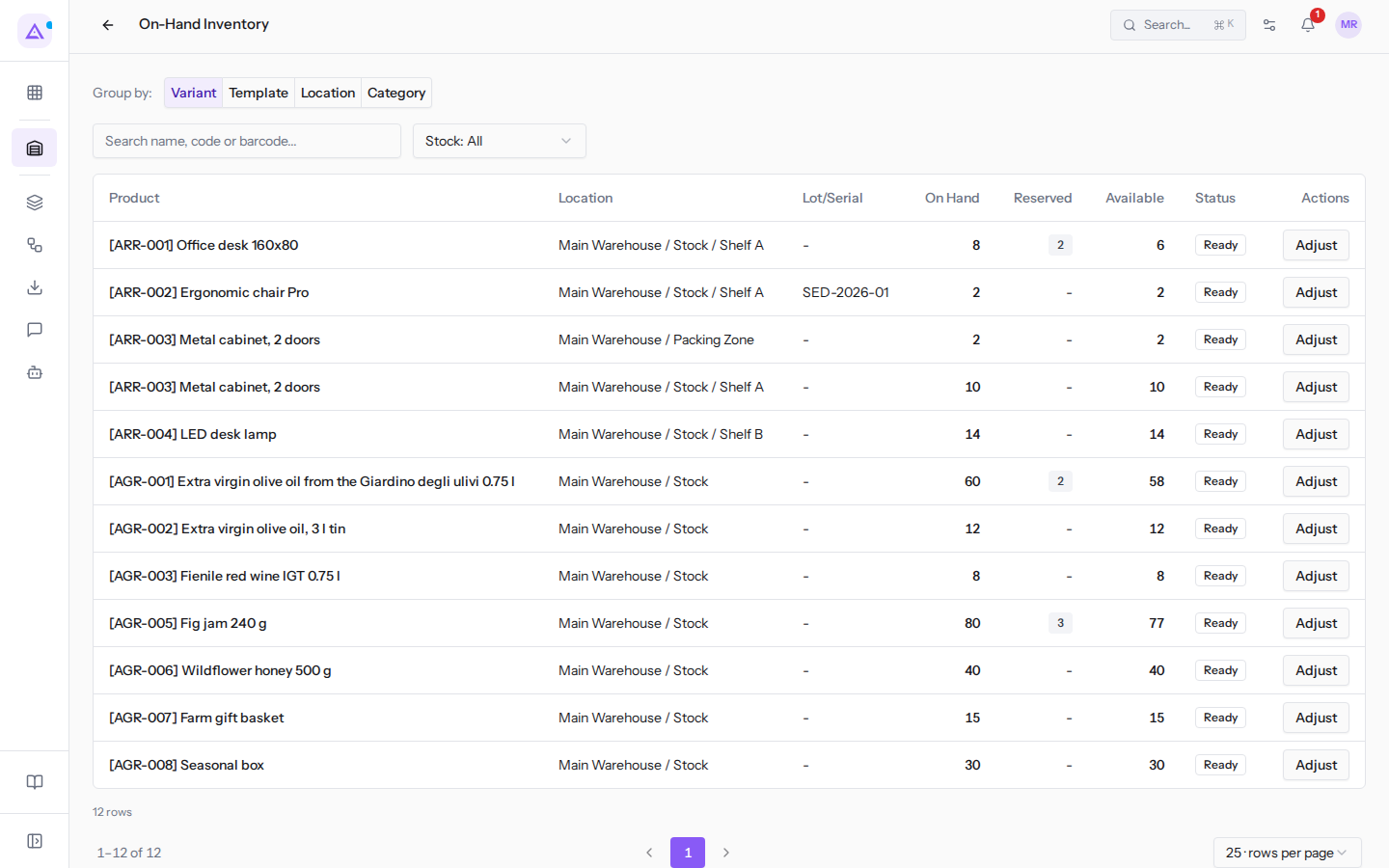
The Stock filter has these options:
- Stock: All: shows all rows. This is the initial value.
- In stock: shows products with stock on hand.
- Sold out: shows products with no stock.
The grouping has these options:
- Variant: one row per product variant.
- Template: one row per product, with all its variants.
- Location: one row per location, with the On Hand, Reserved, and Available totals.
- Category: one row per product category.
To return to the full list, click Clear filters.
The list columns are:
- Product: the product code and name, for example
[ARR-001] Office desk 160x80. - Location: the location of the goods, for example
Main Warehouse / Stock / Shelf A. - Lot/Serial: the lot or serial number, for tracked products. For example lot SED-2026-01 of the Ergonomic chair Pro.
- On Hand, Reserved, and Available: the three quantities described above. When there is reserved stock, the number under Reserved is a button that opens the reservations.
- Status: the row status, for example Ready. Another possible status is Inventory setup required.
- Actions: the Adjust button.
Adjust a quantity
The adjustment replaces the on-hand quantity of a row with the one you specify. The reason is kept on record. Only the warehouse manager sees the Adjust button.
- Open Inventory › On-Hand.
- Find the row for the product and location to correct, for example
[ARR-001] Office desk 160x80onMain Warehouse / Stock / Shelf A. - Click Adjust. The Adjust Quantity dialog opens.
- In New Quantity enter the quantity present, for example
7. - In Reason enter why you are correcting the quantity.
- Click Save.
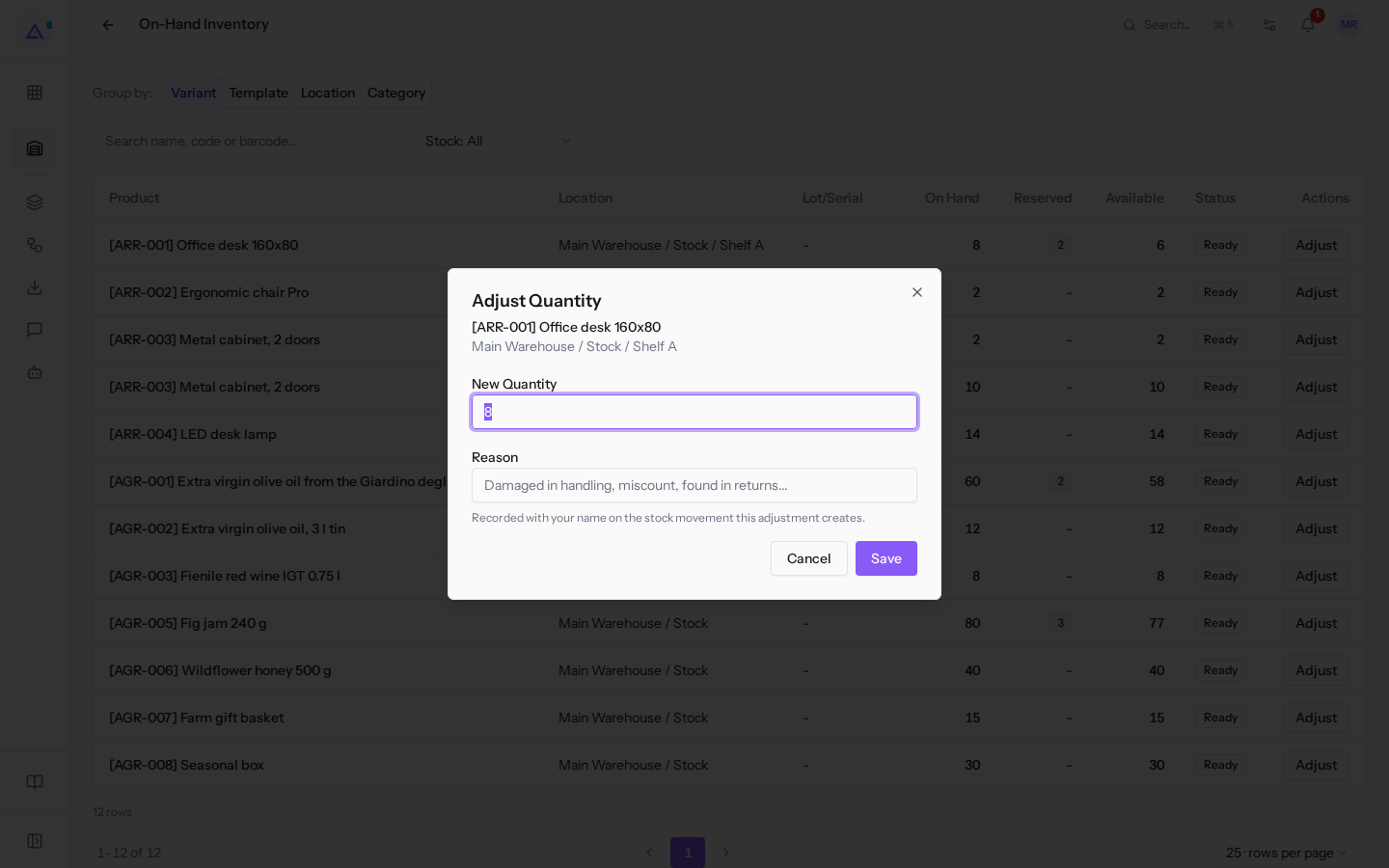
The dialog shows the product and location of the row at the top, then these fields:
- New Quantity: the quantity that should be on hand. The field starts with the current quantity, for example
8. - Reason: the reason for the adjustment. The field is required: if you leave it empty, on saving the message Give a reason for this adjustment. appears. The reason is recorded with your name on the stock move generated by the adjustment.
With Cancel or Close you exit without changing the on-hand quantity.
Note: the adjustment creates a stock move. You can find it in the Stock Moves history, along with the reason and your name.
View the reservations for a stock line
From a row in the list you can see which transfers are holding its stock aside.
- Open Inventory › On-Hand.
- In the Reserved column, click the reserved quantity number, for example
2on the Office desk 160x80 row. - The Reservations side panel opens with the product and location of the row.
The panel shows these columns:
- Picking: the transfer holding the stock, for example
WH/OUT/00002. - Partner: the transfer partner, for example
Rossi Arredamenti S.r.l.. - Scheduled: the scheduled date of the transfer.
- Reserved Qty: the quantity held aside.
- State: the state of the transfer. The value appears with the untranslated technical name, for example
assigned, which corresponds to a ready transfer. - Actions: the Unreserve button.
To release the stock, click Unreserve. To exit, close the panel with the X at the top.
Manage all reservations
The Reservations page lists all open reservations in the warehouse.
- Open Inventory › Reservations.
- To search for a reservation, type in the Search product, picking, or partner field.
- To reload the list, click Refresh.
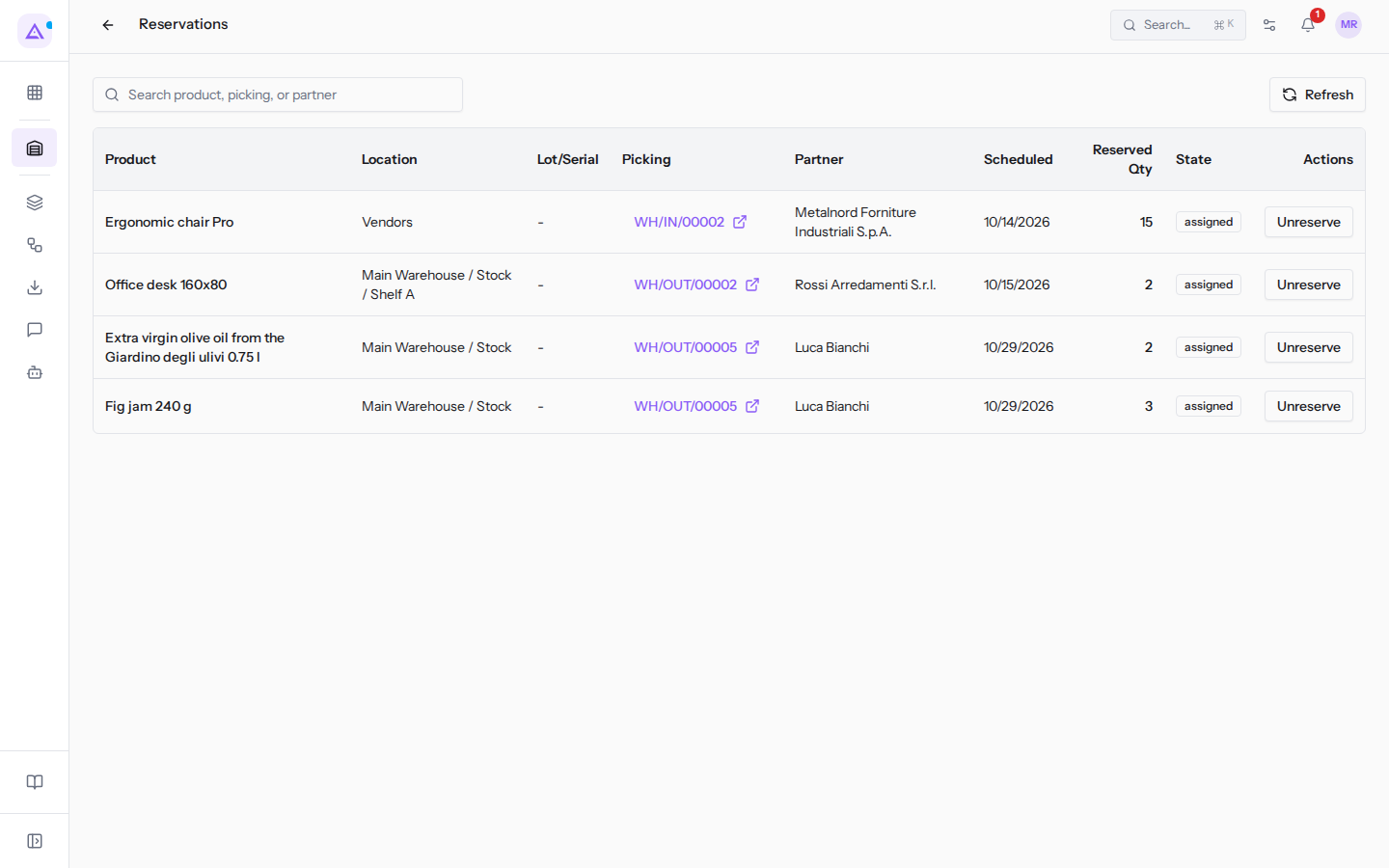
The columns are those from the reservations panel, with the addition of Product, Location, and Lot/Serial. In the Picking column, the reference, for example WH/OUT/00002, opens the transfer.
Release a reservation
Releasing a reservation makes the stock held for a transfer available again. You can only release reservations for transfers that are still open, and only if you are a warehouse manager.
- Open Inventory › Reservations.
- Find the reservation, for example the one for WH/OUT/00002.
- Click Unreserve.
The reservation is removed from the list. If no others remain, the list shows No open reservations.
Important: a transfer with no reserved stock is no longer ready for fulfillment. Before dispatching it, the stock must be reserved again.
See it on your company, not on a slide deck.
In 30 minutes we map the software you use today.We show you how much work and how much margin Archimedes gives back.
Show me on my business →What industry are you in?
One tap — it lets us prepare the demo around your world.
What tools do you use today?
Pick the ones you recognise — or just type them. It helps us show you how they migrate.
Last step: your details.
We reply within one working day — and right after, if you like, you pick the demo slot yourself.
We couldn't send your request. Try again, or write to us at [email protected].
By sending, you agree to your data being processed so we can get back to you about the demo. Privacy notice.
Preview form — nothing is sent from this page.
Want to schedule the demo now?
Your call: book the slot you prefer yourself, or we'll call you to arrange it.
Live availability, 30 minutes, instant confirmation. The calendar opens in a new tab.
Lock in your slot ↗We'll get back to you within one working day — and we'll join the call already knowing your world.
The calendar is open in another tab: pick a slot and the demo is booked. Can't see it? Reopen it ↗
Preview page: nothing was sent.
Our calendar is live: take the slot that suits you and the demo is booked. 30 minutes, instant confirmation, no waiting.
Lock in your slot ↗