Inventory
All modules
Track receipts, deliveries and transfers from the overview
Inventory · 2 of 14 · 4 min read
The Inventory overview shows how many receipts, deliveries and internal warehouse transfers are ready, together with the stock status. For example, from here you can see if there are goods to receive from a supplier or a delivery to prepare for a customer, then open the Transfers list to work on it.
How the overview is organised
The overview is the first screen of the module. You open it from Inventory › Overview.
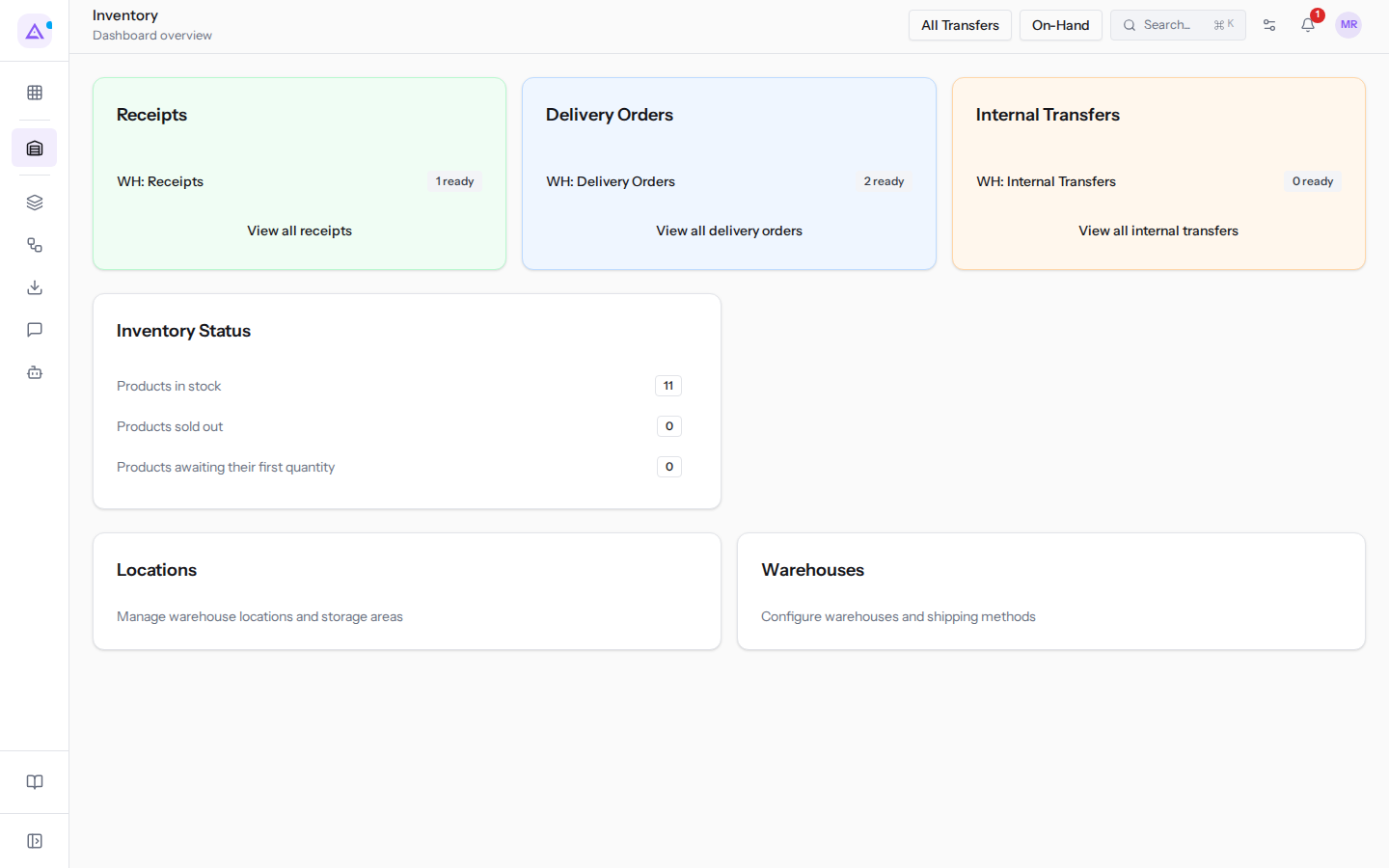
At the top there are two buttons:
- All Transfers: opens the list of all transfers, without filters.
- On-Hand: opens the stock list by product and location.
Below the buttons the screen has three parts: the operation type tiles, the Inventory Status tile and the Locations and Warehouses cards.
Operation type tiles
Each tile groups the operation types of a family: receipts, deliveries and internal transfers. In the example Main Warehouse (code WH) has one type per family: WH: Receipts, WH: Delivery Orders and WH: Internal Transfers.
- Receipts: incoming goods, for example from suppliers. Shows
WH: Receiptswith the number of ready receipts, for example1 ready. - Delivery Orders: outgoing goods to customers. Shows
WH: Delivery Orderswith the number of ready deliveries. - Internal Transfers: movements of goods within the warehouse, with type
WH: Internal Transfers.
The number next to the type counts only ready transfers. In the example the ready receipt is WH/IN/00002, generated from purchase order PO/2026/00003. The ready delivery is WH/OUT/00002, generated from order S00004.
Note: if a warehouse has no operation types for a family, the tile remains empty.
To view the transfers of a family:
- Open Inventory › Overview.
- In the tile you are interested in, click the operation type name or the link at the bottom: View all receipts, View all delivery orders or View all internal transfers.
- The Transfers list opens showing only transfers of that family, for example only receipts.
Inventory Status tile
The Inventory Status tile counts products based on their stock. Each row opens the stock list.
- Products in stock: products with stock. In the example there are 4. Clicking opens On-Hand Inventory with the Stock filter set to In stock.
- Products sold out: products with no stock. Clicking opens the stock list filtered to sold-out products.
- Products awaiting their first quantity: products that do not yet have a recorded quantity. When the number is greater than zero, the counter is highlighted in red. Clicking opens the stock list without filters.
Locations and Warehouses cards
At the bottom of the overview two cards lead to the configuration.
- Locations: with the description
Manage warehouse locations and storage areas. Clicking opens the locations list, for example Stock, Shelf A and Shelf B. - Warehouses: with the description
Configure warehouses and shipping methods. Clicking opens the warehouses list, for example Main Warehouse.
Warehouse and location configuration is reserved for the warehouse manager (Inventory Manager permission). Warehouse staff can view them but cannot modify them.
Transfers list
The Transfers list brings together receipts, deliveries and internal transfers of all operation types.
- Open Inventory › Transfers, or click All Transfers in the overview.
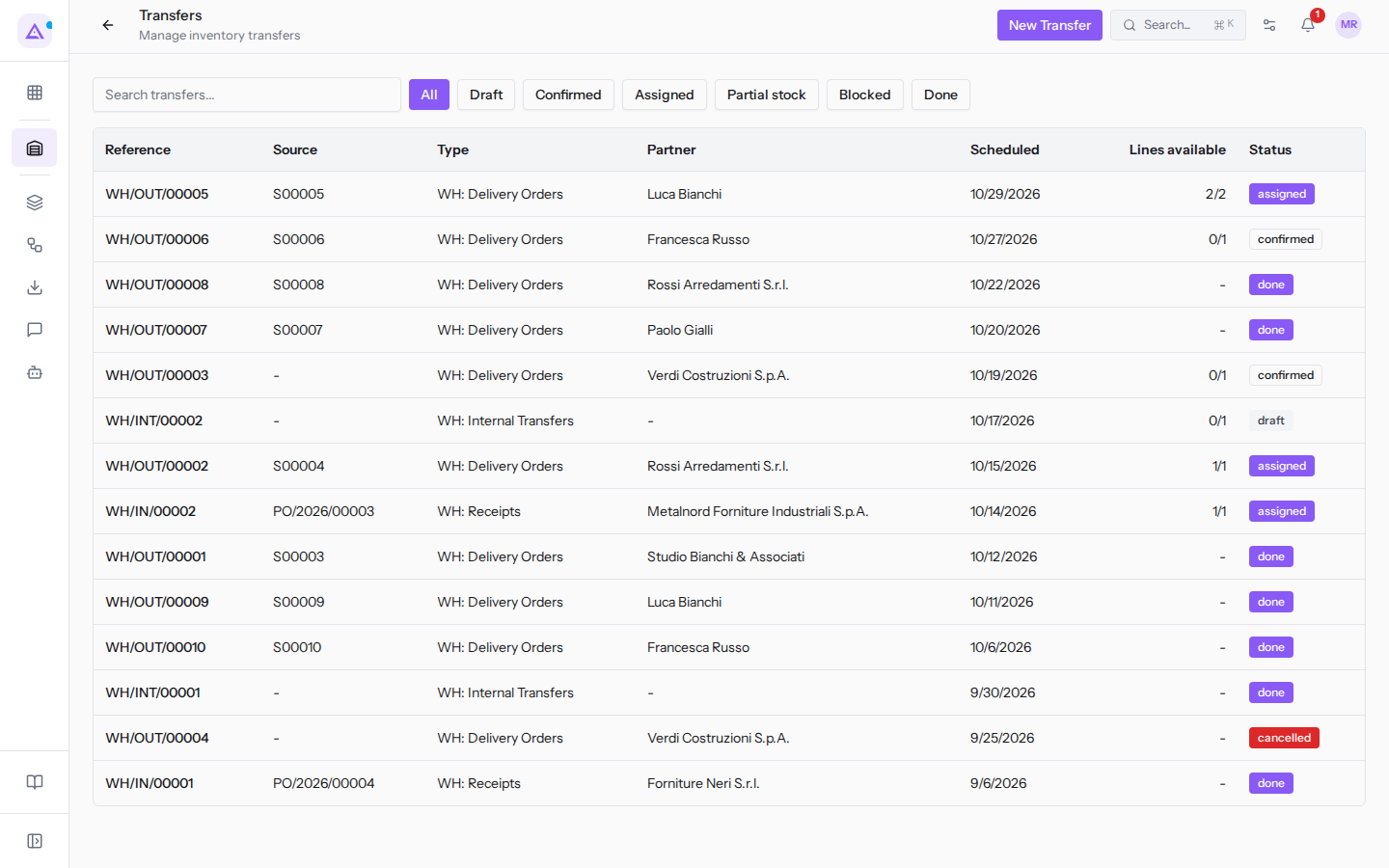
- To search for a transfer, type in the Search transfers... field and press Enter. For example,
WH/OUT/finds deliveries. - To see only transfers of one status, click one of the filters. The selected filter remains highlighted.
- To open a transfer, click its row.
From the list you can also create a transfer with New Transfer.
Filters
- All: removes the status filter.
- Draft: transfers in draft, not yet confirmed, for example WH/INT/00002.
- Confirmed: confirmed transfers with no reserved goods. On the transfer record the status is called Waiting.
- Assigned: transfers with all goods reserved. On the transfer record the status is called Ready.
- Partial stock: transfers for which only part of the goods is reserved.
- Blocked: transfers that the current stock cannot yet cover. Includes those waiting, those with partial stock and those confirmed without all goods reserved. For example WH/OUT/00003 for Verdi Costruzioni S.p.A., which is waiting for 20 lamps.
- Done: completed transfers, for example WH/IN/00001 and WH/OUT/00001.
Columns
- Reference: the transfer number. The prefix indicates the type:
WH/IN/for receipts,WH/OUT/for deliveries,WH/INT/for internal transfers. - Source: the document from which the transfer originates, for example PO/2026/00003 for WH/IN/00002. If absent, a dash is shown.
- Type: the operation type, for example
WH: Delivery Orders. - Partner: the supplier or customer of the transfer.
- Scheduled: the scheduled date.
- Lines available: how many still-open lines have all goods reserved, out of the total open lines, for example 1/2. When no open lines remain, a dash is shown.
- Status: the status of the transfer. The column shows the internal code in English (
draft,confirmed,assigned,done,cancelled) instead of the translated name; only Partial stock appears translated.
See it on your company, not on a slide deck.
In 30 minutes we map the software you use today.We show you how much work and how much margin Archimedes gives back.
Show me on my business →What industry are you in?
One tap — it lets us prepare the demo around your world.
What tools do you use today?
Pick the ones you recognise — or just type them. It helps us show you how they migrate.
Last step: your details.
We reply within one working day — and right after, if you like, you pick the demo slot yourself.
We couldn't send your request. Try again, or write to us at [email protected].
By sending, you agree to your data being processed so we can get back to you about the demo. Privacy notice.
Preview form — nothing is sent from this page.
Want to schedule the demo now?
Your call: book the slot you prefer yourself, or we'll call you to arrange it.
Live availability, 30 minutes, instant confirmation. The calendar opens in a new tab.
Lock in your slot ↗We'll get back to you within one working day — and we'll join the call already knowing your world.
The calendar is open in another tab: pick a slot and the demo is booked. Can't see it? Reopen it ↗
Preview page: nothing was sent.
Our calendar is live: take the slot that suits you and the demo is booked. 30 minutes, instant confirmation, no waiting.
Lock in your slot ↗