Inventory
All modules
Manage lots and serial numbers
Inventory · 7 of 14 · 5 min read
A lot or serial number identifies the stock of a tracked product. In the lot list you can search for a lot or serial, see how much is left in stock and where it is, and follow the transfers it has gone through. For example lot SED-2026-01 of the Ergonomic chair Pro.
How lots and serial numbers work
Each lot or serial belongs to a single product variant. That is why the module asks you to choose the exact variant before creating the lot.
- A tracked product requires the lot or serial number at receipt. Without a lot or serial the receipt cannot be validated.
- With a serial number you need one number per unit, with no repetitions.
- If you enter a new lot on the receipt, the lot is created automatically. For example
SED-2026-02, received with WH/IN/00002. - If you receive stock with a transfer, you do not need to create the lot first. Create the lot manually from this list when you want to register it before arrival or add its dates.
To receive tracked stock see Fulfil a receipt or a delivery.
Search for a lot or serial number
The list shows tracked lots and serials, with their stock and movement history.
- Open Inventory › Lots / Serial Numbers.
- Type the code in the Search lot, serial, or reference field, for example
SED-2026-01. - If needed, narrow the list with the filters.
- Click Search.
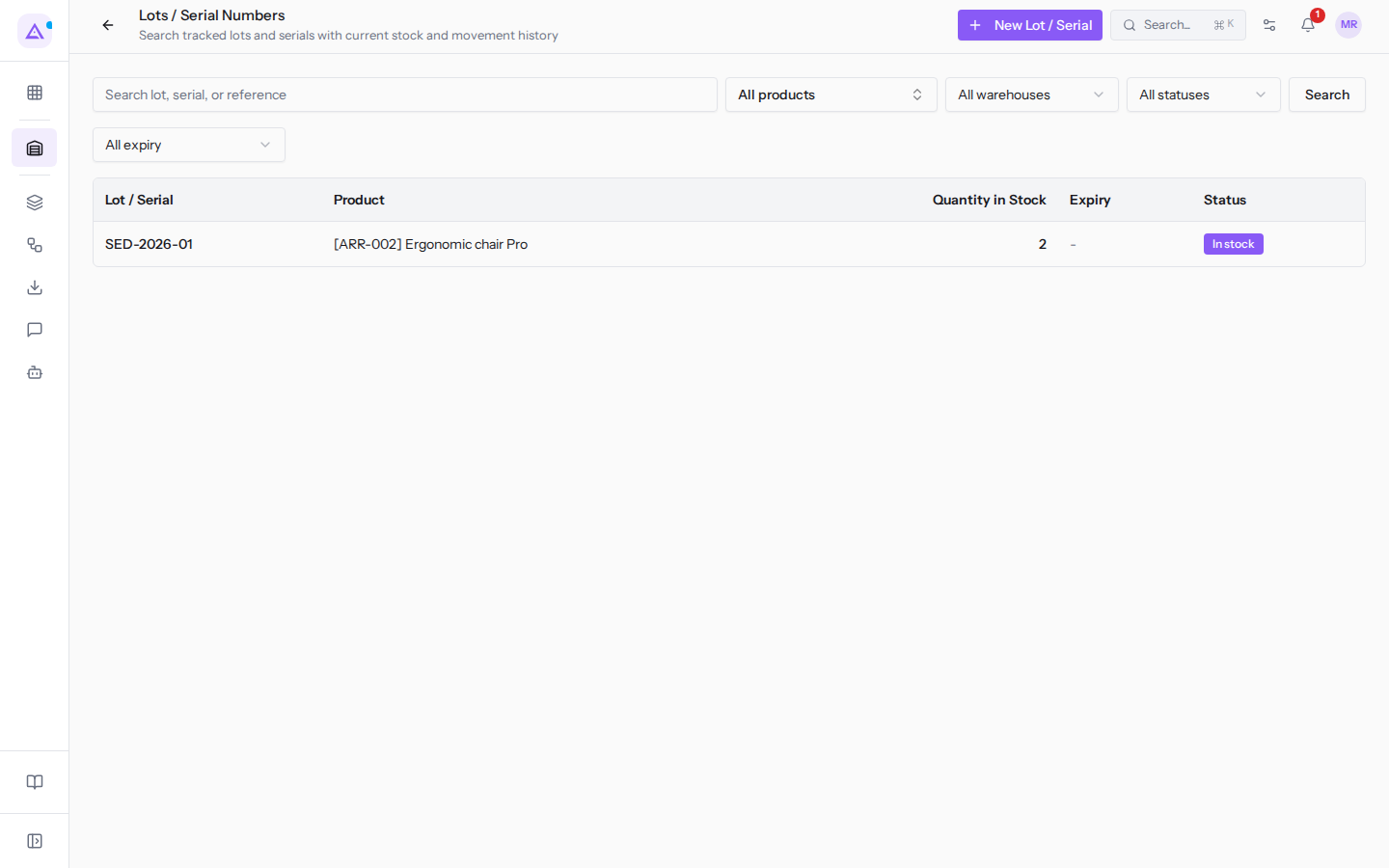
The list filters:
- Product: shows only the lots for a product. Defaults to All products.
- All warehouses: shows only the lots for a warehouse, for example Main Warehouse.
- All statuses: filters by stock.
- In stock: lots with a quantity in stock.
- Out of stock: lots with no quantity in stock.
- All expiry: filters by expiry date.
- Expiring soon: lots with an approaching expiry date.
- Expired: lots with a past expiry date.
In the list each row shows the lot or serial, the product, the Quantity in Stock, the Expiry, and the Status (In stock or Out of stock). Click a lot to open its record.
When at least one lot has an Expiration Date, three summary boxes appear above the list: Expired, lots expiring in the coming days, and With expiry. Clicking Expired or the expiring-soon box applies the corresponding filter.
Create a lot or serial number
Create a lot manually to register it before the stock arrives or to add its dates.
- Open Inventory › Lots / Serial Numbers.
- Click New Lot / Serial.
- Choose the product in Select product variant, for example [ARR-002] Ergonomic chair Pro.
- Type the code in Lot / Serial.
- Fill in the other fields you need.
- Click Save. To exit without saving click Cancel.
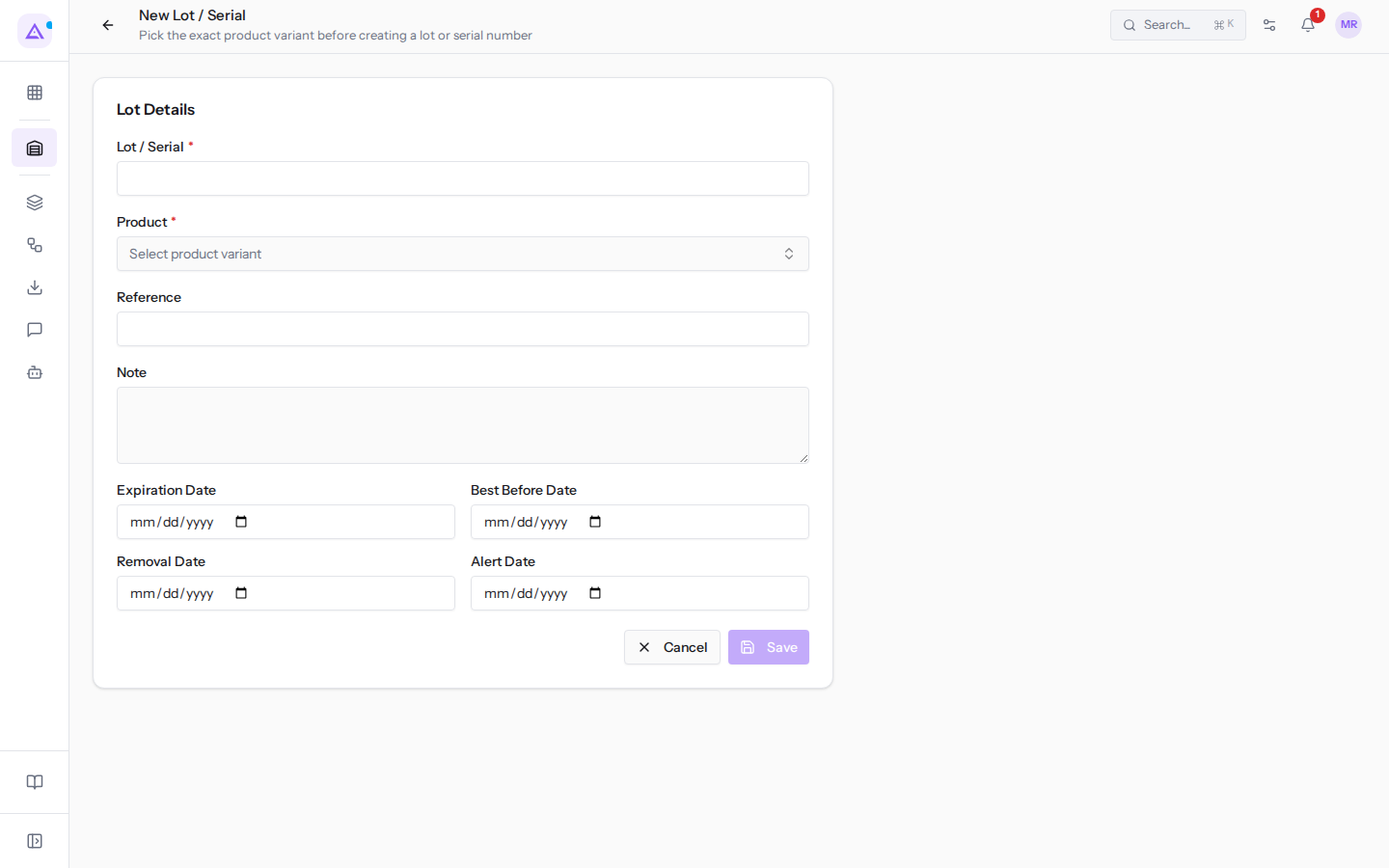
The fields in the Lot Details section:
- Lot / Serial: the lot or serial number code. This field is required.
- Product: the product variant the lot belongs to. You choose it in Select product variant. This field is required.
- Reference: an additional reference, for example the supplier's lot code. The list search also finds this value.
- Note: free text about the lot.
- Expiration Date: the date on which the stock expires. This is the date used by the All expiry filter.
- Best Before Date: the date by which the stock should be consumed.
- Removal Date: the date by which the stock must be removed from the warehouse.
- Alert Date: from the date indicated, the Expiry column in the list shows the Alert status, if the lot also has an Expiration Date. No notification is sent.
Note: dates are optional. A lot without dates does not appear in the Expiring soon and Expired filters.
View a lot record
The record shows where the lot's stock is and the transfers it has passed through.
- Open Inventory › Lots / Serial Numbers.
- Search for the lot, for example
SED-2026-01, and click its code.
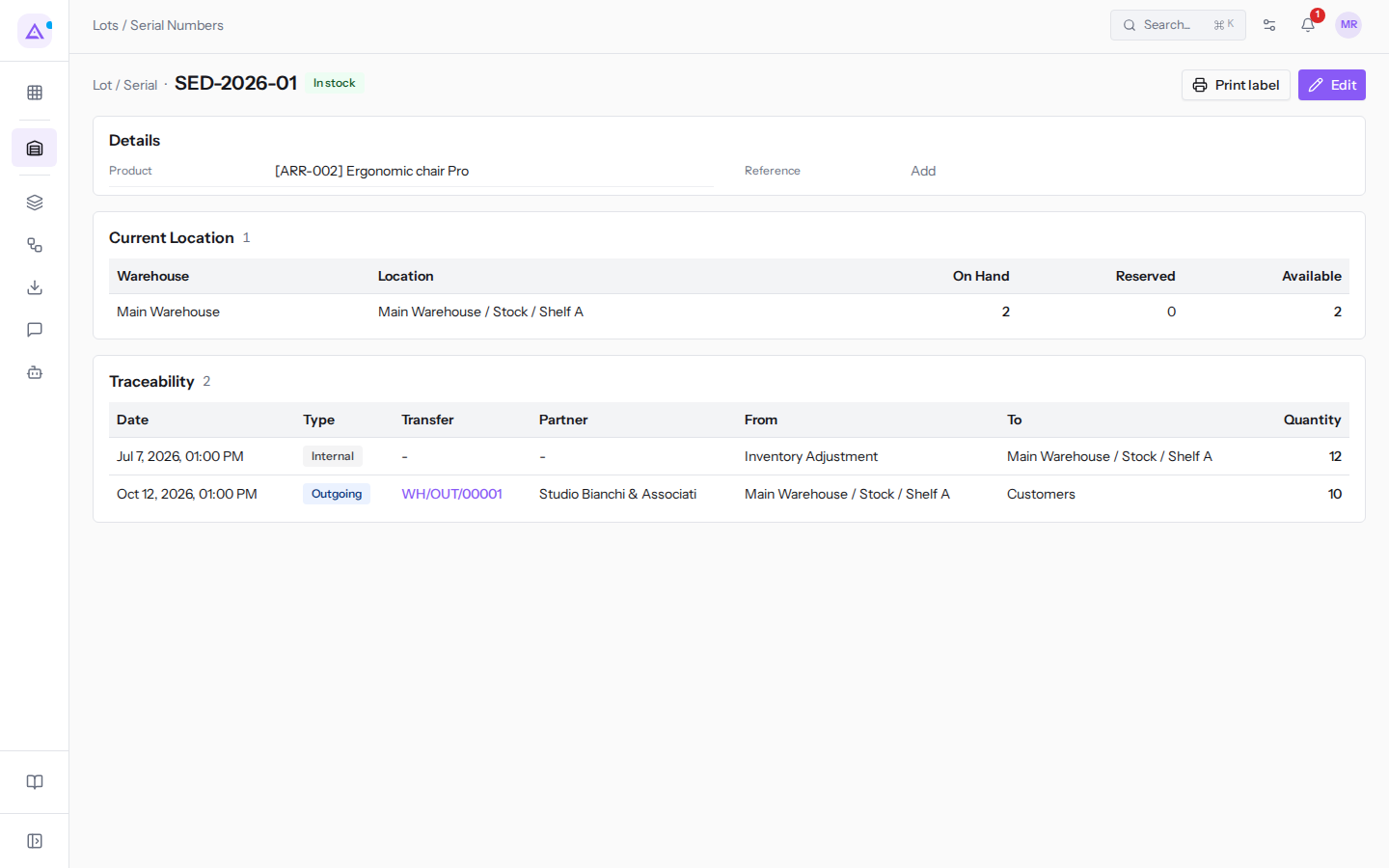
At the top the record shows the lot code and its status, for example In stock. The sections of the record:
- Details: the Product, for example [ARR-002] Ergonomic chair Pro, and the Reference. If the reference is missing, click Add and type it in the Reference field. The lot dates appear here only if the lot has an Expiration Date.
- Current Location: the warehouse and location where the lot's stock is, with the quantity Reserved for open transfers.
- Traceability: the movements the lot has passed through, with the type Incoming, Outgoing, or Internal. For
SED-2026-01there is the stock entry from an adjustment (Internal) and the delivery WH/OUT/00001 (Outgoing). Click the reference to open the transfer.
In the top right you will find the Print label and Edit buttons.
Edit a lot or serial number
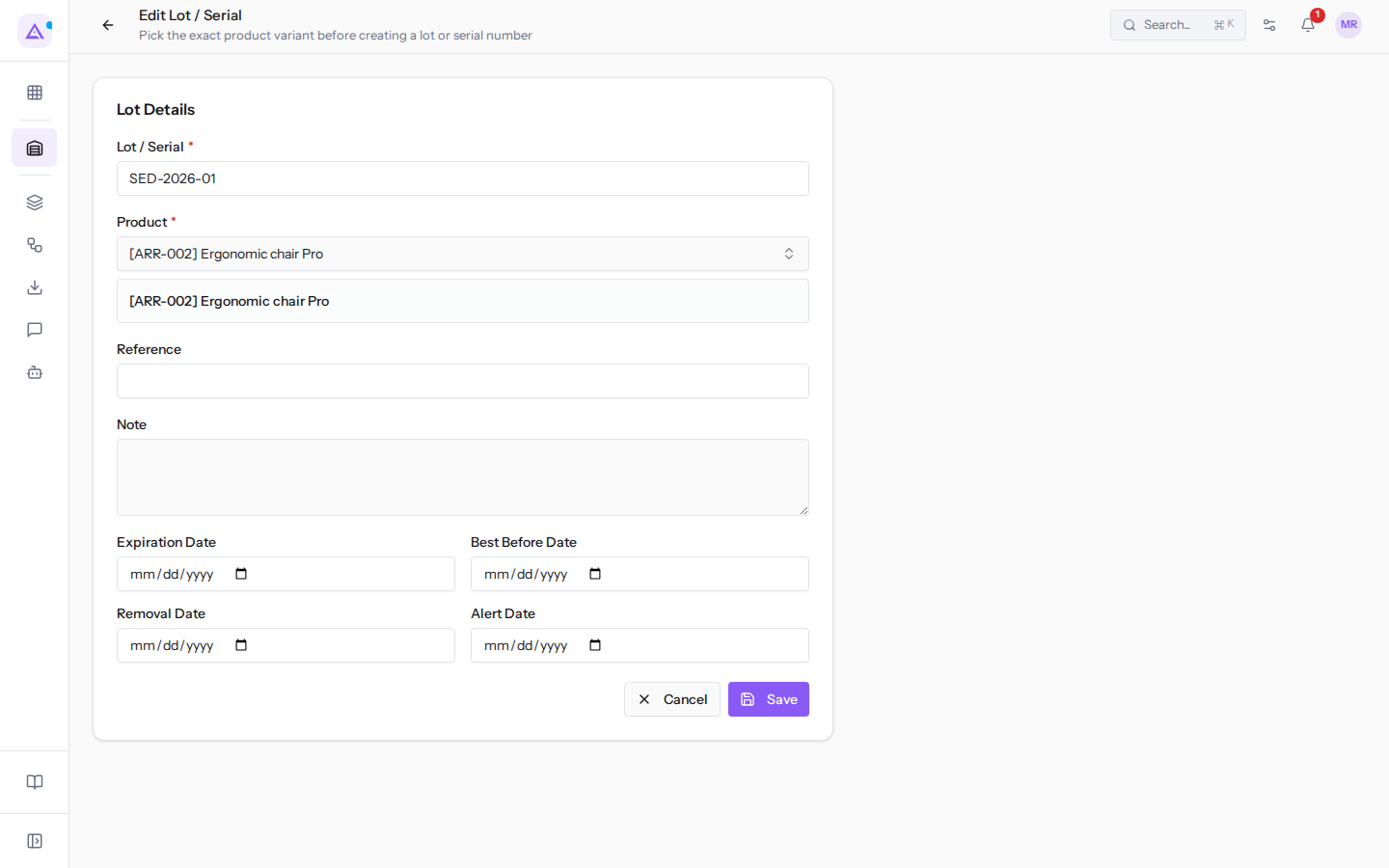
Edit a lot to correct its code or add dates.
- Open the lot record, for example
SED-2026-01. - Click Edit. The Edit Lot / Serial form opens.
- Change the fields. They are the same as in the creation form.
- Click Save.
To see the stock of all products by lot see View stock and adjust a quantity.
See it on your company, not on a slide deck.
In 30 minutes we map the software you use today.We show you how much work and how much margin Archimedes gives back.
Show me on my business →What industry are you in?
One tap — it lets us prepare the demo around your world.
What tools do you use today?
Pick the ones you recognise — or just type them. It helps us show you how they migrate.
Last step: your details.
We reply within one working day — and right after, if you like, you pick the demo slot yourself.
We couldn't send your request. Try again, or write to us at [email protected].
By sending, you agree to your data being processed so we can get back to you about the demo. Privacy notice.
Preview form — nothing is sent from this page.
Want to schedule the demo now?
Your call: book the slot you prefer yourself, or we'll call you to arrange it.
Live availability, 30 minutes, instant confirmation. The calendar opens in a new tab.
Lock in your slot ↗We'll get back to you within one working day — and we'll join the call already knowing your world.
The calendar is open in another tab: pick a slot and the demo is booked. Can't see it? Reopen it ↗
Preview page: nothing was sent.
Our calendar is live: take the slot that suits you and the demo is booked. 30 minutes, instant confirmation, no waiting.
Lock in your slot ↗